
通过此 [Model Context Protocol](https://modelcontextprotocol.io/introduction) 服务器,为 [Cursor](https://cursor.sh/) 和其他 AI 驱动的编码工具提供 Figma 文件访问权限。
当 Cursor 可以访问 Figma 设计数据时,它比粘贴截图等替代方法**更**能一次性准确实现设计。
## 演示
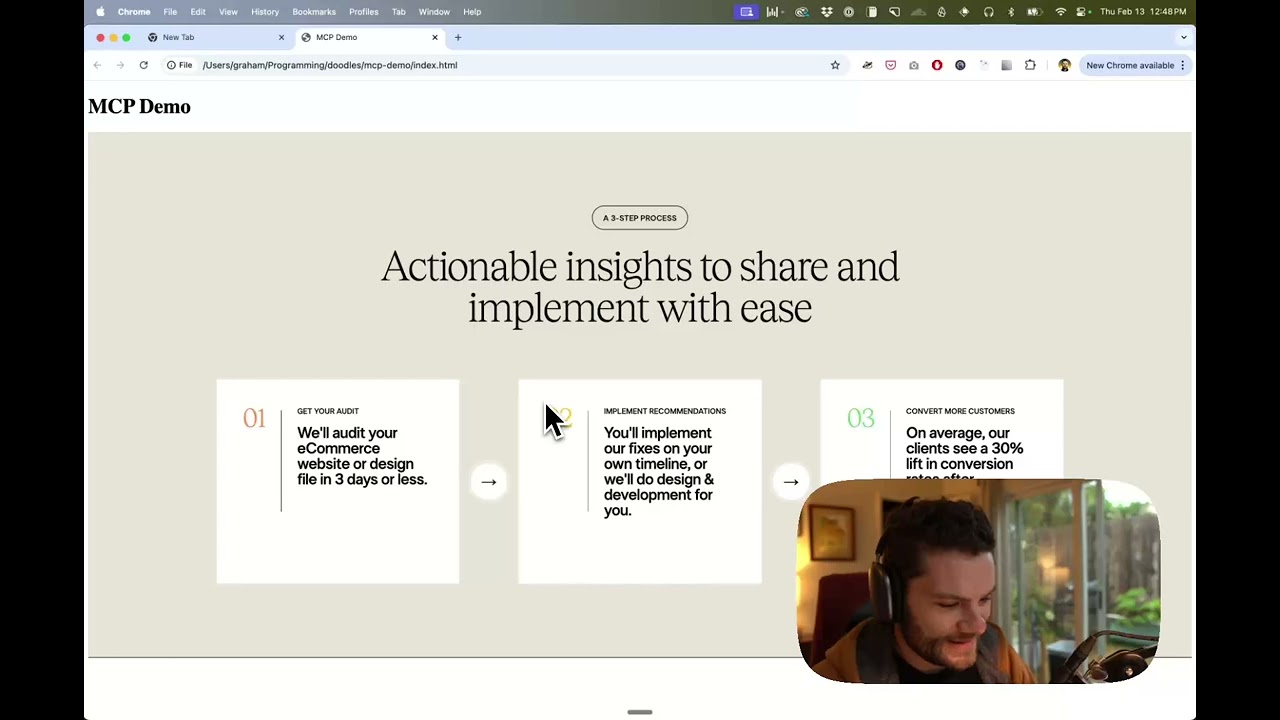
[观看使用 Figma 设计数据在 Cursor 中构建 UI 的演示](https://youtu.be/6G9yb-LrEqg)
[](https://youtu.be/6G9yb-LrEqg)
## 工作原理
1. 打开 IDE 的聊天(例如:Cursor 的代理模式)。
2. 粘贴 Figma 文件、框架或组的链接。
3. 要求 Cursor 对 Figma 文件执行某些操作(例如:实现设计)。
4. Cursor 将从 Figma 获取相关元数据并使用它来编写代码。
此 MCP 服务器专为与 Cursor 一起使用而设计。在从 [Figma API](https://www.figma.com/developers/api) 响应上下文之前,它会简化和翻译响应,以便只向模型提供最相关的布局和样式信息。
减少提供给模型的上下文数量有助于提高 AI 的准确性并使响应更具相关性。
## 开始使用
许多代码编辑器和其他 AI 客户端使用配置文件来管理 MCP 服务器。
可以通过将以下内容添加到配置文件中来设置 `figma-developer-mcp` 服务器。
> 注意:您需要创建 Figma 访问令牌才能使用此服务器。有关如何创建 Figma API 访问令牌的说明,请参见[此处](https://help.figma.com/hc/en-us/articles/8085703771159-Manage-personal-access-tokens)。
### MacOS / Linux
```json
{
"mcpServers": {
"Framelink Figma MCP": {
"command": "npx",
"args": ["-y", "figma-developer-mcp", "--figma-api-key=YOUR-KEY", "--stdio"]
}
}
}
```
### Windows
```json
{
"mcpServers": {
"Framelink Figma MCP": {
"command": "cmd",
"args": ["/c", "npx", "-y", "figma-developer-mcp", "--figma-api-key=YOUR-KEY", "--stdio"]
}
}
}
```
或者您可以在 `env` 字段中设置 `FIGMA_API_KEY` 和 `PORT`。
有关如何配置 Framelink Figma MCP 服务器的更多信息,请参阅 [Framelink 文档](https://www.framelink.ai/docs/quickstart?utm_source=github&utm_medium=readme&utm_campaign=readme)。
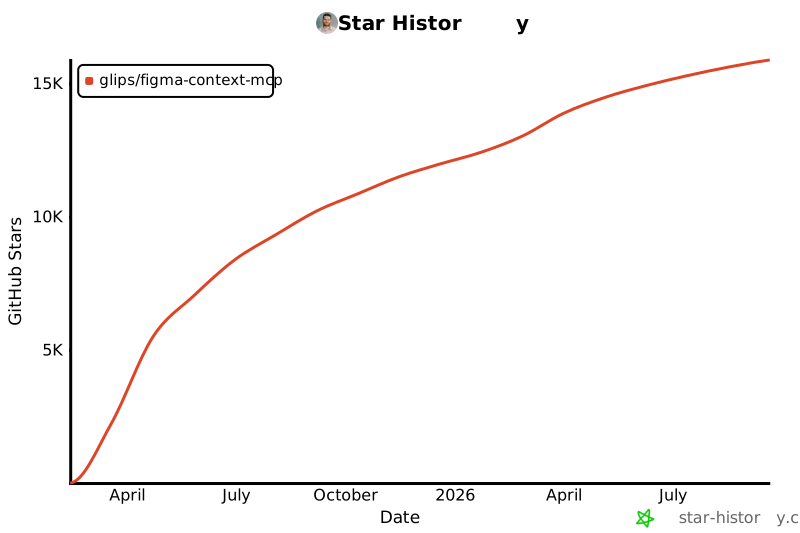
## 星标历史
 ## 了解更多
Framelink Figma MCP 服务器简单但功能强大。在 [Framelink](https://framelink.ai?utm_source=github&utm_medium=readme&utm_campaign=readme) 网站上了解更多信息。
## 了解更多
Framelink Figma MCP 服务器简单但功能强大。在 [Framelink](https://framelink.ai?utm_source=github&utm_medium=readme&utm_campaign=readme) 网站上了解更多信息。