<br>
<br>

<p align="center">
    <a href="https://bryntum.com/" rel="noopener" target="_blank">
        <img height="50" src="https://bryntum.com/resources/bryntum_logo_blue.svg" alt="Bryntum logo">
    </a>
</p>

<br>

# Bryntum Calendar placeholder package

This is a placeholder package. The licensed version of Bryntum Calendar is hosted on the private Bryntum npm registry.

**Looking to try Bryntum Calendar?** Install our trial package: [`@bryntum/calendar-trial`](https://www.npmjs.com/package/@bryntum/calendar-trial)

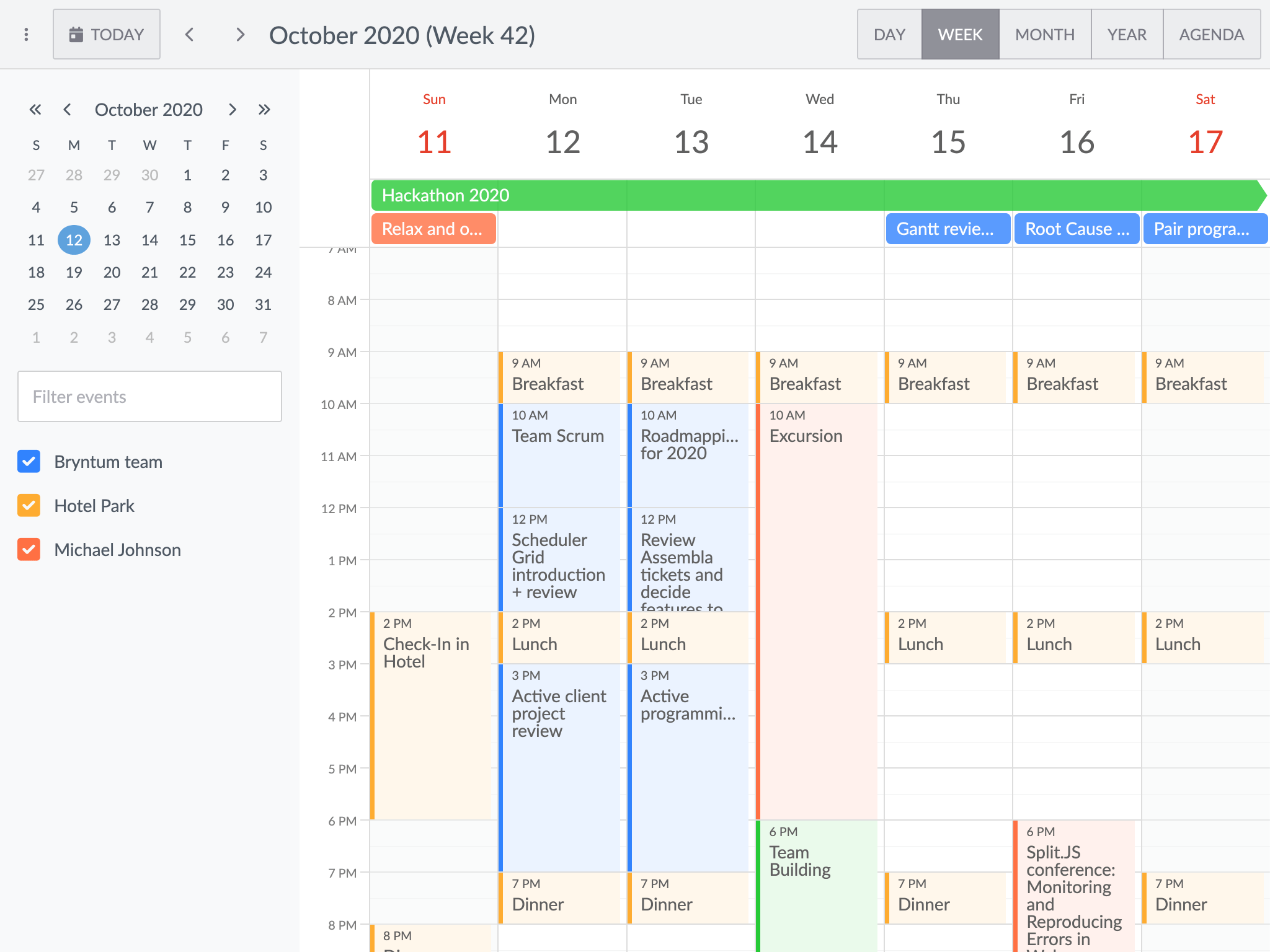
<p align="center">
    <img src="https://bryntum.com/products/calendar/examples/meta/thumb.2048.png" alt="Bryntum Calendar Screenshot" width="600">
</p>

## Trial version

Trial packages are available on the public npm registry without authentication.

### Why Use npm Aliasing?

Trial packages use npm aliasing to install `@bryntum/calendar-trial` under the `@bryntum/calendar` name. This approach
provides a seamless upgrade path - when you purchase a license, you only need to update the alias in `package.json`
without changing any application code.

Install using `npm`:

```bash
npm install @bryntum/calendar@npm:@bryntum/calendar-trial@latest
```

Or using `yarn`:

```bash
yarn add @bryntum/calendar@npm:@bryntum/calendar-trial@latest
```

Alternatively, add to `package.json` dependencies:

```json
"dependencies": {
  "@bryntum/calendar": "npm:@bryntum/calendar-trial@latest"
}
```

Trial packages have the following limitations:

- Displays a trial watermark
- Obfuscated code
- Intended for evaluation use only

For full guide, see [Public repository access](https://bryntum.com/products/calendar/docs/guide/Calendar/npm/repository/public-repository-access).

## Licensed version

Licensed packages require authentication to the private Bryntum repository.

### Step 1: Configure npm and Login

We have two registry servers - you can use either one:

**Using Europe server:**

```bash
npm config set "@bryntum:registry=https://npm.bryntum.com"
npm login --registry=https://npm.bryntum.com
```

**Using US server:**

```bash
npm config set "@bryntum:registry=https://npm-us.bryntum.com"
npm login --registry=https://npm-us.bryntum.com
```

Login using your [Bryntum Customer Zone](https://customerzone.bryntum.com) credentials.
Replace `@` in your email with `..` (double dot). Example: if your email is `user@example.com`, enter username
as `user..example.com`.

### Step 2: Install

```bash
npm install @bryntum/calendar@latest
```

For full guide including CI/CD setup and access tokens, see [Private repository access](https://bryntum.com/products/calendar/docs/guide/Calendar/npm/repository/private-repository-access).

## Explore All Bryntum Products

* [Bryntum Grid](https://bryntum.com/products/grid/) - High-performance data grid
* [Bryntum Scheduler](https://bryntum.com/products/scheduler/) - Resource scheduling component
* [Bryntum Scheduler Pro](https://bryntum.com/products/schedulerpro/) - Advanced scheduling with dependencies
* [Bryntum Gantt](https://bryntum.com/products/gantt/) - Project planning and management
* [Bryntum Calendar](https://bryntum.com/products/calendar/) - Full-featured calendar component
* [Bryntum TaskBoard](https://bryntum.com/products/taskboard/) - Kanban-style task management

Explore our comprehensive collection of demos:

| Product           |   <img src="https://bryntum.com/products/grid/docs/data/Core/images/logo/js.svg" alt="JavaScript" width="30"><br>JavaScript    |  <img src="https://bryntum.com/products/grid/docs/data/Core/images/logo/react.svg" alt="React" width="30"><br>React  |   <img src="https://bryntum.com/products/grid/docs/data/Core/images/logo/vue.svg" alt="Vue" width="30"><br>Vue   | <img src="https://bryntum.com/products/grid/docs/data/Core/images/logo/angular.svg" alt="Angular" width="30"><br>Angular |
|-------------------|:------------------------------------------------------------------------------------:|:--------------------------------------------------------------------------:|:----------------------------------------------------------------------:|:------------------------------------------------------------------------------:|
| **Grid**          |         [Grid JavaScript demos](https://bryntum.com/products/grid/examples/?framework=javascript)          |         [Grid React demos](https://bryntum.com/products/grid/examples/?framework=react)          |         [Grid Vue demos](https://bryntum.com/products/grid/examples/?framework=vue)          |         [Grid Angular demos](https://bryntum.com/products/grid/examples/?framework=angular)          |
| **Scheduler**     |    [Scheduler JavaScript demos](https://bryntum.com/products/scheduler/examples/?framework=javascript)     |    [Scheduler React demos](https://bryntum.com/products/scheduler/examples/?framework=react)     |    [Scheduler Vue demos](https://bryntum.com/products/scheduler/examples/?framework=vue)     |    [Scheduler Angular demos](https://bryntum.com/products/scheduler/examples/?framework=angular)     |
| **Scheduler Pro** | [Scheduler Pro JavaScript demos](https://bryntum.com/products/schedulerpro/examples/?framework=javascript) | [Scheduler Pro React demos](https://bryntum.com/products/schedulerpro/examples/?framework=react) | [Scheduler Pro Vue demos](https://bryntum.com/products/schedulerpro/examples/?framework=vue) | [Scheduler Pro Angular demos](https://bryntum.com/products/schedulerpro/examples/?framework=angular) |
| **Gantt**         |        [Gantt JavaScript demos](https://bryntum.com/products/gantt/examples/?framework=javascript)         |        [Gantt React demos](https://bryntum.com/products/gantt/examples/?framework=react)         |        [Gantt Vue demos](https://bryntum.com/products/gantt/examples/?framework=vue)         |        [Gantt Angular demos](https://bryntum.com/products/gantt/examples/?framework=angular)         |
| **Calendar**      |     [Calendar JavaScript demos](https://bryntum.com/products/calendar/examples/?framework=javascript)      |     [Calendar React demos](https://bryntum.com/products/calendar/examples/?framework=react)      |     [Calendar Vue demos](https://bryntum.com/products/calendar/examples/?framework=vue)      |     [Calendar Angular demos](https://bryntum.com/products/calendar/examples/?framework=angular)      |
| **TaskBoard**     |    [TaskBoard JavaScript demos](https://bryntum.com/products/taskboard/examples/?framework=javascript)     |    [TaskBoard React demos](https://bryntum.com/products/taskboard/examples/?framework=react)     |    [TaskBoard Vue demos](https://bryntum.com/products/taskboard/examples/?framework=vue)     |    [TaskBoard Angular demos](https://bryntum.com/products/taskboard/examples/?framework=angular)     |

## Online references

* [Bryntum Calendar documentation](https://bryntum.com/products/calendar/docs/)
* [Bryntum Calendar examples](https://bryntum.com/products/calendar/examples/)

* [Bryntum Support Forum](https://forum.bryntum.com/)
* [Contact us](https://bryntum.com/contact/)

## License and copyright

Bryntum Calendar is commercial software and requires a paid license.
Please visit the [Bryntum Calendar End User License](https://bryntum.com/products/calendar/license/) for the full text of the license.

Copyright © 2009-2026, Bryntum
All rights reserved.