# @candoa/chatbot

🚀 **Headless React Chatbot Widget with TypeScript & TailwindCSS Support**

A powerful, customizable React chatbot component that provides headless architecture with built-in hooks for modern chat experiences. Perfect for developers who want full control over their AI chatbot UI while leveraging robust state management.

## 🔍 **Perfect for developers searching for:**

- React chatbot component
- Headless chatbot widget
- TypeScript chatbot library
- TailwindCSS chat widget
- Customizable AI chat interface
- React hooks for chat functionality
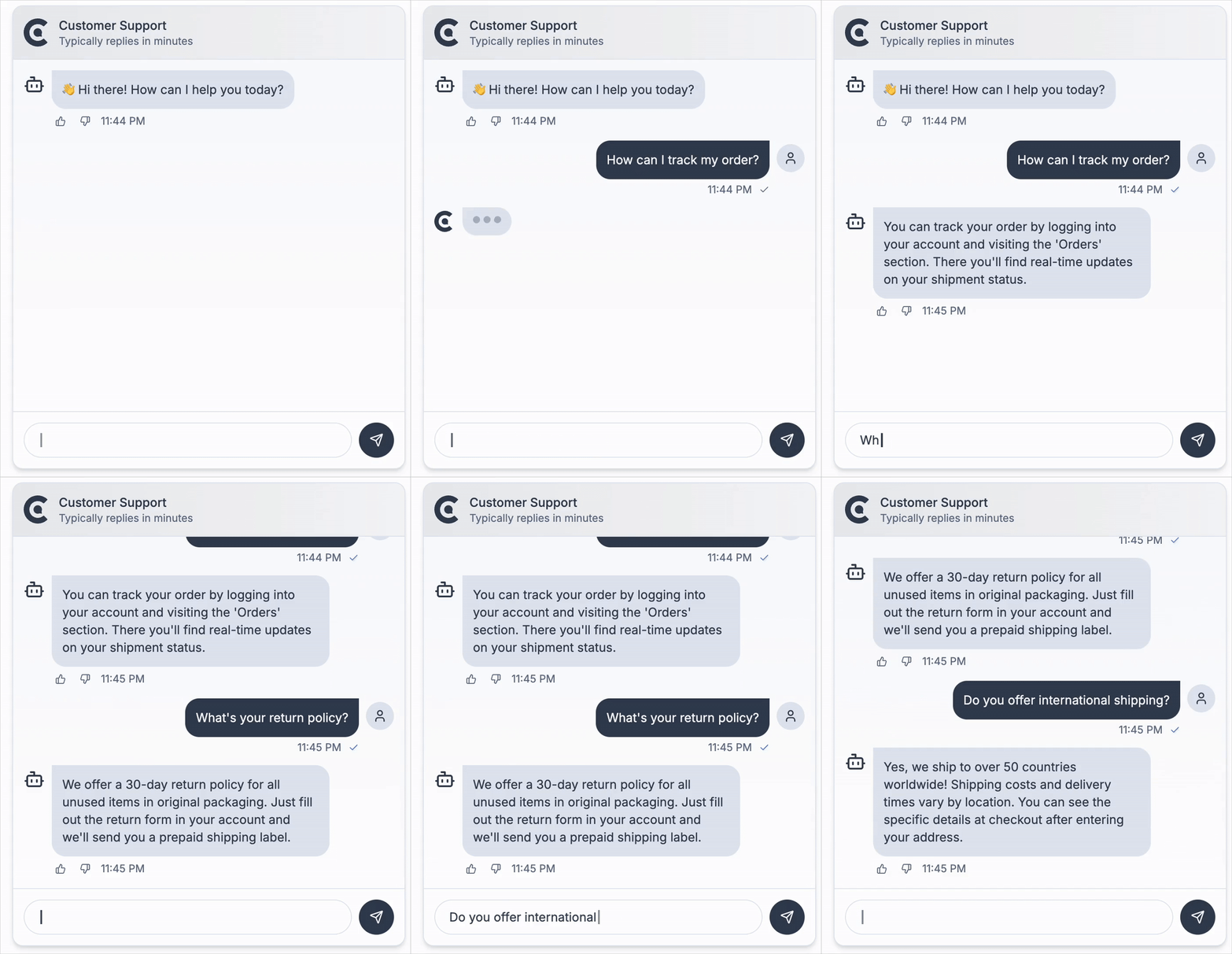
![Candoa Chatbot Demo](https://candoa-public.s3.us-east-2.amazonaws.com/chatbot-ezgif.com-loop-count.gif)

## ✨ Features

### 🎯 **Headless Architecture**

- Complete UI flexibility while handling complex state management
- Build your own chat interface with any CSS framework (TailwindCSS, styled-components, etc.)
- Zero UI assumptions - you control every pixel

### 💻 **Developer Experience**

- **TypeScript Support**: Full type safety and IntelliSense
- **React Hooks**: Modern React patterns with `useChatbot` hook
- **TailwindCSS Ready**: Pre-built examples with TailwindCSS classes
- **SSR Compatible**: Works with Next.js, Remix, and other SSR frameworks
- **Minimal Dependencies**: Lightweight bundle size

### 🚀 **Chat Features**

- 💾 **Conversation Persistence**: Automatic saving and loading of conversation history
- ✉️ **Greeting Messages**: Support for initial bot messages when starting a new chat
- 🔄 **Conversation Management**: Load, clear, and manage chat sessions with ease
- ⚠️ **Error Handling**: Built-in error state management
- 🔄 **Real-time Updates**: Smooth typing indicators and message updates

---

## 🎯 **Why Choose This React Chatbot?**

### vs. Other React Chat Libraries

- ✅ **Truly Headless**: Unlike other chatbot widgets, we don't force any UI decisions
- ✅ **TypeScript First**: Built with TypeScript for better developer experience
- ✅ **Modern React**: Uses latest React patterns and hooks
- ✅ **Framework Agnostic**: Works with Next.js, Vite, Create React App, Remix
- ✅ **Styling Freedom**: Use TailwindCSS, CSS Modules, styled-components, or any CSS solution

### Common Use Cases

- 🏢 **Customer Support Chatbots** - Add AI support to your SaaS
- 📚 **Documentation Assistants** - Help users navigate your docs
- 🛒 **E-commerce Chat** - Product recommendations and support
- 🎓 **Educational Platforms** - Interactive learning assistants
- 💼 **Internal Tools** - Employee help desks and knowledge bases

---

⭐ **If this package helps you, please consider giving it a star on GitHub!** ⭐

---

## Installation

```bash
# npm
npm install @candoa/chatbot

# yarn
yarn add @candoa/chatbot

# pnpm
pnpm add @candoa/chatbot
```

## Get Started

### Option 1: Complete AI Solution ❤️

For a complete AI chatbot solution with knowledge base training, analytics, and conversation management:

- **Learn more**: [candoa.app](https://candoa.app)

Features include:

- Train your AI on your own data
- Get your project ID
- Access conversation analytics
- Manage customer interactions

### Option 2: Fork & Connect Your Backend

This package is open source! Feel free to fork it and connect to your own backend infrastructure.

## Usage

```tsx
import { useChatbot } from '@candoa/chatbot'

function MyChatbot() {
  const { state, actions } = useChatbot('your-project-id', {
    greetings: ['Hello! How can I assist you today?'],
  })

  return (
    <div>
      {/* Your custom chat UI using state and actions */}
      {state.messages.map((message) => (
        <div key={message.id}>{message.text}</div>
      ))}
      <button onClick={() => actions.sendMessage('Hello')}>Send Message</button>
    </div>
  )
}
```

### shadcn/ui Example

Here's a complete example using **shadcn/ui** components for a modern, accessible chat interface:

> **Note**: This is a styling example using shadcn/ui components. Make sure you have shadcn/ui installed and configured in your project.

```tsx
'use client'

import { ChatbotWidget } from '@candoa/chatbot'
import {
  Popover,
  PopoverContent,
  PopoverTrigger,
} from '@/components/ui/popover'
import { Button } from '@/components/ui/button'
import { Input } from '@/components/ui/input'
import { ScrollArea } from '@/components/ui/scroll-area'
import { MessageSquare, RefreshCw, Send, X } from 'lucide-react'
import { cn } from '@/lib/utils'
import { useEffect, useRef } from 'react'

export function ClientChatbot() {
  return (
    <ChatbotWidget
      projectId="your-project-id"
      greetings={['Hello! How can I assist you today?']}
    >
      {({
        isOpen,
        messages,
        error,
        isTyping,
        onSendMessage,
        onToggleOpen,
        onClose,
        onClearError,
        onClearMessages,
      }) => {
        const messagesEndRef = useRef<HTMLDivElement>(null)
        const previousMessageCount = useRef(messages.length)

        // Auto-scroll to bottom when messages change or when chat opens
        useEffect(() => {
          if (isOpen) {
            // Check if this is a new message being added
            const isNewMessage = messages.length > previousMessageCount.current

            if (isNewMessage || isTyping) {
              setTimeout(() => {
                if (messagesEndRef.current) {
                  messagesEndRef.current.scrollIntoView({
                    behavior: 'auto',
                    block: 'end',
                  })
                }
              }, 50)
            }

            previousMessageCount.current = messages.length
          }
        }, [messages.length, isTyping, isOpen])

        return (
          <Popover
            open={isOpen}
            onOpenChange={onToggleOpen}
          >
            <PopoverTrigger asChild>
              <Button
                size="icon"
                className="fixed bottom-6 right-6 z-40 h-14 w-14 rounded-full shadow-lg"
              >
                <MessageSquare className="scale-150" />
              </Button>
            </PopoverTrigger>
            <PopoverContent
              align="end"
              sideOffset={16}
              alignOffset={0}
              className="w-96 p-0 mr-2 rounded-xl shadow-lg border bg-background text-foreground"
              side="top"
            >
              {/* Chat Header */}
              <div className="flex items-center justify-between border-b p-3">
                <div className="flex items-center gap-2">
                  <div className="h-8 w-8 rounded-full bg-primary flex items-center justify-center">
                    <MessageSquare className="h-4 w-4 text-primary-foreground" />
                  </div>
                  <div>
                    <h3 className="font-semibold text-sm">Customer Support</h3>
                    <p className="text-xs text-muted-foreground">
                      Typically replies in minutes
                    </p>
                  </div>
                </div>
                <div className="flex items-center gap-1">
                  <Button
                    variant="ghost"
                    size="icon"
                    className="h-7 w-7"
                    onClick={onClearMessages}
                    title="Clear chat history"
                  >
                    <RefreshCw className="h-4 w-4" />
                    <span className="sr-only">Clear Chat</span>
                  </Button>
                  <Button
                    variant="ghost"
                    size="icon"
                    className="h-7 w-7"
                    onClick={onClose}
                  >
                    <X className="h-4 w-4" />
                    <span className="sr-only">Close</span>
                  </Button>
                </div>
              </div>

              {/* Chat Messages */}
              <div className="h-[400px] space-y-4 overflow-y-auto p-4">
                {messages.map((message) => (
                  <div
                    key={message.id}
                    className={cn('flex', {
                      'justify-end': message.isUser,
                      'justify-start': !message.isUser,
                    })}
                  >
                    <div
                      className={cn(
                        'max-w-[75%] rounded-lg px-3 py-2 text-sm',
                        {
                          'bg-primary text-primary-foreground': message.isUser,
                          'bg-muted text-muted-foreground': !message.isUser,
                        },
                      )}
                    >
                      {message.text}
                    </div>
                  </div>
                ))}

                {isTyping && (
                  <div className="flex justify-start">
                    <div className="rounded-lg bg-muted p-3">
                      <div className="flex space-x-1">
                        <div className="w-2 h-2 rounded-full bg-foreground/30 animate-bounce"></div>
                        <div className="w-2 h-2 rounded-full bg-foreground/30 animate-bounce delay-150"></div>
                        <div className="w-2 h-2 rounded-full bg-foreground/30 animate-bounce delay-300"></div>
                      </div>
                    </div>
                  </div>
                )}

                {/* Invisible element to scroll to */}
                <div ref={messagesEndRef} />
              </div>

              {/* Error message */}
              {error && (
                <div className="text-xs text-destructive m-3 p-2 bg-destructive/10 rounded-md flex justify-between items-center">
                  <span>{error}</span>
                  <Button
                    variant="ghost"
                    size="sm"
                    onClick={onClearError}
                    className="h-auto py-1 px-1.5 text-xs"
                  >
                    Dismiss
                  </Button>
                </div>
              )}

              {/* Chat Input */}
              <div className="p-3 border-t">
                <form
                  className="flex w-full gap-2"
                  onSubmit={(e) => {
                    e.preventDefault()
                    const input = e.currentTarget.elements.namedItem(
                      'message',
                    ) as HTMLInputElement
                    if (input.value) {
                      onSendMessage(input.value)
                      input.value = ''
                    }
                  }}
                >
                  <Input
                    type="text"
                    autoFocus
                    name="message"
                    placeholder="Ask me anything..."
                    className="flex-1 h-9 text-sm text-foreground placeholder:text-muted-foreground focus:outline-none focus:ring-2 focus:ring-ring focus:ring-offset-2 selection:bg-primary selection:text-primary-foreground"
                    autoComplete="off"
                  />
                  <Button
                    type="submit"
                    size="icon"
                    className="h-9 w-9 rounded-full"
                  >
                    <Send className="h-4 w-4" />
                    <span className="sr-only">Send</span>
                  </Button>
                </form>
              </div>
            </PopoverContent>
          </Popover>
        )
      }}
    </ChatbotWidget>
  )
}
```

This example demonstrates:

- **shadcn/ui Integration**: Uses Popover, Button, Input, and other shadcn/ui components
- **Auto-scroll Functionality**: Automatically scrolls to the bottom when new messages arrive or chat opens
- **Theme Awareness**: Automatically adapts to light/dark themes using CSS variables
- **Accessibility**: Proper ARIA labels and keyboard navigation
- **Modern Design**: Clean, professional interface with proper spacing and typography
- **Responsive Layout**: Works well on different screen sizes
- **Conversation Persistence**: Maintains chat history across page refreshes

## Getting Your Project ID

To use the chatbot with Candoa's AI solution, get your project ID from [candoa.app](https://candoa.app):

1. Sign up or log in to your Candoa CRM
2. Click on your **profile name** in the top navigation
3. In the profile dropdown, you'll see a **Projects** tab
4. Under the Projects tab, you'll find your **Project ID**

The project ID connects your chatbot to your trained AI model and knowledge base.

## Using Your Own Backend (Optional)

By default, the chatbot connects to Candoa's hosted AI service. If you prefer to use your own backend implementation, you can specify a custom API URL:

**With the `useChatbot` hook:**

```tsx
const { state, actions } = useChatbot('your-project-id', {
  greetings: ['Hello! How can I assist you today?'],
})
```

**With the `ChatbotWidget` component:**

```tsx
<ChatbotWidget
  projectId="your-project-id"
  greetings={['Hello! How can I assist you today?']}
>
  {/* Your render prop content */}
</ChatbotWidget>
```

Your backend needs to implement the chatbot API endpoints (`/api/chatbot` and `/api/messages`) to handle chat requests and conversation history.

## API Reference

### `useChatbot` Hook

The core hook that powers the chatbot functionality.

```tsx
const { state, actions } = useChatbot(projectId, options)
```

#### Parameters

- `projectId` (string): Unique identifier for the project
- `options` (object):
  - `title` (string, optional): Chat title
  - `greetings` (string[], optional): Initial greeting messages
  - `icon` (React component, optional): Icon component for the chat
  - `initialConversationId` (string, optional): Load a specific conversation initially
  - `apiUrl` (string, optional): Base URL for API calls to your backend (e.g., 'https://your-api-domain.com').

#### Returns

An object with two properties:

- `state` (object):

  - `isOpen` (boolean): Whether the chat is open
  - `messages` (Message[]): Current chat messages
  - `error` (string | null): Error message, if any
  - `isTyping` (boolean): Whether the bot is "typing"
  - `hasActiveConversation` (boolean): Whether there is an active conversation

- `actions` (object):
  - `setIsOpen` (function): Open or close the chat
  - `sendMessage` (function): Send a message to the bot
  - `clearMessages` (function): Clear the conversation history
  - `clearError` (function): Clear any error messages
  - `loadConversation` (function): Load a conversation by ID

### `ChatbotWidget` Component

A render prop component that provides a complete chatbot interface.

```tsx
<ChatbotWidget projectId={projectId} {...options}>
  {(renderProps) => (
    // Your custom UI using renderProps
  )}
</ChatbotWidget>
```

#### Props

- `projectId` (string): Unique identifier for the project
- `title` (string, optional): Chat title
- `greetings` (string[], optional): Initial greeting messages
- `icon` (React component, optional): Icon component for the chat
- `apiUrl` (string, optional)
- `children` (function): Render prop function that receives the chatbot state and actions

#### Render Props

The render prop function receives an object with the following properties:

- `isOpen` (boolean): Whether the chat is open
- `messages` (Message[]): Current chat messages
- `error` (string | null): Error message, if any
- `isTyping` (boolean): Whether the bot is "typing"
- `hasActiveConversation` (boolean): Whether there is an active conversation
- `onSendMessage` (function): Send a message to the bot
- `onToggleOpen` (function): Toggle the chat open/closed state
- `onClose` (function): Close the chat
- `onClearMessages` (function): Clear the conversation history
- `onClearError` (function): Clear any error messages
- `onLoadConversation` (function): Load a conversation by ID

### Types

```typescript
type Message = {
  id: string
  text: string
  isUser: boolean
  timestamp: Date
}
```

## License

MIT © Candoa
