# React Geocoder Autocomplete
[](https://geoapify.github.io/react-geocoder-autocomplete/)
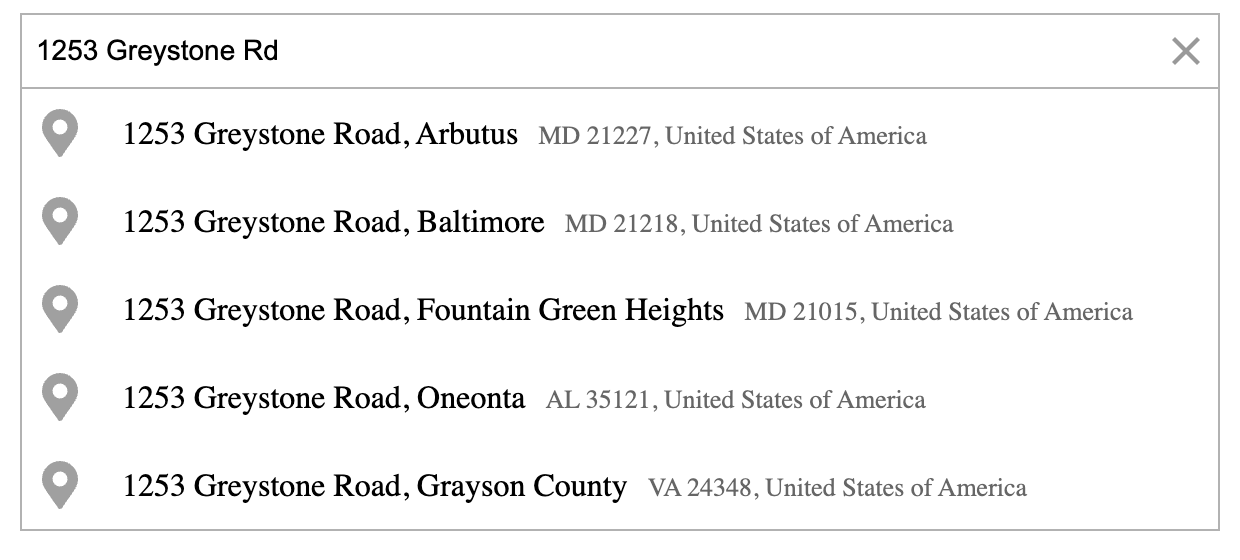
The **React Geocoder Autocomplete** component integrates the core [@geoapify/geocoder-autocomplete](https://www.npmjs.com/package/@geoapify/geocoder-autocomplete) library into React.
It provides an easy-to-use React wrapper for the [Geoapify Geocoding Autocomplete API](https://www.geoapify.com/address-autocomplete/), allowing developers to add advanced, localized, and flexible address search functionality to their applications.
## Table of Contents
- [Features](#features)
- [Quick Start](#quick-start)
- [Compatibility](#compatibility)
- [Documentation](#documentation)
- [Examples](#examples)
- [Learn More](#learn-more)
- [Contributions and Support](#contributions-and-support)
## Features
* Simple React integration with a ready-to-use component.
* Fast, responsive incremental search with built-in debounce.
* Localized suggestions with support for multiple languages and country filters.
* Flexible configuration: biasing, filtering, and bounding boxes.
* Customizable design: easily style or theme your component.
* Accessible with keyboard navigation and ARIA support.
* Rich results including coordinates, structured address, and metadata.
* Compatible with React 18–19.
## Quick Start
You'll need a **Geoapify API key** to use the component.
1. Register for a free account at [myprojects.geoapify.com](https://myprojects.geoapify.com/).
2. Create a project to obtain your API key.
3. You can start for free — Geoapify offers a generous [Freemium plan](https://www.geoapify.com/pricing/).
### 1. Install
```bash
npm install @geoapify/geocoder-autocomplete @geoapify/react-geocoder-autocomplete
# or
yarn add @geoapify/geocoder-autocomplete @geoapify/react-geocoder-autocomplete
```
Get a Geoapify API key: [https://myprojects.geoapify.com](https://myprojects.geoapify.com)
### 2. Import styles and components
Import the CSS style file from `@geoapify/geocoder-autocomplete` and the React components from `@geoapify/react-geocoder-autocomplete`:
```tsx
import '@geoapify/geocoder-autocomplete/styles/minimal.css';
import {
GeoapifyContext,
GeoapifyGeocoderAutocomplete
} from '@geoapify/react-geocoder-autocomplete';
```
Themes: minimal, round-borders, minimal-dark, round-borders-dark.
### 3. Add GeoapifyContext
Wrap your component with the `GeoapifyContext` and provide your API key:
```tsx
{/* Your components go here */}
```
Tip: Store your API key in an environment variable and reference it as `process.env.REACT_APP_GEOAPIFY_KEY` for better maintainability.
### 4. Use the component
Basic:
```tsx
```
With events and common options:
```tsx
```
```tsx
const onPlaceSelected = (feature) => {
console.log('Selected:', feature?.properties?.formatted);
};
const onSuggestionsChange = (list) => {
console.log('Suggestions:', list);
};
```
## Compatibility
| @geoapify/react-geocoder-autocomplete | React Version |
| ------------------------------------- | -------------------- |
| 1.0.x – 1.1.x | >= 16.8.0 |
| 1.2.x – 1.3.x | >= 17.0.0 |
| 1.4.x – 1.5.x | >= 18.0.0 |
| 2.0.x – 2.2.x | >= 18.0.0, <= 19.x.x |
| 3.0.x | >= 19.0.0, <= 19.x.x |
> If you prefer to use the library directly without React bindings, check the **[Standalone Usage](https://geoapify.github.io/react-geocoder-autocomplete/standalone-usage/)** section.
## Documentation
Full documentation — including configuration options, detailed examples, and migration instructions — is available online at:
[](https://geoapify.github.io/react-geocoder-autocomplete/)
On the documentation site you'll find:
* A guided **Quick Start** to get the component running in minutes.
* A complete **API Reference** coverage of all props and callbacks.
* A dedicated **Examples** section with real-world scenarios (filters, biasing, category search, hooks).
* Guides for **Standalone Usage** of the underlying `@geoapify/geocoder-autocomplete` library.
The component includes many options for configuration and customization. Below are the **most commonly used properties** that cover typical address autocomplete use cases:
| Property | Direction | Description |
| --------------------- | --------- | --------------------------------------------------------------------------------- |
| `placeholder` | Prop | Sets the placeholder text for the input field. |
| `type` | Prop | Defines the type of location to search for — e.g. `city`, `street`, or `amenity`. |
| `lang` | Prop | Sets the language of suggestions and results. |
| `limit` | Prop | Limits the number of suggestions displayed. |
| `debounceDelay` | Prop | Adds a short delay before sending requests, improving performance. |
| `filterByCountryCode` | Prop | Restricts search results to selected countries. |
| `biasByProximity` | Prop | Prioritizes results near a specific location (latitude/longitude). |
| `addDetails` | Prop | Returns detailed information such as boundaries and place metadata. |
| `skipIcons` | Prop | Hides icons in the suggestion list for a minimal look. |
| `placeSelect` | Callback | Triggered when a user selects an address from suggestions. |
| `suggestionsChange` | Callback | Emits updated suggestions while typing. |
| `onUserInput` | Callback | Fires on each user input change. |
## Examples
### 1. Basic Address Search
```tsx
```
```tsx
const onPlaceSelected = (place) => {
console.log('Selected place:', place?.properties?.formatted);
};
```
**Used properties:**
`placeholder`, `placeSelect`
### 2. Restrict Results to Specific Country
```tsx
```
Restricts suggestions to a list of countries using ISO country codes.
**Used properties:**
`filterByCountryCode`, `placeSelect`
### 3. Limit Search to Area (Berlin Example)
```tsx
```
This configuration restricts search results to the Berlin area.
**Used properties:**
`filterByRect`, `placeSelect`
### 4. Bias Results by User Location
```tsx
import { useState, useEffect } from 'react';
const [userLocation, setUserLocation] = useState(null);
useEffect(() => {
navigator.geolocation.getCurrentPosition((pos) => {
setUserLocation({
lon: pos.coords.longitude,
lat: pos.coords.latitude
});
});
}, []);
```
```tsx
```
Prioritizes nearby results without strictly limiting the search area.
**Used properties:**
`biasByProximity`, `placeSelect`
### 5. Using Hooks for Custom Input and Suggestions
```tsx
```
```tsx
const preprocessInput = (value) => {
return `${value}, Berlin`;
};
const filterSuggestions = (suggestions) => {
return suggestions.filter(s => s.properties.result_type === 'street');
};
```
**Used properties:**
`preprocessHook`, `suggestionsFilter`
### 6. Add Details for Selected Place
```tsx
```
Adds boundary or geometry data (where available) to the selected feature.
**Used properties:**
`addDetails`, `placeSelect`
### 7. Enable Category (POI) Search
```tsx
```
```tsx
const onPoiSelected = ({ place, index }) => {
console.log('Selected POI:', place.properties.name, 'at index', index);
};
```
Enables category-based search for nearby Points of Interest (POIs) below the input field, filtered by category.
**Used properties:**
`addCategorySearch`, `showPlacesByCategoryList`, `placesByCategoryFilter`, `onPlaceByCategorySelect`
### 8. Show Loading Indicator While Searching
```tsx
import { useState } from 'react';
const [loading, setLoading] = useState(false);
setLoading(true)}
onRequestEnd={() => setLoading(false)}
placeSelect={onPlaceSelected}
/>
{loading &&
Loading...
}
```
**Used properties:**
`onRequestStart`, `onRequestEnd`
### 9. Clear Selection
```tsx
```
```tsx
const onClear = (item) => {
console.log('Selection cleared:', item);
};
```
**Used properties:**
`onClear`
### 10. Combine Filters and Bias
```tsx
```
Combines multiple parameters — country restriction, local bias, and detailed output — for refined search results.
**Used properties:**
`filterByCountryCode`, `biasByProximity`, `addDetails`, `placeSelect`
## Learn More
* [Geoapify Geocoding API Docs](https://apidocs.geoapify.com/docs/geocoding)
* [Place Details API Docs](https://apidocs.geoapify.com/docs/place-details)
* [Geoapify API Playground](https://apidocs.geoapify.com/playground/geocoding)
* [Geoapify Address Autocomplete Overview](https://www.geoapify.com/address-autocomplete/)
* [@geoapify/geocoder-autocomplete on npm](https://www.npmjs.com/package/@geoapify/geocoder-autocomplete) — includes more live demos and examples.
## Contributions and Support
We welcome feedback, bug reports, and feature suggestions to improve the library.
### Contributing
If you'd like to contribute:
1. Fork the repository on GitHub.
2. Create a feature branch (`git checkout -b feature/your-feature-name`).
3. Make your changes and ensure the code follows React and TypeScript best practices.
4. Submit a pull request with a clear description of your changes.
Before contributing, please review the existing issues and documentation to avoid duplicates.
### Reporting Issues
If you encounter a bug or unexpected behavior, please [open an issue](https://github.com/geoapify/react-geocoder-autocomplete/issues) on GitHub.
When submitting an issue, include:
* A short description of the problem
* Steps to reproduce
* Expected vs. actual results
* React and package versions
### Getting Support
* Visit the **[Geoapify Developer Portal](https://apidocs.geoapify.com/)** for API documentation.
* Check the **[official documentation site](https://geoapify.github.io/react-geocoder-autocomplete/)** for guides and examples.
* For general questions, contact the Geoapify support team via [info@geoapify.com](mailto:info@geoapify.com).