. In this case you will check that the input is an array, because it will also be called on the individual elements too. For example:
```
"fmtDetailValue_links": "function(links) { if(Array.isArray(links)) { return links; } else return `${link}`; }"
```
This shows that you could, in essence, pre-process the array if you wanted, but the same callback is then called on the individual elements, so you handle both these cases.
### Additional customizations to the pop-up boxes
In JBrowse 1.11.5, some additional customizations to the pop-up boxes were added.
1. The ability to access the feature data was added to the callback signature of the fmtDetailValue\_\* functions. Example:
```
fmtDetailValue_Name = function(name, feature) {
/* only add links to the top-level feature */
if(feature.get('type')=='mRNA') {
return name + ' [Search NCBI]';
}
}
```
2. The ability to customize the 'About track' popups was added. These callbacks are named fmtMetaValue\_\* and fmtMetaField\_\*
3. The ability to customize mouseover descriptions of the fieldnames was also added. These callbacks are named fmtDetailDescription\_\* and fmtMetaDescription\_\*
4. The ability to remove a field from the popup was added. You can do this by returning null from a fmtDetailField\_\* and fmtMetaField\_\* callback;
# Customizing Left-click Behavior
Beginning with JBrowse 1.5.0, the left-clicking behavior of feature tracks (both HTMLFeatures and CanvasFeatures) is highly configurable. To make something happen when left-clicking features on a track, add an onClick option to the feature track's configuration.
In the example configuration below, left-clicks on features will open an embedded popup window showing the results of searching for that feature's name in NCBI's global search, and "search at NCBI" will show in a tooltip when the user hovers over a feature with the mouse:
~~~~ {.javascript}
"tracks": [
{
"label" : "ReadingFrame",
"category" : "Genes",
"class" : "dblhelix",
"key" : "Frame usage",
"onClick" : {
"label": "search at NCBI",
"url": "http://www.ncbi.nlm.nih.gov/gquery/?term={name}"
}
}
...
~~~~
For details on all the options supported by **onClick**, see [Click Configuration Options](#click-configuration-options "wikilink").
Note: the style→linkTemplate variable can also be used to specify a URL for left-click on features, but this is a legacy option.
# Customizing Mouse-over behavior
The onClick→label attribute from the [previous section](#customizing-left-click-behavior "wikilink") is used as the mouse-over description for features on the HTMLFeatures and CanvasFeatures tracks.
In JBrowse 1.11.6, the onClick→label attribute was extended further to allow the mouse-over description to be customized using callbacks and template strings.
Example for CanvasFeatures, allows full HTML tooltips. Here the {name} template is automatically filled in with the feature info:
~~~~ {.javascript}
"onClick": {
"label" : "Feature name: {name}
",
"title" : "{name} {type}",
"action": "defaultDialog"
}
~~~~
Example for HTMLFeatures, which only allows plain text descriptions but can support newlines (essentially uses \ for mouseover).
~~~~ {.javascript}
"onClick": {
"label": "Feature name {name}\nFeature start {start}\nFeature end {end}",
"title" : "{name} {type}",
"action": "defaultDialog"
}
~~~~
Example using a callback (for either HMTLFeatures or CanvasFeatures), using this.feature to access the feature details
~~~~ {.javascript}
"onClick": {
"label": "function() { return 'Feature name: '+this.feature.get('name'); }",
"title" : "{name} {type}",
"action": "defaultDialog"
}
~~~~
Note: on CanvasFeatures, the action "defaultDialog" isn't necessary, but it is necessary for HTMLFeatures to keep the default dialog (as of writing, 1.11.6).
Also note: The "label" which is used in the text for mouseover will be used for the title of any popup by default, so you might also specify a different title.
Also also note: Your mouseover will crash if your features do not have an ID or name, even if you coded the mouseover to not use ID or name.
# Customizing Right-click Context Menus
Feature tracks can be configured to display a context menu of options when a user right-clicks a feature item. Here is an example of a track configured with a multi-level right-click context menu:
{
"feature" : [
"match"
],
"track" : "Alignments",
"category" : "Alignments",
"class" : "feature4",
"key" : "Example alignments",
"hooks": {
"modify": "function( track, feature, div ) { div.style.height = (Math.random()*10+8)+'px'; div.style.backgroundColor = ['green','blue','red','orange','purple'][Math.round(Math.random()*5)];}"
},
"menuTemplate" : [
{
"label" : "Item with submenu",
# hello this is a comment
"children" : [
{
"label" : "Check gene on databases",
"children" : [
{
"label" : "Query trin for {name}",
"iconClass" : "dijitIconBookmark",
"action": "newWindow",
"url" : "http://wiki.trin.org.au/{name}-{start}-{end}"
},
{
"label" : "Query example.com for {name}",
"iconClass" : "dijitIconSearch",
"url" : "http://example.com/{name}-{start}-{end}"
}
]
},
{ "label" : "2nd child of demo" },
{ "label" : "3rd child: this is a track" }
]
},
{
"label" : "Open example.com in an iframe popup",
"title" : "The magnificent example.com (feature {name})",
"iconClass" : "dijitIconDatabase",
"action": "iframeDialog",
"url" : "http://www.example.com?featurename={name}"
},
{
"label" : "Open popup with XHR HTML snippet (btw this is feature {name})",
"title": "function(track,feature,div) { return 'Random XHR HTML '+Math.random()+' title!'; }",
"iconClass" : "dijitIconDatabase",
"action": "xhrDialog",
"url" : "sample_data/test_snippet.html?featurename={name}:{start}-{end}"
},
{
"label" : "Open popup with content snippet (btw this is feature {name})",
"title": "function(track,feature,div) { return 'Random content snippet '+Math.random()+' title!'; }",
"iconClass" : "dijitIconDatabase",
"action": "contentDialog",
"content" : "function(track,feature,div) { return '
\{name}\<\/h2\> This is some test content about feature {name}! This message brought to you by the number \'+Math.round(Math.random()\*100)+'\<\/span\>.
},
{
"label" : "function(track,feature,div) { return 'Run a JS callback '+Math.random()+' title!'; }",
"iconClass" : "dijitIconDatabase",
"action": "function( evt ){ alert('Hi there! Ran the callback on feature '+this.feature.get('name')); }"
},
{
"label": "Create a url with a callback",
"action": "iframeDialog",
"iconClass": "dijitIconDatabase",
"title": "Create a url with a callback",
"url": "function(track,feature) { return
'http://www.example.com?refseq='+track.refSeq.name
+'&featurename='+feature.get('name')+'&start='+feature.get('start')+'&end='+feature.get('end'); }"
},
]
}
This configuration results in a context menu like the one pictured below. For details on what each of the options supported by menu items does, see [Click Configuration Options](#click-configuration-options "wikilink").
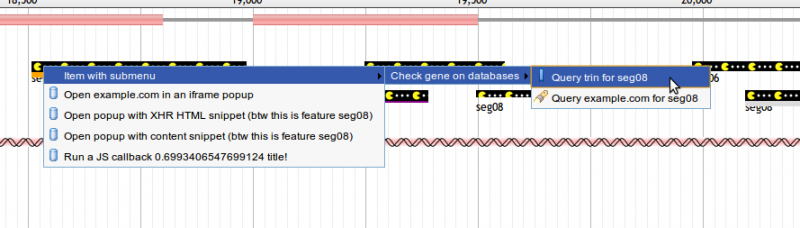
To add a separator, put the following item in your menuTemplate
{ type: 'dijit/MenuSeparator' }
Note that you can keep the default right-click menu items in JBrowse by just setting "blank" placeholders in the menuTemplate.
"menuTemplate" : [
{
"label" : "View details",
},
{
"label" : "Highlight this gene",
},
{
"label" : "Open example.com in an iframe popup",
"title" : "The magnificent example.com (feature{name})",
"iconClass" : "dijitIconDatabase",
"action": "iframeDialog",
"url" : "http://www.example.com?featurename={name}"
}
]
Alternatively, if you are using tracks.conf format, you can build a menuTemplate similar to the above configuration using the following:
menuTemplate+=json:{"label": "View details"}
menuTemplate+=json:{"label": "Highlight this gene"}
menuTemplate+=json:{"label": "Open example.com in an iframe popup", "iconClass" : "dijitIconDatabase","action": "iframeDialog","url" : "http://www.example.com?featurename={name}"}
This results in a context menu like the one pictured below.
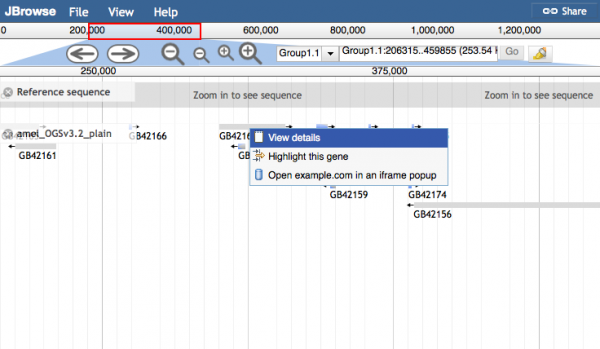
Note: You'll note in the above that "placeholder" menu items are put in place to prevent the default "View details" from being overwritten. There are some caveats with regards to these placeholder items. You can't rearrange them or choose which ones you want. You can only overwrite them. Custom items will overwrite the default ones one-by-one.
## Click Configuration Options
A click action (left-click on a feature or on an item in a context menu) can be configured to do nearly anything. It can be configured with a string JavaScript callback, like:
` "function( track, feature, featureDiv ) { alert('Run any JavaScript you want here!'); }"`
Or a structure containing options like:
{
"iconClass" : "dijitIconDatabase",
"action" : "iframeDialog",
"url" : "http://www.ncbi.nlm.nih.gov/gquery/?term={name}",
"label" : "Search for {name} at NCBI",
"title" : "function(track,feature,div) { return 'Searching for '+feature.get('name')+' at NCBI'; }"
}
The available options for a click action are:
- iconClass: Used only for click actions in context menus. Usually, you will want to specify one of the Dijit icon classes here. Although they are not well documented, a list of available icon classes can be seen at .
- action: Either a JavaScript function to run in response to the click (e.g. "function(){..}"), or one of the following special strings:
- "iframeDialog" - the default - causes the given **url** to be opened in a popup dialog box within JBrowse, in an `iframe` element.
- "newWindow" - causes the given **url** to be opened in a new browser window.
- "navigateTo" - added in JBrowse 1.10.8, opens the given **url** in the same browser window, navigating the user away from JBrowse.
- "contentDialog" - causes the JavaScript string or callback set in the **content** option to be displayed in the dialog box.
- "defaultDialog" - Performs the normal popup action. See [JBrowse_Configuration_Guide\#Customizing_Mouse-over_behavior](#customizing-mouse-over-behavior "wikilink") for an example of when this is useful.
- "xhrDialog" - causes the given **url** to be opened in a popup dialog, containing the HTML fetched from the given **url** option. The difference between "iframeDialog" and "xhrDialog" is that an iframeDialog's URL should point to a complete web page, while an xhrDialog's URL should point to a URL on the same server (or that supports [CORS](http://gmod.org/wiki/CORS)) that contains just a snippet of HTML (not a complete web page). For those familiar with GBrowse, the xhrDialog is similar to GBrowse popup balloons that use a *url:...* target, while the contentDialog is similar to a GBrowse popup balloon with a normal target. GBrowse does not have an equivalent of the iframeDialog.]
- "Javascript callback" - If you use a javascript callback for the action parameter, then the function signature will be function(clickEvent) { ... } and the clickEvent doesn't contain particularly useful info, but you can access the feature object using this.feature.get('name'); for example.
- content: string (interpolated with feature fields) or JS callback that returns either a string or (beginning in 1.10.0) a dojo/Deferred object that will resolve to a string. Used only by a contentDialog.
- url: URL used by newWindow, xhrDialog, or iframeDialog actions.
- label: descriptive label for the link. In a right-click context menu, this will be the text in the menu item. In a onClick section, it will be the mouse-over description too. See [JBrowse_Configuration_Guide\#Customizing_Mouse-over_behavior](#customizing-mouse-over-behavior "wikilink") for details on the mouse-over behavior.
- title: title used for the popup window
### Using callbacks to customize feature tracks
JBrowse feature tracks, and individual JBrowse features, can be customized using JavaScript functions you write yourself. These functions are called every time a feature in a track is drawn, and allow you to customize virtually anything about the feature's display. What's more, all of the feature's data is accessible to your customization function, so you can even customize individual features' looks based on their data.
As of JBrowse 1.3.0, feature callbacks are added by directly editing your trackList.json file with a text editor. Unfortunately, due to the limitations of the JSON format currently used for JBrowse configuration, the function must appear as a quoted (and JSON-escaped) string, on a single line. You may use the .conf format for the ability to specify functions that span multiple lines.
Here is an example feature callback, in context in the trackList.json file, that can change a feature's `background` CSS property (which controls the feature's color) as a function of the feature's name. If the feature's name contains a number that is odd, it give the feature's HTML `div` element a red background. Otherwise, it gives it a blue background.
{
"style" : {
"className" : "feature2"
},
"key" : "Example Features",
"feature" : [
"remark"
],
"urlTemplate" : "tracks/ExampleFeatures/{refseq}/trackData.json",
"hooks": {
"modify": "function( track, f, fdiv ) { var nums = f.get('name').match(/\\d+/); if( nums && nums[0] % 2 ) { fdiv.style.background = 'red'; } else { fdiv.style.background = 'blue'; } }"
},
"compress" : 0,
"label" : "ExampleFeatures",
"type" : "FeatureTrack"
},