### [English](#activereportsjs) | [日本語](#activereportsjs-jp) | [中文](#activereportsjs-cn) | [한국어](#activereportsjs-kr)
____
# ActiveReportsJS
[A Complete JavaScript Reporting Tool](https://www.grapecity.com/activereportsjs) for Enterprise Applications.
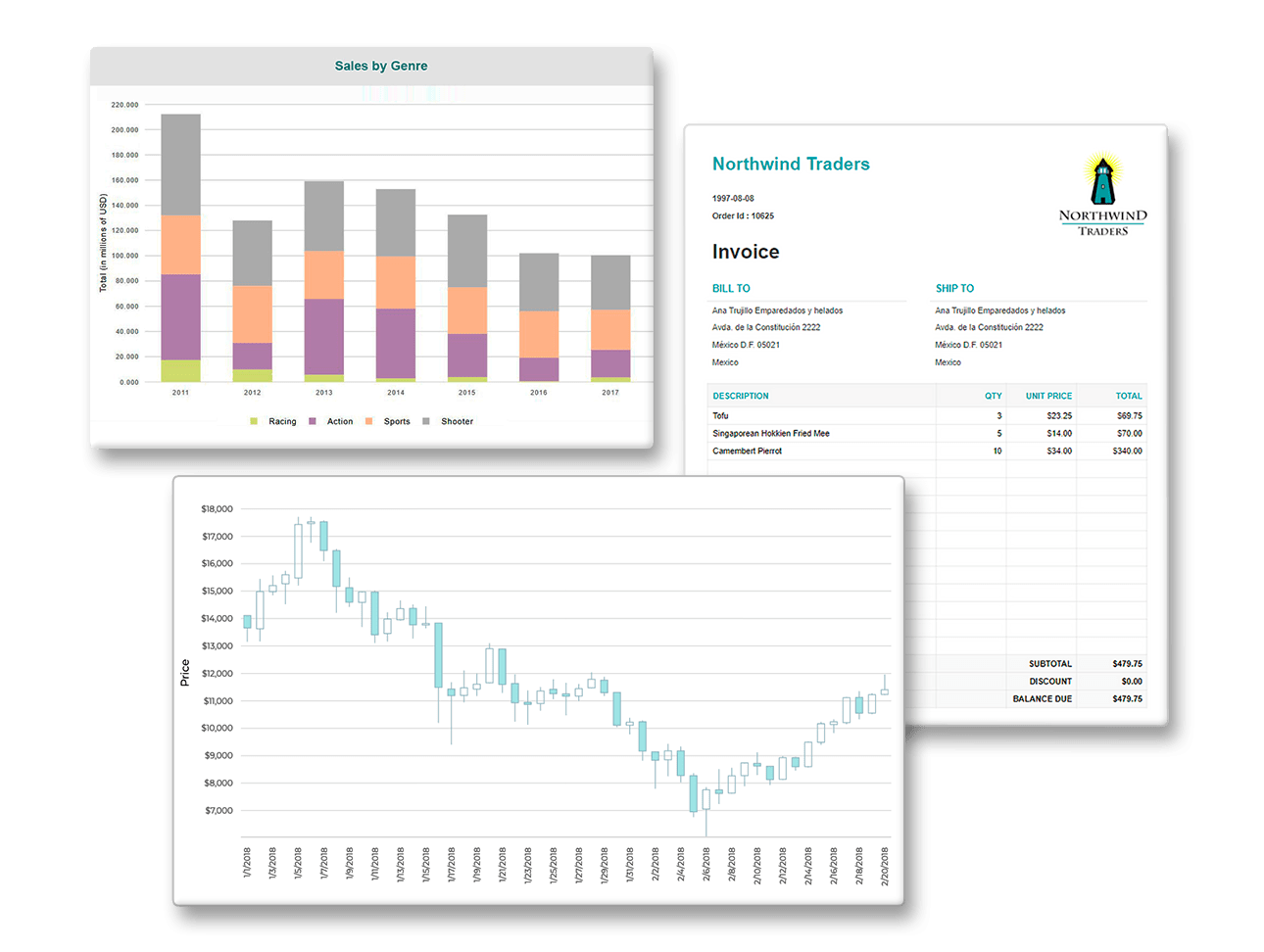
ActiveReportsJS is a powerful reporting tool for web applications that allows developers and report authors to easily design and display reports within their applications. With a wide range of features, such as [drill-down](https://www.grapecity.com/activereportsjs/demos/Reports/DrillDown2/purejs), [runtime data filtering](https://www.grapecity.com/activereportsjs/demos/Reports/RuntimeFilters/purejs), and [parameter-driven reports](https://www.grapecity.com/activereportsjs/demos/Reports/ParameterDriven/purejs), as well as compatibility with popular frameworks such as [Angular](https://www.grapecity.com/activereportsjs/angular-reporting-tool), [React](https://www.grapecity.com/activereportsjs/react-reporting-tool), and [Vue](https://www.grapecity.com/activereportsjs/vue-reporting-tool), ActiveReportsJS simplifies the process of creating and managing reports, enabling developers to enhance their applications' capabilities and deliver valuable insights to end-users.
The ActiveReportsJS suite includes both a [Report Viewer](https://www.grapecity.com/activereportsjs/docs/GettingStarted/QuickStart) and [Report Designer](https://www.grapecity.com/activereportsjs/docs/GettingStarted/QuickStart-ARJS-Designer-Component) component. The Viewer allows end-users to view and interact with reports, while the Designer enables developers to design and customize reports, either within the same web application or by using the Standalone Report Designer.
## Installation
To install the latest release version:
`npm install @grapecity/activereports`
To install a specific version:
`npm install @grapecity/activereports@{VersionNumber}`
## Documentation
For more information on how to use ActiveReportsJS, online documentation can be found here:
* [Documentation](https://www.grapecity.com/activereportsjs/docs/GettingStarted/Introduction)
* [API Reference](https://www.grapecity.com/activereportsjs/api/modules/Core)
## Samples
To quickly jump in with ActiveReportsJS, check out our [Demo Gallery](https://www.grapecity.com/activereportsjs/demos/).
## Licensing
Read more about [ActiveReportsJS Licensing](https://www.grapecity.com/activereportsjs/pricing).
# ActiveReportsJS JP
[ActiveReportsJS](https://developer.mescius.jp/activereportsjs)は、モダンなWebアプリケーションに帳票出力機能を組み込めるJavaScriptコントロールです。帳票の外観デザインの設定からデータ接続、印刷、PDFやExcelへの出力まで、Web帳票開発に必要な機能が揃っています。
## サンプル
[ActiveReportsJSチュートリアルデモ](https://demo.mescius.jp/activereportsjs/demos/)では、ActiveReportsJSを使用したアプリケーションの作成方法や、各コントロールの基本機能、実用的なアプリケーションの例などを紹介しています。
また、[トライアル版](https://developer.mescius.jp/download#javascript)をダウンロードして、実際の機能や動作をご確認いただけます。
## インストール方法
**重要:このパッケージは、将来、廃止される予定です。** 新しいパッケージ([@mescius/activereportsjs](https://www.npmjs.com/package/@mescius/activereportsjs))への移行をご検討ください。
```
npm install @grapecity/activereports
```
日本語版での動作保証は日本語版サイトで公開しているバージョンのみとなります。
## ドキュメント
製品の各種ドキュメントは、下記をご参照ください。
- [製品ヘルプ](https://demo.mescius.jp/activereportsjs/docs/)
- [チュートリアルデモ](https://demo.mescius.jp/activereportsjs/demos/)
## 製品情報
製品の詳細や価格、ライセンスについては、下記をご参照ください。
https://developer.mescius.jp/activereportsjs
## サポート
ヘルプやデモに加え、ナレッジベースでは製品の技術情報を公開しております。また、サブスクリプションをご契約中のお客様は、E-mailによる技術サポートをご利用いただけます。
- [サポート&サービス](https://developer.mescius.jp/support)
- [サブスクリプションサービス利用規約](https://docs.mescius.jp/license/activereports/activereports-js-subscriptionservice.pdf)
# ActiveReportsJS CN
* ActiveReportsJS 是一个轻量级的报表解决方案,为您提供简单易用的丰富的 API ,创建复杂报表,轻松集成到您的项目重 为了满足常用的报表布局需求,不需要依赖于服务端。
* ActiveReportsJS支持以下报表类型:"页面" 和"RDL 报表"。
## 安装
使用命令 `npm install @grapecity/activereports` 安装 ActiveReportsJS
## 产品资料
更多产品资料请点击 [帮助文档](https://demo.grapecity.com.cn/activereportsjs/docs/GettingStarted/Introduction) 或 [API 文档](https://demo.grapecity.com.cn/activereportsjs/api/) 。
## 示例
[ActiveReportsJS 示例](https://demo.grapecity.com.cn/activereportsjs/demos/Reports/InvoiceList/purejs).
## 入门指南 - 创建第一个 **ActiveReportsJS Viewer** 应用
### 操作步骤
1. 在 `index.html` head 标签内添加 `dist`文件夹中的 js 文件的引用, `ar-js-core.js` 、 `ar-js-viewer.js` 及`styles` 文件夹中的css文件 `ar-js-viewer.css`、`ar-js-ui.css` :
```html
```
2. 如果需要支持导出按钮, 需要添加 `ar-js-pdf.js`, `ar-js-html.js`, `ar-js-tabular-data.js` 及 `ar-js-xlsx.js` `dist` 文件夹的引用:
```html
```
3. 在 `index.html` body 标签内声明 div 用于展示 *ActiveReportsJS Viewer*。 注意, 必须要定义height属性:
```html
```
4. 在 `index.html` body `onload` 事件中添加以下脚本:
```html
```
## 设计器
我们 **ActiveReportsJS Designer**。下载[设计器](https://downloads.grapecity.com.cn/ActiveReportsJS/2.0/ActiveReportsJS.zip)
ActiveReportsJS 提供了极其易用的设计器,助您快速创建和修改报表文件,并且提供了两种平台的设计器,1.Electron [桌面设计器](https://downloads.grapecity.com.cn/ActiveReportsJS/2.0/ActiveReportsJS.zip),提供了 Windows,Mac,Linux 三个版本的设计器报表设计器。
或者使用在Web项目中使用 **ActiveReportsJS Designer** 控件集成在线设计器。
以下示例将演示如何将设计器集成到 Web项目中
## 第一个 **ActiveReportsJS 设计器** 纯前端应用
### 步骤
1. 初始化存储库 `npm init`
2. 安装所需的组件 `npm install @grapecity/activereports`
3. 创建 `index.html` 页面,添加 ActiveReportsJS 需要的引用`ar-js-core.js`, `ar-js-designer.js` 及样式文件 `ar-js-designer.css`, `ar-js-ui.css`。
```html
ActiveReportsJS Designer
```
4. 在 `index.html` 页面中body区域中添加div,作为*ActiveReportsJS Designer*的宿主元素。 注意必须要指定该div的高度,否则设计器无法显示完全。
```html
```
5. 在 `index.html` 实现body的`onload` 事件,并添加以下代码,实现在页面初始化时,加载设计器
```html
```
6. 用浏览器打开 `index.html` 页面,就可以看到设计器。
### 为设计器添加预览功能,即添加 **ActiveReportsJS Viewer**组件实现预览
1. 添加`ar-js-viewer.js` 文件及 `ar-js-core.js`及相关css文件 (在js文件添加完成后)。
```html
```
2. 添加 div 宿主元素*ActiveReportsJS Viewer*。 注意需要定义容器高度。
```html
```
3. 添加其他引用 (协助预览功能)
```html
```
4. 初始化Viewer,并在工具栏中添加返回按钮,编写 Handler执行预览方法: (更多信息请参考 [Documentation](https://demo.grapecity.com.cn/activereportsjs/docs/GettingStarted/QuickStart/ARJSIntroduction) 或 [API reference](https://demo.grapecity.com.cn/activereportsjs/api/) ).
```html
```
5. 在浏览器打开 `index.html` 页面, 将控件添加到设计界面,然后单击“预览”以预览设计的报表。
---
# ActiveReportsJS KR
* 액티브리포츠JS (ARJS)는 자바스크립트로 만들어진 고성능 프론트엔드 리포팅 솔루션입니다. 웹과 모바일을 모두 지원하고 서버에 의존도가 없기 때문에 쉽고 빠르게 솔루션을 도입하실수 있습니다.
* "Page"와 "RDL" 형태의 리포트 타입을 지원하고 있습니다.
## 설치
다음을 사용하여 모든 ActiveReportsJS 자바 스크립트 구성 요소를 설치할 수 있습니다. `npm install @grapecity/activereports`
## 도움말
ActiveReportsJS 사용 방법 및 도구에 대한 자세한 내용은 [도움말](https://demo.grapecity.co.kr/activereportsjs/docs/GettingStarted/Introduction)과 [API 참고 가이드](https://demo.grapecity.co.kr/activereportsjs/api/)를 참고해 주시기 바랍니다.
## 데모
[ActiveReportsJS 데모 바로가기](https://demo.grapecity.co.kr/activereportsjs/demos/).
# ActiveReportsJS 뷰어
## 첫 번째 **ActiveReportsJS 뷰어** 어플리케이션 만들기
### 과정
1. `index.html`의 헤드섹션에 `dist`폴더의 `ar-js-core.js`와 `ar-js-viewer.js`에 대한 참조를 추가하고 `styles`폴더에서 `ar-js-viewer.css`와 `ar-js-ui.css`에 대한 참조를 추가합니다 :
```html
```
2. 만일 내보내기 기능이 필요하다면,`index.html`의 헤드 섹션에 `dist` 폴더에 있는 `ar-js-pdf.js`, `ar-js-html.js`, `ar-js-tabular-data.js` 또는 `ar-js-xlsx.js`에 대한 참조를 각각 필요에 따라 추가합니다 :
```html
```
3. `index.html`의 바디 섹션에서 *ActiveReportsJS 뷰어*를 호스트하기 위해 id가 있는 div태그를 추가합니다. 컨테이너 높이가 정의되어야 합니다 :
```html
```
4. `index.html`에서 뷰어를 로드하고 onload 이벤트에 이를 구독하는 스크립트를 추가합니다 :
```html
```
# ActiveReportsJS 디자이너
보고서를 만들거나 수정하려면 Win, MacOS 또는 Linux용 **[ActiveReportsJS 디자이너 어플리케이션](https://dev.grapecity.co.kr/bbs/board.php?bo_table=arjs_o_study&wr_id=5)**를 사용하시거나, 또는 아래의 ActiveReportsJS 디자이너 컴포넌트를 사용하시서 웹 상에서 직접 최종사용자에게 제공할 수도 있습니다.
## 첫 번째 **ActiveReportsJS Designer** 애플리케이션 만들기
### 과정
1. 빈 저장소 초기화 `npm init`
2. 필수 컴포넌트 설치 `npm install @grapecity/activereports`
3. `index.html` 만들어 라이브러리에서 `ar-js-core.js`, `ar-js-designer.js` 에 대한 참조를 추가하고 `ar-js-designer.css`, `ar-js-ui.css` 에 대한 참조도 추가합니다.
```html
ActiveReportsJS Designer
```
4. `index.html`의 바디 섹션에서 *ActiveReportsJS 디자이너*를 호스트하기 위해 id가 있는 div태그를 추가합니다. 컨테이너 높이가 정의되어야 합니다 :
```html
```
5. `index.html`에서 디자이너를 로드하고 onload 이벤트에 이를 구독하는 스크립트를 추가합니다 :
```html
```
6. `index.html`를 브라우저에서 열고 보고서를 디자인 합니다.
### **ActiveReportsJS 뷰어**를 사용하여 보고서 미리보기 기능 추가
1. 디자이너에서 미리보기를 추가하려면 `ar-js-viewer.js`에 대한 참조를 추가하고 그에 해당하는 CSS에 대한 참조도 추가해주셔야 합니다.(`ar-js-core.js` 참조 아래 부분에 추가).
```html
```
2. *ActiveReportsJS 뷰어*를 호스트하기 위해 id가 있는 div태그를 추가합니다. 컨테이너 높이가 정의되어야 합니다 :
```html
```
3. 헤드 섹션에 추가적인 참조 추가 (미리보기 구성에 도움)
```html
```
4. 뷰어를 초기화하고 도구 모음에 뒤로 버튼을 추가한후 미리보기 메서드에 대한 핸들러를 작성합니다. (뷰어와 디자이너 사용법에 대한 자세한 내용은, [도움말](https://demo.grapecity.co.kr/activereportsjs/docs/GettingStarted/Introduction)과 [API 참고 가이드](https://demo.grapecity.co.kr/activereportsjs/api/)를 참고해 주시기 바랍니다.)
```html
```
5. 브라우저에서 'index.html' 페이지를 열고 디자인 화면에 컨트롤을 추가한후 '미리보기'를 클릭하여 디자인된 보고서를 미리 볼수 있습니다.