# Auto Capture Ui Component
## Overview
Innovatrics Auto Capture UI Component. Does not work as a standalone component. Recommended to be used with:
- [Face Auto Capture Component](https://www.npmjs.com/package/@innovatrics/dot-face-auto-capture)
- [Document Auto Capture Component](https://www.npmjs.com/package/@innovatrics/dot-document-auto-capture)
- [MagnifEye Liveness Component](https://www.npmjs.com/package/@innovatrics/dot-magnifeye-liveness)
- [Smile Liveness Component](https://www.npmjs.com/package/@innovatrics/dot-smile-liveness)
- [Palm Capture Component](https://www.npmjs.com/package/@innovatrics/dot-palm-capture)
Innovatrics Auto Capture UI Component is a web component that renders an overlay over the video stream. The overlay includes a placeholder, camera control buttons and instructions to guide the user to position their face, their palm or their ID document correctly.
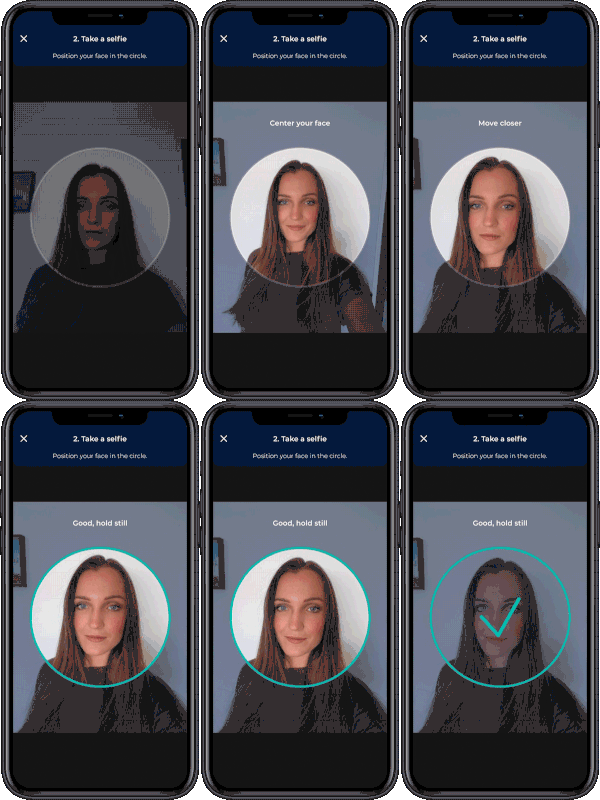
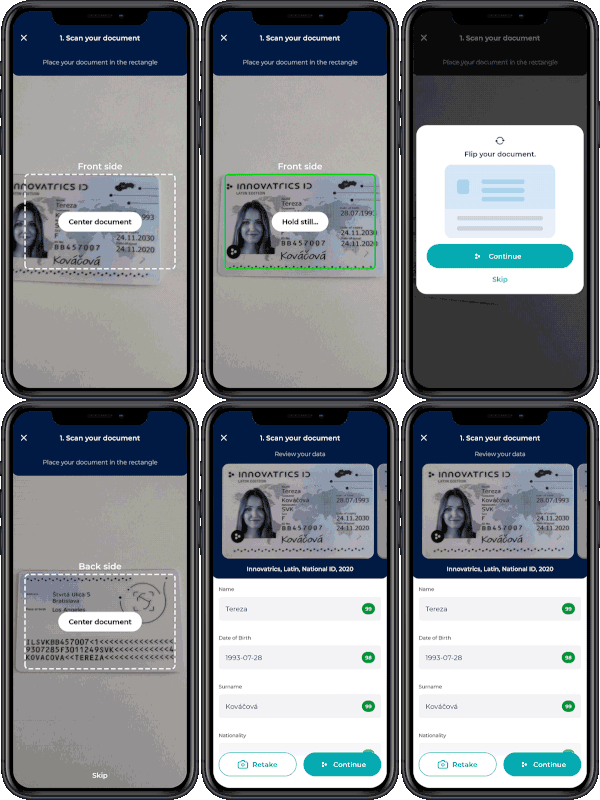
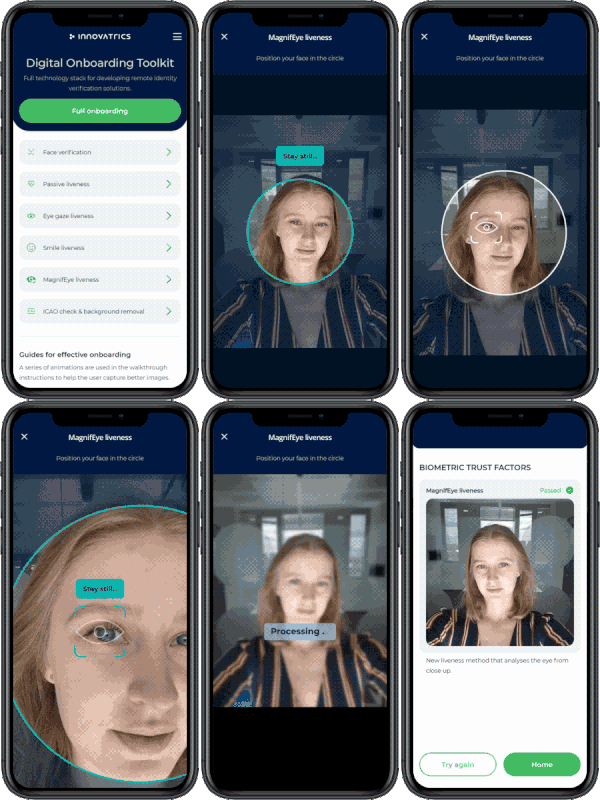
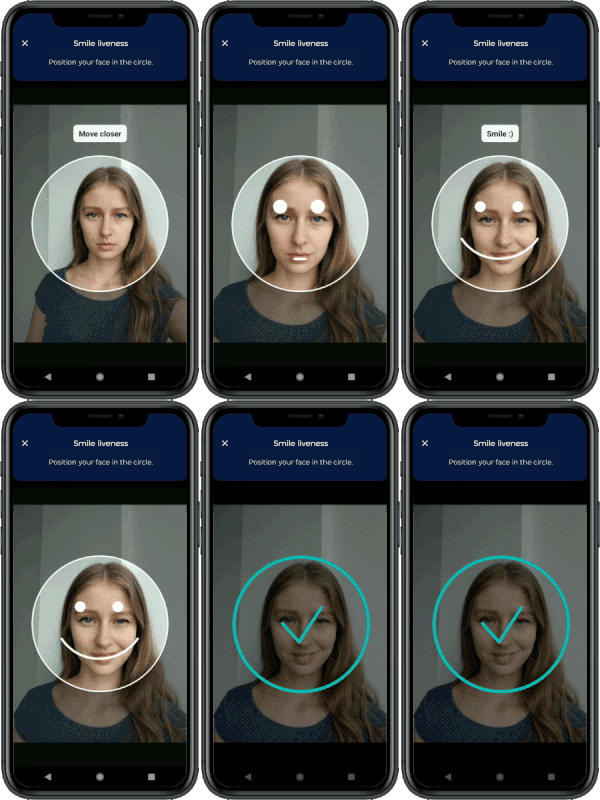
The Auto Capture UI Component can be used alongside other components to develop remote identity verification or digital onboarding solutions, as demonstrated in this [demo application](https://dot.innovatrics.com/).
You can also check out the [integration samples](https://github.com/innovatrics/dot-web-samples) in various technologies (React, Vue, Angular, jQuery).
## Pre-requisites
1. **Core Components**
**IMPORTANT**: For this component to work, it is highly recommended to be used along with
[Face Auto Capture Component](https://www.npmjs.com/package/@innovatrics/dot-face-auto-capture), [Document Auto Capture Component](https://www.npmjs.com/package/@innovatrics/dot-document-auto-capture), [MagnifEye Liveness Component](https://www.npmjs.com/package/@innovatrics/dot-magnifeye-liveness), [Smile Liveness Component](https://www.npmjs.com/package/@innovatrics/dot-smile-liveness) or [Palm Capture Component](https://www.npmjs.com/package/@innovatrics/dot-palm-capture) installed in your project. You can learn more about why this is important on our [developers portal](https://developers.innovatrics.com/digital-onboarding/technical/remote/dot-web-document/latest/documentation/#_introduction).
**Integration with** [Face Auto Capture Component](https://www.npmjs.com/package/@innovatrics/dot-face-auto-capture):
Both components must be wrapped in parent div with `position: relative`.
``` typescript
```
Or you can see an example in [documentation](https://developers.innovatrics.com/digital-onboarding/technical/remote/dot-web-face/latest/documentation/#_example_of_using_components_together)
**Integration with** [Document Auto Capture Component](https://www.npmjs.com/package/@innovatrics/dot-document-auto-capture):
Both components must be wrapped in parent div with `position: relative`.
``` typescript
```
Or you can see an example in [documentation](https://developers.innovatrics.com/digital-onboarding/technical/remote/dot-web-document/latest/documentation/#_example_of_using_components_together)
**Integration with** [MagnifEye Liveness Component](https://www.npmjs.com/package/@innovatrics/dot-magnifeye-liveness):
Both components must be wrapped in parent div with `position: relative` and `overflow: hidden`.
``` typescript
```
Or you can see an example in [documentation](https://developers.innovatrics.com/digital-onboarding/technical/remote/dot-web-magnifeye-liveness/latest/documentation/#_example_of_using_components_together)
**Integration with** [Smile Liveness Component](https://www.npmjs.com/package/@innovatrics/dot-smile-liveness):
Both components must be wrapped in parent div with `position: relative` and `overflow: hidden`.
``` typescript
```
Or you can see an example in [documentation](https://developers.innovatrics.com/digital-onboarding/technical/remote/dot-web-smile-liveness/latest/documentation/#_example_of_using_components_together)
**Integration with** [Palm Capture Component](https://www.npmjs.com/package/@innovatrics/dot-palm-capture):
Both components must be wrapped in parent div with `position: relative`.
``` typescript
```
Or you can see an example in [documentation](https://developers.innovatrics.com/digital-onboarding/technical/remote/dot-web-palm/latest/documentation/#_example_of_using_components_together)
## Installation
Installation of the package is available via NPM, PNPM or Yarn:
Using NPM:
```bash
$ npm install @innovatrics/dot-auto-capture-ui
```
Using PNPM:
```bash
$ pnpm add @innovatrics/dot-auto-capture-ui
```
Using Yarn:
```bash
$ yarn add @innovatrics/dot-auto-capture-ui
```
## Usage
The Auto Capture UI Component is a [web component](https://developer.mozilla.org/en-US/docs/Web/Web_Components/Using_custom_elements) which uses custom HTML tag. Properties need to be passed into the component after the tag was rendered.
Head to our [developers portal](https://developers.innovatrics.com/digital-onboarding/technical/remote/dot-web-document/latest/documentation/#ui-component) to learn more about:
- Initial setup
- Usage with TypeScript
- Properties
- Custom events - communication between the Auto Capture UI Component and the [Face Auto Capture Component](https://www.npmjs.com/package/@innovatrics/dot-face-auto-capture) or the [Document Auto Capture Component](https://www.npmjs.com/package/@innovatrics/dot-document-auto-capture)
- Examples of using the Auto Capture UI Component and the [Face Auto Capture Component](https://www.npmjs.com/package/@innovatrics/dot-face-auto-capture), the [Document Auto Capture Component](https://www.npmjs.com/package/@innovatrics/dot-document-auto-capture), the [MagnifEye Liveness Component](https://www.npmjs.com/package/@innovatrics/dot-magnifeye-liveness) or the [Smile Liveness Component](https://www.npmjs.com/package/@innovatrics/dot-smile-liveness) together
## Changelog
Face Auto Capture Component changelog [here](https://developers.innovatrics.com/digital-onboarding/technical/remote/dot-web-face/latest/documentation/#_changelog).
Document Auto Capture Component changelog [here](https://developers.innovatrics.com/digital-onboarding/technical/remote/dot-web-document/latest/documentation/#_changelog).
MagnifEye Liveness Component changelog [here](https://developers.innovatrics.com/digital-onboarding/technical/remote/dot-web-magnifeye-liveness/latest/documentation/#_changelog).
Smile Liveness Component changelog [here](https://developers.innovatrics.com/digital-onboarding/technical/remote/dot-web-smile-liveness/latest/documentation/#_changelog).
Palm Capture Component changelog [here](https://developers.innovatrics.com/digital-onboarding/technical/remote/dot-web-palm/latest/documentation/#_changelog).
## License
The Auto Capture UI Component is available under Innovatrics proprietary license.
The component can be used in a freemium mode without a license agreement. However, please note that the free version includes a watermark overlay in the component.
To obtain a license agreement and use the component without the overlay, please contact us at support@innovatrics.com.