---
title: 在 Sealos 上部署 LobeChat 数据库版
description: 学习如何在 Sealos 上部署 LobeChat，包括准备 OpenAI API Key、点击部署按钮、绑定自定义域名等操作。
tags:
  - Sealos
  - LobeChat
  - OpenAI API Key
  - 部署流程
  - 自定义域名
---

# 使用 Sealos 部署 LobeChat 数据库版

<Callout type="info">
  本文假设你已经熟悉 Lobe Chat
  服务器数据库版的部署基本原理和流程，因此只包含与核心环境变量配置相关的内容。如果你对 Lobe Chat
  服务器数据库版的部署原理不熟悉，请先参考[部署服务器数据库](/zh/docs/self-hosting/server-database)。
</Callout>

在 Sealos 的 Lobe Chat 数据库版应用中总共包含有以下四个服务：

- Logto 提供身份校验（需额外部署）
- 带有 Vector 插件的 PostgreSQL 来做数据存储和向量化
- 一个对象存储 Bucket
- LobeChat Database 的实例

这里是在 Sealos 上部署 Lobe Chat 服务器数据库版的流程：

## 预部署配置

在开始部署之前，您需要完成以下配置：

<Steps>
  ### 部署 Logto 服务

  点击下方按钮部署一个 Logto 服务：

  [![](https://raw.githubusercontent.com/labring-actions/templates/main/Deploy-on-Sealos.svg)](https://template.hzh.sealos.run/deploy?templateName=logto)

  > Logto 是一个开源的身份与访问管理（IAM）平台，是 Auth0 的开源替代方案，旨在帮助开发者快速构建安全、可扩展的登录注册系统和用户身份体系。

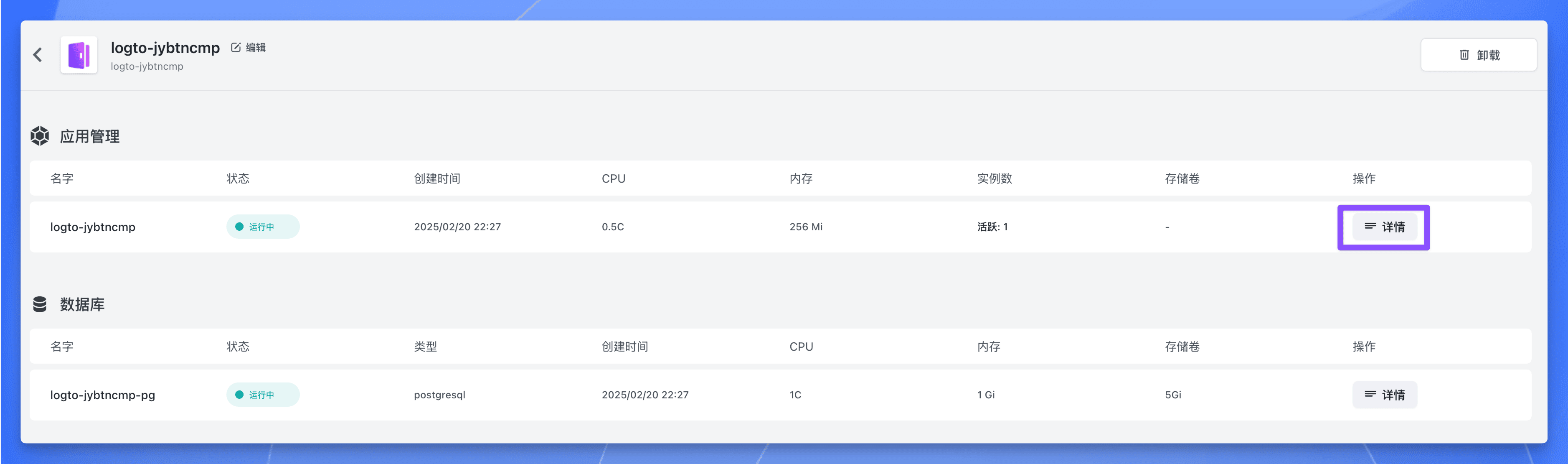
  部署完成后，等待应用的所有组件状态都变成 “运行中”，点击应用的【详情】按钮，进入应用详情页面。

  ![Logto 应用详情页面部署完成状态](https://raw.githubusercontent.com/labring-actions/templates/main/template/lobe-chat-db/images/logto-app-deployment-status-sealos.png)

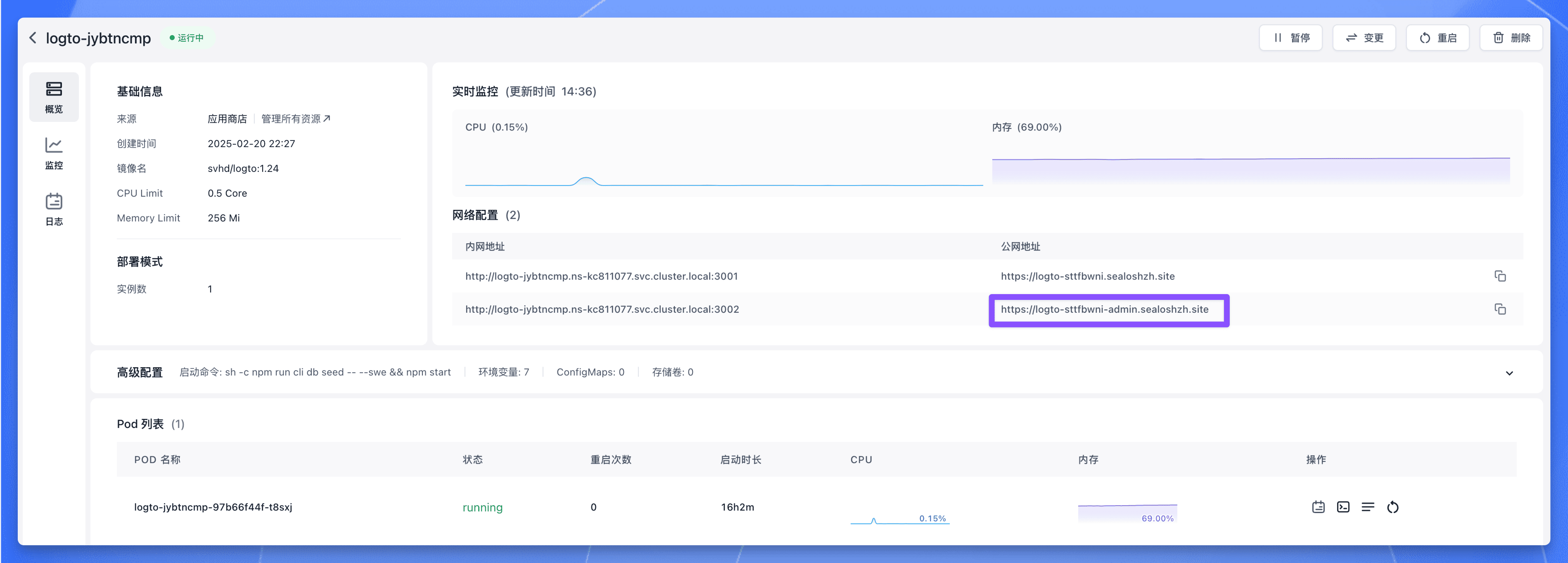
  点击 3002 端口对应的公网地址，即可使用公网域名访问 Logto 服务。

  ![Logto 服务公网地址](https://raw.githubusercontent.com/labring-actions/templates/main/template/lobe-chat-db/images/logto-public-address.png)

  ### 创建 Application

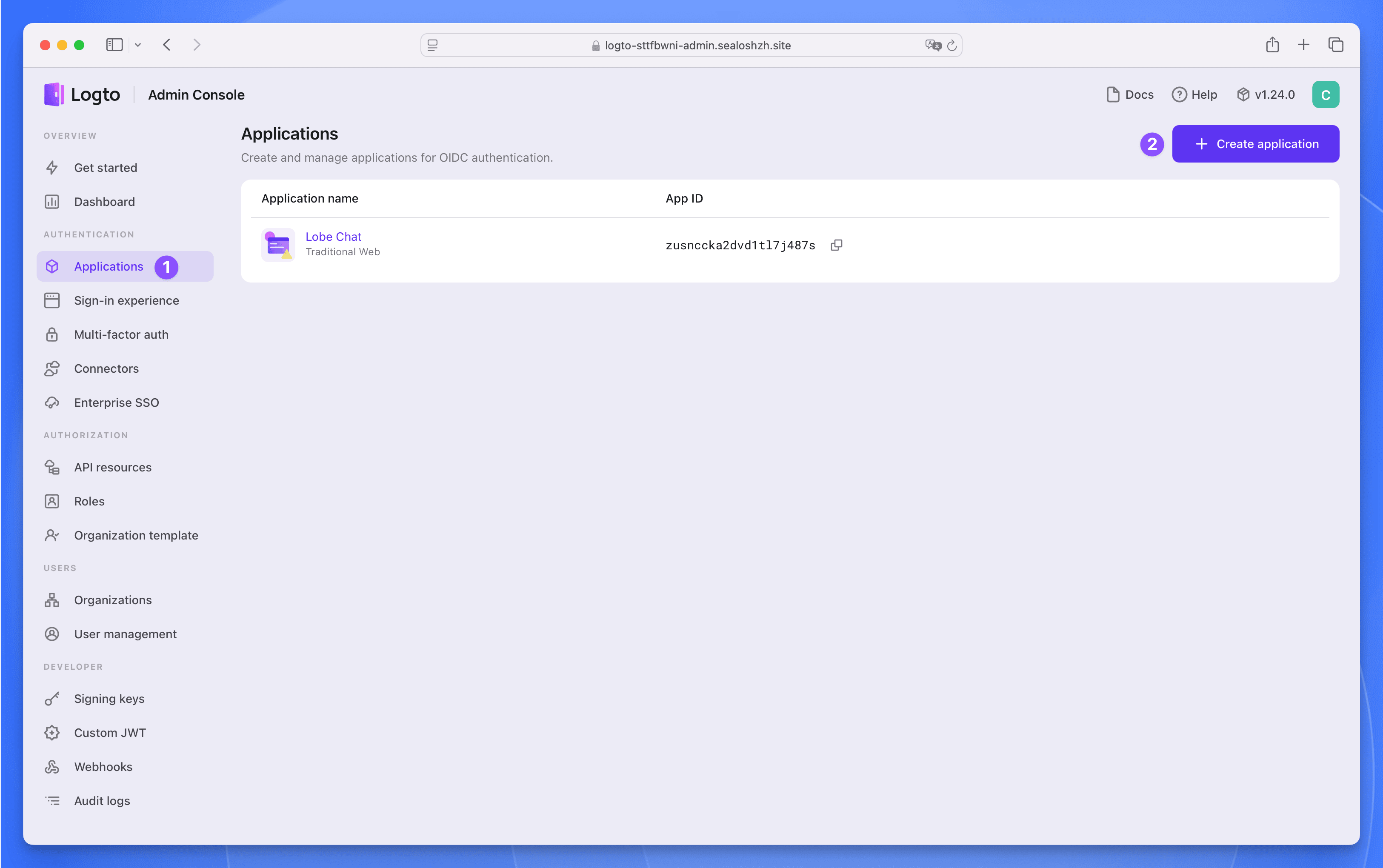
  注册一个管理员账号，然后点击左侧的 `Applications` 菜单，进入应用列表页面。再点击右上角的 `Create application` 按钮创建应用。
  ![Logto 应用列表页面](https://raw.githubusercontent.com/labring-actions/templates/main/template/lobe-chat-db/images/logto-application-list.png)

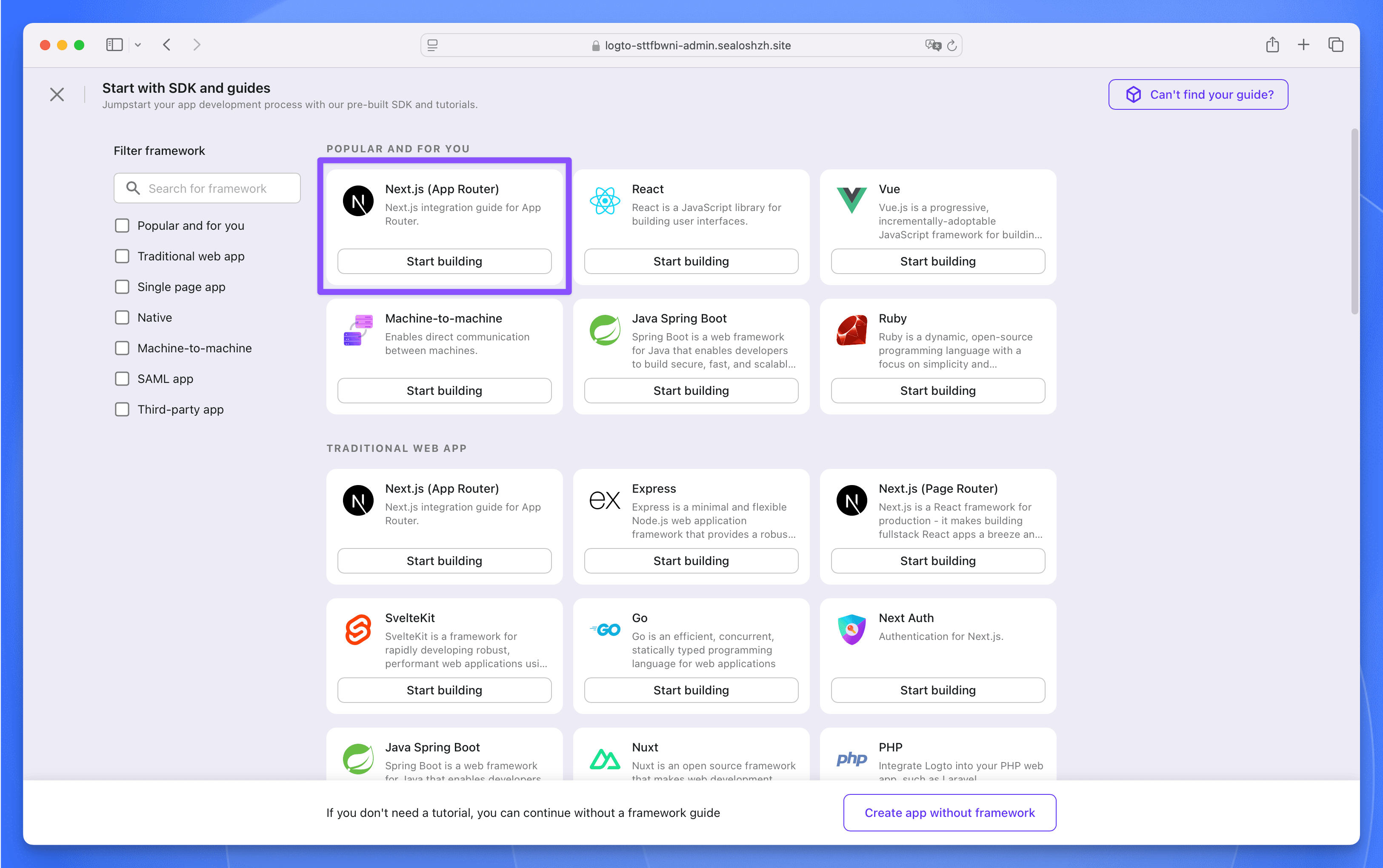
  选择 `Next.js (App Router)` 作为框架，然后点击 `Start building` 按钮。

  ![Logto 创建应用页面](https://raw.githubusercontent.com/labring-actions/templates/main/template/lobe-chat-db/images/logto-create-application.png)

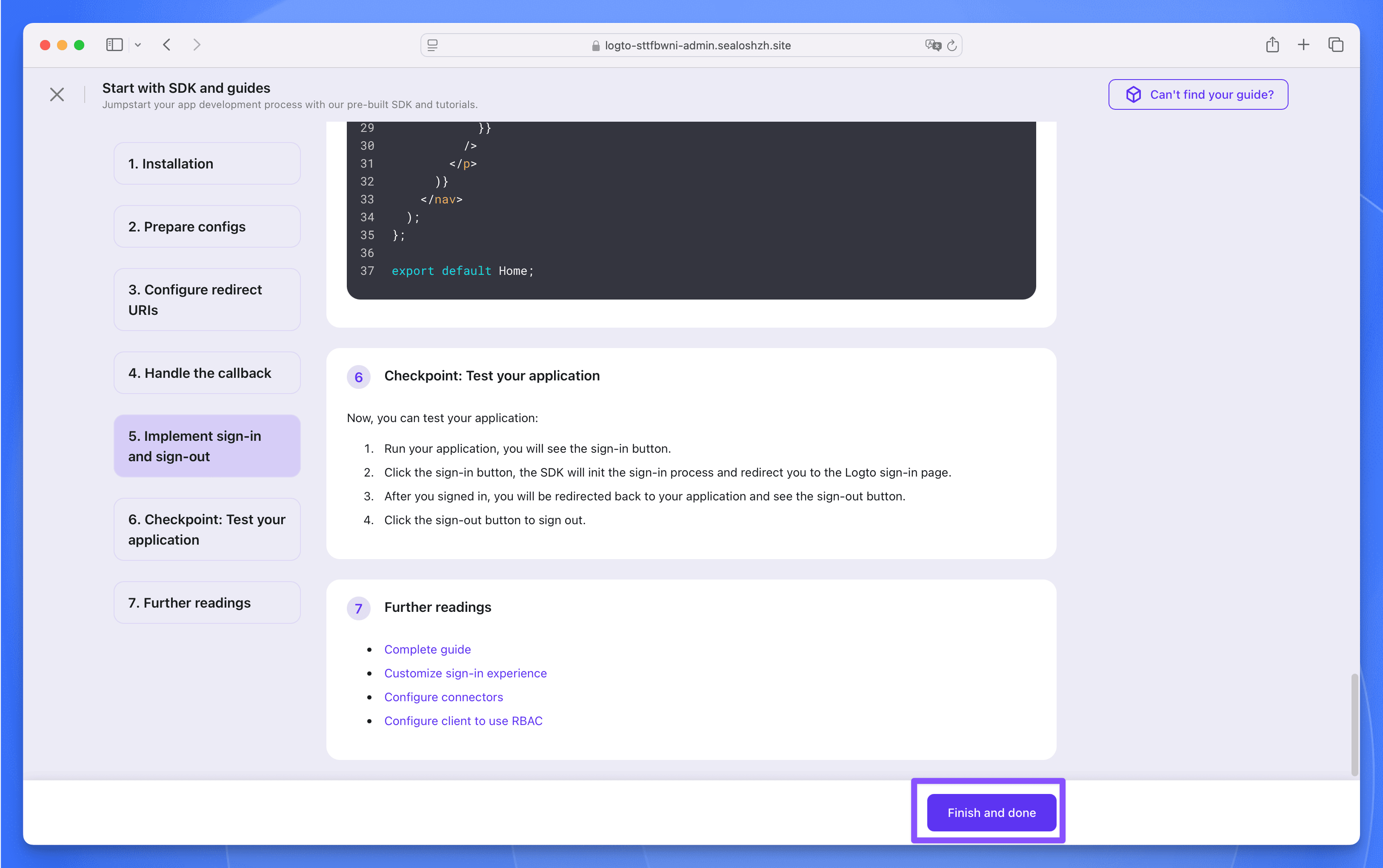
  在弹窗中填写应用的名称为 `Lobe Chat`，然后点击 `Create application` 按钮。接下来啥也不用填，直接点击底部的 `Finish and done` 按钮就创建完成了。

  ![Logto 创建应用完成页面](https://raw.githubusercontent.com/labring-actions/templates/main/template/lobe-chat-db/images/logto-create-application-done.png)

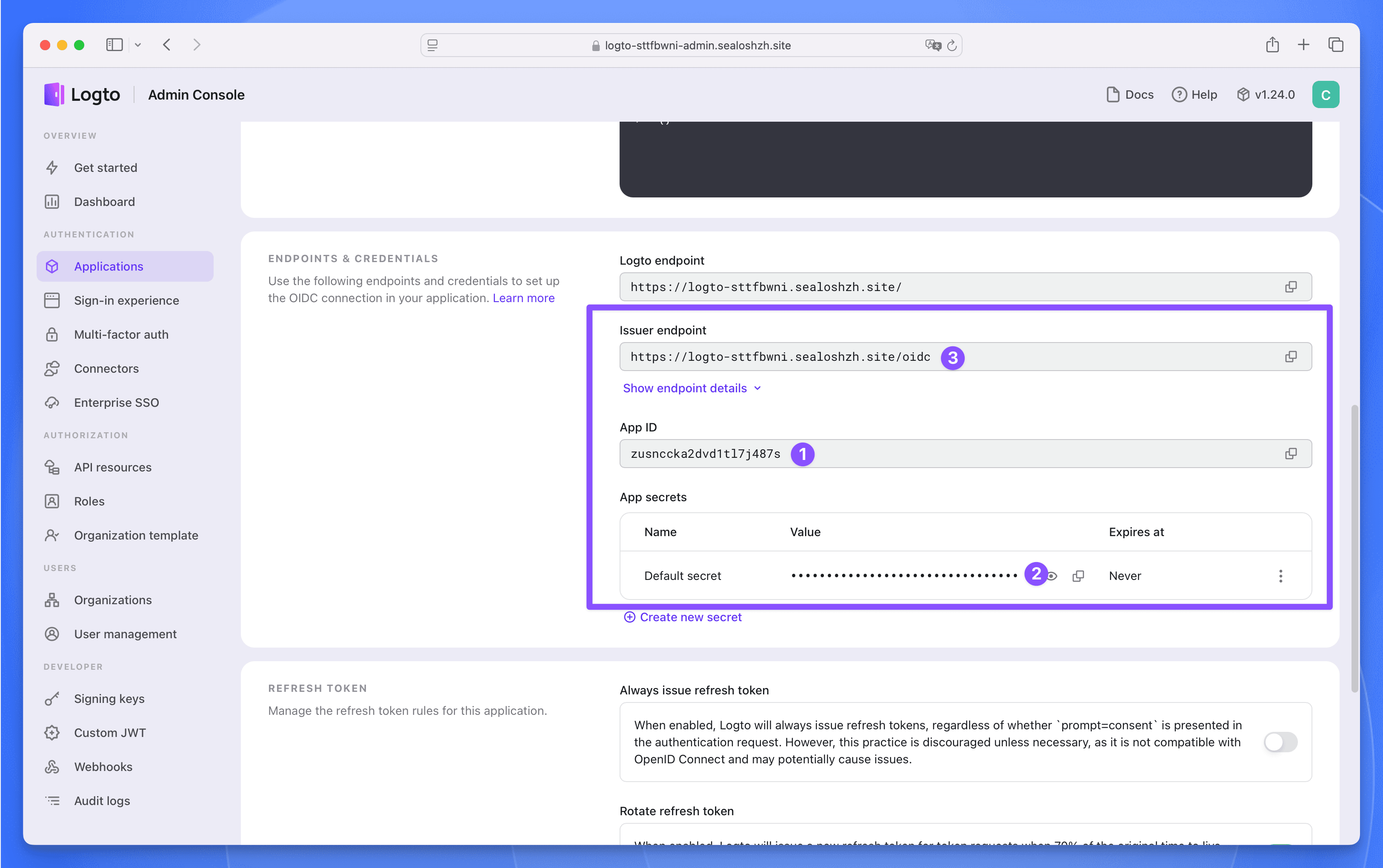
  在 `Lobe Chat` 应用中找到以下三个参数，后面部署 Lobe Chat 数据库版时需要用到。

  ![Logto 应用详情页面](https://raw.githubusercontent.com/labring-actions/templates/main/template/lobe-chat-db/images/logto-app-detail.png)
</Steps>

## 部署 Lobe Chat 数据库版

点击下方按钮访问 Lobe Chat 数据库版应用部署页面：

[![](https://raw.githubusercontent.com/labring-actions/templates/main/Deploy-on-Sealos.svg)](https://template.hzh.sealos.run/deploy?templateName=lobe-chat-db)

填入三个必填参数：

- `AUTH_LOGTO_ID`：Logto 应用的 App ID
- `AUTH_LOGTO_SECRET`：Logto 应用的 App Secret
- `AUTH_LOGTO_ISSUER`：Logto 应用的 Issuer endpoint

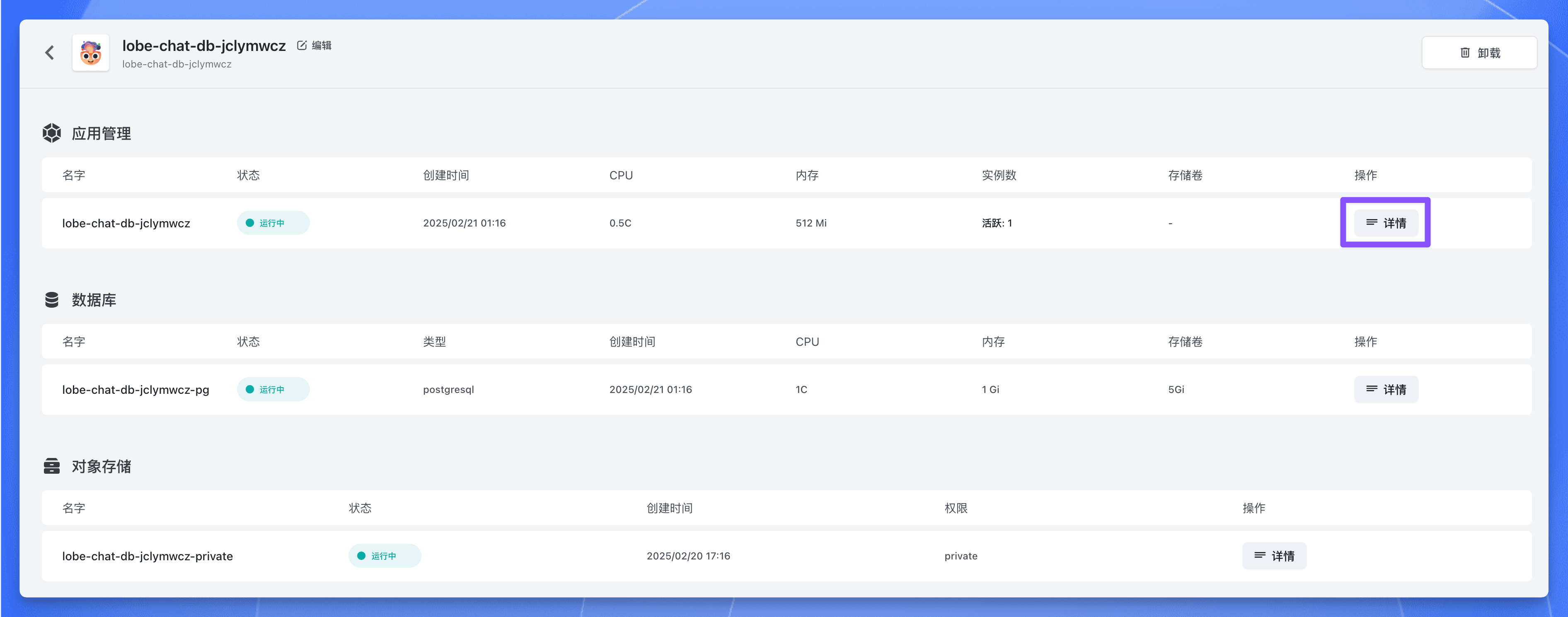
点击【部署】按钮，部署完成后，等待应用的所有组件状态都变成 “运行中”，点击应用的【详情】按钮，进入应用详情页面。

![Lobe Chat 数据库版部署完成页面](https://raw.githubusercontent.com/labring-actions/templates/main/template/lobe-chat-db/images/lobe-chat-db-deployment-done.png)

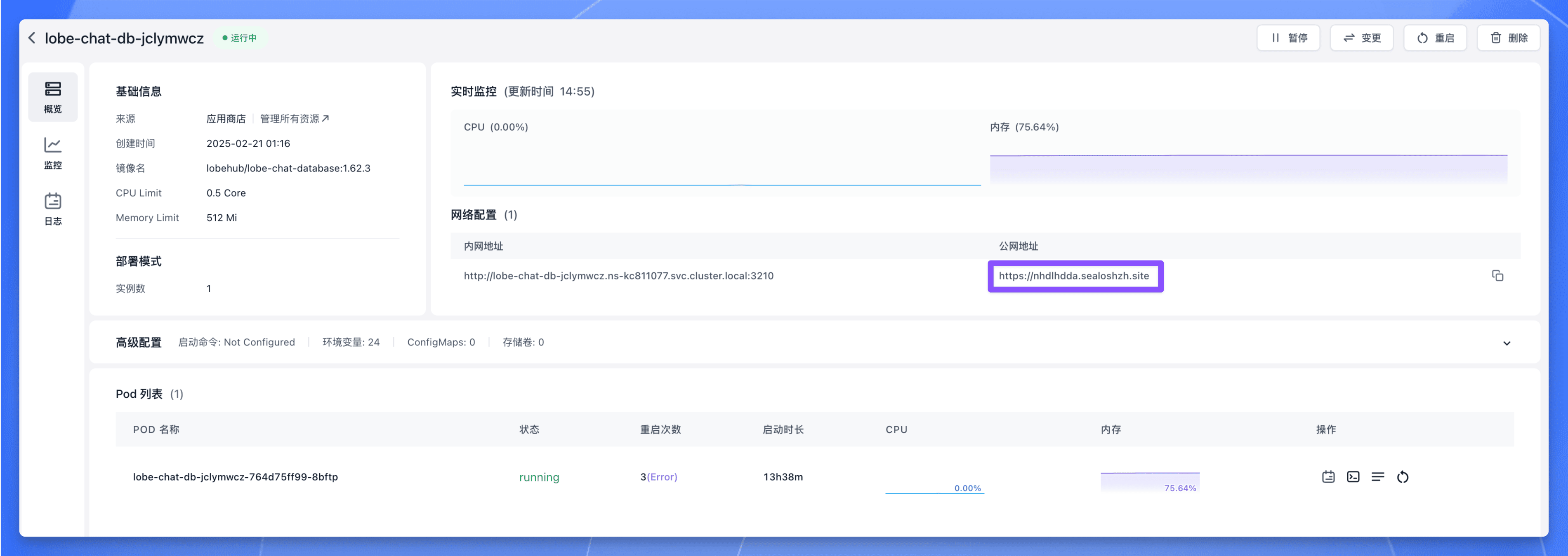
找到公网地址，复制下来，后面需要用到。

![Lobe Chat 数据库版公网地址](https://raw.githubusercontent.com/labring-actions/templates/main/template/lobe-chat-db/images/lobe-chat-db-public-address.png)

## 部署后配置

进入 Logto 的 `Applications` 页面，找到 `Lobe Chat` 应用，点击进入应用详情页面。

在 `Settings` 页面中找到 “Redirect URI” 和 “Post sign-out redirect URI” 这两个参数，填入以下值：

- Redirect URI：`https://<lobe-chat-db-public-address>/api/auth/callback/logto`
- Post sign-out redirect URI：`https://<lobe-chat-db-public-address>`

其中 `https://<lobe-chat-db-public-address>` 为 Lobe Chat 数据库版的公网地址。

填完之后点击 `Save changes` 按钮保存配置。

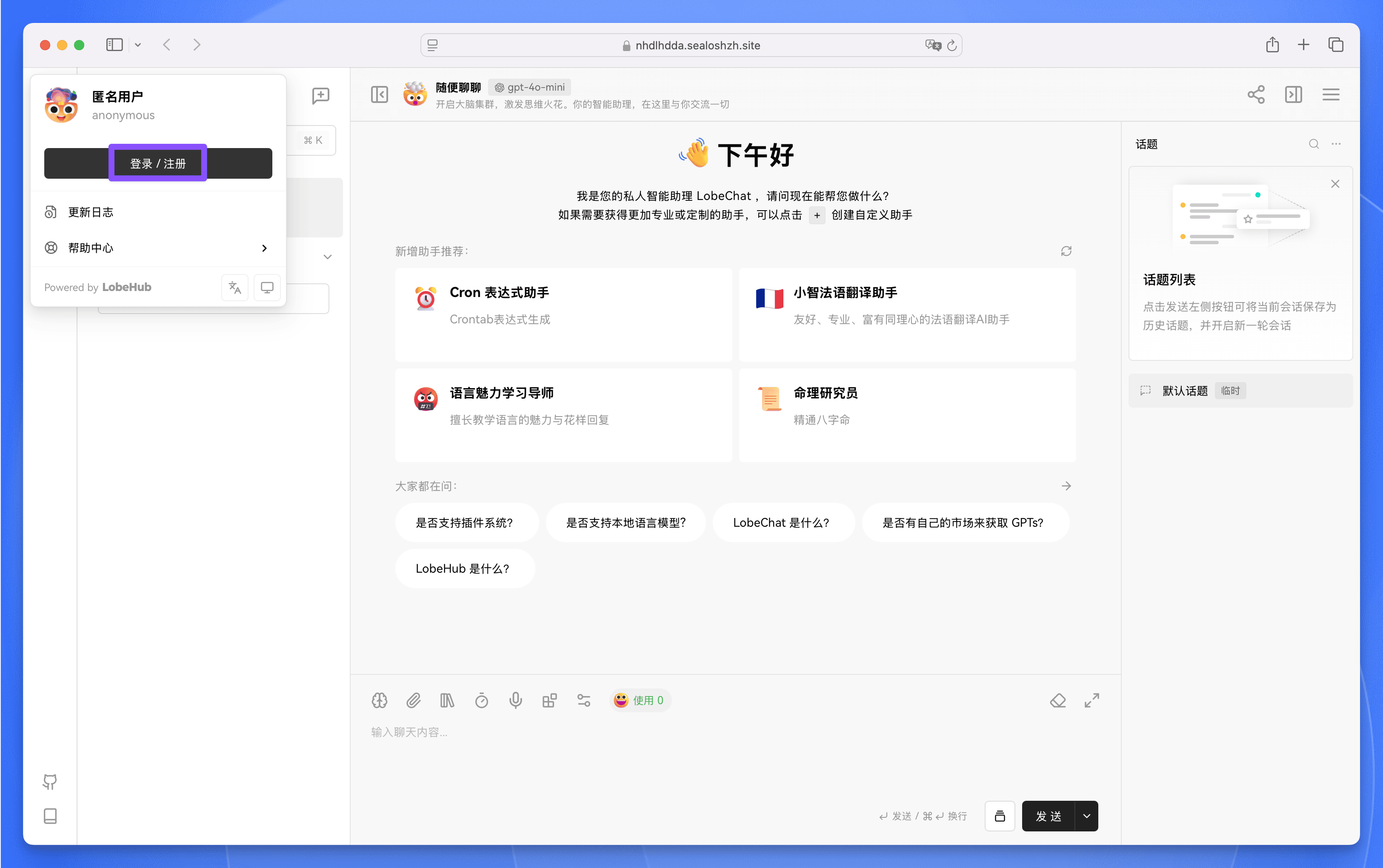
现在通过 `https://<lobe-chat-db-public-address>` 访问 Lobe Chat 数据库版，点击左上角的头像，然后点击【登录 / 注册】按钮：

![Lobe Chat 数据库版登录页面](https://raw.githubusercontent.com/labring-actions/templates/main/template/lobe-chat-db/images/lobe-chat-db-login.png)

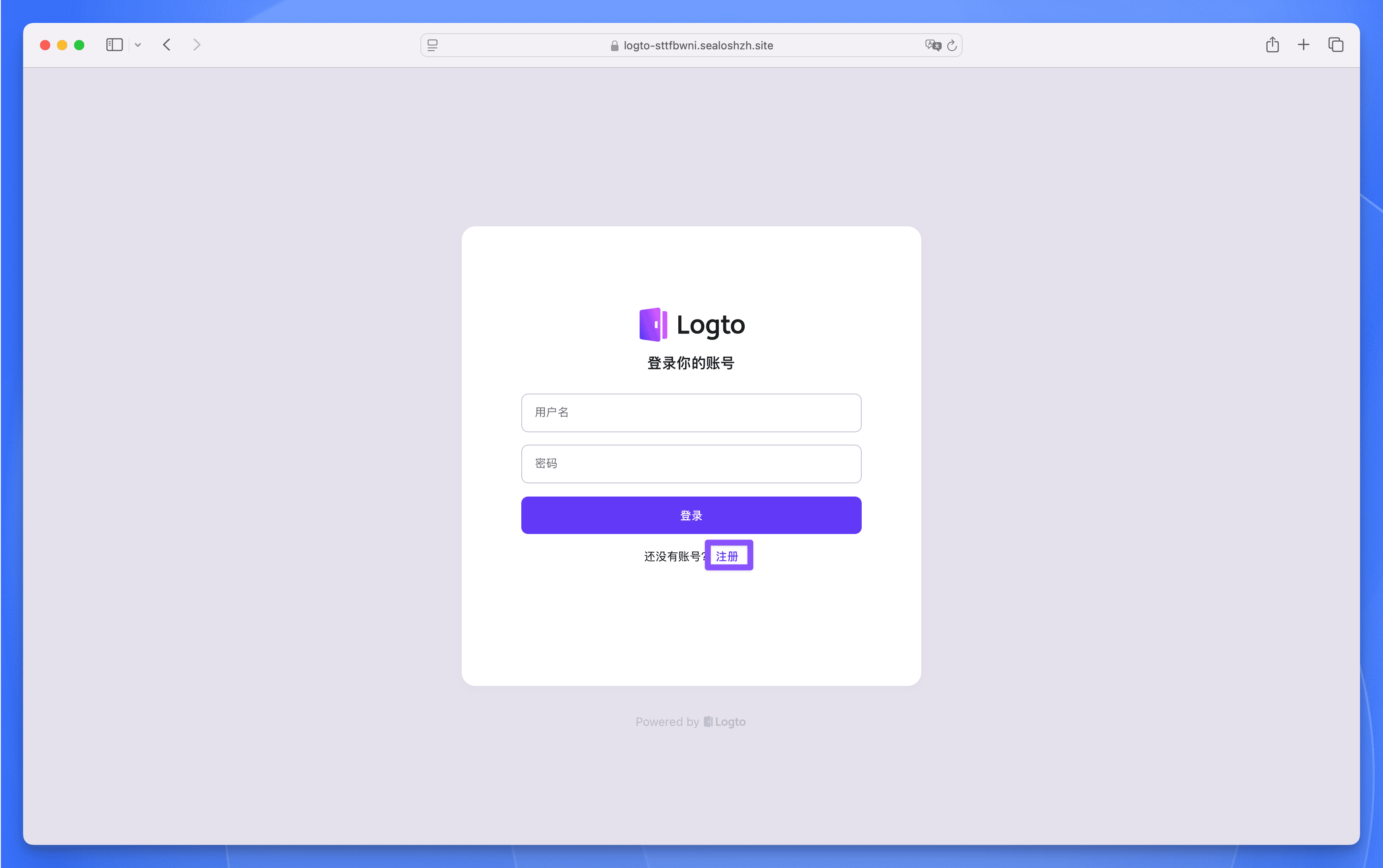
接下来会跳转到 Logto 的登录页面，点击【注册】注册一个账号。

![Lobe Chat 数据库版注册页面](https://raw.githubusercontent.com/labring-actions/templates/main/template/lobe-chat-db/images/lobe-chat-db-register.png)

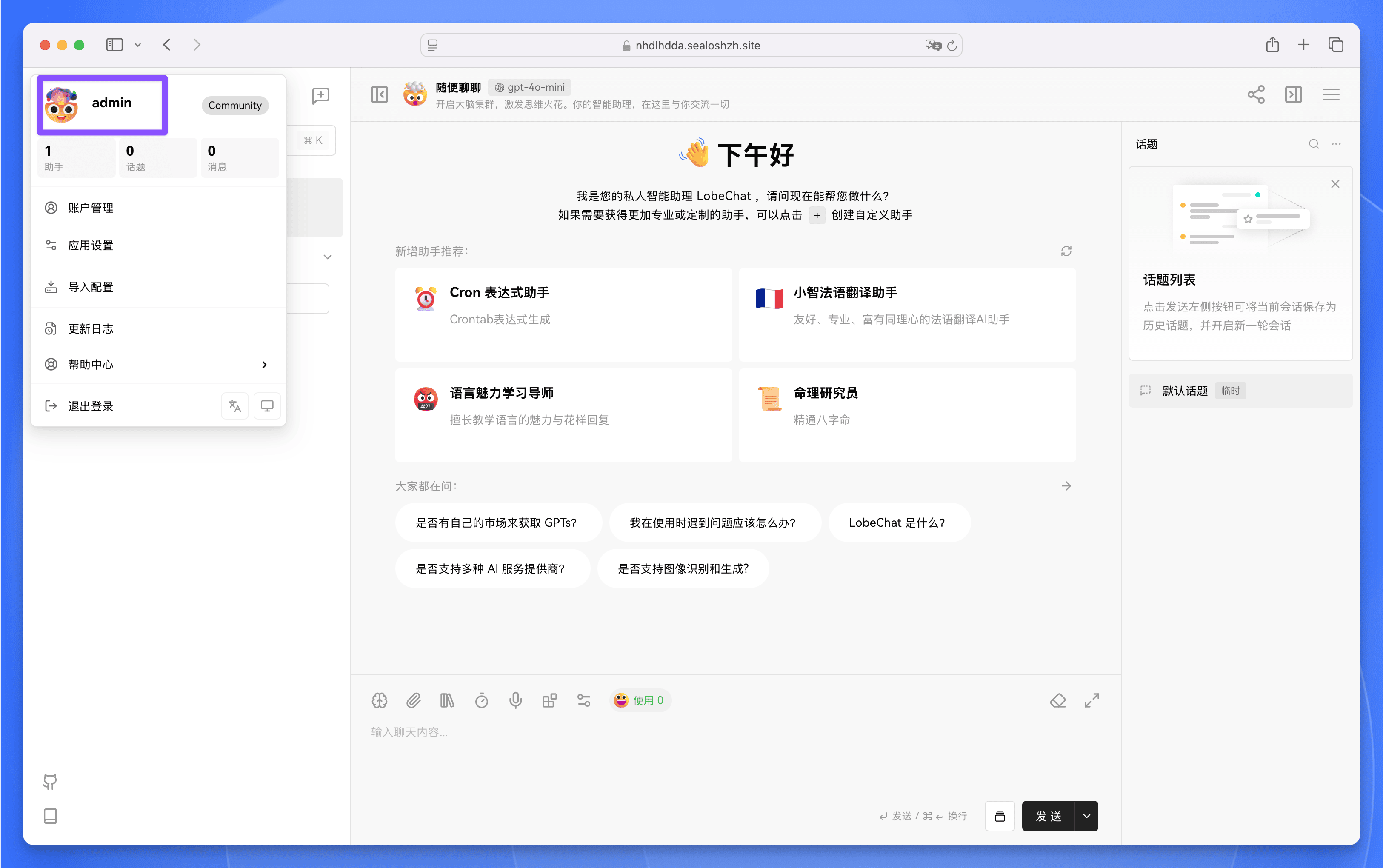
注册完成后，即可使用 Logto 登录 Lobe Chat 数据库版。

![Lobe Chat 数据库版登录成功页面](https://raw.githubusercontent.com/labring-actions/templates/main/template/lobe-chat-db/images/lobe-chat-db-login-success.png)