# jscheduler_ui
A javascript scheduler ui component
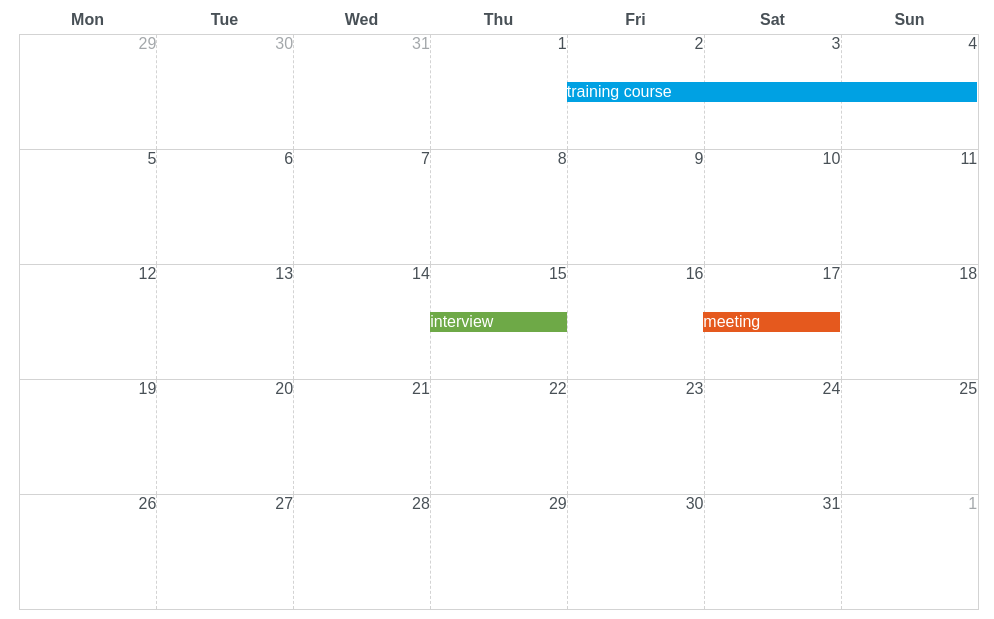
week view | month view
:-------------------------:|:-------------------------:
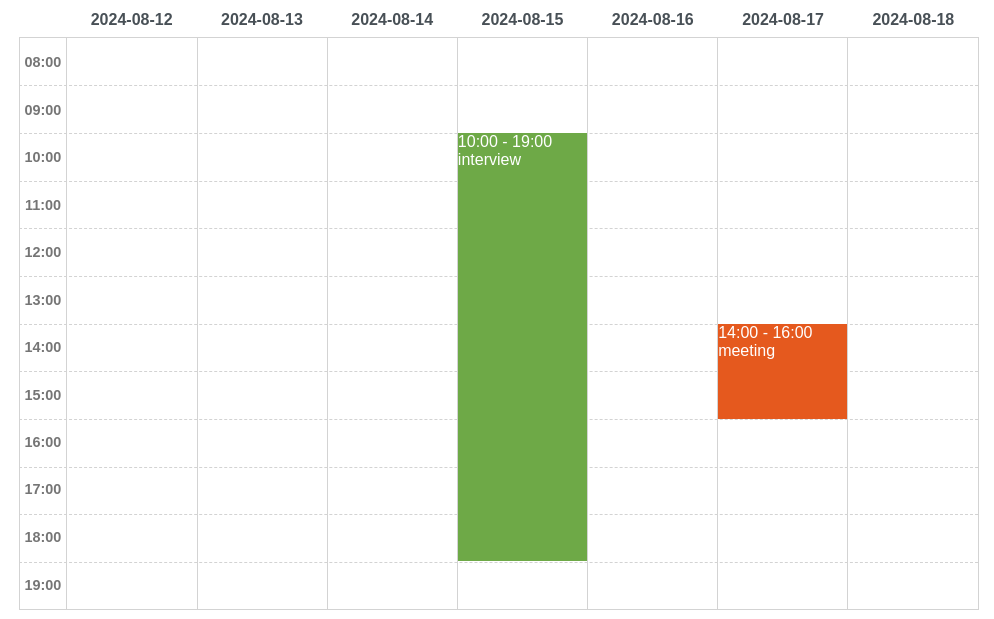 | 
[Demo](https://mormat.github.io/jscheduler_ui/) -
[Examples](https://mormat.github.io/jscheduler_ui/examples.html)
It doesn't require a specific framework and can be embedded in any HTML page (like a legacy website for instance) and from npm as well.
- Switch between multiple views: `day`, `week` and `month`
- Drag and drop events
- Resize events
- Helpers functions to navigate back and forward
- No dependencies required
## Quick start
Add the lines below in your HTML page
```html
jScheduler
```
## Installation
Download `jscheduler_ui.js` and `jscheduler_ui.css` in the last [release](https://github.com/mormat/jscheduler_ui/releases)
Then import the `.css` file in your html page.
```html
```
and the `.js` file.
```html
```
### Using [unpkg](https://unpkg.com/)
To include the `.css` script
```html
```
And the `.js` script
```html
```
## Usage
Use the `jscheduler_ui.render()` function to create a scheduler.
```html
```
The `jscheduler_ui.render()` function will return an object containing [methods](#methods) to interact with the scheduler (such as navigate to next page or the previous one, updating events ...)
Go to the [examples](https://mormat.github.io/jscheduler_ui/examples.html) page to see how to pass the [options](#options) and [listeners](#listeners) to `jscheduler_ui.render()` and how to use the [methods](#methods).
### Using listeners
Most of all the listeners of the scheduler will provide an `eventScheduler` object
containing data about the scheduler event being handled.
This `eventScheduler` object will contain the data required for the scheduler such as:
- `start`: starting date of the event
- `end`: ending date of the event
- `label`: displayed label
Use the `values` prop to retrieve all the others data that you have initially provided when setting the events.
For instance : if you have initially provided an `id` attribute coming from a database, you can retrieve this value like this.
```js
onEventClick: function(schedulerEvent) {
var id = schedulerEvent.values.my_custom_id;
}
```
## Options
### `viewMode`: string
Switch the view mode of the scheduler. Possible values are `day`, `week` and `month`
### `events`: array
The events that will be displayed on the scheduler.
#### example
```js
{
events: [
// dates as string
{
label: "interview",
start: "2024-08-13 10:00",
end: "2024-08-13 12:00",
},
// using the Date object
{
label: "meeting",
start: new Date("2024-08-15 14:00"),
end: new Date("2024-08-15 18:00"),
},
// spanned event
{
label: "training course",
start: "2024-08-15 09:00",
end : "2024-08-17 18:00",
}
]
}
```
### `minHour`: integer
If specified, it will be the starting hour in the hours range of the week mode.
Should be between 1 and 24.
### `maxHour`: integer
If specified, it will be the ending hour in the hours range of the week mode.
Should be between 1 and 24.
### `dateLocale`: string
The i18n locale used to display dates.
### `currentDate`: string | date | number
If set, the scheduler will start displaying from this date.
If empty, the scheduler will start displaying from the first event.
If there is not events, then today's date will be used.
#### examples
```js
{ startDate: "2024-12-20" } // using string
```
```js
{ startDate: new Date("2024-12-20") } // using the Date object
```
```js
{ startDate: 12321544 } // using timestamp
```
### `eventsClickable`: boolean
Enable click on scheduler events.
### `eventsDraggable`: boolean
Enable drag and drop on scheduler events.
### `eventsResizeable`: boolean
Enable resizing of scheduler events.
### `headersVisible`: boolean
Displays or not the headers of the scheduler. Default is `true`.
## Methods
### `setOptions`( `options`: array )
Update the [options](#options) of the scheduler.
#### example
```js
scheduler.setOptions({
'viewMode': 'month',
});
```
#### example
```js
scheduler.setEvents([
{ label: "meeting", start: "2024-08-15 14:00", end: "2024-08-15 18:00" }
]);
```
### `next()`
Switch to the next page of the scheduler depending on the view mode:
- in 'day' mode, go the day week
- in 'week' mode, go the next week
- in 'month' mode, go the next month
### `previous()`
Switch to the previous page of the scheduler depending on the view mode:
- in 'day' mode, go the previous day
- in 'week' mode, go the previous week
- in 'month' mode, go the previous month
### `today`()
Switch the scheduler to current date.
### `getLabel`(): string
Depending on the viewMode:
- `day`: returns the full day
- `week`: returns the week range
- `month`: returns the current month and year
### `getEventsDateRange`()
Returns the events date range.
Useful to load events from an ajax request at a specific date range.
The returned value is an object containing the props
`start`([Date object](https://developer.mozilla.org/fr/docs/Web/JavaScript/Reference/Global_Objects/Date))
and `end`([Date object](https://developer.mozilla.org/fr/docs/Web/JavaScript/Reference/Global_Objects/Date))
## Listeners
Go to [using listeners](#using-listeners) to see how to use the `eventScheduler` object.
### `onEventClick`(`eventScheduler`: object)
Called when the user click on a event.
### `onEventDrop`(`eventScheduler`: object)
Called when the user drop on a event.
### `onEventResize`(`eventScheduler`: object)
Called when the user resize on a event.