# General Layout
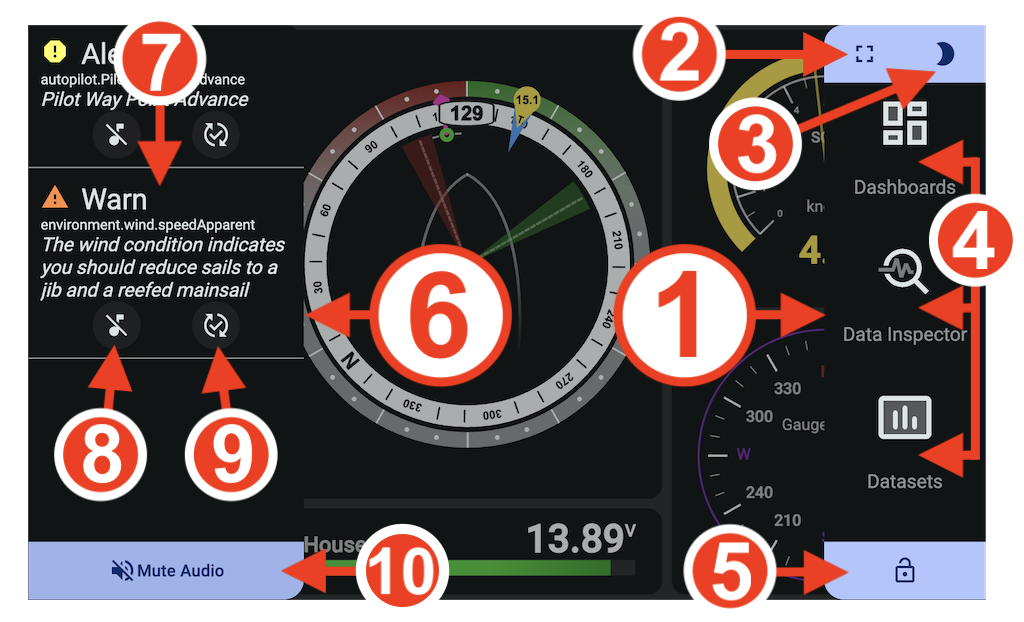 UI Elements
1. Actions menu
2. Fullscreen toggle button
3. Night Mode toggle button
4. Actions button
5. Unlock dashboard
6. Notifications menu
7. Notification message
8. Silence notification
9. Resolve notification
10. Mute audio toggle button
## Touch, Mouse, and Keyboard Navigation
KIP supports multiple input modes for seamless navigation across devices.
| Actions | Gestures | Mouse | Keyboard Shortcuts |
|------------------------------|----------------|------------------------|------------------------------|
| Open Actions menu | Swipe left | Click and Drag Left | Shift + Ctrl + Right Arrow |
| Open Notification menu | Swipe right | Click and Drag Right | Shift + Ctrl + Left Arrow |
| Cycle through dashboards | Swipe Up/Down | Click and Drag Up/Down | Shift + Ctrl + Up/Down Arrow |
| Toggle Fullscreen | N/A | N/A | Shift + Ctrl + F |
| Toggle Night mode | N/A | N/A | Shift + Ctrl + N |
| Toggle Dashboard edit mode | N/A | N/A | Shift + Ctrl + E |
UI Elements
1. Actions menu
2. Fullscreen toggle button
3. Night Mode toggle button
4. Actions button
5. Unlock dashboard
6. Notifications menu
7. Notification message
8. Silence notification
9. Resolve notification
10. Mute audio toggle button
## Touch, Mouse, and Keyboard Navigation
KIP supports multiple input modes for seamless navigation across devices.
| Actions | Gestures | Mouse | Keyboard Shortcuts |
|------------------------------|----------------|------------------------|------------------------------|
| Open Actions menu | Swipe left | Click and Drag Left | Shift + Ctrl + Right Arrow |
| Open Notification menu | Swipe right | Click and Drag Right | Shift + Ctrl + Left Arrow |
| Cycle through dashboards | Swipe Up/Down | Click and Drag Up/Down | Shift + Ctrl + Up/Down Arrow |
| Toggle Fullscreen | N/A | N/A | Shift + Ctrl + F |
| Toggle Night mode | N/A | N/A | Shift + Ctrl + N |
| Toggle Dashboard edit mode | N/A | N/A | Shift + Ctrl + E |
## Loading KIP on Phones, Tablets, Raspberry Pi, and Computers
Simply navigate to `http://:/@mxtommy/kip/` to load KIP and enjoy its features remotely on any device.
## Mobile App
Run KIP in full screen, without browser controls, just like a regular mobile app. This feature is supported on most mobile operating systems. Each browser has its own way of handling Progressive Web App (PWA) installations.
**iOS**
1. Press the "Share" button.
2. Select "Add to Home Screen" from the action popup list.
3. Tap "Add" in the top right corner to finish installation.
KIP is now installed and available on your home screen.
**Android**
1. Press the "three dot" icon in the upper right to open the menu.
2. Select "Add to Home screen."
3. Press the "Add" button in the popup.
KIP is now installed and available on your home screen.
## Fullscreen
You can toggle fullscreen mode on and off, and disable the screen saver and computer sleep mode (if supported by the device/browser), by clicking the small Expand/Reduce button in the upper left corner of the Actions menu or using the keyboard hotkey. This button is not available on mobile devices.
## Night Mode
Save your night vision by automatically switching KIP to day or night mode based on sunrise and sunset hours (the Signal K Derived Data plugin is required for automatic switching). This feature can be enabled in the **Settings > Display** page. You can also manually set the mode by clicking the small Moon/Sun button in the upper right corner of the Actions menu. Note that if automatic switching is enabled, brightness will reset to the Signal K mode value.
## Multiple User Profiles
KIP supports multiple user profiles, allowing different roles on board—such as captain, skipper, tactician, navigator, or engineer—to tailor the interface to their needs. Profiles can also be used to tie specific configuration arrangements to use cases or device form factors.