# ic
An HTML representation of a ic.
## Default usage
Import the ic to your project:
```javascript
// ES6
import { ic } from '@navelpluisje/pcb-components/src';
// Or for example an Electron project
const { ic } = require('@navelpluisje/pcb-components/dist/umd');
// Then call the function. This will make the component avalaible in the DOM
ic();
```
When included you can use the `np-ic` tag to use it in your code.
```
```
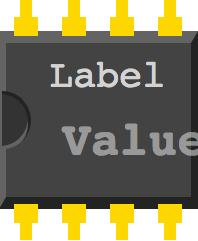
This will generate the next ic:
## Value
By clicking the value, an inputfield will appear. Type the value of the ic, blur the field and the change event will be triggered.
## Attributes
* `value`: The initial value for the ic
* `label`: The initial label for the ic
* `placeholder`: The initial placeholder for the ic
* `pins`: The number of pins for the ic
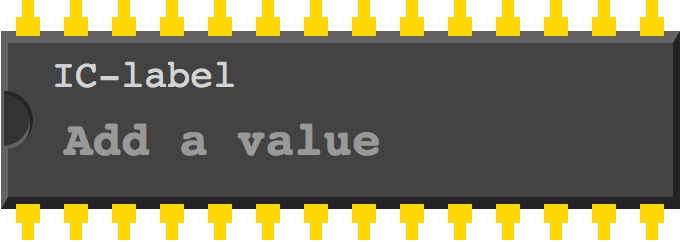
> An example with 3 'dips' and the show-value attribute set:
```html
```
## Events
The ic has one event you can listen to: The `change` event. This works like the change event of any input-element. The current value of the ic is the value property of the event target.
```
document.querySelector('np-ic')
.addEventListener(
'change',
(evt) => console.log(evt.target.value)
);
```
This will print the current value of the ic in the console