# LinBUS communication using WisBlock LIN MODULE RAK13005 on RAK7391
## 1.Introduction
This guide explains how to use the [RAK13005](https://docs.rakwireless.com/Product-Categories/WisBlock/RAK13005/Overview/) in combination with RAK7391 WisGate Developer Connect to interface a linBUS device using node-red.
### 1.1 linBUS protocol
**LIN** (**Local Interconnect Network**) is a [serial](https://en.wikipedia.org/wiki/Serial_communication) [network protocol](https://en.wikipedia.org/wiki/Network_protocol) used for communication between components in vehicles. It is a single wire, serial network protocol that supports communications up to 19.2 Kbit/s at a bus length of 40 meters.
### 1.2. RAK13005
The RAK13005 is a **Local Interconnect Network** (LIN) transceiver module, used in automatic technologies that can be mounted on the IO slot of the WisBlock Base board. It is designed for in-vehicle networks using data transmission rates from 2.4 kBaud to 20 kBaud, and it uses the TLE7259-3 chip from Infineon.
## 2. Preparation
### 2.1. Hardware
In this example we will establish a linBus communication between WisBlock Starter Kit and RAK7391 WisGate Developer Connect with two RAK13005 modules, so we need:
- **RAK7391 WisGate Developer Connect**
- **WisBlock Starter Kit** (WisBlock Base RAK5005-O + WisBlock Core RAK4631)
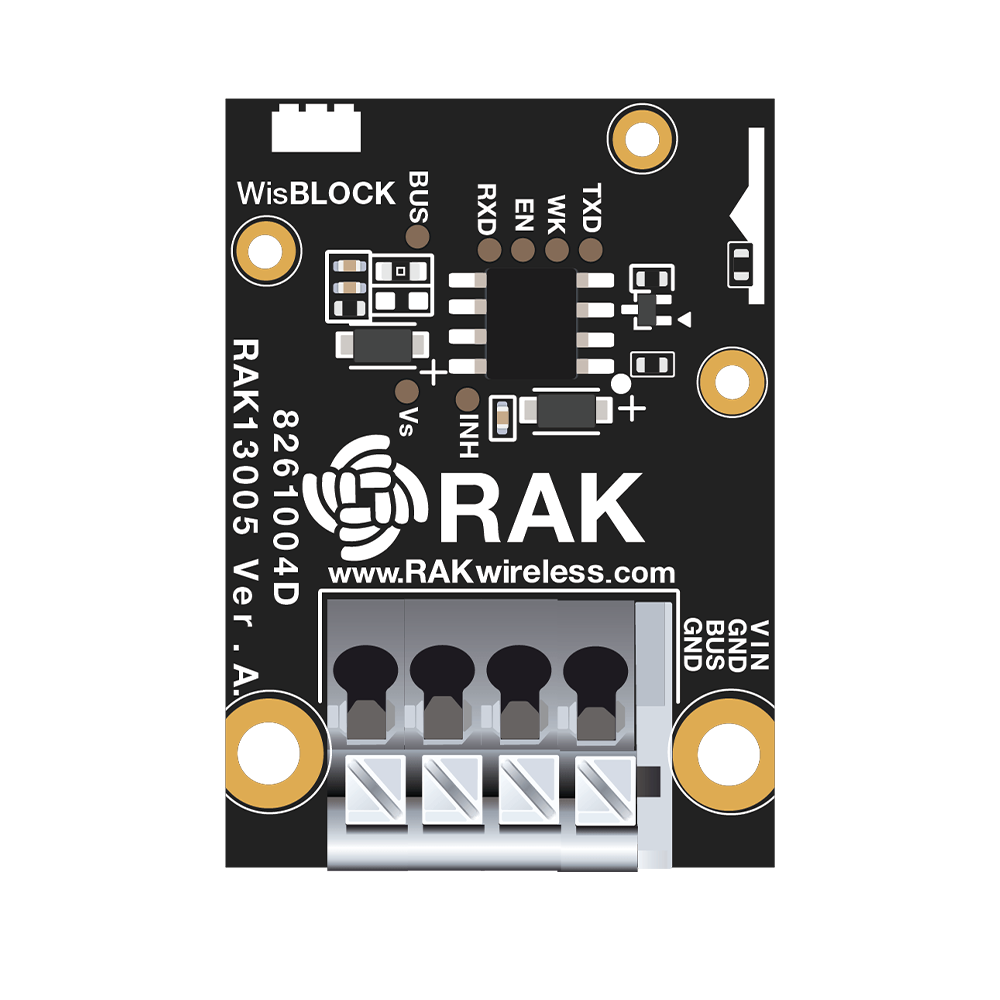
 - **RAK13005**
 - **Other hardware**
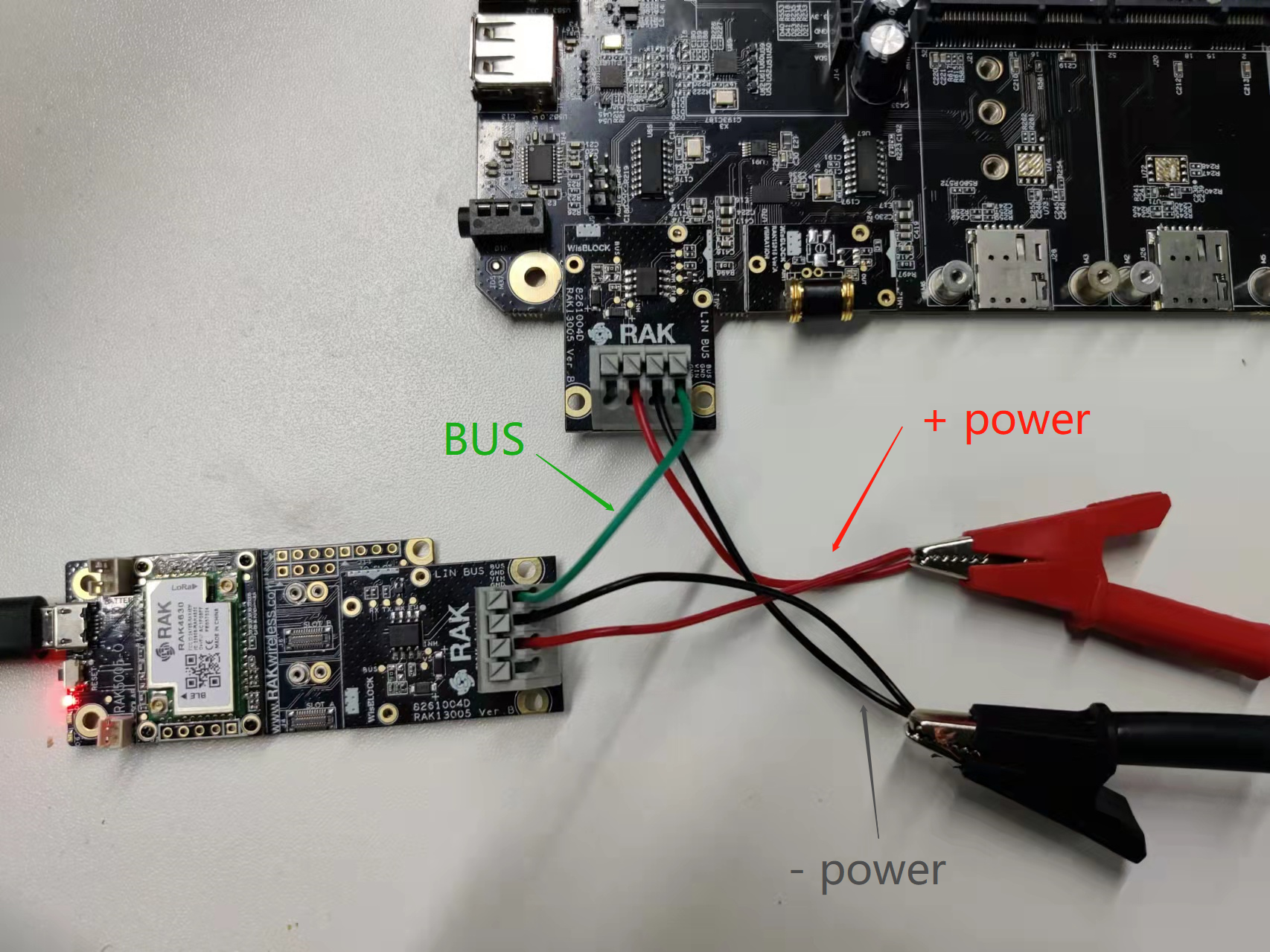
We will need a couple of cables to connect both RAK13005 modules and an external 5-27v power supply to RAK13005 modules.
The connection diagram should be like this.
- **Other hardware**
We will need a couple of cables to connect both RAK13005 modules and an external 5-27v power supply to RAK13005 modules.
The connection diagram should be like this.
 ### 2.2. Software
- **Node-RED-contrib-linbus**
Install the `node-red-contrib-linbus` moulde from our node-red-nodes repository ,
```plaintext
git clone https://github.com/RAKWireless/node-red-nodes.git
```
copy `node-red-contrib-linbus` folder to `node_modules` folder, `node_modules` folder is located in the root directory of your node-red install.
```plaintext
cp -rf node-red-nodes/node-red-contrib-linbus ~/.node-red/node_modules
```
then go to the `node-red-contrib-linbus` folder and run the installation command
```plaintext
cd ~/.node-red/node_modules/node-red-contrib-linbus && npm install
```
- **Node-RED-node-serialport**
In our flows, `node-red-contrib-linbus` is used in combination with a serial port node, so we need to install`node-red-node-serialport` , run the following command in the root directory of your node-red install
```
npm install node-red-node-serialport@0.15.0
```
**Note:** the latest version of node-red-node-serialport is `1.0.1`, but it has a serious bugs in a node-red container, so we use old version `0.15.0`.
## 3. Run example
In this example, we use `node-red-contrib-linbus` module to cerate node-red flows. there are two nodes in this module, so we have two flows:
- [linbus-parse-flow](linbus-parse-example.json) use `linbus-parse` node to receive linbus data from a serial node and and output a message upon valid LinBUS message reception.
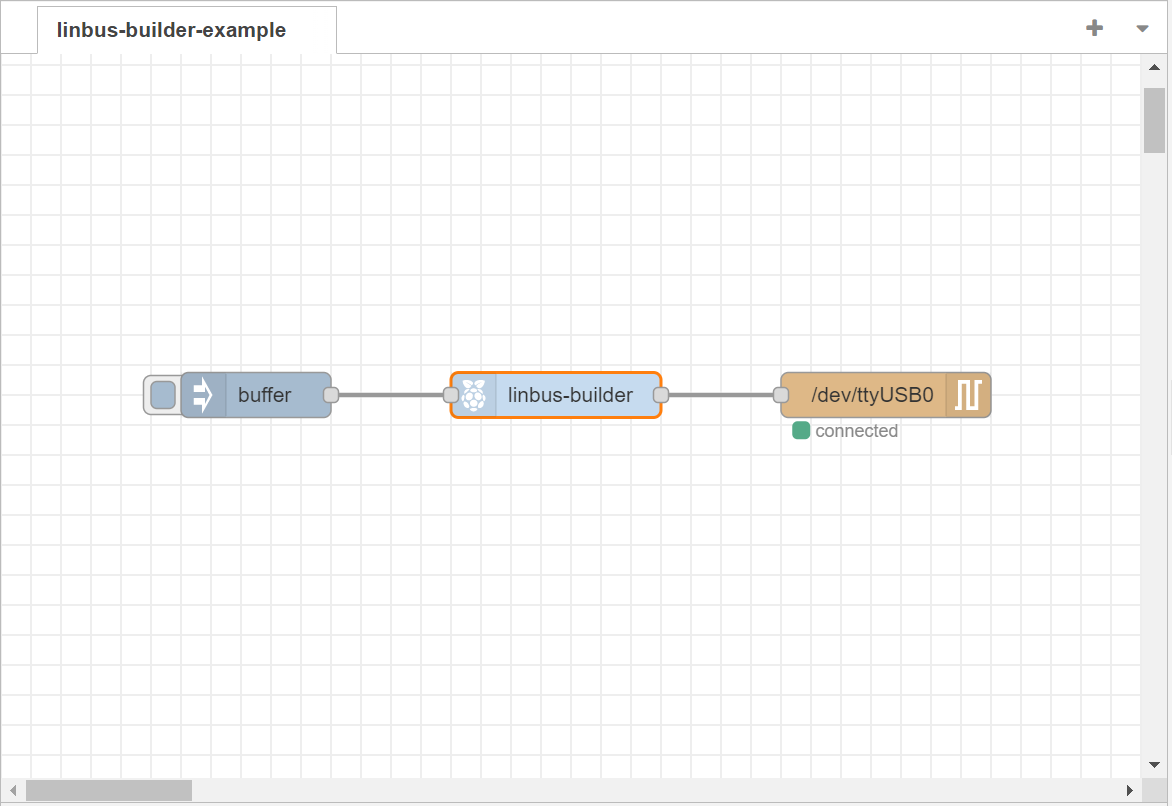
- [linbus-builder-flow](linbus-builder-example.json) use `linbus-builder` node to create a valid linbus frame from a frame type and a byte buffer payload, the output will be fed to a serial node.
We use [linbus-builder-flow](linbus-builder-example.json) as a example. Import the flow, then the new flow should look like this:
### 2.2. Software
- **Node-RED-contrib-linbus**
Install the `node-red-contrib-linbus` moulde from our node-red-nodes repository ,
```plaintext
git clone https://github.com/RAKWireless/node-red-nodes.git
```
copy `node-red-contrib-linbus` folder to `node_modules` folder, `node_modules` folder is located in the root directory of your node-red install.
```plaintext
cp -rf node-red-nodes/node-red-contrib-linbus ~/.node-red/node_modules
```
then go to the `node-red-contrib-linbus` folder and run the installation command
```plaintext
cd ~/.node-red/node_modules/node-red-contrib-linbus && npm install
```
- **Node-RED-node-serialport**
In our flows, `node-red-contrib-linbus` is used in combination with a serial port node, so we need to install`node-red-node-serialport` , run the following command in the root directory of your node-red install
```
npm install node-red-node-serialport@0.15.0
```
**Note:** the latest version of node-red-node-serialport is `1.0.1`, but it has a serious bugs in a node-red container, so we use old version `0.15.0`.
## 3. Run example
In this example, we use `node-red-contrib-linbus` module to cerate node-red flows. there are two nodes in this module, so we have two flows:
- [linbus-parse-flow](linbus-parse-example.json) use `linbus-parse` node to receive linbus data from a serial node and and output a message upon valid LinBUS message reception.
- [linbus-builder-flow](linbus-builder-example.json) use `linbus-builder` node to create a valid linbus frame from a frame type and a byte buffer payload, the output will be fed to a serial node.
We use [linbus-builder-flow](linbus-builder-example.json) as a example. Import the flow, then the new flow should look like this:
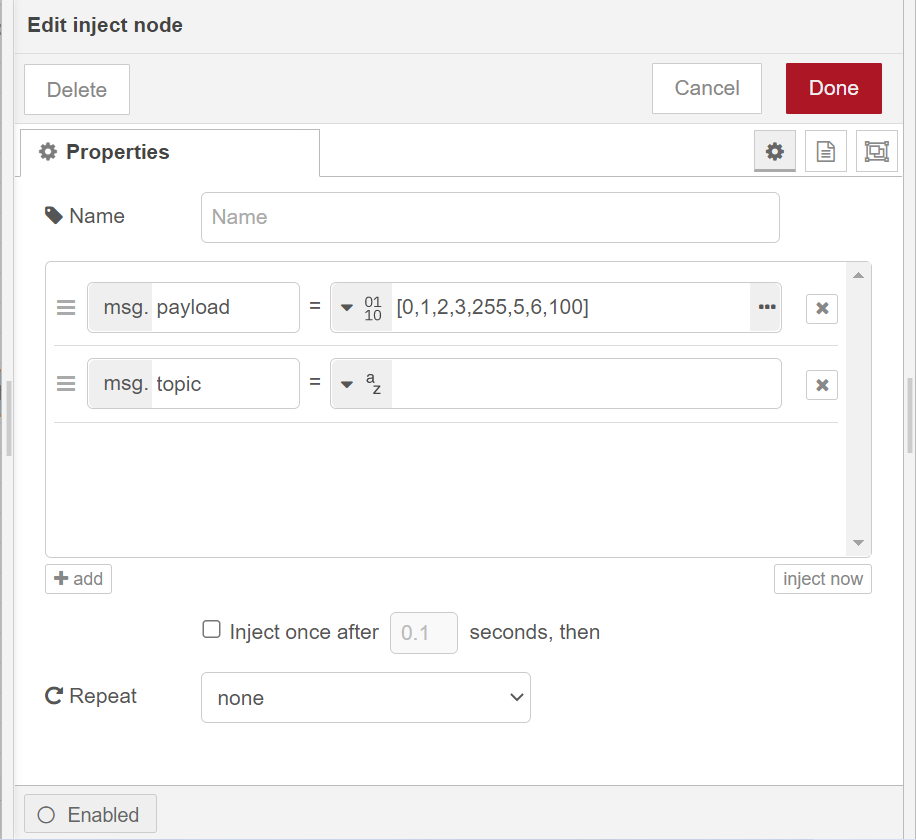
 the payload is generated with an `inject` node, one thing to note is that the payload type must be set to `buffer` in the `inject` node and data length should be 2 bytes or 4 bytes or 8 bytes.
 Hit the `Deploy` button on the top right to deploy this flow.
Here we use WisBlock Starter Kit as a slaver the slaver to receive linBUS data. Arduino sketch can be found under the [rak13005_linbus_device](rak13005_linbus_device/rak13005_linbus_slaver.ino) folder, compile and upload it into device, and open the Serial Monitor on the Arduino IDE.
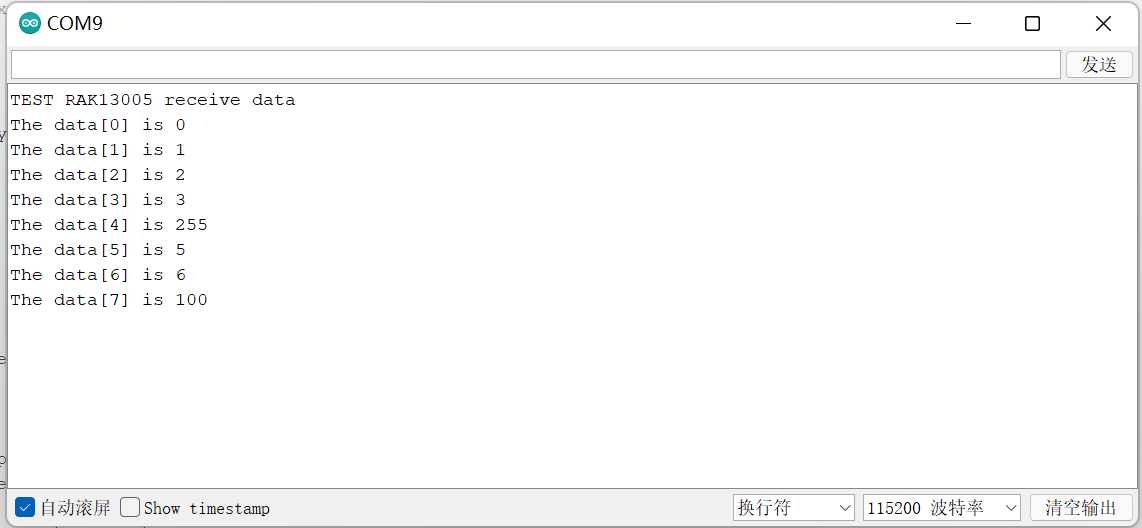
Then click `inject` node of flow, we can see the serial output as follows.
Hit the `Deploy` button on the top right to deploy this flow.
Here we use WisBlock Starter Kit as a slaver the slaver to receive linBUS data. Arduino sketch can be found under the [rak13005_linbus_device](rak13005_linbus_device/rak13005_linbus_slaver.ino) folder, compile and upload it into device, and open the Serial Monitor on the Arduino IDE.
Then click `inject` node of flow, we can see the serial output as follows.
 ## 4. License
This project is licensed under MIT license.
## 4. License
This project is licensed under MIT license.