# Vue Diagram Control
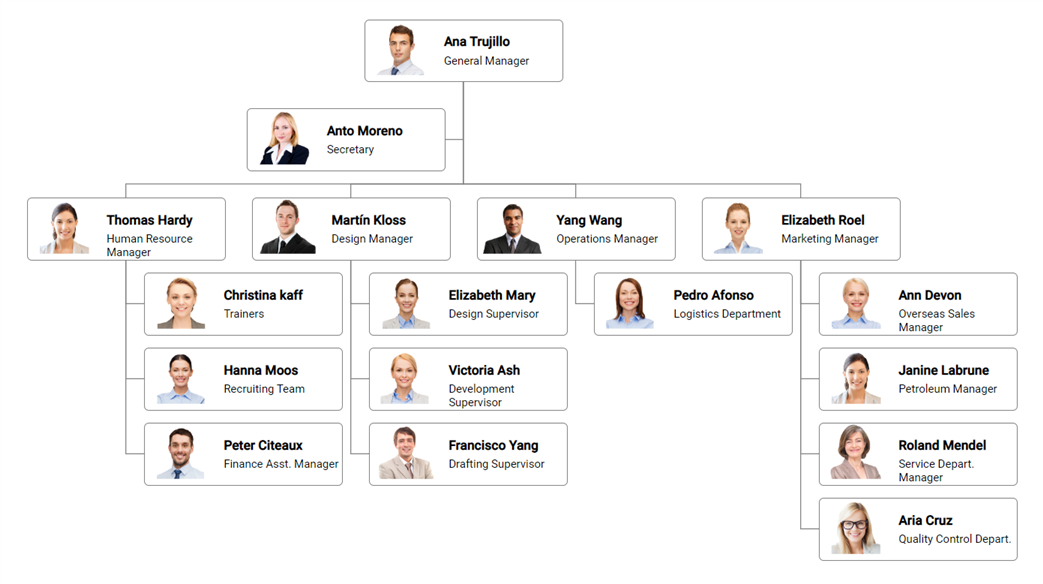
The [Vue Diagram](https://www.syncfusion.com/react-components/react-diagram?utm_source=npm&utm_medium=listing&utm_campaign=react-diagram-npm) component is used for visualizing, creating, and editing interactive diagrams. It supports creating flowcharts, organizational charts, mind maps, floor plans, UML diagrams, and BPMN charts either through code or a visual interface.
Getting started .
Online demos .
Learn more
Trusted by the world's leading companies

## Setup
### Create an Vue Application
You can use [`Vue CLI`](https://github.com/vuejs/vue-cli) to setup your Vue 2 applications.To install Vue CLI use the following commands.
```bash
npm install -g @vue/cli
vue create quickstart
cd quickstart
npm run serve
```
Initiating a new project prompts us to choose the type of project to be used for the current application. Select the option `Default ([Vue 2] babel, eslint)` from the menu.
### Adding Syncfusion Diagram package
All Syncfusion Vue packages are published in [npmjs.com](https://www.npmjs.com/~syncfusionorg) registry. To install Vue diagram package, use the following command.
```bash
npm install @syncfusion/ej2-vue-diagrams --save
```
### Registering Diagram Component
You can register the Diagram component in your application by using the **Vue.use()**. Refer to the code example given below.
```typescript
import { DiagramPlugin } from '@syncfusion/ej2-vue-diagrams';
Vue.use(DiagramPlugin);
```
> Registering **DiagramPlugin** in vue, will register the diagram component along with its required child directives globally.
### Adding CSS references for Diagram
Add CSS references needed for Diagram in **style** section of the **App.vue** file from **../node_modules/@syncfusion** package folder.
```html
```
## Add Diagram Component
Add the Vue Diagram by using **ejs-diagram** selector in **template** section of the **App.vue** file.
```html
```
> Refer the [Getting Started with Vue3](https://ej2.syncfusion.com/vue/documentation/diagram/getting-started-vue-3/) for using Syncfusion Vue components in Vue 3 applications.
## Supported frameworks
Diagram component is also offered in following list of frameworks.
| [ ](https://www.syncfusion.com/javascript-ui-controls?utm_medium=listing&utm_source=github)
[JavaScript](https://www.syncfusion.com/javascript-ui-controls?utm_medium=listing&utm_source=github) | [ ](https://www.syncfusion.com/angular-components/?utm_medium=listing&utm_source=github)
[Angular](https://www.syncfusion.com/angular-components/?utm_medium=listing&utm_source=github) | [ ](https://www.syncfusion.com/react-ui-components?utm_medium=listing&utm_source=github)
[React](https://www.syncfusion.com/react-ui-components?utm_medium=listing&utm_source=github) | [ ](https://www.syncfusion.com/aspnet-core-ui-controls?utm_medium=listing&utm_source=github)
[ASP.NET Core](https://www.syncfusion.com/aspnet-core-ui-controls?utm_medium=listing&utm_source=github) | [ ](https://www.syncfusion.com/aspnet-mvc-ui-controls?utm_medium=listing&utm_source=github)
[ASP.NET MVC](https://www.syncfusion.com/aspnet-mvc-ui-controls?utm_medium=listing&utm_source=github) |
| :-----: | :-----: | :-----: | :-----: | :-----: |
## Use case demos
* [Vue Diagram Builder demo](https://ej2.syncfusion.com/showcase/vue/diagrambuilder/)
* [Vue Organizational Chart demo](https://ej2.syncfusion.com/vue/demos/#/bootstrap5/diagram/organization-model.html)
* [Vue Mind Map demo](https://ej2.syncfusion.com/vue/demos/#/bootstrap5/diagram/mind-map.html)
* [Vue BPMN Editor demo](https://ej2.syncfusion.com/vue/demos/#/bootstrap5/diagram/bpmn-editor.html)
* [Vue Logic Circuit Diagram demo](https://ej2.syncfusion.com/vue/demos/#/bootstrap5/diagram/logical-circuit.html)
* [Vue UML Activity Diagram demo](https://ej2.syncfusion.com/vue/demos/#/bootstrap5/diagram/uml-activity.html)
* [Vue Network Diagram demo](https://ej2.syncfusion.com/vue/demos/#/bootstrap5/diagram/network-diagram.html)
* [Vue UML Class Diagram demo](https://ej2.syncfusion.com/vue/demos/#/bootstrap5/diagram/uml-class-diagram.html)
* [Vue Venn Diagram demo](https://ej2.syncfusion.com/vue/demos/#/bootstrap5/diagram/venn-diagram.html)
* [Vue Fishbone Diagram demo](https://ej2.syncfusion.com/vue/demos/#/bootstrap5/diagram/fishbone-diagram.html)
## Key Features
- [Nodes](https://ej2.syncfusion.com/vue/demos/#/material/diagram/node.html) - Nodes are used to host graphical objects (path or controls) that can be arranged and manipulated on a diagram page. Many predefined standard shapes are included. Custom shapes can also be created and added easily.
- [Connectors](https://ej2.syncfusion.com/vue/demos/#/material/diagram/connector.html) - The relationship between two nodes is represented using a connector.
- [Labels](https://ej2.syncfusion.com/vue/demos/#/material/diagram/annotation.html)- Labels are used to annotate nodes and connectors.
* [Ports](https://ej2.syncfusion.com/vue/demos/#/material/diagram/port.html) - Ports act as the connection points of the node and allows to create connections with only those specific points.
- [Interactive Features](https://ej2.syncfusion.com/vue/demos/#/material/diagram/drawing-tool.html) - Interactive features are used to improve the run time editing experience of a diagram.
- [Data Binding](https://ej2.syncfusion.com/vue/demos/#/material/diagram/local-data.html) - Generates diagram with nodes and connectors based on the information provided from an external data source.
- [Commands](https://ej2.syncfusion.com/vue/demos/#/material/diagram/keyboard-functions.html) - Supports a set of predefined commands that helps edit the diagram using keyboard. It is also possible to configure new commands and key combinations.
- [Automatic Layout](https://ej2.syncfusion.com/vue/demos/#/material/diagram/hierarchical-model.html) - Automatic layouts are used to arrange nodes automatically based on a predefined layout logic. There is built-in support for organizational chart layout, hierarchical tree layout, symmetric layout, radial tree layout, and mind map layout.
- [Overview Panel](https://ej2.syncfusion.com/vue/demos/#/material/diagram/overview.html) - The overview panel is used to improve navigation experience when exploring large diagrams.
- [SymbolPalettes](https://ej2.syncfusion.com/vue/demos/#/material/diagram/symbol-palette.html) - The symbol palette is a gallery of reusable symbols and nodes that can be dragged and dropped on the surface of a diagram.
- [Rulers](https://ej2.syncfusion.com/vue/demos/#/material/diagram/drawing-tool.html) - The ruler provides horizontal and vertical guides for measuring diagram objects in diagram control.
- [Serialization](https://ej2.syncfusion.com/vue/demos/#/material/diagram/serialization.html) - When saved in JSON format a diagram’s state persists, and then it can be loaded back using serialization.
- [Exporting and Printing](https://ej2.syncfusion.com/vue/demos/#/material/diagram/print-export.html) - Diagrams can be exported as .png, .jpeg, .bmp, and .svg image files, and can also be printed as documents.
- [Gridlines](https://ej2.syncfusion.com/vue/demos/#/material/diagram/default-functionality.html) - Gridlines are the pattern of lines drawn behind diagram elements. It provides a visual guidance while dragging or arranging the objects on a diagram surface.
- [Page Layout](https://ej2.syncfusion.com/vue/demos/#/material/diagram/print-export.html)- The drawing surface can be configured to page-like appearance using page size, orientation, and margins.
- [Context Menu](https://ej2.syncfusion.com/vue/demos/#/material/diagram/keyboard-functions.html) - Frequently used commands can easily be mapped to the context menu.
## Support
Product support is available through the following mediums.
* [Support ticket](https://support.syncfusion.com/support/tickets/create) - Guaranteed Response in 24 hours | Unlimited tickets | Holiday support
* [Community forum](https://www.syncfusion.com/forums/vue?utm_source=npm&utm_medium=listing&utm_campaign=vue-diagram-npm)
* [GitHub issues](https://github.com/syncfusion/ej2-vue-ui-components/issues/new)
* [Request feature or report bug](https://www.syncfusion.com/feedback/vue?utm_source=npm&utm_medium=listing&utm_campaign=vue-diagram-npm)
* Live chat
## Changelog
Check the changelog [here](https://github.com/syncfusion/ej2-vue-ui-components/blob/master/components/diagrams/CHANGELOG.md). Get minor improvements and bug fixes every week to stay up to date with frequent updates.
## License and copyright
> This is a commercial product and requires a paid license for possession or use. Syncfusion’s licensed software, including this component, is subject to the terms and conditions of Syncfusion's [EULA](https://www.syncfusion.com/eula/es/). To acquire a license for 80+ [Vue UI components](https://www.syncfusion.com/vue-components), you can [purchase](https://www.syncfusion.com/sales/products) or [start a free 30-day trial](https://www.syncfusion.com/account/manage-trials/start-trials).
> A free community [license](https://www.syncfusion.com/products/communitylicense) is also available for companies and individuals whose organizations have less than $1 million USD in annual gross revenue and five or fewer developers.
See [LICENSE FILE](https://github.com/syncfusion/ej2-vue-ui-components/blob/master/license?utm_source=npm&utm_medium=listing&utm_campaign=vue-diagram-npm) for more info.
© Copyright 2026 Syncfusion® Inc. All Rights Reserved. The Syncfusion® Essential Studio® license and copyright applies to this distribution.