## 介绍

智能客服用户端的微信小程序 UIKit。使用此 UIKit，您可以在一天内将智能客服的能力集成到您的小程序项目。极简接入，用智能客服为您的产品增收提效，提升用户满意度和付费转化。

## 效果展示

![](https://write-document-release-1258344699.cos.ap-guangzhou.tencentcos.cn/100027960326/1eccbfa0571311f09c7652540044a08e.png)


## 开发环境要求
- 微信开发者工具

- JavaScript 或 TypeScript

- node（node.js ≥ 16.0.0）

- npm（版本请与 node 版本匹配）


## UIKit 源码集成

### 步骤1：创建项目

在微信开发者工具上创建一个使用 JS-基础模板的小程序项目（是否使用模板，是否使用 TS 均可），如图所示：

![](https://write-document-release-1258344699.cos.ap-guangzhou.tencentcos.cn/100027960326/d57d220ffd8311efaf3d52540099c741.png)


### 步骤2：下载 UIKit

微信开发者工具创建的小程序项目默认没有 package.json，因此您需要先创建 package.json 文件。
``` bash
npm init -y
```

通过 NPM 方式下载 UIKit。
``` bash
npm i @tencentcloud/ai-desk-customer-wechat@latest
```

为了方便您对 UI 进行扩展，请在项目的根目录下执行以下命令，将 UIKit 源码复制到项目中。


【macOS 端】
``` bash
mkdir -p ./ai-desk-customer-wechat && 
rsync -av --exclude={'node_modules','excluded-list.txt'} ./node_modules/@tencentcloud/ai-desk-customer-wechat/ ai-desk-customer-wechat/
```

【Windows 端】
``` bash
robocopy .\node_modules\@tencentcloud\ai-desk-customer-wechat .\ai-desk-customer-wechat /E
```

### 步骤3：分包引入 UIKit

为了规避小程序主包体积超限问题，我们建议您将客服 UIKit 放入分包。

#### 

#### 1. 工程配置


【app.js】

> **说明：**
> 

> 以下代码使用了[分包异步化](https://developers.weixin.qq.com/miniprogram/dev/framework/subpackages/async.html)的技术方案。
> 

``` javascript
"use strict";
Object.defineProperty(exports, Symbol.toStringTag, { value: "Module" });
let common_vendor;
require.async('./ai-desk-customer-wechat/common/vendor').then((res) => {
    common_vendor = res;
    const _sfc_main = {
        onLaunch: function() {
          console.log("App Launch");
        },
        onShow: function() {
          console.log("App Show");
        },
        onHide: function() {
          console.log("App Hide");
        }
      };
      function createApp() {
        const app = common_vendor.createSSRApp(_sfc_main);
        return {
          app
        };
      }
      createApp().app.mount("#app");
      exports.createApp = createApp;
}).catch(({ errMsg, mod }) => {
    console.error(`path: ${mod}, ${errMsg}`)
});
```

【app.json】

> **说明：**
> 

> 请务必配置 [subPackages](https://developers.weixin.qq.com/miniprogram/dev/framework/subpackages/basic.html)和 [preloadRule](https://developers.weixin.qq.com/miniprogram/dev/framework/subpackages/preload.html)。
> 

``` javascript
{
  "pages": [
    "pages/index/index"
  ],
  "subPackages": [
    {
      "root": "ai-desk-customer-wechat",
      "pages": [
        "pages/index/index"
      ],
      "entry": "index.js"
    }
  ],
  "preloadRule": {
    "ai-desk-customer-wechat/pages/index/index": {
      "network": "all",
      "packages": [
        "ai-desk-customer-wechat"
      ]
    }
  },
  "window": {
    "navigationBarTextStyle": "black",
    "navigationBarTitleText": "Weixin",
    "navigationBarBackgroundColor": "#ffffff"
  },
  "style": "v2",
  "componentFramework": "glass-easel",
  "sitemapLocation": "sitemap.json"
}

```

#### 

#### 2. 在项目主包页面中配置智能客服的入口


【主包 pages/index/index.js】
``` javascript
Page({
  data: {
  },
  getSupport() {
    // SDKAppID/userID/userSig 的获取请参考步骤4
    const SDKAppID = 0;
    const userID = '';
    const userSig = '';
    wx.navigateTo({
      url: `/ai-desk-customer-wechat/pages/index/index?SDKAppID=${SDKAppID}&userID=${userID}&userSig=${userSig}`
    })
  },
})
```

【主包 pages/index/index.wxml】
``` javascript
<button class="get-support" bind:tap="getSupport">咨询客服</button>
```

【主包 pages/index/index.wxss】
``` css
page {
  height: 100vh;
  display: flex;
  flex-direction: column;
}

.get-support {
  background-color: #0052d9;
  color: #ffffff;
  margin: auto;
}
```

### 步骤4：获取 SDKAppID 、userID 、 userSig

设置`pages/index/index.js`中的 `SDKAppID`、`userID`、`userSig` 。
- SDKAppID 信息，可在 [即时通信 IM 控制台](https://console.cloud.tencent.com/im) 单击**应用管理** > **创建新应用**，并选择**智能客服 Desk** ， [开通智能客服](https://console.cloud.tencent.com/im/ai-desk) 后获取。

   ![](https://write-document-release-1258344699.cos.ap-guangzhou.tencentcos.cn/100027960326/0347dd04533411f0adb15254005ef0f7.png)

   ![](https://write-document-release-1258344699.cos.ap-guangzhou.tencentcos.cn/100031390357/62756080589f11f0ba94525400454e06.png)

- userID 信息，可本地生成一个随机的字符串，例如 test-1234。

- userSig 信息，可单击 [即时通信 IM 控制台 > UserSig生成校验](https://console.cloud.tencent.com/im/tool-usersig)，填写创建的 userID，即可生成 userSig。

   ![](https://write-document-release-1258344699.cos.ap-guangzhou.tencentcos.cn/100031390357/529621d70ae511f0b3015254001c06ec.png)


### 步骤5：启动项目，并发起您的第一条客服咨询

测试前，请先清理微信开发者工具的缓存，并勾选**本地设置** > **不校验合法域名**。


![](https://write-document-release-1258344699.cos.ap-guangzhou.tencentcos.cn/100027960326/46244897ff1411efaf3d52540099c741.png)


![](https://write-document-release-1258344699.cos.ap-guangzhou.tencentcos.cn/100027960326/497e1619ff1411efa17e525400454e06.jpeg)


## 高级特性

### 用户端带昵称和头像登录

如果您希望人工客服在工作台接待用户咨询时，能看到用户的昵称、头像等信息以提升沟通效率，效果如下所示：

![](https://write-document-release-1258344699.cos.ap-guangzhou.tencentcos.cn/100027960326/1571c023571211f0ba94525400454e06.png)


修改主包 `pages/index/index.js`，设置 `nickName` 和 `avatar` 并将其传递给客服组件。
``` javascript
Page({
  data: {
  },
  getSupport() {
    // SDKAppID/userID/userSig 的获取请参考步骤4
    const SDKAppID = 0;
    const userID = '';
    const userSig = '';
    const nickName = ''; // 用户昵称
    const avatar = ''; // 用户头像
    wx.navigateTo({
      url: `/ai-desk-customer-wechat/pages/index/index?SDKAppID=${SDKAppID}&userID=${userID}&userSig=${userSig}`
        + `&nickName=${nickName}`
        + `&avatar=${avatar}`
    });
  },
})
```

### 工具栏快捷按钮

如果您想实现输入框上方增加快捷按钮方便用户使用，例如增加“人工客服”，“查询包裹”等，效果如下所示：

![](https://write-document-release-1258344699.cos.ap-guangzhou.tencentcos.cn/100027960326/831f7ada4db711f09d0a525400454e06.png)


修改主包 `pages/index/index.js`，设置 `toolbarButtonList` 并将其转成 json 字符串后传递给客服组件。`toolbarButtonList` 是一个包含了一个或多个配置的数组，配置的描述如下：
<table>
<tr>
<td rowspan="1" colSpan="1" >参数</td>

<td rowspan="1" colSpan="1" >类型</td>

<td rowspan="1" colSpan="1" >是否必填</td>

<td rowspan="1" colSpan="1" >说明</td>
</tr>

<tr>
<td rowspan="1" colSpan="1" >title</td>

<td rowspan="1" colSpan="1" >String</td>

<td rowspan="1" colSpan="1" >Yes</td>

<td rowspan="1" colSpan="1" >button 标题</td>
</tr>

<tr>
<td rowspan="1" colSpan="1" >icon</td>

<td rowspan="1" colSpan="1" >String</td>

<td rowspan="1" colSpan="1" >No</td>

<td rowspan="1" colSpan="1" >button 图标 url</td>
</tr>

<tr>
<td rowspan="1" colSpan="1" >isPreset</td>

<td rowspan="1" colSpan="1" >Number</td>

<td rowspan="1" colSpan="1" >Yes</td>

<td rowspan="1" colSpan="1" >- 1 - 客服组件内置功能<br>- 0 - 非内置功能</td>
</tr>

<tr>
<td rowspan="1" colSpan="1" >presetId</td>

<td rowspan="1" colSpan="1" >String</td>

<td rowspan="1" colSpan="1" >No</td>

<td rowspan="1" colSpan="1" >当 isPreset 为 1 时，可选值如下：<br>- humanService - 人工服务<br>- serviceRating - 服务评价<br>- endHumanService - 结束对话</td>
</tr>

<tr>
<td rowspan="1" colSpan="1" >isEnabled</td>

<td rowspan="1" colSpan="1" >Number</td>

<td rowspan="1" colSpan="1" >Yes</td>

<td rowspan="1" colSpan="1" >- 1 - 渲染<br>- 0 - 不渲染</td>
</tr>

<tr>
<td rowspan="1" colSpan="1" >content</td>

<td rowspan="1" colSpan="1" >String</td>

<td rowspan="1" colSpan="1" >No</td>

<td rowspan="1" colSpan="1" >当 isPreset 为 0 时，填入文本内容或者 url</td>
</tr>

<tr>
<td rowspan="1" colSpan="1" >type</td>

<td rowspan="1" colSpan="1" >Number</td>

<td rowspan="1" colSpan="1" >Yes</td>

<td rowspan="1" colSpan="1" >- 1 - 点击 button 后客服组件发送 content 对应的文本<br>- 2 - 点击 button 后客服组件打开 content 对应的 url（小程序打开 url 可能会受限，请提前参考相关文档解决）。</td>
</tr>
</table>

``` javascript
Page({
  data: {
  },
  getSupport() {
    // SDKAppID/userID/userSig 的获取请参考步骤4
    const SDKAppID = 0;
    const userID = '';
    const userSig = '';
    const toolbarButtonList = [
      {"title":"人工服务","icon":"https://tccc-im-agent-avatar-1258344699.cos.ap-nanjing.myqcloud.com/toolbar_button_1.png","type":1,"content":"","isPreset":1,"presetId":"humanService","isEnabled":1},
      {"title":"服务评价","icon":"https://tccc-im-agent-avatar-sg-1258344699.cos.ap-singapore.myqcloud.com/toolbar_button_2.png","type":1,"content":"","isPreset":1,"presetId":"serviceRating","isEnabled":1},
      {"title":"结束对话","icon":"https://tccc-im-agent-avatar-sg-1258344699.cos.ap-singapore.myqcloud.com/toolbar_button_3.png","type":1,"content":"","isPreset":1,"presetId":"endHumanService","isEnabled":1},
      {"title":"智能客服","type":1,"content":"智能客服高","isPreset":0,"isEnabled":1}
    ];
    wx.navigateTo({
      url: `/ai-desk-customer-wechat/pages/index/index?SDKAppID=${SDKAppID}&userID=${userID}&userSig=${userSig}`
        + `&toolbarButtonList=${JSON.stringify(toolbarButtonList)}`
    });
  },
})
```

### 底部快捷订单

> **说明：**
> 

> 请升级 [ai-desk-customer-wechat](https://www.npmjs.com/package/@tencentcloud/ai-desk-customer-wechat) 到 v1.5.2 或更高版本。
> 


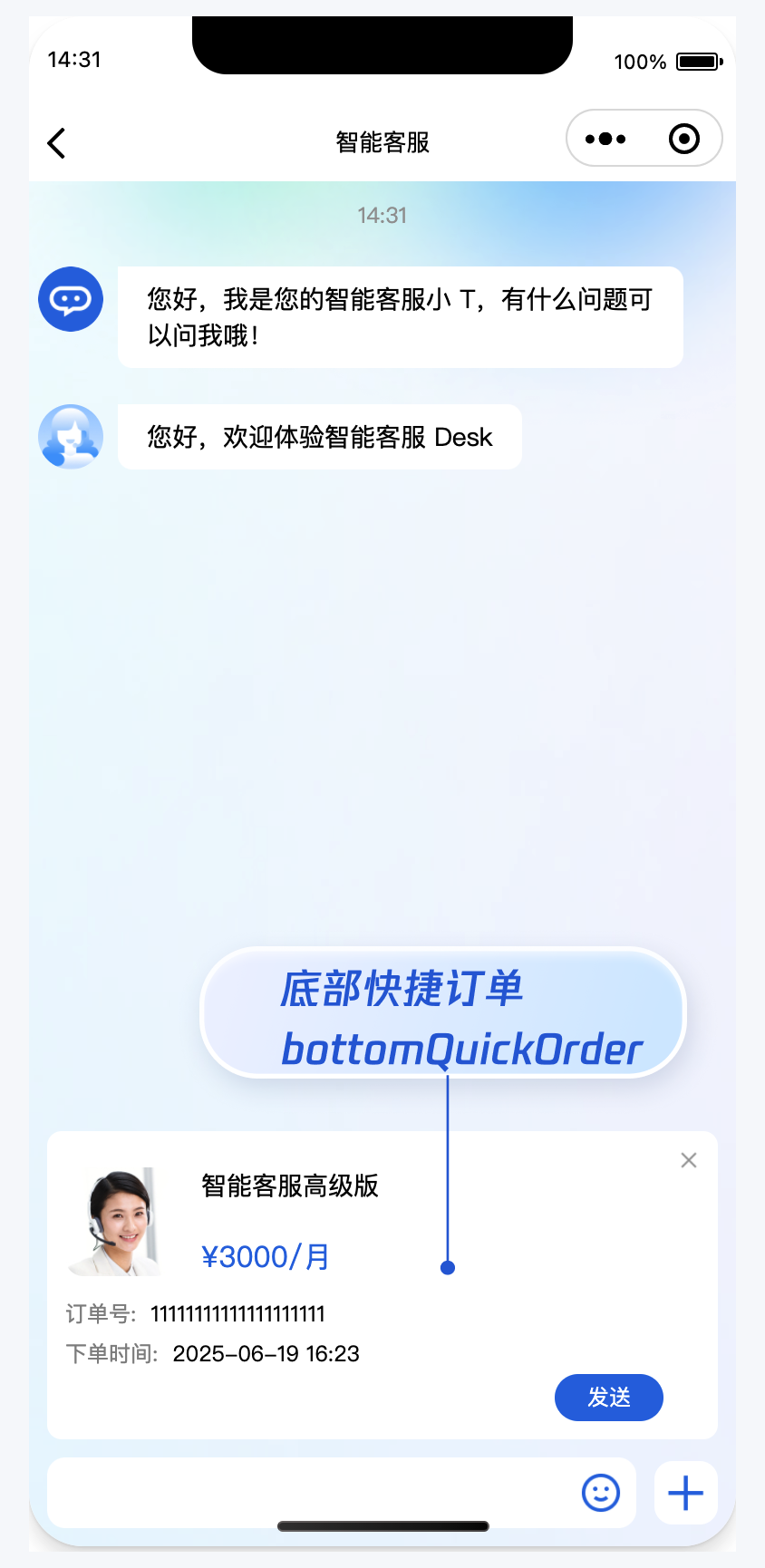
如果您想实现打开客服会话时在聊天区域底部展示快捷订单，可以配置 `bottomQuickOrder`，效果如下所示：

![](https://write-document-release-1258344699.cos.ap-guangzhou.tencentcos.cn/100027960326/502bd17c570f11f0ba94525400454e06.png)


修改主包 `pages/index/index.js`，设置 `bottomQuickOrder` 并将其转成 json 字符串后传递给客服组件。

`bottomQuickOrder` 的参数描述如下：
<table>
<tr>
<td rowspan="1" colSpan="1" >参数</td>

<td rowspan="1" colSpan="1" >类型</td>

<td rowspan="1" colSpan="1" >是否必填</td>

<td rowspan="1" colSpan="1" >说明</td>
</tr>

<tr>
<td rowspan="1" colSpan="1" >header</td>

<td rowspan="1" colSpan="1" >String</td>

<td rowspan="1" colSpan="1" >Yes</td>

<td rowspan="1" colSpan="1" >订单标题，对应上图的“智能客服高级版”</td>
</tr>

<tr>
<td rowspan="1" colSpan="1" >desc</td>

<td rowspan="1" colSpan="1" >String</td>

<td rowspan="1" colSpan="1" >Yes</td>

<td rowspan="1" colSpan="1" >订单描述，对应上图的“3000/月”</td>
</tr>

<tr>
<td rowspan="1" colSpan="1" >pic</td>

<td rowspan="1" colSpan="1" >String</td>

<td rowspan="1" colSpan="1" >No</td>

<td rowspan="1" colSpan="1" >订单图片 url</td>
</tr>

<tr>
<td rowspan="1" colSpan="1" >url</td>

<td rowspan="1" colSpan="1" >String</td>

<td rowspan="1" colSpan="1" >Yes</td>

<td rowspan="1" colSpan="1" >当客服坐席收到订单消息时，点击可打开此 url 对应的页面</td>
</tr>

<tr>
<td rowspan="1" colSpan="1" >customField</td>

<td rowspan="1" colSpan="1" >Array</td>

<td rowspan="1" colSpan="1" >No</td>

<td rowspan="1" colSpan="1" >自定义配置，如“订单号”，“订单时间”等信息。</td>
</tr>
</table>

``` javascript
Page({
  data: {
  },
  getSupport() {
    // SDKAppID/userID/userSig 的获取请参考步骤4
    const SDKAppID = 0;
    const userID = '';
    const userSig = '';
    const toolbarButtonList = [
      {"title":"人工服务","icon":"https://tccc-im-agent-avatar-1258344699.cos.ap-nanjing.myqcloud.com/toolbar_button_1.png","type":1,"content":"","isPreset":1,"presetId":"humanService","isEnabled":1},
      {"title":"服务评价","icon":"https://tccc-im-agent-avatar-sg-1258344699.cos.ap-singapore.myqcloud.com/toolbar_button_2.png","type":1,"content":"","isPreset":1,"presetId":"serviceRating","isEnabled":1},
      {"title":"结束对话","icon":"https://tccc-im-agent-avatar-sg-1258344699.cos.ap-singapore.myqcloud.com/toolbar_button_3.png","type":1,"content":"","isPreset":1,"presetId":"endHumanService","isEnabled":1},
      {"type":1,"title":"智能客服高级版","content":"智能客服高级版","isPreset":0,"isEnabled":1}
    ];
    const bottomQuickOrder = {
      header: "智能客服高级版",
      desc: "¥3000/月",
      pic: "https://cloudcache.tencent-cloud.com/qcloud/portal/kit/images/presale.a4955999.jpeg",
      url: 'https://cloud.tencent.com/document/product/269/97537',
      customField: [
        {
          name: '订单号',
          value: '11111111111111111111'
        },
        {
          name: '下单时间',
          value: '2025-07-02 16:23'
        }
      ]
    };
    wx.navigateTo({
      url: `/ai-desk-customer-wechat/pages/index/index?SDKAppID=${SDKAppID}&userID=${userID}&userSig=${userSig}`
        + `&toolbarButtonList=${JSON.stringify(toolbarButtonList)}`
        + `&bottomQuickOrder=${JSON.stringify(bottomQuickOrder)}`
    });
  },
})
```

### 多客服号

> **说明：**
> 

> 请升级 [ai-desk-customer-wechat](https://www.npmjs.com/package/@tencentcloud/ai-desk-customer-wechat) 到 v1.5.3 或更高版本。
> 


如果您的应用内需要多个客服号，为用户提供专属客服功能，以提高服务质量和响应速度，可用 UIKit 提供的多客服号功能实现。效果如下所示：

![](https://write-document-release-1258344699.cos.ap-guangzhou.tencentcos.cn/100027960326/ad2c28225c6811f095485254005ef0f7.png)


修改主包 `pages/index/index.js`，设置 `customerServiceIDList 和 customerServiceID`  并将其转成 json 字符串后传递给客服组件。
``` javascript
// 1. 初始化前将业务侧自定义的客服号 ID 传递给 UIKit
// 自定义客服号请使用 restapi - https://cloud.tencent.com/document/product/269/111798
const customerServiceIDList = ['customerServiceID_001', 'customerServiceID_002', 'customerServiceID_003'];
// 2. 初始化时，带上要发起会话的客服号 ID，比如 'customerServiceID_002'
// 如果不带上要发起会话的客服号 ID，则 UIKit 默认使用客服号 ID 列表的第 1 个元素
wx.navigateTo({
  url: `/ai-desk-customer-wechat/pages/index/index?SDKAppID=${SDKAppID}&userID=${userID}&userSig=${userSig}`
    + `&customerServiceIDList=${JSON.stringify(customerServiceIDList)}`
    + `&customerServiceID=customerServiceID_002`
});
```

## 常见问题

### 什么是 UserSig？如何生成 UserSig？

UserSig 是用户登录即时通信 IM 的密码，其本质是对 UserID 等信息加密后得到的密文。

UserSig 签发方式是将 UserSig 的计算代码集成到您的服务端，并提供面向项目的接口，在需要 UserSig 时由您的项目向业务服务器发起请求获取动态 UserSig。更多详情请参见 [服务端生成 UserSig](https://cloud.tencent.com/document/product/269/32688#formal)。

### 小程序如果需要上线或者部署正式环境怎么办？

请在 [微信公众平台](https://mp.weixin.qq.com/) > **开发** > **开发管理** > **开发设**置 > **服务器域名**中进行域名配置。域名配置详细参见：[小程序合法域名](https://cloud.tencent.com/document/product/269/75285#56e2dceb-d703-43ea-bf8d-c772318b4eb2)。

## 交流与反馈

[点此进入 IM 社群](https://zhiliao.qq.com/s/c5GY7HIM62CK)，享有专业工程师的支持，解决您的难题。