///
///
declare module "@transistorsoft/capacitor-background-geolocation" {
/**
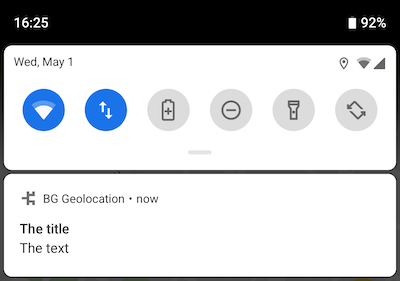
* __[Android only]__ The Android operating system requires a persistent notification when running a foreground service.
*
* 
*
* @example
* ```typescript
* BackgroundGeolocation.ready({
* notification: {
* title: "The Title",
* text: "The Text"
* }
* })
* .
* .
* .
* // To update the notification in real-time, use #setConfig
* // You need only provide *changed* parameters -- initially configured
* // parameters will remain unchanged.
* BackgroundGeolocation.setConfig({
* notification: {
* title: "The New Title"
* }
* })
* ```
*
* ## Custom Notification Layouts
*
* Use the [[layout]] option to provide the name of your own Android Layout XML File. See [Android Custom Notification Layout](github:wiki/Android-Custom-Notification-Layout) for setup instructions.
*/
interface Notification {
/**
* When running the service with [[foregroundService]]: true, Android requires a persistent notification in the Notification Bar. This will control the **priority** of that notification as well as the position of the notificaiton-bar icon.
*
* The following `notificationPriority` values defined as static constants upon the [[BackgroundGeolocation]] object:
*
* | Value | Description |
* |---------------------------------------------------------|---------------------------------------------------------------------------------------------------------|
* | [[BackgroundGeolocation.NOTIFICATION_PRIORITY_DEFAULT]] | Notification weighted to top of list; notification-bar icon weighted left |
* | [[BackgroundGeolocation.NOTIFICATION_PRIORITY_HIGH]] | Notification **strongly** weighted to top of list; notification-bar icon **strongly** weighted to left |
* | [[BackgroundGeolocation.NOTIFICATION_PRIORITY_LOW]] | Notification weighted to bottom of list; notification-bar icon weighted right |
* | [[BackgroundGeolocation.NOTIFICATION_PRIORITY_MAX]] | Same as `NOTIFICATION_PRIORITY_HIGH` |
* | [[BackgroundGeolocation.NOTIFICATION_PRIORITY_MIN]] | Notification **strongly** weighted to bottom of list; notification-bar icon **hidden** |
*
* @example
* ```typescript
* BackgroundGeolocation.ready({
* foregroundService: true,
* notification: {
* priority: BackgroundGeolocation.NOTIFICATION_PRIORITY_MIN
* });
* ```
*/
priority?: NotificationPriority;
/**
* Configure the Android Foreground Service icon and notification to be displayed __always__. Defaults to `false`.
*
* The default behaviour is for the notification to be shown only while the SDK detects the device to be *moving*. Some developers desire to provide full-disclosure to their users when the SDK has been enabled.
*/
sticky?: boolean;
/**
* Configure the *title* of the persistent notification in the Notification Bar when running with [[Config.foregroundService]] __`true`__
* @break
*
* Defaults to the application name from `AndroidManifest`. When running the service with [[foregroundService]]: true, Android requires a persistent notification. This will configure the **title** of that notification.
*/
title?: string;
/**
* Configure the *text* of the persistent notification in the Notification Bar when running with [[Config.foregroundService]] __`true`__
* @break
*
* Defaults to *"Location service activated"*. When running the service with [[Config.foregroundService]]: true, Android requires a persistent notification. This will configure the **text** of that notification.
*/
text?: string;
/**
* Configure the *color* of the persistent notification icon in the Notification Bar when running with [[Config.foregroundService]] __`true`__
* @break
*
* Defaults to `null`. When running the service with [[Config.foregroundService]]: true, Android requires a persistent notification. This will configure the **color** of the notification **icon** (API >= 21).
*
* Supported formats are:
* - `#RRGGBB`
* - `#AARRGGBB`
*/
color?: string;
/**
* Configure the *small icon* of the persistent notification in the Notification Bar when running with [[Config.foregroundService]] __`true`__
* @break
*
* When running the service with [[Config.foregroundService]]: true, Android requires a persistent notification in the Notification Bar. This allows you customize that icon. Defaults to your application icon.
*
* ### ⚠️ Warning:
* - You must specify the **`type`** (`drawable|mipmap`) of resource you wish to use in the following format: `{type}/icon_name`
* - Do not append the file-extension (eg: `.png`)
*
* @example
* ```typescript
* // 1. drawable
* BackgroundGeolocation.ready({
* notification: {
* smallIcon: "drawable/my_custom_notification_small_icon"
* }
* });
*
* // 2. mipmap
* BackgroundGeolocation.ready({
* notification: {
* smallIcon: "mipmap/my_custom_notification_small_icon"
* }
* });
* ```
*
* ### ℹ️ See also:
* - [[largeIcon]]
*/
smallIcon?: string;
/**
* Configure the *large icon* of the persistent notification in the Notification Bar when running with [[Config.foregroundService]] __`true`__
* @break
*
* When running the service with [[Config.foregroundService]]: true, Android requires a persistent notification in the Notification Bar. This allows you customize that icon. Defaults to your application icon.
*
* ### ⚠️ Warning:
* - You must specify the **`type`** (`drawable|mipmap`) of resource you wish to use in the following format: `{type}/icon_name`
* - Do not append the file-extension (eg: `.png`)
*
* @example
* ```typescript
* // 1. drawable
* BackgroundGeolocation.ready({
* notification: {
* smallIcon: "drawable/my_custom_notification_small_icon"
* });
*
* // 2. mipmap
* BackgroundGeolocation.ready({
* notification: {
* smallIcon: "mipmap/my_custom_notification_small_icon"
* }
* });
* ```
*
* ### ℹ️ See also:
* - [[smallIcon]]
*/
largeIcon?: string;
/**
* Specifies the name of your custom Android Layout XML file.
*
ℹ️ See [Android Custom Notification Layout](github:wiki/Android-Custom-Notification-Layout) for setup instructions.
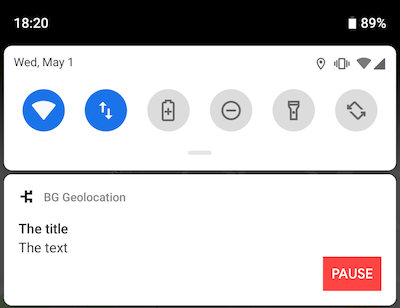
Even if you have no experience with Android Layouts, it doesn't take much to figure out the basics. You'll mostly be adding ``, `` and `` elements. The key thing to be aware of is the `android:id` of these elements and how these are referenced from `BackgroundGeolocation.notification` configuration: your `android:id` **must** be prefixed with the word `notification` (eg: `notificationText`). There is one exception: `applicationName`, which the plugin will automatically render your Android application name.
### Layout Special Elements
When BackgroundGeolocation renders your custom notification layout, it will be querying for the following elements addressed by their `android:id`. When found, their content will be updated from the corresponding "Data-source":
| Layout element `android:id` | Data-source |
|-------------------------------|-------------------------------------------|
| `applicationName` | *Application name* from `AndroidManifest` |
| `notificationTitle` | [[title]] |
| `notificationText` | [[text]] |
| `notificationSmallIcon` | [[smallIcon]] |
| `notificationLargeIcon` | [[largeIcon]] |
@example
* ```typescript
* BackgroundGeolocation.ready({
* notification: {
* layout: "my_notification_layout", // <-- custom layout xml file
* title: "The Notification Title",
* text: "The Notification Text",
* smallIcon: "mipmap/my_small_icon", // <-- defaults to app icon
* largeIcon: "mipmap/my_large_icon"
* }
* });
* ```
### Custom `` Elements
You can declare your own custom `` elements and render data into them using the [[strings]] parameter.
@example
* ```xml
*
* ```
You can provide data to your custom elements using the [[strings]] configuration parameter:
@example
* ```typescript
* BackgroundGeolocation.ready({
* notification: {
* strings: {
* myCustomElement: "My Custom Element Text"
* }
* }
* });
* ```
### Custom `` Elements:
You can declare your own custom `` elements and register click-listeners upon them using the [[actions]] parameter:
@example
* ```xml
*
* ```
Register listeners for your button using the [[actions]] parameter:
@example
* ```typescript
* BackgroundGeolocation.ready({
* notification: {
* actions: [ // <-- register button listeners
* "notificationButtonFoo",
* "notificationButtonBar"
* ]
* }
* });
*
* // Listen to custom button clicks:
* BackgroundGeolocation.onNotificationAction((buttonId) => {
* console.log("[onNotificationAction] - ", buttonId);
* switch(buttonId) {
* case "notificationButtonFoo":
* break;
* case "notificationButtonBar':
* break;
* }
* });
* ```
### Sample Layout
As a starting-point for your custom layout, copy the following content into your new file:
@example
* ```xml
*
*
*
*
*
*
*
*
*
*
*
*
*
*
*
*
*
*
*
*
*
* ```
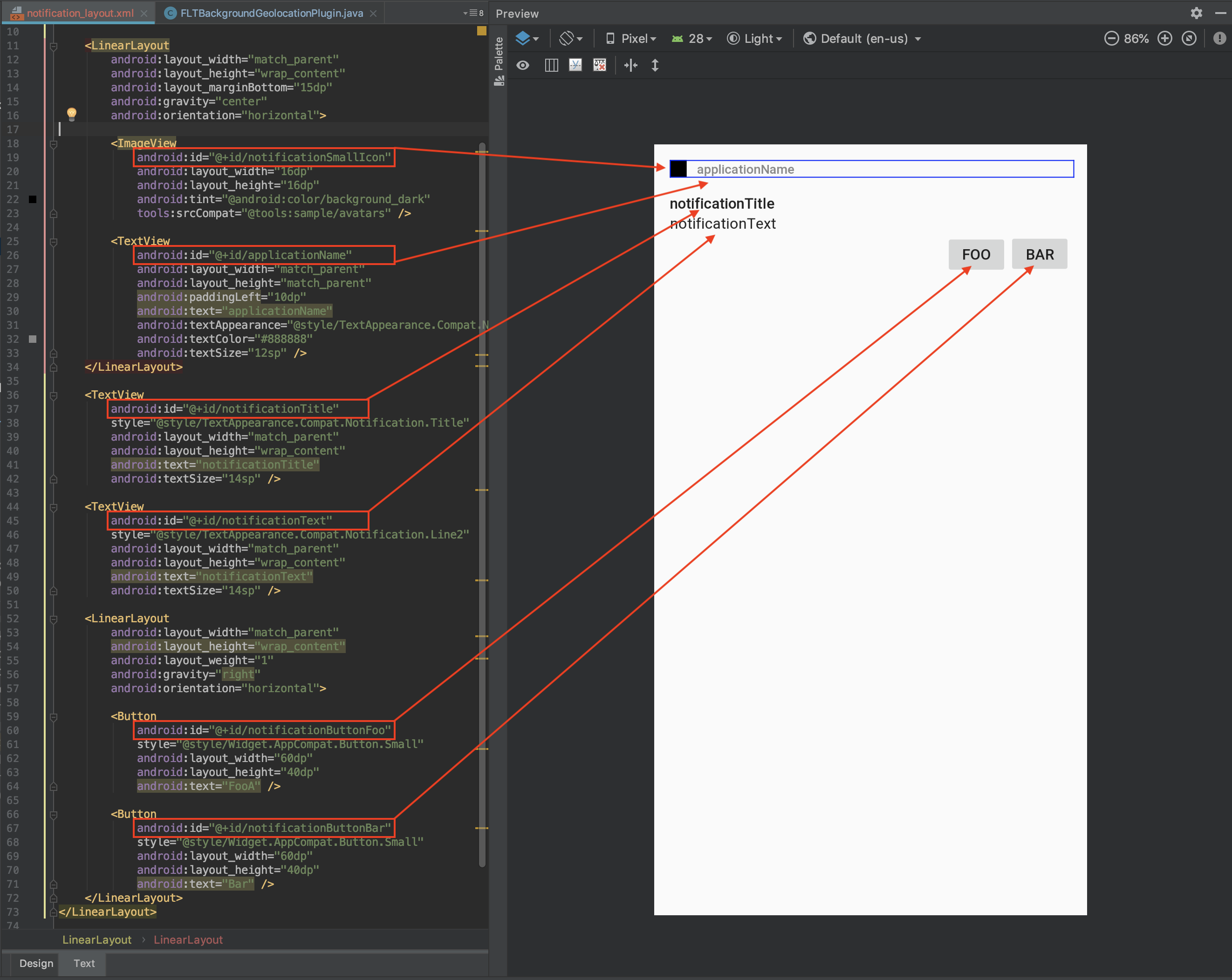
### Using your custom layout:
@example
* ```typescript
* BackgroundGeolocation.ready({
* notification: {
* title: "The title",
* text: "The text",
* layout: "notification_layout",
* actions: [
* "notificationButtonFoo", // <-- register button click-listeners
* "notificationButtonBar"
* ],
* strings: {
* "myCustomTextBox1": "custom TextBox element"
* }
* }
* });
*
* // Listen to custom notification button clicks (notification.actions)
* BackgroundGeolocation.onNotificationAction((buttonId) => {
* console.log("[onNotificationAction] - ", buttonId);
* switch(buttonId) {
* case "notificationButtonFoo":
* // Handle button click on [Foo]
* break;
* case "notificationButtonBar":
* // Handle button click on [Bar]
* break;
* }
* });
* ```
*/
layout?: string;
/**
* Custom strings to render into `` elements of a custom notification [[layout]].
ℹ️ See [Android Custom Notification Layout](github:wiki/Android-Custom-Notification-Layout) for setup instructions.
You can declare your own custom `` elements and render data into them using the `notification.strings` parameter.
@example
* ```xml
*
* ```
You can provide data to your custom elements using the [[strings]] configuration parameter:
@example
* ```typescript
* BackgroundGeolocation.ready({
* notification: {
* strings: {
* myCustomElement: "My Custom Element Text"
* }
* }
* });
* ```
*/
strings?: Object;
/**
* Declare click listeners for `` elements of a custom notification [[layout]].

ℹ️ See [Android Custom Notification Layout](github:wiki/Android-Custom-Notification-Layout) for setup instructions.
You can declare your own custom `` elements and register click-listeners upon them using the [[actions]] parameter:
@example
* ```xml
*
* ```
Register listeners for your button using `notification.actions`:
@example
* ```typescript
* BackgroundGeolocation.ready({
* notification: {
* actions: [ // <-- register button listeners
* "notificationButtonPause"
* ]
* }
* });
*
* // Listen to custom button clicks:
* BackgroundGeolocation.onNotificationAction((buttonId) => {
* console.log("[onNotificationAction] - ", buttonId);
* switch(buttonId) {
* case "notificationButtonPause":
* BackgroundGeolocation.changePace(false);
* break;
* .
* .
* .
* }
* });
* ```
*/
actions?: Object;
/**
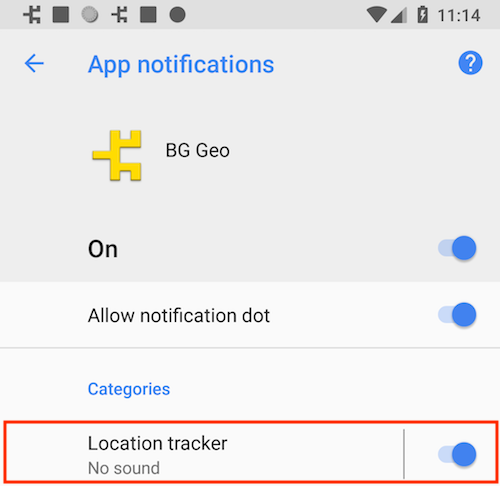
* Configure the name of the plugin's notification-channel used to display the [[Config.foregroundService]] notification.
* @break
*
* On Android O+, the plugin's foreground-service needs to create a "Notification Channel". The name of this channel can be seen in:
* > `Settings->App & Notifications->Your App.`
*
* Defaults to your application's name from `AndroidManifest`.
*
* \
*
*
* @example
* ```typescript
* BackgroundGeolocation.ready({
* notification: {
* channelName: "Location Tracker"
* }
* });
*
* // or with #setConfig
* BackgroundGeolocation.setConfig({
* notification: {
* channelName: "My new channel name"
* }
* });
* ```
*/
channelName?: string;
/**
* Customize the notification channel ID.
* Defaults to `your.package.name.TSLocationManager`
*
* __NOTE__: It is not typically required to change this. Typical use-cases are for users who use an existing Android foreground-service who wish the SDK to share an existing notification and channel.
*/
channelId?: string;
}
}