# Twilio Video Room Monitor
[](https://circleci.com/gh/twilio/twilio-video-room-monitor.js)
*We want your feedback! Please feel free to open a [GitHub issue](https://github.com/twilio/twilio-video-room-monitor.js/issues) for suggested improvements or feature requests.*
## What is it
A browser-based tool that provides [Twilio Video JavaScript](https://github.com/twilio/twilio-video.js) developers visibility into the inner workings of their video application. It displays near real-time information and metrics from the [Room object](https://media.twiliocdn.com/sdk/js/video/releases/2.14.0/docs/Room.html) and can be added to any Twilio Video JavaScript application with a few lines of code.
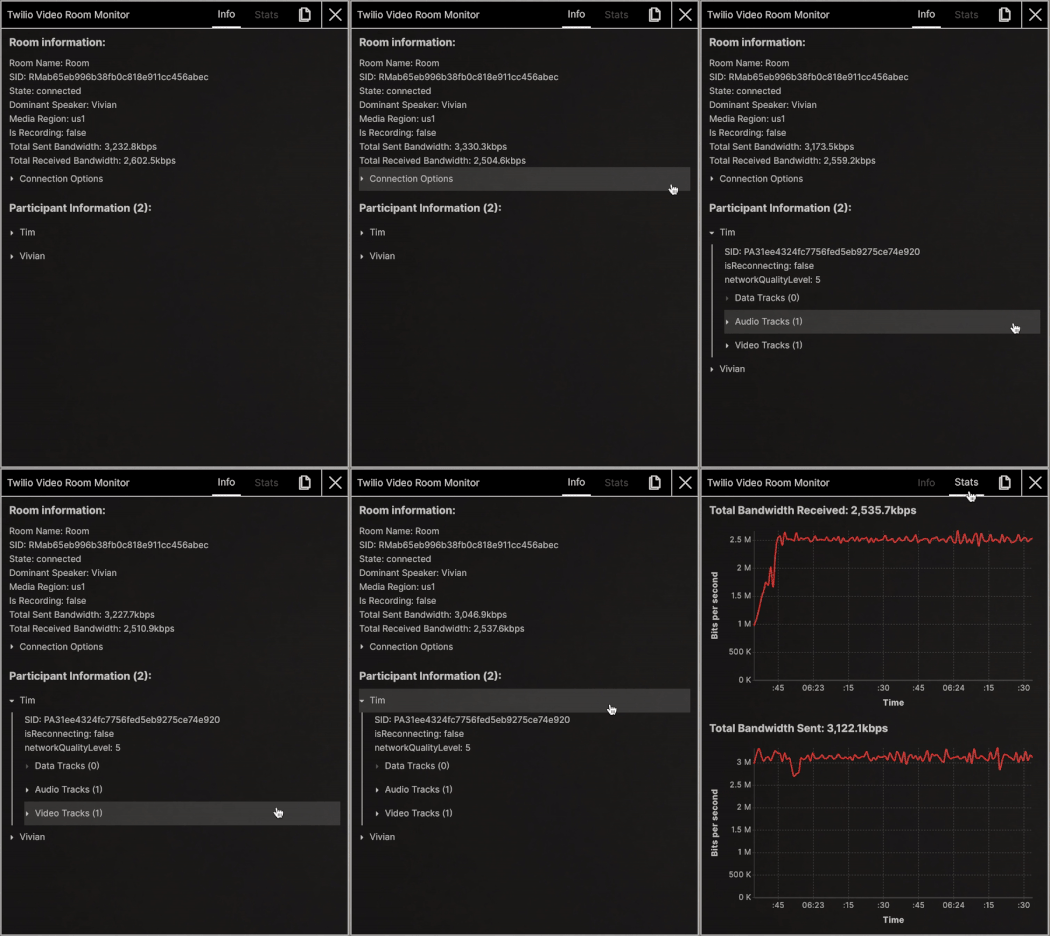
The Twilio Video Room Monitor can be used as a tool during all phases of development or can be forked, customized, and provided to end-users as an in-call troubleshooting view.
To learn more, visit the [Video Room Monitor Documentation](https://www.twilio.com/docs/video/troubleshooting/javascript-room-monitor).
## Changelog
View [Changelog.md](Changelog.md) for details about our releases.
## Browser Support
| | Chrome | Edge (Chromium) | Firefox | Safari |
| ------------|--------|-----------------|---------|--------|
| **Android** | ✓ | - | ✓ | - |
| **iOS** | ✓ | - | - | ✓ |
| **Linux** | ✓ | - | ✓ | - |
| **macOS** | ✓ | ✓ | ✓ | ✓ |
| **Windows** | ✓ | ✓ | ✓ | - |
## Getting Started
### NPM
You can install directly from npm.
```
npm install @twilio/video-room-monitor --save
```
Using this method, you can import `@twilio/video-room-monitor` and open the monitor like so:
```js
import Video from 'twilio-video';
import { VideoRoomMonitor } from '@twilio/video-room-monitor';
Video.connect('token').then((room) => {
VideoRoomMonitor.registerVideoRoom(room);
VideoRoomMonitor.openMonitor();
});
```
### Script Tag
You can also copy `twilio-video-room-monitor.min.js` from the `dist/browser` folder and include it directly in your web app using a `
```
Using this method, you can register a room and open the room monitor like so:
```js
window.Twilio.VideoRoomMonitor.registerVideoRoom(room);
window.Twilio.VideoRoomMonitor.openMonitor();
```
### Console Script Quickstart (not for production use)
As a way to quickly use the Video Room Monitor in any Twilio Video JavaScript application, you can also run the following snippet in the browser console to open the Monitor:
```js
(() => {
const script = document.createElement('script');
script.src = 'https://cdn.jsdelivr.net/npm/@twilio/video-room-monitor/dist/browser/twilio-video-room-monitor.min.js';
script.onload = () => {
// Register your Twilio Video Room here
window.Twilio.VideoRoomMonitor.registerVideoRoom(twilioRoom);
window.Twilio.VideoRoomMonitor.openMonitor();
};
document.body.appendChild(script);
})();
```
Note that the [Room object](https://media.twiliocdn.com/sdk/js/video/releases/2.14.0/docs/Room.html) must be exposed as a global variable (`twilioRoom` as seen in the above example) so that it can be registered with the Monitor.
Using this method, you can then close or toggle the monitor like so:
```js
Twilio.VideoRoomMonitor.closeMonitor();
Twilio.VideoRoomMonitor.toggleMonitor();
```
**NOTE:** This method is not recommended for production use due to the CDN, as we don't have control of the availability of `cdn.jsdelivr.net`.
## Usage
#### `registerVideoRoom()`
This is a **required** step to be able to use the Video Room Monitor. This registers a Twilio Video Room. To register a room, you can run the following line of code:
```js
VideoRoomMonitor.registerVideoRoom(newRoom);
```
#### `openMonitor()`
This opens the monitor and emits the `opened` event. To open the monitor, you can run this line of code in the console:
```js
VideoRoomMonitor.openMonitor();
```
To listen for the `opened` event, you can run the following line of code:
```js
VideoRoomMonitor.on('opened', () => console.log('the monitor has been opened'));
```
#### `closeMonitor()`
This closes the monitor and emits the `closed` event. To close the monitor, you can run this line of code in the console:
```js
VideoRoomMonitor.closeMonitor();
```
To listen for the `closed` event, you can run the following line of code:
```js
VideoRoomMonitor.on('closed', () => console.log('the monitor has been closed'));
```
#### `toggleMonitor()`
This toggles the monitor to be either open or closed. If the monitor is currently closed, then it will open the monitor (and emit the `opened` event) and vice versa. To toggle the monitor, you can run this line of code in the console:
```js
VideoRoomMonitor.toggleMonitor();
```
#### `isOpen`
This is a boolean value that indicates whether or not the monitor is currently open.
```js
VideoRoomMonitor.isOpen;
```
## Local Development
### Prerequisites
You must have the following installed:
- [Node.js v14+](https://nodejs.org/en/download/)
- NPM v7+ (comes installed with newer Node versions)
### Install dependencies
Fork and clone the repository, then install all dependencies with
```
npm install
```
### Scripts
#### `npm start`
Compile the app (in watch mode) into a directory (`dist/node`) that will allow users to install the Monitor locally with NPM.
#### `npm install -S `
NPM will install the Monitor as a symlink, so as files are edited, saved, and re-compiled, they will automatically be reflected in the application that has installed the Monitor locally.
Any TypeScript errors that are found will be displayed in the console.
#### `npm run build`
This will build both Node.js and browser versions of the Monitor in the `dist/` directory.
#### `npm run ts`
Run this command to check the types in the app.
#### `npm test`
Runs all unit tests.
#### `npm run lint`
Runs the linter.
#### `npm run parcel:watch`
This will host the app on a local server. This server can then be used to run the tool in the browser by using a script tag:
```html