code-snipper
Version:
Export code snippets as PNG
203 lines (146 loc) • 5.56 kB
Markdown
<!--
MIT License
Copyright (c) 2017 Abhishek Soni
Permission is hereby granted, free of charge, to any person obtaining a copy
of this software and associated documentation files (the "Software"), to deal
in the Software without restriction, including without limitation the rights
to use, copy, modify, merge, publish, distribute, sublicense, and/or sell
copies of the Software, and to permit persons to whom the Software is
furnished to do so, subject to the following conditions:
The above copyright notice and this permission notice shall be included in all
copies or substantial portions of the Software.
THE SOFTWARE IS PROVIDED "AS IS", WITHOUT WARRANTY OF ANY KIND, EXPRESS OR
IMPLIED, INCLUDING BUT NOT LIMITED TO THE WARRANTIES OF MERCHANTABILITY,
FITNESS FOR A PARTICULAR PURPOSE AND NONINFRINGEMENT. IN NO EVENT SHALL THE
AUTHORS OR COPYRIGHT HOLDERS BE LIABLE FOR ANY CLAIM, DAMAGES OR OTHER
LIABILITY, WHETHER IN AN ACTION OF CONTRACT, TORT OR OTHERWISE, ARISING FROM,
OUT OF OR IN CONNECTION WITH THE SOFTWARE OR THE USE OR OTHER DEALINGS IN THE
SOFTWARE.
-->
# Code Snipper
Export your code as PNG, and use them in blog posts, or wherever it is you wanna use them
[](https://www.npmjs.com/package/code-snipper)
[](https://npmjs.com/packages/code-snipper)
## TOC
* [Installation](#installation)
* [Command Line Usage](#command-line-usage)
* [Syntax](#syntax)
* [Options](#options)
* [Module Usage](#module-usage)
* [Available Themes](#available-themes)
* [Contributing](#contributing)
* [Copyright](#copyright)
## Installation
We are sticking with `yarn` for its speed but you can use `npm`.
```bash
$ yarn add code-snipper
```
For npm,
```bash
$ npm install -g code-snipper
```
**Note**: If you want to use it as a library in your project, you can remove the optional `-g` flag above.
## Command Line Usage
Let's say you have a JS file with the following contents:
```js
const success = 'false';
while(!success){
keepWorking();
}
```
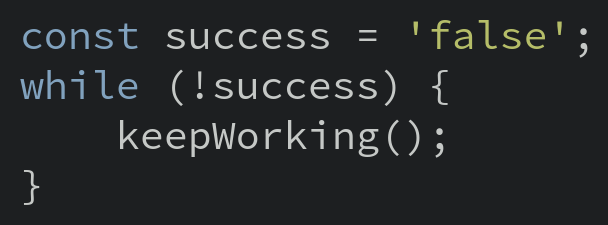
To generate an Image for the above code snippet:
```bash
$ copper index.js
```
This will save an image named `index.js.png` with the above JS code.
#### image.js.png

## Syntax
The basic syntax for the `copper` command is,
```bash
$ copper (filename) [options|flags]
```
**filename** : Can be any source code file. (.js, .html, .sh, .cc, etc.,)
**options** : a CLI option (used as `--flag` `value`)
## Options
## `-o, --output` : define output path
Define the output filepath for image. Defaults to: `location/of/file.png`
```bash
$ copper index.js --output ~/index.png
```
## `-t, --theme` : defines theme
To change the theme, pass this argument. To see the available themes, see [themes.md](/themes.md)
```bash
$ copper index.js -t hybrid //uses 'hybrid' instead of default theme
```
## `-f, --font` : defines font
You can use any font pre-installed in your system. (**Google Fonts** support is on the list of things to be added.)
```bash
$ copper index.js -f Raleway //uses 'Raleway' instead of 'Source Code Pro'
```
## `-r, --resolution` : defines resolution(zoomFactor)
This flag changes the size of the image.
```bash
$ copper index.js -r 2
```
## `--fontSize` : defines font size
Change the default font size. (Don't pass in units, or it won't work.)
```bash
$ copper index.js --fontSize 25 Raleway //uses '25px' instead of '20px'
```
---
## Module Usage
**Step 1.** Require the module
```js
const copper = require('code-snipper');
```
**Step 2.** Use it.
```js
copper(fileName, options);
```
#### `fileName` **required**
Name of the file containing the code snippet.
#### `options` **optional**
An object via which you can pass in the following parameters.
* theme – See Available Themes
* font – Any font installed on your machine.
* fontSize – Without units.
* resolution – Make the image fatter
##### Default `options` object
```js
{
resolution: 1,
theme: 'hybrid',
font: 'Source Code Pro',
fontSize: 20,
background: '#fff',
prettify: true, // use prettify to format `js`
style: null, // override code styles injected by theme
webshotCustomConfig: { // Using webshot default options
shotSize: {
width: 'window',
height: 'window'
},
windowSize: {
width: 1024,
height: 768
},
shotOffset: {
top: 0,
right: 0,
bottom: 0,
left: 0
}
}
```
*See [webshot](https://www.npmjs.com/package/webshot) for a description of webshot options.*
## Available Themes
All the themes available in [hightlight.js](https://highlightjs.org/) can be used. The list can be found at [Themes.md](/themes.md)
To check out how each theme looks, check this [Highlight.js demo](https://highlightjs.org/static/demo/):
## Contributing
You're welcome to fix any bugs, or add new features. Just fork the project, work on your local copy, and send a PR against `master` branch.
**1.** Fork this repo. (That button in the `top-right corner` of this page.)
**2.** Make a `local` copy, by cloning your forked copy.
**3.** `Fix` whatever it is you think needs fixing. (or Add new features!)
**4.** Send a PR against `master` branch.