taiko-screencheck
Version:
simplify visual regression testing with screenshot capture and compare
91 lines (56 loc) • 4.17 kB
Markdown
# taiko screencheck
 [](https://dcdc-io.github.io/taiko-screencheck/)
## Installation
`npm install taiko-screencheck`
## Introduction
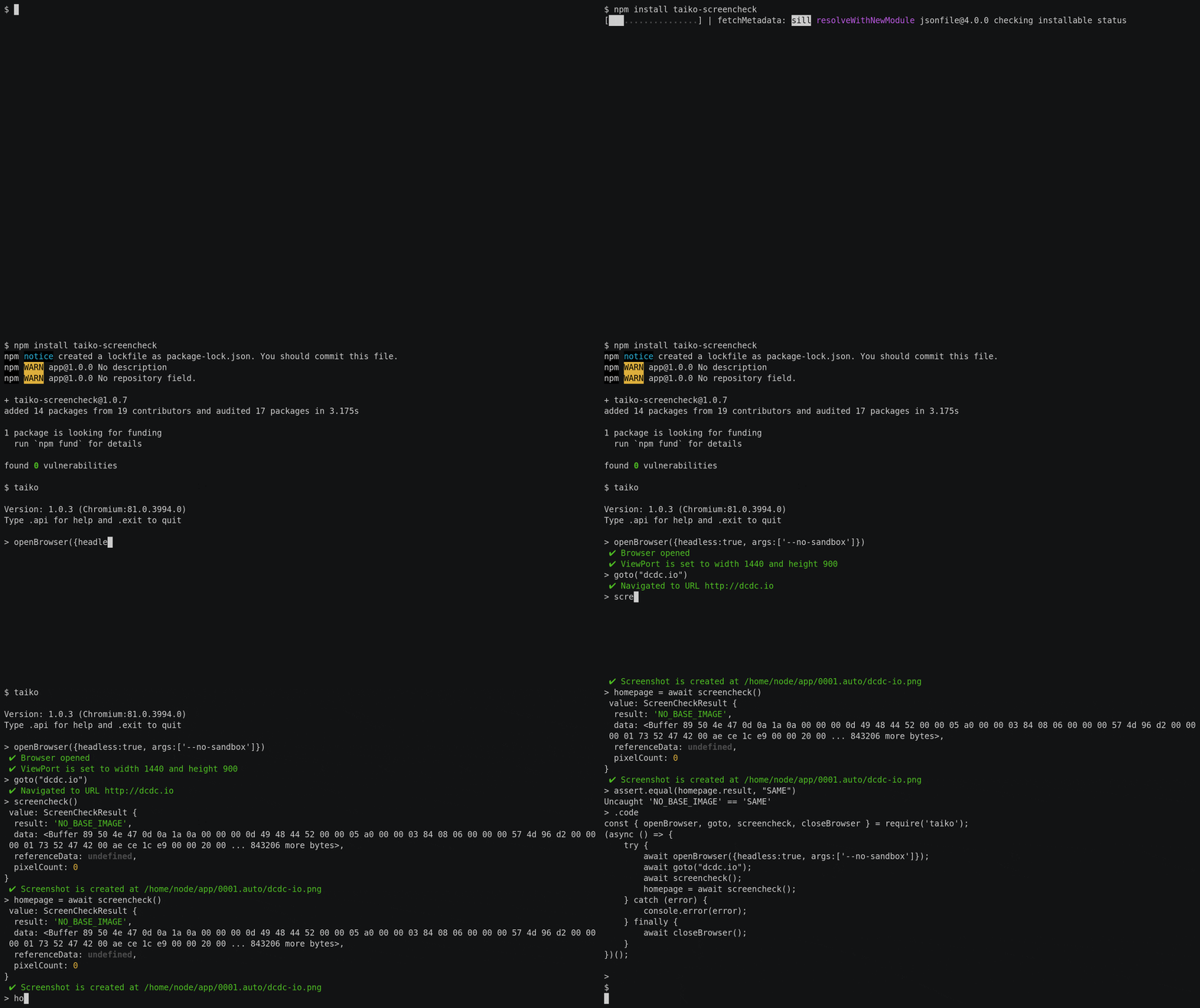
taiko-screencheck is a taiko plugin that assists visual regression testing by tracking visual changes to websites and web apps. It introduces a global `screencheck` method that has the same call signature as the built-in `screenshot` method, except that it returns the result of comparing a screenshot to a reference screenshot.
By default taiko-screencheck will create an automatically numbered directory to store screenshots. It is recommended that test developers use the `screenshotSetup` method to override this behaviour to give complete control of taiko-screencheck output.
## Taiko Methods
### screencheck()
```typescript
screencheck(screenshotOptions = {}) => {
result:string = "SAME" | "DIFFERENT" | "NO_BASE_IMAGE",
data:Buffer, referenceData:Buffer = undefined, pixelCount:number
}
```
This method takes and saves a screenshot and compares it to the reference screenshot in the detected or configured reference directory (see screencheckSetup#refRunId).
The value of the returned `result` property indicates whether or not the screenshots differ.
Taiko CLI example:
```
await openBrowser()
await goto("dcdc.io")
homepage = await screencheck()
assert.equal(homepage.result, "SAME")
```
### screencheckSetup()
```typescript
screencheckSetup(options = {
runId:string = <auto>, refRunId:string = <auto>, baseDir:string = <cwd>
}) => options
```
This method optionally configures screencheck to use custom directories for output and comparison.
## FAQs
1. My headless screen captures never match my headed screen captures of the same page.
This may be happening because you have a high DPI display. Try setting your desktop as a 1:1 pixel ratio to your display device. Alternatively you may want to avoid headed mode for the creation of reference images.
On Windows it may help to disable ClearType while running tests in headed modes.
2. How do I use taiko-screencheck?
With an initialised node project, run `npm install taiko-screencheck` and from thereonin taiko will automatically enable taiko-screencheck.
3. Does taiko-screencheck work on the taiko CLI and in node?
Yes. You can use the plugin in both node and taiko CLI.
4. What happens when I don't configure using `screencheckSetup`?
taiko-screencheck will create a directory per run, named _000n_.auto where _n_ is computed based on the current contents of the base directory. This is to say, the first time it runs the output will go to `$pwd/0001.auto` and the next time `$pwd/0002.auto` and so on.
You can use `screencheckSetup(options)` to change this behaviour.
5. Can I see the current configuration at runtime?
Yes. Call `screencheckSetup()` without providing options and taiko-screencheck will return the current configuration.
6. When I call `openBrowser` the viewport size is 1440 x 900. Why is this happening?
taiko-screencheck overrides the built in `openBrowser()` command by adding a call to `setViewPort()` that matches the headless mode viewport. This feature mitigates the need to rewrite test scripts written in headed mode that later run in headless mode. If you don't want this behaviour, you can add a second boolean parameter to `openBrowser(options, true)` to force use of the original `openBrowser` command which will have a viewport "appropriate" for your desktop display.
## Contributing
Clone the git repository and use the `_test_harness` subdirectory to test the plugin in the taiko environment. The repository includes a Visual Studio Code configuration for debugging in a taiko context.
```bash
git clone https://github.com/dcdc-io/taiko-screencheck
cd taiko-screencheck
npm install
npm run build
npm run test
```