# CapCut/Jianying Video Clips Export
[](https://npmjs.com/package/capcut-export)


This project is based on [ffmpeg](https://ffmpeg.org/), which is a very well-known low-level tool for cross-platform video processing. **Please manually install it and make `ffmpeg` in your `PATH` first**.
Here's the running example:
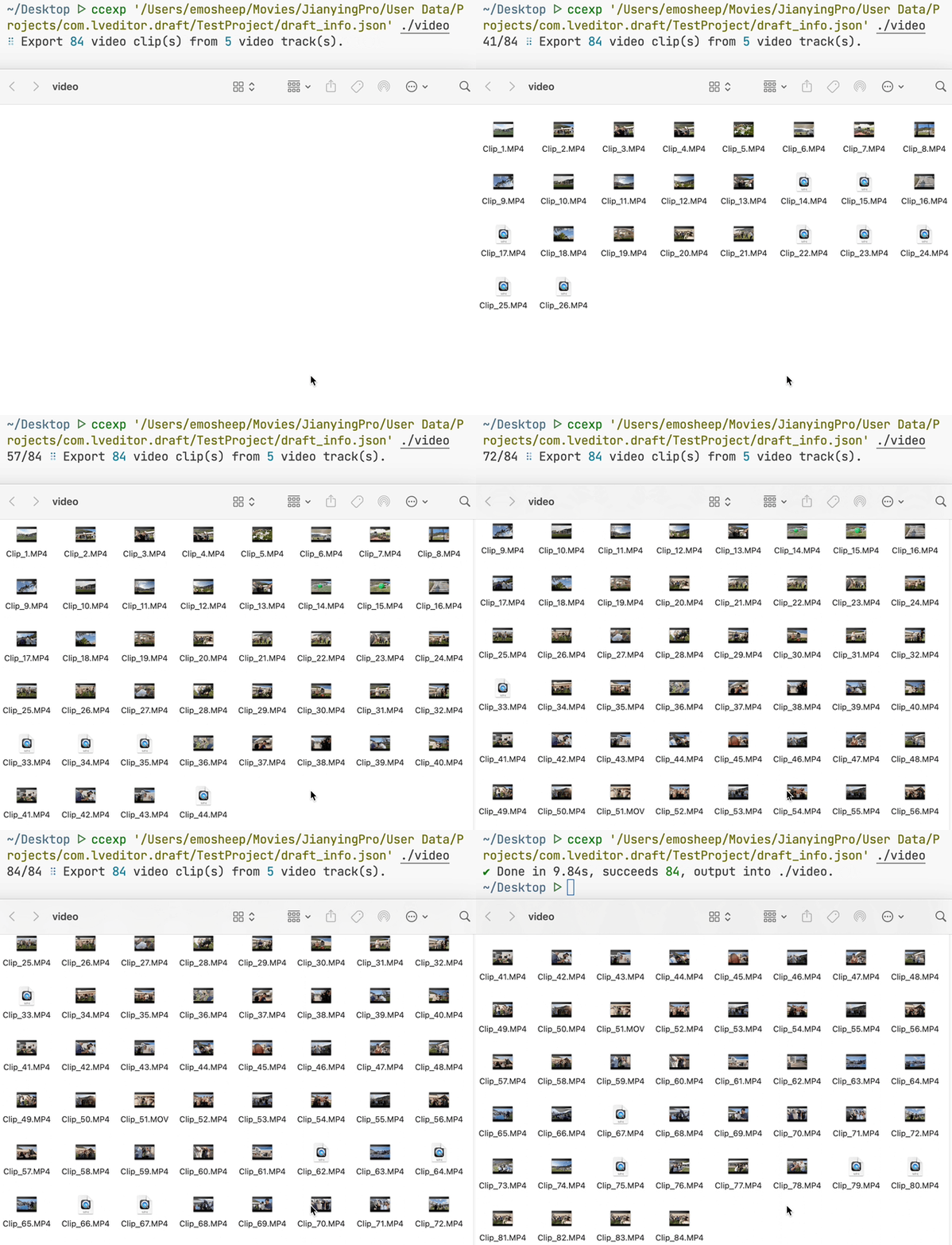 ## Features
- ⚡️ Based on ffmpeg, which is fast and reliable.
- 💡 Stream copy, without re-encoding and loss of quality.
## Quick Start
```shell
pnpm i -g capcut-export # or npm/yarn
```
Then you got `ccexp` command in you `PATH`
```
Usage: ccexp [options] [output]
Export video clips from CapCut editor tracks, helps archive materials.
Arguments:
file CapCut/Jianying draft info json file.
output The output directory, default is cwd.
Options:
-V, --version output the version number
-p,--concurrent The number of tasks processed in parallel, the default is number of CPU.
--offset Expand the video clips' time range to both sides for about specified seconds, default is 2s.
--verbose To be verbose. (default: false)
-h, --help display help for command
```
## Example
```shell
ccexp /path/to/draft_info.json # output video clips into current directory.
ccexp /path/to/draft_info.json ./video # output into `./video` folder.
ccexp /path/to/draft_info.json --offset 5 # expand the time range of the segment by 5 seconds on each side.
ccexp /path/to/draft_info.json -p 1 --verbose # set the concurrency to 1 and show the verbose log, usually uses to debug.
```
# Draft Info File
Search for a draft info json file in your CapCut/Jianying project folder.
## On MacOS
The file is called `draft_info.json` and is located in
```
/Users/user/Movies/CapCut/User Data/Projects/com.lveditor.draft
```
## On Windows
The file is named `draft_content.json` and the default location is:
```
C:\Users\user\AppData\Local\CapCut\User Data\Projects\com.lveditor.draft\
```
# How it works
First, the tool will extract **the start time**, **the duration** of the clips, and **the video path** from the draft info file.
Then it use `ffmpeg` to export specified clips, the command is like:
```shell
ffmpeg -ss 1 -t 3 -i /path/to/input.mp4 -c copy /path/to/output.mp4 -y
```
In the above command:
- `-ss` means the start time of video.
- `-t` means the duration of the video clip.
- `-c copy` means copy media steam without re-encoding, so it's a lossless and fast process and won't lose video quality.
- `-y` means automatic confirmation when needed, used to override if a file of the same name exists.
It means *export a 3s' video clip to output.mp4 from 1s of input.mp4*, and overwrite the output file if it already exists.
# Motivation
Sometimes when we finished video edit, there’ll be many clips in your editor track, and *they usually comes from a single video*. Anyway, we have a lot of video clips to export.
**Assume that you want to archive the materials**, how will you do? Just export one by one?
Actually most of editors don’t provide this functionality such as Jianying/CapCut, even if they do, **the quality of the video will suffer after they re-encoded it**.
So we need a lossless, fast, and simple way to manage to do it, this tool is made for this. **It based on ffmpeg using stream copy without re-encoding, which won't lose quality**.
# Question
## Why is the time range of exported video clips not accurate enough?
In FFmpeg, when performing video editing or extracting, precision issues may arise due to two primary reasons:
1. **Video Keyframes**: FFmpeg uses the `-ss` option to jump to a specific timestamp, and **by default, it seeks to the nearest keyframe**. *A keyframe is a frame that can be fully decoded without the need for other frames*. Normally, a video would have a keyframe every few seconds. **If the timestamp you chose does not directly fall on a keyframe, FFmpeg will choose to start from the nearest keyframe before the chosen timestamp, which can cause precision issues**.
2. **The video's codec**: Different video codecs and container formats support precise seeking to different extents. Some formats (such as MP4 and MKV) allow relatively accurate seeking, while others may not.
## Features
- ⚡️ Based on ffmpeg, which is fast and reliable.
- 💡 Stream copy, without re-encoding and loss of quality.
## Quick Start
```shell
pnpm i -g capcut-export # or npm/yarn
```
Then you got `ccexp` command in you `PATH`
```
Usage: ccexp [options] [output]
Export video clips from CapCut editor tracks, helps archive materials.
Arguments:
file CapCut/Jianying draft info json file.
output The output directory, default is cwd.
Options:
-V, --version output the version number
-p,--concurrent The number of tasks processed in parallel, the default is number of CPU.
--offset Expand the video clips' time range to both sides for about specified seconds, default is 2s.
--verbose To be verbose. (default: false)
-h, --help display help for command
```
## Example
```shell
ccexp /path/to/draft_info.json # output video clips into current directory.
ccexp /path/to/draft_info.json ./video # output into `./video` folder.
ccexp /path/to/draft_info.json --offset 5 # expand the time range of the segment by 5 seconds on each side.
ccexp /path/to/draft_info.json -p 1 --verbose # set the concurrency to 1 and show the verbose log, usually uses to debug.
```
# Draft Info File
Search for a draft info json file in your CapCut/Jianying project folder.
## On MacOS
The file is called `draft_info.json` and is located in
```
/Users/user/Movies/CapCut/User Data/Projects/com.lveditor.draft
```
## On Windows
The file is named `draft_content.json` and the default location is:
```
C:\Users\user\AppData\Local\CapCut\User Data\Projects\com.lveditor.draft\
```
# How it works
First, the tool will extract **the start time**, **the duration** of the clips, and **the video path** from the draft info file.
Then it use `ffmpeg` to export specified clips, the command is like:
```shell
ffmpeg -ss 1 -t 3 -i /path/to/input.mp4 -c copy /path/to/output.mp4 -y
```
In the above command:
- `-ss` means the start time of video.
- `-t` means the duration of the video clip.
- `-c copy` means copy media steam without re-encoding, so it's a lossless and fast process and won't lose video quality.
- `-y` means automatic confirmation when needed, used to override if a file of the same name exists.
It means *export a 3s' video clip to output.mp4 from 1s of input.mp4*, and overwrite the output file if it already exists.
# Motivation
Sometimes when we finished video edit, there’ll be many clips in your editor track, and *they usually comes from a single video*. Anyway, we have a lot of video clips to export.
**Assume that you want to archive the materials**, how will you do? Just export one by one?
Actually most of editors don’t provide this functionality such as Jianying/CapCut, even if they do, **the quality of the video will suffer after they re-encoded it**.
So we need a lossless, fast, and simple way to manage to do it, this tool is made for this. **It based on ffmpeg using stream copy without re-encoding, which won't lose quality**.
# Question
## Why is the time range of exported video clips not accurate enough?
In FFmpeg, when performing video editing or extracting, precision issues may arise due to two primary reasons:
1. **Video Keyframes**: FFmpeg uses the `-ss` option to jump to a specific timestamp, and **by default, it seeks to the nearest keyframe**. *A keyframe is a frame that can be fully decoded without the need for other frames*. Normally, a video would have a keyframe every few seconds. **If the timestamp you chose does not directly fall on a keyframe, FFmpeg will choose to start from the nearest keyframe before the chosen timestamp, which can cause precision issues**.
2. **The video's codec**: Different video codecs and container formats support precise seeking to different extents. Some formats (such as MP4 and MKV) allow relatively accurate seeking, while others may not.