# React Components
## Overview
This guide will help you get started with `@coinbase/cdp-react`. You'll learn how to install the package, set up the provider, and render your first component.
CDP React components provide pre-built, customizable UI elements for common wallet and authentication flows, built on top of the CDP Embedded Wallets SDK.
## Prerequisites
* [Node.js 20 or 22](https://nodejs.org/en/download) installed (Node.js 21 is not supported)
* A node package manager installed (i.e., `npm`, `pnpm`, or `yarn`)
* A free [CDP Portal](https://portal.cdp.coinbase.com) account
* Basic familiarity with React and TypeScript
## 1. Install CDP packages
First, add the required package to your project using your preferred package manager.
```bash
# With pnpm
pnpm add @coinbase/cdp-react @coinbase/cdp-core @coinbase/cdp-hooks
# With yarn
yarn add @coinbase/cdp-react @coinbase/cdp-core @coinbase/cdp-hooks
# With npm
npm install @coinbase/cdp-react @coinbase/cdp-core @coinbase/cdp-hooks
```
## 2. Obtain your project ID
1. Sign into your [CDP Portal](https://portal.cdp.coinbase.com) account and select a project from the dropdown at the at the top. A modal should appear with your project details:
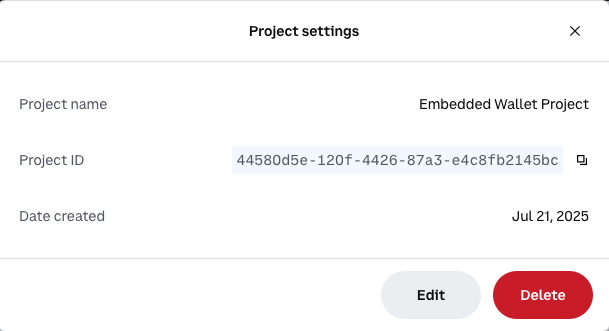 2. Copy the **Project ID** and save it for the next step.
## 3. Add the `CDPReactProvider`
Next, you need to wrap your application with the `CDPReactProvider`, providing the necessary context for hooks and components to work correctly with CDP. It also provides access to config data and theming.
The CDP React SDK requires client-side rendering. Add `"use client"` as the very first line in any component file that uses CDP React components or hooks:
```tsx
"use client"; // Must be the first line in the file
import { CDPReactProvider } from '@coinbase/cdp-react';
import { SignIn } from '@coinbase/cdp-react';
// ... other imports
export default function MyComponent() {
// Your component code
}
```
Without this directive, you'll see errors like: `TypeError: createContext is not a function`
Update your main application file (e.g., `main.tsx` or `App.tsx`) to include the provider, pasting the **Project ID** you copied in [Step 2](#2-gather-cdp-project-information) into `cdpConfig`'s `projectId` field:
```tsx
import React from 'react';
import ReactDOM from 'react-dom/client';
import { App } from './App'; // Your main App component
import { CDPReactProvider, type Theme } from '@coinbase/cdp-react';
// Your CDP config
const cdpConfig = {
projectId: "your-project-id",
basePath: "https://api.cdp.coinbase.com/platform", // CDP API url
useMock: false, // Use live APIs or use mock data for testing
debugging: false, // Log API requests and responses
}
// Global config for your dapp
const appConfig = {
name: "My app", // the name of your application
logoUrl: "https://picsum.photos/64", // logo will be displayed in select components
}
// You can customize the theme by overriding theme variables
const themeOverrides: Partial = {
"colors-background": "black",
"colors-backgroundOverlay": "rgba(0,0,0,0.5)",
"colors-text": "white",
"colors-textSecondary": "#999999",
}
ReactDOM.createRoot(document.getElementById('root')!).render(
,
);
```
## 4. Render a CDP React component
Now you can use the components from the library. Let's add the `AuthButton` component to your application. This component handles both sign-in and sign-out functionality.
```tsx
// In your App.tsx or any other component
import { AuthButton } from '@coinbase/cdp-react/components/AuthButton';
function App() {
return (
);
}
export default App;
```
That's it! You've successfully installed `@coinbase/cdp-react`, set up the provider, and rendered your first component.
2. Copy the **Project ID** and save it for the next step.
## 3. Add the `CDPReactProvider`
Next, you need to wrap your application with the `CDPReactProvider`, providing the necessary context for hooks and components to work correctly with CDP. It also provides access to config data and theming.
The CDP React SDK requires client-side rendering. Add `"use client"` as the very first line in any component file that uses CDP React components or hooks:
```tsx
"use client"; // Must be the first line in the file
import { CDPReactProvider } from '@coinbase/cdp-react';
import { SignIn } from '@coinbase/cdp-react';
// ... other imports
export default function MyComponent() {
// Your component code
}
```
Without this directive, you'll see errors like: `TypeError: createContext is not a function`
Update your main application file (e.g., `main.tsx` or `App.tsx`) to include the provider, pasting the **Project ID** you copied in [Step 2](#2-gather-cdp-project-information) into `cdpConfig`'s `projectId` field:
```tsx
import React from 'react';
import ReactDOM from 'react-dom/client';
import { App } from './App'; // Your main App component
import { CDPReactProvider, type Theme } from '@coinbase/cdp-react';
// Your CDP config
const cdpConfig = {
projectId: "your-project-id",
basePath: "https://api.cdp.coinbase.com/platform", // CDP API url
useMock: false, // Use live APIs or use mock data for testing
debugging: false, // Log API requests and responses
}
// Global config for your dapp
const appConfig = {
name: "My app", // the name of your application
logoUrl: "https://picsum.photos/64", // logo will be displayed in select components
}
// You can customize the theme by overriding theme variables
const themeOverrides: Partial = {
"colors-background": "black",
"colors-backgroundOverlay": "rgba(0,0,0,0.5)",
"colors-text": "white",
"colors-textSecondary": "#999999",
}
ReactDOM.createRoot(document.getElementById('root')!).render(
,
);
```
## 4. Render a CDP React component
Now you can use the components from the library. Let's add the `AuthButton` component to your application. This component handles both sign-in and sign-out functionality.
```tsx
// In your App.tsx or any other component
import { AuthButton } from '@coinbase/cdp-react/components/AuthButton';
function App() {
return (
);
}
export default App;
```
That's it! You've successfully installed `@coinbase/cdp-react`, set up the provider, and rendered your first component.