# Wallstop Studios Unity Helpers - Editor Tools Guide
## TL;DR — What You Get
- One‑click utilities for sprites, textures, validation, and automation.
- Clear menus, step‑by‑step workflows, and safe previews before destructive actions.
- Start with: Sprite Cropper, Image Blur, Animation Creator, Prefab Checker, and the ScriptableObject Singleton Creator.
Comprehensive documentation for all editor wizards, windows, and automation tools.
---
## What Do You Want To Do? (Task-Based Index)
### Optimize Sprite Memory & Performance
- Remove transparent padding → [Sprite Cropper](#sprite-cropper)
- Adjust texture size automatically → [Fit Texture Size](#fit-texture-size)
- Batch apply import settings → [Texture Settings Applier](#texture-settings-applier)
- Standardize sprite settings → [Sprite Settings Applier](#sprite-settings-applier)
- Adjust sprite pivots → [Sprite Pivot Adjuster](#sprite-pivot-adjuster)
### Create & Edit Animations
- Edit animation timing/frames visually → [Sprite Animation Editor](#sprite-animation-editor-animation-viewer-window)
- Bulk-create animations from sprites → [Animation Creator](#animation-creator)
- Convert sprite sheets to clips → [Sprite Sheet Animation Creator](#sprite-sheet-animation-creator)
- Add/edit animation events → [Animation Event Editor](#animation-event-editor)
- Copy/sync animations between folders → [Animation Copier](#animation-copier)
### Build Sprite Atlases
- Create atlases with regex/labels → [Sprite Atlas Generator](#sprite-atlas-generator)
### Validate & Fix Prefabs
- Check prefabs for errors → [Prefab Checker](#prefab-checker)
### Analyze Code Quality
- Detect inheritance and Unity method issues → [Unity Method Analyzer](#unity-method-analyzer)
### Apply Visual Effects
- Blur textures (backgrounds, DOF) → [Image Blur Tool](#image-blur-tool)
- Resize textures with filtering → [Texture Resizer](#texture-resizer)
### Automate Setup & Maintenance
- Auto-create singleton assets → [ScriptableObject Singleton Creator](#scriptableobject-singleton-creator)
- Respond to asset changes → [Asset Change Detection](./asset-change-detection.md)
- Cache attribute metadata → [Attribute Metadata Cache Generator](#attribute-metadata-cache-generator)
- Track sprite labels → [Sprite Label Processor](#sprite-label-processor)
- Capture and export test failures → [Failed Tests Exporter](#failed-tests-exporter)
- Manually trigger script recompilation → [Request Script Compilation](#request-script-recompilation)
- Configure buffer settings → [Project Settings: Unity Helpers](#project-settings-unity-helpers)
### Enhance Inspector Workflows
See the **[Inspector Attributes documentation](../inspector/inspector-overview.md)** for:
- `[WInLineEditor]` — Embed nested object inspectors inline
- `[WShowIf]` — Conditional field visibility
- `[WEnumToggleButtons]` — Visual toggle buttons for enums
- `[WValueDropDown]`, `[IntDropDown]`, `[StringInList]` — Selection dropdowns
- `[WReadOnly]`, `[WNotNull]` — Validation attributes
- `[WGroup]`, `[WButton]` — Layout and method invocation
---
## Table of Contents
1. [Texture & Sprite Tools](#texture--sprite-tools)
2. [Animation Tools](#animation-tools)
3. [Sprite Atlas Tools](#sprite-atlas-tools)
4. [Validation & Quality Tools](#validation--quality-tools)
- [Prefab Checker](#prefab-checker)
- [Unity Method Analyzer](#unity-method-analyzer)
5. [Custom Component Editors](#custom-component-editors)
6. [Property Drawers & Attributes](#property-drawers--attributes)
7. [Automation & Utilities](#automation--utilities)
- [ScriptableObject Singleton Creator](#scriptableobject-singleton-creator)
- [Asset Change Detection](./asset-change-detection.md)
8. [Quick Reference](#quick-reference)
---
## Texture & Sprite Tools
### Image Blur Tool
**Menu:** `Tools > Wallstop Studios > Unity Helpers > Image Blur`
**Purpose:** Apply Gaussian blur effects to textures in batch for backgrounds, depth-of-field, or softened sprites.
**Key Features:**
- Configurable blur radius (1-200 pixels)
- Batch processing support
- Drag-and-drop folders/files
- Preserves original files
- Parallel processing for speed
**Common Workflow:**
```text
1. Open Image Blur Tool
2. Drag sprite folder into designated area
3. Set blur radius (e.g., 10 for subtle, 50 for heavy)
4. Click "Apply Blur"
5. Find blurred versions with "_blurred_[radius]" suffix
```
**Best For:**
- UI background blur effects
- Depth-of-field texture generation
- Post-processing texture preparation
> **Visual Demo**
>
> 
>
> _Adjusting blur radius from 0 to 200 pixels on a UI background texture_
---
### Sprite Cropper
**Menu:** `Tools > Wallstop Studios > Unity Helpers > Sprite Cropper`
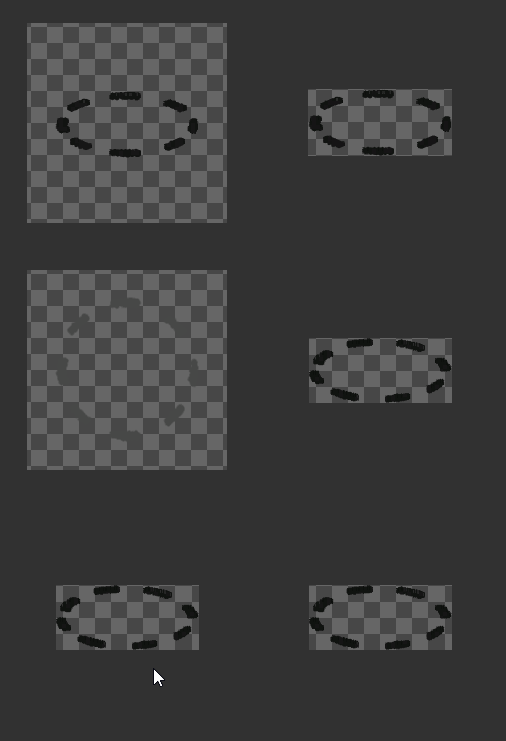
**Purpose:** Automatically remove transparent padding from sprites to optimize memory and atlas packing.
**Key Features:**
- Alpha threshold detection (0.01)
- Configurable padding preservation
- Batch directory processing
- "Only Necessary" mode to skip optimal sprites
- Pivot point preservation in normalized coordinates
**Common Workflow:**
```text
1. Open Sprite Cropper
2. Add sprite directories to "Input Directories"
3. Set padding (e.g., 2px on all sides for outlines)
4. Enable "Only Necessary" to skip already-cropped sprites
5. Click "Find Sprites To Process" to preview
6. Click "Process X Sprites"
7. Replace originals with "Cropped_*" versions
**Danger Zone — Reference Replacement:**
- After cropping into `Cropped_*` outputs, you can optionally replace references to original sprites across assets with their cropped counterparts. This is powerful but destructive; review the preview output and ensure you have version control backups before applying.
```
**Best For:**
- Sprites exported with excessive padding
- Character animation optimization
- Sprite atlas memory reduction
- Preparing assets for efficient packing
**Performance Impact:** Can reduce texture memory by 30-70% on padded sprites.
> **Visual Demo**
>
> 
>
> _Before and after: transparent padding removed while preserving sprite content and pivot_
**Related Tools:**
- After cropping, use [Texture Settings Applier](#texture-settings-applier) to batch apply import settings
- Before creating atlases, run Sprite Cropper → [Sprite Atlas Generator](#sprite-atlas-generator)
- Use [Sprite Pivot Adjuster](#sprite-pivot-adjuster) after cropping to fix pivot points
---
### Texture Settings Applier
**Menu:** `Tools > Wallstop Studios > Unity Helpers > Texture Settings Applier`
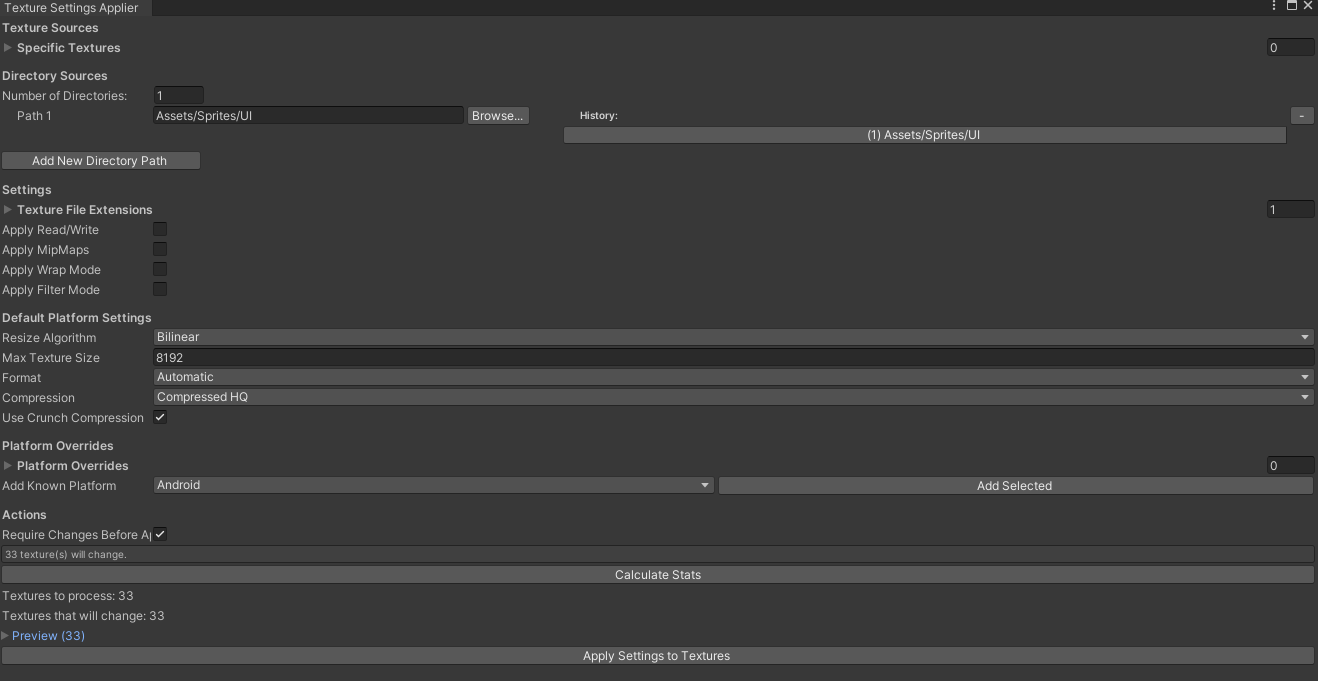
**Purpose:** Batch apply standardized texture import settings across multiple assets.
**Configurable Settings:**
- Read/Write enabled
- Mipmap generation
- Wrap Mode (Clamp/Repeat/Mirror)
- Filter Mode (Point/Bilinear/Trilinear)
- Compression (CompressedHQ/LQ/Uncompressed)
- Crunch compression
- Max texture size (32-8192)
- Texture format
**Common Configurations:**
**UI Sprites (Pixel-Perfect):**
```text
Filter Mode: Point
Wrap Mode: Clamp
Compression: CompressedHQ or None
Generate Mip Maps: false
Max Size: 2048 or match source
```
**Environment Textures:**
```text
Filter Mode: Trilinear
Wrap Mode: Repeat
Compression: CompressedHQ
Generate Mip Maps: true
Crunch Compression: true
```
**Character Sprites:**
```text
Filter Mode: Bilinear
Wrap Mode: Clamp
Compression: CompressedHQ
Generate Mip Maps: false
```
**Workflow:**
```text
1. Open Texture Settings Applier
2. Configure desired settings with checkboxes
3. Add textures individually OR add directories
4. Click "Set" to apply
5. Unity reimports affected textures
```
**Best For:**
- Standardizing settings after art imports
- Fixing texture quality issues across directories
- Maintaining performance standards
- Team consistency enforcement
> **Visual Reference**
>
> 
>
> _Texture Settings Applier with filter mode, wrap mode, and compression options_
**Related Tools:**
- After setting texture settings, use [Sprite Settings Applier](#sprite-settings-applier) for sprite-specific options
- Use [Sprite Cropper](#sprite-cropper) first to optimize memory before applying settings
- Combine with [Fit Texture Size](#fit-texture-size) to auto-adjust max texture sizes
---
### Sprite Pivot Adjuster
**Menu:** `Tools > Wallstop Studios > Unity Helpers > Sprite Pivot Adjuster`
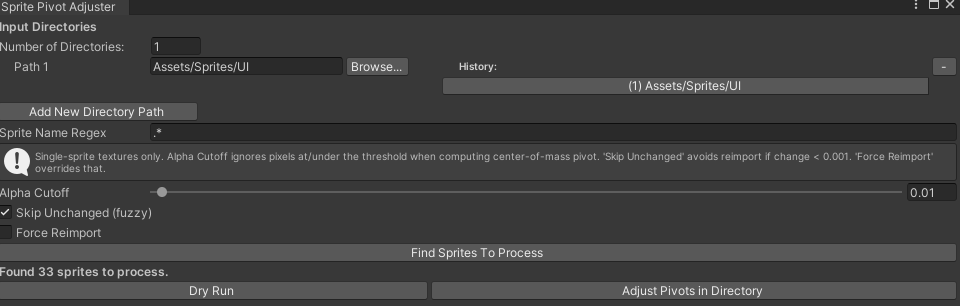
**Purpose:** Compute and apply alpha‑weighted center‑of‑mass pivots in bulk. Produces perceptually centered pivots (ignoring near‑transparent pixels) and speeds re‑imports by skipping unchanged results.
**Key Features:**
- Alpha‑weighted center‑of‑mass pivot (configurable cutoff)
- Optional sprite name regex filter
- Skip unchanged (fuzzy threshold) and Force Reimport
- Directory picker with recursive processing
**Workflow:**
```text
1) Open Sprite Pivot Adjuster
2) Add one or more directories
3) (Optional) Set Sprite Name Regex to filter
4) Adjust Alpha Cutoff (e.g., 0.01 to ignore fringe pixels)
5) Enable “Skip Unchanged” to reimport only when pivot changes
6) (Optional) Enable “Force Reimport” to override skip
7) Run the adjuster to write importer pivot values
```
**Best For:**
- Ground‑aligning characters while keeping lateral centering
- Consistent pivots across varied silhouettes
- Normalizing pivots before animation creation
> **Visual Reference**
>
> 
>
> _Sprite Pivot Adjuster with alpha cutoff slider and directory selection_
---
### Sprite Settings Applier
**Menu:** `Tools > Wallstop Studios > Unity Helpers > Sprite Settings Applier`
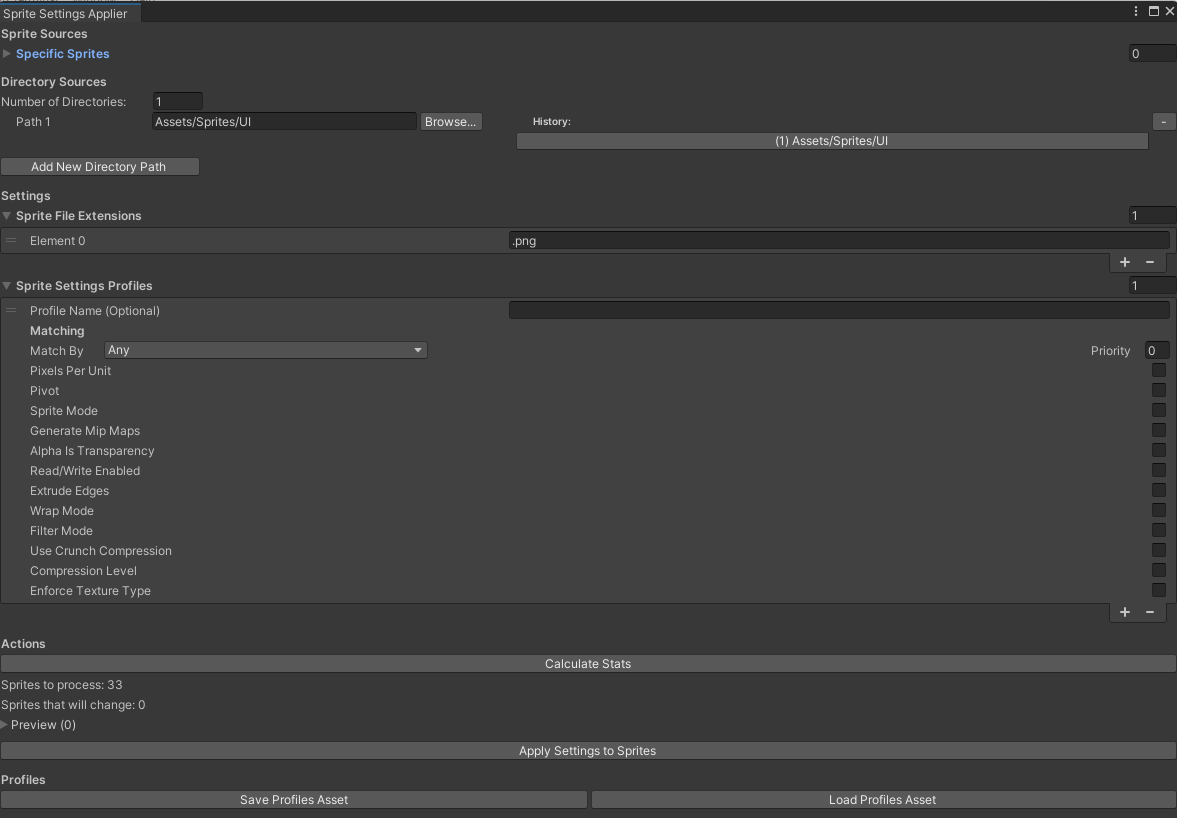
**Purpose:** Apply sprite‑specific importer settings in bulk, driven by matchable “profiles” (Any/NameContains/PathContains/Regex/Extension) with priorities. Great for standardizing PPU, pivots, modes, and compression rules across large folders.
**Profiles & Matching:**
- Create a `SpriteSettingsProfileCollection` ScriptableObject
- Add one or more profiles (with priority) and choose a match mode:
- Any, NameContains, PathContains, Extension, Regex
- Higher priority wins when multiple profiles match
**Key Settings (per profile):**
- Pixels Per Unit, Pivot, Sprite Mode
- Generate Mip Maps, Read/Write, Alpha is Transparency
- Extrude Edges, Wrap Mode, Filter Mode
- Compression Level and Crunch Compression
- Texture Type override (ensure Sprite)
**Workflow:**
```text
1) Create a SpriteSettingsProfileCollection (Assets > Create > … if available) or configure profiles in the window
2) Open Sprite Settings Applier
3) Add directories and/or explicit sprites
4) Choose which profile(s) to apply and click Set
5) Unity reimports affected sprites
```
**Best For:**
- Enforcing project‑wide sprite import standards
- Fixing inconsistent PPU/pivots automatically
- Applying different settings per folder/pattern (via Regex/Path)
> **Visual Reference**
>
> 
>
> _Sprite Settings Applier with profile matching modes and import settings_
---
### Texture Resizer
**Menu:** `Tools > Wallstop Studios > Unity Helpers > Texture Resizer`
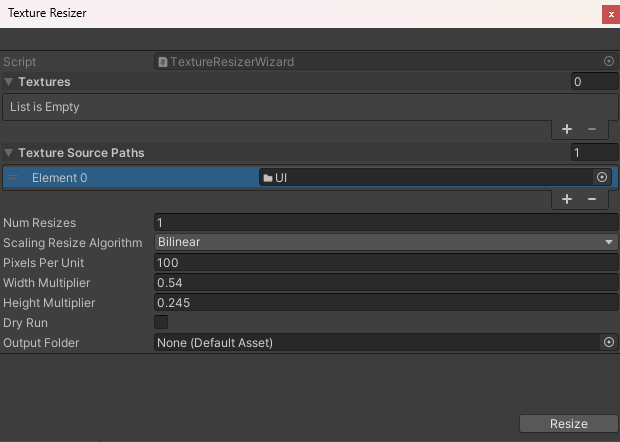
**Purpose:** Batch resize textures using bilinear or point filtering algorithms with configurable scaling multipliers.
**Configuration Options:**
- **textures:** Manually selected textures to resize
- **textureSourcePaths:** Drag folders to process all textures within
- **numResizes:** Number of resize iterations to apply
- **scalingResizeAlgorithm:** Bilinear (smooth) or Point (pixel-perfect)
- **pixelsPerUnit:** Base PPU for scaling calculations
- **widthMultiplier:** Width scaling factor (default: 0.54)
- **heightMultiplier:** Height scaling factor (default: 0.245)
**How It Works:**
1. For each texture, calculates: `extraWidth = width / (PPU * widthMultiplier)`
2. Resizes to `newSize = (width + extraWidth, height + extraHeight)`
3. Repeats for `numResizes` iterations
4. Overwrites original PNG files
**Workflow:**
```text
1. Open Texture Resizer wizard
2. Add textures manually OR drag texture folders
3. Set algorithm (Bilinear for smooth, Point for pixel art)
4. Configure PPU and multipliers
5. Set number of resize passes
6. Click "Resize" to apply
```
**Resize Algorithms:**
**Bilinear:**
- Smooth interpolation
- Good for photographic/realistic textures
- Prevents harsh edges
- Slight blur on upscaling
**Point:**
- Nearest-neighbor sampling
- Perfect for pixel art
- Maintains sharp edges
- No interpolation blur
**Best For:**
- Batch upscaling sprites
- Standardizing texture dimensions
- Preparing assets for specific PPU
- Pixel art scaling (use Point)
- Multiple resize passes for gradual scaling
**Important Notes:**
- **Destructive operation:** Overwrites original files
- Textures are made readable automatically
- Changes are permanent (backup originals!)
- AssetDatabase refreshes after completion
> **Visual Reference**
>
> 
>
> _Texture Resizer with bilinear/point algorithm selection and multiplier settings_
---
### Fit Texture Size
**Menu:** `Tools > Wallstop Studios > Unity Helpers > Fit Texture Size`
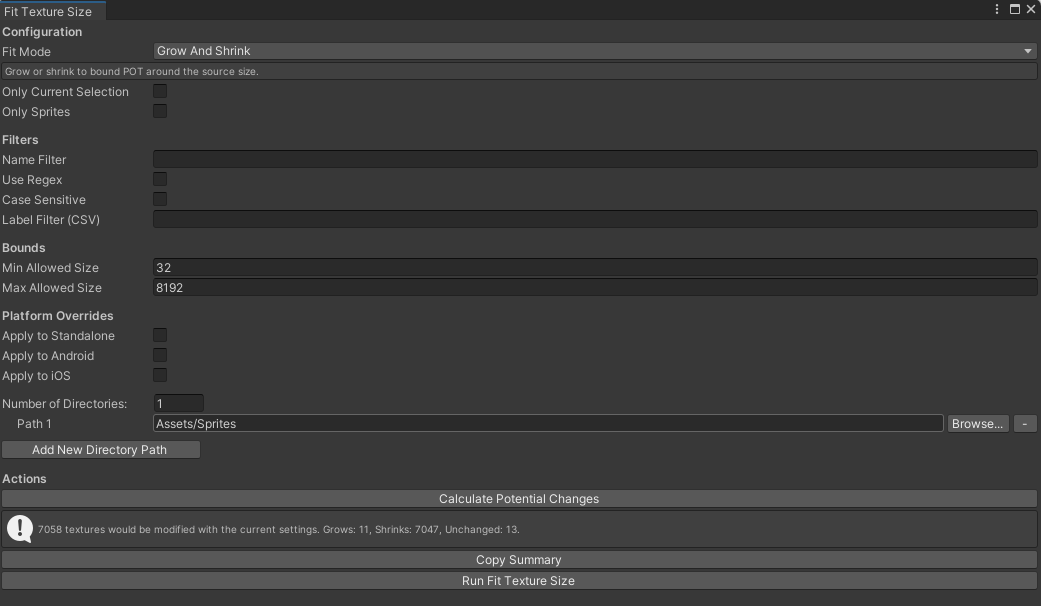
**Purpose:** Automatically adjust texture max size import settings to match actual source dimensions (power-of-two).
**Key Features:**
- **Grow and Shrink:** Adjust to perfect fit (default)
- **Grow Only:** Only increase max size if too small
- **Shrink Only:** Only decrease max size if too large
- **Preview mode:** Calculate changes before applying
- **Batch processing:** Process entire directories at once
**Fit Modes:**
**GrowAndShrink:**
- Sets max texture size to the nearest power-of-2 that fits the source
- Example: 1500x800 source → 2048 max size
- Prevents both over-allocation and quality loss
**GrowOnly:**
- Increases max size if the source is larger
- Never decreases size
- Useful for preventing quality loss on imports
**ShrinkOnly:**
- Decreases max size if the source is smaller
- Never increases size
- Useful for reducing memory usage
**Workflow:**
```text
1. Open Fit Texture Size
2. Select Fit Mode (GrowAndShrink/GrowOnly/ShrinkOnly)
3. Add texture folders to process
4. Click "Calculate Potential Changes" to preview
5. Review how many textures will be modified
6. Click "Run Fit Texture Size" to apply
```
**Example:**
```text
Source Texture: 1920x1080 pixels
Current Max Size: 512
Fit Mode: GrowAndShrink
Result: Max Size → 2048 (fits source dimensions)
Source Texture: 64x64 pixels
Current Max Size: 2048
Fit Mode: ShrinkOnly
Result: Max Size → 64 (matches source)
```
**Algorithm:**
- Reads actual source width/height (not imported size)
- Calculates required power-of-2: `size = max(width, height)`
- Rounds up to the next power-of-2 (32, 64, 128, 256, 512, 1024, 2048, 4096, 8192)
- Applies based on fit mode constraints
**Best For:**
- Fixing texture import settings after bulk imports
- Optimizing memory usage automatically
- Ensuring quality matches source resolution
- Standardizing texture settings across the project
- Build size optimization
**Performance:**
- Non-destructive (only changes import settings)
- Uses AssetDatabase batch editing for speed
- Progress bar for large operations
- Cancellable during processing
> **Visual Reference**
>
> 
>
> _Fit Texture Size with GrowAndShrink/GrowOnly/ShrinkOnly mode selection_
---
## Animation Tools
### Sprite Animation Editor (Animation Viewer Window)
**Menu:** `Tools > Wallstop Studios > Unity Helpers > Sprite Animation Editor`
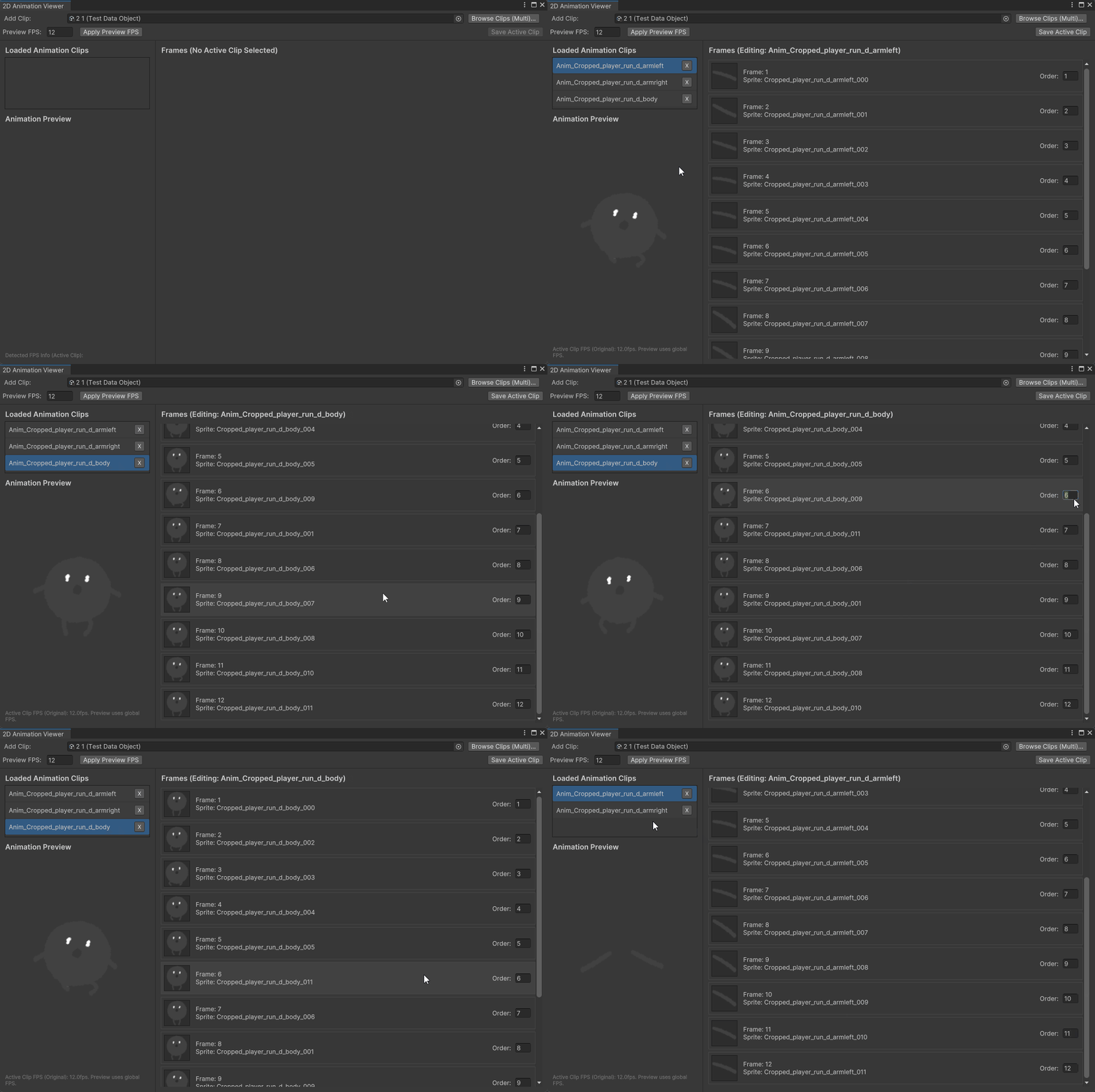
**Purpose:** Visual editor for 2D sprite animations with real-time preview and frame manipulation.
**Key Features:**
- **Real-time preview:** See animations as you edit
- **Multi-layer support:** Preview multiple clips simultaneously
- **Drag-and-drop reordering:** Intuitive frame organization
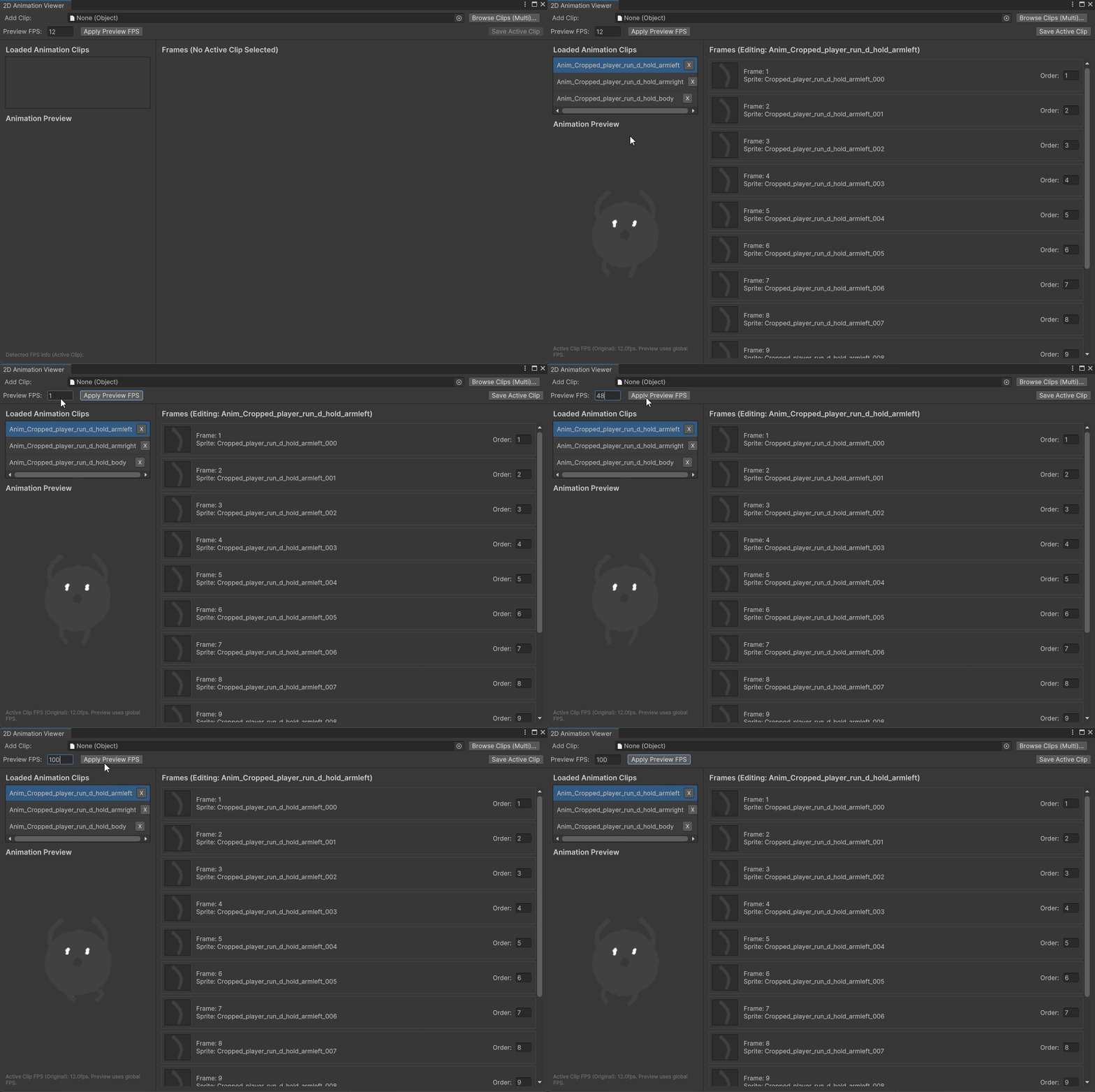
- **FPS control:** Adjust playback speed independently
- **Frame management:** Add/remove/reorder/duplicate frames
- **Multi-file browser:** Quick batch loading
- **Binding preservation:** Maintains SpriteRenderer paths
**Typical Workflow:**
```text
1. Open Sprite Animation Editor
2. Click "Browse Clips (Multi)..." to select animations
3. Click a loaded clip in left panel to edit
4. Drag frames in "Frames" panel to reorder
5. Adjust FPS field and click "Apply FPS"
6. Preview updates in real-time
7. Click "Save Clip" to write changes
```
**Example Session:**
```text
// Edit walk cycle animation:
1. Load "PlayerWalk.anim"
2. Preview plays at original 12 FPS
3. Drag frame 3 to position 1 (change starting pose)
4. Change FPS to 10 for slower walk
5. Click "Apply FPS" to preview
6. Click "Save Clip" to finalize
```
**Best For:**
- Tweaking animation timing without re-export
- Creating variations by reordering frames
- Previewing character animation sets
- Testing different FPS values
- Quick prototyping from sprite sheets
- Fixing frame order mistakes
**Tips:**
- Use the multi-file browser for entire animation sets
- Preview updates automatically while dragging
- FPS changes only affect the preview until saved
- Type frame numbers for precise positioning
- Press Enter to apply frame changes
> **Visual Demo**
>
> 
>
> _Drag-and-drop frame reordering with real-time preview updates_
>
> 
>
> _Adjusting FPS slider and seeing immediate preview speed change_
---
### Animation Creator
**Menu:** `Tools > Wallstop Studios > Unity Helpers > Animation Creator`
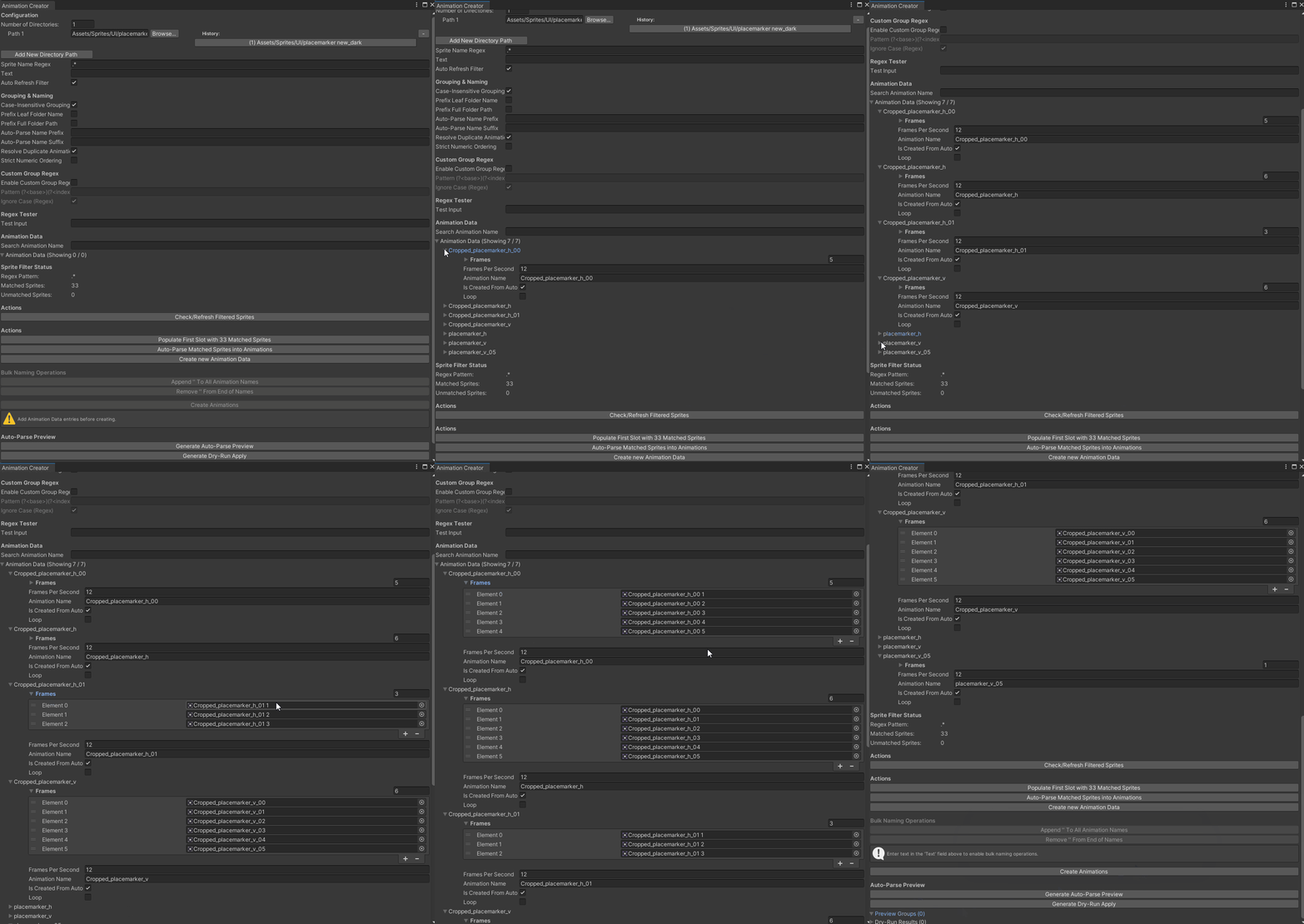
**Purpose:** Bulk‑create AnimationClips from sprite naming patterns — one‑click generation from folders of sprites. Eliminates manual clip setup and ensures consistent naming, ordering, and FPS/loop settings.
**Problems Solved:**
- Manual and error‑prone clip creation from many sprites
- Inconsistent frame ordering (lexicographic vs. numeric)
- Collisions/duplicates when generating many clips at once
- Repeating busywork when adding suffixes/prefixes across sets
**Key Features:**
- Folder sources with regex sprite filtering (`spriteNameRegex`)
- Auto‑parse into clips using naming patterns (one click)
- Custom group regex with named groups `(?)(?)`
- Case‑insensitive grouping and numeric sorting toggle
- Prefix clip names with a leaf folder or full folder path
- Auto‑parse name prefix/suffix and duplicate‑name resolution
- Dry‑run and preview (see groups and final asset paths)
- Per‑clip FPS and loop flag; bulk name append/remove
- "Populate First Slot with X Matched Sprites" helper
- **Live preview**: Real-time animation playback in the editor before committing
- **Variable framerate**: Constant FPS or curve-based frame timing per clip
**Framerate Modes:**
| Mode | Description |
| ---------- | --------------------------------------------------------- |
| `Constant` | Fixed frames per second (default) |
| `Curve` | AnimationCurve-based timing for per-frame speed variation |
**Common Naming Patterns (auto‑detected):**
```text
Player_Idle_0.png, Player_Idle_1.png, ... // base: Player_Idle, index: 0..N
slime-walk-01.png, slime-walk-02.png // base: slime-walk, index: 1..N
Mage/Attack (0).png, Mage/Attack (1).png // base: Mage_Attack, index: 0..N (folder prefix optional)
```
**Custom Group Regex Examples:**
```text
// Named groups are optional but powerful when needed
^(?.*?)(?:_|\s|-)?(?\d+)\.[Pp][Nn][Gg]$ // base + trailing digits
^Enemy_(?Walk)_(?\d+)$ // narrow to specific clip type
```
**How To Use (one‑click flow):**
```text
1) Open Animation Creator
2) Add one or more source folders
3) (Optional) Set sprite filter regex to narrow matches
4) Click “Auto‑Parse Matched Sprites into Animations”
5) Review generated Animation Data (set FPS/loop per clip)
6) Click “Create” (Action button) to write .anim assets
```
**Preview & Safety:**
- Use “Generate Auto‑Parse Preview” to see detected groups
- Use “Generate Dry‑Run Apply” to see final clip names/paths
- Toggle “Strict Numeric Ordering” to avoid `1,10,11,2,…` issues
- Enable “Resolve Duplicate Animation Names” to auto‑rename
**Tips:**
- Keep sprite names consistent (e.g., `Name_Action_###`)
- Use the built‑in Regex Tester before applying
- Use folder name/path prefixing to avoid collisions across sets
- Batch rename tokens with the “Bulk Naming Operations” section
**Best For:**
- One‑click bulk clip creation from sprite folders
- Converting exported frame sequences into clips
- Large projects standardizing animation naming and FPS/loop
> **Visual Demo**
>
> 
>
> _One-click auto-parse: sprites grouped by naming pattern, clips generated instantly_
**Related Tools:**
- After creating animations, edit timing with [Sprite Animation Editor](#sprite-animation-editor-animation-viewer-window)
- Add events to created animations with [Animation Event Editor](#animation-event-editor)
- Organize animations between folders with [Animation Copier](#animation-copier)
- For sprite sheets (not sequences), use [Sprite Sheet Animation Creator](#sprite-sheet-animation-creator)
---
### Animation Copier
**Menu:** `Tools > Wallstop Studios > Unity Helpers > Animation Copier`
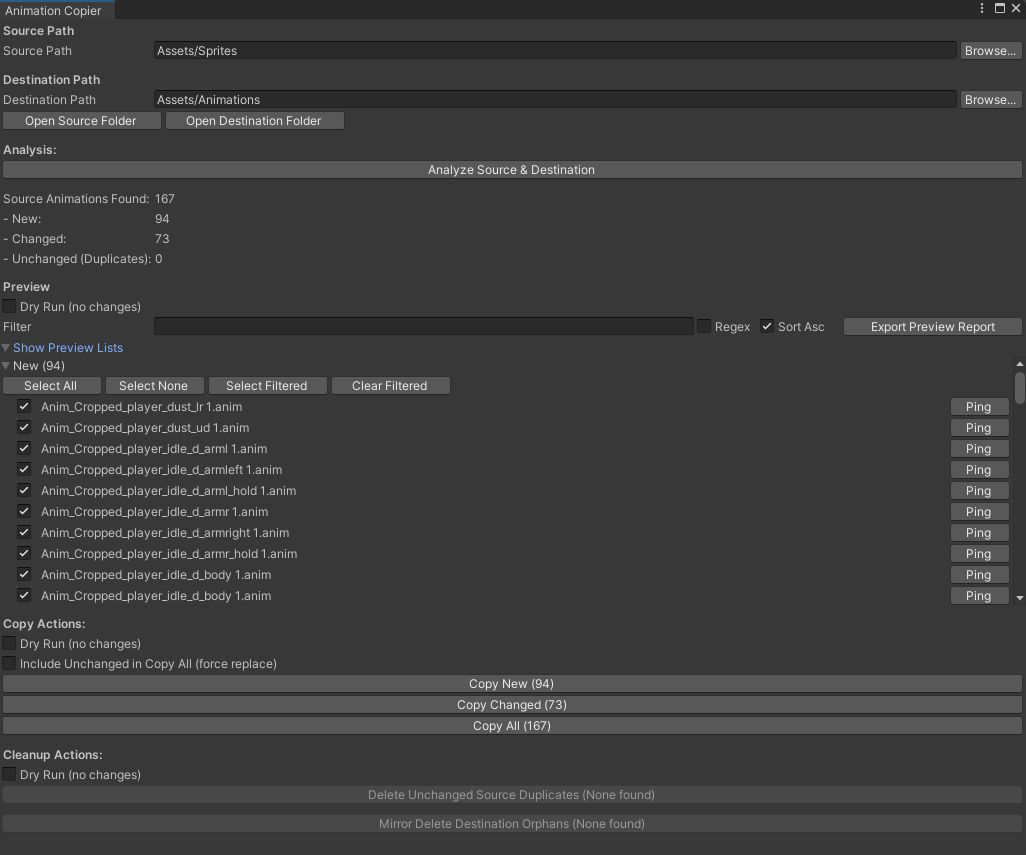
**Purpose:** Analyze, duplicate, and synchronize AnimationClips between source and destination folders with previews, dry‑runs, and cleanup actions.
**What It Analyzes:**
- New: exist in the source but not the destination
- Changed: exist in both but differ (hash mismatch)
- Unchanged: identical in both (duplicates)
- Destination Orphans: only in destination
**Workflow:**
```text
1) Open Animation Copier
2) Select Source Path (e.g., Assets/Sprites/Animations)
3) Select Destination Path (e.g., Assets/Animations)
4) Click “Analyze Source & Destination”
5) Review New/Changed/Unchanged/Orphans tabs (filter/sort)
6) Choose a copy mode:
- Copy New / Copy Changed / Copy All (optional force replace)
7) (Optional) Dry Run to preview without writing
8) Use Cleanup:
- Delete Unchanged Source Duplicates
- Delete Destination Orphans
```
**Safety & Options:**
- Dry Run (no changes) for all copy/cleanup operations
- “Include Unchanged in Copy All” to force overwrite duplicates
- Open Source/Destination folder buttons for quick navigation
**Best For:**
- Creating animation variants and organizing libraries
- Syncing generated clips into your canonical destination
- Keeping animation folders tidy with cleanup actions
> **Visual Reference**
>
> 
>
> _Animation Copier with new/changed/unchanged/orphan tabs and copy actions_
---
### Sprite Sheet Animation Creator
**Menu:** `Tools > Wallstop Studios > Unity Helpers > Sprite Sheet Animation Creator`
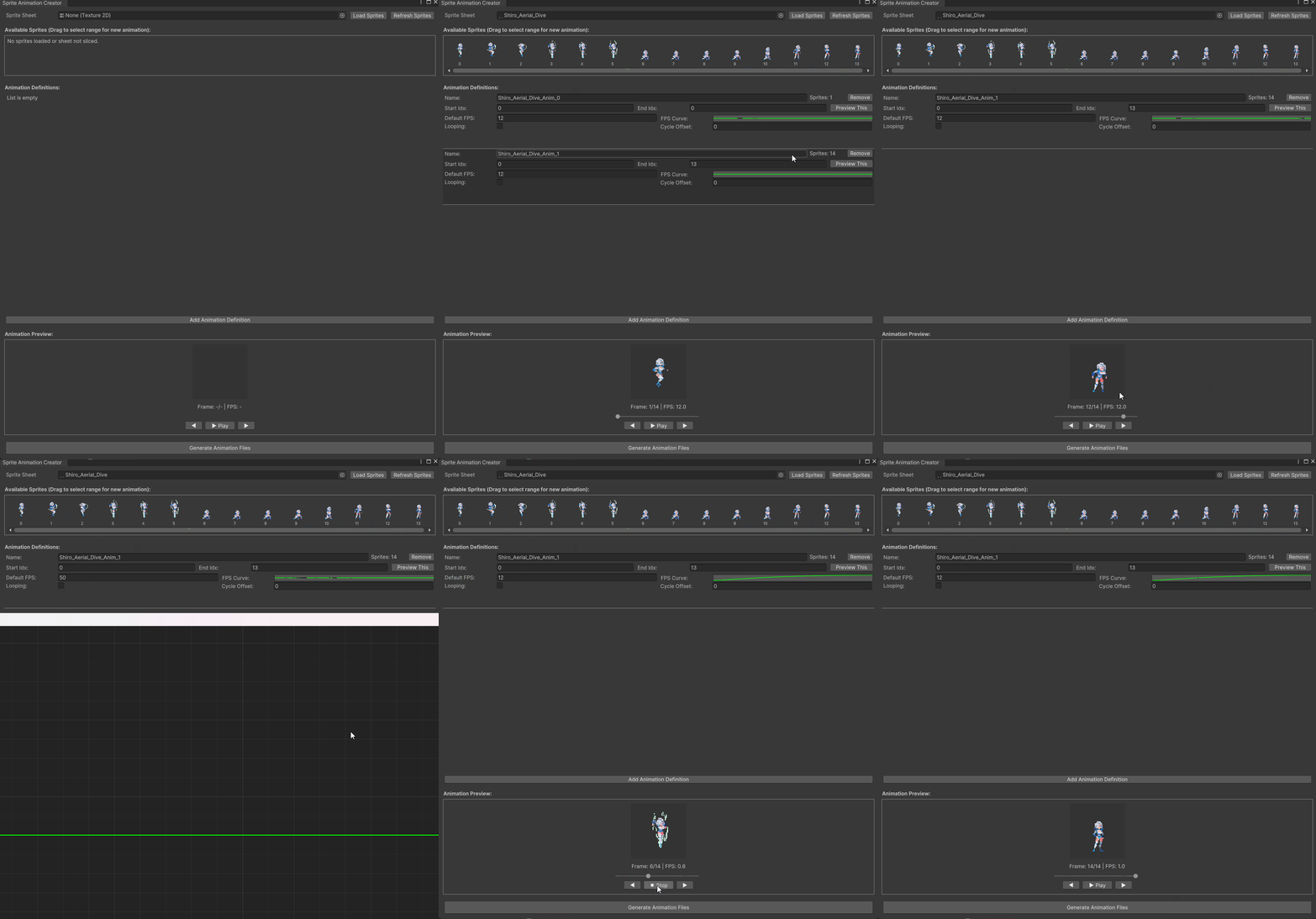
**Purpose:** Turn a sliced sprite sheet into one or more AnimationClips with live preview, drag‑to‑select sprite ranges, and per‑clip FPS/loop/cycle offset.
**Key Features:**
- Load a multi‑sprite Texture2D (sliced in the Sprite Editor)
- Drag‑select sprite ranges to define clips visually
- Constant FPS or curve‑based frame rate per clip
- Live preview/playback controls and scrubbing
- Loop toggle and cycle offset per clip
- Safe asset creation with unique file names
**Usage:**
```text
1) Open Sprite Sheet Animation Creator
2) Drag a sliced Texture2D (or use the object field)
3) Select frames (drag across thumbnails) to define a clip
4) Name the clip, set FPS/curve, loop, cycle offset
5) Repeat to add multiple definitions
6) Click “Generate Animations” and choose output folder
```
**Best For:**
- Converting sprite sheets to animation clips with fine control
- Mixed timings using AnimationCurves for frame pacing
- Fast iteration via visual selection and preview
> **Visual Demo**
>
> 
>
> _Drag-select frame ranges on sprite sheet thumbnails with instant preview playback_
---
### Sprite Sheet Extractor
**Menu:** `Tools > Wallstop Studios > Unity Helpers > Sprite Sheet Extractor`
**Purpose:** Extract individual sprites from sprite sheet textures and save them as separate PNG files with batch processing, preview, and optional reference replacement.
**Key Features:**
- **Multiple extraction modes:** From existing metadata, grid-based, alpha detection, or padded grid
- **Auto-detection algorithms:** Automatically detect optimal grid dimensions from transparency patterns
- **Pivot preservation:** Maintain original pivot points or set custom pivots per sprite
- **Preview interface:** Visual preview of all detected sprites before extraction
- **Batch processing:** Process multiple sprite sheets at once
- **Reference replacement:** Optionally update prefab/scene references to new sprites
- **Per-sheet configuration:** Override global settings for individual sprite sheets
- **Config persistence:** Save and load extraction settings per sprite sheet
**Extraction Modes:**
**FromMetadata:**
- Uses existing Unity sprite metadata (SpriteImportMode.Multiple)
- Preserves original names, rects, pivots, and borders
- Best for already-sliced sprite sheets
**GridBased:**
- Divides texture into uniform grid cells
- Auto or manual grid dimensions
- Good for evenly-spaced sprite sheets
**AlphaDetection:**
- Analyzes transparency to find sprite boundaries
- Works with irregular sprite layouts
- Configurable alpha threshold
**PaddedGrid:**
- Grid-based with configurable padding/gutters
- Handles sprite sheets with spacing between cells
**Pivot Modes:**
- **Center:** Pivot at sprite center (0.5, 0.5)
- **BottomCenter:** Pivot at bottom center (0.5, 0)
- **TopCenter:** Pivot at top center (0.5, 1)
- **LeftCenter:** Pivot at left center (0, 0.5)
- **RightCenter:** Pivot at right center (1, 0.5)
- **BottomLeft:** Pivot at bottom left (0, 0)
- **BottomRight:** Pivot at bottom right (1, 0)
- **TopLeft:** Pivot at top left (0, 1)
- **TopRight:** Pivot at top right (1, 1)
- **Custom:** User-specified pivot coordinates
**Workflow:**
```text
1. Open Sprite Sheet Extractor
2. Add input directories containing sprite sheets
3. (Optional) Set sprite name regex filter
4. Configure extraction mode and settings
5. Click "Discover Sprite Sheets" to scan
6. Review detected sheets and sprites in preview
7. Adjust per-sheet settings if needed
8. Set output directory
9. Click "Extract" to generate individual sprites
10. (Optional) Use reference replacement for prefab updates
```
**Best For:**
- Converting packed sprite sheets to individual assets
- Preparing sprites for animation systems that expect separate files
- Creating backup copies of individual sprites
- Reorganizing sprite assets
- Migrating from third-party sprite sheet formats
**Tips:**
- Use "Snap to Texture Divisor" for cleaner grid alignment
- Preview sprites before extraction to verify detection
- Save per-sheet configs for consistent re-extraction
- Enable reference replacement only with VCS backup
- Use alpha detection for irregularly-spaced sprite sheets
---
### Animation Event Editor
**Menu:** `Tools > Wallstop Studios > Unity Helpers > AnimationEvent Editor`
**Purpose:** Advanced visual editor for creating and managing animation events with sprite preview, method auto-discovery, and parameter editing.
**Key Features:**
- **Sprite preview:** See the sprite at each event time
- **Method auto-discovery:** Automatically finds valid animation event methods
- **Explicit mode:** Restrict to methods marked with `[AnimationEvent]` attribute
- **Parameter editing:** Visual editors for int, float, string, object, and enum parameters
- **Frame-based editing:** Work with frame numbers instead of time values
- **Search filtering:** Filter types and methods by search terms
- **Real-time validation:** Shows invalid texture rects and read/write issues
**Workflow:**
```text
1. Open Animation Event Editor
2. Drag Animator component into "Animator Object" field
3. Select animation from dropdown (or use Animation Search)
4. Set "FrameIndex" for new event
5. Click "Add Event" to create event at that frame
6. Configure event:
a. Select TypeName (MonoBehaviour with event methods)
b. Select MethodName from available methods
c. Set parameters (int, float, string, object, enum)
7. Reorder events if needed (Move Up/Down buttons)
8. Click "Save" to write changes to animation clip
```
**Modes:**
**Explicit Mode (Default):**
- Only shows methods marked with `[AnimationEvent]` attribute
- Cleaner, curated list of event methods
- Recommended for large projects
**Non-Explicit Mode:**
- Shows all public methods with valid signatures
- Use the "Search" field to filter by type/method name
- Good for discovery and prototyping
**Control Frame Time:**
- Disabled: Work with frame indices (snaps to frames)
- Enabled: Edit precise time values (floating point)
**Sprite Preview:**
- Automatically shows sprite at event time
- Requires texture Read/Write enabled
- "Fix" button to enable Read/Write if needed
- Warns if a sprite is packed too tightly
**Event Management:**
**Adding Events:**
1. Set "FrameIndex" to desired frame
2. Click "Add Event"
3. Event created at frame time
**Editing Events:**
- Change frame/time directly
- Select type and method from dropdowns
- Edit parameters based on method signature
- Override enum values if needed
**Reordering:**
- "Move Up"/"Move Down" for events at the same time
- "Re-Order" button sorts all events by time
- Maintains proper event order for playback
**Resetting:**
- Per-event "Reset" button (reverts to saved state)
- Global "Reset" button (discards all changes)
**Parameter Types Supported:**
- `int` - IntField editor
- `float` - FloatField editor
- `string` - TextField editor
- `UnityEngine.Object` - ObjectField editor
- `Enum` - Dropdown with an override option
**Best For:**
- Complex animation event setup
- Character combat systems
- Footstep/sound effect events
- Particle effect triggers
- Animation state notifications
- Visual debugging of event timing
**Tips:**
- Enable "Explicit Mode" to reduce clutter
- Use "Animation Search" for quick filtering
- Frame numbers are more intuitive than time values
- Sprite preview helps verify timing
- Multiple events can exist at the same frame
- Use "Re-Order" before saving for consistency
**Common Method Signatures:**
```csharp
using WallstopStudios.UnityHelpers.Core.Attributes;
public class CharacterAnimationEvents : MonoBehaviour
{
[AnimationEvent] // Shows in Explicit Mode
public void PlayFootstep() { }
[AnimationEvent]
public void SpawnEffect(string effectName) { }
[AnimationEvent]
public void ApplyDamage(int damage) { }
[AnimationEvent]
public void SetAnimationState(CharacterState state) { } // Enum parameter
}
```
---
## Sprite Atlas Tools
### Sprite Atlas Generator
**Menu:** `Tools > Wallstop Studios > Unity Helpers > Sprite Atlas Generator`
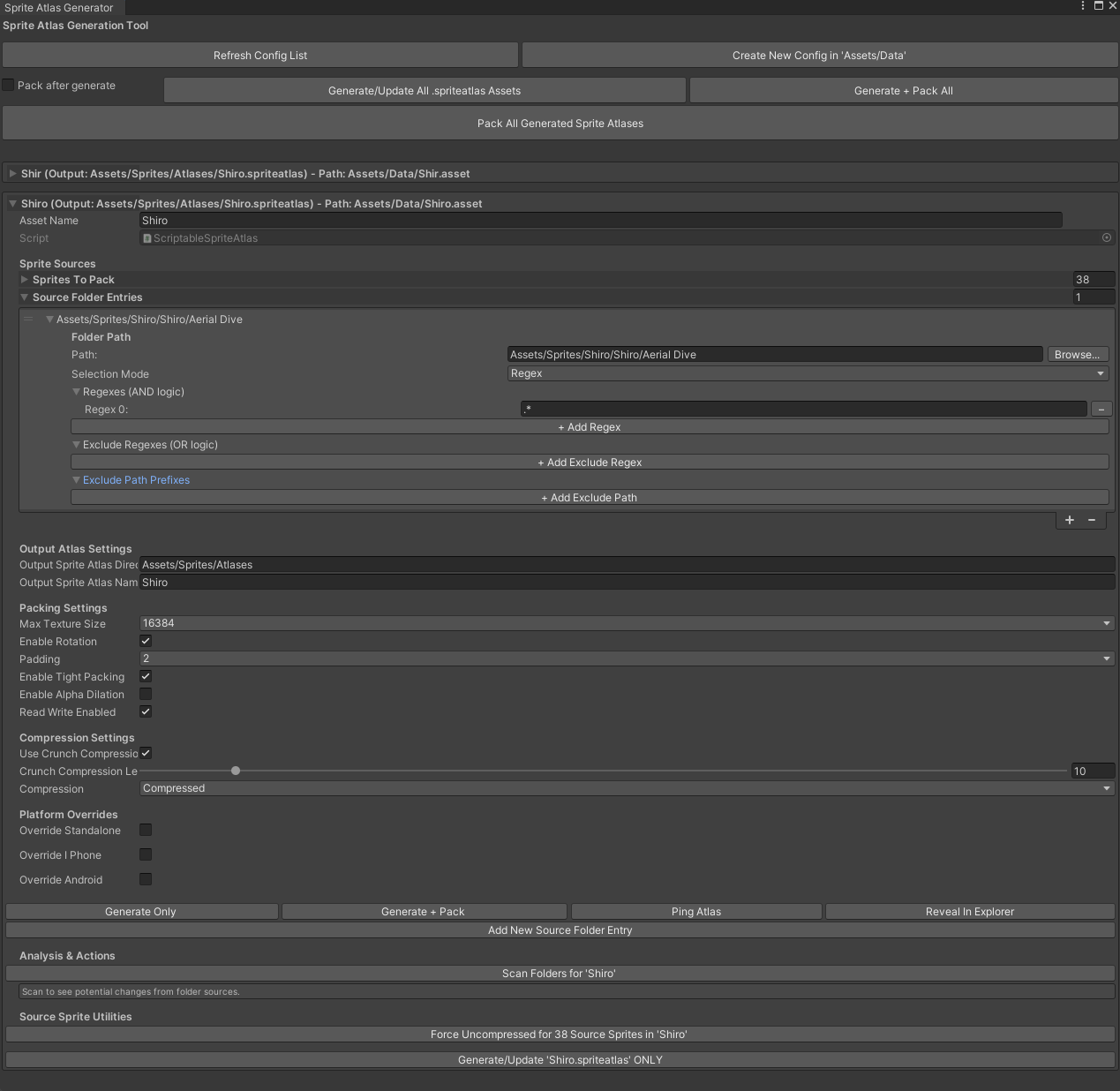
**Purpose:** Comprehensive tool for creating and managing Unity Sprite Atlases with regex-based sprite selection, label filtering, and automated packing.
**Key Features:**
- **Regex-based sprite selection:** Use regular expressions to automatically find sprites
- **Label filtering:** Select sprites based on Unity asset labels
- **Multiple source folders:** Configure different folders with different selection criteria
- **Batch atlas generation:** Create/update multiple atlases at once
- **Advanced packing settings:** Control texture size, compression, padding, rotation
- **Source sprite utilities:** Force uncompressed settings for source sprites
- **Scan and preview:** See what sprites will be added/removed before applying changes
**Configuration Asset:**
Create configurations via `Assets > Create > Wallstop Studios > Unity Helpers > Scriptable Sprite Atlas Config`
**ScriptableSpriteAtlas Configuration:**
```text
Sprite Sources:
- spritesToPack: Manually added sprites (always included)
- sourceFolderEntries: Define folders with regex/label filters
Source Folder Entry Options:
- folderPath: Folder to scan (relative to Assets/)
- selectionMode: Regex | Labels | Both
- regexes: List of regex patterns (all must match - AND logic)
- regexAndTagLogic: How to combine regex and labels (And/Or)
- labelSelectionMode: All | AnyOf
- labels: Asset labels to filter by
Output Atlas Settings:
- outputSpriteAtlasDirectory: Where to save .spriteatlas
- outputSpriteAtlasName: Name of atlas file
Packing Settings:
- maxTextureSize: 32-16384 (power of 2)
- enableRotation: Allow sprite rotation for better packing
- padding: Pixels between sprites (0-32)
- enableTightPacking: Optimize packing density
- enableAlphaDilation: Dilate alpha edges
- readWriteEnabled: Enable Read/Write on atlas texture
Compression Settings:
- useCrunchCompression: Enable crunch compression
- crunchCompressionLevel: 0-100 quality
- compression: Compressed/CompressedHQ/Uncompressed
```
**Typical Workflow:**
```text
1. Open Sprite Atlas Generator
2. Click "Create New Config in 'Assets/Data'"
3. Configure the new atlas:
a. Set output name and directory
b. Click "Add New Source Folder Entry"
c. Select folder containing sprites
d. Add regex patterns (e.g., "^character_.*\\.png$")
e. Or/and add labels for filtering
f. Configure packing settings (texture size, padding, etc.)
4. Click "Scan Folders for '[config name]'"
5. Review sprites to add/remove
6. Click "Add X Sprites" to populate the list
7. Click "Generate/Update '[atlas name].spriteatlas' ONLY"
8. Click "Pack All Generated Sprite Atlases" to pack textures
```
**Example Configurations:**
**Character Sprites Atlas:**
```text
folderPath: Assets/Sprites/Characters
selectionMode: Regex
regexes: ["^player_.*\\.png$", ".*_idle_.*"]
maxTextureSize: 2048
padding: 4
compression: CompressedHQ
```
**UI Icons by Label:**
```text
folderPath: Assets/Sprites/UI
selectionMode: Labels
labelSelectionMode: AnyOf
labels: ["icon", "ui"]
maxTextureSize: 1024
padding: 2
```
**Combined Regex + Labels:**
```text
folderPath: Assets/Sprites/Effects
selectionMode: Regex | Labels
regexes: ["^vfx_.*"]
labels: ["particle"]
regexAndTagLogic: And
maxTextureSize: 2048
```
**Advanced Features:**
**Scan and Preview:**
- Shows the exact sprite count that will be added/removed
- Prevents accidental overwrites
- Displays current vs. scanned sprite lists
**Source Sprite Utilities:**
- "Force Uncompressed for X Source Sprites" button
- Sets source sprites to uncompressed (RGBA32/RGB24)
- Disables crunch compression on sources
- Ensures maximum quality before atlas packing
**Batch Operations:**
- "Generate/Update All .spriteatlas Assets" - processes all configs
- "Pack All Generated Sprite Atlases" - packs all atlases in the project
- Progress bars for long operations
**Best For:**
- Managing large sprite collections
- Automating sprite atlas creation
- Consistent atlas configuration across the team
- Dynamic sprite selection based on naming conventions
- Organizing sprites by labels/tags
- Build pipeline atlas generation
**Tips:**
- Use regex for consistent naming patterns
- Combine multiple source folders for complex selections
- Test regex patterns with "Scan Folders" before generating
- Keep source sprites uncompressed for the best atlas quality
- Use labels for cross-folder sprite grouping
- Regular expressions use case-insensitive matching
**Common Issues:**
- **No sprites found:** Check regex patterns and folder paths
- **Sprites not packing:** Run "Pack All Generated Sprite Atlases"
- **Quality issues:** Use "Force Uncompressed" on source sprites
- **Regex errors:** Validate patterns (will log specific errors)
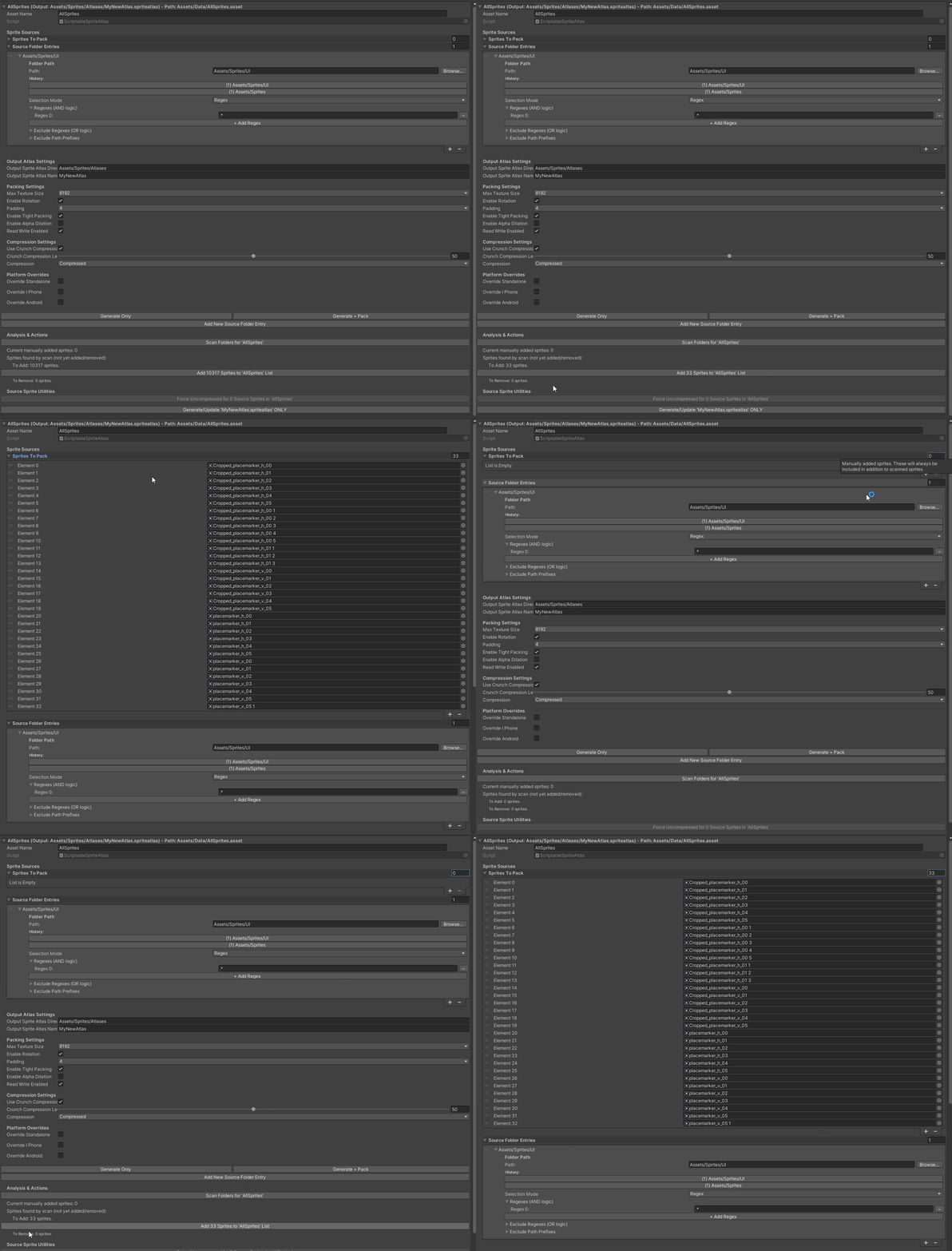
> **Visual Reference**
>
> 
>
> _Sprite Atlas Generator with regex-based sprite selection and packing settings_
>
> 
>
> _Scanning folders and previewing which sprites will be added to the atlas_
---
## Validation & Quality Tools
### Prefab Checker
**Menu:** `Tools > Wallstop Studios > Unity Helpers > Prefab Checker`
**Purpose:** Comprehensive prefab validation to detect configuration issues before runtime.
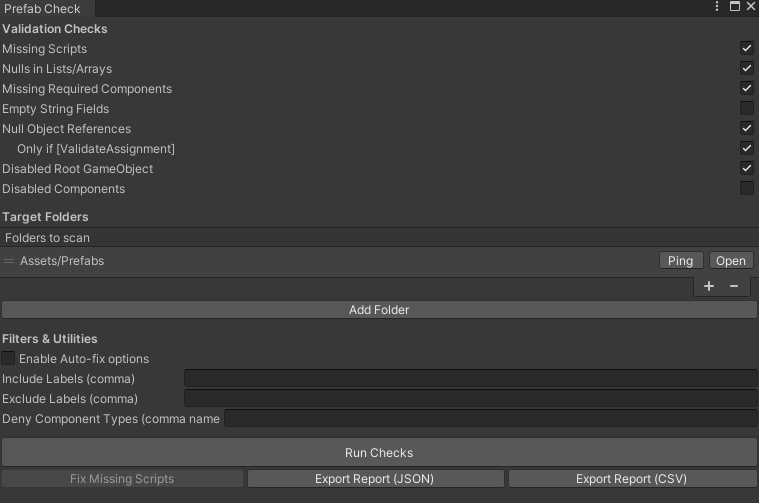
**Validation Checks:**
| Check | Description | Severity |
| -------------------------------- | --------------------------------------------- | ------------ |
| **Missing Scripts** | Detects broken MonoBehaviour references | Critical |
| **Nulls in Lists/Arrays** | Finds null elements in serialized collections | High |
| **Missing Required Components** | Validates [RequireComponent] dependencies | Critical |
| **Empty String Fields** | Identifies unset string fields | Medium |
| **Null Object References** | Finds unassigned UnityEngine.Object fields | High |
| **Only if [ValidateAssignment]** | Restricts null checks to annotated fields | Configurable |
| **Disabled Root GameObject** | Flags inactive prefab roots | Medium |
| **Disabled Components** | Reports disabled Behaviour components | Low |
**Typical Validation Workflow:**
```text
// Before committing prefab changes:
1. Open Prefab Checker
2. Enable relevant checks (especially Missing Scripts, Required Components)
3. Add "Assets/Prefabs" folder
4. Click "Run Checks"
5. Review console output (click to select problematic prefabs)
6. Fix reported issues
7. Re-run checks to verify
8. Commit changes
```
**CI/CD Integration:**
```text
// Can be scripted for automated builds
- Run validation on changed prefab folders
- Parse console output for errors
- Fail build if critical issues found
```
**Best Practices:**
- Use `[ValidateAssignment]` attribute on critical fields
- Run checks before committing prefab changes
- Enable "Only if [ValidateAssignment]" to reduce noise
- Fix "Missing Required Components" errors immediately
- Schedule regular validation runs
**Performance:** Uses cached reflection for fast repeated checks.
**Best For:**
- Pre-build validation
- Code review assistance
- Team onboarding with prefab standards
- Migration validation after Unity upgrades
- Continuous integration health checks
> **Visual Reference**
>
> 
>
> _Prefab Checker with configurable validation checks and folder selection_
>
> 
>
> _Console output showing detected prefab issues with clickable links_
---
### Unity Method Analyzer
**Menu:** `Tools > Wallstop Studios > Unity Helpers > Unity Method Analyzer`
**Purpose:** Detect inheritance issues and Unity lifecycle method errors across your entire C# codebase before they cause runtime bugs.
**📖 Full Documentation:** [Unity Method Analyzer Guide](./unity-method-analyzer.md)
**Key Features:**
- **Static analysis** without external dependencies (no Roslyn required)
- **Parallel scanning** of thousands of files
- **Multiple issue categories**: Unity Lifecycle, Unity Inheritance, General Inheritance
- **Five severity levels**: Critical, High, Medium, Low, Info
- **Export options**: JSON and Markdown for CI/CD integration
- **Flexible filtering**: By severity, category, or free-text search
**What It Detects:**
| Issue Type | Example |
| ---------------------------- | ------------------------------------------------------------------------- |
| Missing `override` keyword | Hiding base method instead of overriding |
| Wrong Unity method signature | `OnCollisionEnter(Collider c)` instead of `OnCollisionEnter(Collision c)` |
| Shadowed lifecycle methods | Both base and derived class have `private void Start()` |
| Static lifecycle methods | `static void Awake()` won't be called by Unity |
**Quick Start:**
```text
1. Open Unity Method Analyzer
2. Add source directories (e.g., Assets/Scripts)
3. Click "Analyze Code"
4. Review issues grouped by file, severity, or category
5. Double-click to navigate to problematic code
6. Export report for team review or CI/CD
```
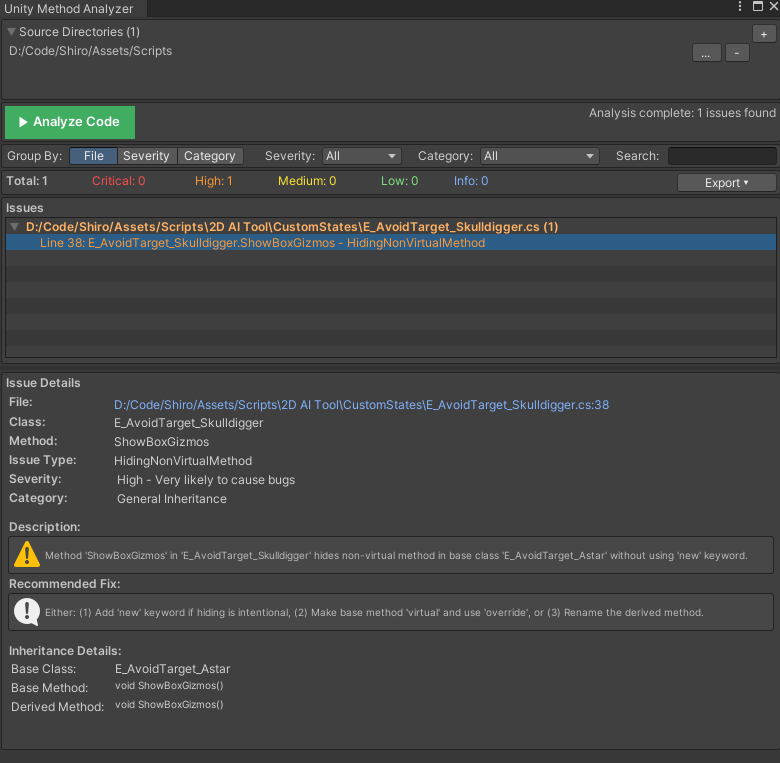
> **Visual Demo**
>
> 
>
> _The analyzer scanning a project and displaying categorized issues_
**Suppressing Warnings:**
For test code or intentional patterns, use `[SuppressAnalyzer]`:
```csharp
[SuppressAnalyzer("Test fixture for analyzer validation")]
public class TestClassWithIntentionalIssues : BaseClass
{
public void HiddenMethod() { } // Won't trigger warning
}
```
**Best For:**
- Pre-commit code validation
- Code review assistance
- CI/CD quality gates
- Team onboarding
- Post-refactoring verification
---
## Custom Component Editors
These custom inspectors enhance Unity components with additional functionality and convenience features.
### MatchColliderToSprite Editor
**Component:** `MatchColliderToSprite`
**Purpose:** Provides a button in the inspector to manually trigger collider-to-sprite matching.
**Features:**
- "MatchColliderToSprite" button in inspector
- Manually invoke `OnValidate()` to update collider
- Useful when automatic updates don't trigger
**When to Use:**
- After changing sprite at runtime
- When collider doesn't match sprite automatically
- Manual override of collider shape
---
### PolygonCollider2DOptimizer Editor
**Component:** `PolygonCollider2DOptimizer`
**Purpose:** Custom inspector for optimizing PolygonCollider2D point counts with configurable tolerance.
**Features:**
- **tolerance:** Adjustable simplification tolerance
- **Optimize button:** Manually trigger polygon simplification
- Reduces collider complexity while maintaining shape
**How It Works:**
1. Adjust tolerance slider (lower = more accurate, higher = simpler)
2. Click "Optimize" to simplify polygon points
3. Collider updates with a reduced point count
**Best For:**
- Reducing physics performance overhead
- Simplifying complex sprite colliders
- Balancing accuracy vs. performance
- Editor-time optimization of imported sprites
**Tolerance Guide:**
- 0.0 - 0.1: High accuracy, minimal simplification
- 0.1 - 0.5: Balanced (recommended)
- 0.5 - 2.0: Aggressive simplification
- 2.0+: Maximum simplification (may lose detail)
---
### EnhancedImage Editor
**Component:** `EnhancedImage` (extends Unity's Image)
**Purpose:** Extended inspector for EnhancedImage with HDR color support and shape mask configuration.
**Additional Properties:**
- **HDR Color:** High dynamic range color multiplication
- **Shape Mask:** Texture2D for masking/shaping the image
- **Material Auto-Fix:** Detects and fixes incorrect material assignment
**Features:**
**Material Detection:**
- Warns if using "Default UI Material"
- "Incorrect Material Detected - Try Fix?" button (yellow)
- Automatically finds and applies the correct BackgroundMask material
- Material path: `Shaders/Materials/BackgroundMask-Material.mat`
**Shape Mask:**
- Requires shader with `_ShapeMask` texture2D property
- Allows complex masking effects
- Integrates with a custom shader system
**HDR Color:**
- Color picker with HDR support
- Intensity values > 1.0 for bloom/glow effects
- Works with post-processing
**Best For:**
- UI elements requiring HDR effects
- Masked UI images
- Custom-shaped UI elements
- Material-based UI effects
**Workflow:**
```text
1. Add EnhancedImage component to UI GameObject
2. If yellow "Fix Material" button appears, click it
3. Configure HDR Color for glow/intensity
4. Assign Shape Mask texture if needed
5. Shader must expose _ShapeMask property
```
**Icon Customization:**
- Automatically uses Image icon in project/hierarchy
- Seamless integration with standard Unity UI
---
## Property Drawers & Attributes
Custom property drawers enhance the inspector with conditional display, validation, and specialized input fields.
### WInLineEditor Property Drawer
**Attribute:** `[WInLineEditor]`
**Purpose:** Embed the inspector for object references (ScriptableObjects, Materials, Components, Textures, etc.) directly below the field so you can edit configuration without losing context.
**Modes (`WInLineEditorMode`):**
- `AlwaysExpanded` — always draws the inline inspector.
- `FoldoutExpanded` — shows a foldout that starts expanded.
- `FoldoutCollapsed` — shows a foldout that starts collapsed.
**Options:** tune the presentation with constructor parameters:
- `inspectorHeight` (default 200, min 160) — vertical space reserved for the inspector body.
- `drawObjectField` — hide or show the object picker next to the label.
- `drawHeader` — draw a bold header with a ping button (ping is shown only while a Project window tab is visible).
- `drawPreview` & `previewHeight` — render the preview area when the target editor exposes one.
- `enableScrolling` — wrap the inspector body in a scroll view for long inspectors.
- `minInspectorWidth` (default 520) — when the content area is narrower than this width, a horizontal scrollbar appears; set to `0` to disable the safeguard.
> WInLineEditor respects the **Inline Editors** defaults inside Unity Helpers Settings. Leave the `mode` argument unset to inherit the global foldout behaviour, or supply a `WInLineEditorMode` per field to override it. By default, Inline Editors start collapsed to mirror collapsible WGroups, so `[WInLineEditor]` without a mode expands only when you opt into a different setting.
**Examples:**
```csharp
public class AbilityConfig : ScriptableObject
{
public string displayName;
public float cooldown;
}
public class AbilityDatabase : ScriptableObject
{
[WInLineEditor] public AbilityConfig defaultConfig;
[WInLineEditor(
WInLineEditorMode.FoldoutCollapsed,
inspectorHeight: 180f,
drawPreview: true,
previewHeight: 64f)]
public Texture2D abilityIcon;
[WInLineEditor(
WInLineEditorMode.AlwaysExpanded,
inspectorHeight: 220f,
drawObjectField: false,
enableScrolling: false)]
public AbilityConfig sharedTemplate;
}
```
**Features:**
- Bespoke implementation (no Odin dependency) tailored to the most common inline editing workflows.
- Reuses Unity’s native editors, respecting custom inspectors, validation, and undo.
- Optional scroll view that keeps large inspectors usable without stealing space from the parent inspector.
- Preview support for assets that implement `HasPreviewGUI`.
- Header includes a quick “Ping” button so you can jump to the asset whenever the Project window is visible.
- Smooth expand/collapse animations with configurable speed.
**Animation Settings:**
Foldout animations are controlled via Unity Helpers Settings (`Edit > Project Settings > Unity Helpers`):
- `InlineEditorFoldoutTweenEnabled` — Enable/disable smooth expand/collapse animations (default: `true`)
- `InlineEditorFoldoutSpeed` — Animation speed from 2.0 to 12.0 (default: `2.0`)
```csharp
using UnityEngine;
using WallstopStudios.UnityHelpers.Core.Attributes;
public class AbilityConfig : ScriptableObject
{
public string abilityName;
public Sprite icon;
public float cooldown;
}
public class WInLineEditorExample : MonoBehaviour
{
// Animation applies to foldout modes only
[WInLineEditor(WInLineEditorMode.FoldoutCollapsed)] // Animated
public AbilityConfig animatedFoldout;
[WInLineEditor(WInLineEditorMode.AlwaysExpanded)] // No animation (always visible)
public AbilityConfig alwaysVisible;
}
```
**See also:** [Inspector Settings Reference](../inspector/inspector-settings.md#inline-editor-settings) for complete settings documentation.
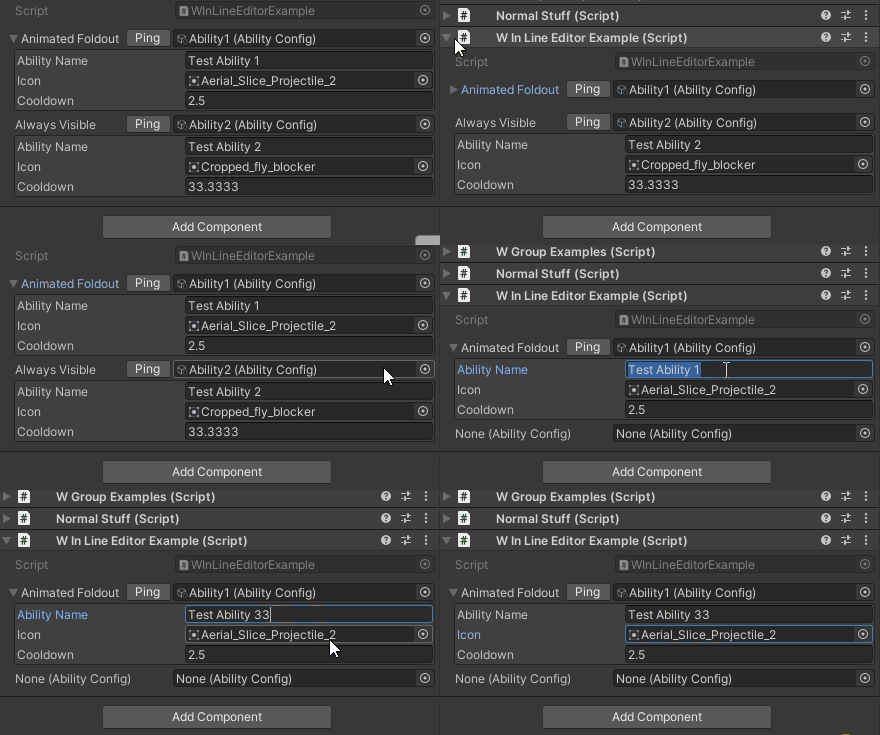
> **Visual Reference**
>
> 
>
> _WInLineEditor with embedded inspector for a ScriptableObject reference with foldout and collapse transitions_
---
### WShowIf Property Drawer
**Attribute:** `[WShowIf]`
**Purpose:** Conditionally show/hide fields in inspector based on boolean fields or enum values.
**Syntax:**
```csharp
[WShowIf(nameof(fieldName))]
[WShowIf(nameof(fieldName), inverse = true)]
[WShowIf(nameof(fieldName), expectedValues: new object[] { value1, value2 })]
[WShowIf(nameof(numericField), WShowIfComparison.GreaterThan, 10)]
[WShowIf(nameof(stringField), WShowIfComparison.IsNotNullOrEmpty)]
[WShowIf(nameof(parentField) + "." + nameof(ChildType.someFlag))]
```
> `WShowIfComparison.Unknown` exists only for backward compatibility and is marked obsolete; always choose an explicit comparison mode.
**Examples:**
**Boolean Condition:**
```csharp
public bool enableFeature;
[WShowIf(nameof(enableFeature))]
public float featureIntensity;
[WShowIf(nameof(enableFeature), inverse = true)]
public string disabledMessage;
```
**Enum Condition:**
```csharp
public enum Mode { Simple, Advanced, Expert }
public Mode currentMode;
[WShowIf(nameof(currentMode), expectedValues = new object[] { Mode.Advanced, Mode.Expert })]
public int advancedSetting;
```
**Multiple Values:**
```csharp
using System.Collections.Generic;
using UnityEngine;
using UnityEngine.Serialization;
using WallstopStudios.UnityHelpers.Core.Attributes;
using WallstopStudios.UnityHelpers.Core.DataStructure.Adapters;
using WallstopStudios.UnityHelpers.Editor.Sprites;
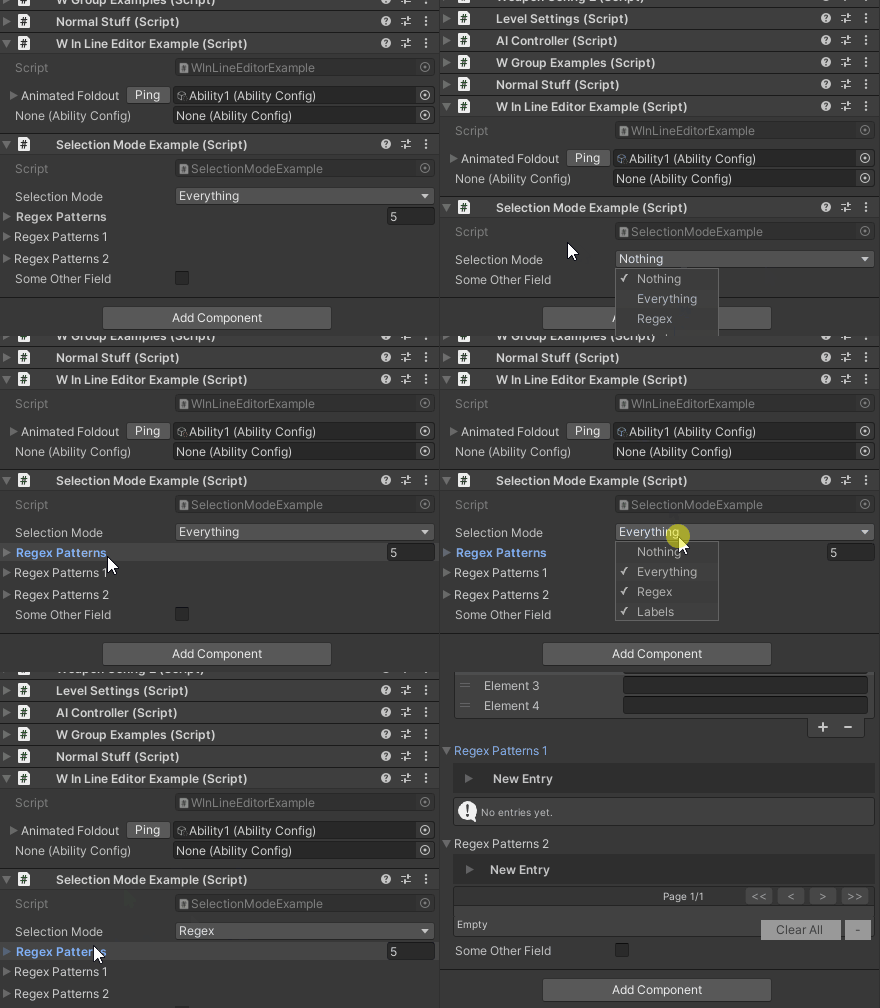
public class SelectionModeExample : MonoBehaviour
{
public SpriteSelectionMode selectionMode;
[WShowIf(
nameof(selectionMode),
expectedValues = new object[]
{
SpriteSelectionMode.Regex,
SpriteSelectionMode.Regex | SpriteSelectionMode.Labels,
}
)]
public List regexPatterns;
[FormerlySerializedAs("regexPatterns")]
[WShowIf(
nameof(selectionMode),
expectedValues = new object[]
{
SpriteSelectionMode.Regex,
SpriteSelectionMode.Regex | SpriteSelectionMode.Labels,
}
)]
public SerializableHashSet regexPatterns1;
[WShowIf(
nameof(selectionMode),
expectedValues = new object[]
{
SpriteSelectionMode.Regex,
SpriteSelectionMode.Regex | SpriteSelectionMode.Labels,
}
)]
public SerializableDictionary regexPatterns2;
public bool someOtherField;
}
```
**Features:**
- Hides field when condition false (0 height)
- Supports boolean, enum, numeric, any `IComparable`/`IComparable` type, null, and string/collection comparisons
- Allows referencing nested paths, properties, and parameterless methods
- `inverse` parameter inverts any comparison result
- `expectedValues` (or params arguments) for equality checks without manual arrays
- Falls back to reflection for non-SerializedProperty fields
- Cached reflection for performance
**Best For:**
- Conditional inspector fields
- Reducing inspector clutter
- Mode-based configuration UI
- Complex nested settings
> **Visual Reference**
>
> 
>
> _Field appears/disappears based on enum toggle state_
---
### StringInList Property Drawer
**Attribute:** `[StringInList]`
**Purpose:** Display string or int fields as dropdown with predefined options.
**Syntax:**
```csharp
// Static array
[StringInList("Option1", "Option2", "Option3")]
public string selectedOption;
// Method reference
[StringInList(typeof(MyClass), nameof(MyClass.GetOptions))]
public string dynamicOption;
// With int field
[StringInList("Low", "Medium", "High")]
public int priorityIndex;
```
**Dynamic Options Example:**
```csharp
using WallstopStudios.UnityHelpers.Core.Helper;
public class MySettings
{
[StringInList(typeof(Helpers), nameof(Helpers.GetAllSpriteLabelNames))]
public List selectedLabels;
}
```
**Features:**
- String fields: Dropdown with string values
- Int fields: Dropdown with indices
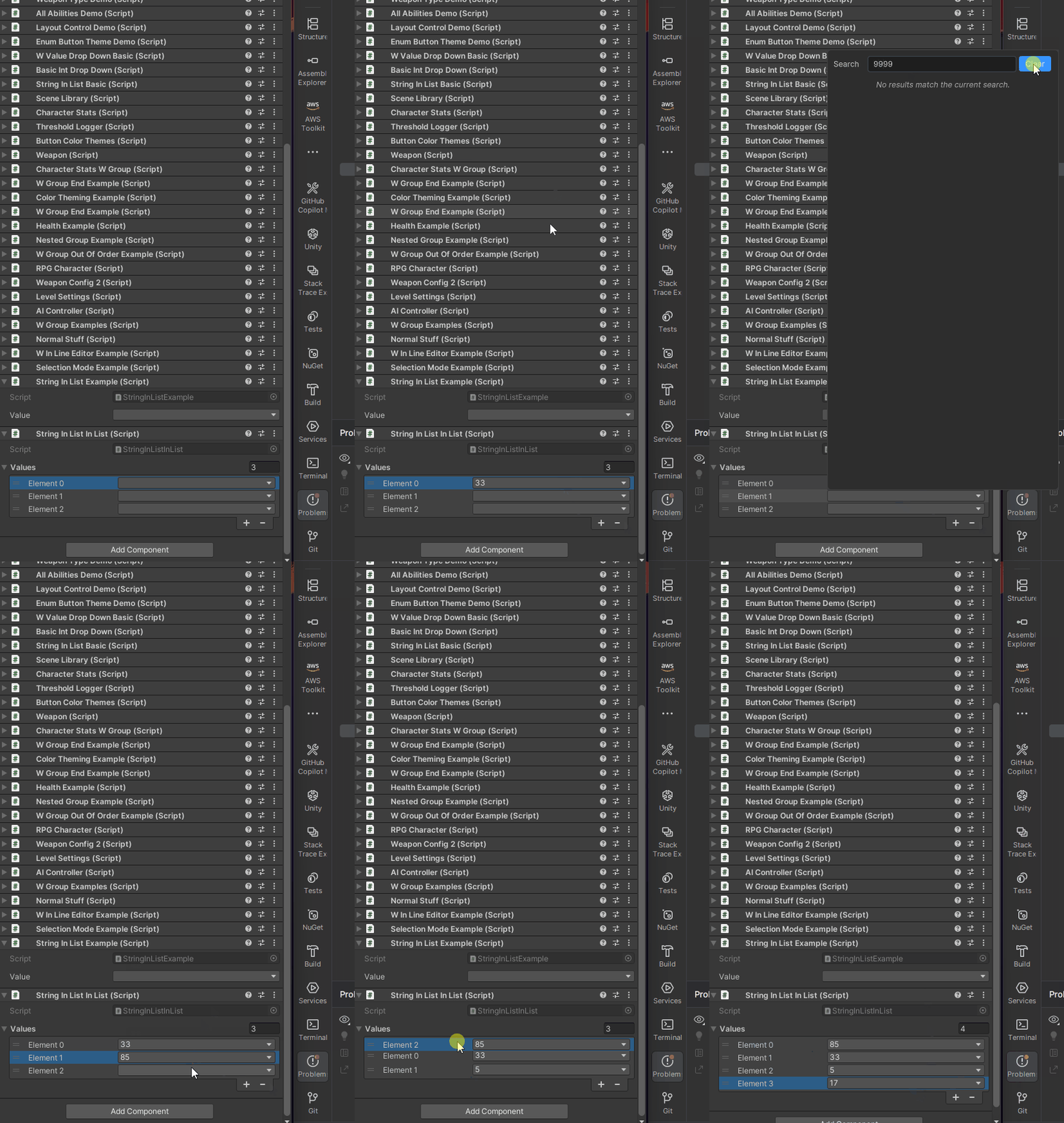
- Arrays/Lists: UI Toolkit list view with per-element dropdowns, add/remove, and drag-to-reorder
- Dynamic lists via static method reference
- Search/filter with lightweight autocomplete (Tab auto-completes and assigns, Enter just fills the search)
- Inline hint beneath the search box shows the current best match for quick Tab acceptance
- Pagination automatically appears when the option count exceeds the configured page size
- Page size configurable via **Project Settings ▸ Wallstop Studios ▸ Unity Helpers ▸ StringInList Page Size**
- Auto-finds current value in list
- The same search + pagination experience is reused by `SerializableType`, so adjusting the page size updates both drawers
**Best For:**
- Predefined option selection
- Tag/label selection
- Enum-like string fields
- Dynamic option lists
- User-friendly enumerations
```csharp
using System.Collections.Generic;
using UnityEngine;
using WallstopStudios.UnityHelpers.Core.Attributes;
public class StringInListExample : MonoBehaviour
{
[StringInList(typeof(StringInListExample), nameof(GetValues))]
public string value;
private IEnumerable GetValues()
{
yield return "A";
yield return "B";
yield return "C";
yield return "D";
}
}
```
> **Visual Reference**
>
> 
>
> _StringInList dropdown showing search filtering and pagination_
```csharp
using System.Collections.Generic;
using UnityEngine;
using WallstopStudios.UnityHelpers.Core.Attributes;
public class StringInListExample : MonoBehaviour
{
[StringInList(typeof(StringInListExample), nameof(GetValues))]
public string value;
private IEnumerable GetValues()
{
yield return "A";
yield return "B";
yield return "C";
yield return "D";
}
}
```
> **Visual Reference**
>
> 
>
> _StringInList on a List field with per-element dropdowns and drag reordering_
---
### IntDropdown Property Drawer
**Attribute:** `[IntDropdown]`
**Purpose:** Display int fields as dropdown with specific integer options.
**Syntax:**
```csharp
[IntDropdown(32, 64, 128, 256, 512, 1024, 2048, 4096, 8192)]
public int textureSize;
[IntDropdown(0, 2, 4, 8, 16, 32)]
public int padding;
```
**Features:**
- Restricts int values to specific options
- Dropdown shows integer values as strings
- Prevents invalid values
- Visual clarity for constrained integers
**Best For:**
- Power-of-two values (texture sizes)
- Discrete numeric options
- Preventing invalid integer input
- Configuration with specific valid values
**Common Use Cases:**
```csharp
using UnityEngine;
using WallstopStudios.UnityHelpers.Core.Attributes;
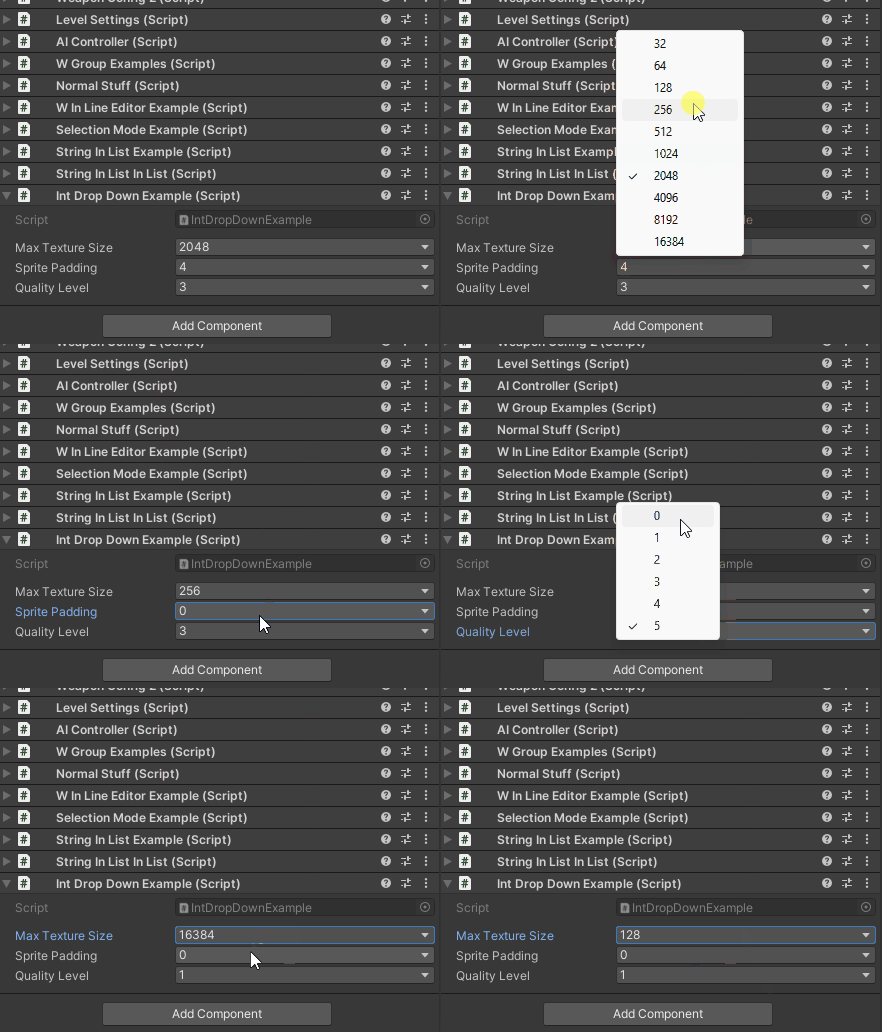
public class IntDropDownExample : MonoBehaviour
{
// Texture sizes (power of 2)
[IntDropDown(32, 64, 128, 256, 512, 1024, 2048, 4096, 8192, 16384)]
public int maxTextureSize = 2048;
// Padding options
[IntDropDown(0, 2, 4, 8, 16, 32)]
public int spritePadding = 4;
// Quality levels
[IntDropDown(0, 1, 2, 3, 4, 5)]
public int qualityLevel = 3;
}
```
> **Visual Reference**
>
> 
>
> _IntDropDown for texture sizes showing power-of-two options_
---
### WValueDropDown Property Drawer
**Attribute:** `[WValueDropDown]`
**Purpose:** Generic dropdown for any type with fixed values or provider methods. More flexible than `StringInList` or `IntDropdown` — supports all primitive types, custom classes, and dynamic providers.
**Syntax:**
```csharp
// Fixed primitive values
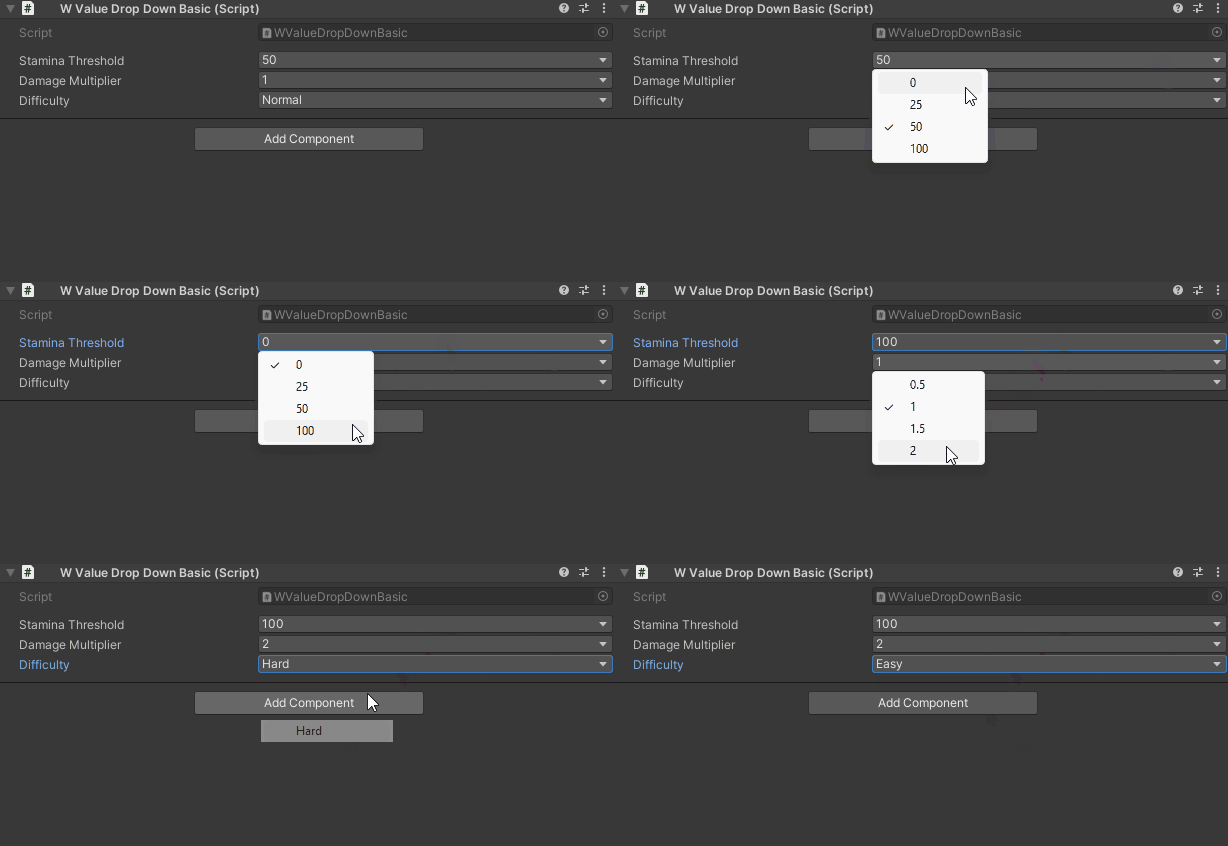
[WValueDropDown(0, 25, 50, 100)]
public int staminaThreshold = 50;
[WValueDropDown(0.5f, 1.0f, 1.5f, 2.0f)]
public float damageMultiplier = 1.0f;
[WValueDropDown("Easy", "Normal", "Hard", "Insane")]
public string difficulty = "Normal";
// Static provider method
[WValueDropDown(typeof(PowerUpLibrary), nameof(PowerUpLibrary.GetAvailablePowerUps))]
public PowerUpDefinition selectedPowerUp;
// Instance provider method (context-aware)
[WValueDropDown(nameof(GetAvailableOptions), typeof(string))]
public string selectedOption;
```
**Features:**
- All primitive types: `bool`, `char`, `byte`, `sbyte`, `short`, `ushort`, `int`, `uint`, `long`, `ulong`, `float`, `double`, `string`
- Custom types with `ToString()` for labels
- Static provider methods from any type
- Instance provider methods for context-aware options
- Type-safe value selection
**Best For:**
- Type-safe options beyond strings/ints
- Custom class/struct selection
- Dynamic options from runtime data
- Designer-friendly preset selection
**Custom Types Example:**
```csharp
using UnityEngine;
using WallstopStudios.UnityHelpers.Core.Attributes;
using System.Collections.Generic;
[System.Serializable]
public class Preset
{
public string name;
public float value;
public override string ToString() => name; // Used for dropdown label
}
public class Config : MonoBehaviour
{
[WValueDropDown(typeof(Config), nameof(GetPresets))]
public Preset selectedPreset;
public static IEnumerable GetPresets()
{
return new[]
{
new Preset { name = "Low", value = 0.5f },
new Preset { name = "Medium", value = 1.0f },
new Preset { name = "High", value = 2.0f },
};
}
}
```
**Instance Provider Example:**
```csharp
public class DynamicOptions : MonoBehaviour
{
public string prefix = "Option";
public int optionCount = 5;
[WValueDropDown(nameof(GetAvailableOptions), typeof(string))]
public string selectedOption;
private IEnumerable GetAvailableOptions()
{
for (int i = 1; i <= optionCount; i++)
{
yield return $"{prefix}_{i}";
}
}
}
```
> **Visual Reference**
>
> 
>
> _WValueDropDown showing predefined integer, float, and string values_
For more detailed documentation, including all constructor forms, see [Inspector Selection Attributes](../inspector/inspector-selection-attributes.md#wvaluedropdown).
---
### WReadOnly Property Drawer
**Attribute:** `[WReadOnly]`
**Purpose:** Display fields as read-only in the inspector (grayed out, non-editable).
**Syntax:**
```csharp
using WallstopStudios.UnityHelpers.Core.Attributes;
[WReadOnly]
public int calculatedValue;
[WReadOnly]
public string currentState;
```
**Features:**
- Disables GUI for field
- Shows value but prevents editing
- Maintains proper height and layout
- Works with all property types
**Best For:**
- Displaying runtime state
- Showing calculated/derived values
- Debug information in inspector
- Values set by code only
**Example:**
```csharp
using UnityEngine;
using WallstopStudios.UnityHelpers.Core.Attributes;
public class WReadOnlyExample : MonoBehaviour
{
public int baseHealth = 100;
public int healthBonus = 0;
[WReadOnly]
public int totalHealth;
private void OnValidate()
{
totalHealth = baseHealth + healthBonus;
}
}
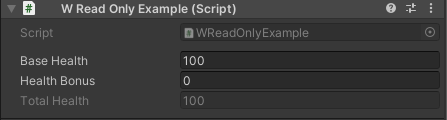
```
> **Visual Reference**
>
> 
>
> _WReadOnly field showing totalHealth as a non-editable calculated value_
For detailed documentation on validation attributes, see [Inspector Validation Attributes](../inspector/inspector-validation-attributes.md).
---
## Automation & Utilities
### ScriptableObject Singleton Creator
- **Type:** Automatic (runs on editor load)
- **Menu:** N/A (automatic) - Uses `[InitializeOnLoad]`
**Purpose:** Automatically creates and maintains singleton ScriptableObject assets.
See the base API guide for details on `ScriptableObjectSingleton` usage, scenarios, and Odin compatibility: [Singleton Utilities](../utilities/singletons.md).
**How It Works:**
```text
1. Runs when Unity editor starts
2. Scans all ScriptableObjectSingleton derived types
3. Creates missing assets in Assets/Resources/
4. Moves misplaced singletons to correct locations
5. Respects [ScriptableSingletonPath] attribute
```
**Usage Example:**
```csharp
using WallstopStudios.UnityHelpers.Utils;
using WallstopStudios.UnityHelpers.Core.Attributes;
// Define singleton:
public class GameSettings : ScriptableObjectSingleton
{
public float masterVolume = 1.0f;
public bool enableVSync = true;
}
// Optional custom path:
[ScriptableSingletonPath("Settings/Audio")]
public class AudioSettings : ScriptableObjectSingleton
{
public float musicVolume = 0.8f;
}
// Assets created automatically:
// - Assets/Resources/GameSettings.asset
// - Assets/Resources/Settings/Audio/AudioSettings.asset
// Access at runtime:
float volume = GameSettings.Instance.masterVolume;
```
**Folder Structure:**
```text
Assets/
Resources/
GameSettings.asset (no path attribute)
Settings/
Audio/ ([ScriptableSingletonPath("Settings/Audio")])
AudioSettings.asset
```
**Best For:**
- Managing game settings as unique assets
- Centralizing configuration data
- Ensuring essential ScriptableObjects exist
- Team workflows to prevent missing asset errors
- Automatic project setup for new developers
**Customization:**
- Set `IncludeTestAssemblies = true` to create test singletons
- Call `EnsureSingletonAssets()` manually to refresh
---
### Sprite Label Processor
- **Type:** Automatic asset processor
- **Menu:** N/A (automatic) - Uses `AssetPostprocessor`
**Purpose:** Automatically maintains a cache of all sprite labels in the project for fast lookup in editor tools.
**How It Works:**
1. Monitors sprite asset imports/reimports (PNG, JPG, JPEG)
2. Detects changes to asset labels on sprites
3. Updates global sprite label cache automatically
4. Provides a cached label list to tools like Sprite Atlas Generator
**What Gets Cached:**
- All unique asset labels across sprite assets
- Sorted alphabetically for a consistent display
- Updated on import, not at runtime
**Performance Benefits:**
- ✅ No need to scan the entire project for labels
- ✅ Fast dropdown population in editors
- ✅ Automatic cache invalidation on changes
- ✅ Only processes sprite texture types
**Runtime Usage:**
```csharp
using WallstopStudios.UnityHelpers.Core.Helper;
// Access cached sprite labels
string[] labels = SpriteLabelCache.GetAllLabels();
```
---
### Request Script Compilation
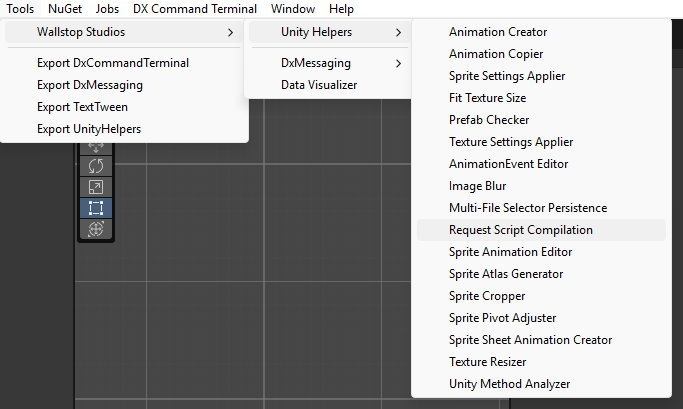
- **Menu:** `Tools > Wallstop Studios > Unity Helpers > Request Script Compilation`
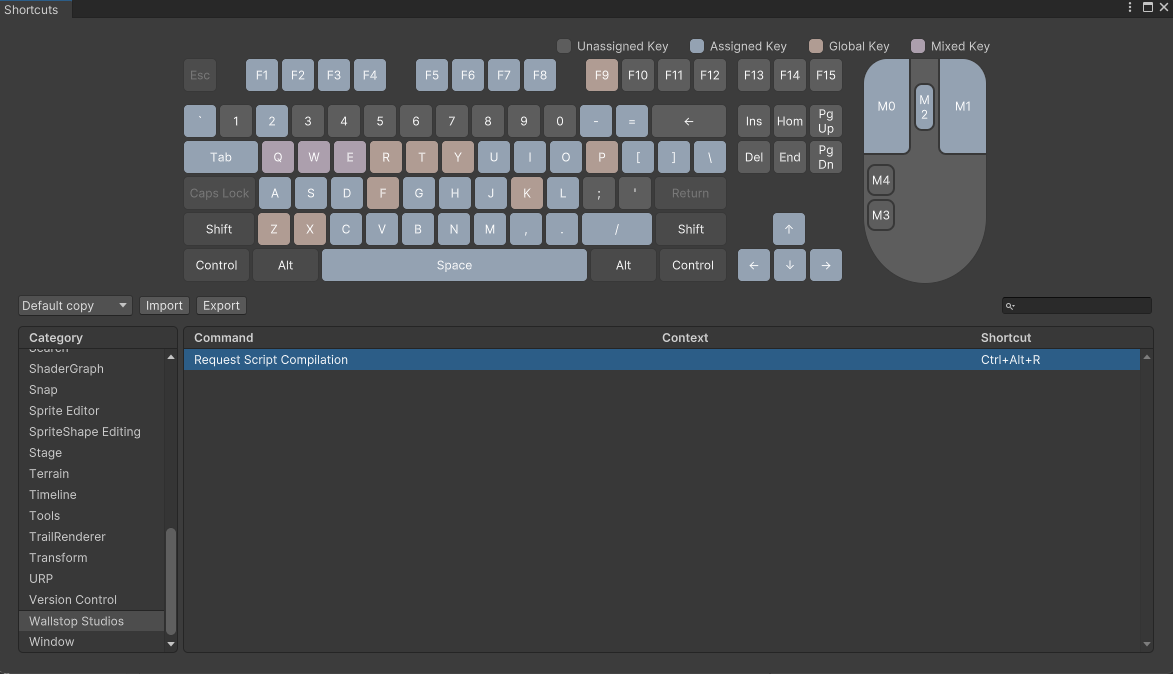
- **Shortcut:** `Ctrl/Cmd + Alt + R` (configurable in Unity's Shortcut Manager)
**Purpose:** Manually trigger Unity script recompilation without needing to modify files or restart the editor.
> **Visual Reference**
>
> 
>
> 
**Key Features:**
- One-click script recompilation
- Customizable keyboard shortcut (default: Ctrl/Cmd + Alt + R)
- Useful after external code generation or build processes
- Available in Unity's Shortcut Manager under "Wallstop Studios / Request Script Compilation"
**When to Use:**
- After external code generation tools modify scripts
- When Unity doesn't auto-detect file changes
- To force recompilation without touching files
- In automated workflows that need explicit compilation steps
**Common Workflow:**
```text
1. Run external code generator
2. Press Ctrl+Alt+R (or use menu item)
3. Wait for Unity to recompile scripts
4. Continue working with updated code
```
---
### Project Settings: Unity Helpers
**Menu:** `Edit > Project Settings > Wallstop Studios > Unity Helpers`
**Purpose:** Centralized configuration for Unity Helpers features, including buffer settings, pagination defaults, and inspector behavior.
> **Visual Reference**
>
> 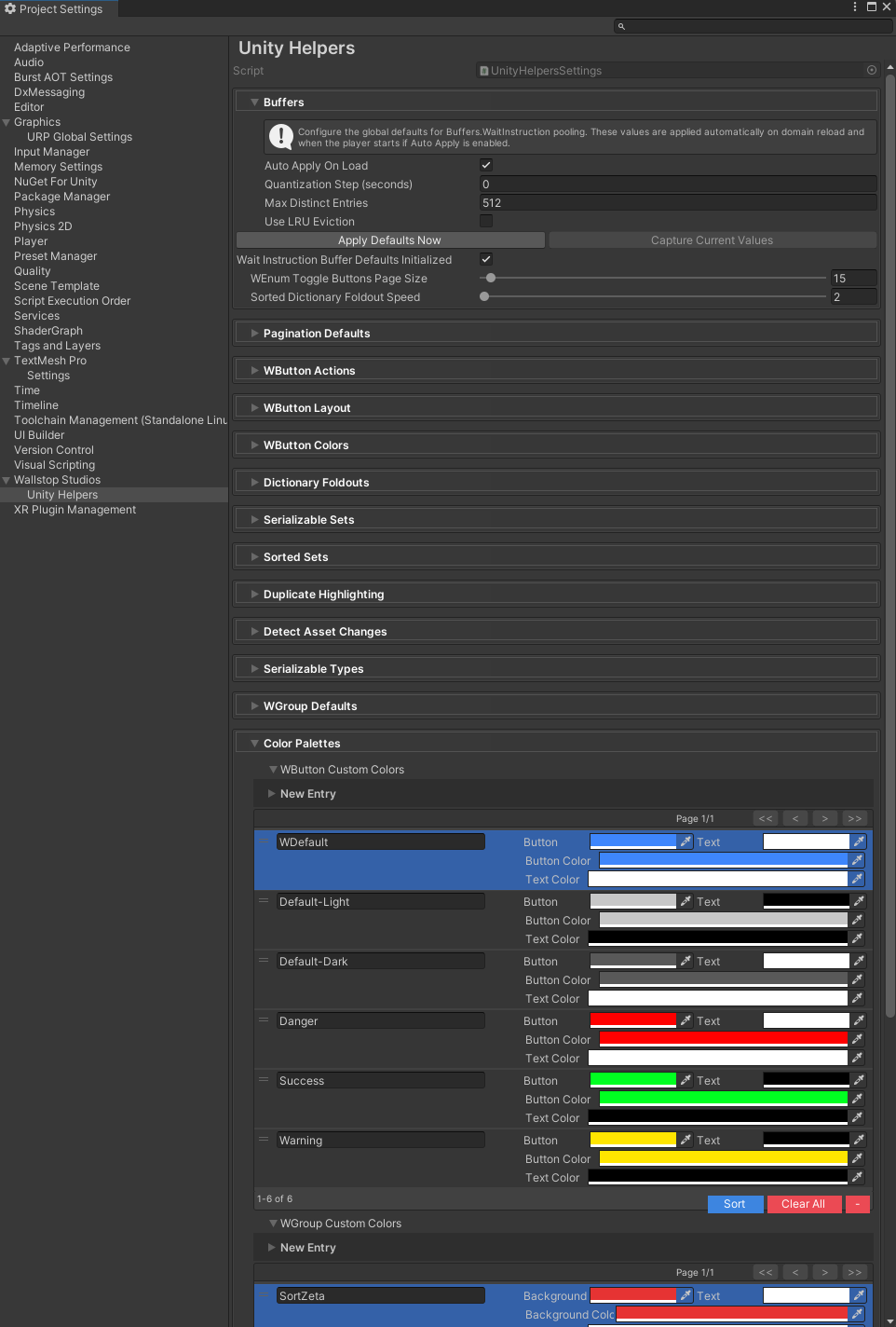
> _Centralized configuration panel in Unity's Project Settings_
**Key Settings:**
#### Coroutine Wait Buffer Defaults
Configure default behavior for `WaitForSeconds`, `WaitForFixedUpdate`, and other yield instructions:
```csharp
// Settings affect runtime buffer pool behavior:
- Quantization: How yield times are rounded (e.g., 0.1f rounds to nearest 0.1)
- Entry Caps: Maximum number of cached wait instructions per type
- LRU Mode: Least-recently-used eviction when caps are exceeded
```
**Impact:**
- Reduces GC allocations from repeated coroutine yields
- Settings apply automatically on domain reload and player start
- Can be overridden at runtime if needed
**Generated Asset:** `Resources/WallstopStudios/UnityHelpers/UnityHelpersBufferSettings.asset`
#### Inspector Pagination Defaults
- `StringInListPageSize`: Default page size for StringInList dropdowns (default: 50)
- `WEnumToggleButtonsPageSize`: Default page size for enum toggle button grids (default: 20)
- Per-attribute overrides available on individual fields
**When to Adjust:**
- Large option lists feel cramped (increase page size)
- Inspector feels sluggish with many options (decrease page size)
- Project-wide consistency for dropdown/toggle experiences
---
**Runtime Usage:**
```csharp
using WallstopStudios.UnityHelpers.Core.Helper;
// Get all known sprite labels
string[] allLabels = Helpers.GetAllSpriteLabelNames();
// Used internally by StringInList attribute
[StringInList(typeof(Helpers), nameof(Helpers.GetAllSpriteLabelNames))]
public List selectedLabels;
```
**Cache Updates:**
- On sprite import/reimport
- When labels added/removed from sprites
- After asset database refresh
- Automatically during asset post-processing
**Best For:**
- Tools requiring sprite label selection
- DropDown menus for label filtering
- Maintaining label consistency across the project
- Fast label-based sprite queries
**Technical Notes:**
- Skips execution in batch mode and CI environments
- Uses efficient HashSet for uniqueness checks
- Sorted results for a consistent UI display
- Thread-safe cache updates
---
### Attribute Metadata Cache Generator
**Type:** Automatic (runs on editor load and domain reload)
**Purpose:** Pre-generate attribute system metadata at edit time to eliminate runtime reflection overhead. The cache is automatically regenerated when scripts change. You can manually refresh it via the "Purge & Refresh Cache" button in the `AttributeMetadataCache` asset inspector.
**What Gets Cached:**
- All "Attribute" fields across AttributesComponent types
- Relational metadata ([ParentComponent], [ChildComponent], [SiblingComponent])
- Assembly-qualified type names for runtime resolution
- Field types (single, array, List, HashSet)
- Interface detection for polymorphic queries
**Performance Benefits:**
- ✅ Eliminates reflection overhead during attribute initialization
- ✅ Reduces first-frame lag when attribute components awake
- ✅ Enables fast attribute name lookups for UI
- ✅ Optimizes relational component queries
- ✅ Supports IL2CPP ahead-of-time compilation
**Runtime Usage:**
```csharp
// Cache is loaded automatically:
AttributeMetadataCache cache = AttributeMetadataCache.Instance;
// Get all known attribute names:
string[] allAttributes = cache.AllAttributeNames;
// Check type for attribute fields:
TypeFieldMetadata metadata = cache.GetMetadataForType(typeof(MyAttributesComponent));
if (metadata != null)
{
foreach (string fieldName in metadata.AttributeFieldNames)
{
Debug.Log($"Found attribute field: {fieldName}");
}
}
// Query relational component metadata:
RelationalTypeMetadata relational = cache.GetRelationalMetadataForType(typeof(MyComponent));
```
**Cache Regenerates:**
- On Unity editor startup (automatic)
- After script recompilation (automatic)
- Manual trigger via menu item
- After domain reload in the editor
**Best For:**
- Large projects with many attribute-based components
- Games using extensive parent/child relationships
- Optimizing startup time for complex prefabs
- IL2CPP builds where reflection is expensive
- Tools that need to enumerate available attributes
---
### Editor Utilities
- **Type:** Static utility class
- **Namespace:** `WallstopStudios.UnityHelpers.Editor.Utils`
**Purpose:** Helper methods for Unity Editor operations.
**Available Methods:**
#### `GetCurrentPathOfProjectWindow()`
Gets the currently selected folder in Unity's Project window.
```csharp
// In an editor window or wizard:
string currentFolder = EditorUtilities.GetCurrentPathOfProjectWindow();
if (!string.IsNullOrEmpty(currentFolder))
{
string newAssetPath = $"{currentFolder}/NewGeneratedAsset.asset";
AssetDatabase.CreateAsset(myAsset, newAssetPath);
}
else
{
// Fallback to default location
AssetDatabase.CreateAsset(myAsset, "Assets/NewGeneratedAsset.asset");
}
```
**Returns:** Asset-relative path (e.g., "Assets/Scripts/Editor") or empty string.
**Use Cases:**
- Asset creation wizards defaulting to the selected folder
- Context menu extensions operating on the current location
- Batch processing tools respecting working directory
**Technical Notes:**
- Uses reflection to access internal Unity API
- May break in future Unity versions
- Returns empty string on failure (no exceptions)
**Best For:**
- Context-aware asset creation
- User-friendly editor tools
- Respecting the current working directory
---
### Failed Tests Exporter
- **Menu:** `Tools > Wallstop Studios > Unity Helpers > Export Failed Tests` / `Clear Failed Tests`
- **Settings:** `Edit > Project Settings > Wallstop Studios > Unity Helpers`
**Purpose:** Hooks into the Unity Test Runner API to automatically capture failed test results and export them to timestamped text files in a configurable directory (defaults to the project root). Disabled by default — enable in Project Settings.
**Key Features:**
- Automatically records test name, failure message, and stack trace for each failed test
- Exports failures to `failed-tests-YYYY-MM-DD-HHmmss.txt` in the configured output directory (project root by default)
- Configurable output directory with folder picker — defaults to the project root
- Menu items to manually export or clear captured failures
- Useful for CI/CD pipelines and tracking intermittent test failures
For full setup, usage, and API reference, see [Failed Tests Exporter](./failed-tests-exporter.md).
---
## Quick Reference
### Tools by Category
**Image Processing:**
- Image Blur Tool - Gaussian blur effects
- Sprite Cropper - Remove transparent padding
- Texture Settings Applier - Batch import settings
- Sprite Settings Applier - Sprite-specific settings
- Sprite Pivot Adjuster - Pivot point adjustment
- Texture Resizer - Resize textures with bilinear/point algorithms
- Fit Texture Size - Auto-fit texture max size to source dimensions
**Animation:**
- Sprite Animation Editor - Visual animation editing with preview
- Animation Event Editor - Visual animation event editing with sprite preview
- Animation Creator - Bulk-create clips from naming patterns
- Animation Copier - Duplicate and manage clips
- Sprite Sheet Animation Creator - Convert atlases to clips
**Sprite Atlases:**
- Sprite Atlas Generator - Regex/label-based atlas creation and packing
**Quality & Validation:**
- Prefab Checker - Comprehensive prefab validation
**Custom Editors:**
- MatchColliderToSprite Editor - Manual collider matching
- PolygonCollider2DOptimizer Editor - Collider simplification
- EnhancedImage Editor - HDR color and shape mask support
**Property Drawers:**
- WShowIf - Conditional field visibility
- StringInList - DropDown selection for strings
- IntDropDown - DropDown selection for integers
- WReadOnly - Read-only inspector fields
**Automation:**
- ScriptableObject Singleton Creator - Auto-create singletons
- Attribute Metadata Cache Generator - Performance optimization
- Sprite Label Processor - Automatic sprite label caching
- Failed Tests Exporter - Capture and export test failures
**Utilities:**
- Editor Utilities - Helper methods for editor scripting
---
### All Menu Items
**Tools > Wallstop Studios > Unity Helpers:**
- Animation Copier
- Animation Creator
- AnimationEvent Editor
- Fit Texture Size
- Image Blur
- Prefab Checker
- Sprite Animation Editor
- Sprite Atlas Generator
- Sprite Cropper
- Sprite Pivot Adjuster
- Sprite Settings Applier
- Sprite Sheet Animation Creator
- Sprite Sheet Extractor
- Texture Resizer
- Texture Settings Applier
- Export Failed Tests
- Clear Failed Tests
**Assets > Create > Wallstop Studios > Unity Helpers:**
- Scriptable Sprite Atlas Config
---
### Common Workflows
#### Setting Up New Sprites
```text
1. Import sprites to Assets/Sprites/
2. Use Sprite Cropper to remove padding
3. Use Texture Settings Applier:
- Filter Mode: Bilinear
- Wrap Mode: Clamp
- Compression: CompressedHQ
4. Use Sprite Settings Applier:
- Set consistent PPU (e.g., 32 or 64)
5. Use Sprite Pivot Adjuster for consistent alignment
```
#### Creating and Editing Animations
```text
1. Prepare sprite frames in folder
2. Open Sprite Animation Editor
3. Click "Browse Clips (Multi)..." if clips exist, or
4. Use Animation Creator to generate from sprites
5. Edit in Sprite Animation Editor:
- Adjust frame order via drag-drop
- Set appropriate FPS
6. Save clips
7. (Optional) Add animation events:
a. Open AnimationEvent Editor
b. Drag Animator to "Animator Object" field
c. Select animation clip
d. Add events at specific frames
e. Configure event methods and parameters
f. Save changes
```
#### Creating Sprite Atlases
```text
1. Create atlas config:
a. Open Sprite Atlas Generator
b. Click "Create New Config in 'Assets/Data'"
c. Name your atlas configuration
2. Configure source folders:
a. Click "Add New Source Folder Entry"
b. Select folder containing sprites
c. Add regex patterns (e.g., "^character_.*")
d. Or add labels for filtering
3. Set packing options:
- Max texture size (2048 recommended)
- Padding (4px default)
- Compression settings
4. Preview changes:
a. Click "Scan Folders"
b. Review sprites to add/remove
5. Generate atlas:
a. Click "Add X Sprites" if satisfied
b. Click "Generate/Update .spriteatlas ONLY"
c. Click "Pack All Generated Sprite Atlases"
```
#### Pre-Commit Validation
```text
1. Open Prefab Checker
2. Enable all critical checks:
- Missing Scripts ✓
- Missing Required Components ✓
- Null Object References ✓
3. Add changed prefab folders
4. Click "Run Checks"
5. Fix all reported issues
6. Re-run to verify
7. Commit changes
```
#### Optimizing Textures for Build
```text
1. Use Sprite Cropper on all sprites (reduces memory)
2. Use Texture Settings Applier with:
- Appropriate compression for platform
- Crunch compression enabled
- Proper max texture sizes
3. Review build report for texture memory usage
4. Iterate on settings as needed
```
---
### Keyboard Shortcuts & Tips
**Sprite Animation Editor:**
- `Enter` in frame order field: Apply frame reordering
- Drag frames: Reorder via visual feedback
- Drag clips: Reorder layer priority
**Prefab Checker:**
- Click console errors: Selects problematic prefabs
- Toggle checks: Right-aligned checkboxes
**General:**
- All tools remember last used directories
- Most tools support drag-and-drop folders
- Batch operations show progress in the console
---
### Performance Considerations
**Sprite Cropper:**
- Uses parallel processing for pixel scanning
- Can process hundreds of sprites quickly
- Memory usage scales with sprite size
**Texture Settings Applier:**
- Triggers Unity reimport for affected textures
- May take time on large texture sets
- Refresh only happens once after all changes
**Prefab Checker:**
- Caches reflection metadata for speed
- Fast on repeated runs
- Scales linearly with prefab count
**Attribute Metadata Cache:**
- Eliminates ~95% of runtime reflection overhead
- Startup time improvement: 50-200ms on large projects
- Critical for IL2CPP builds
---
### Troubleshooting
**Tool window won't open:**
- Check the console for errors
- Verify that the package is in the correct location
- Try reimporting package
**Settings not applying:**
- Ensure textures aren't in use
- Check the console for import errors
- Verify file permissions
**Cache not regenerating:**
- Manually trigger via menu
- Check for script compilation errors
- Verify ScriptableObject singleton exists
**Prefab Checker missing issues:**
- Ensure all relevant checks are enabled
- Verify folders are correct
- Check filter settings
---
### Best Practices
**Organization:**
- Keep sprites in an organized folder structure
- Use consistent naming conventions
- Separate by type (UI, Characters, Environment)
**Performance:**
- Run Sprite Cropper before creating atlases
- Use appropriate texture compression
- Enable crunch compression for mobile
**Quality:**
- Run Prefab Checker before commits
- Use [ValidateAssignment] on critical fields
- Maintain consistent texture settings per category
- Use the manual recompilation menu/shortcut when iterating on packages to avoid reopening the project
**Workflow:**
- Batch similar operations together
- Use multi-file selection where available
- Leverage automation tools (SingletonCreator, CacheGenerator)
**Compilation helpers:**
- Menu path: `Tools > Wallstop Studios > Unity Helpers > Request Script Compilation`
- Shortcut: `Ctrl/Cmd + Alt + R` (configurable via Unity’s Shortcut Manager under _Wallstop / Request Script Compilation_)
- Behavior: Forces an `AssetDatabase.Refresh` (synchronous import) before calling `CompilationPipeline.RequestScriptCompilation()` and logs whenever Unity is already compiling so scripts created outside the editor are imported immediately.
---
### Additional Resources
**Attributes System:**
- See `[ValidateAssignment]` for prefab validation
- See `[ScriptableSingletonPath]` for custom singleton paths
- See `[ParentComponent]`, `[ChildComponent]`, `[SiblingComponent]` for relational queries
**Related Components:**
- `ScriptableObjectSingleton` - Base class for settings
- `AttributesComponent` - Base class for the attribute system
- `LayeredImage` - UI Toolkit multi-layer sprite rendering
---
## Version Information
Document Version: 2.0
Package: com.wallstop-studios.unity-helpers
Last Updated: 2025-10-08
**What's New in v2.0:**
- Added comprehensive Sprite Atlas Generator documentation
- Added Animation Event Editor documentation
- Added Texture Resizer and Fit Texture Size tools
- Added Custom Component Editors section
- Added Property Drawers & Attributes section
- Added Sprite Label Processor documentation
- Expanded all existing tool documentation
- Added new workflow examples
- Complete menu item reference
- Enhanced quick reference section
---
## Summary
This package provides **20+ editor tools** across multiple categories:
**14 Editor Windows/Wizards:**
- Image Blur Tool, Sprite Cropper, Texture Settings Applier, Sprite Settings Applier
- Sprite Pivot Adjuster, Texture Resizer, Fit Texture Size
- Sprite Animation Editor, Animation Event Editor, Animation Creator, Animation Copier
- Sprite Sheet Animation Creator, Sprite Atlas Generator, Prefab Checker
**3 Custom Component Editors:**
- MatchColliderToSprite, PolygonCollider2DOptimizer, EnhancedImage
**4 Property Drawers:**
- WShowIf, StringInList, IntDropDown, WReadOnly
**3 Automated Systems:**
- ScriptableObject Singleton Creator
- Attribute Metadata Cache Generator
- Sprite Label Processor
**1 Utility Library:**
- Editor Utilities
All tools are designed to work together seamlessly and follow consistent design patterns for ease of use.
---
For questions, issues, or feature requests, please contact the Wallstop Studios team.
- Integration note: The cache powers editor dropdowns and reflection shortcuts for the Effects system’s `AttributeModification.attribute` field. See [Effects System](../effects/effects-system.md) for how attributes, effects, and tags fit together.
### MultiFile Selector (UI Toolkit)
- The `MultiFileSelectorElement` is primarily intended for Editor tooling. It can also be used in player builds, where it enumerates files under the application’s data root. In the Editor it integrates with `EditorPrefs` and Reveal-in-Finder; at runtime it falls back to `PlayerPrefs` and omits Editor-only affordances.