# draw html to canvas
使用html+css语法绘制图片到canvas上
## 安装
```
npm i draw-html-to-canvas --save
```
## 渲染效果
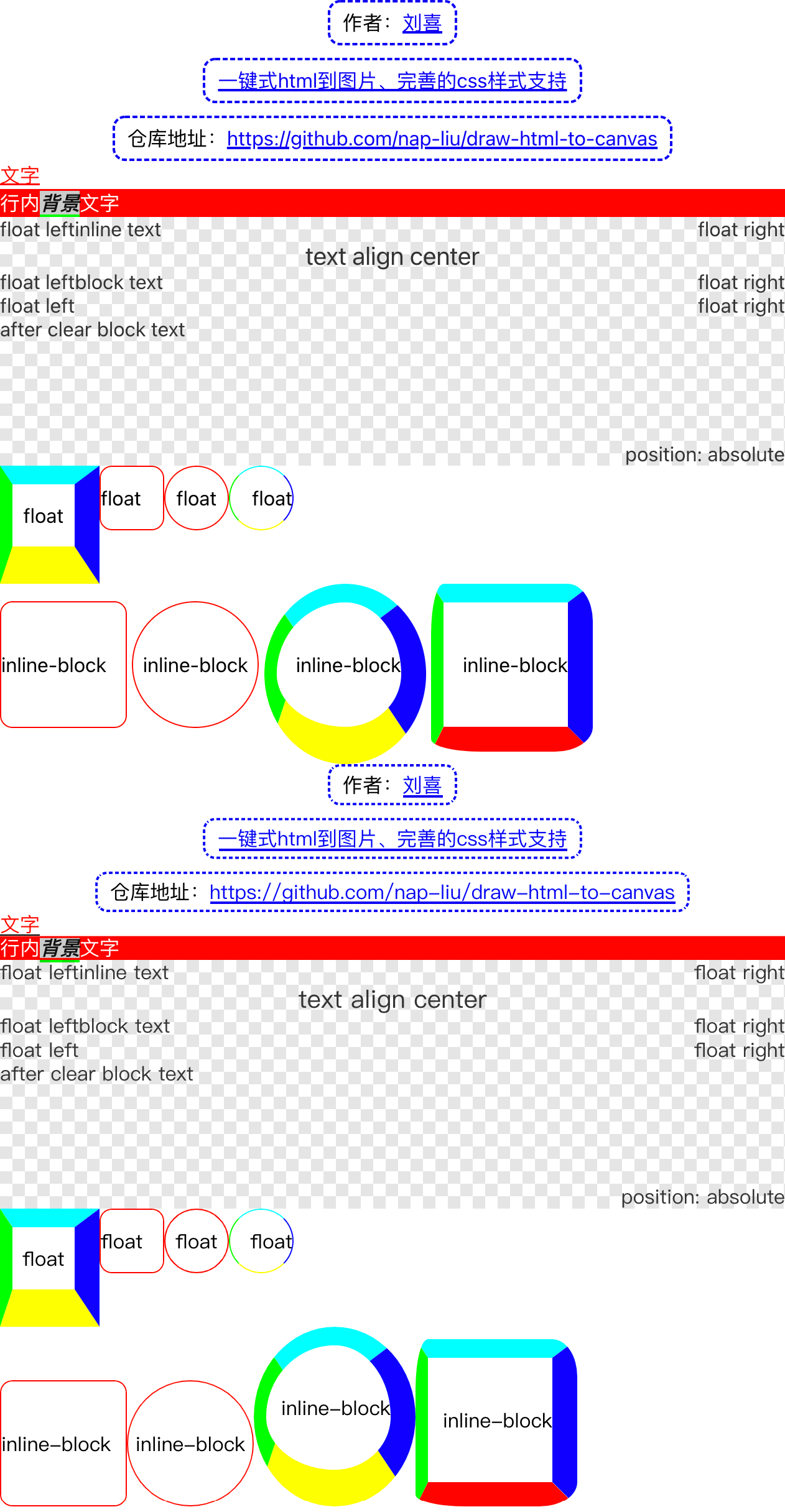
电脑端渲染效果图
上半部分为浏览器效果
下半部分为渲染效果
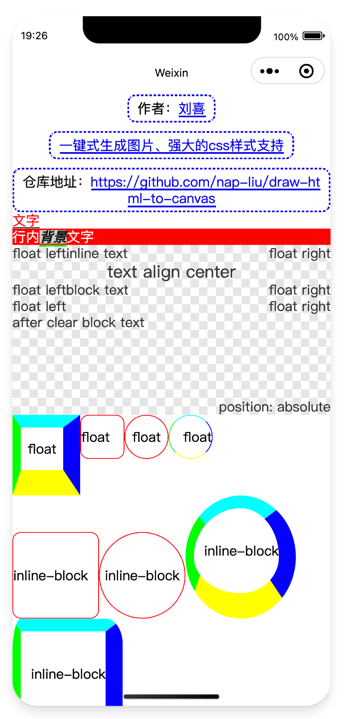
微信开发者工具渲染效果图
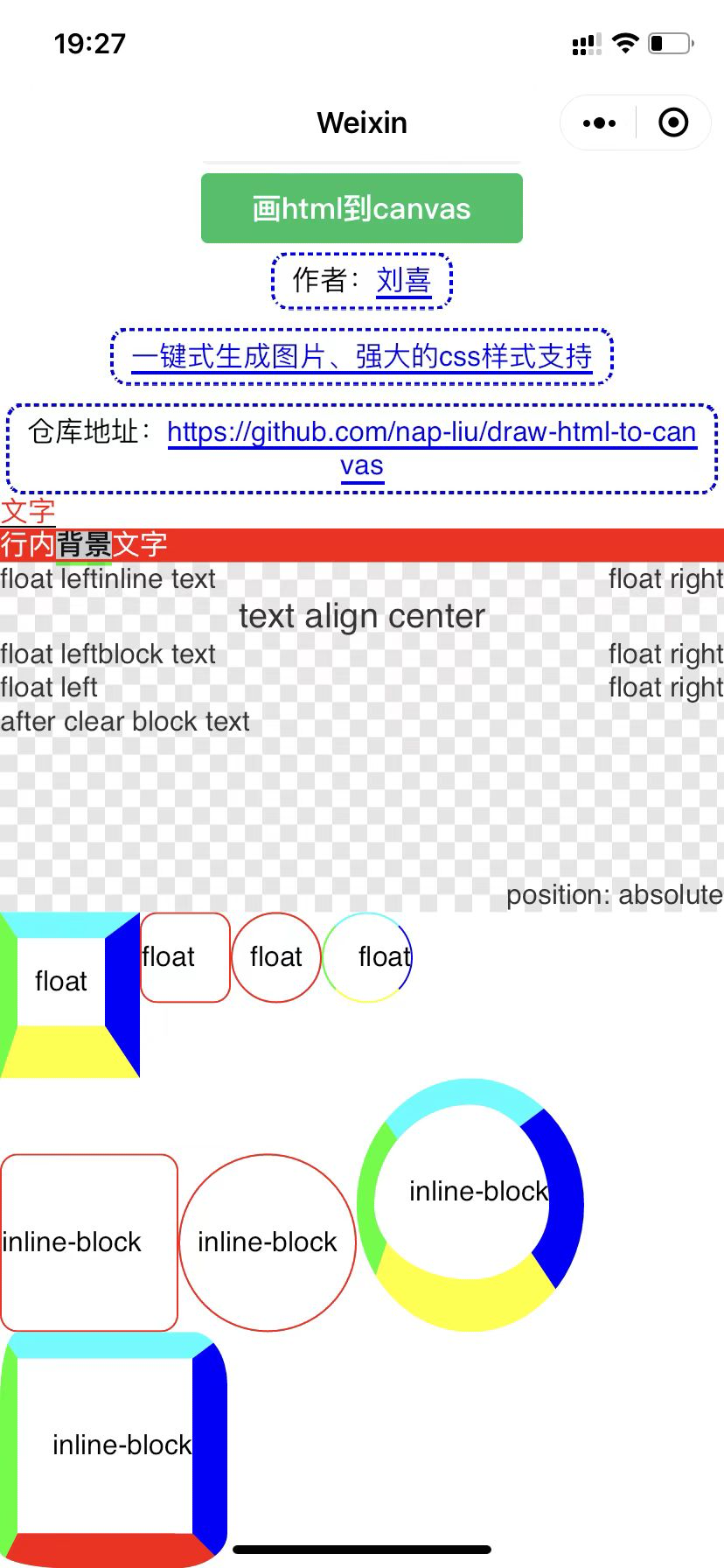
微信真机渲染效果图
## 使用方法
### 纯页面使用方法
```html
draw html to canvas
```
### web工程使用方法
```javascript
import Render from 'draw-html-to-canvas';
const html = `draw to canvas
`
const render = Render.fromHTML(html);
const canvas = document.querySelector('#canvas');
const ctx = canvas.getContext('2d');
// 修改网页最大宽度为500px
render.rootNode.style.set('width', '500px');
// 加载html中使用的图片
await render.loadSource();
// 计算布局
render.layout(ctx);
// 获取网页尺寸
const {offsetWidth, offsetHeight} = render.rootNode;
// 高清适配
ctx.save();
canvas.height = offsetHeight * window.devicePixelRatio;
canvas.width = offsetWidth * window.devicePixelRatio;
ctx.scale(window.devicePixelRatio, window.devicePixelRatio);
// 绘制图像到canvas上
render.draw(ctx);
ctx.restore();
```
### 微信小程序
渲染效果的截图的代码片段
最低支持1.9的基础库
2.9以上可以使用同层渲染 推荐使用同层渲染api
[在线代码片段](https://developers.weixin.qq.com/s/R3tl79mc7ozj)
## 采用**float**布局系统
block 独占一行
inline-block 行内布局超长自动换行
inline 行内布局超长自动换行
内置了常见的标签识别
## 支持标签
|标签支持|默认布局|默认行为|
|----|----|----|
|div|block|无|
|img|inline-block|img元素会自动加载图片|
|span|inline|无|
## 支持样式
|样式属性|有效值|特性|
|----|----|----|
|display|block\inline-block\inline|
|float|left\right|
|clear|任意值都是both|
|width|绝对值|
|height|绝对值|
|padding|绝对值|
|margin|绝对值\支持 margin: 0 auto; 居中对齐|
|position|relative\absolute|
|top|绝对值|绝对定位有效|
|right|绝对值|绝对定位有效|
|bottom|绝对值|绝对定位有效|
|left|绝对值|绝对定位有效|
|z-index|同block下所有的值拉平计算优先级|
|color|支持 rgba\rgb\#xxx\transparent|
|border|全功能|
|border-style|只支持 solid\dashed|
|border-radius|全功能|
|background|全功能 支持多重背景 简写、全写、支持线性渐变|
|font-style|绝对值|
|font-variant|绝对值|
|font-weight|绝对值|
|font-stretch|绝对值|
|font-size|绝对值|
|font-family|绝对值|
|text-decoration|全写、简写|
|text-decoration-color|color支持的范围|
|text-decoration-style|只支持 solid\double|
|text-decoration-thichness|绝对值|
|text-decoration-line|underline\overline\line-through|
|line-height|固定值、倍数|
|text-align|全功能|
|opacity|全功能|
## LiveDemo
[在线示例](https://draw-html-to-canvas.js-css.com)