# gmail-mbox-stats

[![npm version](https://img.shields.io/npm/v/gmail-mbox-stats.svg?style=flat)](https://www.npmjs.com/package/gmail-mbox-stats)
[![PRs Welcome](https://img.shields.io/badge/PRs-welcome-brightgreen.svg)](https://github.com/leodevbro/gmail-mbox-stats)

`gmail-mbox-stats` is a very simple tool to analyze your Gmail mailbox.

- Find the senders which sent you most mails.
- Find the receivers where you sent most mails.
  <br />
  <br />
- Find the senders with largest total size (MB) of attachments.
- Find the receivers where you sent mails with largest total size (MB) of attachments.
  <br />
  <br />
- Find the domains (@gmail.com, @live.com ...) which appear mostly in sender addresses.
- Find the receivers where other senders (where sender is not you) sent most mails.
  <br />
  <br />
- Find the addresses which are most often placed in CC by you.
- Find the addresses which are most often placed in CC by others.
  <br />
  <br />
- Find the addresses which are most often placed in BCC by you.
- Find the addresses which are most often placed in BCC by others.
  <br />
  <br />
- And more.
  <br />
  <br />
  <br />

## Quick intro of the CSV result files

![Quick intro of the CSV result files](https://raw.githubusercontent.com/leodevbro/gmail-mbox-stats/main/src/demoMedia/basic-intro-of-folder-tree_v3.png "Quick intro of the CSV result files")

<br />

## Video instruction:

* <a href="https://www.youtube.com/watch?v=KKU84ogffeM" target="_blank">Main Tutorial (gmail-mbox-stats)</a><br /><br />
* <a href="https://www.youtube.com/watch?v=DDXcm8F3roI" target="_blank">Detailed explanation (gmail-mbox-stats)</a><br /><br />
* <a href="https://www.youtube.com/watch?v=A_cJBQbiexQ" target="_blank">Old method (Apps Script method)</a> - Not recommended, because NodeJS (gmail-mbox-stats) method is much faster and more stable. The "Apps Script" method does not use the gmail-mbox-stats software at all.<br /><br />

<br />
<br />

## Textual instruction:

- Download Gmail data from <a href="https://takeout.google.com/" target="_blank">Google Takeout</a> (Preferably select 'Include all messages in Mail', it will include all mail, not just Inbox or just Sent/Spam/Archive/Trash). If your mailbox has 100K mails, the downloaded data can be 10 GB or more. So, be ready to deal with a large file. If it is too large, it may not be a single archive file, but multipart archive files, like split-files of ZIP.

- Extract MBOX file from the Gmail data file(s).

- Make sure you have installed <a href="https://nodejs.org/" target="_blank">NodeJS</a>. It is available for Windows, Mac and also Linux.

- Open terminal (preferably in the same folder where MBOX file is located) - in Windows/Mac/Linux. For Windows, the terminal should be PowerShell, not CMD.

- run a command with this syntax:<br />
  `npx gmail-mbox-stats mymail="<your email address>" mboxpath="<mbox file path>"`

  for example:<br />
  `npx gmail-mbox-stats mymail="leodevbro@gmail.com" mboxpath="./All mail Including Spam and Trash.mbox"`<br />
  the notation `./` means to find the file `All mail Including Spam and Trash.mbox` in the current folder of the terminal.

<br />
<br />
<br />
<br />
<br />
<br />
<br />
<br />
That's it.<br />
Now just see the results:
<br />
<br />
<br />
<br />
<br />
<br />
<br />
<br />
<br />

It will take probably 5-10-15 seconds to analyze 1000 mails (messages),<br />
about 100 seconds for 10K mails,<br />
about 1000 seconds (10-15-20 minutes) for 100K mails and so on.<br />

- When it finishes, the terminal will log basic information like this:

```
Success.
Full count of messages: 18686

Messages where sender is --> me: 495
                                 Count of mails with at least one attachment: 148
                                 Total count of attachments: 231
                                 Total size of attachments: 120.800749 MB => Million Bytes
                                 Unique sender addresses: 1
                                 Unique sender domains: 1
                                 Unique receiver addresses: 285

Messages where sender is not me: 18191
                                 Count of mails with at least one attachment: 850
                                 Total count of attachments: 2409
                                 Total size of attachments: 231.40515899999997 MB => Million Bytes
                                 Unique sender addresses: 1473
                                 Unique sender domains: 804
                                 Unique receiver addresses: 94


Created new folder "mailStats_2024-11-15_21-28-13"


Start datetime: 2024-11-15_21-28-13
->End datetime: 2024-11-15_21-30-13

Full Execution Time: 2:00.411 (m:ss.mmm)


gmail-mbox-stats v1.2.3
Created by leodevbro (Levan Katsadze)
* leodevbro@gmail.com
* linkedin.com/in/leodevbro
* github.com/leodevbro
* facebook.com/leodevbro

If you feel like donating
* buymeacoffee.com/leodevbro
* ko-fi.com/leodevbro
```

- Also, there will be a new folder named "mailStats" with execution start datetime, <br />
  like this: `mailStats_2024-11-15_21-28-13`<br />
  in the same folder where the MBOX file is located.<br />

- In the 'mailStats' folder, there will be `generalStats.csv` file. If you import it in Google Sheets it will look like this:
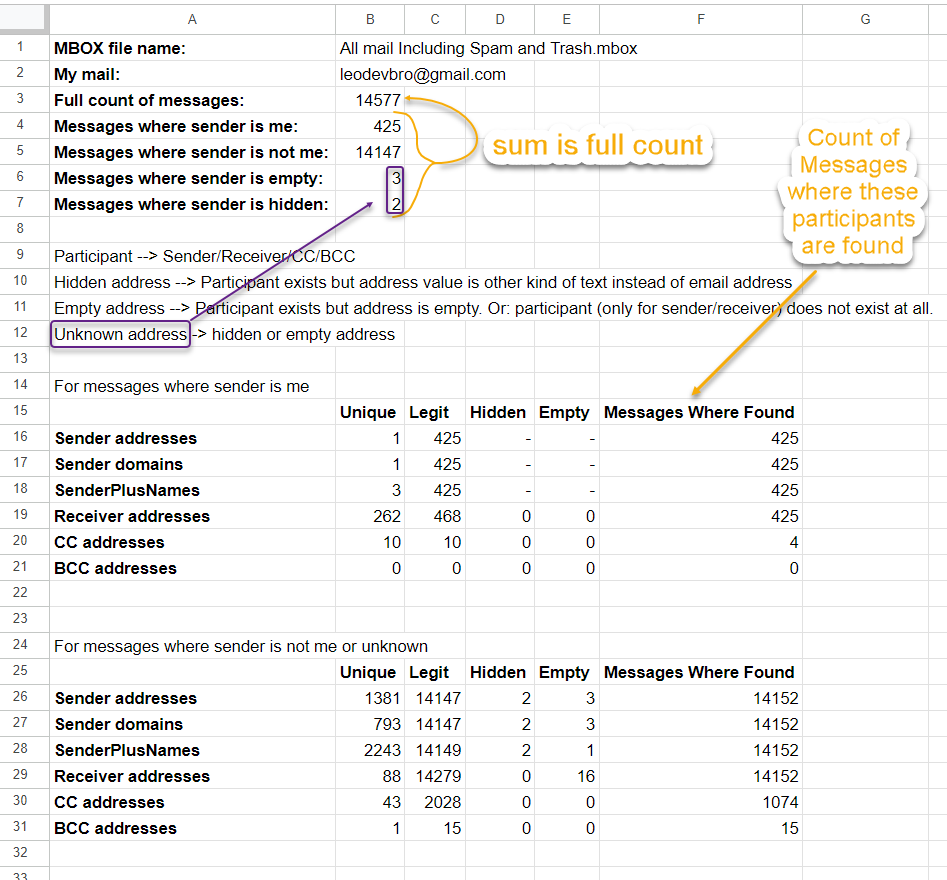
<br />

![Example generalStats CSV In Google Sheets](https://raw.githubusercontent.com/leodevbro/gmail-mbox-stats/main/src/demoMedia/generalStatsExampleCsv.png "Example generalStats CSV In Google Sheets")

<br />

- In the 'mailStats' folder, there will be also two folders:<br />
  `forMailsWhereSenderIsMe` - the stats for only the mails where sender is you.<br />
  `forMailsWhereSenderIsNotMeOrIsUnknown` - the stats for only the mails where sender is not you, or sender is unknown.<br />
  In both folders, there will be `.csv` files of stats. You can import them one by one in Google Sheets.

Here is what the full folder structure looks like:

```
▨ All mail Including Spam and Trash.mbox

📂 mailStats_2024-11-15_21-28-13
    ▦ generalStats.csv

    📂 forMailsWhereSenderIsMe
        ▦ me_attachmSizeReceiver.csv
        ▦ me_attachmSizeSender.csv
        ▦ me_attachmSizeSenderDomain.csv
        ▦ me_freqBcc.csv
        ▦ me_FreqCc.csv
        ▦ me_FreqReceiver.csv --- Here you can find the receivers where you sent most mails
        ▦ me_FreqSender.csv
        ▦ me_freqSenderDomain.csv
        ▦ me_freqSenderPlusName.csv

    📂 forMailsWhereSenderIsNotMeOrIsUnknown
        ▦ notMeOrUnkn_attachmSizeReceiver.csv
        ▦ notMeOrUnkn_attachmSizeSender.csv
        ▦ notMeOrUnkn_attachmSizeSenderDomain.csv
        ▦ notMeOrUnkn_freqBcc.csv
        ▦ notMeOrUnkn_FreqCc.csv
        ▦ notMeOrUnkn_FreqReceiver.csv
        ▦ notMeOrUnkn_FreqSender.csv --- Here you can find the senders which sent most mails
        ▦ notMeOrUnkn_freqSenderDomain.csv
        ▦ notMeOrUnkn_freqSenderPlusName.csv

```

<br />

Now, for example, let's import the file `notMeOrUnkn_freqSender.csv` in Google Sheets:
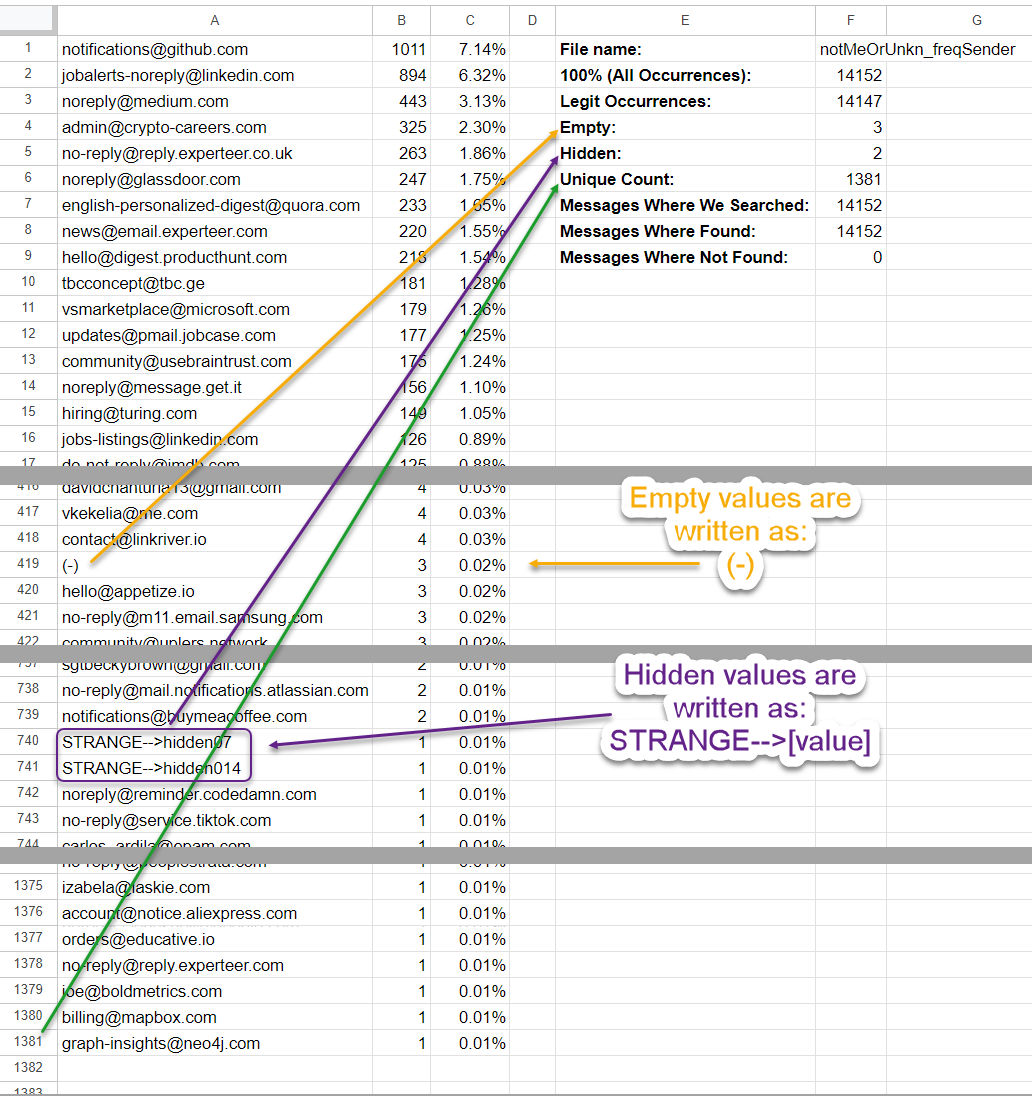
<br />

![exampleCsv__notMeOrUnkn_freqSender In Google Sheets](https://raw.githubusercontent.com/leodevbro/gmail-mbox-stats/main/src/demoMedia/exampleCsv__notMeOrUnkn_freqSender.png "exampleCsv__notMeOrUnkn_freqSender In Google Sheets")

Also, some other files:

`me_freqReceiver.csv`
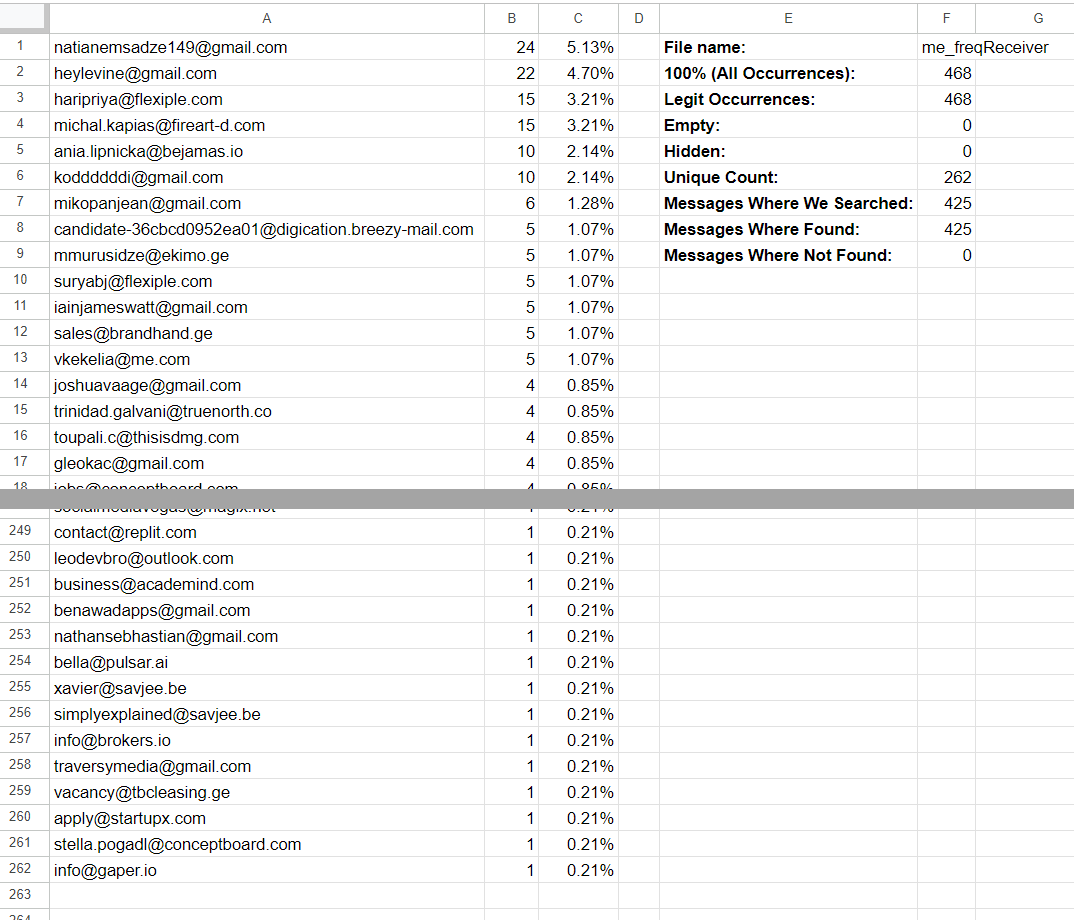
<br />

![exampleCsv__me_freqReceiver In Google Sheets](https://raw.githubusercontent.com/leodevbro/gmail-mbox-stats/main/src/demoMedia/exampleCsv__me_freqReceiver.png "exampleCsv__me_freqReceiver In Google Sheets")

<br />

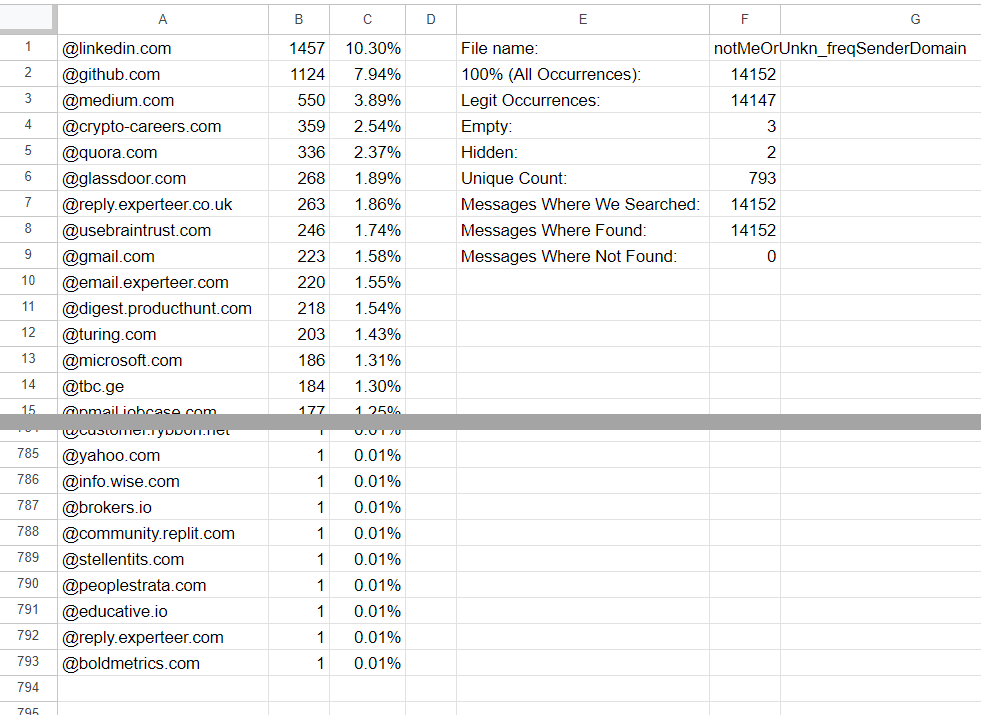
`notMeOrUnkn_freqSenderDomain.csv`
<br />

![exampleCsv__notMeOrUnkn_freqSenderDomain In Google Sheets](https://raw.githubusercontent.com/leodevbro/gmail-mbox-stats/main/src/demoMedia/exampleCsv__notMeOrUnkn_freqSenderDomain.png "exampleCsv__notMeOrUnkn_freqSenderDomain In Google Sheets")

<br />

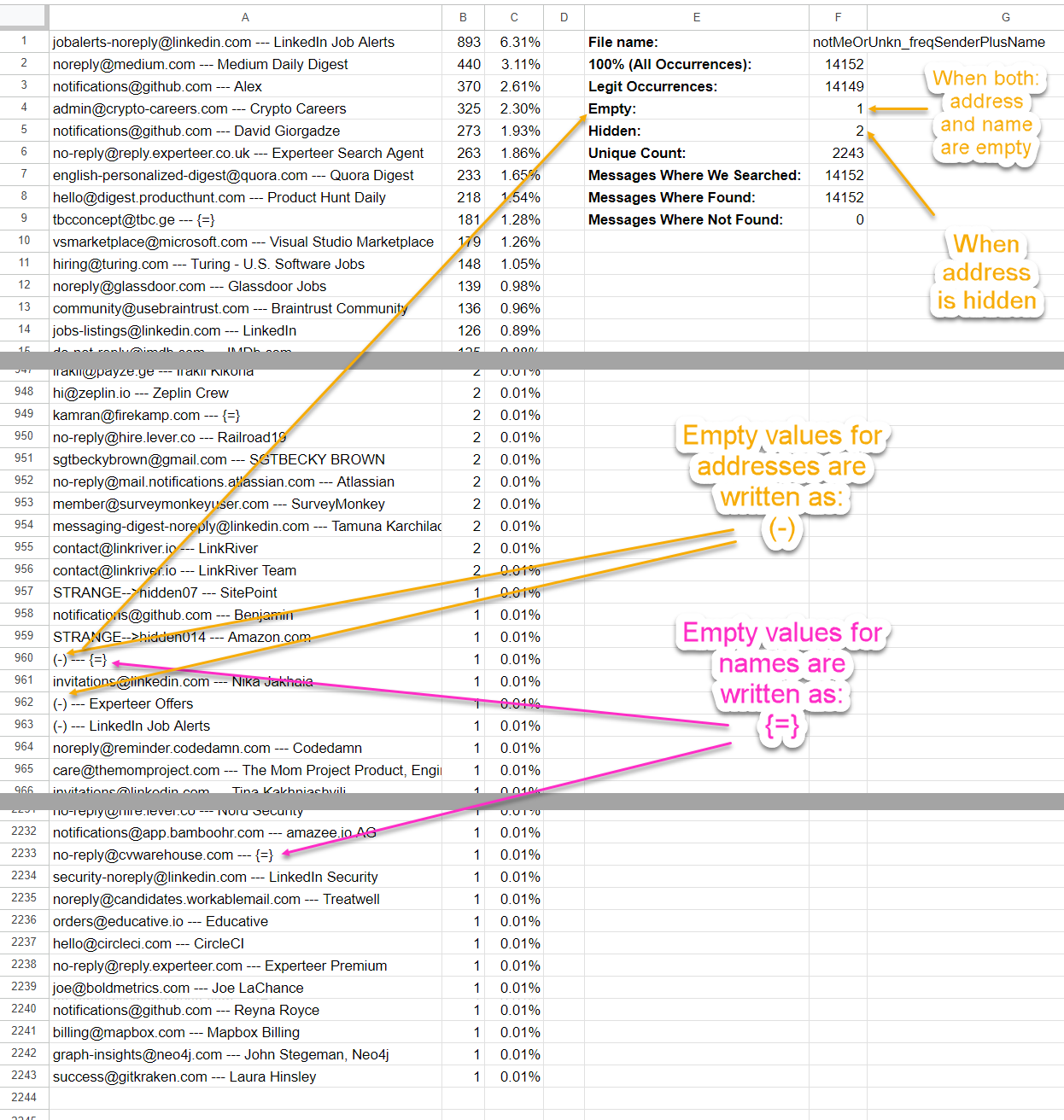
`notMeOrUnkn_freqSenderPlusName.csv`
<br />

![exampleCsv__notMeOrUnkn_freqSenderPlusName In Google Sheets](https://raw.githubusercontent.com/leodevbro/gmail-mbox-stats/main/src/demoMedia/exampleCsv__notMeOrUnkn_freqSenderPlusName.png "exampleCsv__notMeOrUnkn_freqSenderPlusName In Google Sheets")

<br />

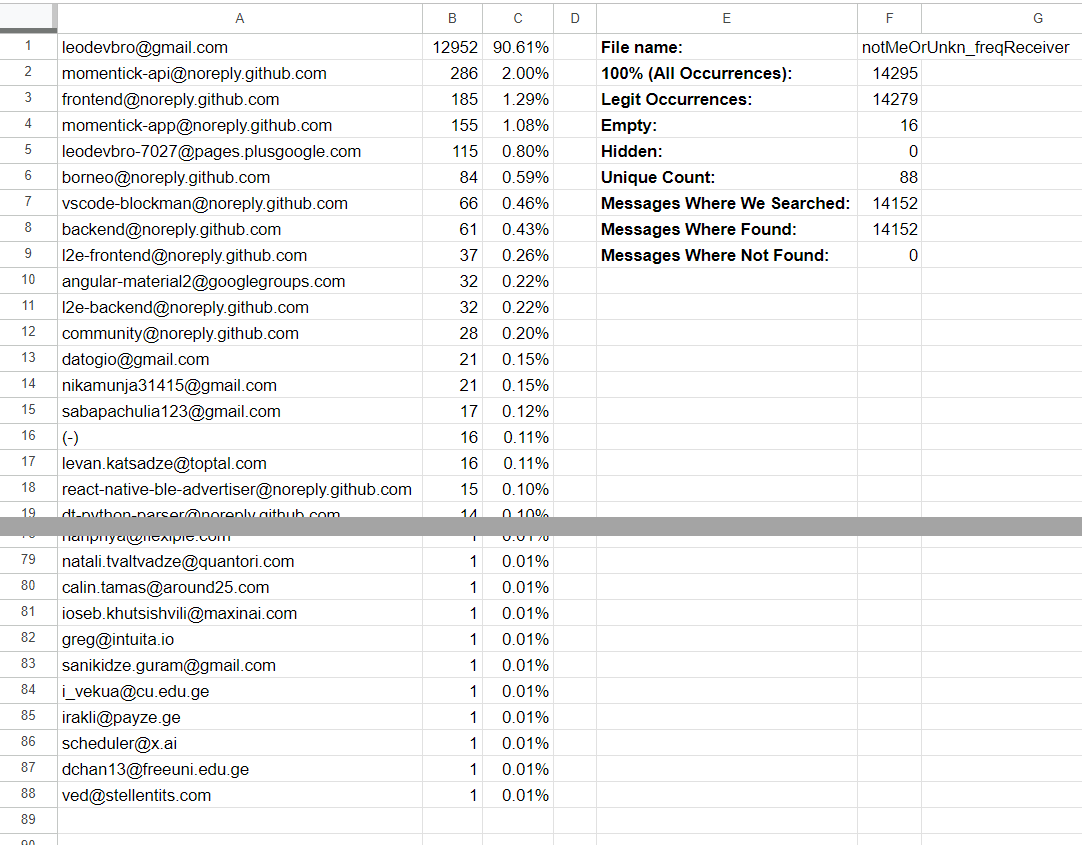
`notMeOrUnkn_freqReceiver.csv`
<br />

![exampleCsv__notMeOrUnkn_freqReceiver In Google Sheets](https://raw.githubusercontent.com/leodevbro/gmail-mbox-stats/main/src/demoMedia/exampleCsv__notMeOrUnkn_freqReceiver.png "exampleCsv__notMeOrUnkn_freqReceiver In Google Sheets")

<br />

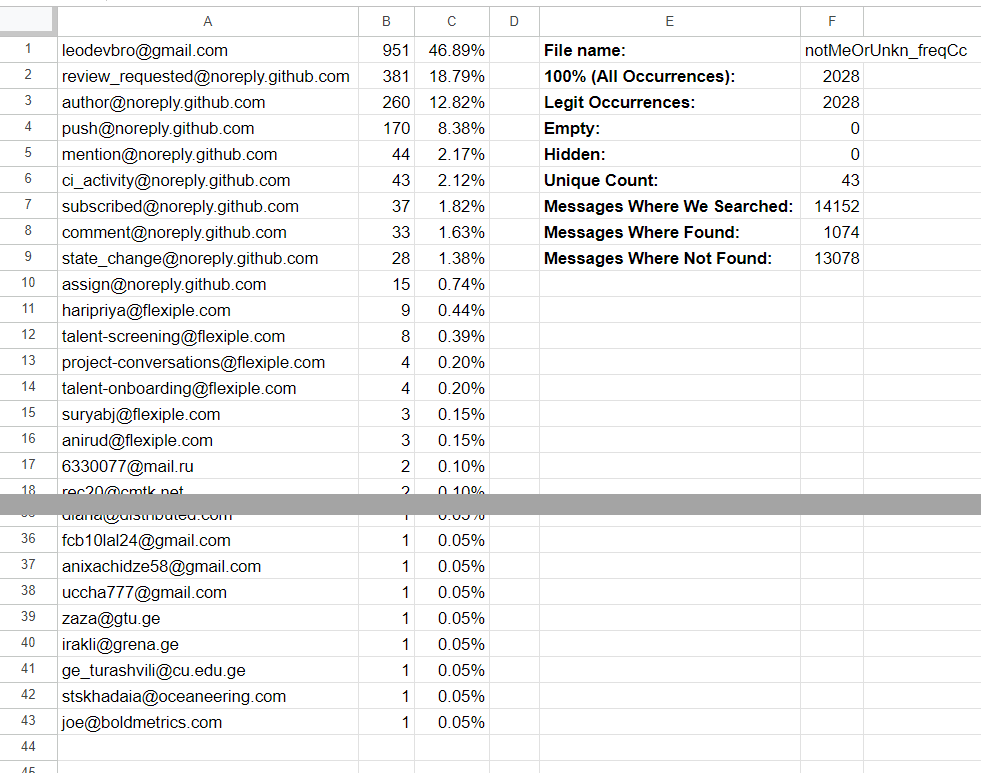
`notMeOrUnkn_freqCc.csv`
<br />

![exampleCsv__notMeOrUnkn_freqCc In Google Sheets](https://raw.githubusercontent.com/leodevbro/gmail-mbox-stats/main/src/demoMedia/exampleCsv__notMeOrUnkn_freqCc.png "exampleCsv__notMeOrUnkn_freqCc In Google Sheets")


<br />
<br />
Thank you.

<p>My name is <a href="https://leodevbro.github.io">Levan Katsadze (ლევან კაცაძე)</a>, 1995-03-03, from Tbilisi, <a href="https://en.wikipedia.org/wiki/Georgia_(country)">Georgia (Not USA)</a>.</p>

<p float="left">
  <a style="margin-right: 12px;" href="https://www.facebook.com/leodevbropage" target="_blank"><img src="https://raw.githubusercontent.com/leodevbro/vscode-blockman/main/demo-media/still-image/social/fb-logo2.png" alt="facebook logo" style="height: 44px !important; width: auto !important;" /></a>
  <a style="margin-right: 12px;" href="https://www.youtube.com/@leodevbro" target="_blank"><img src="https://raw.githubusercontent.com/leodevbro/vscode-blockman/main/demo-media/still-image/social/yt-logo3.png" alt="youtube logo" style="height: 44px !important; width: auto !important;" /></a>
</p>

If you feel like donating:

<p float="left">
  <a style="float: left; margin-right: 12px;" href="https://www.buymeacoffee.com/leodevbro" target="_blank"><img src="https://raw.githubusercontent.com/leodevbro/vscode-blockman/main/demo-media/still-image/donation/buy-me-a-coffee_2.png" alt="Buy Me A Coffee" style="height: 44px !important; width: auto !important;" /></a>
  <a style="margin-right: 12px;" href="https://ko-fi.com/leodevbro" target="_blank"><img src="https://raw.githubusercontent.com/leodevbro/vscode-blockman/main/demo-media/still-image/donation/ko-fi_2.png" alt="ko-fi" style="height: 44px !important; width: auto !important;" /></a>
</p>

<br />
<br />
<br />