# homebridge-my-tesla
Homebridge plugin for Tesla owners. This plugin assumes you are familiar with Homebridge.
Before installing this plugin please concider the plugin https://www.npmjs.com/package/homebridge-tesla
which was created by Nick Farina who also created Homebridge. Without his work this plugin would not be possible.
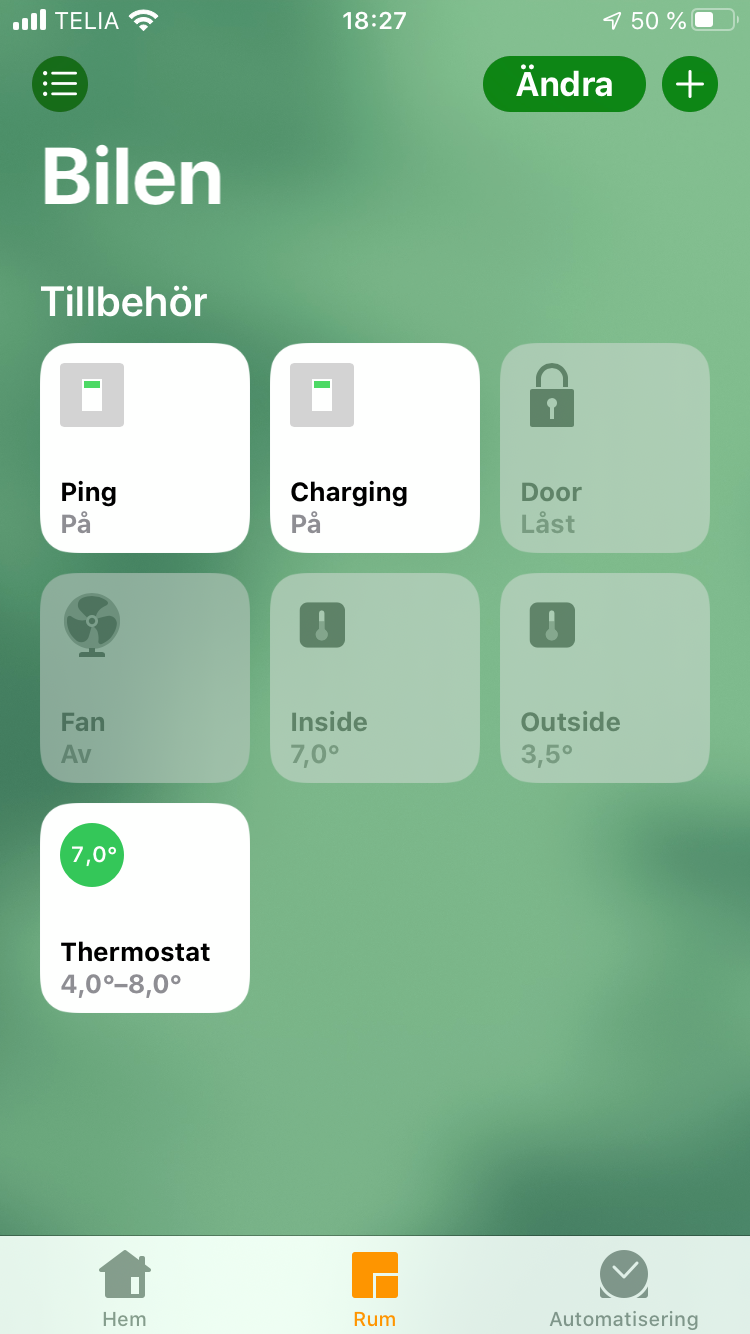
A Swedish screen shot below but may be explanatory.
## Installation
First, install Homebridge. See https://www.npmjs.com/package/homebridge
for more information.
Then install this plugin.
$ sudo npm install homebridge-my-tesla -g --unsafe-perm
## Configuration File
Configure your **~/.homebridge/config.json** with the following platform.
```json
{
"bridge":{
"name":"Tesla",
"username":"11:11:11:11:11:21",
"port":51821,
"pin":"111-11-120"
},
"description":"Sample configuration file",
"platforms":[
{
"platform":"Tesla",
"name":"Tesla",
"debug":true,
"vehicles":[
{
"name":"Model 3",
"vin":"your-vin-number",
"token":"your-refresh-token",
"expose":[
"ping",
"defrost",
"ventilation",
"trunk",
"hvac",
"doors",
"insideTemperature",
"steeringWheelHeater"
],
"accessories":{
"ping":{
"name":"Ping",
"requiredBatteryLevel":50,
"timerInterval":0.25
},
"defrost":{
"name":"Avfrostning"
},
"ventilation":{
"name":"Ventilation"
},
"trunk":{
"name":"Bakluckan"
},
"charging":{
"name":"Laddning"
},
"hvac":{
"name":"Fläkten",
"requiredBatteryLevel":20
},
"doors":{
"name":"Dörren",
"remoteStartDrivePassword":"omit-or-your-tesla-password"
},
"outsideTemperature":{
"name":"Ute"
},
"insideTemperature":{
"name":"Inne"
},
"thermostat":{
"name":"Termostat",
"requiredBatteryLevel":40,
"timerInterval":2
},
"steeringWheelHeater":{
"name":"Rattvärme"
}
}
}
]
}
]
}
```
Of course, you have to supply your own name and **VIN** number and login credentials.
## What This Plugin Does
This plugin adds a number of controls to Apple HomeKit. Currently
it only adds controls to open the doors, control the HVAC and to display current temperature.
### Added accessories
#### Ping
When this switch is active your Tesla will never go into deep sleep. Every 5 minutes or so, a request is made to update the state of your car.
```json
"ping": {
"name": "Ping",
"requiredBatteryLevel": 40,
"timerInterval": 5
}
```
* **name** - Localized name, specify the name you want in the Apple Home app.
* **requiredBatteryLevel** - Specifes the required battery level to operate. If battery level is below this level, the ping function will stop.
* **timerInterval** - Specifies the number of minutes between pings.
#### Charging
The charging switch reflects the charging state.
```json
"charging": {
"name": "Charging"
}
```
* **name** - Localized name, specify the name you want in the Apple Home app.
#### Door
Lock or unlock the doors using this switch. Unlocking the door also also enables keyless start.
```json
"doors": {
"name": "Door",
"remoteStartDrivePassword": "tesla-login-password"
}
```
* **name** - Localized name, specify the name you want in the Apple Home app.
* **remoteStartDrivePassword** - Your Tesla login password. If specified you will not have to enter your pin code to start driving.
#### Fan
Turn the HVAC **ON** or **OFF** using this switch.
```json
"hvac": {
"name": "Fläkten",
"requiredBatteryLevel": 20
}
```
* **name** - Localized name, specify the name you want in the Apple Home app.
* **requiredBatteryLevel** - Specifes the required battery level to operate. If battery level is below this level, the fan function will stop.
#### Inside
Displays the inside temperature.
```json
"insideTemperature": {
"name": "Inside"
}
```
* **name** - Localized name, specify the name you want in the Apple Home app.
#### Outside
Displays the outside temperature.
```json
"outsideTemperature": {
"name": "Outside"
}
```
* **name** - Localized name, specify the name you want in the Apple Home app.
#### Thermostat
This enables you to control the inside temperature of your Tesla. Set it to 4 - 10 Celsius in the winter time to have a frost free vehicle in the morning.
Use automation to turn it on at a specific time.
```json
"thermostat": {
"name": "Termostat",
"requiredBatteryLevel": 40,
"timerInterval": 2
}
```
* **name** - Localized name, specify the name you want in the Apple Home app.
* **requiredBatteryLevel** - Specifes the required battery level to operate. If battery level is below this level, the thermostat function will stop.
* **timerInterval** - Specifies the number of minutes between checking the temperature.
## Siri
If you name things correctly you might get Siri to work by saying "Lock car", "Unlock car", "Turn on fan" or "Turn off fan"...
## Usage
As for now, it is a good idea to create a new home in Apple's Home app. Name
the new home to the same name of your car. Then add the this accessory to the newly created home.
## Updates
- **2019-11-15** - Accessory information updated properly with serial number (VIN) and firmware version.
- **2019-11-30** - Updated documentation.