# <%= props.name %>
[](http://standardjs.com/)
* Standard compliant React Native App Utilizing [Ignite](https://github.com/infinitered/ignite)
* This Boiler Plate is just my Customized version of ignite Andross
* Installed And Configed With TypeScript
* Updated React Native To The Lastest Version (0.57.2)
* Added Rtl Support
* Added Switchable ColorScheme Support
* Add Better Multi language Support And Add Language To App Settings Redux
* Keep Settings Even When The App Closed
* TODO // Internal Set Of Material Components
* HighLighted Dependencies that installed and linked to android :
```
Realm For DB Uses
Jest And Enzyme For Tests
Axios
Redux
Redux-Saga
ReduxSauce For Reducers/Actions Management
socket.io,socket.io-client For Socket Uses
For using socket you can use this tutorial link below
https://hackernoon.com/a-simple-messaging-app-with-react-native-and-socket-io-e1cae3df7bda
eslint , eslint-config-airbnb For Code formatting
Typescript for oop and typechecking
react-native-firebase for firebase usage
react-navigation,react-navigation-material-bottom-tabs,... for navigation
native-base,paper,react-native-material-kit for Ui/Ux
Actually the goal is deploying ui/ux exactly like material design guidlines
so i'm using a combination of above libraries components to achive this goal
react-native-animatable For animations
react-native-vector-icons For Vector Icons
```
You can see more on package .json
* Recommended Dependencies :
```
MapBox
For Maps And Locations Using
Lottie React Native
For Animations Like Animated Logos
react-navigation-fluid-transitions
For Animations Like Shared Elements For React-navigation
HightCharts And D3js
For Data Visualizations
WebRtc
Real-Time Communications
```
## :fire: Ignite Cli
For Cli Instructions Please refer to ignite boilerplate page :
https://github.com/infinitered/ignite
## :black_nib: Changing The Package Name
You Can Change PackageName And Boundler ID Using this tool
https://www.npmjs.com/package/react-native-rename
## :exclamation: Possible Errors
if you've got transform-hmr error on boundle so start your boundler with this command:
`` react-native start --reset-cache ``
## :file_folder: Folders
Attention : some files and folders are just for example and you can remove them when ever you want
App < Almost All Functional Files And Codes are in this folder
|Components < Components like dialogs , bottons , forms , can be in this folder
|Styles < Style files of this folder
|--tests-- < Test files of folder
|MaterialComponents < Some Components that made with material guidlines
|ComponentName < If You want to work with rtl/ltr layouts separately
|index.tsx
|ComponentName.rtl.tsx
|ComponentName.ltr.tsx
|ComponentName.tsx < If You Want Just A Layout No And Dont Want To Support Rtl/Ltr
|Config < Config files folder
|Containers < Our Main Containers Like Login Screen ...
|MainTabs < Main Tabs (Made For Example)
|ChatsTabScreens < Chat Tabs (Made For Example)
|Fixtures < All key API responses are housed here.
|i18n < Localization
|Images < Holds all images for the applications.
|Lib < Components that reusable even outside of the project and in other projects
|Navigation < Navigation Files And Redux Navigation Config
|Redux < All Redux Files , Reducers and Actions
NavigationRedux File is For Routing Between Screens With Redux So You Dont Need Pass Any Props
to access outer navigation screens
|Sagas < Redux Saga Files
|Services <
|Themes < Application specific themes
|Transforms < You can do conversions
## :arrow_down_small: Recommended Structure For Rtl/Ltr Support
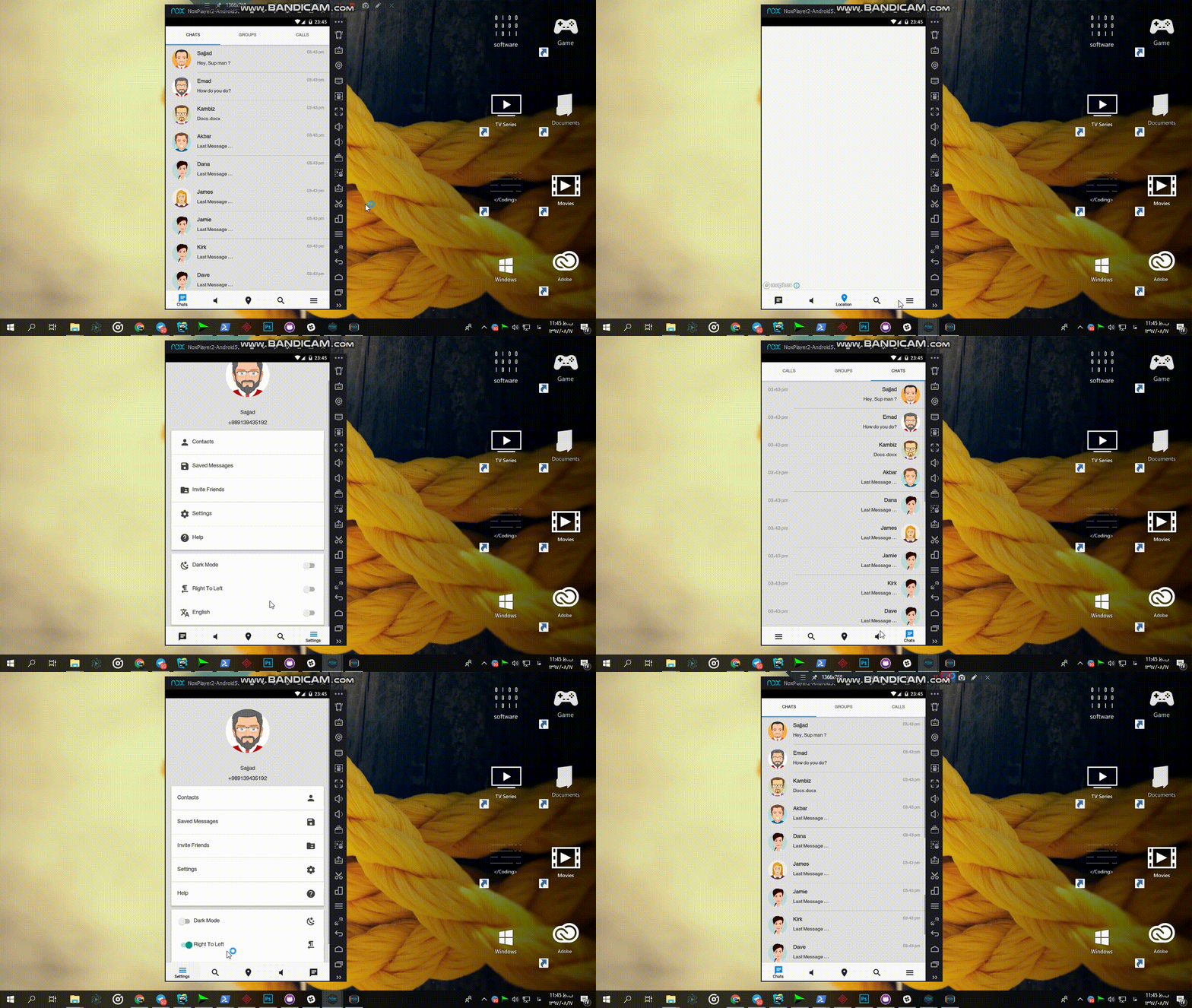 If you want to your app support ltr/rtl layouts separately
you can create a folder for component and inside the folder create three files:
```
index.tsx
componentName.rtl.tsx
componentName.ltr.tsx
```
Then you can set index.tsx content as below:
```typescript jsx
import Ltr from "./componentName.ltr";
import Rtl from "./componentName.rtl";
import {connect} from "react-redux";
import * as React from "react";
export interface ComponentNameProps {
//you can use this interface in ltr/rtl component
...,
isRtl:boolean
}
const Direction = (props:ComponentNameProps) => props.isRtl ? : ;
const mapStateToProps = state => {
return {
isRtl: state.appSettings.isRtl // appSettings is my reducer in Redux folder
};
};
export default connect(mapStateToProps)(Direction);
```
Then use it like normal .eg :
```typescript jsx
import ComponentName from './path/to/componentName' //Just Component Folder Path
```
If you don't want Rtl/Ltr Switchable View just create a componentName.tsx inside Components folder ...
## :arrow_down_small: If you want switchable color theme in your app
If you want to your app support ltr/rtl layouts separately
you can create a folder for component and inside the folder create three files:
```
index.tsx
componentName.rtl.tsx
componentName.ltr.tsx
```
Then you can set index.tsx content as below:
```typescript jsx
import Ltr from "./componentName.ltr";
import Rtl from "./componentName.rtl";
import {connect} from "react-redux";
import * as React from "react";
export interface ComponentNameProps {
//you can use this interface in ltr/rtl component
...,
isRtl:boolean
}
const Direction = (props:ComponentNameProps) => props.isRtl ? : ;
const mapStateToProps = state => {
return {
isRtl: state.appSettings.isRtl // appSettings is my reducer in Redux folder
};
};
export default connect(mapStateToProps)(Direction);
```
Then use it like normal .eg :
```typescript jsx
import ComponentName from './path/to/componentName' //Just Component Folder Path
```
If you don't want Rtl/Ltr Switchable View just create a componentName.tsx inside Components folder ...
## :arrow_down_small: If you want switchable color theme in your app
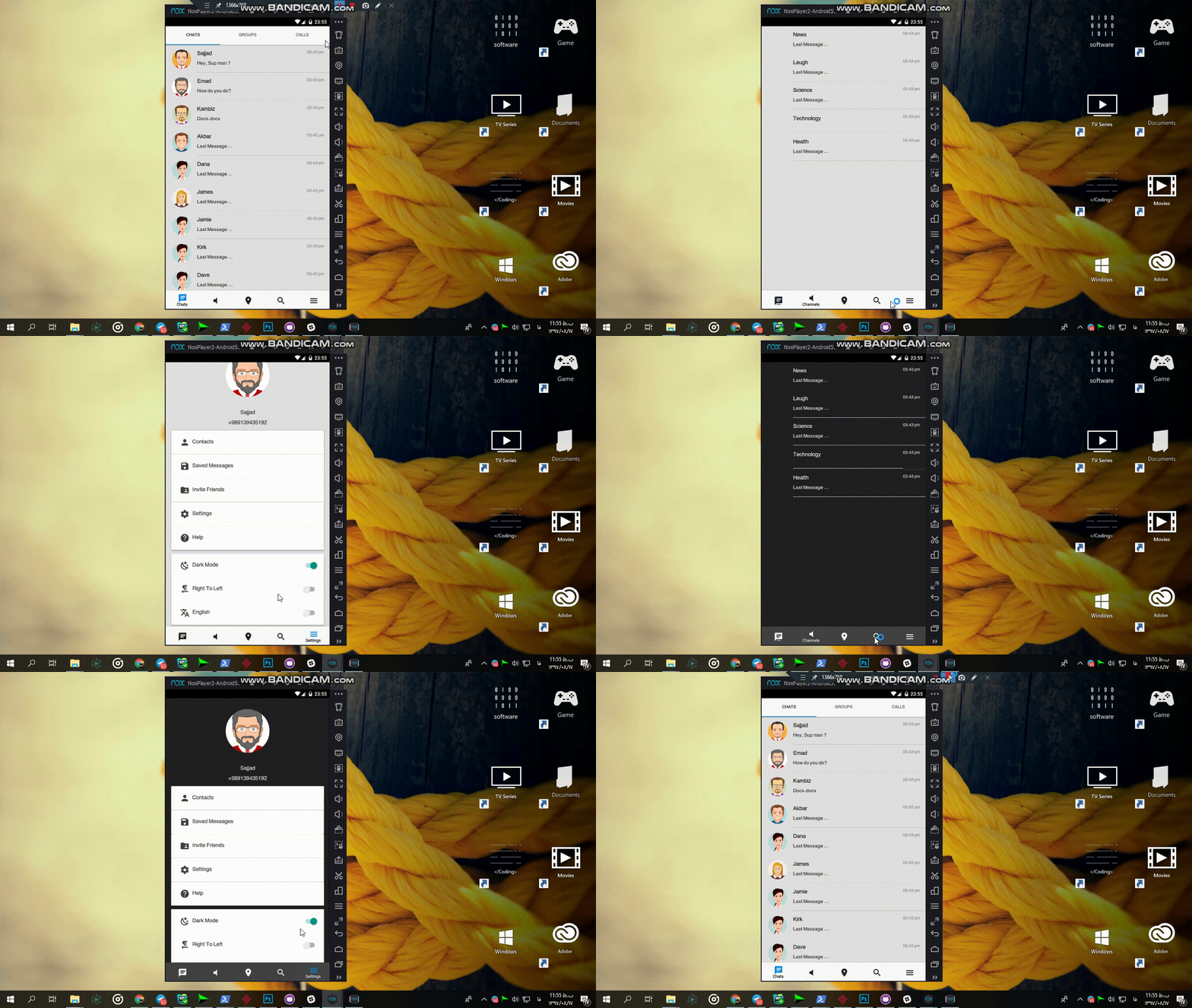 actually below reducer And action playing important roles for settings like direction(rtl/ltr)
or colorScheme and any settings like these :
`App/Redux/AppSettingsRedux`
`App/Redux/Actions/AppSettinsAction`
for example for colorScheme we have colorScheme state in this reducer which contans below structure :
```typescript
export interface ColorScheme {
fullToneText: string,
midToneText: string,
lightText: string,
fullToneBackground: string,
midToneBackground: string,
lightBackground: string,
cardBackground: string,
mapStyleUrl: string,
tabBarBackground: string,
containersBackground: string
}
```
you can also view or change it's structure and values in below file :
`App/Themes/Colors`
this scheme have two states for now dark and light themes
this is how we can change state of this scheme :
```typescript jsx
import * as Actions from '../../Redux/Actions/AppSettingsAction';
.
.
.
onValueChange={() => { this.props.toggleDirection() }}
.
.
.
export default connect(mapStateToProps, Actions)(SettingsTab);
```
you can see below file for more detail :
`App/Containers/MainTabs/SettingsTab.tsx`
then you can use it as :
```typescript jsx
.
.
.
const ColorScheme = this.props.colorScheme;
.
.
.
style={{backgroundColor:ColorScheme.containersBackground}}
.
.
.
const mapStateToProps = state => ({
isDarkMode: state.appSettings.isDarkMode,
colorScheme: state.appSettings.colorScheme
});
.
.
export default connect(mapStateToProps, mapDispatchToProps)(ChannelsTab);
```
you can see similiar usage in example files inside Container folder or another folders ...
you can also test this in the settings tab
## :arrow_down_small: Switchable locale
actually below reducer And action playing important roles for settings like direction(rtl/ltr)
or colorScheme and any settings like these :
`App/Redux/AppSettingsRedux`
`App/Redux/Actions/AppSettinsAction`
for example for colorScheme we have colorScheme state in this reducer which contans below structure :
```typescript
export interface ColorScheme {
fullToneText: string,
midToneText: string,
lightText: string,
fullToneBackground: string,
midToneBackground: string,
lightBackground: string,
cardBackground: string,
mapStyleUrl: string,
tabBarBackground: string,
containersBackground: string
}
```
you can also view or change it's structure and values in below file :
`App/Themes/Colors`
this scheme have two states for now dark and light themes
this is how we can change state of this scheme :
```typescript jsx
import * as Actions from '../../Redux/Actions/AppSettingsAction';
.
.
.
onValueChange={() => { this.props.toggleDirection() }}
.
.
.
export default connect(mapStateToProps, Actions)(SettingsTab);
```
you can see below file for more detail :
`App/Containers/MainTabs/SettingsTab.tsx`
then you can use it as :
```typescript jsx
.
.
.
const ColorScheme = this.props.colorScheme;
.
.
.
style={{backgroundColor:ColorScheme.containersBackground}}
.
.
.
const mapStateToProps = state => ({
isDarkMode: state.appSettings.isDarkMode,
colorScheme: state.appSettings.colorScheme
});
.
.
export default connect(mapStateToProps, mapDispatchToProps)(ChannelsTab);
```
you can see similiar usage in example files inside Container folder or another folders ...
you can also test this in the settings tab
## :arrow_down_small: Switchable locale
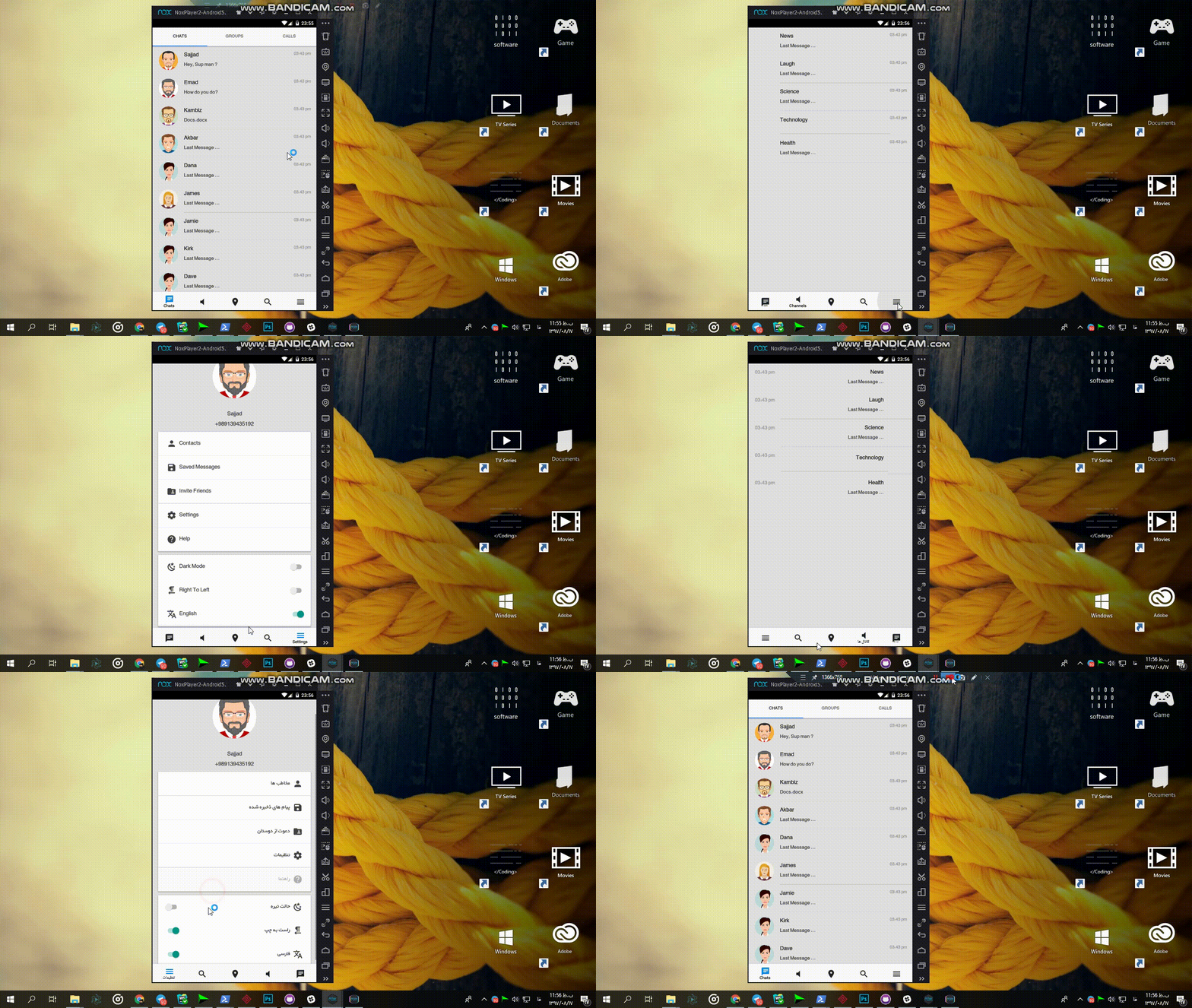 ```typescript jsx
import * as Actions from '../../Redux/Actions/AppSettingsAction';
.
.
.
this.props.selectLocale(localName /** eg. 'en'*/);
.
.
.
export default connect(mapStateToProps, Actions)(ComponentName);
```
you can create you locales in `App/I18n/locales folder` like :
```typescript jsx
//en.ts
export default {
confirm:"Confirm",
back:"Back",
phoneNumber:"Phone Number",
verificationNumber:"Verification Number",
userName:"User Name",
chats:"Chats",
channels:"Channels",
location:"Location",
search:"Search",
settings:"Settings",
groups: "Groups",
calls:"Calls",
contacts:"Contacts",
savedMessages:"Saved Messages",
inviteFriends:"Invite Friends",
help:"Help",
darkMode:"Dark Mode",
rtl:"Right To Left",
translate: "Translate"
};
```
then in `App/I18n` folder I18n.ts file :
```typescript jsx
import I18n from 'react-native-i18n';
import en from './locales/en';
I18n.fallbacks = true;
I18n.translations = {
en,
fa
};
export default I18n;
```
End usage:
```typescript jsx
import I18n from "../path/to/App/I18n";
```
## :arrow_down_small: Persisted States (Redux-Persist)
```typescript jsx
import * as Actions from '../../Redux/Actions/AppSettingsAction';
.
.
.
this.props.selectLocale(localName /** eg. 'en'*/);
.
.
.
export default connect(mapStateToProps, Actions)(ComponentName);
```
you can create you locales in `App/I18n/locales folder` like :
```typescript jsx
//en.ts
export default {
confirm:"Confirm",
back:"Back",
phoneNumber:"Phone Number",
verificationNumber:"Verification Number",
userName:"User Name",
chats:"Chats",
channels:"Channels",
location:"Location",
search:"Search",
settings:"Settings",
groups: "Groups",
calls:"Calls",
contacts:"Contacts",
savedMessages:"Saved Messages",
inviteFriends:"Invite Friends",
help:"Help",
darkMode:"Dark Mode",
rtl:"Right To Left",
translate: "Translate"
};
```
then in `App/I18n` folder I18n.ts file :
```typescript jsx
import I18n from 'react-native-i18n';
import en from './locales/en';
I18n.fallbacks = true;
I18n.translations = {
en,
fa
};
export default I18n;
```
End usage:
```typescript jsx
import I18n from "../path/to/App/I18n";
```
## :arrow_down_small: Persisted States (Redux-Persist)
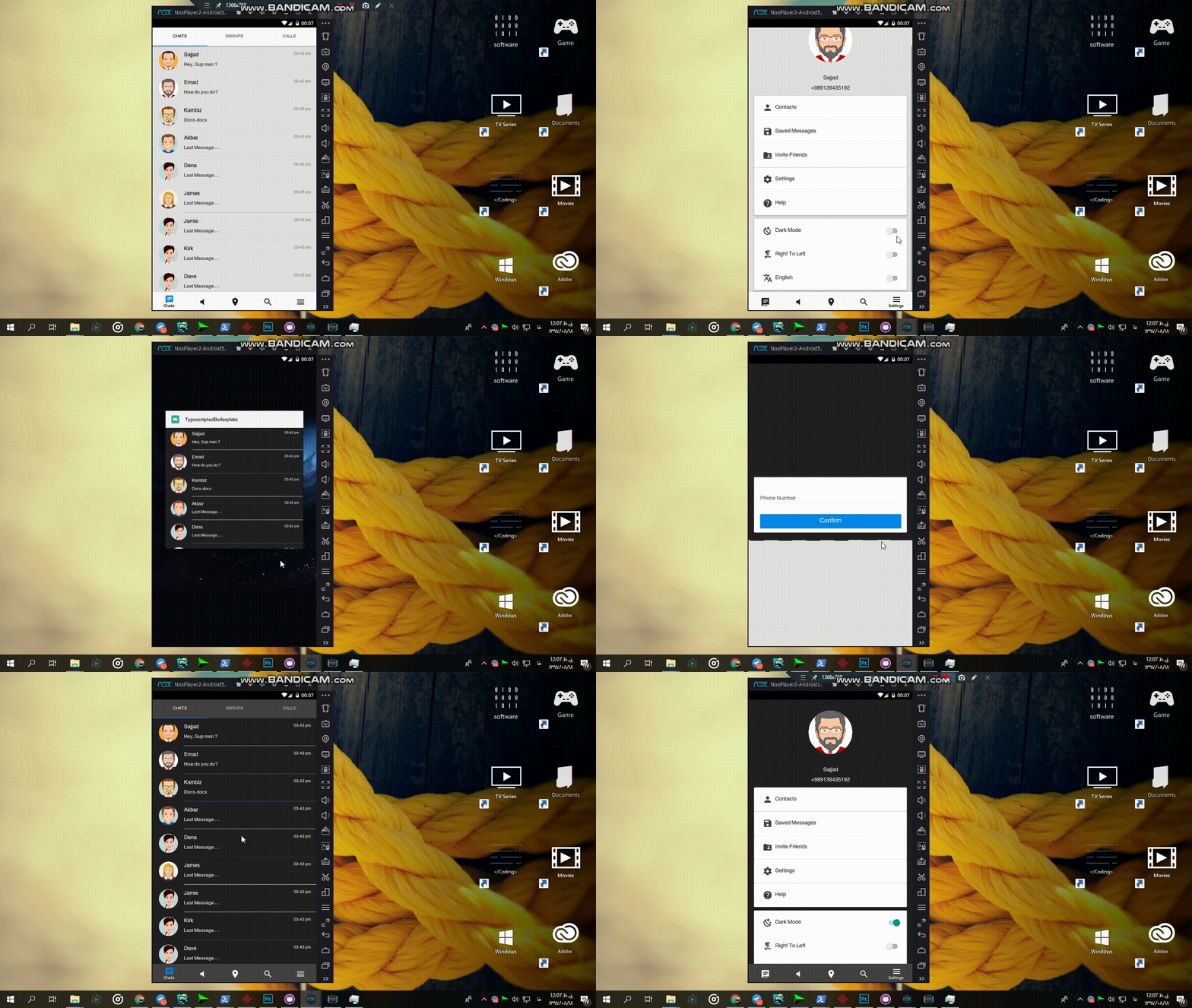 for using redux-persist to persist your settings or any states you can go to this path
`App/Config/ReduxPersist.tsx`
then add your reducer name to this array :
`whitelist: ["reducer Name",...],`
then go to your reducer and add this code :
`case REHYDRATE:
return {...state,...action.payload.yourReducerName};`
then changes on your reducer will be persisted
## :heart: Recommended Components For Use In The Project
### List Component
https://docs.nativebase.io/Components.html#list-avatar-headref
### Material Button Component
#### Component's Location
MaterialComponents/MaterialButton
#### Usage:
```typescript jsx
```
### FAB
Component's Location
MaterialComponents/MaterialFab
#### Usage :
```typescript jsx
// props {size,color,onPress,iconColor,icon}
```
### Toggle
https://github.com/xinthink/react-native-material-kit#toggles
### CheckBox
https://github.com/xinthink/react-native-material-kit#checkbox
### RadioButton
https://github.com/xinthink/react-native-material-kit#radio-button
### BottomTabNavigation (See MainTabNavigator.tsx for more info)
import {createMaterialBottomTabNavigator} from 'react-navigation-material-bottom-tabs';
### TopTabNavigation (See ChatsTabNavigator.tsx for more info)
import {createMaterialTopTabNavigator, TabBarTop} from 'react-navigation-tabs';
## :closed_lock_with_key: Secrets
This project uses [react-native-config](https://github.com/luggit/react-native-config) to expose config variables to your javascript code in React Native. You can store API keys
and other sensitive information in a `.env` file:
```
API_URL=https://myapi.com
GOOGLE_MAPS_API_KEY=abcdefgh
```
and access them from React Native like so:
```
import Secrets from 'react-native-config'
Secrets.API_URL // 'https://myapi.com'
Secrets.GOOGLE_MAPS_API_KEY // 'abcdefgh'
```
The `.env` file is ignored by git keeping those secrets out of your repo.
### Get started:
1. Copy .env.example to .env
2. Add your config variables
3. Follow instructions at [https://github.com/luggit/react-native-config#setup](https://github.com/luggit/react-native-config#setup)
4. Done!
for using redux-persist to persist your settings or any states you can go to this path
`App/Config/ReduxPersist.tsx`
then add your reducer name to this array :
`whitelist: ["reducer Name",...],`
then go to your reducer and add this code :
`case REHYDRATE:
return {...state,...action.payload.yourReducerName};`
then changes on your reducer will be persisted
## :heart: Recommended Components For Use In The Project
### List Component
https://docs.nativebase.io/Components.html#list-avatar-headref
### Material Button Component
#### Component's Location
MaterialComponents/MaterialButton
#### Usage:
```typescript jsx
```
### FAB
Component's Location
MaterialComponents/MaterialFab
#### Usage :
```typescript jsx
// props {size,color,onPress,iconColor,icon}
```
### Toggle
https://github.com/xinthink/react-native-material-kit#toggles
### CheckBox
https://github.com/xinthink/react-native-material-kit#checkbox
### RadioButton
https://github.com/xinthink/react-native-material-kit#radio-button
### BottomTabNavigation (See MainTabNavigator.tsx for more info)
import {createMaterialBottomTabNavigator} from 'react-navigation-material-bottom-tabs';
### TopTabNavigation (See ChatsTabNavigator.tsx for more info)
import {createMaterialTopTabNavigator, TabBarTop} from 'react-navigation-tabs';
## :closed_lock_with_key: Secrets
This project uses [react-native-config](https://github.com/luggit/react-native-config) to expose config variables to your javascript code in React Native. You can store API keys
and other sensitive information in a `.env` file:
```
API_URL=https://myapi.com
GOOGLE_MAPS_API_KEY=abcdefgh
```
and access them from React Native like so:
```
import Secrets from 'react-native-config'
Secrets.API_URL // 'https://myapi.com'
Secrets.GOOGLE_MAPS_API_KEY // 'abcdefgh'
```
The `.env` file is ignored by git keeping those secrets out of your repo.
### Get started:
1. Copy .env.example to .env
2. Add your config variables
3. Follow instructions at [https://github.com/luggit/react-native-config#setup](https://github.com/luggit/react-native-config#setup)
4. Done!