<p align="center">
  <a href="https://github.com/ryanelian/instapack">
    <img align="center" src="https://raw.githubusercontent.com/ryanelian/instapack/master/img/icon.png" width="144" height="144" alt="logo" />
  </a>
</p>

<h1 align="center">instapack</h1>

<p align="center">
  <i>All-in-one TypeScript and Sass compiler for web applications!</i> 📦 🚀
</p>

<p align="center">
  <a href="https://www.npmjs.com/package/instapack"><img alt="npm" src="https://badgen.net/npm/v/instapack?icon=npm" /></a>
  <a href="https://github.com/ryanelian/instapack"><img alt="GitHub" src="https://badgen.net/github/stars/ryanelian/instapack?icon=github" /></a>
  <a href="https://github.com/ryanelian/instapack/blob/master/LICENSE"><img alt="MIT License" src="https://badgen.net/npm/license/instapack" /></a>
  <a href="https://github.com/ryanelian/instapack/actions"><img alt="GitHub Actions" src="https://github.com/ryanelian/instapack/workflows/Node%20CI/badge.svg" /></a>
  <a href="https://dependabot.com"><img alt="Dependabot Status" src="https://api.dependabot.com/badges/status?host=github&repo=ryanelian/instapack" /></a>
</p>

## Install

### Option A: Globally Machine-Wide

`npm install -g instapack`

> `pnpm` can also be used but not `yarn`. **Yarn 2 is incompatible with instapack due to [Plug'n'Play](https://yarnpkg.com/features/pnp) [NOT SUPPORTED by TypeScript](https://github.com/microsoft/TypeScript/issues/28289) (and Visual Studio)!**

### Option B: Locally per Project

A local installation in the project is usually more desirable for pinning and synchronizing the instapack version used by the CI and the development team.

1. Ensure `package.json` exists in the project folder. (If not, run `npm init -y`)

2. Open command prompt in that folder to install instapack locally: `npm install instapack -D -E`

3. Add [npm run scripts](https://docs.npmjs.com/cli/run-script) in `package.json`:

```json
{
  "scripts": {
    "init": "ipack new react",
    "dev": "ipack -R",
    "build": "ipack",
  }
}
```

To develop using instapack, simply run the commands:

```bash
npm run init
npm run dev
npm run build
```

## Quick Start Guide

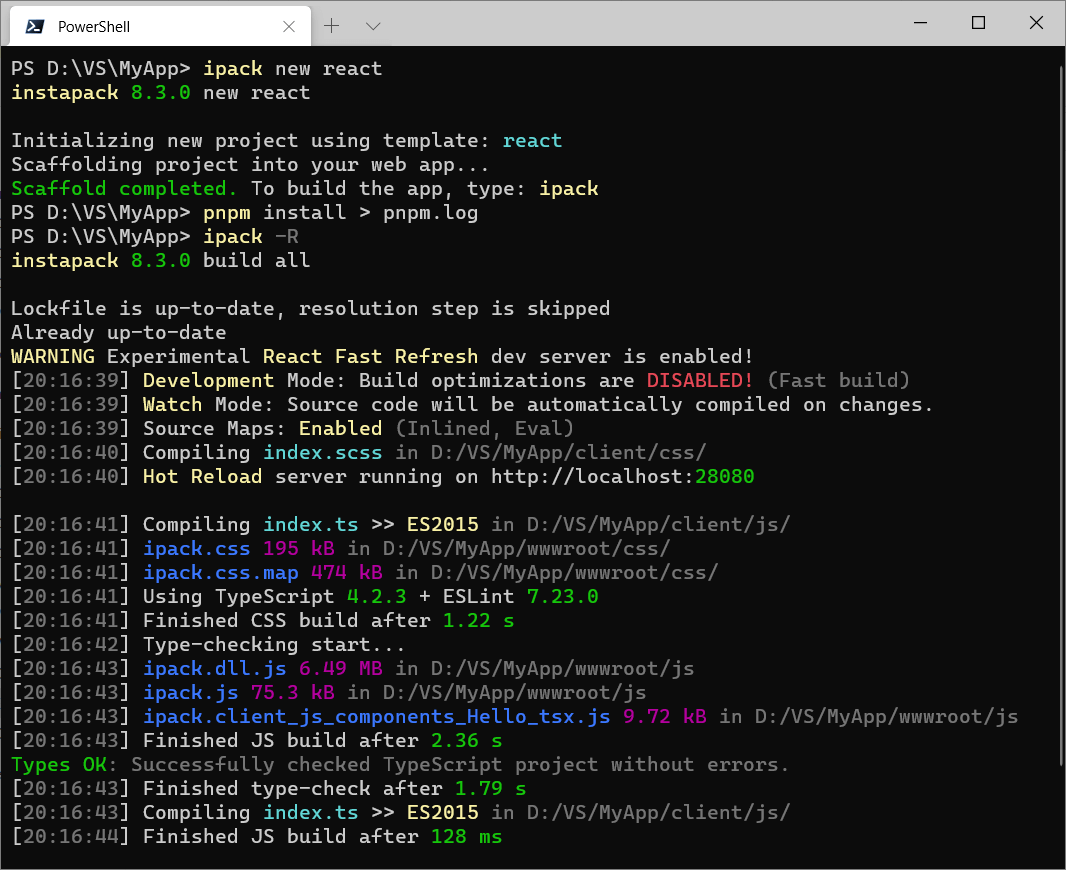
<img src="https://raw.githubusercontent.com/ryanelian/instapack/master/img/screenshot.png" alt="screenshot" width="450" height="400" />

```bash
mkdir MyWebApp
cd MyWebApp
ipack new empty
ipack
```

Out of the box, these files will be used as the program entry points:

- `client/js/index.ts` compiled to `wwwroot/js/ipack.js`

  - Include this file at the bottom of your HTML / before `</body>` using `<script>` so the browser can render the page while downloading the script.

  - Anything imported from `node_modules` will be put into `ipack.dll.js`. Please also include this file in your HTML just before `ipack.js`

- `client/css/index.scss` compiled to `wwwroot/css/ipack.css`

  - Include this file at the top of your HTML / before `</head>` using `<link>` so the browser can style and render the page as it loads.

  - Spiced :hot_pepper: with [AutoPrefixer](https://github.com/postcss/autoprefixer) for applying CSS vendor-prefixes automatically!

- Assets (files or folders) declared in `copy` settings in `package.json` will be copied to `wwwroot` sub-folder from `node_modules` packages.

> `client`, `wwwroot`, `ipack.js`, and `ipack.css` can be renamed in project settings. [Read more ↓](#configurations)

## System Requirements

Currently supported Node.js is [the latest version 14 or 12 (LTS)](https://nodejs.org/en/download/).

When using [Visual Studio 2017 or 2019](https://www.visualstudio.com/downloads/), install [the latest TypeScript SDK](https://marketplace.visualstudio.com/search?term=typescript&target=VS&category=Tools&cost=free&vsVersion=&subCategory=Programming%20Languages&sortBy=UpdatedDate).

If using [the latest Visual Studio Code](https://code.visualstudio.com/), it should come with the latest TypeScript support out of the box.

## Design Philosophies

- *Zero Configurations*: Hyper-opinionated front-end project build system. **It just works!** :sparkling_heart:

- Beginner-friendly: Lower the barrier of entry for developing a modern web app. :balloon:

- Unify and standardize team build system across multiple projects, for any JS frameworks. :fist:

- Built-in new project scaffold tool for assorted JS frameworks. :gift:

- Improve source code quality and maintainability with type hints, recommended lints, and compile-time checks. :eyeglasses:

- Rich debugging experience: set breakpoints, view variables, and step into the TypeScript source code! :mag:

- Introduce structures to the front-end source code using standard module systems. :bento:

- Enforce best practices when building apps, which may significantly impact page load time. :hammer_and_wrench: (i.e. tree-shaking, code-splitting, bundling, and minification) 

- Blur the boundary between design-time and coding-time using lightning-fast `serve` or `watch` + `dev` build mode. :zap:

## But... Why?

**instapack is a first-class end-to-end TypeScript and Sass build tool. :tophat:** Meaning, it comes with an assurance to compile projects written using standard TypeScript or Sass successfully regardless of frameworks used. :rainbow: This mindset is the differentiating factor between instapack and other CLI tools, which tend to be designed framework-first but TypeScript-second!

instapack is battle-tested :hocho: and is designed to cover most normal use cases when developing a modern web app. Powered by [webpack](https://webpack.js.org), instapack readily consumes modern JS modules (ES, CommonJS, UMD) and more (plain HTML templates, Vue SFC, TypeScript JSX).

With this powerful tool, you can save time :watch:, save precious SSD space :space_invader:, and save yourself from the pain of maintaining project build scripts! :coffee:

## Commands

You may use `instapack` or `ipack` to invoke the command line interface.

### new [template]

Scaffolds a new instapack project into current working directory. **All templates target [ES2015, compatible with modern major browsers](https://kangax.github.io/compat-table/es6/) unless noted otherwise.** These templates are available:

- `empty` for a minimal clean slate.

- `react` for developing a web app using [React](https://reactjs.org/) and [Bootstrap 5](https://getbootstrap.com/).

- `vue` for developing a web app using the new [Vue.js 3](https://v3.vuejs.org/guide/introduction.html) and Bootstrap 5!

- `vue2` for developing a web app using [Vue.js 2](https://vuejs.org/v2/guide/) and Bootstrap 5.

- `blazor` for developing a web app using the [ASP.NET Core Blazor](https://dotnet.microsoft.com/apps/aspnet/web-apps/blazor) framework, which allows SPA-like experience using C# programming language instead of JS.

  - [This template allows calling instapack-built TypeScript code from C#](https://docs.microsoft.com/en-us/aspnet/core/blazor/javascript-interop?view=aspnetcore-3.0) when a third-party JS library (from npm) is required. [Read more about `namespace` configuration ↓](https://github.com/ryanelian/instapack#configurations)

- `angularjs` for developing a legacy web app targeting ES5 browsers (Internet Explorer 10+) using [AngularJS 1.7](https://angularjs.org/) and [Bootstrap 3](http://getbootstrap.com/docs/3.3/). Also includes [jquery-validation-unobtrusive](https://github.com/aspnet/jquery-validation-unobtrusive) for ASP.NET MVC client-side validation. **DO NOT USE THIS TEMPLATE!**

If no template parameter is provided, `react` will be chosen. :atom_symbol:

### build [project]

Performs compilation of selected project type. Available projects: `all`, `js`, `css` and `copy`. If no project parameter is provided, `all` will be chosen.

In addition, build flags are available:

- `--watch` or `-w` enables automatic incremental build on source code changes. :robot:

- `--dev` or `-d` disables build outputs optimization and minification for **FAST build!** :fire:

- `--serve` or `-s` enables **Hot Reload** development mode using dedicated build server. :recycle: [Read more ↓](#hot-reload-development-mode)

- `--https` can be used with `--serve` flag, allowing the Hot Reload dev server to use `https://` protocol.

  - This feature requires [mkcert](https://github.com/FiloSottile/mkcert) third-party utility to be installed and available on the CLI path.

- `--experimental-react-refresh` or `-R` enables dev server with [React Fast Refresh](https://reactnative.dev/docs/fast-refresh) (new native Hot Reload).

- `--no-sourcemaps` disables source maps, producing undebuggable outputs. :bug: (Slightly improves build speed)

- `--stats` generates `stats.json` next to the TypeScript build outputs, which can be analyzed by a third-party tool: [webpack-bundle-analyzer](https://www.npmjs.com/package/webpack-bundle-analyzer). This flag will be ignored during watch mode.

- `--cow` allows overwriting files in output folder by `copy` assets build tool.

> Multiple build flags can be combined, for example: `ipack -dw` = `dev` + `watch` mode

### set <key> <value>

- `package-manager` allows setting default package manager to be used for restoring and integrity-checking `node_modules` prior build. Possible values: `npm`, `pnpm`, `yarn`, `disabled` (default: `npm`)

> The `yarn` setting refers to the legacy Yarn 1.

- `mute` disables voice assistant on build fails during watch mode when set to `true`. Possible values: `true` and `false` (default: `false`)

## Configurations

instapack puts configurations inside `package.json` to reduce project files clutter. For example, this is the included `package.json` with `vue` template:

> `name`, `version`, `private`, and `dependencies` fields were removed for brevity.

```json
{
  "instapack": {
    "output": "wwwroot",
    "alias": {
      "vee-validate": "vee-validate/dist/vee-validate.full"
    }
  }
}
```

- `input` allows setting the input folder path. By default, it is set to `client`

- `output` allows setting the output folder path. By default, it is set to `wwwroot`

- `jsOut` allows setting the JS output file name. By default, it is set to `ipack.js`

- `cssOut` allows setting the CSS output file name. By default, it is set to `ipack.css`

- `namespace` allows exposing modules exported via JS entry point (`index.ts`) to be accessed as an object in the browser `window` global object.

  - For example: `namespace: "instapack"` enables accessing `export function foo()` as `window.instapack.foo()` (which then can be invoked via [Blazor JS Interop](https://docs.microsoft.com/en-us/aspnet/core/blazor/javascript-interop?view=aspnetcore-3.0): `await JsRuntime.InvokeAsync<string>("instapack.foo");`)

- `umdLibraryProject` can be set to `true` to allow building a single-entry-point (without `.dll.js` file) [UMD](https://github.com/umdjs/umd) JS bundle. Use this option when developing a library package! (e.g. npm or Razor Class Library)

  - Use `namespace` option to name your UMD module. Not setting `namespace` option will result in the assignment of all properties returned by the entry point be assigned directly to the root object.

- `alias` allows overriding module `import` calls from all files, including dependencies. [Read more ↗](https://webpack.js.org/configuration/resolve/)

  - [TypeScript `paths` compiler options will be merged with alias option.](https://github.com/ryanelian/instapack#typescript-custom-paths-module-resolution)

- `externals` allows rewriting module `import` calls from all files, including dependencies, to globally exposed objects via `window` object. [Read more ↗](https://webpack.js.org/configuration/externals/)

  - This technique enables usage of scripts hosted on [CDN such as unpkg](https://unpkg.com/)!

  - This technique also allows referencing non-module, old-school IIFE JS loaded via `<script>` which provides excellent interop with older libraries!

**Example:**

```json
{
  "instapack": {
    "externals": {
      "jquery": "$"
    }
  }
}
```

```ts
// converts this...
import jQuery from 'jquery';

// into something similar to this...
// const jQuery = window["$"];

// allowing CDN to be used instead of bundling the library:
// <script src="https://cdnjs.cloudflare.com/ajax/libs/jquery/3.4.1/jquery.min.js"></script>
```

- `copy` allows copying static assets from the npm folder (`node_modules`) into the project output folder (e.g. `wwwroot`) during build.

  - **This is a BETA feature** inspired by [Visual Studio LibMan](https://docs.microsoft.com/en-us/aspnet/core/client-side/libman/libman-vs?view=aspnetcore-3.0).

  - `library` accepts a package name. The package MUST be installed in the project `package.json` and cannot be transient implicit / merely a sub-dependency of other packages.

  - `files` accepts a list of file names OR folder names OR glob patterns.

  - `destination` accepts a sub-folder path inside the project output directory.

  - The copy output preserves the folder structure of the origin folders up to the topmost common directory path. (For example, copying `node_modules/library/a/b/c.txt` and `node_modules/library/a/d/f.txt` will result in `wwwroot/destination/b/c.txt` and `wwwroot/destination/d/f.txt` to be created)

**Example:** 

> Copy all files inside `node_modules/@fortawesome/fontawesome-free/webfonts` folder, except files in that folder prefixed with `fa-brands` into project output sub-folder `wwwroot/webfonts`

```json
{
  "instapack": {
    "copy": [
      {
        "library": "@fortawesome/fontawesome-free",
        "files": [
          "webfonts",
          "!webfonts/fa-brands*"
        ],
        "destination": "webfonts"
      }
    ]
  }
}
```

- `port1` can be set for declaring a static port number to be used by the Hot Reload server. If not set or is already used, the port number will be randomized. [Read more ↓](#hot-reload-development-mode)

## Babel Integration

instapack supports [`.babelrc`](https://babeljs.io/docs/usage/babelrc/) in the project root folder. **Babel transformations will be applied AFTER TypeScript compilation.**

## ESLint Integration

instapack 8 supports [ESLint 7 configuration](https://eslint.org/docs/user-guide/configuring), applied directly in-memory to TypeScript source code during type-check.

> Source code will be linted only when it can be compiled correctly.

Here is an example `.eslintrc.json` placed in the project root (next to `tsconfig.json`). eslint and [typescript-eslint](https://github.com/typescript-eslint/typescript-eslint) packages are required to be installed in the project:

```bash
npm install eslint typescript @typescript-eslint/eslint-plugin @typescript-eslint/parser -D
```

```json
{
    "root": true,
    "parser": "@typescript-eslint/parser",
    "extends": [
        "eslint:recommended",
        "plugin:@typescript-eslint/eslint-recommended",
        "plugin:@typescript-eslint/recommended"
    ],
    "parserOptions": {
        "ecmaVersion": 2020,
        "sourceType": "module"
    },
    "env": {
        "browser": true,
        "commonjs": true
    }
}
```

> To make ESLint errors visible in Visual Studio Code, install the ESLint extension: https://marketplace.visualstudio.com/items?itemName=dbaeumer.vscode-eslint

### TypeScript-ESLint: Vue.js

Out of the box, instapack lints `<script lang="ts"></script>` in Vue Single-File Components without any special ESLint configuration for Vue.js! :heavy_check_mark:

**However, these lint errors will not be visible in Visual Studio Code...** To remedy this issue, add these packages to the project and use the following special ESLint configuration instead:

```bash
npm install eslint-plugin-vue vue-eslint-parser eslint-config-prettier -D
```

```json
{
    "root": true,
    "parser": "vue-eslint-parser",
    "extends": [
        "eslint:recommended",
        "plugin:vue/recommended",
        "plugin:@typescript-eslint/eslint-recommended",
        "plugin:@typescript-eslint/recommended",
        "prettier/vue"
    ],
    "parserOptions": {
        "parser": "@typescript-eslint/parser",
        "ecmaVersion": 2020,
        "sourceType": "module"
    },
    "env": {
        "browser": true,
        "commonjs": true
    }
}
```

### TypeScript-ESLint: React

For React projects, add one additional package and use this `.eslintrc.json` instead:

```bash
npm install eslint-plugin-react -D
```

```json
{
    "root": true,
    "parser": "@typescript-eslint/parser",
    "extends": [
        "eslint:recommended",
        "plugin:react/recommended",
        "plugin:@typescript-eslint/eslint-recommended",
        "plugin:@typescript-eslint/recommended"
    ],
    "parserOptions": {
        "ecmaVersion": 2020,
        "sourceType": "module"
    },
    "env": {
        "browser": true,
        "commonjs": true
    },
    "settings": {
        "react": {
            "version": "detect"
        }
    }
}
```

## Hot Reload Development Mode

Hot Reload development mode allows a developer to update application code while preserving runtime states, without triggering browser refresh when not needed.

instapack supports Hot Reload for popular JS frameworks by using `--serve` or `-s` flags, which also enables `watch` and `dev` modes automatically.

### Vue.js

Hot Reload for Vue.js projects using Single-File Component format (`.vue`) has been enabled out of the box.

> No further configurations necessary! :tada:

### React

When using `--experimental-react-refresh` build flag, Fast Refresh (Hot Reload) for React projects has been enabled out of the box without requiring any code changes!

> If not using Fast Refresh, use [react-hot-loader](https://github.com/gaearon/react-hot-loader) package and configure the project manually, following the instructions provided.

## Module Systems

### TypeScript / ES Modules

[Imports and exports](https://www.typescriptlang.org/docs/handbook/modules.html) other `.ts` / `.tsx` files in the project or normal JS modules from `node_modules`. This technique allows the ease of development using intellisense for modules with type definitions:

- The module has `types` or `typings` field pointing to TypeScript declaration files (`*.d.ts`) in its `package.json`. For example: `vue`, `linq`

- The module has [@types](https://microsoft.github.io/TypeSearch/) installed. For example, `react` and `@types/react`

```ts
import List from 'linq';
```

> When the imported module does not have any type definitions, it will be imported as `any` data type (no intellisense).

### ES Modules: Dynamic Import

instapack supports code-splitting using ESM dynamic `import()` syntax to load on-demand modules automatically, greatly reducing the initial page load on large application:

```ts
Vue.component(
  'my-component',
  // The `import` function returns a Promise<T>
  () => import('./MyComponent.vue')
)
```

An excerpt of build log when using dynamic import:

```
[02:41:10] ipack.0.js 70.1 kB
[02:41:10] ipack.dll.js 220 kB
[02:41:10] ipack.js 2.76 kB
```

> To use this syntax within TypeScript, `module` compiler option in `tsconfig.json` must be set to `esnext`

### CommonJS / Node.js require

Imports Node.js modules within the project or from `node_modules`. However, **you WILL NOT get intellisense!** (Modules will be imported as `any` data type.)

```js
const $ = require('jquery');
```

> CommonJS `require` method in TypeScript is provided through `@types/requirejs` or `@types/node` packages.

### HTML Modules

Imports an `.html` file to be minified and stringified. This technique is invaluable for working with frameworks relying on HTML-based templates such as AngularJS:

```ts
// ESM syntax
import template from './MyTemplate.html';

// CJS syntax
const templateCJS: string = require('./MyTemplate.html');
```

> A global TypeScript definition file for `*.html` module is required for importing the `.html` file from TypeScript using ESM syntax.

```ts
// html-shim.d.ts

declare module "*.html" {
  const _: string;
  export default _;
}
```

### JSON Modules

Imports strongly-typed, static JSON file in the TypeScript project using the `import` syntax:

```ts
// ESM syntax
import settings from './settings.json';

// CJS syntax
const settingsCJS = require('./settings.json');
```

> ESM syntax requires `resolveJsonModule` compiler option in `tsconfig.json` to be set to `true`

### Vue 2: Single-File Components

```ts
import Hello from './Hello.vue';
```

```vue
<template>
    <h1>Hello from {{ compiler }} and {{ framework }}!</h1>
</template>

<script lang="ts">
import Vue from 'vue';
import Component from 'vue-class-component';

@Component({
    props: ['framework', 'compiler']
})
export default class Hello extends Vue {
    framework: string | undefined;
    compiler: string | undefined;
}
</script>
```

- A global TypeScript definition file for `*.vue` module is required for importing Vue components from TypeScript:

```ts
// vue-shim.d.ts

declare module "*.vue" {
    import Vue from "vue";
    export default Vue;
}
```

- Basic CSS in `<style>` (or `<style scoped>` or `<style module>`) code blocks should work, but Sass CANNOT be used and the resulting CSS will NOT be auto-prefixed and minified. **You are advised to write CSS using the instapack Sass project instead!**

> When using Visual Studio Code, install [Vetur](https://marketplace.visualstudio.com/items?itemName=octref.vetur) extension to get syntax highlighting and TypeScript intellisense.

### Vue 3: Single-File Components

instapack 8.0.0 can compile Vue 3 components too! Below example showcases a Vue 3 component written using the brand new [Composition API](https://v3.vuejs.org/guide/composition-api-introduction.html#basics-of-composition-api).

```ts
import Hello from './Hello.vue';
```

```vue
<template>
    <div>
        <button type="button" @click="onClick">{{count}}</button>
    </div>
</template>

<script lang="ts">
import { defineComponent, ref } from 'vue';

export default defineComponent({
    props: {},

    /**
     * https://v3.vuejs.org/guide/composition-api-introduction.html#basics-of-composition-api
     */
    setup(props) {
        const count = ref(0);
        const onClick = () => {
            count.value++;
        };
        
        return {
            count,
            onClick
        };
    }
})
</script>
```

> When using Visual Studio Code, install [Volar](https://marketplace.visualstudio.com/items?itemName=johnsoncodehk.volar) extension to get syntax highlighting and TypeScript intellisense.

A different global TypeScript definition file for `*.vue` module is required for importing Vue components from TypeScript:

```ts
declare module '*.vue' {
    import { Component } from 'vue';
    const component: Component;
    export default component;
}
```

### Sass CSS Module System

instapack also has a custom Node-like but [standard-compliant Sass module system](https://github.com/sass/sass/blob/master/accepted/module-system.md) using [`@use`](https://sass-lang.com/documentation/at-rules/use), [`@forward`](https://sass-lang.com/documentation/at-rules/forward), and [`@import`](https://sass-lang.com/documentation/at-rules/import) syntaxes.

> **HEADS UP!** The Sass team discourages the continued use of the `@import` rule. Sass will gradually phase it out over the next few years, and eventually remove it from the language entirely. Prefer the `@use` rule instead.

- [According to the official Sass CSS Imports specification](https://github.com/sass/sass/blob/master/accepted/css-imports.md#handling-an-import-rule), these imports will be treated as 'Plain CSS' `@import` **(file NOT included in resulting bundle)**:

  - The imported URL / query path begins with `http://` or `https://`

  - **The query path explicitly ends with `.css` extension.** :warning: 

    - NOT compiled: `@import './thing.css'`

    - Compiled and included: `@import './thing'` or `@use './thing'`

  - The query path is syntactically defined as a `url()`

  - The argument has a [media query](https://developer.mozilla.org/en-US/docs/Web/CSS/Media_Queries/Using_media_queries) and/or a [supports query](https://developer.mozilla.org/en-US/docs/Web/CSS/@supports).

- Includes `[name].scss` and `[name].css` files relative to the source, including `_[name].scss` partial files. ([Standard Sass behavior](https://sass-lang.com/documentation/at-rules/use#load-paths))

- Includes index files in a named folder relative to the source: `[name]/index.scss` or `[name]/_index.scss` ([Standard Sass behavior](https://github.com/sass/sass/issues/690)) or `[name]/index.css`

- Includes files resolved from `node_modules` and reads `package.json` to resolve `.css` file in the `style` field!

  - For example, this JS code `import 'library/dist/library.css'` is equivalent to **the Sass project import: `@use 'library/dist/library'`**

## Environment Variables

instapack supports defining variables in `process.env` global object. Variables coming from `process.env` are always strings.

> Using `process.env` in a TypeScript project requires `@types/node` package installed.

### .env

The file [`.env`](https://github.com/motdotla/dotenv) in the root project folder will be read and parsed.

**For example:** `FOO=bar` will define `process.env.FOO` as `'bar'`

> Due to technical reasons, `.env` file cannot be watched.

### --env

Build flag `--env` accepts object-like notation: 

- Variables passed using the flag will be merged with variables defined in `.env`

- Variables passed using the flag takes takes priority / overrides the variables defined in `.env`

**For example:** `ipack --env.FOO=bar --env.HELLO=world`

## TypeScript Custom Paths Module Resolution

[TypeScript allows importing modules using non-relative path request query using the `paths` (and `baseUrl`) compiler options in `tsconfig.json`](https://www.typescriptlang.org/docs/handbook/module-resolution.html#path-mapping)

instapack attempts to mimic TypeScript module resolution behavior when building the project. For example:

```json
{
  "compilerOptions": {
    "baseUrl": "./client/js",
    "paths": {
        "*": [
            "*",
            "globals/*"
        ],
        "stuff": ["lib/stuff"],
        "stuff/*": ["lib/stuff/*"]
    }
  }
}
```

**Will be automatically translated into instapack `alias` options:**

```json
{
    "stuff$": [ "D:/project/client/js/lib/stuff" ],
    "stuff": [ "D:/project/client/js/lib/stuff" ]
}
```

> `$` suffix in `alias` options key signify an exact query string match.

**AND the internal webpack `resolve.modules` option:**

```json
[
  "D:/project/client/js",
  "D:/project/client/js/globals",
  "node_modules"
]
```

These options allow unusual module imports using non-relative paths:

```ts
import { x } from 'stuff';      // might resolve to /client/js/lib/stuff/index.ts
import { y } from 'stuff/y';    // might resolve to /client/js/lib/stuff/y.ts
import { xyz } from 'abc/def';  // might resolve to /client/js/abc/def.ts or /client/js/globals/abc/def.ts
```

instapack will also not resolve symlinks if TypeScript compiler option `preserveSymlinks` is set to `true`

## Release Cadence

Starting version 4.0.0, instapack follows [Semantic Versioning](http://semver.org/).

Bug reports will be dealt promptly. Periodic maintenance will be also done by updating dependencies version. These actions will increment the patch version.

New non-breaking features will increment the minor version. Breaking changes will increment the major version. [View breaking changes here.](BREAKING.md)

Occasionally, beta builds will be published (`instapack@beta`) for showcasing the bleeding edge version of the tool.

Alternatively, you may build directly from the source code repository:

```bash
git clone https://github.com/ryanelian/instapack.git
cd instapack
./link.ps1
./build.ps1
ipack --version
```

## FAQ

### Can I use [insert_framework_name_here] ?

Yes, absolutely! 

**If it worked when using normal JS, it WILL work with instapack.** (Other frameworks not shipped in new project templates such as Angular 2+, Preact, Inferno.js, Mithril.js are known to be working with instapack.)

Add the packages required for your project and then start hacking. We'll take care of the outputs.

If there are newer major frameworks requiring custom file compilation (like `.vue`) AND it happened to support TypeScript, please create an issue to allow instapack to be modified to support such formats.

### Is it even safe to target ES2015?

As of June 2017, all major browsers (except Internet Explorer) supports ES2015. iOS 10.3 and above supports ES2015.

[Internet Explorer 11 and Windows 7 are no longer supported by Microsoft and no longer receive security patches](https://support.microsoft.com/en-us/help/17621/internet-explorer-downloads). The new Chromium-based Microsoft Edge browser update is now available for enterprise customers running Windows 7 (Download: https://www.microsoft.com/en-us/edge), [which is supported for that OS until *at least* July 15, 2021](https://www.neowin.net/news/microsoft-will-support-edge-on-windows-7-for-at-least-18-months/) and [supports IE Mode for legacy websites (e.g. ActiveX) backward compatibility](https://docs.microsoft.com/en-us/deployedge/edge-ie-mode).

### How to build instapack projects using Docker?

This is a sample Dockerfile build recipe for building ASP.NET Core + instapack project:

> This recipe assumes that the project `Dockerfile` is located in the root `/` solution folder (next to `/MyApp.sln`), with the ASP.NET Core + instapack project located in `/MyApp` (`/MyApp/MyApp.csproj` and `/MyApp/package.json`)

```Dockerfile
FROM node:12-slim AS instapack
# using pnpm is faster (optional)
RUN npm install -g pnpm
RUN pnpm install -g instapack
COPY . /src
WORKDIR /src/MyApp
RUN ipack

FROM mcr.microsoft.com/dotnet/sdk:5.0 as build
COPY --from=instapack /src /src
WORKDIR /src/MyApp
RUN dotnet restore
RUN dotnet publish -c Release

FROM mcr.microsoft.com/dotnet/aspnet:5.0 as runtime
COPY --from=build /src/MyApp/bin/Release/net5.0/publish /app
WORKDIR /app
ENTRYPOINT ["dotnet", "MyApp.dll"]
```

Build locally using Linux container: `docker build --pull --tag myapp:0.0.1 .`

Run app via command: `docker run -p 12345:80 myapp:0.0.1`

> When developing multiple front-end projects in one solution, simply run instapack multiple times in different `WORKDIR`

### How to build instapack projects on GitLab?

Place `.gitlab-ci.yml` next to the `Dockerfile` to automatically build the image remotely on-commit, then push the image to the GitLab registry:

```yaml
image: docker:latest
services:
- docker:dind

stages:
- build

before_script:
  - docker login -u gitlab-ci-token -p $CI_JOB_TOKEN registry.gitlab.com

build:
  stage: build
  script:
    - docker build --pull -t $CI_REGISTRY_IMAGE:$CI_COMMIT_REF_NAME .
    - docker push $CI_REGISTRY_IMAGE:$CI_COMMIT_REF_NAME
```

### How to debug using Visual Studio Code?

Install the [VS Code extension: Debugger for Chrome](https://marketplace.visualstudio.com/items?itemName=msjsdiag.debugger-for-chrome), open the project root folder (where `package.json` is located) using VS Code.

Create a folder `.vscode` and a file `launch.json` inside it:

```json
{
    "configurations": [
        {
            "name": "Chrome",
            "type": "chrome",
            "request": "launch",
            "url": "http://localhost:43371/",
            "webRoot": "${workspaceFolder}",
            "smartStep": true
        }
    ]
}
```

Replace the `url` parameter with the correct URL of your app, then press **F5** on your keyboard!

### I thought files should not be bundled because of HTTP/2?

[Nope.](https://medium.com/@asyncmax/the-right-way-to-bundle-your-assets-for-faster-sites-over-http-2-437c37efe3ff)

### Can I change the index.ts / index.scss entry point?

Nope.

### Can I change the js / css output sub-folder name?

Nope.

### Can I build multiple entry points?

Nope. 

However, you can _eject_ the `client` folder out of the back-end project folder, rename the `jsOut` file, and then redirect the `output` folder path back into the assets folder of the back-end project:

```
├───backend
│   └───wwwroot
│       ├───css
│       │       frontend1.css
│       │       frontend2.css
│       └───js
│               frontend1.dll.js
│               frontend1.js
│               frontend2.dll.js
│               frontend2.js
│               
├───frontend1
│   │   package.json
│   │   tsconfig.json
│   │   
│   └───client
│       ├───css
│       │       index.scss
│       └───js
│               index.ts
│               
└───frontend2
    │   package.json
    │   tsconfig.json
    │   
    └───client
        ├───css
        │       index.scss
        └───js
                index.ts
```

This is the preferred way of doing things because:

- You may have multiple front-end projects for a single back-end project, which may aid in version management and build speed (parallelization).

- Every front-end project can have vastly different `tsconfig.json` and `package.json` setup. (e.g. Same dependencies, different versions!)

- Generally, prevent front-end projects from screwing around with each other's code.

### My package restore / IDE on Windows is slow. Help!

Windows Defender or other anti-virus software apparently slow down package restores and IDEs when opening projects. The remedy to this issue is to:

- Add anti-virus exclusion to NodeJS installation folder: `C:\Program Files\nodejs`. To double check, type: `where.exe node`

- Add anti-virus exclusion to `%APPDATA%\npm` and [`%APPDATA%\npm-cache`](https://docs.npmjs.com/cli/cache) folders.

- Add anti-virus exclusion to Git installation folder: `C:\Program Files\Git`. To double check, type: `where.exe git`

- Use very short root folder name for projects, such as `D:\VS`, to avoid potential problems with Windows system paths over 260 characters long. Then exclude the folder from the anti-virus.

### The screenshot, what is THAT?

The new [Windows Terminal](https://github.com/microsoft/terminal) with [Powershell Core](https://github.com/PowerShell/Powershell).