# `joplin-plugin-freehand-drawing`
[On GitHub](https://github.com/personalizedrefrigerator/joplin-plugin-freehand-drawing) | [On the Joplin Forum](https://discourse.joplinapp.org/t/plugin-js-draw-integration/27114) | [Online Demo](https://personalizedrefrigerator.github.io/js-draw/example/index.html) | [Installing](https://github.com/personalizedrefrigerator/joplin-plugin-freehand-drawing#installing)
A Joplin plugin for creating and editing freehand drawings using [js-draw](https://github.com/personalizedrefrigerator/js-draw).
 ## Installing
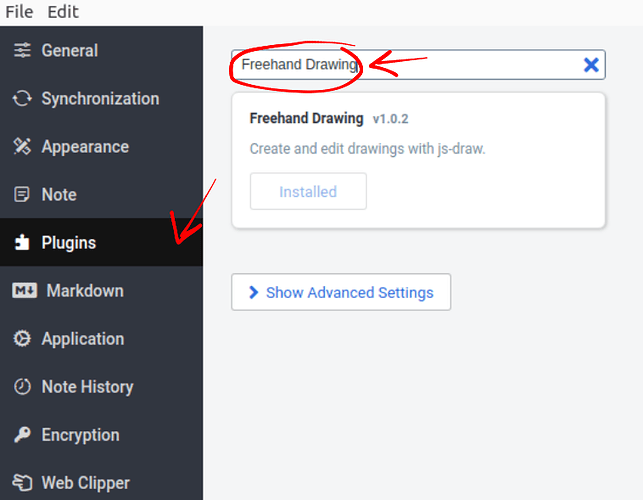
Search for "freehand drawing" under the plugins tab in Joplin's settings:
After installation, an "insert drawing" button should appear in the toolbar:

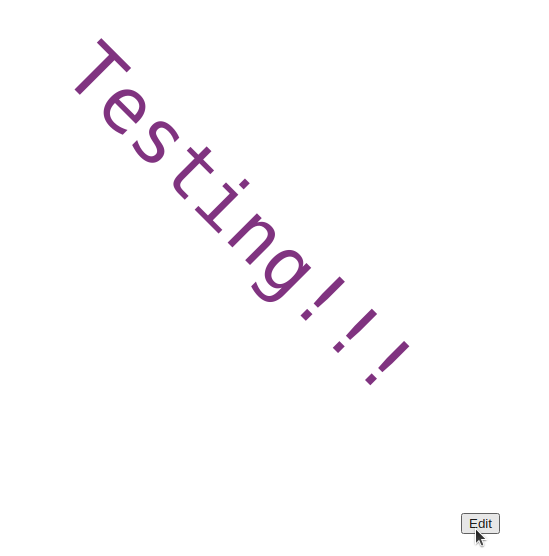
Existing drawings can be edited by hovering over the drawing in the markdown preview pane, then clicking "edit".
# FAQ
## How do I edit drawings from the rich text editor?
**Editing an existing drawing**: Double-click on the drawing.
**Adding a new drawing**: Click either the  toolbar button or "Insert Drawing" from the `Edit` menu.
## I only use the markdown editor (no viewer). How do I edit drawings?
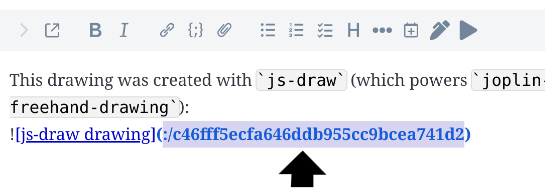
First, select the full resource URL for an image created with this plugin
Next, click the "Insert Image" button in the toolbar.
## How do I assign a keyboard shortcut to the "Insert Image" button?
1. Open Joplin's settings
2. Click on "Keyboard Shortcuts"
3. Search for "Insert Drawing"
4. Click "_Disabled_"
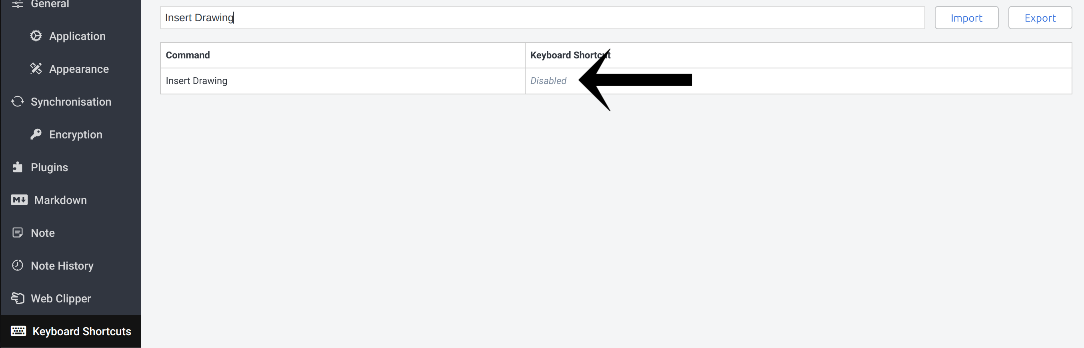
5. Entering a new key combination (e.g. Ctrl-Shift-D).
## How do I disable drawing with touch?
Pen/mouse-only drawing can be enabled under the "Pan" tool's menu by **enabling "Touchscreen panning"**:

## How do I open a drawing in a new window?
This feature is still in beta and is currently difficult to access. [Issue reports](https://github.com/personalizedrefrigerator/joplin-plugin-freehand-drawing/issues/new/choose) are welcome!
1. Open the markdown editor.
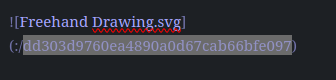
2. Select the drawing's ID:
3. Open the Command Pallete
- On Windows and Linux, the keyboard shortcut for this is ctrl-shift-p.
- On MacOS, the keyboard shortcut is cmd-shift-p.
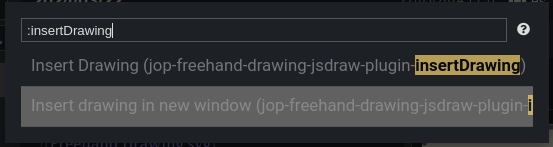
4. Type "insertDrawing" and select the "insert drawing in a new window" option.
## Joplin closed while editing a drawing. How do I recover the unsaved changes?
`joplin-plugin-freehand-drawing` autosaves every two minutes. The last autosave can be recovered by
1. Switching to the markdown editor
2. pressing Ctrl-Shift-P (Cmd-Shift-P),
3. typing `:restore autosave`, then
4. clicking "Restore from autosaved drawing"
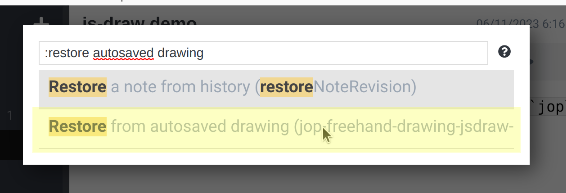
This should add a copy of the autosaved drawing to the current note.
## How do I customize the image editor's keyboard shortcuts?
The procedure to do this is currently very complicated, as there is no GUI for this. (Making this simpler is planned!).
## Installing
Search for "freehand drawing" under the plugins tab in Joplin's settings:

After installation, an "insert drawing" button should appear in the toolbar:

Existing drawings can be edited by hovering over the drawing in the markdown preview pane, then clicking "edit".

# FAQ
## How do I edit drawings from the rich text editor?
**Editing an existing drawing**: Double-click on the drawing.
**Adding a new drawing**: Click either the  toolbar button or "Insert Drawing" from the `Edit` menu.
## I only use the markdown editor (no viewer). How do I edit drawings?
First, select the full resource URL for an image created with this plugin

Next, click the "Insert Image" button in the toolbar.
## How do I assign a keyboard shortcut to the "Insert Image" button?
1. Open Joplin's settings
2. Click on "Keyboard Shortcuts"
3. Search for "Insert Drawing"
4. Click "_Disabled_"

5. Entering a new key combination (e.g. Ctrl-Shift-D).
## How do I disable drawing with touch?
Pen/mouse-only drawing can be enabled under the "Pan" tool's menu by **enabling "Touchscreen panning"**:

## How do I open a drawing in a new window?
This feature is still in beta and is currently difficult to access. [Issue reports](https://github.com/personalizedrefrigerator/joplin-plugin-freehand-drawing/issues/new/choose) are welcome!
1. Open the markdown editor.
2. Select the drawing's ID:

3. Open the Command Pallete
- On Windows and Linux, the keyboard shortcut for this is ctrl-shift-p.
- On MacOS, the keyboard shortcut is cmd-shift-p.
4. Type "insertDrawing" and select the "insert drawing in a new window" option.

## Joplin closed while editing a drawing. How do I recover the unsaved changes?
`joplin-plugin-freehand-drawing` autosaves every two minutes. The last autosave can be recovered by
1. Switching to the markdown editor
2. pressing Ctrl-Shift-P (Cmd-Shift-P),
3. typing `:restore autosave`, then
4. clicking "Restore from autosaved drawing"

This should add a copy of the autosaved drawing to the current note.
## How do I customize the image editor's keyboard shortcuts?
The procedure to do this is currently very complicated, as there is no GUI for this. (Making this simpler is planned!).
Customizing keyboard shortcuts
First, open Joplin's profile directory ("Help" > "Open profile directory").
Next, open `settings.json` in a text editor.
Near the end, there should be a line similar to this:
```json
"plugin-io.github.personalizedrefrigerator.js-draw.keyboard-shortcuts": { }
```
Shortcuts can be added between the `{` and the `}`. For example,
```json
"plugin-io.github.personalizedrefrigerator.js-draw.keyboard-shortcuts": {
"jsdraw.toolbar.ExitActionWidget.exit": [
"ctrlOrMeta-w",
"alt-q"
],
"jsdraw.toolbar.SaveActionWidget.save": [
"ctrlOrMeta-s",
"ctrlOrMeta-shift-s"
],
"jsdraw.toolbar.PenTool.select-pen-1": [
"CtrlOrMeta-1",
"alt-1"
],
"jsdraw.toolbar.SelectionTool.resizeImageToSelection": [
"ctrlOrMeta-r",
"m"
]
}
```
The above adds additional shortcuts for exiting, selecting pen style 1, and resizing the visible region to the selection.
Joplin must be restarted for the changes to be applied.
> [!NOTE]
>
> Additional keyboard shortcut IDs can be found [in js-draw's source code](https://github.com/personalizedrefrigerator/js-draw/blob/main/packages/js-draw/src/tools/keybindings.ts).