# k6-cucumber-steps 🥒🧪
.png)
|
[](https://www.npmjs.com/package/k6-cucumber-steps)
[](https://www.npmjs.com/package/k6-cucumber-steps)
[](https://github.com/qaPaschalE/k6-cucumber-steps/blob/main/LICENSE)
[](https://cucumber.io/)
[](https://nodejs.org/)
[](https://github.com/sponsors/qaPaschalE)
[](https://github.com/aPaschalE/k6-cucumber-steps/actions/workflows/k6-load-test.yml)
Run [k6](https://k6.io/) performance/load tests using [Cucumber](https://cucumber.io/) BDD syntax with ease.
---
## ✨ Features
- ✅ Cucumber + Gherkin for writing k6 tests
to generate JSON and HTML reports.
- ✅ Flexible configuration through Cucumber data tables.
- ✅ Support for JSON body parsing and escaping
- ✅ Dynamic request body generation using environment variables, Faker templates, and JSON file includes.
- ✅ `.env` + `K6.env`-style variable resolution (`{{API_KEY}}`)
- ✅ Support for headers, query params, stages
- ✅ Supports multiple authentication types: API key, Bearer token, Basic Auth, and No Auth.
- ✅ Clean-up of temporary k6 files after execution
- ✅ Built-in support for **distributed load testing** with stages
- ✅ TypeScript-first 🧡
- ✅ **Optional report overwriting**: Use the `overwrite` option to control whether reports are overwritten or appended.
- ✅ **Generate detailed reports**: Use the `--reporter` flag
---
## 📦 Install
```bash
npm install k6-cucumber-steps
```
## 🚀 Usage
### CLI
```bash
npx k6-cucumber-steps run [options]
```
#### Options
The `run` command accepts the following options:
- `-f, --feature `: Path to the feature file to execute.
- `-t, --tags `: Cucumber tags to filter scenarios (e.g., `@smoke and not @regression`).
- `-r, --reporter`: Generate HTML and JSON reports in the `reports` directory. This is a boolean flag, so just include `-r, --reporter` to enable it.
- `-o, --overwrite`: Overwrite existing reports instead of appending them.
### Example Usage with Options
```bash
npx k6-cucumber-steps run --feature ./features/my_feature.feature --tags "@load and not @wip" --reporter
```
---
## 🛠️ Getting Started
Here's a step-by-step guide to using `k6-cucumber-steps` in your project:
**Prerequisites:**
1. **Node.js and npm (or yarn):** Ensure you have Node.js and npm (or yarn) installed.
2. **k6:** Install k6 on your system following the instructions at [k6.io/docs/getting-started/installation/](https://www.google.com/search?q=https://k6.io/docs/getting-started/installation/).
3. **@cucumber/cucumber:(optional)** This package is required for using Cucumber.
4. **cucumber-html-reporter:(optional)** This package is needed if you intend to generate detailed HTML reports
**Setup:**
1. **Create a new project:**
```bash
mkdir my-performance-test
cd my-performance-test
npm init -y
# or
yarn init -y
```
2. **Install dependencies:**
```bash
npm install --save-dev @cucumber/cucumber k6 dotenv k6-cucumber-steps cucumber-html-reporter
# or
yarn add --dev @cucumber/cucumber k6 dotenv k6-cucumber-steps cucumber-html-reporter
```
3. **Create `.env` file (optional):** Create a `.env` file in your project root for environment variables as described in the "Environment Variables" section below.
4. **Create `features` directory and feature files:**
```bash
mkdir features
# Create your .feature files inside the features directory (e.g., example.feature)
```
5. **Configure `cucumber.js`:**
Create a `cucumber.js` file at the root of your project with the following content:
```javascript
// cucumber.js as default name but you can optionally give it any name of choice
module.exports = {
require: [
// You can add paths to your local step definitions here if needed
],
reporter:true // To provide HTML and JSON report
format: [
"summary",
"json:reports/load-report.json", // For JSON report
"html:reports/report.html", // For HTML report
],
paths: ["./features/*.feature"],
tags: process.env.TAGS,
worldParameters: {
payloadPath: "apps/qa/performance/payloads"
}
overwrite: false, // Default to not overwrite the report file
};
```
**Running Tests:**
From the root of your project, use the CLI command for default config:
```bash
npx k6-cucumber-steps run
```
You can also specify a configFile:
```bash
npx k6-cucumber-steps run --configFile cucumber.prod.js
```
---
## Setup (Detailed)
1. **Environment Variables**: Create a `.env` file in your project root based on the provided `.env.example`:
```env
BASE_URL=[https://api.example.com](https://api.example.com)
API_BASE_URL=[https://api.example.com](https://api.example.com)
API_KEY=your_api_key
BEARER_TOKEN=your_bearer_token
BASIC_USER=your_basic_user
BASIC_PASS=your_basic_pass
TAGS=@yourTag
```
2. **Feature Files**: Write your feature files using the provided step definitions.
## Gherkin Examples
Here’s how you can write a feature file using the provided step definitions:
### Example 1: Test GET Endpoint with No Authentication
```gherkin
Feature: API Performance Testing
Scenario: Run load tests with dynamic GET requests
Given I set a k6 script for GET testing
When I set to run the k6 script with the following configurations:
| virtual_users | duration | http_req_failed | http_req_duration |
| 50 | 10 | rate<0.05 | p(95)<3000 |
And I set the following endpoints used:
"""
/api/profile
[https://reqres.in/api/users?page=2](https://reqres.in/api/users?page=2)
"""
And I set the authentication type to "none"
Then I see the API should handle the GET request successfully
```
### Example 2: Test POST Endpoint with Bearer Token Authentication
```gherkin
Feature: API Performance Testing
Scenario: Run load tests with dynamic POST requests
Given I set a k6 script for POST testing
When I set to run the k6 script with the following configurations:
| virtual_users | duration | http_req_failed | http_req_duration |
| 20 | 60 | rate<0.01 | p(95)<300 |
When I set the authentication type to "bearer_token"
And I set the following endpoints used:
"""
/api/v1/users
"""
And I set the following POST body is used for "/api/v1/users"
"""
{
"username": "{{username}}",
"email": "{{faker.internet.email}}"
}
"""
Then I see the API should handle the POST request successfully
```
## Step Definitions
### Authentication Steps
```gherkin
When I set the authentication type to "api_key"
When I set the authentication type to "bearer_token"
When I set the authentication type to "basic"
When I set the authentication type to "none"
When I set the authentication type to "custom-alias"
```
### Request Configuration Steps
```gherkin
Given I set a k6 script for {word} testing
Given I login via POST to {string} with payload from {string}
When I set to run the k6 script with the following configurations:
When I set the request headers:
When I set the following endpoints used:
When I set the following {word} body is used for {string}
When I store the value at {string} as alias {string}
```
### Assertion Steps
```gherkin
Then I see the API should handle the {word} request successfully
```
## Test Results
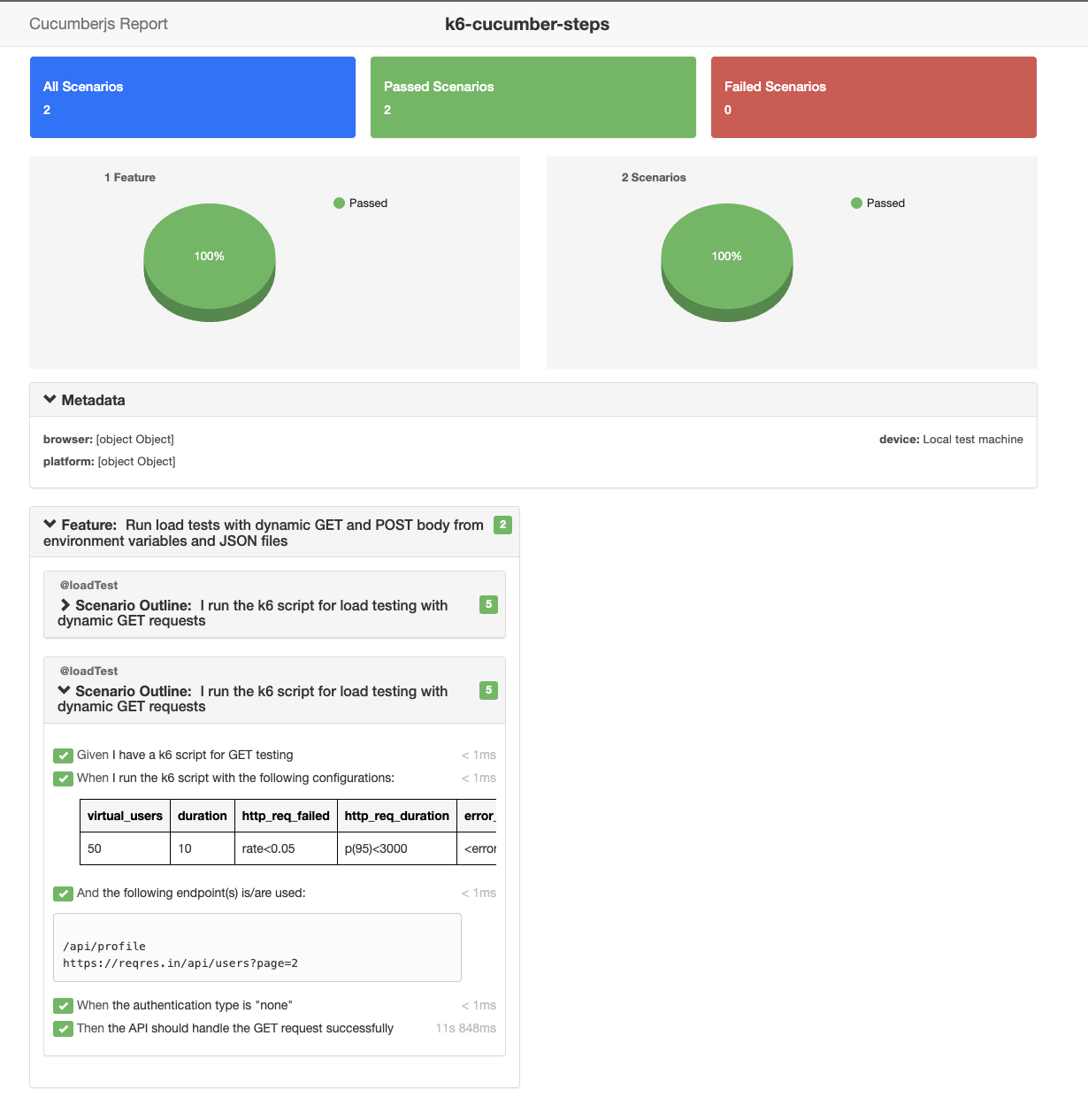
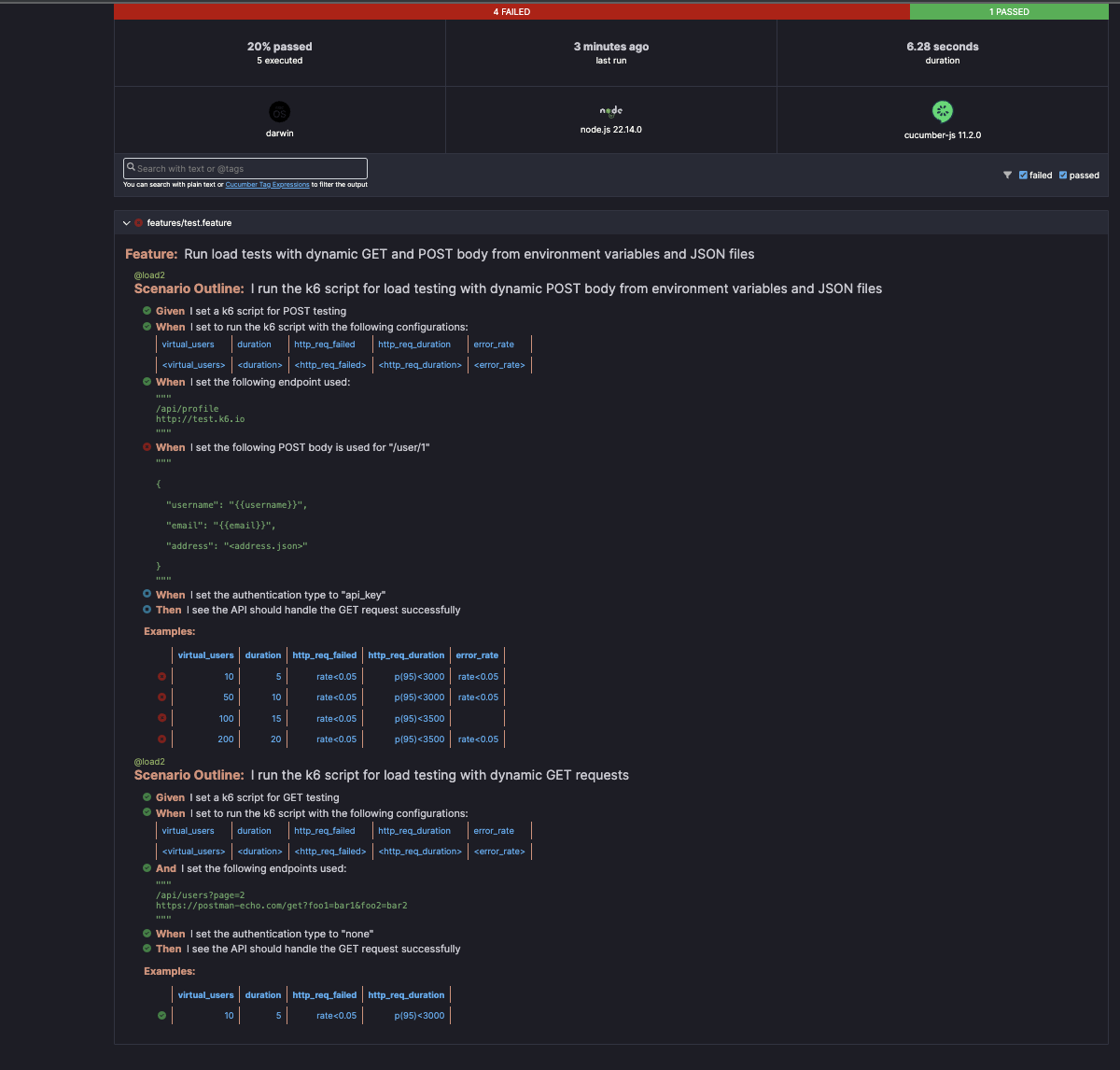
Below is an example of the Cucumber report generated after running the tests:
 ### Explanation of the Report
- **All Scenarios**: Total number of scenarios executed.
- **Passed Scenarios**: Number of scenarios that passed.
- **Failed Scenarios**: Number of scenarios that failed.
- **Metadata**: Information about the test environment (e.g., browser, platform).
- **Feature Overview**: Summary of the feature being tested.
- **Scenario Details**: Detailed steps and their execution status.
## 🧼 Temporary Files Clean-up
All generated k6 scripts and artifacts are cleaned automatically after test execution.
---
## 💖 Support
If you find this package useful, consider [sponsoring me on GitHub](https://github.com/sponsors/qaPaschalE). Your support helps me maintain and improve this project!
## 📄 License
MIT License - [@qaPaschalE](https://github.com/qaPaschalE)
```
## License
This project is licensed under the MIT License - see the [LICENSE](LICENSE) file for details.
```
### Explanation of the Report
- **All Scenarios**: Total number of scenarios executed.
- **Passed Scenarios**: Number of scenarios that passed.
- **Failed Scenarios**: Number of scenarios that failed.
- **Metadata**: Information about the test environment (e.g., browser, platform).
- **Feature Overview**: Summary of the feature being tested.
- **Scenario Details**: Detailed steps and their execution status.
## 🧼 Temporary Files Clean-up
All generated k6 scripts and artifacts are cleaned automatically after test execution.
---
## 💖 Support
If you find this package useful, consider [sponsoring me on GitHub](https://github.com/sponsors/qaPaschalE). Your support helps me maintain and improve this project!
## 📄 License
MIT License - [@qaPaschalE](https://github.com/qaPaschalE)
```
## License
This project is licensed under the MIT License - see the [LICENSE](LICENSE) file for details.
```