[](https://www.npmjs.com/package/nativescript-taskpie)
[](https://www.npmjs.com/package/nativescript-taskpie)
# NativeScript Task Pie
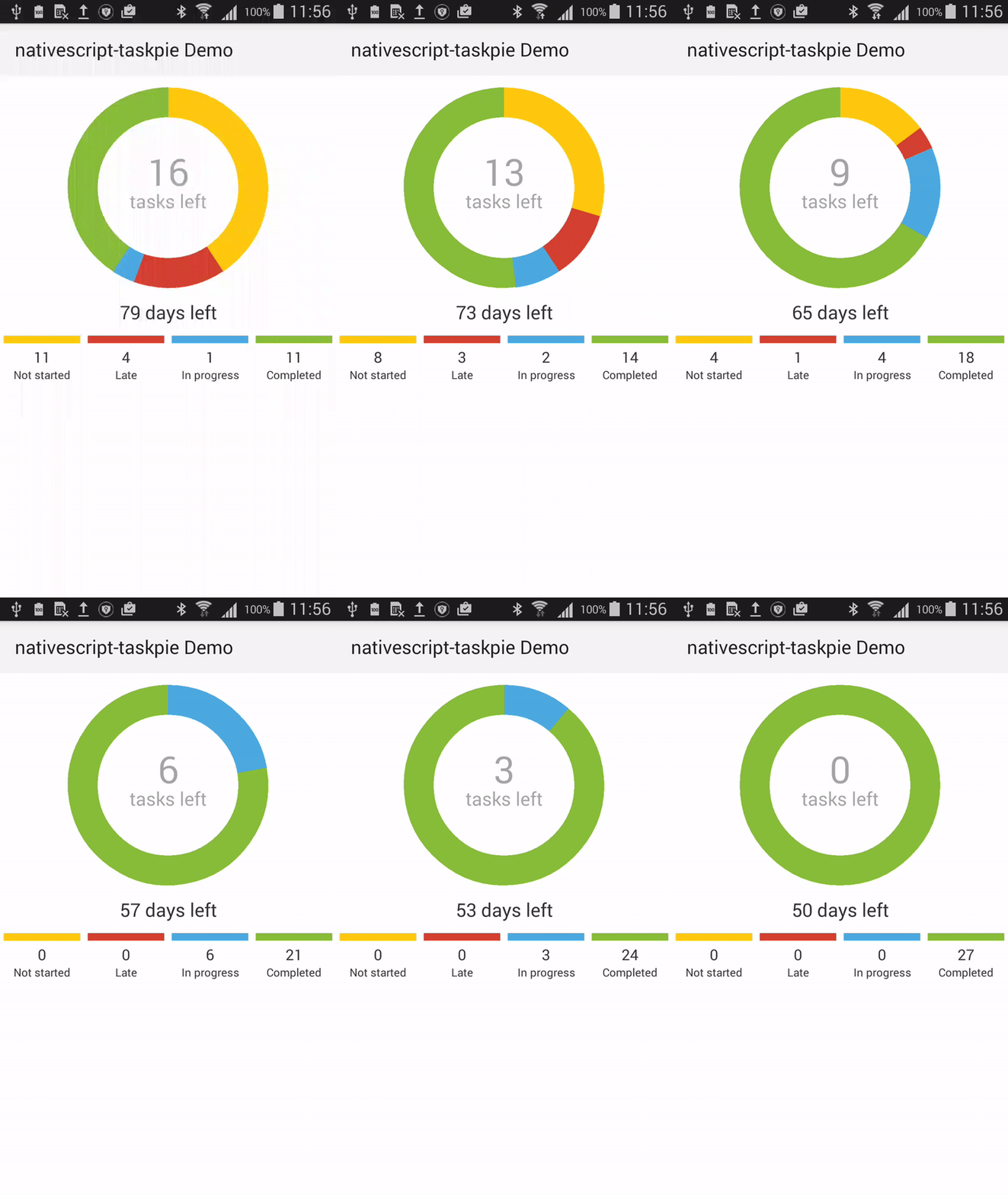
A [NativeScript](https://nativescript.org/) module for drawing Microsoft Planner like progress charts.
[](https://www.paypal.com/cgi-bin/webscr?cmd=_s-xclick&hosted_button_id=HU3K4L5ABS6J6)
## License
[MIT license](https://raw.githubusercontent.com/mkloubert/nativescript-taskpie/master/LICENSE)
## Platforms
* Android
* iOS (currently in progress!)
## Installation
Run
```bash
tns plugin add nativescript-taskpie
```
inside your app project to install the module.
## Demo
The demo app can be found [here](https://github.com/mkloubert/nativescript-taskpie/tree/master/demo).
## Documentation
Have a look at the [index.ts](https://github.com/mkloubert/nativescript-taskpie/blob/master/plugin/index.ts) file to get an overview of all types, methods and properties.
Otherwise...
## Usage
```xml
```
Add this CSS to your `app.css`, e.g.
It is possible that you have to customize some properties:
```css
.nsTaskPie-pieArea .nsTaskPie-textArea {
margin-top: -16;
}
.nsTaskPie-pieArea .nsTaskPie-textArea .nsTaskPie-text {
text-align: center;
font-size: 40;
color: #a6a6a6;
padding: 0;
}
.nsTaskPie-pieArea .nsTaskPie-textArea .nsTaskPie-subText {
text-align: center;
font-size: 20;
color: #a6a6a6;
margin-top: -8;
padding: 0;
}
.nsTaskPie-description {
font-size: 20;
margin-bottom: 12;
}
.nsTaskPie-categories .nsTaskPie-category {
margin-left: 4;
margin-right: 4;
}
.nsTaskPie-categories .nsTaskPie-border {
height: 8;
}
.nsTaskPie-categories .nsTaskPie-count,
.nsTaskPie-categories .nsTaskPie-name,
.nsTaskPie-description {
text-align: center;
color: #333333;
}
.nsTaskPie-categories .nsTaskPie-count {
font-size: 16;
margin-top: 4;
}
.nsTaskPie-categories .nsTaskPie-name {
font-size: 12;
}
```
The following XML shows the structure of a `TaskPie` view:
```xml
```
## Dependency properties
| Name | Description | CSS class |
| ---- | --------- | --------- |
| categories | The custom category list. | `nsTaskPie-categories` |
| categoryStyle | CSS style for category area. | `nsTaskPie-categories` |
| countChanged | Event that is raised when a count value of a task category changed. | --- |
| counts | The list of the category's count values. | --- |
| description | The description (text under the pie). | `nsTaskPie-description` |
| descriptionStyle | CSS style of the description. | `nsTaskPie-description` |
| pieGridStyle | CSS style of the grid tat contains the pie and its texts. | `nsTaskPie-pieArea` |
| pieSize | The size the pie is drawed with. The higher the better is the quality, but needs more memory. Default: `300` | `nsTaskPie-pie` |
| pieStyle | CSS style of the pie image. | `nsTaskPie-pie` |
| pieSubText | The sub text of the pie. | `nsTaskPie-subText` |
| pieSubTextStyle | CSS style of the pie's sub text. | `nsTaskPie-subText` |
| pieText | The pie text. | `nsTaskPie-text` |
| pieTextAreaStyle | CSS style of the area that contains the pie texts. | `nsTaskPie-textArea` |
| pieTextStyle | CSS style of the pie's text. | `nsTaskPie-text` |
## Categories
By default you have the following categories:
| Name | Color | Type (TaskCategoryType) |
| ---- | --------- | --------- |
| `Not started` | `ffc90e` | `NotStarted` |
| `Late` | `d54130` | `NotStarted` |
| `In progress` | `4cabe1` | `InProgress` |
| `Completed` | `88be39` | `Completed` |
### Add own
You can use the `addCategory()` method to add categories.
```typescript
import TaskPieModule = require('nativescript-taskpie');
export function onNavigatingTo(args) {
var page = args.object;
var pie = page.getViewById('my-taskpie'));
// this switches the view in 'edit mode'
// what means that is not refresh until the action
// has been finished
pie.edit(() => {
pie.clearCategories();
pie.addCategory('Pending', 'ffc90e', TaskPieModule.TaskCategoryType.NotStarted)
.addCategory('Late!', 'd54130', TaskPieModule.TaskCategoryType.NotStarted)
.addCategory('On work', '4cabe1', TaskPieModule.TaskCategoryType.InProgress)
.addCategory('Complete', '88be39', TaskPieModule.TaskCategoryType.Completed);
});
}
```
You also can use the `categories` (dependency) property to set an own list of items.
```typescript
pie.categories = [
{
name: 'Pending',
color: 'ffc90e',
type: TaskPieModule.TaskCategoryType.NotStarted,
},
{
name: 'Late!',
color: 'd54130',
type: TaskPieModule.TaskCategoryType.NotStarted,
},
{
name: 'On work',
color: '4cabe1',
type: TaskPieModule.TaskCategoryType.InProgress,
},
{
name: 'Complete',
color: '88be39',
type: TaskPieModule.TaskCategoryType.Completed,
},
];
```
Each item has the following structure:
```typescript
interface ITaskCategory {
/**
* The color.
*/
color?: string | number | Color.Color;
/**
* Number of tasks.
*/
count?: number;
/**
* The name.
*/
name: string;
/**
* The type.
*/
type?: TaskCategoryType;
}
```
The recommed way is to use the `addCategory()` method. These method creates `ITaskCategory` objects that raise change events for its properties, so this has better support for data binding.
## Data binding
The following example is similar to the [demp app](https://github.com/mkloubert/nativescript-taskpie/tree/master/demo).
### XML
```xml
```
### ViewModel
```typescript
import Observable = require("data/observable");
import TaskPieModule = require('nativescript-taskpie');
export function onNavigatingTo(args) {
var page = args.object;
var pie = page.getViewById('my-taskpie');
var viewModel: any = new Observable.Observable();
viewModel.set('daysLeft', 79); // value for description
viewModel.set('pie', pie);
viewModel.set('pieSize', 720); // draw pie with 720x720
viewModel.set('taskCounts', [11, 4, 1, 11]); // initial count values
viewModel.taskCountChanged = (category, newValue, oldValue, pie) => {
console.log("Value of category '" + category.name + "' changed from '" + oldValue + "' to '" + newValue + "'.");
};
page.bindingContext = viewModel;
}
```