---
layout: home
title: nb · command line and local web plain text note-taking, bookmarking, archiving, and knowledge base application
permalink: /
---
`nb` is a command line and local web
note‑taking, bookmarking, archiving,
and knowledge base application
with:
- plain text data storage,
- [encryption](#password-protected-encrypted-notes-and-bookmarks),
- [filtering](#listing--filtering), [pinning](#-pinning), [#tagging](#-tagging), and [search](#-search),
- [Git](https://git-scm.com/)-backed [versioning](#-revision-history) and [syncing](#-git-sync),
- [Pandoc](https://pandoc.org/)-backed [conversion](#%EF%B8%8F-import--export),
- [[wiki-style linking]],
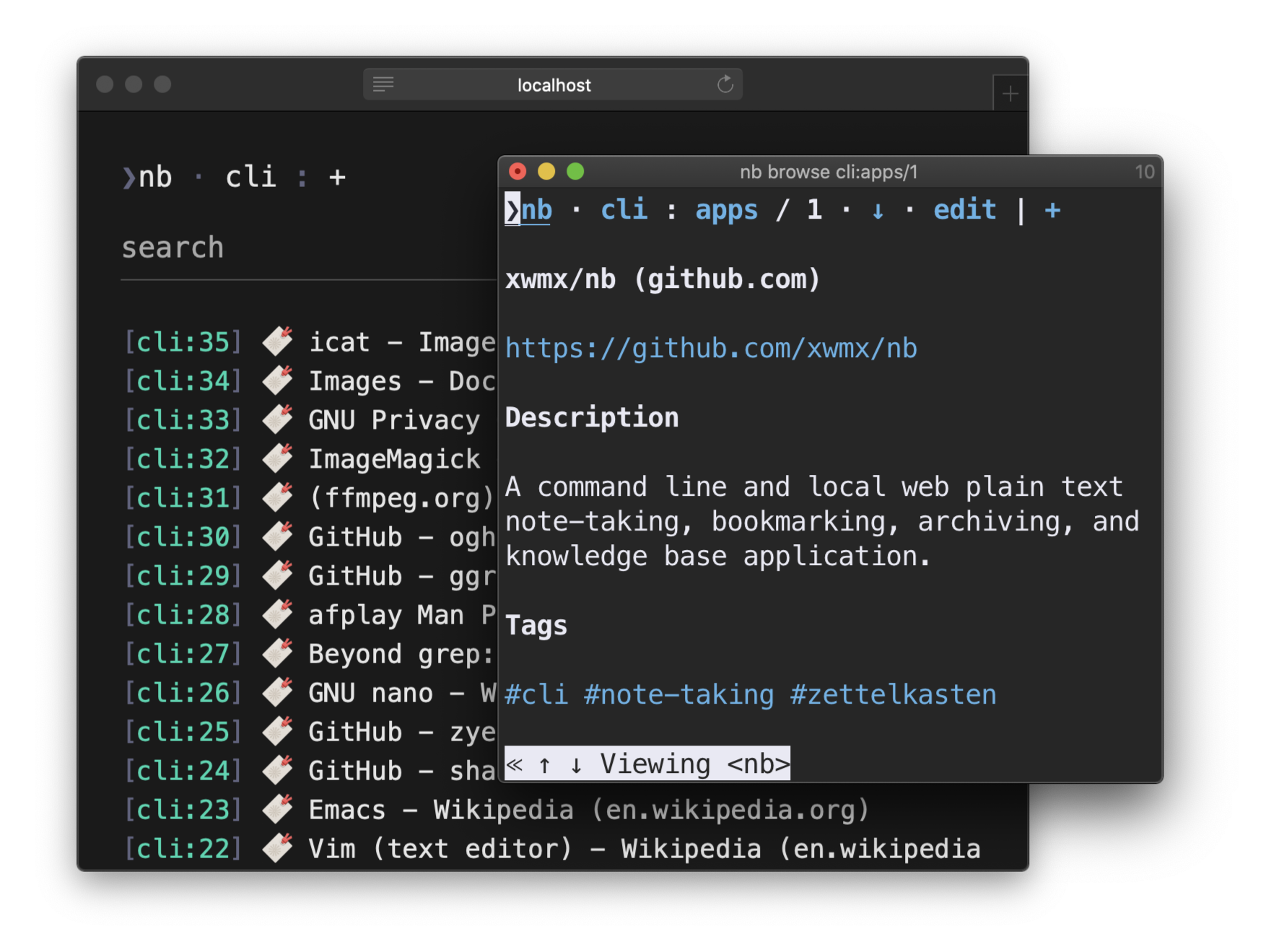
- terminal and GUI web [browsing](#-browsing),
- inline [images](#-images),
- [todos](#-todos) with [tasks](#%EF%B8%8F-tasks),
- global and local [notebooks](#-notebooks),
- organization with [folders](#-folders),
- customizable [color themes](#-color-themes),
- extensibility through [plugins](#-plugins),
and more, in a single portable script.
`nb` creates notes in text-based formats like
[Markdown](https://en.wikipedia.org/wiki/Markdown),
[Org](https://orgmode.org/),
[LaTeX](https://www.latex-project.org/),
and [AsciiDoc](https://asciidoc.org/),
can work with files in any format,
can import and export notes to many document formats,
and can create private, password-protected encrypted notes and bookmarks.
With `nb`, you can write notes using
Vim,
Emacs,
VS Code,
Sublime Text,
and any other text editor you like,
as well as terminal and GUI web browsers.
`nb` works in any standard Linux / Unix environment,
including macOS and Windows via WSL, MSYS, and Cygwin.
[Optional dependencies](#optional) can be installed to enhance functionality,
but `nb` works great without them.
`nb` is also a powerful [bookmarking](#-bookmarks) system featuring:
- locally-served, text-centric, distraction-free bookmark [browsing](#-browsing)
in terminal and GUI web browsers,
- local full-text search of cached page content with regular expression support,
- convenient filtering and listing,
- [Internet Archive Wayback Machine](https://archive.org/web/) snapshot lookup
for broken links,
- tagging, pinning, linking, and full integration with other `nb` features.
Page information is
downloaded,
cleaned up,
structured,
and saved
into normal Markdown documents made for humans,
so bookmarks are easy to view and edit just like any other note.
`nb` uses [Git](https://git-scm.com/) in the background to
automatically record changes and sync notebooks with remote repositories.
`nb` can also be configured to
sync notebooks using a general purpose syncing utility like Dropbox
so notes can be edited in other apps on any device.
`nb` is designed to be portable, future-focused, and vendor independent,
providing a full-featured and intuitive experience within
a highly composable multimodal user-centric text interface.
The entire program is contained within
a single [well-tested](#tests) shell script
that can be
installed, copied, or `curl`ed almost anywhere and just work,
using a strategy inspired by
[progressive enhancement](https://en.wikipedia.org/wiki/Progressive_enhancement)
for various experience improvements in more capable environments.
`nb` works great whether you have one notebook with just a few notes
or dozens of notebooks containing thousands of notes, bookmarks, and other items.
`nb` makes it easy to incorporate other tools, writing apps, and workflows.
`nb` can be used a little, a lot, once in a while, or for just a subset of features.
`nb` is flexible.
📝
🔖
🔍
🌍
🔒
✅
🔄
🎨
📚
📌
📂
🌄
nb
### Installation
#### Dependencies
##### Required
- [Bash](https://en.wikipedia.org/wiki/Bash_(Unix_shell))
- `nb` works perfectly with Zsh, fish, and any other shell
set as your primary login shell,
the system just needs to have Bash available on it.
- [Git](https://git-scm.com/)
- A text editor with command line support, such as:
- [Vim](https://en.wikipedia.org/wiki/Vim_\(text_editor\)),
- [Emacs](https://en.wikipedia.org/wiki/Emacs),
- [Visual Studio Code](https://code.visualstudio.com/),
- [Sublime Text](https://www.sublimetext.com/),
- [Helix](https://helix-editor.com/),
- [micro](https://github.com/zyedidia/micro),
- [nano](https://en.wikipedia.org/wiki/GNU_nano),
- [Atom](https://atom.io/),
- [TextMate](https://macromates.com/),
- [MacDown](https://macdown.uranusjr.com/),
- [some of these](https://github.com/topics/text-editor),
- [and many of these.](https://en.wikipedia.org/wiki/List_of_text_editors)
##### Optional
`nb` leverages standard command line tools
and works in standard Linux / Unix environments.
`nb` also checks the environment for some additional optional tools and
uses them to enhance the experience whenever they are available.
Recommended:
- [`bat`](https://github.com/sharkdp/bat)
- [`ncat`](https://nmap.org/ncat/) or [`socat`](https://www.kali.org/tools/socat/)
- [`pandoc`](https://pandoc.org/)
- [`rg`](https://github.com/BurntSushi/ripgrep)
- [`tig`](https://github.com/jonas/tig)
- [`w3m`](https://en.wikipedia.org/wiki/W3m)
Also supported for various enhancements:
[Ack](https://beyondgrep.com/),
[`afplay`](https://ss64.com/osx/afplay.html),
[`asciidoctor`](https://asciidoctor.org/),
[The Silver Searcher (`ag`)](https://github.com/ggreer/the_silver_searcher),
[`catimg`](https://github.com/posva/catimg),
[Chafa](https://github.com/hpjansson/chafa),
[Chromium](https://www.chromium.org) / [Chrome](https://www.google.com/chrome/),
[`eza`](https://github.com/eza-community/eza),
[`ffplay`](https://ffmpeg.org/ffplay.html),
[ImageMagick](https://imagemagick.org/),
[`glow`](https://github.com/charmbracelet/glow),
[GnuPG](https://en.wikipedia.org/wiki/GNU_Privacy_Guard),
[`highlight`](http://www.andre-simon.de/doku/highlight/en/highlight.php),
[`imgcat`](https://www.iterm2.com/documentation-images.html),
[`joshuto`](https://github.com/kamiyaa/joshuto),
[kitty's `icat` kitten](https://sw.kovidgoyal.net/kitty/kittens/icat.html),
[`lsd`](https://github.com/lsd-rs/lsd),
[Links](https://en.wikipedia.org/wiki/Links_(web_browser)),
[Lynx](https://en.wikipedia.org/wiki/Lynx_(web_browser)),
[`mdcat`](https://github.com/swsnr/mdcat),
[`mdless`](https://github.com/ttscoff/mdless),
[`mdv`](https://github.com/axiros/terminal_markdown_viewer),
[Midnight Commander (`mc`)](https://en.wikipedia.org/wiki/Midnight_Commander),
[`mpg123`](https://en.wikipedia.org/wiki/Mpg123),
[MPlayer](https://en.wikipedia.org/wiki/MPlayer),
[`ncat`](https://nmap.org/ncat/),
[`netcat`](https://netcat.sourceforge.net/),
[note-link-janitor](https://github.com/andymatuschak/note-link-janitor)
(via [plugin](https://github.com/xwmx/nb/blob/master/plugins/backlink.nb-plugin)),
[`pdftotext`](https://en.wikipedia.org/wiki/Pdftotext),
[Pygments](https://pygments.org/),
[Ranger](https://ranger.github.io/),
[readability-cli](https://gitlab.com/gardenappl/readability-cli),
[`rga` / ripgrep-all](https://github.com/phiresky/ripgrep-all),
[`sc-im`](https://github.com/andmarti1424/sc-im),
[`socat`](https://www.kali.org/tools/socat/),
[`termvisage`](https://github.com/AnonymouX47/termvisage),
[`termpdf.py`](https://github.com/dsanson/termpdf.py),
[Tidy-Viewer (`tv`)](https://github.com/alexhallam/tv),
[`timg`](https://github.com/hzeller/timg),
[vifm](https://vifm.info/),
[`viu`](https://github.com/atanunq/viu),
[VisiData](https://www.visidata.org/)
#### macOS / Homebrew
```bash
brew install xwmx/taps/nb
```
Installing `nb` with Homebrew also installs
the recommended dependencies above
and completion scripts for Bash, Zsh, and Fish.
Install the latest development version from the repository with:
```bash
brew install xwmx/taps/nb --head
```
`nb` is also available in
[homebrew-core](https://github.com/Homebrew/homebrew-core).
Installing it together with the `bash` formula is recommended:
```bash
brew install nb bash
```
#### Ubuntu, Windows, and others
##### npm
```bash
npm install -g nb.sh
```
After `npm` installation completes, run
`sudo "$(which nb)" completions install`
to install Bash and Zsh completion scripts (recommended).
On Ubuntu and WSL, you can
run [`sudo "$(which nb)" env install`](#env)
to install the optional dependencies.
When `nb` is installed on Windows,
`socat` ([MSYS](https://packages.msys2.org/package/socat),
[Cygwin](https://cygwin.com/packages/summary/socat.html)) is recommended.
*`nb` is also available under its original package name,
[notes.sh](https://www.npmjs.com/package/notes.sh),
which comes with an extra `notes` executable wrapping `nb`.*
##### Download and Install
To install as an administrator,
copy and paste one of the following multi-line commands:
```bash
# install using wget
sudo wget https://raw.github.com/xwmx/nb/master/nb -O /usr/local/bin/nb &&
sudo chmod +x /usr/local/bin/nb &&
sudo nb completions install
# install using curl
sudo curl -L https://raw.github.com/xwmx/nb/master/nb -o /usr/local/bin/nb &&
sudo chmod +x /usr/local/bin/nb &&
sudo nb completions install
```
On Ubuntu and WSL, you can
run [`sudo nb env install`](#env) to install the optional dependencies.
###### User-only Installation
To install with just user permissions, simply
add the `nb` script to your `$PATH`.
If you already have a `~/bin` directory, for example, you can
use one of the following commands:
```bash
# download with wget
wget https://raw.github.com/xwmx/nb/master/nb -O ~/bin/nb && chmod +x ~/bin/nb
# download with curl
curl -L https://raw.github.com/xwmx/nb/master/nb -o ~/bin/nb && chmod +x ~/bin/nb
```
Installing with just user permissions doesn't include
the optional dependencies or completions,
but `nb` core functionality works without them.
If you have `sudo` access and want
to install the completion scripts and dependencies, run the following command:
```bash
sudo nb env install
```
##### Make
To install with [Make](https://en.wikipedia.org/wiki/Make_(software)),
clone this repository, navigate to the clone's root directory, and run:
```bash
sudo make install
```
This will also install the completion scripts on all systems and
the recommended dependencies on Ubuntu and WSL.
##### bpkg
To install with [bpkg](https://github.com/bpkg/bpkg):
```bash
bpkg install xwmx/nb
```
##### basher
To install with [basher](https://www.basher.it/):
```bash
basher install xwmx/nb
```
#### Tab Completion
Bash, Fish, and Zsh tab completion should be enabled
when `nb` is installed using the methods above,
assuming you have the appropriate system permissions or installed with `sudo`.
If completion isn't working after installing `nb`, see the
[completion installation instructions](https://github.com/xwmx/nb/tree/master/etc).
#### Updating
When `nb` is installed using a package manager like npm or Homebrew,
use the package manager's upgrade functionality to update `nb` to
the latest version.
When installed via other methods,
`nb` can be updated to the latest version using
the [`nb update`](#update) subcommand.
## Overview
To get started, simply run:
```bash
nb
```
`nb` sets up your initial `home` notebook the first time it runs.
By default, notebooks and notes are global (at `~/.nb`),
so they are always available to `nb`
regardless of the current working directory.
`nb` also supports [local notebooks](#global-and-local-notebooks).
### 📝 Notes
#### Adding
↑ ·
nb add,
nb browse add
Use [`nb add`](#add) (shortcuts: [`nb a`](#add), [`nb +`](#add))
to create new notes:
```bash
# create a new note in your text editor
nb add
# create a new note with the filename "example.md"
nb add example.md
# create a new note containing "This is a note."
nb add "This is a note."
# create a new note with piped content
echo "Note content." | nb add
# create a new password-protected, encrypted note titled "Secret Document"
nb add --title "Secret Document" --encrypt
# create a new note in the notebook named "example"
nb example:add "This is a note."
# create a new note in the folder named "sample"
nb add sample/
```
[`nb add`](#add) with no arguments or input will open the new, blank note
in your environment's preferred text editor.
You can change your editor using
the `$EDITOR` environment variable
or [`nb set editor`](#editor).
`nb` files are [Markdown](https://daringfireball.net/projects/markdown/)
files by default. The default file type can be changed to
whatever you like
using [`nb set default_extension`](#default_extension).
[`nb add`](#add) has intelligent argument parsing
and behaves differently depending on the types of arguments it receives.
When a filename with extension is specified,
a new note with that filename is opened in the editor:
```bash
nb add example.md
```
When a string is specified, a new note is immediately created
with that string as the content and without opening the editor:
```bash
❯ nb add "This is a note."
Added: [1] 20200101000000.md
```
[`nb add `](#add) is useful for quickly jotting down notes directly
via the command line. Quoting content is optional, but recommended.
When no filename is specified, [`nb add`](#add) uses the current datetime as
the filename.
[`nb add`](#add) can also receive piped content, which behaves the same as
[`nb add `](#add):
```bash
# create a new note containing "Note content."
❯ echo "Note content." | nb add
Added: [6] 20200101000100.md
# create a new note containing the clipboard contents on macOS
❯ pbpaste | nb add
Added: [7] 20200101000200.md
# create a new note containing the clipboard contents using xclip
❯ xclip -o | nb add
Added: [8] 20200101000300.md
```
Content can be passed with the [`--content `](#add) option,
which also creates a new note without opening the editor:
```bash
nb add --content "Note content."
```
When content is piped,
specified with [`--content `](#add),
or passed as a string argument,
use the [`--edit`](#add) flag to open the file in the editor
before the change is committed.
The title, filename, and content can also be specified with long and
short options:
```bash
❯ nb add --filename "example.md" -t "Example Title" -c "Example content."
Added: [9] example.md "Example Title"
```
The [`-t `](#add) / [`--title <title>`](#add) option also
sets the filename to the title,
lowercased with spaces and non-filename characters replaced with underscores:
```bash
❯ nb add --title "Example Title" "Example content."
Added: [10] example_title.md "Example Title"
```
Tags can be added with the [`--tags <tag1>,<tag2>...`](#add) option, which
takes a comma separated list of tags,
converts them to [#hashtags](#-tagging),
and inserts them between the title and content:
```bash
❯ nb add "Example content." --title "Tagged Example" --tags tag1,tag2
Added: [11] tagged_example.md "Tagged Example"
❯ nb show 11 --print
# Tagged Example
#tag1 #tag2
Example content.
```
[Search](#-search) for tagged items with
[`nb search`](#search) / [`nb q`](#search):
```bash
# search for items tagged with "#tag1"
nb search --tag tag1
# search for items tagged with "#tag1" AND "#tag2", short options
nb q -t tag1 -t tag2
# search for items tagged with "#tag1" OR "#tag2", arguments
nb q \#tag1 --or \#tag2
```
Files can be created with any file type by specifying the extension either
in the filename (`example.md`),
the extension by itself (`.md`),
or via the [`--type <type>`](#add) option (`--type md`):
```bash
# open a new Org file in the editor
nb add example.org
# open a new reStructuredText file in the editor
nb add --type rst
# open a new JavaScript file in the editor
nb add .js
```
Combining a type argument with piped clipboard content provides
a very convenient way to save code snippets using a clipboard utility such as
`pbpaste`,
`xclip`,
or [`pb`](https://github.com/xwmx/pb):
```bash
# save the clipboard contents as a JavaScript file in the current notebook
pb | nb add .js
# save the clipboard contents as a Rust file in the "rust" notebook
# using the shortcut alias `nb a`
pb | nb a rust: .rs
# save the clipboard contents as a Haskell file named "example.hs" in the
# "snippets" notebook using the shortcut alias `nb +`
pb | nb + snippets: example.hs
```
Use [`nb show`](#show) and [`nb browse`](#browse) to view code snippets
with automatic syntax highlighting and
use [`nb edit`](#edit) to open in your editor.
The [`clip` plugin](#clip) can also be used to
create notes from clipboard content.
Piping,
[`--title <title>`](#add),
[`--tags <tag-list>`](#add),
[`--content <content>`](#add),
and content passed in an argument
can be combined as needed
to create notes with content from multiple input methods and sources
using a single command:
```bash
❯ pb | nb add "Argument content." \
--title "Sample Title" \
--tags tag1,tag2 \
--content "Option content."
Added: [12] sample_title.md "Sample Title"
❯ nb show 12 --print
# Sample Title
#tag1 #tag2
Argument content.
Option content.
Clipboard content.
```
For a full list of options available for [`nb add`](#add), run
[`nb help add`](#add).
##### Password-Protected Encrypted Notes and Bookmarks
Password-protected notes and [bookmarks](#-bookmarks) are
created with the [`-e`](#add) / [`--encrypt`](#add) flag and
encrypted with AES-256 using OpenSSL by default.
GPG is also supported and can be configured with
[`nb set encryption_tool`](#encryption_tool).
Each protected note and bookmark is
encrypted individually with its own password.
When an encrypted item is viewed, edited, or opened,
`nb` will simply prompt for the item's password before proceeding.
After an item is edited,
`nb` automatically re-encrypts it and saves the new version.
Encrypted notes can be decrypted
using the OpenSSL and GPG command line tools directly, so
you aren't dependent on `nb` to decrypt your files.
##### Shortcut Aliases: `nb a`, `nb +`
`nb` includes shortcuts for many commands, including
[`nb a`](#add) and [`nb +`](#add) for [`nb add`](#add):
```bash
# create a new note in your text editor
nb a
# create a new note with the filename "example.md"
nb a example.md
# create a new note containing "This is a note."
nb + "This is a note."
# create a new note containing the clipboard contents with xclip
xclip -o | nb +
# create a new note in the notebook named "example"
nb example:a
```
##### Other Aliases: `nb create`, `nb new`
[`nb add`](#add) can also be invoked with
[`nb create`](#add) and [`nb new`](#add) for convenience:
```bash
# create a new note containing "Example note content."
nb new "Example note content."
# create a new note with the title "Example Note Title"
nb create --title "Example Note Title"
```
##### Adding with `nb browse`
Items can also be added within terminal and GUI web browsers using
[`nb browse add`](#browse) / [`nb b a`](#browse):
```bash
❯ nb browse add
❯nb · home : +
[ ]
[ ]
[ ]
[ ]
[ ]
[ ]
[ ]
[ ]
[ ]
[ ]
[add]
```
Pass a filename, relative path, and / or notebook name to
create a new note at that location:
```bash
# open the add form in the browser to create the file "file.md" in the folder "example"
nb browse add "example/file.md"
```
[`nb browse add`](#browse) includes options for quickly
pre-populating new notes with content:
```bash
❯ nb browse add --title "Example Title" --content "Example content." --tags tag1,tag2
❯nb · home : +
[# Example Title ]
[ ]
[#tag1 #tag2 ]
[ ]
[Example content. ]
[ ]
[ ]
[ ]
[ ]
[ ]
[add]
```
[`nb browse add`](#browse) can also be opened with
[`nb add --browse`](#add) / [`nb a -b`](#add).
For more information, see [Browsing](#-browsing).
#### Listing & Filtering
<p>
<sup>
<a href="#overview">↑</a> ·
<a href="#ls"><code>nb ls</code></a>,
<a href="#list"><code>nb list</code></a>,
<a href="#browse"><code>nb browse</code></a>
</sup>
</p>
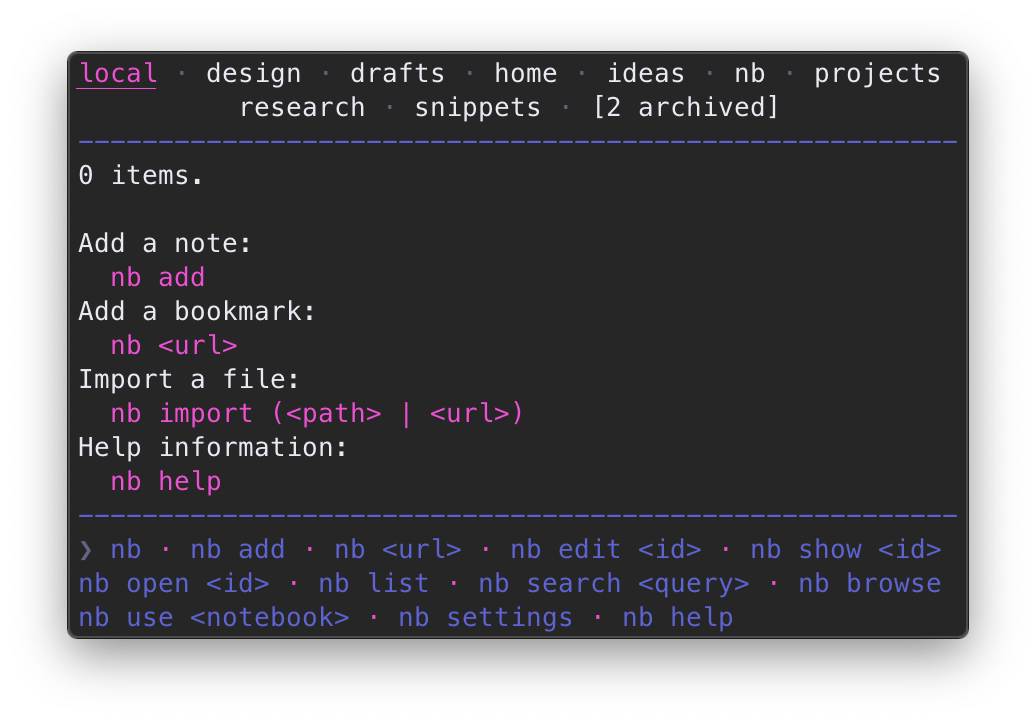
To list notes and notebooks, run [`nb ls`](#ls) (shortcut alias: `nb`):
<div align="center">
<img src="https://xwmx.github.io/misc/nb/images/nb-theme-utility-home.png"
alt="nb ls"
width="450">
</div>
Notebooks are listed above the line,
with the current notebook highlighted and/or underlined,
depending on terminal capabilities.
[`nb ls`](#ls) also includes a footer with example commands for easy reference.
The notebook header and command footer can be configured or hidden with
[`nb set header`](#header) and
[`nb set footer`](#footer).
```bash
❯ nb ls
home
----
[3] example.md · "Example content."
[2] sample.md · "Sample content."
[1] demo.md · "- Demo list item one."
```
Notes from the current notebook are listed in the order they were last modified.
By default, each note is listed with its
id, filename, and an excerpt from the first line of the note.
When a note has a title, the title is displayed
instead of the filename and first line.
Markdown titles can be defined within a note using
[either Markdown `h1` style](https://daringfireball.net/projects/markdown/syntax#header)
or [YAML front matter](#front-matter):
```markdown
# Example Title
```
```markdown
Sample Title
============
```
```markdown
---
title: Demo Title
---
```
[Org](https://orgmode.org/),
[LaTeX](https://www.latex-project.org/),
and [AsciiDoc](https://asciidoc.org/)
titles are recognized in `.org`,`.latex`, and `.asciidoc` / `.adoc` files:
```text
#+title: Example Org Title
```
```latex
\title{Example LaTeX Title}
```
```asciidoc
= Example AsciiDoc Title
```
Once defined, titles are displayed in place of the filename and first line
in the output of [`nb ls`](#ls):
```bash
❯ nb ls
home
----
[3] Example Title
[2] Sample Title
[1] Demo Title
```
Pass an id, filename, or title to view the listing for that note:
```bash
❯ nb ls Sample\ Title
[2] Sample Title
❯ nb ls 3
[3] Example Title
```
If there is no exact match, `nb` will list items with
titles and filenames that fuzzy match the query:
```bash
❯ nb ls exa
[3] Example Title
❯ nb ls ample
[3] Example Title
[2] Sample Title
```
Multiple words act like an `OR` filter, listing any
titles or filenames that match any of the words:
```bash
❯ nb ls example demo
[3] Example Title
[1] Demo Title
```
When multiple words are quoted, filter titles and filenames for that phrase:
```bash
❯ nb ls "example title"
[3] Example Title
```
For full text search, see [Search](#-search).
To view excerpts of notes, use the [`--excerpt`](#ls) or [`-e`](#ls) option,
which optionally accepts a length:
```bash
❯ nb ls 3 --excerpt
[3] Example Title
-----------------
# Example Title
This is an example excerpt.
❯ nb ls 3 -e 8
[3] Example Title
-----------------
# Example Title
This is an example excerpt.
More example content:
- one
- two
```
Several classes of file types are represented with emoji
[indicators](#indicators) to make them easily identifiable in lists.
For example, bookmarks and encrypted notes are listed with `🔖` and `🔒`:
```bash
❯ nb ls
home
----
[4] Example Note
[3] 🔒 encrypted-note.md.enc
[2] 🔖 Example Bookmark (example.com)
[1] 🔖 🔒 encrypted.bookmark.md.enc
```
File types include:
```text
🔉 Audio
📖 Book
🔖 Bookmark
🔒 Encrypted
📂 Folder
🌄 Image
📄 PDF, Word, or Open Office document
📹 Video
```
By default, items are listed starting with the most recently modified.
To reverse the order, use the [`-r`](#ls) or [`--reverse`](#ls) flag:
```bash
❯ nb ls
home
----
[2] Todos
[3] Example Title
[1] Ideas
❯ nb ls --reverse
[1] Ideas
[3] Example Title
[2] Todos
```
Notes can be sorted with the [`-s`](#ls) / [`--sort`](#ls) flag,
which can be combined with [`-r`](#ls) / [`--reverse`](#ls):
```bash
❯ nb ls
home
----
[2] Sample Title
[3] Example Title
[1] Demo Title
❯ nb ls --sort
[1] Demo Title
[2] Sample Title
[3] Example Title
❯ nb ls --sort --reverse
[3] Example Title
[2] Sample Title
[1] Demo Title
```
`nb` with no subcommand behaves like an alias for [`nb ls`](#ls),
so the examples above can be run without the `ls`:
```bash
❯ nb
home
----
[2] Sample Title
[3] Example Title
[1] Demo Title
❯ nb example
[3] Example Title
❯ nb 3 --excerpt
[3] Example Title
-----------------
# Example Title
This is an example excerpt.
❯ nb 3 -e 8
[3] Example Title
-----------------
# Example Title
This is an example excerpt.
More example content:
- one
- two
❯ nb --sort
[1] Demo Title
[2] Sample Title
[3] Example Title
❯ nb --sort --reverse
[3] Example Title
[2] Sample Title
[1] Demo Title
```
Short options can be combined for brevity:
```bash
# equivalent to `nb --sort --reverse --excerpt 2` and `nb -s -r -e 2`:
❯ nb -sre 2
[3] Example Title
-----------------
# Example Title
[2] Sample Title
----------------
Sample Title
============
[1] Demo Title
--------------
---
title: Demo Title
```
`nb` and [`nb ls`](#ls) display the 15 most recently modified items.
The default limit can be changed with [`nb set limit <number>`](#limit).
To list a different number of items on a per-command basis, use the
[`-n <limit>`](#ls),
[`--limit <limit>`](#ls),
[`--<limit>`](#ls),
[`-a`](#ls),
and [`--all`](#ls)
flags:
```bash
❯ nb -n 1
home
----
[5] Example Five
4 omitted. 5 total.
❯ nb --limit 2
home
----
[5] Example Five
[4] Example Four
3 omitted. 5 total.
❯ nb --3
home
----
[5] Example Five
[4] Example Four
[3] Example Three
2 omitted. 5 total.
❯ nb --all
home
----
[5] Example Five
[4] Example Four
[3] Example Three
[2] Example Two
[1] Example One
```
Lists can be paginated with
[`-p <number>`](#ls) / [`--page <number>`](#ls),
which paginates by the value of [`nb set limit`](#limit) by
default, or the value of
[`-n <limit>`](#ls),
[`--limit <limit>`](#ls),
or [`--<limit>`](#ls)
when present:
```bash
❯ nb
home
----
[6] Example Six
[5] Example Five
[4] Example Four
[3] Example Three
[2] Example Two
[1] Example One
❯ nb set limit 3
NB_LIMIT set to 3
❯ nb --page 1
[6] Example Six
[5] Example Five
[4] Example Four
❯ nb -p 2
[3] Example Three
[2] Example Two
[1] Example One
❯ nb -p 2 --limit 2
[4] Example Four
[3] Example Three
❯ nb -p 3 --2
[2] Example Two
[1] Example One
```
List [#tagged](#tagging) items by passing `\#escaped` or `"#quoted"` hashtags
or tags specified with the [`--tags`](#ls) option. Multiple tags perform an
`AND` query:
```bash
# list items in the current notebook tagged with "#tag1", escaped
nb \#tag1
# list items in the "example" notebook tagged with "#tag2", quoted
nb example: "#tag2"
# list items in all notebooks tagged with "#tag1", long option
nb \#tag1 --all
# list items in the current notebook tagged with "#tag1" AND "#tag2"
nb \#tag1 "#tag2"
# list items in all notebooks tagged with "#tag2" AND "#tag3", short option
nb --tags tag2,tag3 -a
```
[`nb ls`](#ls) is a combination of
[`nb notebooks`](#notebooks) and [`nb list`](#list)
in one view and accepts the same arguments as [`nb list`](#list),
which lists only notes without the notebook list and with no limit by default:
```bash
❯ nb list
[100] Example One Hundred
[99] Example Ninety-Nine
[98] Example Ninety-Eight
... lists all notes ...
[2] Example Two
[1] Example One
```
For more information about options for listing notes, run
[`nb help ls`](#ls)
and
[`nb help list`](#list).
##### Listing with `browse`
Items can be listed within terminal and GUI web browsers using
[`nb browse`](#browse) / [`nb b`](#browse):
```bash
❯ nb browse example:sample/demo/
❯nb · example : sample / demo / +
search: [ ]
[example:sample/demo/7] Title Seven
[example:sample/demo/6] Title Six
[example:sample/demo/5] Title Five
[example:sample/demo/4] Title Four
[example:sample/demo/3] Title Three
next ❯
```
For more information, see [Browsing](#-browsing).
#### Editing
<p>
<sup>
<a href="#overview">↑</a> ·
<a href="#edit"><code>nb edit</code></a>,
<a href="#browse"><code>nb browse edit</code></a>
</sup>
</p>
You can edit an item in your editor with
[`nb edit`](#edit) (shortcut: [`nb e`](#edit)):
```bash
# edit note by id
nb edit 3
# edit note by filename
nb edit example.md
# edit note by title
nb edit "A Document Title"
# edit note 12 in the notebook named "example"
nb edit example:12
# edit note 12 in the notebook named "example", alternative
nb example:12 edit
# edit note 12 in the notebook named "example", alternative
nb example:edit 12
```
[`edit`](#edit) and other subcommands that take an identifier
can be called with the identifier and subcommand name reversed:
```bash
# edit note by id
nb 3 edit
```
[`nb edit`](#edit) can also receive piped content, which it
appends to the specified note without opening the editor:
```bash
echo "Content to append." | nb edit 1
```
Content can be passed with the [`--content <content>`](#edit) option,
which also appends the content without opening the editor:
```bash
nb edit 1 --content "Content to append."
```
Use the [`--overwrite`](#edit) option to overwrite existing file content
and the [`--prepend`](#edit) option to prepend the new content before existing content.
When content is piped or specified with [`--content <content>`](#edit),
use the [`--edit`](#edit) flag to open the file in the editor
before the change is committed.
##### Editing Encrypted Notes
When a note is encrypted,
[`nb edit`](#edit) prompts you for the note password,
opens the unencrypted content in your editor,
and then automatically reencrypts the note when you are done editing.
##### Shortcut Alias: `nb e`
[`nb edit`](#edit) can be called by the shortcut alias, [`nb e`](#edit):
```bash
# edit note by id
nb e 3
# edit note by filename
nb e example.md
# edit note by title
nb e "A Document Title"
# edit note by id, alternative
nb 3 e
# edit note 12 in the notebook named "example"
nb e example:12
# edit note 12 in the notebook named "example", alternative
nb example:12 e
# edit note 12 in the notebook named "example", alternative
nb example:e 12
```
For [`nb edit`](#edit) help information, run [`nb help edit`](#edit).
##### Editing with `browse`
Items can be edited within terminal and GUI web browsers using
[`nb browse edit`](#browse) / [`nb b e`](#browse):
```bash
❯ nb browse edit text:formats/markdown/123
❯nb · text : formats / markdown / 123 · ↓ · editing · - | +
[# Daring Fireball: Markdown (daringfireball.net) ]
[ ]
[<https://daringfireball.net/projects/markdown/> ]
[ ]
[## Related ]
[ ]
[- <https://en.wikipedia.org/wiki/Markdown> ]
[ ]
[## Comments ]
[ ]
[See also: ]
[ ]
[- [[text:formats/org]] ]
[- [[cli:apps/nb]] ]
[ ]
[## Tags ]
[ ]
[save] · last: 2021-01-01 01:00:00
```
For more information, see
[`browse edit`](#browse-edit) and [Browsing](#-browsing).
#### Viewing
<p>
<sup>
<a href="#overview">↑</a> ·
<a href="#show"><code>nb show</code></a>,
<a href="#browse"><code>nb browse</code></a>,
<a href="#open"><code>nb open</code></a>,
<a href="#peek"><code>nb peek</code></a>
</sup>
</p>
Notes and other items can be viewed using
[`nb show`](#show) (shortcut: [`nb s`](#show)):
```bash
# show note by id
nb show 3
# show note by filename
nb show example.md
# show note by title
nb show "A Document Title"
# show note by id, alternative
nb 3 show
# show note 12 in the notebook named "example"
nb show example:12
# show note 12 in the notebook named "example", alternative
nb example:12 show
# show note 12 in the notebook named "example", alternative
nb example:show 12
```
By default, [`nb show`](#show) opens notes in
[`less`](https://linux.die.net/man/1/less),
with syntax highlighting if
[`bat`](https://github.com/sharkdp/bat),
[`highlight`](http://www.andre-simon.de/doku/highlight/en/highlight.php),
or
[Pygments](https://pygments.org/)
is installed.
You can navigate in `less` using the following keys:
```text
Key Function
--- --------
mouse scroll Scroll up or down
arrow up or down Scroll one line up or down
f Jump forward one window
b Jump back one window
d Jump down one half window
u Jump up one half window
/<query> Search for <query>
n Jump to next <query> match
q Quit
```
*If `less` scrolling isn't working in [iTerm2](https://www.iterm2.com/),
go to*
"Settings"
-> "Advanced"
-> "Scroll wheel sends arrow keys when in alternate screen mode"
*and change it to* "Yes".
*[More Info](https://stackoverflow.com/a/37610820)*
Use the [`-p`](#show) / [`--print`](#show) option
to print to standard output with syntax highlighting:
```bash
❯ nb show 123 --print
# Example Title
Example content:
- one
- two
- three
```
Use [`nb show --print --no-color`](#show) to print without syntax highlighting.
When [Pandoc](https://pandoc.org/) is available,
use the [`-r`](#show) / [`--render`](#show) option to
render the note to HTML and open it in your terminal browser:
```bash
nb show example.md --render
# opens example.md as an HTML page in w3m, links, or lynx
```
[`nb show`](#show) also supports previewing other file types in the terminal,
depending on the tools available in the environment. To prefer specific tools
for certain file types, `nb` provides configuration variables that can be
set in your `~/.nbrc` file,
which can be opened in your editor with [`nb settings edit`](#settings).
Supported file types and tools include:
- Markdown files ([`$NB_MARKDOWN_TOOL`](#nb_markdown_tool)):
- [`bat`](https://github.com/sharkdp/bat)
- [`glow`](https://github.com/charmbracelet/glow)
- [`mdcat`](https://github.com/swsnr/mdcat)
- [`mdless`](https://github.com/ttscoff/mdless)
- [`mdv`](https://github.com/axiros/terminal_markdown_viewer)
- PDF files:
- [`termpdf.py`](https://github.com/dsanson/termpdf.py)
with [kitty](https://sw.kovidgoyal.net/kitty/)
- [`pdftotext`](https://en.wikipedia.org/wiki/Pdftotext)
- Audio files ([`$NB_AUDIO_TOOL`](#nb_audio_tool)):
- [`mplayer`](https://en.wikipedia.org/wiki/MPlayer)
- [`afplay`](https://ss64.com/osx/afplay.html)
- [`mpg123`](https://en.wikipedia.org/wiki/Mpg123)
- [`ffplay`](https://ffmpeg.org/ffplay.html)
- [Images](#-images) ([`$NB_IMAGE_TOOL`](#nb_image_tool)):
- [`catimg`](https://github.com/posva/catimg)
- [Chafa](https://github.com/hpjansson/chafa)
- [ImageMagick](https://imagemagick.org/) with a terminal that
supports [sixels](https://en.wikipedia.org/wiki/Sixel)
- [`imgcat`](https://www.iterm2.com/documentation-images.html) with
[iTerm2](https://www.iterm2.com/)
- [kitty's `icat` kitten](https://sw.kovidgoyal.net/kitty/kittens/icat.html)
- [`termvisage`](https://github.com/AnonymouX47/termvisage)
- [`timg`](https://github.com/hzeller/timg)
- [`viu`](https://github.com/atanunq/viu)
- Folders, Directories, Notebooks ([`$NB_DIRECTORY_TOOL`](#nb_directory_tool)):
- [`eza`](https://github.com/eza-community/eza)
- [`joshuto`](https://github.com/kamiyaa/joshuto)
- [`lsd`](https://github.com/lsd-rs/lsd)
- [Midnight Commander (`mc`)](https://en.wikipedia.org/wiki/Midnight_Commander)
- [`ranger`](https://ranger.github.io/)
- [`vifm`](https://vifm.info/)
- Word Documents:
- [Pandoc](https://pandoc.org/) with
[`w3m`](https://en.wikipedia.org/wiki/W3m) or
[`links`](https://en.wikipedia.org/wiki/Links_(web_browser))
- Excel, CSV, TSV, and data files ([`$NB_DATA_TOOL`](#nb_data_tool)):
- [VisiData](https://www.visidata.org/)
- [`sc-im`](https://github.com/andmarti1424/sc-im)
- [Tidy-Viewer (`tv`)](https://github.com/alexhallam/tv)
- EPUB ebooks:
- [Pandoc](https://pandoc.org/) with
[`w3m`](https://en.wikipedia.org/wiki/W3m) or
[`links`](https://en.wikipedia.org/wiki/Links_(web_browser))
When using [`nb show`](#show) with other file types or
if the above tools are not available,
[`nb show`](#show) opens files in
your system's preferred application for each type.
[`nb show`](#show) also provides [options](#show) for
querying information about an item. For example, use the
[`--added`](#show) / [`-a`](#show) and [`--updated`](#show) / [`-u`](#show)
flags to print the date and time that an item was added or updated:
```bash
❯ nb show 2 --added
2020-01-01 01:01:00 -0700
❯ nb show 2 --updated
2020-02-02 02:02:00 -0700
```
[`nb show`](#show) is primarily intended for viewing items within the terminal.
To view a file in the system's preferred GUI application, use
[`nb open`](#open).
To [browse](#-browsing) rendered items in terminal and GUI web browsers, use
[`nb browse`](#browse).
For full [`nb show`](#show) usage information, run [`nb help show`](#show).
##### Shortcut Alias: `nb s`
[`nb show`](#show) can be called using the shortcut alias [`nb s`](#show):
```bash
# show note by id
nb s 3
# show note by filename
nb s example.md
# show note by title
nb s "A Document Title"
# show note by id, alternative
nb 3 s
# show note 12 in the notebook named "example"
nb s example:12
# show note 12 in the notebook named "example", alternative
nb example:12 s
# show note 12 in the notebook named "example", alternative
nb example:s 12
```
##### Alias: `nb view`
[`nb show`](#show) can also be invoked with [`nb view`](#show) for convenience:
```bash
# show note by id
nb view 3
# show note by filename
nb view example.md
# show note by title
nb view "A Document Title"
# show note by id, alternative
nb 3 view
```
##### Viewing with `browse`
Items can be viewed within terminal and GUI web browsers using
[`nb browse`](#browse) / [`nb b`](#browse):
```bash
❯ nb browse text:formats/markdown/123
❯nb · text : formats / markdown / 123 · ↓ · edit | +
Daring Fireball: Markdown (daringfireball.net)
https://daringfireball.net/projects/markdown/
Related
• https://en.wikipedia.org/wiki/Markdown
Comments
See also:
• [[text:formats/org]]
• [[cli:apps/nb]]
Tags
#markup #plain-text
Content
Daring Fireball: Markdown
Download
Markdown 1.0.1 (18 KB) — 17 Dec 2004
Introduction
Markdown is a text-to-HTML conversion tool for web writers. Markdown allows
you to write using an easy-to-read, easy-to-write plain text format, then
convert it to structurally valid XHTML (or HTML).
```
For more information, see [Browsing](#-browsing).
#### Deleting
<p>
<sup>
<a href="#overview">↑</a> ·
<a href="#delete"><code>nb delete</code></a>,
<a href="#browse"><code>nb browse delete</code></a>
</sup>
</p>
To delete one or more notes, pass any number of
ids, filenames, titles, and other [selectors](#-selectors)
to [`nb delete`](#delete) (shortcuts: [`nb d`](#delete), [`nb -`](#delete)):
```bash
# delete item by id
nb delete 3
# delete item by filename
nb delete example.md
# delete item by title
nb delete "A Document Title"
# delete item by id, alternative
nb 3 delete
# delete item 12 in the notebook named "example"
nb delete example:12
# delete item 12 in the notebook named "example", alternative
nb example:12 delete
# delete item 12 in the notebook named "example", alternative
nb example:delete 12
# delete item 345 in the folder named "example"
nb delete example/345
# delete items with the ids 89, 56, and 21
nb delete 89 56 21
```
By default, [`nb delete`](#delete) will display a confirmation prompt.
To skip, use the [`--force`](#delete) / [`-f`](#delete) option:
```bash
nb delete 3 --force
```
##### Shortcut Aliases: `nb d`, `nb -`
[`nb delete`](#delete) has the aliases [`nb d`](#delete) and [`nb -`](#delete):
```bash
# delete note by id
nb d 3
# delete note by filename
nb d example.md
# delete note by title
nb - "A Document Title"
# delete note by id, alternative
nb 3 d
# delete note 12 in the notebook named "example"
nb - example:12
# delete note 12 in the notebook named "example", alternative
nb example:12 d
# delete note 12 in the notebook named "example", alternative
nb example:d 12
```
For [`nb delete`](#delete) help information, run [`nb help delete`](#delete).
##### Deleting with `nb browse`
Items can be deleted within terminal and GUI web browsers using
[`nb browse delete`](#browse) / [`nb b d`](#browse):
```bash
❯ nb browse delete example:4
❯nb · example : 4 · ↓ · edit · - | +
deleting
[4] example_file.md "Example Title"
[delete]
```
For more information, see [Browsing](#-browsing).
### 🔖 Bookmarks
<p>
<sup>
<a href="#overview">↑</a> ·
<a href="#nb-help"><code>nb <url></code></a>,
<a href="#browse"><code>nb browse</code></a>,
<a href="#bookmark"><code>nb bookmark</code></a>,
<a href="#open"><code>nb open</code></a>,
<a href="#peek"><code>nb peek</code></a>,
<a href="#show"><code>nb show</code></a>
</sup>
</p>
`nb` includes a bookmarking system to conveniently
create, annotate, view, search, [browse](#-browsing), and manage
collections of bookmarks.
<div align="center">
<img src="https://xwmx.github.io/misc/nb/images/nb-bookmarks-gui-gui-terminal.png"
alt="nb bookmarks"
width="450">
</div>
Bookmarks in `nb` are stored as
[simple structured Markdown files](#nb-markdown-bookmark-file-format)
containing information extracted from the bookmarked pages.
To create a new bookmark, pass a URL as the first argument to `nb`:
```bash
nb https://example.com
```
`nb` automatically generates a bookmark using information from the page:
```markdown
# Example Title (example.com)
<https://example.com>
## Description
Example description.
## Content
Example Title
=============
This domain is for use in illustrative examples in documents. You may
use this domain in literature without prior coordination or asking for
permission.
[More information\...](https://www.iana.org/domains/example)
```
`nb` embeds the page content in the bookmark, making it available for
[full text search](#-search) with [`nb search`](#search) and
locally-served, distraction-free [reading and browsing](#-browsing)
with [`nb browse`](#browse).
When [Pandoc](https://pandoc.org/) is installed,
the HTML page content is converted to Markdown.
When [readability-cli](https://gitlab.com/gardenappl/readability-cli)
is installed, markup is cleaned up to focus on content. When
[Chromium](https://www.chromium.org) or
[Chrome](https://www.google.com/chrome/) is installed,
JavaScript-dependent pages are rendered and the resulting markup is
saved.
Many shells automatically escape special characters in URLs. If a
URL contains characters that are preventing it from being saved in full,
URLs can also be enclosed in quotes when passed to `nb`:
```bash
nb "https://example.com#sample-anchor"
```
In addition to caching the page content,
you can also include a quote from the page in a
[`## Quote`](#-quote) section
using the
[`-q <quote>`](#bookmark) / [`--quote <quote>`](#bookmark) option:
```bash
nb https://example.com --quote "Example quote line one.
Example quote line two."
```
```markdown
# Example Title (example.com)
<https://example.com>
## Description
Example description.
## Quote
> Example quote line one.
>
> Example quote line two.
## Content
Example Title
=============
This domain is for use in illustrative examples in documents. You may
use this domain in literature without prior coordination or asking for
permission.
[More information\...](https://www.iana.org/domains/example)
```
Add a comment in a [`## Comment`](#-comment) section using the
[`-c <comment>`](#bookmark) / [`--comment <comment>`](#bookmark) option:
```bash
nb https://example.com --comment "Example comment."
```
```markdown
# Example Title (example.com)
<https://example.com>
## Description
Example description.
## Comment
Example comment.
## Content
Example Title
=============
This domain is for use in illustrative examples in documents. You may
use this domain in literature without prior coordination or asking for
permission.
[More information\...](https://www.iana.org/domains/example)
```
Add related URLs and [linked](#-linking) [selectors](#-selectors)
to a [`## Related`](#-related) section using the
[`-r (<url> | <selector>)`](#bookmark) /
[`--related (<url> | <selector>)`](#bookmark)
option:
```bash
nb https://example.com --related example:123 -r https://example.net
```
```markdown
# Example Title (example.com)
<https://example.com>
## Description
Example description.
## Related
- [[example:123]]
- <https://example.net>
## Content
Example Title
=============
This domain is for use in illustrative examples in documents. You may
use this domain in literature without prior coordination or asking for
permission.
[More information\...](https://www.iana.org/domains/example)
```
Bookmarks can be tagged using the
[`-t <tag1>,<tag2>...`](#bookmark) /
[`--tags <tag1>,<tag2>...`](#bookmark) option.
Tags are converted into [#hashtags](#-tagging) and
added to a [`## Tags`](#-tags) section:
```bash
nb https://example.com --tags tag1,tag2
```
```markdown
# Example Title (example.com)
<https://example.com>
## Description
Example description.
## Tags
#tag1 #tag2
## Content
Example Title
=============
This domain is for use in illustrative examples in documents. You may
use this domain in literature without prior coordination or asking for
permission.
[More information\...](https://www.iana.org/domains/example)
```
[Search](#-search) for tagged bookmarks with
[`nb search`](#search) / [`nb q`](#search):
```bash
nb search --tag tag1
nb q -t tag1
nb q \#tag1
```
[`nb search`](#search) / [`nb q`](#search)
automatically searches archived page content:
```bash
❯ nb q "example query"
[10] 🔖 example.bookmark.md "Example Bookmark (example.com)"
------------------------------------------------------------
5:Lorem ipsum example query.
```
Bookmarks can also be encrypted:
```bash
# create a new password-protected, encrypted bookmark
nb https://example.com --encrypt
```
Encrypted bookmarks require a password before they can be viewed or
opened.
#### Listing and Filtering Bookmarks
<div align="center">
<img src="https://xwmx.github.io/misc/nb/images/nb-bookmarks-gui-terminal-terminal.png"
alt="nb bookmark lists"
width="500">
</div>
Bookmarks are included in
`nb`,
[`nb ls`](#ls),
[`nb list`](#list),
and [`nb browse`](#browse)
along with items of other types.
[`nb bookmark`](#bookmark) and [`nb bookmark list`](#bookmark) can be used to
list and filter only bookmarks:
```bash
❯ nb bookmark
Add: nb <url> Help: nb help bookmark
------------------------------------
[3] 🔖 🔒 example.bookmark.md.enc
[2] 🔖 Bookmark Two (example.com)
[1] 🔖 Bookmark One (example.com)
❯ nb bookmark list two
[2] 🔖 Bookmark Two (example.com)
```
Bookmarks are also included in `nb`, [`nb ls`](#ls), and [`nb list`](#list):
```bash
❯ nb
home
----
[7] 🔖 Bookmark Three (example.com)
[6] Example Note
[5] 🔖 Bookmark Two (example.net)
[4] Sample Note
[3] 🔖 🔒 example-encrypted.bookmark.md.enc
[2] Demo Note
[1] 🔖 Bookmark One (example.com)
```
Use the [`--type <type>`](#ls) / [`--<type>`](#ls)
option as a filter to display only bookmarks:
```bash
❯ nb --type bookmark
[7] 🔖 Bookmark Three (example.com)
[5] 🔖 Bookmark Two (example.net)
[3] 🔖 🔒 example-encrypted.bookmark.md.enc
[1] 🔖 Bookmark One (example.com)
❯ nb --bookmark
[7] 🔖 Bookmark Three (example.com)
[5] 🔖 Bookmark Two (example.net)
[3] 🔖 🔒 example-encrypted.bookmark.md.enc
[1] 🔖 Bookmark One (example.com)
```
`nb` saves the domain in the title, making it easy to filter by domain
using any list subcommands:
```bash
❯ nb example.com
[7] 🔖 Bookmark Three (example.com)
[1] 🔖 Bookmark One (example.com)
```
For more listing options, see
[`nb help ls`](#ls),
[`nb help list`](#list),
and [`nb help bookmark`](#bookmark).
##### Shortcut Aliases: `nb bk`, `nb bm`
[`nb bookmark`](#bookmark) can also be used with the aliases
[`nb bk`](#bookmark) and [`nb bm`](#bookmark):
```bash
❯ nb bk
Add: nb <url> Help: nb help bookmark
------------------------------------
[7] 🔖 Bookmark Three (example.com)
[5] 🔖 Bookmark Two (example.net)
[3] 🔖 🔒 example-encrypted.bookmark.md.enc
[1] 🔖 Bookmark One (example.com)
❯ nb bm example.net
[5] 🔖 Bookmark Two (example.net)
```
#### Viewing Bookmarks
<p>
<sup>
<a href="#overview">↑</a> ·
<a href="#browse"><code>nb browse</code></a>,
<a href="#open"><code>nb open</code></a>,
<a href="#peek"><code>nb peek</code></a>,
<a href="#show"><code>nb show</code></a>
</sup>
</p>
`nb` provides multiple ways to view bookmark files, bookmarked content,
and bookmarked URLs.
Use [`nb browse`](#browse) (shortcut: [`nb b`](#browse))
to [browse](#-browsing) bookmarks with cached content,
<a href="#-linking">[[wiki-style links]]</a>,
linked [#tags](#-tagging), and external links:
```bash
❯ nb browse text:formats/markdown/123
❯nb · text : formats / markdown / 123 · ↓ · edit | +
Daring Fireball: Markdown (daringfireball.net)
https://daringfireball.net/projects/markdown/
Related
• https://en.wikipedia.org/wiki/Markdown
Comments
See also:
• [[text:formats/org]]
• [[cli:apps/nb]]
Tags
#markup #plain-text
Content
Daring Fireball: Markdown
Download
Markdown 1.0.1 (18 KB) — 17 Dec 2004
Introduction
Markdown is a text-to-HTML conversion tool for web writers. Markdown allows
you to write using an easy-to-read, easy-to-write plain text format, then
convert it to structurally valid XHTML (or HTML).
```
For more information, see [Browsing](#-browsing).
[`nb open`](#open) (shortcut: [`nb o`](#open)) opens the bookmarked URL in
your system's primary web browser:
```bash
# open bookmark by id
nb open 3
# open bookmark 12 in the notebook named "example"
nb open example:12
# open bookmark 12 in the notebook named "example", alternative
nb example:12 open
# open bookmark 12 in the notebook named "example", alternative
nb example:open 12
```
*N.B. To use [`nb open`](#open) with
[WSL](https://docs.microsoft.com/en-us/windows/wsl/install),
install [wslu](https://github.com/wslutilities/wslu).*
[`nb peek`](#peek) (shortcut: [`nb p`](#peek), alias: [`nb preview`](#peek))
opens the bookmarked URL in your terminal web browser,
such as
[w3m](https://en.wikipedia.org/wiki/W3m),
[Links](https://en.wikipedia.org/wiki/Links_(web_browser)), or
[Lynx](https://en.wikipedia.org/wiki/Lynx_(web_browser)):
```bash
# peek bookmark by id
nb peek 3
# peek bookmark 12 in the notebook named "example"
nb peek example:12
# peek bookmark 12 in the notebook named "example", alternative
nb example:12 peek
# peek bookmark 12 in the notebook named "example", alternative
nb example:peek 12
```
[`nb open`](#open) and [`nb peek`](#peek)
work seamlessly with encrypted bookmarks.
`nb` simply prompts you for the bookmark's password.
[`nb open`](#open) and [`nb peek`](#peek)
automatically check whether the URL is still valid.
If the page has been removed, `nb` can check
the [Internet Archive Wayback Machine](https://archive.org/web/)
for an archived copy.
The preferred terminal web browser can be set using
the `$BROWSER` environment variable,
assigned in `~/.bashrc`, `~/.zshrc`, or similar:
```bash
export BROWSER=lynx
```
When `$BROWSER` is not set, `nb` looks for
[`w3m`](https://en.wikipedia.org/wiki/W3m),
[`links`](https://en.wikipedia.org/wiki/Links_(web_browser)), and
[`lynx`](https://en.wikipedia.org/wiki/Lynx_(web_browser))
and uses the first one it finds.
`$BROWSER` can also be used to easy specify the terminal browser for
an individual command:
```bash
❯ BROWSER=links nb 12 peek
# opens the URL from bookmark 12 in links
❯ BROWSER=w3m nb 12 peek
# opens the URL from bookmark 12 in w3m
```
[`nb show`](#show) and [`nb edit`](#edit)
can also be used to view and edit bookmark files,
which include the cached page converted to Markdown.
[`nb show <id> --render`](#show) / [`nb show <id> -r`](#show)
displays the bookmark file converted to HTML in the terminal web browser,
including all bookmark fields and the cached page content,
providing a cleaned-up, distraction-free, locally-served view of
the page content along with all of your notes.
##### Shortcut Aliases: `nb o` and `nb p`
[`nb open`](#open) and [`nb peek`](#peek)
can also be used with the shortcut aliases
[`nb o`](#open) and [`nb p`](#peek):
```bash
# open bookmark by id
nb o 3
# open bookmark 12 in the notebook named "example"
nb o example:12
# open bookmark 12 in the notebook named "example", alternative
nb example:12 o
# peek bookmark by id
nb p 3
# peek bookmark 12 in the notebook named "example"
nb p example:12
# peek bookmark 12 in the notebook named "example", alternative
nb example:12 p
```
#### Bookmark File Format
Bookmarks are identified by a `.bookmark.md` file extension.
The bookmark URL is the first URL in the file within `<` and `>` characters.
To create a minimally valid bookmark file with [`nb add`](#add):
```bash
nb add example.bookmark.md --content "<https://example.com>"
```
For a full overview, see
[`nb` Markdown Bookmark File Format](#nb-markdown-bookmark-file-format).
#### `bookmark` -- A command line tool for managing bookmarks.
`nb` includes [`bookmark`](#bookmark-help), a full-featured
command line interface for creating, viewing, searching, and editing bookmarks.
[`bookmark`](#bookmark-help) is a shortcut for the
[`nb bookmark`](#bookmark) subcommand,
accepting all of the same subcommands and options with identical behavior.
Bookmark a page:
```bash
❯ bookmark https://example.com --tags tag1,tag2
Added: [3] 🔖 20200101000000.bookmark.md "Example Title (example.com)"
```
List and filter bookmarks with
[`bookmark`](#bookmark) and [`bookmark list`](#bookmark):
```bash
❯ bookmark
Add: bookmark <url> Help: bookmark help
---------------------------------------
[3] 🔖 🔒 example.bookmark.md.enc
[2] 🔖 Example Two (example.com)
[1] 🔖 Example One (example.com)
❯ bookmark list two
[2] 🔖 Example Two (example.com)
```
View a bookmark in your terminal web browser:
```bash
bookmark peek 2
```
Open a bookmark in your system's primary web browser:
```bash
bookmark open 2
```
Perform a full text search of bookmarks and archived page content:
```bash
❯ bookmark search "example query"
[10] 🔖 example.bookmark.md "Example Bookmark (example.com)"
------------------------------------------------------------
5:Lorem ipsum example query.
```
See [`bookmark help`](#bookmark-help) for more information.
### ✅ Todos
<p>
<sup>
<a href="#overview">↑</a> ·
<a href="#do"><code>nb do</code></a>,
<a href="#tasks"><code>nb tasks</code></a>,
<a href="#todo"><code>nb todo</code></a>,
<a href="#undo"><code>nb undo</code></a>
</sup>
</p>
Use [`nb todo`](#todo) (shortcut: [`nb to`](#todo))
to create, list, and update todos.
`nb` todos are [structured Markdown documents](#nb-markdown-todo-file-format)
referencing a single primary todo,
with optional [tasks](#%EF%B8%8F-tasks).
Use [`nb todo add`](#todo) to create a new todo:
```bash
# create a new todo titled "Example todo one."
❯ nb todo add "Example todo one."
Added: [1] ✔️ [ ] Example todo one.
❯ nb show 1 --print
# [ ] Example todo one.
```
Use the [`--due <date>`](#todo) option to add an optional due date in a
[`## Due`](#-due) section:
```bash
# create a new todo titled "Example todo two." with a due date of "2100-01-01"
❯ nb todo add "Example todo two." --due "2100-01-01"
Added: [2] ✔️ [ ] Example todo two.
❯ nb show 2 --print
# [ ] Example todo two.
## Due
2100-01-01
```
Add an optional [description](#-description-1) with the
[`--description <description>`](#todo)
option:
```bash
❯ nb todo add "Example todo three." --description "Example description."
Added: [3] ✔️ [ ] Example todo three.
❯ nb show 3 --print
# [ ] Example todo three.
## Description
Example description.
```
Todos can have [tasks](#%EF%B8%8F-tasks).
Tasks added with one or more [`--task <task>`](#todo) options
are represented as a markdown task list and placed in a
[`## Tasks`](#-tasks) section:
```bash
❯ nb todo add "Example todo seven." --task "Task one." --task "Task two." --task "Task three."
Added: [7] ✔️ [ ] Example todo seven.
❯ nb show 7 --print
# [ ] Example todo seven.
## Tasks
- [ ] Task one.
- [ ] Task two.
- [ ] Task three.
```
Related URLs and [linked](#-linking) [selectors](#-selectors)
can be added to a [`## Related`](#-related-1) field using the
[`-r (<url> | <selector>)`](#todo) / [`--related (<url> | <selector>)`](#todo)
option:
```bash
❯ nb todo add "Example todo four." --related example:123 -r https://example.com
Added: [4] ✔️ [ ] Example todo four.
❯ nb show 4 --print
# [ ] Example todo four.
## Related
- [[example:123]]
- <https://example.com>
```
[Tags](#-tagging) can be added to todos with the
[`--tags <tag1>,<tag2>...`](#todo) option:
```bash
❯ nb todo add "Example todo five." --tags tag1,tag2
Added: [5] ✔️ [ ] Example todo five.
❯ nb show 5 --print
# [ ] Example todo five.
## Tags
#tag1 #tag2
```
[Tags](#-tagging), [links](#-linking), and URLs can be
[browsed](#-browsing)
in terminal and GUI web browsers with [`nb browse`](#browse).
#### Listing Todos
List todos in with [`nb todos`](#todo):
```bash
# list todos in the current notebook
❯ nb todos
[6] ✔️ [ ] Example todo six.
[5] ✅ [x] Example todo five.
[4] ✔️ [ ] Example todo four.
[3] ✅ [x] Example todo three.
[2] ✅ [x] Example todo two.
[1] ✔️ [ ] Example todo one.
# list todos in the notebook named "sample"
❯ nb todos sample:
[sample:4] ✅ [x] Sample todo four.
[sample:3] ✔️ [ ] Sample todo three.
[sample:2] ✔️ [ ] Sample todo two.
[sample:1] ✅ [x] Sample todo one.
```
Open / undone todos can be listed with [`nb todos open`](#todo):
```bash
# list open todos in the current notebook
❯ nb todos open
[6] ✔️ [ ] Example todo six.
[4] ✔️ [ ] Example todo four.
[1] ✔️ [ ] Example todo one.
# list open todos in the notebook named "sample"
❯ nb tasks open sample:
[sample:3] ✔️ [ ] Sample todo three.
[sample:2] ✔️ [ ] Sample todo two.
```
Closed / done todos can be listed with [`nb todos closed`](#todo):
```bash
# list closed todos in the current notebook
❯ nb todos closed
[5] ✅ [x] Example todo five.
[3] ✅ [x] Example todo three.
[2] ✅ [x] Example todo two.
# list closed todos in the notebook named "sample"
❯ nb tasks closed sample:
[sample:4] ✅ [x] Sample todo four.
[sample:1] ✅ [x] Sample todo one.
```
See
[`nb help todo`](#todo)
for more information.
#### `do` / `undo`
Mark a todo as done or closed with [`nb do`](#do):
```bash
# add a new todo titled "Example todo six."
❯ nb todo add "Example todo six."
Added: [6] ✔️ [ ] Example todo six.
# mark todo 6 as done / closed
❯ nb do 6
Done: [6] ✅ [x] Example todo six.
```
Re-open a closed todo with [`nb undo`](#undo):
```bash
# mark todo 6 as undone / open
❯ nb undo 6
Undone: [6] ✔️ [ ] Example todo six.
```
See
[`nb help do`](#do)
and
[`nb help undo`](#undo)
for more information.
### ✔️ Tasks
<p>
<sup>
<a href="#overview">↑</a> ·
<a href="#do"><code>nb do</code></a>,
<a href="#tasks"><code>nb tasks</code></a>,
<a href="#todo"><code>nb todo</code></a>,
<a href="#undo"><code>nb undo</code></a>
</sup>
</p>
`nb` can list and update tasks in [todos](#-todos) and other Markdown documents.
Tasks are defined as one or more Markdown list items starting with
`- [ ]` to indicate an open task or `- [x]` to indicate a done / closed task:
```markdown
- [ ] Example open task.
- [x] Example closed task.
```
List tasks in items, folders, and notebooks with
[`nb tasks`](#tasks) (shortcut: [`nb t`](#tasks)),
which lists both tasks and todos:
```bash
# list tasks in item 7
❯ nb tasks 7
[7] ✔️ [ ] Example todo seven.
------------------------------
[7 1] [x] Task one.
[7 2] [x] Task two.
[7 3] [ ] Task three.
# list tasks and todos in the notebook named "example"
❯ nb tasks example:
[example:9] ✔️ [ ] Example todo nine.
[example:8] ✅ [x] Example todo eight.
--------------------------------------
[example:8 1] [x] Task one.
[example:8 2] [x] Task two.
[example:6] ✔️ [ ] Example todo six.
[example:4] Example Note Title
------------------------------
[example:4 1] [ ] Task one.
[example:4 2] [x] Task two.
[example:4 3] [ ] Task three.
[example:3] ✔️ [ ] Example todo three.
```
Open / undone tasks can be listed with [`nb tasks open`](#tasks):
```bash
# list open tasks in item 7
❯ nb tasks open 7
[7] ✔️ [ ] Example todo seven.
------------------------------
[7 3] [ ] Task three.
# list open tasks and todos in the notebook named "example"
❯ nb tasks open example:
[example:9] ✔️ [ ] Example todo nine.
[example:6] ✔️ [ ] Example todo six.
[example:4] Example Note Title
------------------------------
[example:4 1] [ ] Task one.
[example:4 3] [ ] Task three.
[example:3] ✔️ [ ] Example todo three.
```
Closed / done tasks can be listed with [`nb tasks closed`](#tasks):
```bash
# list closed tasks in item 7
❯ nb tasks closed 7
[7] ✔️ [ ] Example todo seven.
------------------------------
[7 1] [x] Task one.
[7 2] [x] Task two.
# list closed tasks and todos in the notebook named "example"
❯ nb tasks closed example:
[example:8] ✅ [x] Example todo eight.
--------------------------------------
[example:8 1] [x] Task one.
[example:8 2] [x] Task two.
[example:4] Example Note Title
------------------------------
[example:4 2] [x] Task two.
```
Tasks are identified by the item [selector](#-selectors), followed by
a space, then followed by the sequential number of the task in the file.
Use [`nb do`](#do) to mark tasks as done / closed:
```bash
# list tasks in item 9
❯ nb tasks 9
[9] ✔️ [ ] Example todo nine.
-----------------------------
[9 1] [ ] Task one.
[9 2] [ ] Task two.
[9 3] [ ] Task three.
# mark task 2 in item 9 as done / closed
❯ nb do 9 2
[9] ✔️ [ ] Example todo nine.
-----------------------------
Done: [9 2] [x] Task two.
# list tasks in item 9
❯ nb tasks 9
[9] ✔️ [ ] Example todo nine.
-----------------------------
[9 1] [ ] Task one.
[9 2] [x] Task two.
[9 3] [ ] Task three.
```
Undo a done / closed task with [`nb undo`](#undo):
```bash
# mark task 2 in item 9 as undone / open
❯ nb undo 9 2
[9] ✔️ [ ] Example todo nine.
-----------------------------
Undone: [9 2] [ ] Task two.
# list tasks in item 9
❯ nb tasks 9
[9] ✔️ [ ] Example todo nine.
-----------------------------
[9 1] [ ] Task one.
[9 2] [ ] Task two.
[9 3] [ ] Task three.
```
See
[`nb help tasks`](#tasks)
for more information.
### 🏷 #tagging
<p>
<sup>
<a href="#overview">↑</a> ·
<a href="#add"><code>nb add</code></a>,
<a href="#bookmark"><code>nb bookmark</code></a>,
<a href="#browse"><code>nb browse</code></a>,
<a href="#list"><code>nb list</code></a>,
<a href="#ls"><code>nb ls</code></a>,
<a href="#search"><code>nb search</code></a>
</sup>
</p>
`nb` recognizes `#hashtags` defined anywhere within a document.
A hashtag is defined in `nb` as a `#` character followed by any number of
letters, numbers, underscores, and dashes.
Notes and bookmarks can be tagged when they are created using the
`--tags <tag1>,<tag2>...` option,
which is available with
[`nb add`](#add),
[`nb <url>`](#nb-help),
[`nb browse add`](#browse),
[`nb bookmark`](#bookmark),
and
[`nb todo`](#todo).
`--tags` takes a comma-separated list of tags, converts them to
`#hashtags`,
and adds them to the document.
Tags added to notes with [`nb add --tags`](#add) are placed between the title
and body text:
```bash
❯ nb add --title "Example Title" "Example note content." --tags tag1,tag2
```
```markdown
# Example Title
#tag1 #tag2
Example note content.
```
Tags added to [bookmarks](#bookmarks) with
[`nb <url> --tags`](#nb-help) and [`nb bookmark <url> --tags`](#bookmark)
are placed in a [`## Tags`](#-tags) section:
```bash
❯ nb https://example.com --tags tag1,tag2
```
```markdown
# Example Title (example.com)
<https://example.com>
## Description
Example description.
## Tags
#tag1 #tag2
## Content
Example Title
=============
This domain is for use in illustrative examples in documents. You may
use this domain in literature without prior coordination or asking for
permission.
[More information\...](https://www.iana.org/domains/example)
```
Tags added to [todos](#-todos) with
[`nb todo add --tags`](#todo)
are placed in a [`## Tags`](#-tags-1) section:
```bash
❯ nb todo add --tags tag1,tag2 "Example todo."
```
```markdown
# [ ] Example todo.
## Tags
#tag1 #tag2
```
Use [`nb --tags`](#nb-help), [`nb ls --tags`](#ls),
and [`nb list --tags`](#list)
to list the tags present in a notebook, folder, or item:
```bash
# list all tags found in items in the current notebook
nb --tags
# list all tags found in the folder named "example"
nb example/ --tags
# list all tags in the item with id 123 in the notebook named "sample"
nb sample:123 --tags
```
List tagged items by passing `\#escaped` or `"#quoted"` hashtags or tags
specified with the [`--tags`](#ls) option to [`nb`](#ls) / [`nb ls`](#ls):
```bash
# list items in the current notebook tagged with "#tag1", escaped
nb \#tag1
# list items in the "example" notebook tagged with "#tag2", quoted
nb example: "#tag2"
# list items in all notebooks tagged with "#tag3", long option
nb --tags tag3 --all
# list items in all notebooks tagged with "#tag3", short option
nb --tags tag3 -a
```
Combine multiple tags to search for items containing all specified tags:
```bash
# list items in the current notebook tagged with "#tag1" AND "#tag2"
nb \#tag1 "#tag2"
# list items in the current notebook tagged with "#tag2" AND "#tag3"
nb --tags tag2,tag3
# list items in all notebooks tagged with "#tag1" AND "#tag2" AND "#tag3" AND "#tag4"
nb \#tag1 "#tag2" --tags tag3,tag4 --all
```
Tagged items can be [searched](#-search) with
[`nb search`](#search) / [`nb q`](#search):
```bash
# search for items tagged with "#tag1"
nb search --tag tag1
# search for items tagged with "#tag1", shortcut and short option
nb q -t tag1
# search for items tagged with "#tag1", shortcut and argument
nb q \#tag1
# search for items tagged with "#tag1", shortcut and argument, alternative
nb q "#tag1"
# search for items tagged with "#tag1" AND "#tag2"
nb q --tag tag1 --tag tag2
# search for items tagged with "#tag1" AND "#tag2", short options
nb q -t tag1 -t tag2
# search for items tagged with "#tag1" AND "#tag2", arguments
nb q \#tag1 \#tag2
# search for items tagged with "#tag1" AND "#tag2", tag list
nb q --tags tag1,tag2
# search for items tagged with either "#tag1" OR "#tag2", options
nb q -t tag1 --or -t tag2
# search for items tagged with either "#tag1" OR "#tag2", arguments
nb q \#tag1 --or \#tag2
# search for items tagged with either "#tag1" OR "#tag2", single argument
nb q "#tag1|#tag2"
# search for items tagged with "#tag1" AND "#tag2" AND "#tag3"
nb q -t tag1 --tags tag2,tag3
# search for items tagged with "#tag1" OR "#tag2" OR "#tag3"
nb q -t tag1 --or --tags tag2,tag3
# search for items tagged with "#tag1" OR "#tag2" OR "#tag3"
nb q \#tag1 --or -t tag2 --or "#tag3"
```
Linked tags can be [browsed](#-browsing) with [`nb browse`](#browse),
providing another dimension of browsability in terminal and GUI web browsers,
complimenting <a href="#-linking">[[wiki-style linking]]</a>.
Tags in notes,
bookmarks,
files in text-based formats,
Word `.docx` documents,
and [Open Document](https://en.wikipedia.org/wiki/OpenDocument) `.odt` files
are rendered as links to the list of items in the notebook sharing that tag:
```bash
❯nb · example : 321
Example Title
#tag1 #tag2
Example content with link to [[Sample Title]].
More example content:
- one
- two
- three
```
Use the [`-t <tag>`](#browse) / [`--tag <tag>`](#browse) option
to open [`nb browse`](#browse) to the list of
all items in the current notebook or a specified notebook or folder that
share a tag:
```bash
# open to a list of items tagged with "#tag2" in the "example" notebook
❯ nb browse example: --tag tag2
❯nb · example
search: [#tag2 ]
[example:321] Example Title
[example:654] Sample Title
[example:789] Demo Title
# shortcut alias and short option
❯ nb b example: -t tag2
❯nb · example
search: [#tag2 ]
[example:321] Example Title
[example:654] Sample Title
[example:789] Demo Title
```
For more information about full-text search, see
[Search](#-search) and [`nb search`](#search).
For more information about browsing, see
[Browsing](#-browsing) and [`nb browse`](#browse).
### 🔗 Linking
<p>
<sup>
<a href="#overview">↑</a> ·
<a href="#browse"><code>nb browse</code></a>
</sup>
</p>
Notes,
bookmarks,
files in text-based formats,
Word `.docx` documents,
and [Open Document](https://en.wikipedia.org/wiki/OpenDocument) `.odt` files
can reference other items using
<a href="#-linking">[[wiki-style links]]</a>,
making `nb` a powerful terminal-first platform for
[Zettelkasten](#-zettelkasten),
wiki-style knowledge mapping,
and other link-based note-taking methods.
To add a link from a note or bookmark to another in the same notebook,
include the id, title, or relative path for the target item
within double square brackets anywhere in the linking document:
```bash
# link to the item with id 123 in the root level of current notebook
[[123]]
# link to the item titled "Example Title" in the root level of the current notebook
[[Example Title]]
# link to the item with id 456 in the folder named "Sample Folder"
[[Sample Folder/456]]
# link to the item titled "Demo Title" in the folder named "Sample Folder"
[[Sample Folder/Demo Title]]
```
To link to an item in another notebook,
add the notebook name with a colon before the identifier:
```bash
# link to the item with id 123 in the "sample" folder in the "example" notebook
[[example:sample/123]]
# link to the item titled "Example Title" in the "demo" notebook
[[demo:Example Title]]
# link to the item with filename "Example File.md" in the "sample" notebook
[[sample:Example File.md]]
```
The text for a link can be specified after a pipe `|` character:
```bash
# render link to item 123 in the "example" notebook as [[Example Link Text]]
[[example:123|Example Link Text]]
```
<a href="#-linking">[[wiki-style links]]</a> cooperate well with
[Org links](https://orgmode.org/guide/Hyperlinks.html),
which have a similar syntax,
providing a convenient option for linking collections of Org files.
Linked items can be [browsed](#-browsing) with [`nb browse`](#browse).
For more information about identifying items, see [Selectors](#-selectors).
### 🌍 Browsing
<p>
<sup>
<a href="#overview">↑</a> ·
<a href="#browse"><code>nb browse</code></a>
</sup>
</p>
Use [`nb browse`](#browse) (shortcut: [`nb b`](#browse)) to
browse, view, edit, and search linked notes, bookmarks, notebooks, folders,
and other items using terminal and GUI web browsers.
<div align="center">
<img src="https://xwmx.github.io/misc/nb/images/gui-gui-terminal-browse.png"
alt="nb browse"
width="500">
</div>
[`nb browse`](#browse) includes an embedded, terminal-first web application
that renders
<a href="#-linking">[[wiki-style links]]</a>
and
[#hashtags](#-tagging)
as internal links, enabling you to browse your notes and notebooks in web
browsers, including seamlessly browsing to and from the offsite links in
bookmarks and notes.
```bash
❯ nb browse
❯nb · home : +
search: [ ]
[home:6] 📌 Example Markdown Title
[home:12] 🔒 example-encrypted.md.enc
[home:11] 🔖 Example Bookmark (example.com)
[home:10] 🔖 🔒 example-encrypted.bookmark.md.enc
[home:9] Example .org Title
[home:8] 🌄 example-image.png
[home:7] 📄 example.pdf
[home:5] 🔉 example-audio.mp3
[home:4] Example LaTeX Title
[home:3] 📹 example-video.mp4
[home:2] example.md
[home:1] 📂 Example Folder
```
Lists are displayed using the same format as `nb` and [`nb ls`](#ls),
including [pinned](#-pinning) items, with each list item linked.
Lists are automatically paginated to fit the height of the terminal window.
```bash
❯ nb browse example:sample/demo/
❯nb · example : sample / demo / +
search: [ ]
[example:sample/demo/7] Title Seven
[example:sample/demo/6] Title Six
[example:sample/demo/5] Title Five
[example:sample/demo/4] Title Four
[example:sample/demo/3] Title Three
next ❯
```
[`nb browse`](#browse) is designed to make it easy to navigate within
terminal web browsers using only keyboard commands,
while also supporting mouse interactions.
The [`nb browse`](#browse) interface includes links
to quickly jump to parent folders,
the current notebook,
and other notebooks.
[`nb browse`](#browse) opens in
[w3m](https://en.wikipedia.org/wiki/W3m),
[Links](https://en.wikipedia.org/wiki/Links_\(web_browser\)),
or in the browser set in the `$BROWSER` environment variable.
Use [`nb browse --gui`](#browse) / [`nb b -g`](#browse) to
open in the system's primary [GUI web browser](#browse---gui).
To open a specific item in [`nb browse`](#browse),
pass the [selector](#-selectors) for the item, folder, or notebook
to [`nb browse`](#browse):
```bash
# open the item with id 42 in the folder named "sample" in the "example" notebook
❯ nb browse example:sample/42
❯nb · example : sample / 42 · ↓ · edit | +
Example Title
#tag1 #tag2
Example content with link to [[Demo Title]].
More example content:
• one
• two
• three
```
Items can also be browsed with
[`nb show --browse`](#show) / [`nb s -b`](#show),
which behaves identically.
[`nb browse`](#browse) is particularly useful for [bookmarks](#-bookmarks).
Cached content is rendered in the web browser along with comments and notes.
Internal and external links are easily accessible directly in the terminal,
providing a convenient, distraction-free approach for browsing collections
of bookmarks.
```bash
❯ nb browse text:formats/markdown/123
❯nb · text : formats / markdown / 123 · ↓ · edit | +
Daring Fireball: Markdown (daringfireball.net)
https://daringfireball.net/projects/markdown/
Related
• https://en.wikipedia.org/wiki/Markdown
Comments
See also:
• [[text:formats/org]]
• [[cli:apps/nb]]
Tags
#markup #plain-text
Content
Daring Fireball: Markdown
Download
Markdown 1.0.1 (18 KB) — 17 Dec 2004
Introduction
Markdown is a text-to-HTML conversion tool for web writers. Markdown allows
you to write using an easy-to-read, easy-to-write plain text format, then
convert it to structurally valid XHTML (or HTML).
```
Notes, bookmarks, files in text-based formats, source code,
Word `.docx` documents, and
[Open Document](https://en.wikipedia.org/wiki/OpenDocument) `.odt`
files are converted into HTML and rendered in the browser. Use the down
arrow (`↓`) link to view or download the original file.
#### `browse edit`
<div align="center">
<img src="https://xwmx.github.io/misc/nb/images/gui-terminal-browse-edit.png"
alt="nb browse edit"
width="500">
</div>
Items in text formats can be edited within terminal and GUI web browsers using
the `edit` link on the item page or by opening the item with
[`nb browse edit`](#browse) / [`nb b e`](#browse),
which automatically resizes the form to fit the current terminal window:
```bash
❯ nb browse edit text:formats/markdown/123
❯nb · text : formats / markdown / 123 · ↓ · editing · - | +
[# Daring Fireball: Markdown (daringfireball.net) ]
[ ]
[<https://daringfireball.net/projects/markdown/> ]
[ ]
[## Related ]
[ ]
[- <https://en.wikipedia.org/wiki/Markdown> ]
[ ]
[## Comments ]
[ ]
[See also: ]
[ ]
[- [[text:formats/org]] ]
[- [[cli:apps/nb]] ]
[ ]
[## Tags ]
[ ]
[save] · last: 2021-01-01 01:00:00
```
Terminal web browsers provide different editing workflows.
[`w3m`](https://en.wikipedia.org/wiki/W3m) opens items in your `$EDITOR`,
then returns you back to the browser to save changes and continue browsing.
Edits in [`links`](https://en.wikipedia.org/wiki/Links_(web_browser))
are performed directly in the browser.
Syntax highlighting, block selection, and other
[advanced editor features](#browse---gui-editing)
are available with [`nb browse --gui`](#browse).
#### `browse add`
Add an item within the browser using the `+` link or
[`nb browse add`](#browse) / [`nb b a`](#browse).
Pass a notebook, folder, and / or filename selector to create a new note
in that location:
```bash
❯ nb browse add text:formats/
❯nb · text : formats / +
[ ]
[ ]
[ ]
[ ]
[ ]
[ ]
[ ]
[ ]
[ ]
[ ]
[add]
```
[`nb browse add`](#browse) includes options for quickly pre-populating
new notes with content:
```bash
❯ nb browse add --title "Example Title" --content "Example content." --tags tag1,tag2
❯nb · home : +
[# Example Title ]
[ ]
[#tag1 #tag2 ]
[ ]
[Example content. ]
[ ]
[ ]
[ ]
[ ]
[ ]
[add]
```
#### `browse delete`
Use the `-` link on the [`nb browse edit`](#browse) page or
[`nb browse delete`](#browse) / [`nb b d`](#browse)
to delete an item:
```bash
❯ nb browse delete example:4
❯nb · example : 4 · ↓ · edit · - | +
deleting
[4] example_file.md "Example Title"
[delete]
```
#### `browse` Search
[`nb browse`](#browse) includes a search field powered by
[`nb search`](#search)
that can be used to search the current notebook or folder.
Search queries are treated as command line arguments for
[`nb search`](#search),
providing the ability to perform `AND` and `OR` queries.
Use the
[`-q <query>`](#browse) / [`--query <query>`](#browse)
option to open [`nb browse`](#browse) to
the results page for a search:
```bash
# open to a list of items containing "example" in the current notebook
❯ nb browse --query "example"
❯nb · home
search: [example ]
[home:321] Test Title
[home:654] Sample Title
[home:789] Demo Title
# using shortcut alias and short option
❯ nb b -q "example"
❯nb · home
search: [example ]
[home:321] Test Title
[home:654] Sample Title
[home:789] Demo Title
```
Search for [#tags](#-tagging) with the
[`-t`](#browse) / [`--tag`](#browse) / [`--tags`](#browse) options:
```bash
# open to a list of items tagged with "#tag2" in the current notebook
❯ nb browse --tag tag2
❯nb · home
search: [#tag2 ]
[home:654] Sample Title
[home:789] Demo Title
# using shortcut alias and short option
❯ nb b -t tag2
❯nb · home
search: [#tag2 ]
[home:654] Sample Title
[home:789] Demo Title
```
For more information about search options, see [Search](#-search) and
[`nb search`](#search).
#### `browse --gui`
To open any [`nb browse`](#browse) view in
the system's primary GUI web browser,
add the [`nb browse --gui`](#browse) / [`nb b -g`](#browse) option:
```bash
# open the item with id 123 in the "sample" notebook in the system's primary GUI browser
nb browse sample:123 --gui
# open the folder named "example" in the system's primary GUI browser,
# short option
nb browse example/ -g
# open the current notebook in the system's primary GUI browser,
# shortcut alias and short option
nb b -g
```
##### `browse --gui` Editing
By default,
[`nb browse --gui`](#browse)
uses the browser's default `<textarea>` for editing items.
[Ace](https://ace.c9.io/) is a text editor for GUI web browsers
that provides advanced text editing functionality,
including block selection and
[syntax highlighting](#gui-web-syntax-highlighting).
To use Ace as the editor for [`nb browse --gui`](#browse),
add the following line to your `~/.nbrc` file:
```bash
export NB_ACE_ENABLED=1
```
The next time a form is loaded in [`nb browse`](#browse),
`nb` will automatically download
(from [GitHub](https://github.com/ajaxorg/ace-builds/)),
install,
and enable the Ace editor in
[`nb browse edit --gui`](#browse) and [`nb browse add --gui`](#browse).
#### `browse` Portability
[`nb browse`](#browse) depends on
either [`socat`](https://www.kali.org/tools/socat/)
or
[`ncat`](https://nmap.org/ncat/) (available as part of
the `ncat` or `nmap` package in most package managers) and
[`pandoc`](https://pandoc.org/). When neither `socat` nor `ncat` is
available and the Bash version is 5.2 or higher, [`nb browse`](#browse)
falls back to a pure Bash implementation that supports all features
except the Ace editor. When only `pandoc` is available,
the current note is rendered and
<a href="#-linking">[[wiki-style links]]</a>
go to unrendered, original files.
When `socat`,`ncat`, or Bash 5.2+ is available without `pandoc`,
files in plain text formats are rendered with the original markup unconverted.
If neither `ncat`, `socat`, Bash 5.2+, nor `pandoc` is available,
[`nb browse`](#browse) falls back to the default behavior of [`nb show`](#show).
When `nb` is installed on Windows,
`socat` ([MSYS](https://packages.msys2.org/package/socat),
[Cygwin](https://cygwin.com/packages/summary/socat.html)) is recommended.
#### `browse` Privacy
[`nb browse`](#browse) is completely local and self-contained within `nb`,
from the CSS and JavaScript
all the way down through the HTTP request parsing and response building,
with no imports, libraries, frameworks, or third-party code
outside of the few binary dependencies
(`bash`, `git`, `ncat` / `socat`, `pandoc`),
the Linux / Unix environment,
and the optional [Ace editor](#ace-editor).
Terminal web browsers don't use JavaScript, so visits from them are not
visible to some web analytics tools.
[`nb browse`](#browse) includes a number of additional features
to enhance privacy and avoid leaking information:
- Page content is cached locally within each bookmark file,
making it readable in terminal and GUI web browsers
without requesting the page again or needing to be connected to the internet.
- `<img>` tags in bookmarked content are removed to avoid requests.
- Outbound links are automatically rewritten to use an
[exit page redirect](https://geekthis.net/post/hide-http-referer-headers/#exit-page-redirect)
to mitigate leaking information via the
[referer header](https://developer.mozilla.org/en-US/docs/Web/HTTP/Headers/Referer).
- All pages include the `<meta name="referrer" content="no-referrer" />` tag.
- Links include a `rel="noopener noreferrer"` attribute.
- `lynx` is opened with the `-noreferer` option.
#### `browse` AsciiDoc
To [`browse`](#browse) items in [AsciiDoc](https://asciidoc.org/) format,
install [`asciidoctor`](https://asciidoctor.org/).
#### Shortcut Alias: `nb b`
[`nb browse`](#browse) can also be used with the alias [`nb b`](#browse):
```bash
# open the current notebook in the terminal web browser
nb b
# open the item with id 123 in the "example" notebook using the terminal web browser
nb b example:123
# open the notebook named "sample" in the GUI web browser
nb b sample: -g
```
For more information, see [`nb browse`](#browse).
### 🌄 Images
<p>
<sup>
<a href="#overview">↑</a> ·
<a href="#browse"><code>nb browse</code></a>,
<a href="#import"><code>nb import</code></a>,
<a href="#open"><code>nb open</code></a>,
<a href="#show"><code>nb show</code></a>
</sup>
</p>
`nb` can be used to view, organize, browse, reference, and work with images in
terminals,
web browsers,
and GUI applications.
#### Image Items
[Import](#%EF%B8%8F-import--export) images with [`nb import`](#import):
```bash
# import the image file "example.png" into the current notebook
nb import example.png
# import an image file from a URL into the current notebook
nb import https://raw.githubusercontent.com/xwmx/nb/master/docs/images/nb.png
# nb import "sample.jpg" into the "demo" folder in the "example" notebook
nb import sample.jpg example:demo/
```
Imported images are displayed with [`🌄` indicators](#indicators) in
[lists](#listing--filtering):
```bash
❯ nb
home
----
[5] Example Five
[4] 🌄 example-image.png
[3] Example Three
[2] Example Two
[1] Example One
```
Imported image items can be opened in the system GUI application for
the item's file type using [`nb open`](#open):
```bash
# open the image "example-image.png" in the system GUI photo viewer
nb open example-image.png
# open the image with id "4" in the system GUI photo viewer
nb 4 o
```
Image items can be viewed in web browsers with [`nb browse`](#browse),
providing a convenient mechanism for
[browsing](#-browsing) notebooks and folders containing image collections.
[`nb browse`](#browse) renders image items within in an `<img>` tag
on the item page. Open the item page for an image item by passing a
[selector](#-selectors) to [`nb browse`](#browse), optionally including the
[`-g`](#browse) / [`--gui`](#browse) option
to open the page in the system GUI web browser:
```bash
# open item with id "123" in the terminal web browser
nb browse 123
# open item with id "456" in the "example" notebook in the GUI web browser
nb browse example:456 --gui
# open item "example:456" in the GUI web browser, alternative
nb example:456 b -g
```
The original file can be viewed or downloaded from the item page
by either clicking the image item or using the down arrow (`↓`) link.
[`nb browse --gui`](#browse---gui) displays images in any GUI web browser.
Some terminal web browsers, such as [`w3m`](http://w3m.sourceforge.net/),
can be configured to display images.
[`nb show`](#show) can display images directly in the terminal with
supported tools and configurations, including:
- [`catimg`](https://github.com/posva/catimg)
- [Chafa](https://github.com/hpjansson/chafa)
- [ImageMagick](https://imagemagick.org/) with a terminal that
supports [sixels](https://en.wikipedia.org/wiki/Sixel)
- [`imgcat`](https://www.iterm2.com/documentation-images.html) with
[iTerm2](https://www.iterm2.com/)
- [kitty's `icat` kitten](https://sw.kovidgoyal.net/kitty/kittens/icat.html)
- [`termvisage`](https://github.com/AnonymouX47/termvisage)
- [`timg`](https://github.com/hzeller/timg)
- [`viu`](https://github.com/atanunq/viu)
A preferred image viewer tool can be set with the
[`$NB_IMAGE_TOOL`](#nb_image_tool) variable in your `~/.nbrc` file,
which can be opened in your editor with [`nb settings edit`](#settings).
#### Inline Images
Images can be referenced and rendered inline within
notes, bookmarks, and other items.
To reference an image in the same notebook,
specify the image's relative path within the notebook:
```markdown
# reference "example.jpg" from markdown

# reference "demo.png" in the "sample" folder from markdown

```
Images in any notebook can be referenced using the `--original` URL,
obtainable from the image's [`nb browse`](#browse) item page
by either clicking the image item or using the down arrow (`↓`) link.
```markdown
# reference "example.jpg" in the "home" notebook with the --original URL

```
Image references in content are rendered inline within web browsers with
[`nb browse`](#browse) and [`nb show --render`](#show).
`<img>` tags are stripped from bookmarked content when rendering to HTML.
Inline images can still be used in other bookmark sections like
[`## Comment`](#-comment).
### 🗂 Zettelkasten
<p>
<sup>
<a href="#overview">↑</a>
</sup>
</p>
Zettelkasten (German: "slip box") is a method of note-taking and
personal knowledge management modeled around a few key features:
- Notes are taken liberally on index cards.
- Each note is numbered for easy reference.
- Index cards are organized into boxes.
- Index cards can reference other index cards.
- Cards can include tags and other metadata.
Since `nb` works directly on plain text files
organized in normal system directories in normal git repositories,
`nb` is a very close digital analogue to physical zettelkasten note-taking.
| Zettelkasten | `nb` |
|:-----------------:|:-----------------------------------------------:|
| index cards | [notes](#-notes) & [bookmarks](#-bookmarks) |
| numbering | ids & [selectors](#-selectors) |
| slip boxes | [notebooks](#-notebooks) |
| tags | [#tags](#-tagging) |
| metadata | [front matter](#front-matter) |
| cross-references | <a href="#-linking">[[wiki-style links]]</a> |
| fast note-taking | [`nb add`](#adding)/[`nb <url>`](#-bookmarks) |
For more information about Zettelkasten, see
[Wikipedia](https://en.wikipedia.org/wiki/Zettelkasten).
### 📂 Folders
<p>
<sup>
<a href="#overview">↑</a> ·
<a href="#add"><code>nb add</code></a>,
<a href="#browse"><code>nb browse</code></a>,
<a href="#folders"><code>nb folders</code></a>,
<a href="#list"><code>nb list</code></a>,
<a href="#ls"><code>nb ls</code></a>
</sup>
</p>
Items can be organized in folders.
To add a note to a folder,
call [`nb add`](#add) with the folder's relative path within the notebook
followed by a slash:
```bash
# add a new note in the folder named "example"
nb add example/
# add a new note in the folder named "demo" in "example"
nb add example/demo/
```
`nb` automatically creates any intermediate folders as needed.
Folders can be created directly using [`nb add folder`](#add),
[`nb folders add`](#folders), and [`nb add --type folder`](#add):
```bash
# create a new folder named "sample"
nb add folder sample
# create a new folder named "sample", alternative
nb folders add sample
# create a new folder named "demo"
nb add demo --type folder
# create a folder named "example" containing a folder named "test"
nb add example/test --type folder
```
To list the items in a folder, pass the folder relative path to
`nb`,
[`nb ls`](#ls),
[`nb list`](#list),
or [`nb browse`](#browse)
with a trailing slash:
```bash
❯ nb example/demo/
home
----
[example/demo/3] Title Three
[example/demo/2] Title Two
[example/demo/1] Title One
```
Folders can also be identified by the folder's id
and listed with a trailing slash:
```bash
❯ nb list
[1] 📂 example
❯ nb list 1/
[example/2] 📂 demo
[example/1] document.md
❯ nb list 1/2/
[example/demo/3] Title Three
[example/demo/2] Title Two
[example/demo/1] Title One
```
Items in folders can be idenitified with
the folder's relative path using either folder ids or names,
followed by the id, title, or filename of the item:
```bash
# list item 1 ("Title One", one.md) in the example/demo/ folder
nb list example/demo/1
# edit item 1 ("Title One", one.md) in the example/demo/ folder
nb edit example/2/one.md
# show item 1 ("Title One", one.md) in the example/demo/ folder
nb show 1/2/Title\ One
# delete item 1 ("Title One", one.md) in the example/demo/ folder
nb delete 1/demo/1
```
For folders and items in other notebooks,
combine the relative path with the notebook name, separated by a colon:
```bash
# list the contents of the "sample" folder in the "example" notebook
nb example:sample/
# add an item to the "sample/demo" folder in the "example" notebook
nb add example:sample/demo/
# edit item 3 in the "sample/demo" folder in the "example" notebook
nb edit example:sample/demo/3
```
[Browse](#-browsing) starting at any folder with [`nb browse`](#browse):
```bash
❯ nb browse example:sample/demo/
❯nb · example : sample / demo /
search: [ ]
[example:sample/demo/5] Title Five
[example:sample/demo/4] Title Four
[example:sample/demo/3] Title Three
[example:sample/demo/2] Title Two
[example:sample/demo/1] Title One
```
For more information about identifying folders, see [Selectors](#-selectors).
### 📌 Pinning
<p>
<sup>
<a href="#overview">↑</a> ·
<a href="#pin"><code>nb pin</code></a>,
<a href="#unpin"><code>nb unpin</code></a>,
<a href="#ls"><code>nb ls</code></a>,
<a href="#browse"><code>nb browse</code></a>
</sup>
</p>
Items can be pinned so they appear first in
`nb`, [`nb ls`](#ls), and [`nb browse`](#browse):
```bash
❯ nb
home
----
[2] 📌 Title Two
[5] Title Five
[4] Title Four
[3] Title Three
[1] Title One
```
Use [`nb pin`](#pin) and [`nb unpin`](#unpin) to pin and unpin items:
```bash
❯ nb
home
----
[5] Title Five
[4] Title Four
[3] Title Three
[2] Title Two
[1] Title One
❯ nb pin 4
Pinned: [4] four.md "Title Four"
❯ nb pin 1
Pinned: [1] one.md "Title One"
❯ nb
home
----
[4] 📌 Title Four
[1] 📌 Title One
[5] Title Five
[3] Title Three
[2] Title Two
❯ nb unpin 4
Unpinned: [4] four.md "Title Four"
❯ nb
home
----
[1] 📌 Title One
[5] Title Five
[4] Title Four
[3] Title Three
[2] Title Two
```
`nb` can also be configured to pin notes that contain
a specified [#hashtag](#-tagging) or other search pattern.
To enable tag / search-based pinning,
set the [`$NB_PINNED_PATTERN`](#nb_pinned_pattern) environment variable to
the desired [#tag](#-tagging) or pattern.
For example, to treat all items tagged with `#pinned` as pinned items,
add the following line to your `~/.nbrc` file,
which can be opened in your editor with [`nb settings edit`](#settings):
```bash
export NB_PINNED_PATTERN="#pinned"
```
All [indicator icons](#indicators) in `nb` can be customized, so
to use a different character as the pindicator,
simply add a line like the following to your `~/.nbrc` file:
```bash
export NB_INDICATOR_PINNED="💖"
```
```bash
❯ nb
home
----
[1] 💖 Title One
[5] Title Five
[4] Title Four
[3] Title Three
[2] Title Two
```
To bump an item to the top of the list without pinning, use the
[`bump` plugin](#bump).
### 🔍 Search
<p>
<sup>
<a href="#overview">↑</a> ·
<a href="#search"><code>nb search</code></a>
</sup>
</p>
Use [`nb search`](#search) (shortcut: [`nb q`](#search)) to
perform full text searches, with support for regular expressions,
[#tags](#-tagging), and `AND`, `OR`, and `NOT` queries:
```bash
# search current notebook for "example query"
nb search "example query"
# search the notebook "example" for "example query"
nb search example: "example query"
# search the folder named "demo" for "example query"
nb search demo/ "example query"
# search all unarchived notebooks for "example query" and list matching items
nb search "example query" --all --list
# search for "example" AND "demo" with multiple arguments
nb search "example" "demo"
# search for "example" AND "demo" with option
nb search "example" --and "demo"
# search for "example" OR "sample" with argument
nb search "example|sample"
# search for "example" OR "sample" with option
nb search "example" --or "sample"
# search for items matching both "Example" AND "Sample", and NOT "Demo"
nb search "Example" --and "Sample" --not "Demo"
# search items containing the hashtag "#example"
nb search "#example"
# search with a regular expression
nb search "\d\d\d-\d\d\d\d"
# search bookmarks for "example"
nb search "example" --type bookmark
# search bookmarks for "example", alternative
nb bk q "example"
# search the current notebook for "example query"
nb q "example query"
# search the notebook named "example" for "example query"
nb q example: "example query"
# search all unarchived notebooks for "example query" and list matching items
nb q -la "example query"
```
[`nb search`](#search) prints the id number, filename,
and title of each matched file,
followed by each search query match and its line number,
with color highlighting:
```bash
❯ nb search "example"
[314] 🔖 example.bookmark.md "Example Bookmark (example.com)"
--------------------------------------------------------------
1:# Example Bookmark (example.com)
3:<https://example.com>
[2718] example.md "Example Note"
--------------------------------
1:# Example Note
```
To just print the note information line without the content matches,
use the [`-l`](#search) or [`--list`](#search) option:
```bash
❯ nb search "example" --list
[314] 🔖 example.bookmark.md "Example Bookmark (example.com)"
[2718] example.md "Example Note"
```
Multiple query arguments are treated as `AND` queries,
returning items that match all queries.
`AND` queries can also be specified with the
[`--and <query>`](#search) option:
```bash
# search for items tagged with "#example" AND "#demo" AND "#sample" using
# multiple arguments
nb q "#example" "#demo" "#sample"
# options
nb q "#example" --and "#demo" --and "#sample"
```
`nb` matches `AND` query terms regardless of where they appear in a document,
an improvement over most approaches for performing `AND` queries
with command line tools,
which typically only match terms appearing on the same line.
`OR` queries return items that match at least one of the queries
and can be created by separating terms in a single argument
with a pipe character `|` or with the [`--or <query>`](#search) option:
```bash
# search for "example" OR "sample" with argument
nb q "example|sample"
# search for "example" OR "sample" with option
nb q "example" --or "sample"
```
[`--or`](#search) and [`--and`](#search) queries can be used together:
```bash
nb q "example" --or "sample" --and "demo"
# equivalent: example|sample AND demo|sample
```
`NOT` queries exclude items that match the specified query and are
specified with [`--not <query>`](#search), which can be used with
`--and` and `--or`:
```bash
# search for items that match "Example", excluding items that also match "Sample"
nb search "Example" --not "Sample"
# search for items matching both "Example" AND "Sample", and NOT "Demo"
nb search "Example" --and "Sample" --not "Demo"
```
Search for [#tags](#-tagging) with flexible
[`nb search --tags [<tags>]`](#search) / [`nb q -t [<tags>]`](#search) options:
```bash
# search for tags in the current notebook
nb search --tags
# search for tags in the "sample" notebook, shortcut alias
nb sample:q --tags
# search for items tagged with "#tag1"
nb search --tag tag1
# search for items tagged with "#tag1", shortcut alias and short option
nb q -t tag1
# search for items tagged with "#tag1", shortcut alias and argument
nb q \#tag1
# search for items tagged with "#tag1", shortcut alias and argument, alternative
nb q "#tag1"
# search for items in the "sample" notebook tagged with "#tag1" AND "#tag2"
nb sample:search --tag tag1 --tag tag2
# search for items in the "sample" notebook tagged with "#tag1" AND "#tag2"
nb sample:q --tags tag1,tag2
# search for items in the current notebook tagged with "#tag1" AND "#tag2"
nb q --tag tag1 --tag tag2
# search for items in the current notebook tagged with "#tag1" OR "#tag2"
nb q -t tag1 --or -t tag2
# search for items tagged with "#tag1" AND "#tag2" AND "#tag3"
nb q -t tag1 --tags tag2,tag3
# search for items tagged with "#tag1" OR "#tag2" OR "#tag3"
nb q -t tag1 --or --tags tag2,tag3
# search for items tagged with "#tag1" OR "#tag2" OR "#tag3"
nb q \#tag1 --or -t tag2 --or "#tag3"
```
[`nb search`](#search) leverages Git's powerful built-in
[`git grep`](https://git-scm.com/docs/git-grep).
`nb` also supports performing searches with alternative search tools
using the [`--utility <name>`](#search) option.
Supported alternative search tools:
- [`rga`](https://github.com/phiresky/ripgrep-all)
- [`rg`](https://github.com/BurntSushi/ripgrep)
- [`ag`](https://github.com/ggreer/the_silver_searcher)
- [`ack`](https://beyondgrep.com/)
- [`grep`](https://en.wikipedia.org/wiki/Grep)
##### Shortcut Alias: `nb q`
[`nb search`](#search) can also be used with the alias
[`nb q`](#search) (for "query"):
```bash
# search for "example" and print matching excerpts
nb q "example"
# search for "example" and list each matching file
nb q -l "example"
# search for "example" in all unarchived notebooks
nb q -a "example"
# search for "example" in the notbook named "sample"
nb sample:q "example"
```
For more information about search, see [`nb help search`](#search).
##### Searching with `browse`
Searches can be performed within terminal and GUI web browsers using
[`nb browse --query`](#browse) / [`nb b -q`](#browse):
```bash
❯ nb browse --query "#example"
❯nb · home : +
search: [#example ]
[home:7] Title Seven
[home:32] Title Thirty-Two
[home:56] Title Fifty-Six
[home:135] Title One Hundred and Thirty-Five
```
For more information, see [Browsing](#-browsing).
### ↔ Moving & Renaming
<p>
<sup>
<a href="#overview">↑</a> ·
<a href="#move"><code>nb move</code></a>,
<a href="#copy"><code>nb copy</code></a>
</sup>
</p>
Use [`nb move`](#move) (alias: [`nb rename`](#move), shortcut: [`nb mv`](#move))
to move and rename items:
```bash
# move "example.md" to "sample.org"
nb move example.md sample.org
# rename note 2 ("example.md") to "New Name.md"
nb rename 2 "New Name"
```
Items can be moved between notebooks and folders:
```bash
# move note 12 from the "example" notebook into "Sample Folder" in the "demo" notebook
nb move example:12 demo:Sample\ Folder/
```
When the file extension is omitted, the existing extension is used:
```bash
# rename "example.bookmark.md" to "New Name.bookmark.md"
nb move example.bookmark.md "New Name"
```
When only a file extension is specified, only the extension is updated:
```bash
# change the file extension of note 5 ("demo file.md") to .org ("demo file.org")
nb rename 5 .org
```
Use [`nb rename --to-bookmark`](#move) to change the extension of a note
to `.bookmark.md`,
[`nb rename --to-todo`](#move) to change the extension to `.todo.md`,
and [`nb rename --to-note`](#move) to change the extension
of a bookmark or todo to either `.md` or the extension set with
[`nb set default_extension`](#default_extension):
```bash
# rename note 3 ("example.md") to a bookmark named "example.bookmark.md"
nb rename 3 --to-bookmark
# rename bookmark 6 ("sample.bookmark.md") to a note named "sample.md"
nb rename 6 --to-note
# rename note 7 ("demo.md") to a todo named "demo.todo.md"
nb rename 7 --to-todo
```
Use [`nb rename --to-title`](#move) to set the filename to the note title,
lowercased with spaces and disallowed filename characters replaced
with underscores:
```bash
❯ nb rename 12 --to-title
Moving: [12] 20210101010000.md "Example Title"
To: example_title.md
Proceed? [y/N]
```
Copy an item to a destination notebook, folder path, or filename
with [`nb copy`](#copy) (alias: [`nb duplicate`](#copy)):
```bash
# copy item 456 to "sample.md"
nb copy 456 sample.md
# copy item 678 to the "example" notebook
nb copy 678 example:
# copy item 789 to the "demo" folder
nb copy 789 demo/
# copy item 543 to test.md in the "sample" folder in the "example" notebook
nb copy 543 example:sample/test.md
```
Omit a destination to copy the item in place:
```bash
# copy item 123 ("example.md") to example-1.md
❯ nb copy 123
Added: [124] example-1.md
# copy item 123 ("example.md") to example-2.md, alias
❯ nb duplicate 123
Added: [125] example-2.md
```
For more information about moving, renaming, and copying items, see
[`nb help move`](#move) and [`nb help copy`](#copy).
### 🗒 Revision History
<p>
<sup>
<a href="#overview">↑</a> ·
<a href="#history"><code>nb history</code></a>,
<a href="#notebooks"><code>nb notebooks</code></a>
</sup>
</p>
Whenever a note is added, modified, or deleted,
`nb` automatically commits the change to git transparently in the background.
Use [`nb history`](#history) to view the revision history of
any notebook, folder, or item:
```bash
# show history for current notebook
nb history
# show history for note number 4
nb history 4
# show history for note with filename example.md
nb history example.md
# show history for note titled "Example"
nb history Example
# show history for the notebook named "example"
nb example:history
# show history for the notebook named "example", alternative
nb history example:
# show the history for note 12 in the notebook named "example"
nb history example:12
```
[`nb history`](#history) uses `git log` by default and prefers
[`tig`](https://github.com/jonas/tig) when available.
#### Authorship
By default, git commits are attributed to the email and name configured in your
[global `git` configuration](https://git-scm.com/book/en/v2/Customizing-Git-Git-Configuration).
Change the email and name used for a notebook with
[`nb notebooks author`](#notebooks):
```bash
# edit the commit author email and name for the current notebook
❯ nb notebooks author
Current configuration for: home
--------------------------
email (global): example@example.test
name (global): Example Name
Update? [y/N]
# edit the commit author email and name for the notebook named "example"
❯ nb notebooks author example
Current configuration for: example
--------------------------
email (global): example@example.test
name (global): Example Name
Update? [y/N]
```
The updated author email and name applies to subsequent commits.
To use a different email and name from the beginning of a notebook's
history, create the new notebook using
[`nb notebooks add --author`](#notebooks) or
[`nb notebooks init --author`](#notebooks).
### 📚 Notebooks
<p>
<sup>
<a href="#overview">↑</a> ·
<a href="#notebooks"><code>nb notebooks</code></a>,
<a href="#archive"><code>nb archive</code></a>,
<a href="#unarchive"><code>nb unarchive</code></a>,
<a href="#use"><code>nb use</code></a>
</sup>
</p>
You can create additional notebooks, each of which has its own version history.
Create a new notebook with [`nb notebooks add`](#notebooks):
```bash
# add a notebook named example
nb notebooks add example
```
`nb` and [`nb ls`](#ls) list the available notebooks above the list of notes:
```bash
❯ nb
example · home
--------------
[3] Title Three
[2] Title Two
[1] Title One
```
Commands in `nb` run within the current notebook, and identifiers
such as ids, filenames, and titles refer to notes within the current notebook.
`nb edit 3`, for example, tells `nb` to
[`edit`](#edit) note with id `3` within the current notebook.
To switch to a different notebook, use [`nb use`](#use):
```bash
# switch to the notebook named "example"
nb use example
```
If you are in one notebook and you want
to perform a command in a different notebook without switching to it,
add the notebook name with a colon before the command name:
```bash
# add a new note in the notebook "example"
nb example:add
# add a new note in the notebook "example", shortcut alias
nb example:a
# show note 5 in the notebook "example"
nb example:show 5
# show note 5 in the notebook "example", shortcut alias
nb example:s 5
# edit note 12 in the notebook "example"
nb example:edit 12
# edit note 12 in the notebook "example", shortcut alias
nb example:e 12
# search for "example query" in the notebook "example"
nb example:search "example query"
# search for "example query" in the notebook "example", shortcut alias
nb example:q "example query"
# show the revision history of the notebook "example"
nb example:history
```
The notebook name with colon can also be used as a modifier to
the id, filename, or title:
```bash
# edit note 12 in the notebook "example"
nb edit example:12
# edit note 12 in the notebook "example", shortcut alias
nb e example:12
# edit note 12 in the notebook "example", alternative
nb example:12 edit
# edit note 12 in the notebook "example", alternative, shortcut alias
nb example:12 e
# show note titled "misc" in the notebook "example"
nb show example:misc
# show note titled "misc" in the notebook "example", shortcut alias
nb s example:misc
# delete note with filename "todos.md" in the notebook "example", alternative
nb example:todos.md delete
# delete note with filename "todos.md" in the notebook "example", alternative,
# shortcut alias
nb example:todos.md d
```
When a notebook name with colon is called without a subcommand,
`nb` runs [`nb ls`](#ls) in the specified notebook:
```bash
❯ nb example:
example · home
--------------
[example:3] Title Three
[example:2] Title Two
[example:1] Title One
```
A bookmark can be created in another notebook by specifying
the notebook name with colon, then a space, then the URL and bookmark options:
```bash
# create a new bookmark in a notebook named "sample"
❯ nb sample: https://example.com --tags tag1,tag2
```
Notes can also be moved between notebooks:
```bash
# move note 3 from the current notebook to "example"
nb move 3 example:
# move note 5 in the notebook "example" to the notebook "sample"
nb move example:5 sample:
```
##### Example Workflow
The flexibility of `nb`'s argument handling makes it easy to
build commands step by step as items are listed, filtered, viewed, and edited,
particularly in combination with shell history:
```bash
# list items in the "example" notebook
❯ nb example:
example · home
--------------
[example:3] Title Three
[example:2] Title Two
[example:1] Title One
# filter list
❯ nb example: three
[example:3] Title Three
# view item
❯ nb example:3 show
# opens item in `less`
# edit item
❯ nb example:3 edit
# opens item in $EDITOR
```
##### Notebooks and Tab Completion
[`nb` tab completion](#tab-completion) is optimized for
frequently running commands in various notebooks using the colon syntax,
so installing the completion scripts is recommended
and makes working with notebooks easy, fluid, and fun.
For example, listing the contents of a notebook is usually as simple as typing
the first two or three characters of the name,
then pressing the `<tab>` key,
then pressing `<enter>` / `<return>`:
```bash
❯ nb exa<tab>
# completes to "example:"
❯ nb example:
example · home
--------------
[example:3] Title Three
[example:2] Title Two
[example:1] Title One
```
Scoped notebook commands are also available in tab completion:
```bash
❯ nb exa<tab>
# completes to "example:"
❯ nb example:hi<tab>
# completes to "example:history"
```
#### Notebooks, Tags, and Taxonomy
`nb` is optimized to work well with a collection of notebooks, so
notebooks are a good way to organize notes and bookmarks by top-level topic.
[#tags](#-tagging) are searchable across notebooks and can be created ad hoc,
making notebooks and tags distinct and complementary organizational systems
in `nb`.
Search for a tag in or across notebooks with
[`nb search`](#search) / [`nb q`](#search):
```bash
# search for #tag in the current notebook
nb q --tag tag
# search for #tag in all notebooks, short options
nb q -t tag -a
# search for #tag in the "example" notebook, argument
nb q example: "#tag"
```
#### Global and Local Notebooks
##### Global Notebooks
By default, all `nb` notebooks are global, making them
always accessible in the terminal regardless of the current working directory.
Global notebooks are stored in the directory configured in
[`nb set nb_dir`](#nb_dir),
which is `~/.nb` by default.
##### Local Notebooks
`nb` also supports creating and working with local notebooks.
Local notebooks are notebooks that are
anywhere on the system outside of [`$NB_DIR`](#nb_dir-1).
Any folder can be an `nb` local notebook, which is just a normal folder
that has been initialized as a git repository and contains an `nb` .index file.
Initializing a folder as an `nb` local notebook is a very easy way to
add structured git versioning to any folder of documents and other files.
When `nb` runs within a local notebook,
the local notebook is set as the current notebook:
```bash
❯ nb
local · example · home
----------------------
[3] Title Three
[2] Title Two
[1] Title One
```
A local notebook is always referred to by the name `local`
and otherwise behaves just like a global notebook
whenever a command is run from within it:
```bash
# add a new note in the local notebook
nb add
# edit note 15 in the local notebook
nb edit 15
# move note titled "Todos" from the home notebook to the local notebook
nb move home:Todos local:
# move note 1 from the local notebook to the home notebook
nb move 1 home:
# search the local notebook for <query string>
nb search "query string"
# search the local notebook and all unarchived global notebooks for <query string>
nb search "query string" --all
```
Local notebooks can be created with [`nb notebooks init`](#notebooks):
```bash
# initialize the current directory as a notebook
nb notebooks init
# create a new notebook at ~/example
nb notebooks init ~/example
# clone an existing notebook to ~/example
nb notebooks init ~/example https://github.com/example/example.git
```
Local notebooks can also be created by exporting a global notebook:
```bash
# export global notebook named "example" to "../path/to/destination"
nb notebooks export example ../path/to/destination
# alternative
nb export example ../path/to/destination
```
Local notebooks can also be imported, making them global:
```bash
# import notebook or folder at "../path/to/notebook"
nb notebooks import ../path/to/notebook
# alternative
nb import ../path/to/notebook
```
[`nb notebooks init`](#notebooks) and [`nb notebooks import`](#notebooks)
can be used together to easily turn any directory of existing files
into a global `nb` notebook:
```bash
❯ ls
example-directory
❯ nb notebooks init example-directory
Initialized local notebook: /home/username/example-directory
❯ nb notebooks import example-directory
Imported notebook: example-directory
❯ nb notebooks
example-directory
home
```
#### Archiving Notebooks
<p>
<sup>
<a href="#-notebooks">↑</a> ·
<a href="#archive"><code>nb archive</code></a>,
<a href="#status"><code>nb status</code></a>,
<a href="#unarchive"><code>nb unarchive</code></a>
</sup>
</p>
Notebooks can be archived using
[`nb archive`](#archive) (shortcut: [`nb ar`](#archive)):
```bash
# archive the current notebook
nb archive
# archive the notebook named "example"
nb archive example
# archive the current notebook, shortcut alias
nb ar
# archive the notebook named "example", shortcut alias
nb ar example
```
When a notebook is archived it is not included in
[`nb`](#ls) / [`nb ls`](#ls) output,
[`nb search --all`](#search),
or tab completion,
nor synced automatically with [`nb sync --all`](#sync).
```bash
❯ nb
example1 · example2 · example3 · [1 archived]
---------------------------------------------
[3] Title Three
[2] Title Two
[1] Title One
```
Archived notebooks can still be used individually
using normal notebook commands:
```bash
# switch the current notebook to the archived notebook "example"
nb use example
# run the `list` subcommand in the archived notebook "example"
nb example:list
```
Check a notebook's archival status with
[`nb status`](#status) (shortcut: [`nb st`](#status)) and
[`nb notebooks status`](#notebooks):
```bash
# print status information, including archival status, for the current notebook
nb status
# print status information, including archival status, for the notebook named "example"
nb status example
# print status information, including archival status, for the current notebook,
# shortcut alias
nb st
# print status information, including archival status, for the notebook named "example",
# shortcut alias
nb st example
# print the archival status of the current notebook
nb notebooks status
# print the archival status of the notebook named "example"
nb notebooks status example
```
Use [`nb unarchive`](#unarchive) (shortcut: [`nb unar`](#unarchive))
to unarchive a notebook:
```bash
# unarchive the current notebook
nb unarchive
# unarchive the notebook named "example"
nb unarchive example
```
For more information about working with notebooks, see
[`nb help notebooks`](#notebooks),
[`nb help archive`](#archive),
and [`nb help unarchive`](#unarchive).
For technical details about notebooks, see
[`nb` Notebook Specification](#nb-notebook-specification).
### 🔄 Git Sync
<p>
<sup>
<a href="#overview">↑</a> ·
<a href="#remote"><code>nb remote</code></a>,
<a href="#sync"><code>nb sync</code></a>
</sup>
</p>
Each notebook can be synced with a remote git repository by
setting the remote URL using [`nb remote`](#remote):
```bash
# set the current notebook's remote to a private GitHub repository
nb remote set https://github.com/example/example
# set the remote for the notebook named "example"
nb example:remote set https://github.com/example/example
```
Any notebook with a remote URL will sync automatically
every time a command is run in that notebook.
When you use `nb` on multiple systems, you can
set a notebook on each system to the same remote
and `nb` will keep everything in sync in the background
every time there's a change in that notebook.
Since each notebook has its own git history,
you can have some notebooks syncing with remotes
while other notebooks are only available locally on that system.
Many services provide free private git repositories, so
git syncing with `nb` is easy, free, and vendor-independent.
You can also sync your notes using
Dropbox, Drive, Box, Syncthing, or another syncing tool
by changing your `nb` directory with
[`nb set nb_dir <path>`](#nb_dir),
and git syncing will still work simultaneously.
Clone an existing notebook by passing the URL to
[`nb notebooks add`](#notebooks):
```bash
# create a new notebook named "example" cloned from a private GitLab repository
nb notebooks add example https://gitlab.com/example/example.git
```
Turn off syncing for a notebook by removing the remote:
```bash
# remove the remote from the current notebook
nb remote remove
# remove the remote from the notebook named "example"
nb example:remote remove
```
Automatic git syncing can be turned on or off with
[`nb set auto_sync`](#auto_sync).
To sync manually, use [`nb sync`](#sync):
```bash
# manually sync the current notebook
nb sync
# manually sync the notebook named "example"
nb example:sync
```
To bypass `nb` syncing and run `git` commands directly within a
notebook, use [`nb git`](#git):
```bash
# run `git fetch` in the current notebook
nb git fetch origin
# run `git status` in the notebook named "example"
nb example:git status
```
#### Syncing Multiple Notebooks with One Remote
Multiple notebooks can be synced to one remote using orphan branches.
An
[orphan branch](https://git-scm.com/docs/git-checkout#Documentation/git-checkout.txt---orphanltnewbranchgt)
is a branch with a history that is independent
from the repository's `main`, `master`,
or equivalent primary branch history.
To sync a notebook with a new orphan branch,
add the remote using [`nb remote set`](#remote)
and select the option to create a new orphan branch.
The name of orphan branch is derived from notebook name
and can alternatively be specified as an argument to
[`nb remote set`](#remote):
```bash
# set the remote for the current notebook to a remote URL and branch
nb remote set https://github.com/xwmx/example demo-branch
```
To create a notebook using an existing orphan branch on a remote,
pass the branch name to
[`nb init`](#init),
[`nb notebooks add`](#notebooks), or
[`nb notebooks init`](#notebooks) after the URL:
```bash
# initialize new "home" notebook with the branch "sample-branch" on the remote
nb init https://github.com/xwmx/example sample-branch
# add a new "example" notebook from the branch "example-branch" on the remote
nb notebooks add example https://github.com/xwmx/example example-branch
```
To list all branches on a remote, use [`nb remote branches`](#remote):
```bash
# list all branches on the current remote
nb remote branches
# list all branches on a remote repository identified by a URL
nb remote branches "https://github.com/xwmx/example"
```
For information about assigning remotes, see [`nb help remote`](#remote).
#### Private Repositories and Git Credentials
Syncing with private repositories requires
configuring git to not prompt for credentials.
For repositories cloned over HTTPS,
[credentials can be cached with git
](https://docs.github.com/en/free-pro-team@latest/github/using-git/caching-your-github-credentials-in-git).
For repositories cloned over SSH,
[keys can be added to the ssh-agent
](https://docs.github.com/en/free-pro-team@latest/github/authenticating-to-github/generating-a-new-ssh-key-and-adding-it-to-the-ssh-agent).
Use [`nb sync`](#sync) within a notebook to determine
whether your configuration is working.
If `nb sync` displays a password prompt,
then follow the instructions above to configure your credentials.
The password prompt can be used to authenticate, but
`nb` does not cache or otherwise handle git credentials in any way,
so there will likely be multiple password prompts during each sync
if credentials are not configured.
#### Sync Conflict Resolution
`nb` handles git operations automatically, so
you shouldn't ever need to use the `git` command line tool directly.
`nb` merges changes when syncing
and handles conflicts using a couple different strategies.
When [`nb sync`](#sync) encounters a conflict in a text file
and can't cleanly merge overlapping local and remote changes,
`nb` saves both versions within the file separated by git conflict markers
and prints a message indicating which files contain conflicting text.
Use [`nb edit`](#edit) to remove the conflict markers
and delete any unwanted text.
For example, in the following file, the second list item was changed
on two systems, and git has no way to determine which one we want to keep:
```
# Example Title
- List Item apple
<<<<<<< HEAD
- List Item apricot
=======
- List Item pluot
>>>>>>> 719od01... [nb] Commit
- List Item plum
```
The local change is between the lines starting with
`<<<<<<<` and `=======`,
while the remote change is between the
`=======` and `>>>>>>>`
lines.
To resolve this conflict by keeping both items, simply
edit the file with [`nb edit`](#edit) and
remove the lines starting with `<<<<<<<`, `=======`, and `>>>>>>>`:
```
# Example Title
- List Item apple
- List Item apricot
- List Item pluot
- List Item plum
```
When `nb` encounters a conflict in a binary file,
such as an encrypted note,
both versions of the file are saved in the notebook as individual files,
with `--conflicted-copy` appended to the filename
of the version from the remote.
To resolve a conflicted copy of a binary file,
compare both versions and merge them manually,
then delete the `--conflicted-copy`.
If you do encounter a conflict that `nb` says it can't merge at all,
[`nb git`](#git) and [`nb run`](#run) can be used to
perform git and shell operations within the notebook
to resolve the conflict manually.
Please also
[open an issue](https://github.com/xwmx/nb/issues/new)
with any relevant details
that could inform a strategy for handling any such cases automatically.
### ↕️ Import / Export
<p>
<sup>
<a href="#overview">↑</a> ·
<a href="#import"><code>nb import</code></a>,
<a href="#export"><code>nb export</code></a>,
<a href="#browse"><code>nb browse</code></a>
</sup>
</p>
Files of any type can be imported into a notebook using
[`nb import`](#import) (shortcut: [`nb i`](#import)).
[`nb edit`](#edit) and [`nb open`](#open) open files in
your system's default application for that file type.
```bash
# import an image file
nb import ~/Pictures/example.png
# open image in your default image viewer
nb open example.png
# import a .docx file
nb import ~/Documents/example.docx
# open .docx file in Word or your system's .docx viewer
nb open example.docx
```
Multiple filenames and globbing are supported:
```bash
# import all files and directories in the current directory
nb import ./*
# import all markdown files in the current directory
nb import ./*.md
# import example.md and sample.md in the current directory
nb import example.md sample.md
```
[`nb import`](#import) can also download and import files directly from the web:
```bash
# import a PDF file from the web
nb import https://example.com/example.pdf
# Imported "https://example.com/example.pdf" to "example.pdf"
# open example.pdf in your system's PDF viewer
nb open example.pdf
```
Some imported file types have [indicators](#indicators) to make them
easier to identify in lists:
```bash
❯ nb
home
----
[6] 📖 example-ebook.epub
[5] 🌄 example-picture.png
[4] 📄 example-document.docx
[3] 📹 example-video.mp4
[2] 🔉 example-audio.mp3
[1] 📂 Example Folder
```
Notes, bookmarks, and other files can be exported using [`nb export`](#export).
If [Pandoc](https://pandoc.org/) is installed,
notes can be automatically converted to any of the
[formats supported by Pandoc](https://pandoc.org/MANUAL.html#option--to).
By default, the output format is determined by the file extension:
```bash
# export a Markdown note to a .docx Microsoft Office Word document
nb export example.md /path/to/example.docx
# export a note titled "Movies" to an HTML web page.
nb export Movies /path/to/example.html
```
For more control over the `pandoc` options, use the
[`nb export pandoc`](#export) subcommand:
```bash
# export note 42 as an epub with pandoc options
nb export pandoc 42 --from markdown_strict --to epub -o path/to/example.epub
```
[`nb export notebook`](#export) and [`nb import notebook`](#import) can be
used to export and import notebooks:
```bash
# export global notebook named "example" to "../path/to/destination"
nb export notebook example ../path/to/destination
# import notebook or folder at "../path/to/notebook"
nb import notebook ../path/to/notebook
```
[`nb export notebook`](#export) and [`nb import notebook`](#import)
behave like aliases for
[`nb notebooks export`](#notebooks) and [`nb notebooks import`](#notebooks),
and the subcommands can be used interchangeably.
For more information about imported and exported notebooks, see
[Global and Local Notebooks](#global-and-local-notebooks).
For [`nb import`](#import) and [`nb export`](#export) help information, see
[`nb help import`](#import) and [`nb help export`](#export).
#### Exporting with `browse`
Items can be exported using terminal and GUI [web browsers](#-browsing).
Use the down arrow (`↓`) link
on the [`nb browse`](#browse) item page
to download the original file:
```bash
❯ nb browse 123
❯nb · home : 123 · ↓ | +
example.pdf
```
### ⚙️ `set` & `settings`
<p>
<sup>
<a href="#overview">↑</a> ·
<a href="#-variables">Variables</a>,
<a href="#settings"><code>nb settings</code></a>,
<a href="#unset"><code>nb unset</code></a>
</sup>
</p>
[`nb set`](#settings) and [`nb settings`](#settings)
open the settings prompt,
which provides an easy way to change your `nb` settings.
```bash
nb set
```
To update a setting in the prompt,
enter the setting name or number and then enter the new value.
`nb` will add the setting to your `~/.nbrc` configuration file.
#### Example: editor
`nb` can be configured to use a specific command line editor
using the `editor` setting.
The settings prompt for a setting can be started by passing
the setting name or number to [`nb set`](#settings):
```bash
❯ nb set editor
[6] editor
------
The command line text editor used by `nb`.
• Example Values:
atom
code
emacs
hx
macdown
mate
micro
nano
pico
subl
vi
vim
EDITOR is currently set to vim
Enter a new value, unset to set to the default value, or q to quit.
Value:
```
A setting can also be updated without the prompt by
passing both the name and value to [`nb set`](#settings):
```bash
# set editor with setting name
❯ nb set editor code
EDITOR set to code
# set editor with setting number (6)
❯ nb set 6 code
EDITOR set to code
# set the color theme to blacklight
❯ nb set color_theme blacklight
NB_COLOR_THEME set to blacklight
# set the default `ls` limit to 10
❯ nb set limit 10
NB_LIMIT set to 10
```
Use [`nb settings get`](#settings) to print the value of a setting:
```bash
❯ nb settings get editor
code
❯ nb settings get 6
code
```
Use
[`nb unset`](#unset) or
[`nb settings unset`](#settings)
to unset a setting and revert to the default:
```bash
❯ nb unset editor
EDITOR restored to the default: vim
❯ nb settings get editor
vim
```
[`nb set`](#settings) and [`nb settings`](#settings)
are aliases that refer to the same subcommand,
so the two subcommand names can be used interchangeably.
For more information about [`set`](#settings) and [`settings`](#settings), see
[`nb help settings`](#settings).
### 🎨 Color Themes
<p>
<sup>
<a href="#overview">↑</a> ·
<a href="#color_theme"><code>nb set color_theme</code></a>,
<a href="#syntax_theme"><code>nb set syntax_theme</code></a>,
<a href="#color_primary"><code>nb set color_primary</code></a>,
<a href="#color_secondary"><code>nb set color_secondary</code></a>
</sup>
</p>
`nb` uses color to highlight various interface elements, including
ids and [selectors](#-selectors),
the current notebook name,
the shell prompt,
divider lines,
[syntax elements](#terminal-syntax-highlighting-theme),
and links.
`nb` includes several built-in color themes
and also supports user-defined themes.
The current color theme can be set using [`nb set color_theme`](#color_theme):
```bash
nb set color_theme
```
#### Built-in Color Themes
##### `blacklight`
| 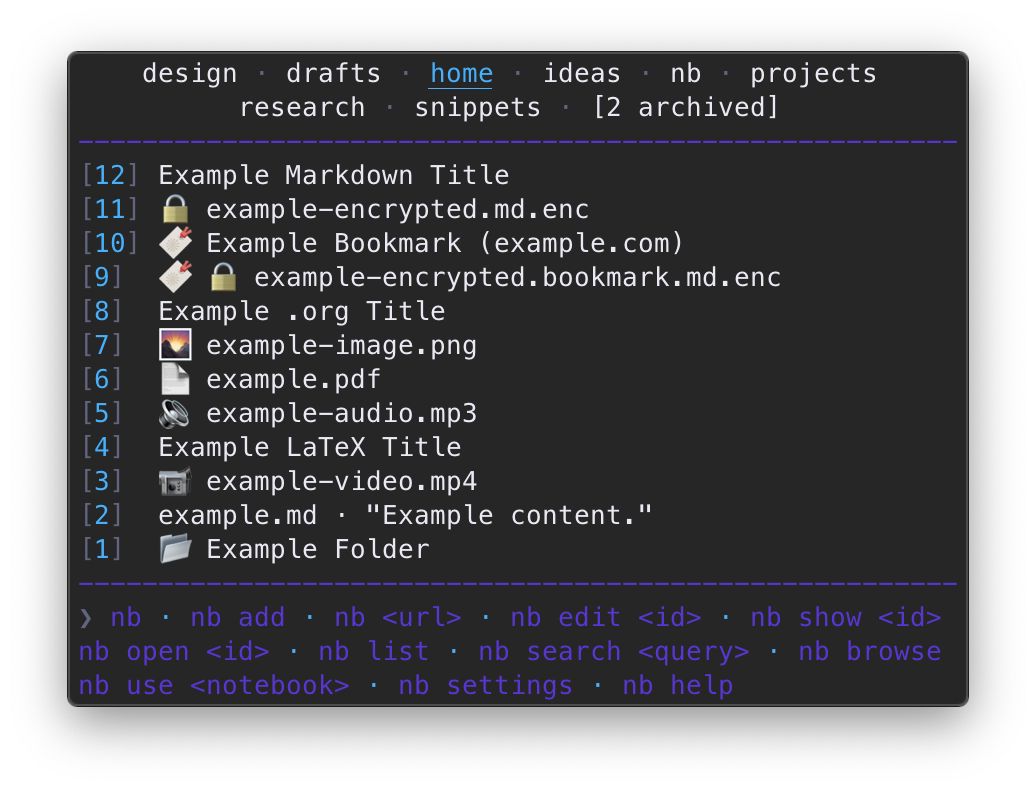 | 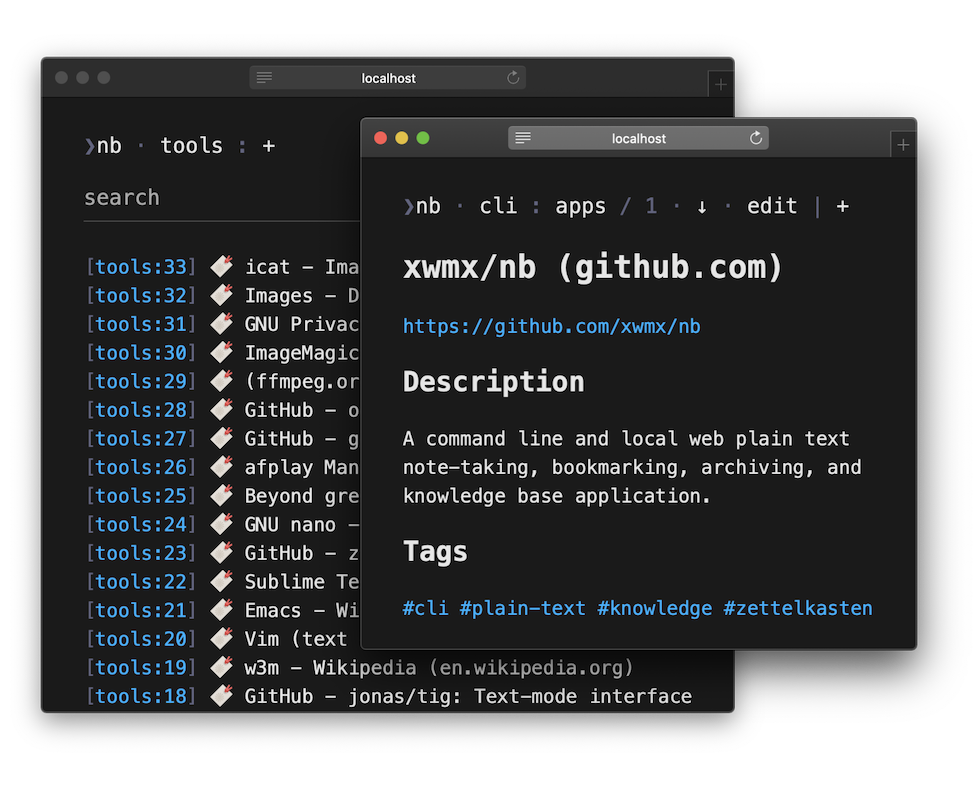 |
|:--:|:--:|
| | |
##### `console`
| 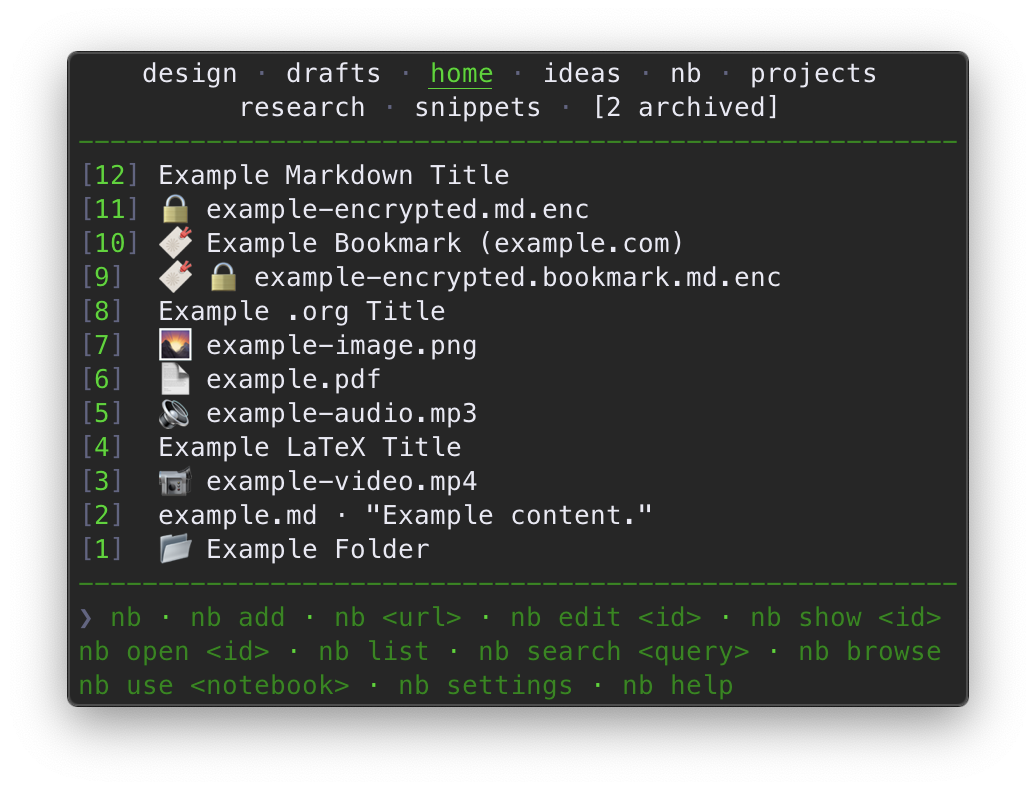 | 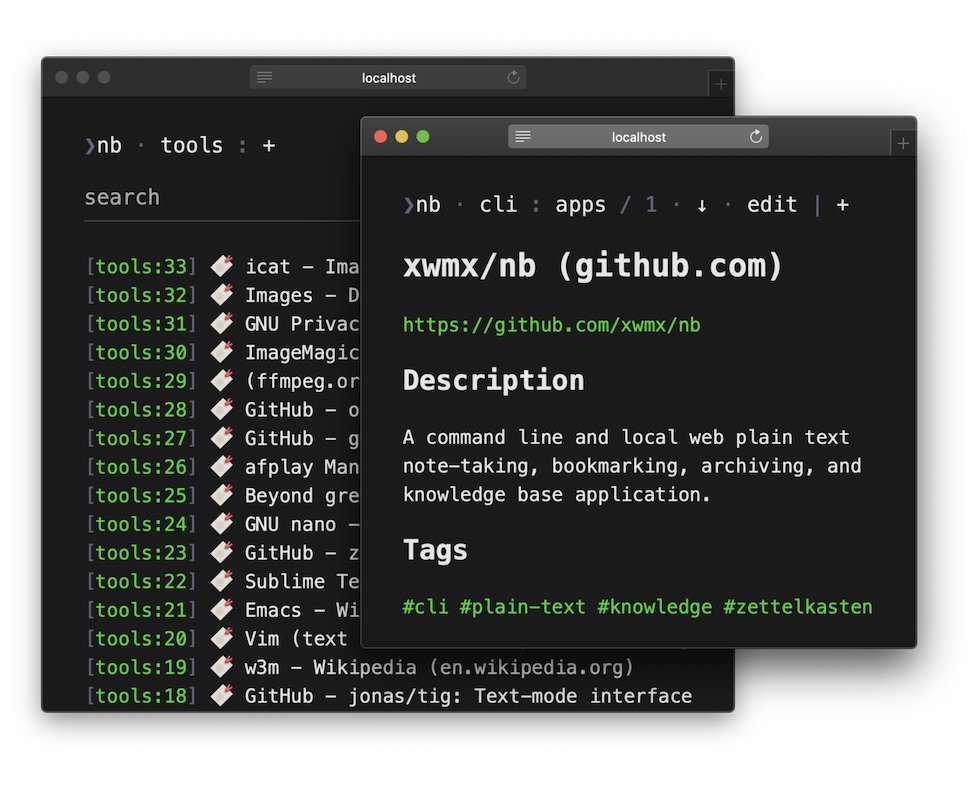 |
|:--:|:--:|
| | |
##### `desert`
| 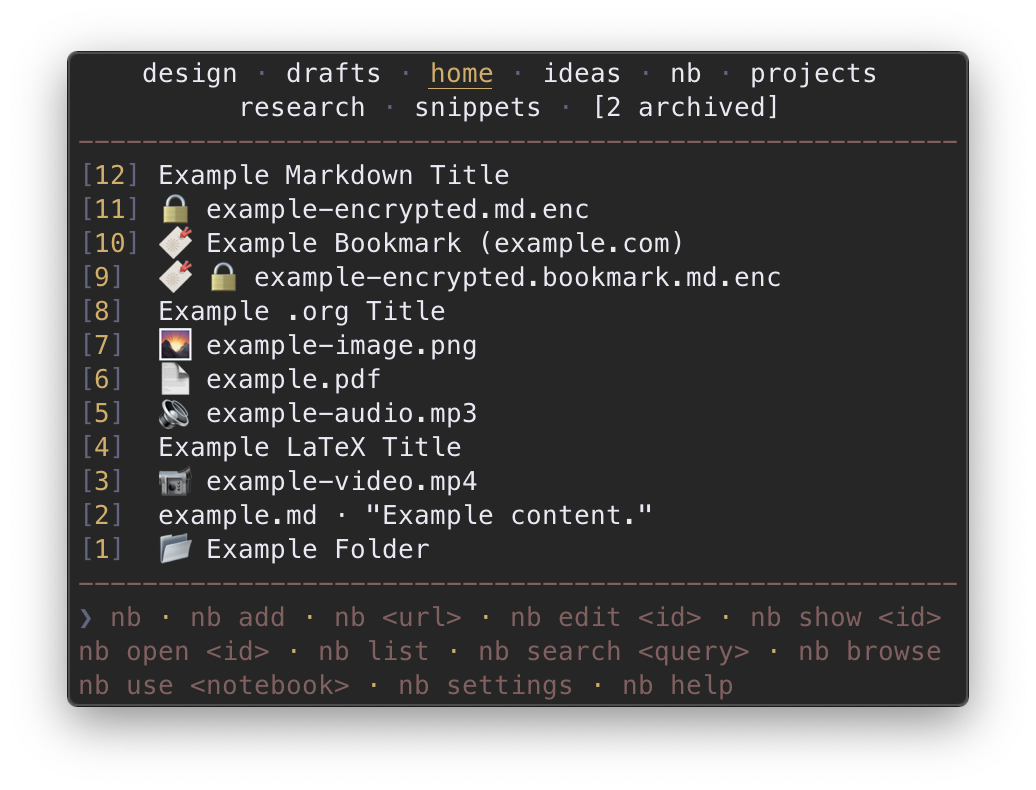 | 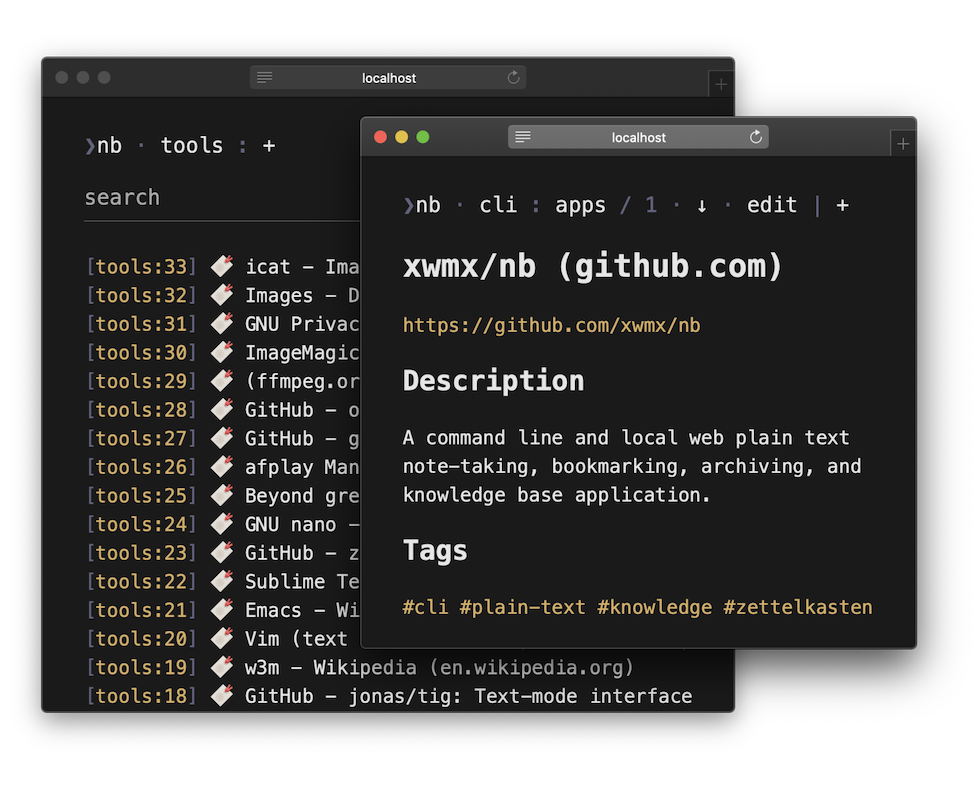 |
|:--:|:--:|
| | |
##### `electro`
| 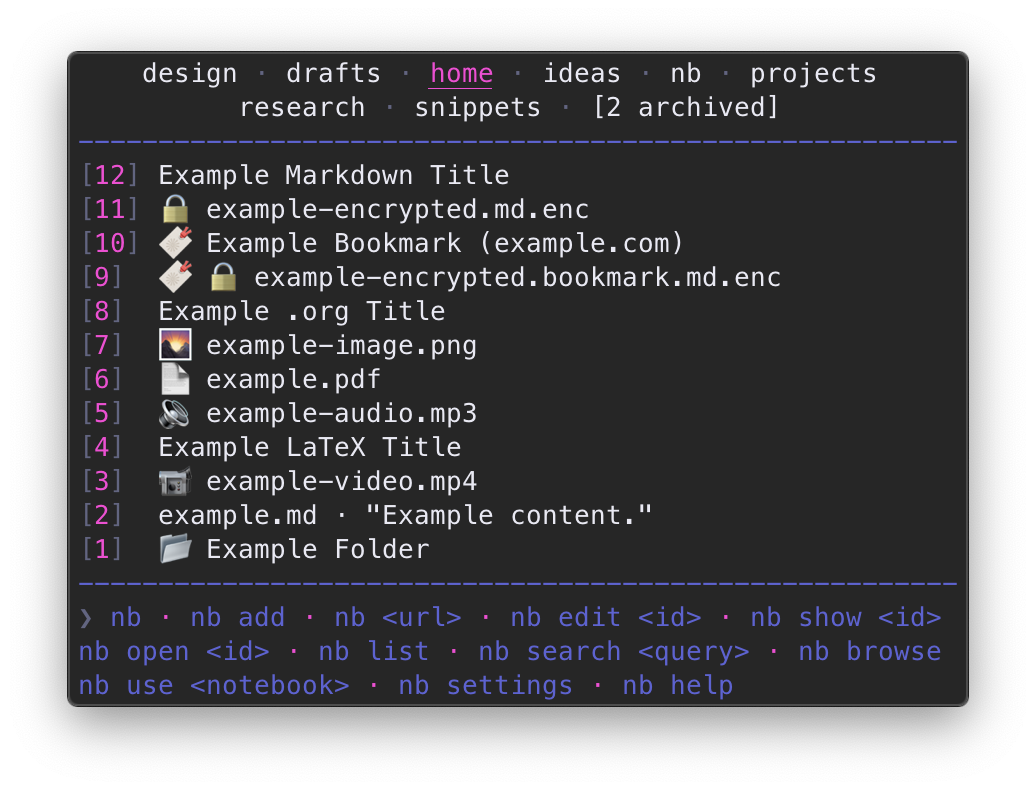 | 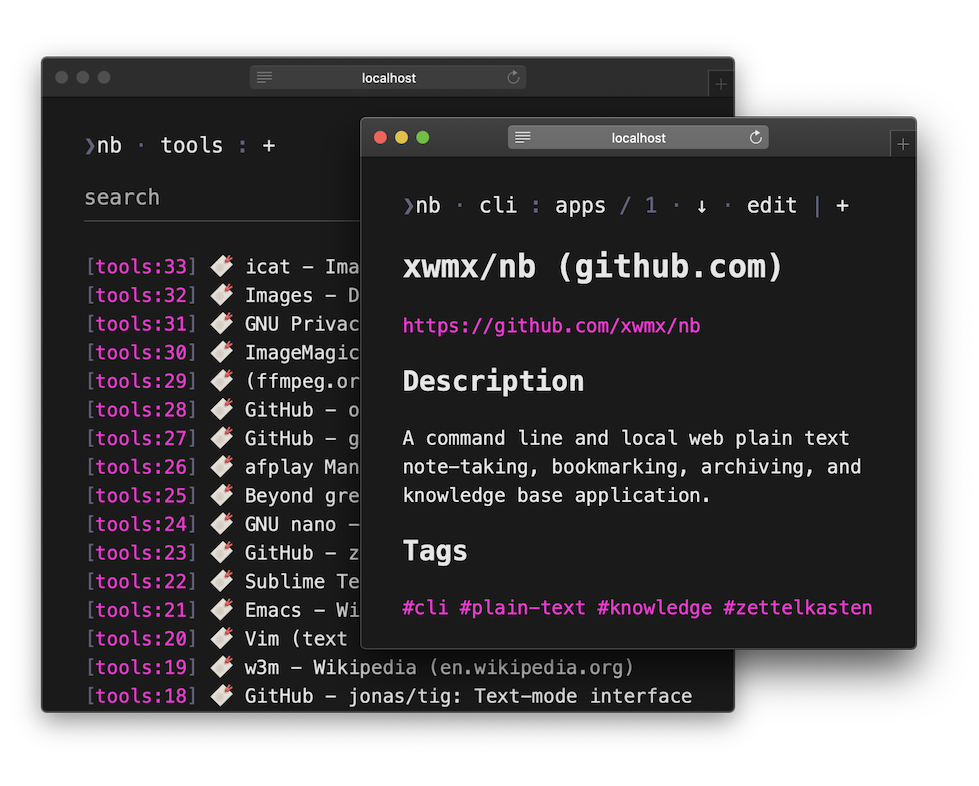 |
|:--:|:--:|
| | |
##### `forest`
| 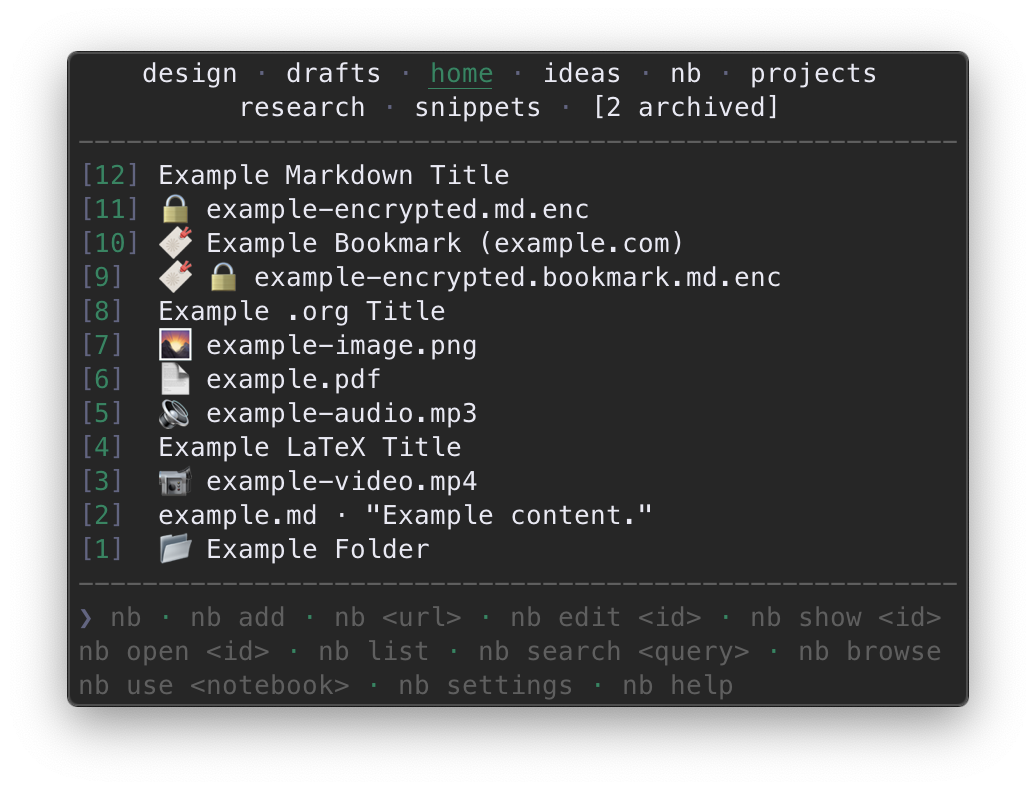 | 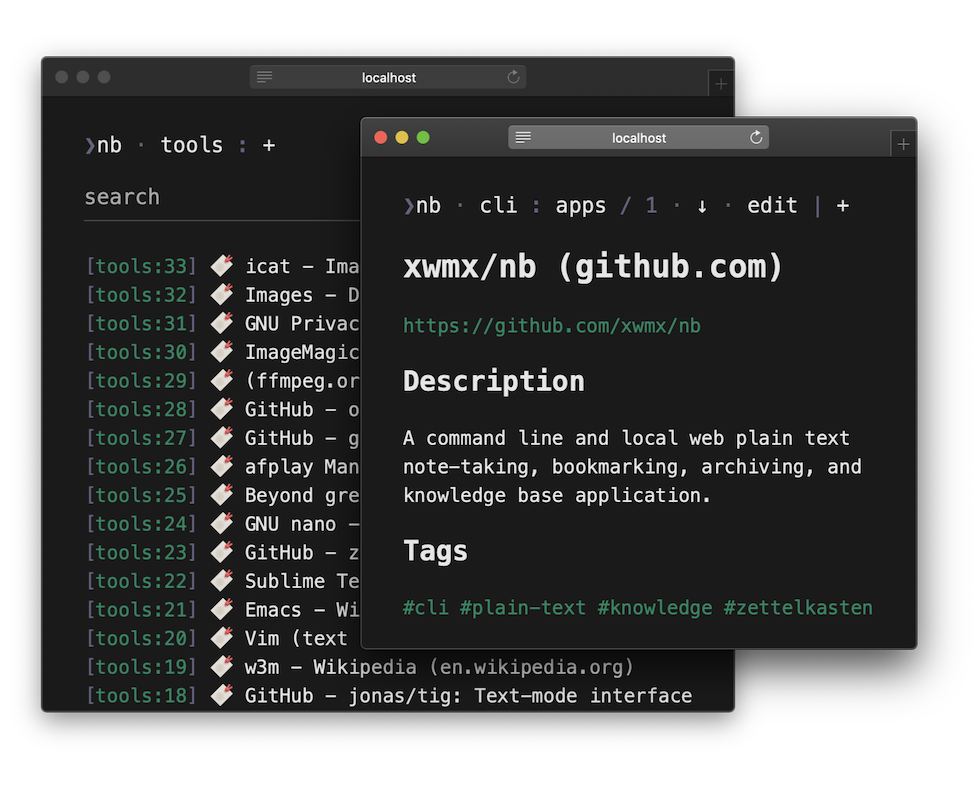 |
|:--:|:--:|
| | |
##### `nb` (default)
| 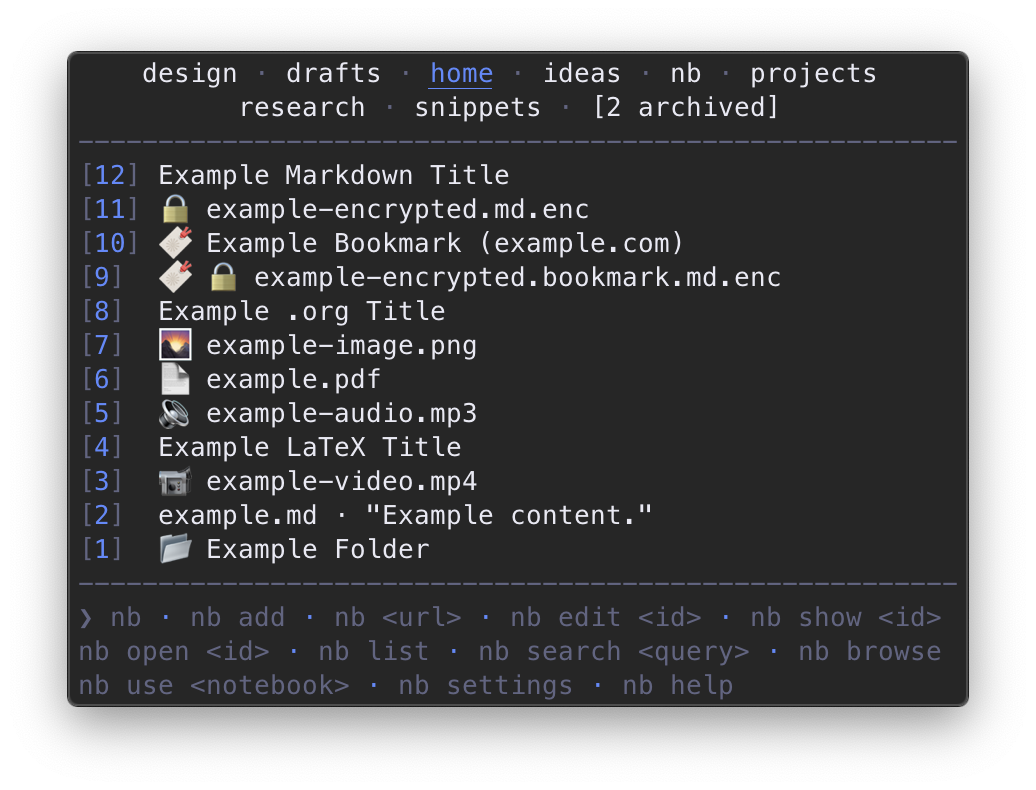 | 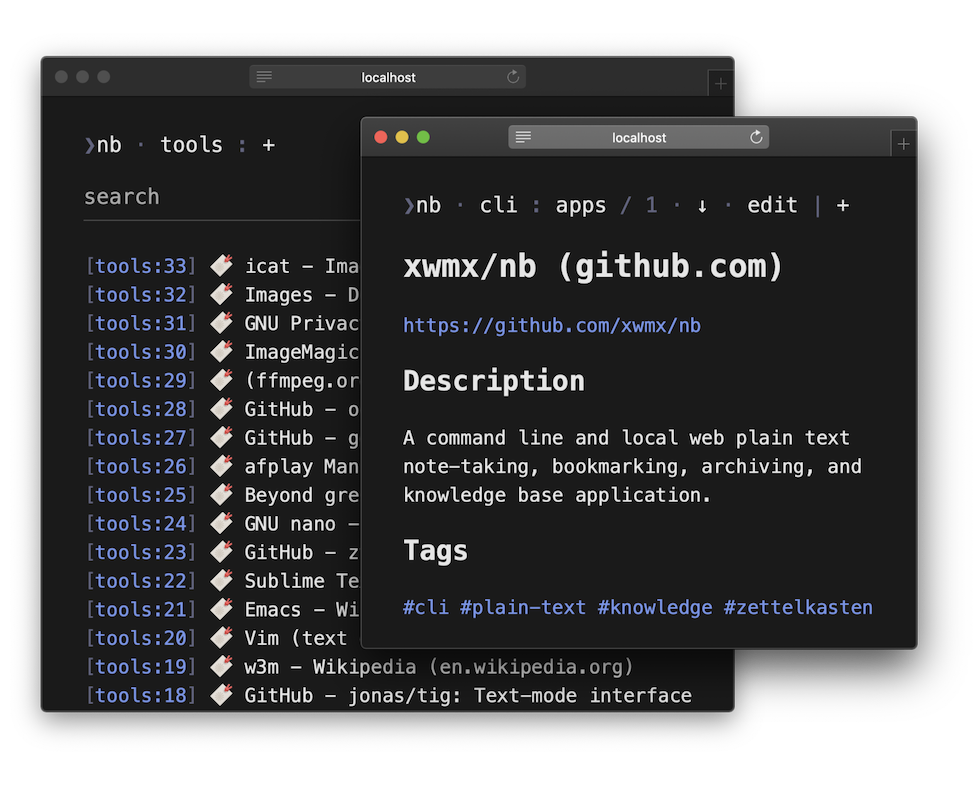 |
|:--:|:--:|
| | |
##### `ocean`
|  |  |
|:--:|:--:|
| | |
##### `raspberry`
| 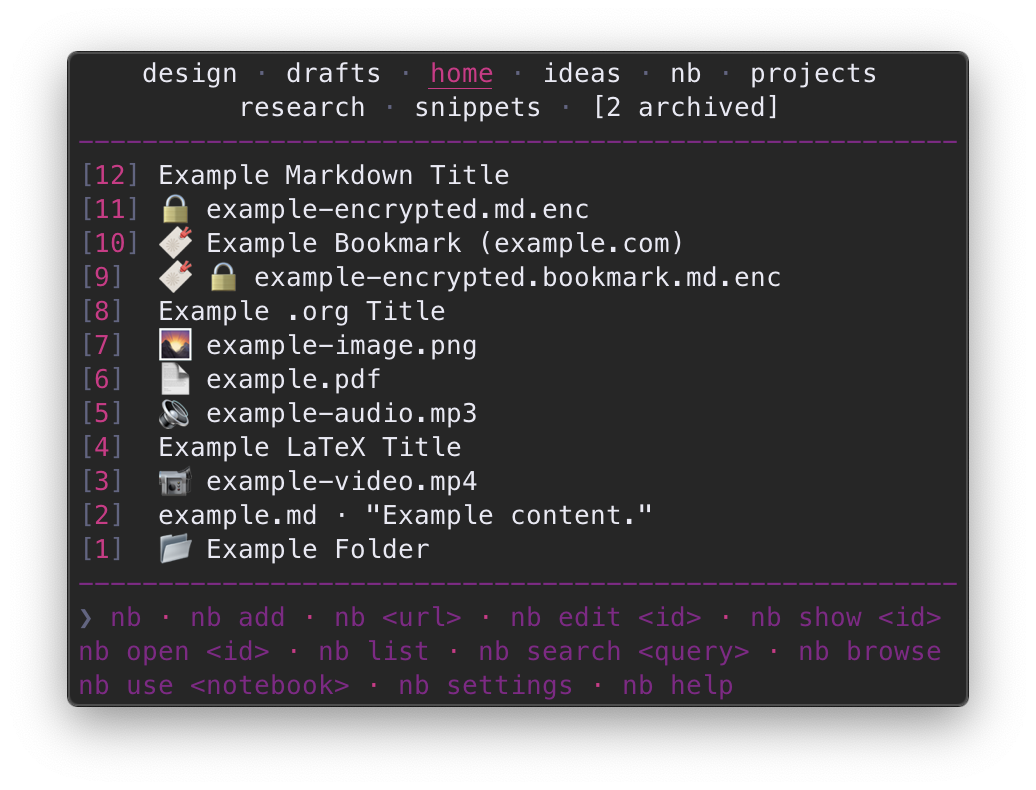 | 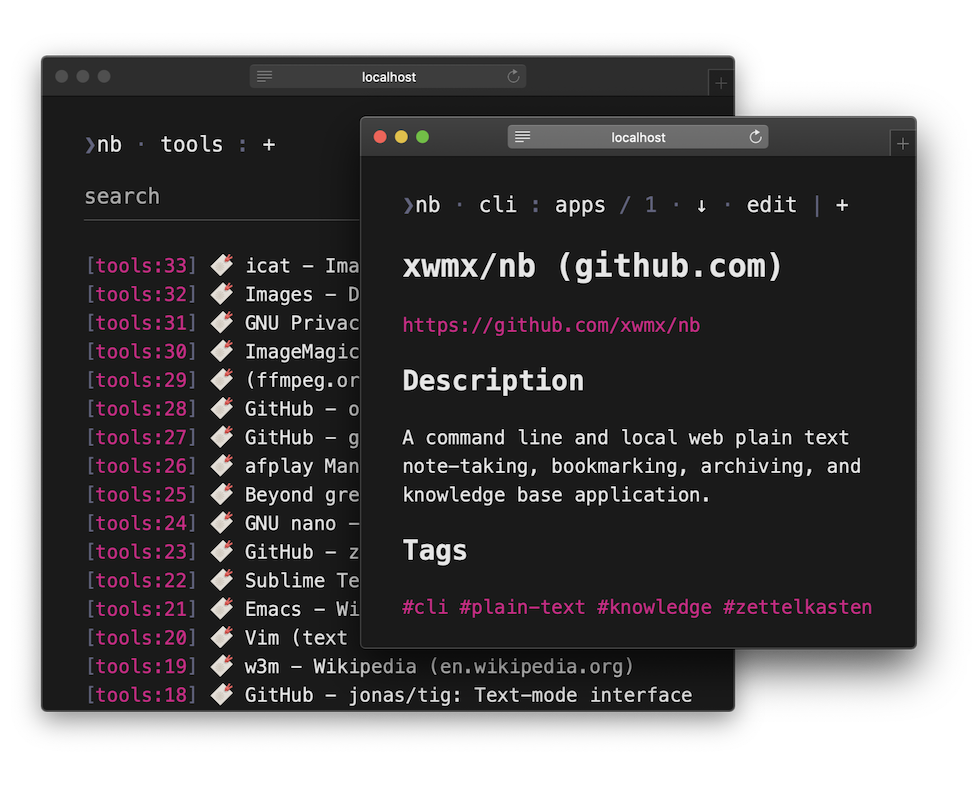 |
|:--:|:--:|
| | |
##### `smoke`
| 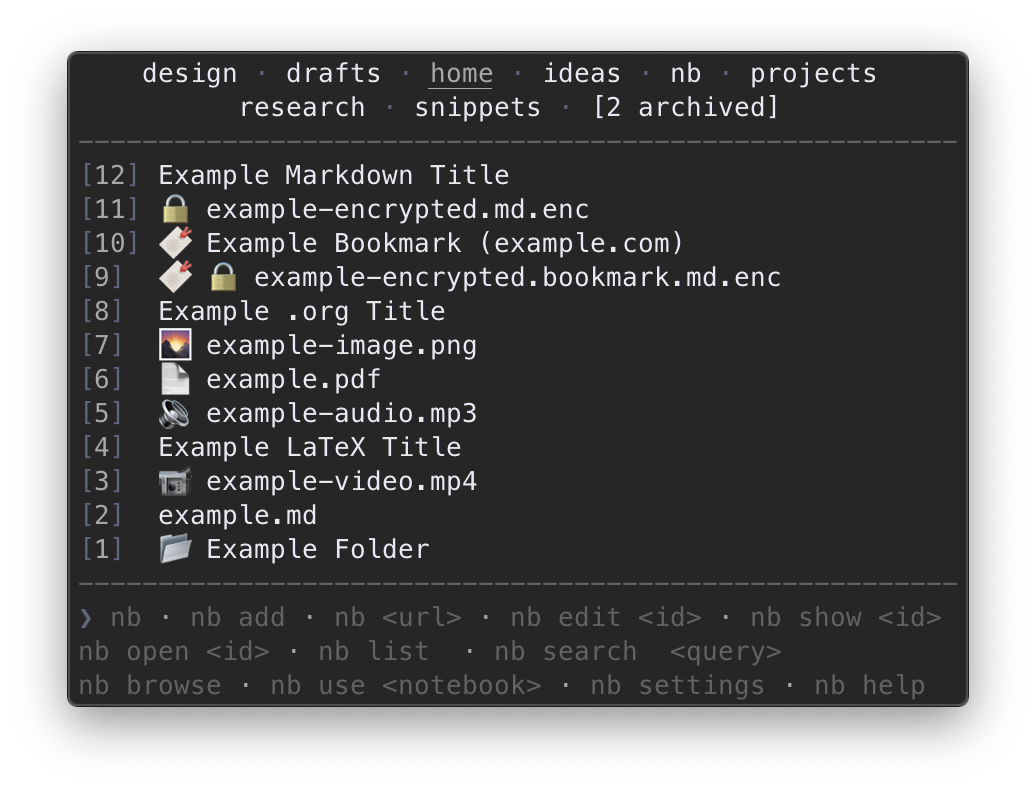 | 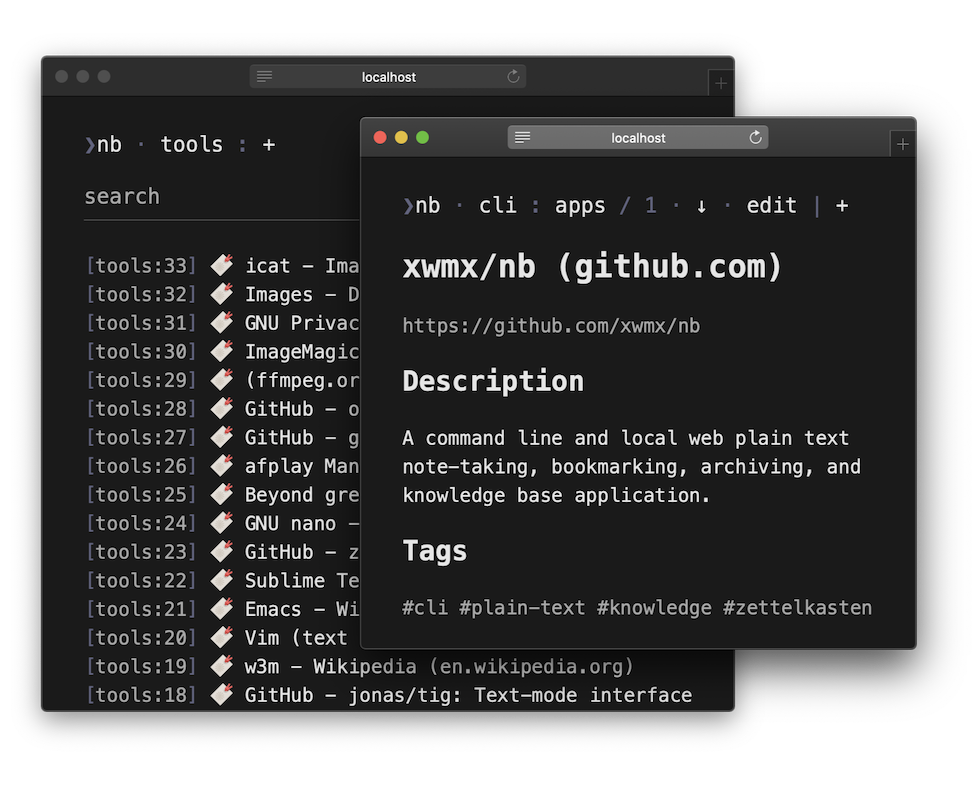 |
|:--:|:--:|
| | |
##### `unicorn`
| 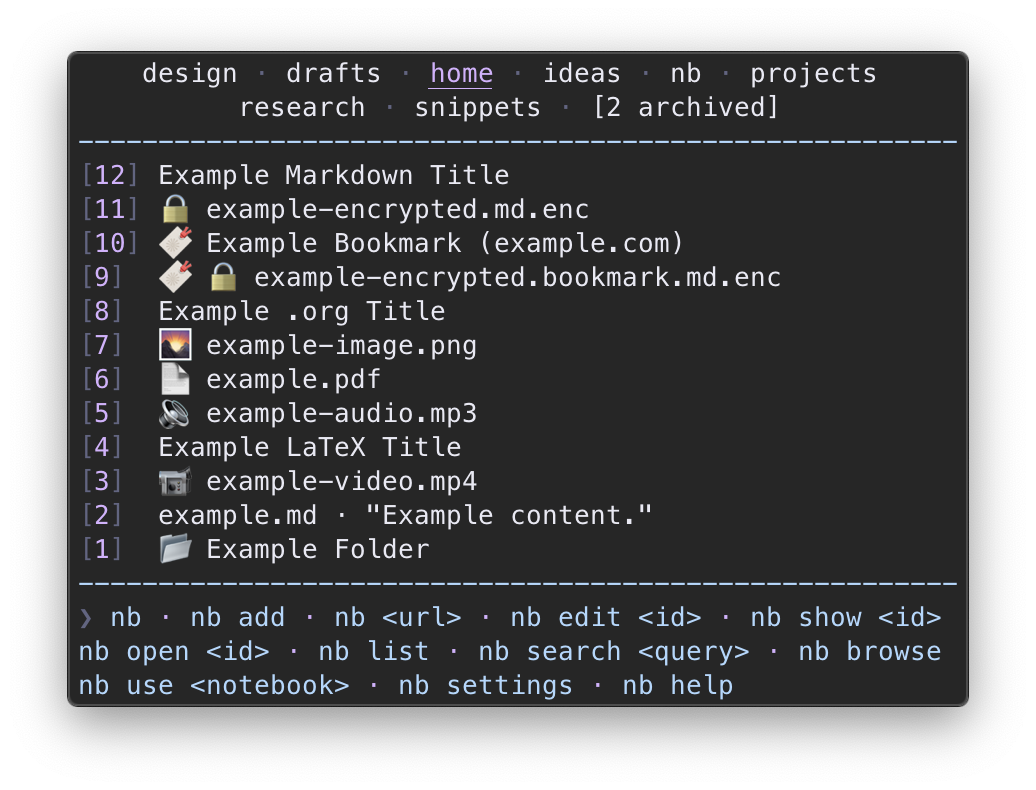 | 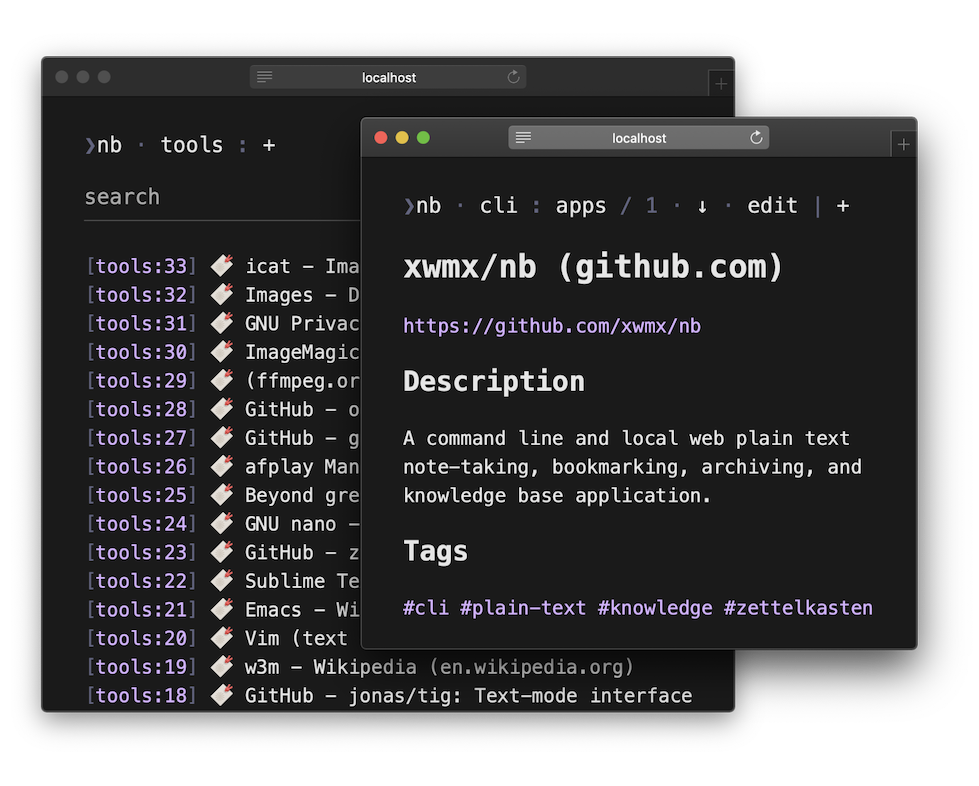 |
|:--:|:--:|
| | |
##### `utility`
| 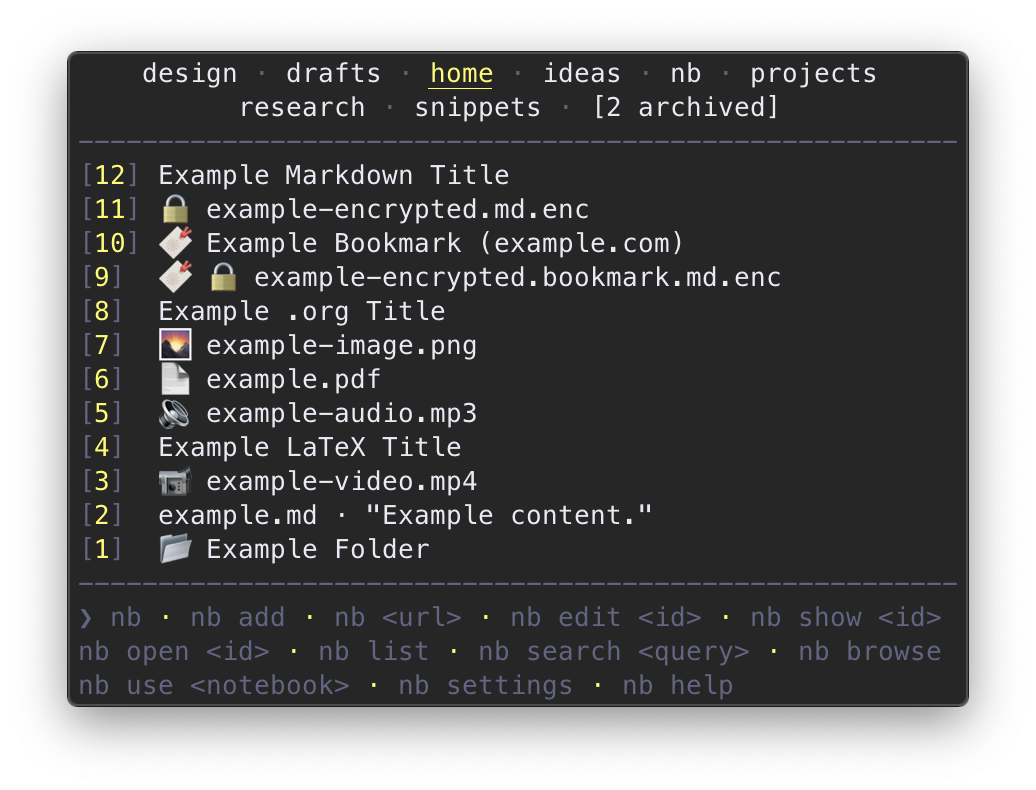 | 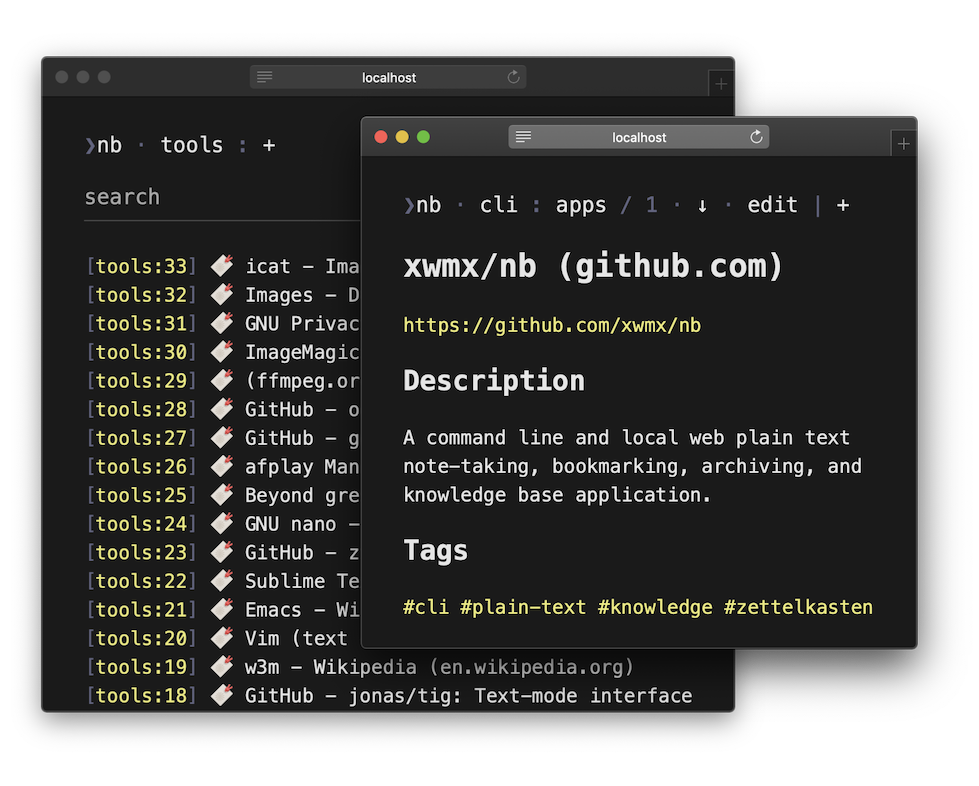 |
|:--:|:--:|
| | |
#### Custom Color Themes
Color themes are
[`nb` plugins](#-plugins) with a `.nb-theme` file extension.
`.nb-theme` files are expected to contain one `if` statement
testing for the theme name
and setting the color environment variables to `tput` ANSI color numbers:
```bash
# turquoise.nb-theme
if [[ "${NB_COLOR_THEME}" == "turquoise" ]]
then
export NB_COLOR_PRIMARY=43
export NB_COLOR_SECONDARY=38
fi
```
View this theme as a complete file:
[`plugins/turquoise.nb-theme`](https://github.com/xwmx/nb/blob/master/plugins/turquoise.nb-theme)
Themes can be installed using [`nb plugins`](#plugins):
```bash
❯ nb plugins install https://github.com/xwmx/nb/blob/master/plugins/turquoise.nb-theme
Plugin installed:
/home/example/.nb/.plugins/turquoise.nb-theme
```
Once a theme is installed,
use [`nb set color_theme`](#color_theme) to set it as the current theme:
```bash
❯ nb set color_theme turquoise
NB_COLOR_THEME set to turquoise
```
The primary and secondary colors can also be overridden individually,
making color themes easily customizable:
```bash
# open the settings prompt for the primary color
nb set color_primary
# open the settings prompt for the secondary color
nb set color_secondary
```
To view a table of available colors and numbers, run:
```bash
nb set colors
```
#### Terminal Syntax Highlighting Theme
`nb` displays files with syntax highlighting when
[`bat`](https://github.com/sharkdp/bat),
[`highlight`](http://www.andre-simon.de/doku/highlight/en/highlight.php),
or
[Pygments](https://pygments.org/)
is installed.
When `bat` is installed, syntax highlighting
color themes are available for both light and dark terminal backgrounds.
To view a list of available themes
and set the syntax highlighting color theme,
use [`nb set syntax_theme`](#syntax_theme).
#### GUI Web Syntax Highlighting
Syntax highlighting is also available when
viewing and editing items in text formats with
[`nb browse --gui`](#browse---gui),
which incorporates the color theme's primary color into the syntax theme:
<div align="center">
<img src="https://xwmx.github.io/misc/nb/images/nb-web-pandoc-ruby-utility.png"
alt="nb syntax highlighting"
width="500">
</div>
#### Indicators
`nb` uses emoji characters to represent information about files in lists.
These characters are referred to internally as "indicators"
and can be customized by assigning a different character to
the indicator's environment variable in your `~/.nbrc` file,
which can be opened with [`nb settings edit`](#settings).
For example, to use a different indicator for pinned items,
add a line like the following to your `~/.nbrc` file:
```bash
export NB_INDICATOR_PINNED="✨"
```
To turn off an indicator, assign the variable to an empty string:
```bash
export NB_INDICATOR_PINNED=""
```
Available indicator [variables](#-variables) with default values:
```bash
export NB_INDICATOR_AUDIO="🔉"
export NB_INDICATOR_BOOKMARK="🔖"
export NB_INDICATOR_DOCUMENT="📄"
export NB_INDICATOR_EBOOK="📖"
export NB_INDICATOR_ENCRYPTED="🔒"
export NB_INDICATOR_FOLDER="📂"
export NB_INDICATOR_IMAGE="🌄"
export NB_INDICATOR_PINNED="📌"
export NB_INDICATOR_TODO="✔️ "
export NB_INDICATOR_TODO_DONE="✅"
export NB_INDICATOR_VIDEO="📹"
```
### $ Shell Theme Support
- [`astral` Zsh Theme](https://github.com/xwmx/astral) - Displays the
current notebook name in the context line of the prompt.
### 🔌 Plugins
<p>
<sup>
<a href="#overview">↑</a> ·
<a href="#plugin-help">Plugin Help</a>,
<a href="#plugins"><code>nb plugins</code></a>
</sup>
</p>
`nb` includes support for plugins, which can be used to create new
subcommands, design themes, and otherwise extend the functionality of `nb`.
`nb` supports two types of plugins, identified by their file extensions:
<dl>
<dt><code>.nb-theme</code></dt>
<dd>Plugins defining <a href="#custom-color-themes">color themes</a>.</dd>
<dt><code>.nb-plugin</code></dt>
<dd>Plugins defining new subcommands and adding functionality.</dd>
</dl>
Plugins are managed with the [`nb plugins`](#plugins) subcommand and
are installed in the `${NB_DIR}/.plugins` directory.
Plugins can be installed from either a URL or a path using the
[`nb plugins install`](#plugins) subcommand.
```bash
# install a plugin from a URL
nb plugins install https://raw.githubusercontent.com/xwmx/nb/master/plugins/clip.nb-plugin
# install a plugin from a standard GitHub URL
nb plugins install https://github.com/xwmx/nb/blob/master/plugins/example.nb-plugin
# install a theme from a standard GitHub URL
nb plugins install https://github.com/xwmx/nb/blob/master/plugins/turquoise.nb-theme
# install a plugin from a path
nb plugins install plugins/example.nb-plugin
```
The `<url>` should be the full URL to the plugin file.
`nb` also recognizes regular GitHub URLs,
which can be used interchangeably with raw GitHub URLs.
Installed plugins can be listed with [`nb plugins`](#plugins),
which optionally takes a name and prints full paths:
```bash
❯ nb plugins
clip.nb-plugin
example.nb-plugin
turquoise.nb-theme
❯ nb plugins clip.nb-plugin
clip.nb-plugin
❯ nb plugins --paths
/home/example/.nb/.plugins/clip.nb-plugin
/home/example/.nb/.plugins/example.nb-plugin
/home/example/.nb/.plugins/turquoise.nb-theme
❯ nb plugins turquoise.nb-theme --paths
/home/example/.nb/.plugins/turquoise.nb-theme
```
Use [`nb plugins uninstall`](#plugins) to uninstall a plugin:
```bash
❯ nb plugins uninstall example.nb-plugin
Plugin successfully uninstalled:
/home/example/.nb/.plugins/example.nb-plugin
```
#### Creating Plugins
Plugins are written in a Bash-compatible shell scripting language
and have an `.nb-plugin` extension.
`nb` includes a few example plugins:
- [`example.nb-plugin`](https://github.com/xwmx/nb/blob/master/plugins/example.nb-plugin)
- [`clip.nb-plugin`](https://github.com/xwmx/nb/blob/master/plugins/clip.nb-plugin)
- [`ebook.nb-plugin`](https://github.com/xwmx/nb/blob/master/plugins/ebook.nb-plugin)
Create a new subcommand in three easy steps:
##### 1. Add the new subcommand name with `_subcommands add <name>`:
```bash
_subcommands add "example"
```
##### 2. Define help and usage text with `_subcommands describe <subcommand> <usage>`:
```bash
_subcommands describe "example" <<HEREDOC
Usage:
nb example
Description:
Print "Hello, World!"
HEREDOC
```
##### 3. Define the subcommand as a function, named with a leading underscore:
```bash
_example() {
printf "Hello, World!\\n"
}
```
That's it! 🎉
View the complete plugin:
[`plugins/example.nb-plugin`](https://github.com/xwmx/nb/blob/master/plugins/example.nb-plugin)
With `example.nb-plugin` installed, `nb` includes an `nb example` subcommand
that prints "Hello, World!"
For a full example,
[`clip.nb-plugin`](https://github.com/xwmx/nb/blob/master/plugins/clip.nb-plugin)
add clipboard functionality to `nb` and demonstrates how to create a
plugin using `nb` subcommands and simple shell scripting.
You can install any plugin you create locally with
[`nb plugins install <path>`](#plugins),
and you can publish it on GitHub, GitLab,
or anywhere else online and install it with
[`nb plugins install <url>`](#plugins).
#### API
The `nb` API is the [command line interface](#nb-help), which is designed for
composability and provides a variety of powerful options for interacting with
notes, bookmarks, notebooks, and `nb` functionality. Within plugins,
subcommands can be called using their function names, which are named with
leading underscores. Options can be used to output information in formats
suitable for parsing and processing:
```bash
# print the content of note 3 to standard output with no color
_show 3 --print --no-color
# list all unarchived global notebook names
_notebooks --names --no-color --unarchived --global
# list all filenames in the current notebook
_list --filenames --no-id --no-indicator
# print the path to the current notebook
_notebooks current --path
```
`nb` automatically scans arguments for
[selectors](#-selectors) with notebook names
and updates the current notebook if a valid one is found.
Identifier selectors are passed to subcommands as arguments along with
any subcommand options. Use [`show <selector>`](#show) to query
information about the file specified in the selector. For example, to
obtain the filename of a selector-specified file, use
[`show <selector> --filename`](#show):
```bash
_example() {
local _selector="${1:-}"
[[ -z "${_selector:-}" ]] && printf "Usage: example <selector>\\n" && exit 1
# Get the filename using the selector.
local _filename=
_filename="$(_show "${_selector}" --filename)"
# Rest of subcommand function...
}
```
[`notebooks current --path`](#notebooks) returns the path to the current
notebook:
```bash
# _example() continued:
# get the notebook path
local _notebook_path=
_notebook_path="$(_notebooks current --path)"
# print the file at "${_notebook_path}/${_filename}" to standard output
cat "${_notebook_path}/${_filename}"
```
See
[`clip.nb-plugin`](https://github.com/xwmx/nb/blob/master/plugins/clip.nb-plugin)
for a practical example using both [`show <selector>`](#show) and
[`notebooks current --path`](#notebooks) along with other
subcommands called using their underscore-prefixed function names.
### `:/` Selectors
<p>
<sup>
<a href="#overview">↑</a>
</sup>
</p>
Items in `nb` are primarily identified using structured arguments called
"selectors." Selectors are like addresses for notebooks, folders, and items.
A selector can be as simple as an id like `123` or folder path like `example/`,
or it can combine multiple elements to identify
an item in a nested folder within a particular notebook, such as:
```bash
cli:tools/shellcheck/home-page.bookmark.md
```
An item, folder, or notebook selector is constructed by specifying the
notebook name, folder path, and / or item identifier
in the following pattern:
```text
notebook:folder/path/item-idenitifer
```
Represented in a [docopt](http://docopt.org/)-like format:
```text
[<notebook>:][<folder-path>/][<id> | <filename> | <title>]
```
Notebooks are identified by the notebook name followed by a colon.
Folder and item identifiers without a notebook name refer to
items within the current notebook.
When a selector consists of notebook name and colon
with no folder path or item identifier,
the command runs in the root folder of the notebook:
```bash
# list items in the "example" notebook
nb example:
# add a new note named "Example Title" to the "example" notebook
nb add example: --title "Example Title"
# edit item with id "123" in the notebook "example"
nb edit example:123
```
A notebook selector can be combined with a subcommand name to
run the command within the notebook:
```bash
# list all items in the "example" notebook and display excerpts
nb example:list -e
# edit item with id "123" in the "example" notebook
nb example:edit 123
# show the git history for the notebook named "example"
nb example:history
```
Folders are identified by relative path from the notebook root.
Folders can be referenced by either id or name, and segments
in nested paths can mix and match names and ids:
```bash
# list items in the folder named "sample" in the folder named demo"
nb sample/demo/
# add a new item to the folder named "demo" in the folder with id "3"
nb add 3/demo/
# show the history of the folder with id "4" in the folder named
# "sample" in the notebook named "example"
nb history example:sample/4/
```
A trailing slash indicates that the command is expected to operate on
the contents of the folder. When a trailing slash is omitted, the
selector refers to the folder itself:
```bash
❯ nb list sample
[1] 📂 sample
❯ nb list sample/
[sample/3] Title Three
[sample/2] Title Two
[sample/1] Title One
```
For more information about folders, see [Folders](#-folders).
An item is identified by id, filename, or title, optionally preceded by
notebook name or folder path:
```bash
# edit item with id "123"
nb edit 123
# open the item titled "demo title" in the folder with id "3"
nb open 3/demo\ title
# show "file.md" in the "sample" folder in the "example" notebook
nb show example:sample/file.md
```
Items can also be specified using the full path:
```bash
# edit "demo.md" in the "sample" folder in the "home" notebook
nb edit /home/example/.nb/home/sample/demo.md
```
##### Examples
*Idenitifer Selectors*
```text
123
example.md
title
relative/path/to/123
relative/path/to/demo.md
relative/path/to/title
/full/path/to/sample.md
notebook:123
notebook:example.md
notebook:title
notebook:relative/path/to/123
notebook:relative/path/to/demo.md
notebook:relative/path/to/title
```
*Subcommand Selectors*
```text
notebook:
notebook:show
notebook:history
notebook:a
notebook:q
```
### `01` Metadata
<p>
<sup>
<a href="#overview">↑</a> ·
<a href="#show"><code>nb show</code></a>
</sup>
</p>
Metadata in `nb` is primarily derived from git, the filesystem, and file
content. For example, displayed timestamps are derived from
[`git log`](https://git-scm.com/docs/git-log), with [`nb show --added`](#show)
displaying the datetime of the first commit containing the file and
[`nb show --updated`](#show) displaying the datetime of the last commit in
which the file was modified. Meanwhile, the file system's modified
timestamp is used for sorting.
`nb` also uses plain text files to store ids and state information in
git, including
[`.index` files](https://github.com/xwmx/nb#index-files),
[`.pindex` files](https://github.com/xwmx/nb#pindex-files),
and [`.archived` files](https://github.com/xwmx/nb#archived-notebooks).
#### Front Matter
User-defined metadata can be added to notes in `nb` using [front
matter](https://jekyllrb.com/docs/front-matter/). Front matter is a
simple, human accessible, and future-friendly method for defining metadata
fields in plain text and is well supported in tools for working with
Markdown.
Front matter is defined within a Markdown file with triple-dashed lines
(`---`) indicating the start and end of the block, with each field represented
by a key name with a colon followed by the value:
```markdown
---
title: Example Title
author: xwmx
year: 2021
---
Example content.
More example content:
- one
- two
- three
```
Any metadata can be placed in the front matter block. `nb` uses the
`title:` field for listing, filtering, and selecting items, if one is
present, and ignores any other fields.
The simple `key: value` syntax is suitable for many metadata fields.
More complex data can be defined using additional
[YAML](https://en.wikipedia.org/wiki/YAML)
capabilities.
### `❯` Interactive Shell
<p>
<sup>
<a href="#overview">↑</a> ·
<a href="#shell"><code>nb shell</code></a>
</sup>
</p>
`nb` has an interactive shell that can be started with
[`nb shell`](#shell), [`nb -i`](#nb-help), or [`nb --interactive`](#nb-help):
```bash
$ nb shell
__ _
\ \ _ __ | |__
\ \ | '_ \| '_ \
/ / | | | | |_) |
/_/ |_| |_|_.__/
------------------
nb shell started. Enter ls to list notes and notebooks.
Enter help for usage information. Enter exit to exit.
nb❯ ls
home
----
[3] Example
[2] Sample
[1] Demo
nb❯ edit 3 --content "New content."
Updated: [3] Example
nb❯ bookmark https://example.com
Added: [4] 🔖 example.bookmark.md "Example Title (example.com)"
nb❯ ls
home
----
[4] 🔖 Example Title (example.com)
[3] Example
[2] Sample
[1] Demo
nb❯ bookmark url 4
https://example.com
nb❯ search "example"
[4] example.bookmark.md "Example (example.com)"
-----------------------------------------------
1:# Example (example.com)
3:<https://example.com>
[3] example.md "Example"
------------------------
1:# Example
nb❯ exit
$
```
The `nb` shell recognizes all `nb` subcommands and options,
providing a streamlined, distraction-free approach for working with `nb`.
### Shortcut Aliases
<p>
<sup>
<a href="#overview">↑</a>
</sup>
</p>
Several core `nb` subcommands have shortcut aliases to make
them faster to work with:
```bash
# `a` (add): add a new note named "example.md"
nb a example.md
# `+` (add): add a new note titled "Example Title"
nb + --title "Example Title"
# `b` (browse): open the folder named "sample" in the web browser
nb b sample/
# `o` (open): open the URL from bookmark 12 in your web browser
nb o 12
# `p` (peek): open the URL from bookmark 6 in your terminal browser
nb p 6
# `e` (edit): edit note 5
nb e 5
# `d` (delete): delete note 19
nb d 19
# `d` (delete): delete note 123 in the notebook named "example:"
nb - example:123
# `s` (show): show note 27
nb s 27
# `q` (search): search notes for "example query"
nb q "example query"
# `h` (help): display the help information for the `add` subcommand
nb h add
# `u` (use): switch to example-notebook
nb u example-notebook
```
For more commands and options, run
[`nb help`](#nb-help) or
[`nb help <subcommand>`](#subcommands)
<div align="center">
<img src="https://xwmx.github.io/misc/nb/images/gui-browse-themes.png"
alt="nb browse themes"
width="700">
</div>
### `?` Help
<div align="center">
<a href="#nb-help">nb</a> ·
<a href="#bookmark-help">bookmark</a> ·
<a href="#subcommands">subcommands</a> ·
<a href="#plugin-help">plugins</a>
</div>
<p align="center"></p><!-- spacer -->
<div align="center">
<a href="#add">add</a> ·
<a href="#archive">archive</a> ·
<a href="#bookmark">bookmark</a> ·
<a href="#browse">browse</a> ·
<a href="#completions">completions</a> ·
<a href="#copy">copy</a> ·
<a href="#count">count</a> ·
<a href="#delete">delete</a> ·
<a href="#do">do</a> ·
<a href="#edit">edit</a> ·
<a href="#env">env</a> ·
<a href="#export">export</a> ·
<a href="#folders">folders</a> ·
<a href="#git">git</a> ·
<a href="#help">help</a> ·
<a href="#history">history</a> ·
<a href="#import">import</a> ·
<a href="#init">init</a> ·
<a href="#list">list</a> ·
<a href="#ls">ls</a> ·
<a href="#move">move</a> ·
<a href="#notebooks">notebooks</a> ·
<a href="#open">open</a> ·
<a href="#peek">peek</a> ·
<a href="#pin">pin</a> ·
<a href="#plugins">plugins</a> ·
<a href="#remote">remote</a> ·
<a href="#run">run</a> ·
<a href="#search">search</a> ·
<a href="#settings">settings</a> ·
<a href="#shell">shell</a> ·
<a href="#show">show</a> ·
<a href="#status">status</a> ·
<a href="#subcommands-1">subcommands</a> ·
<a href="#sync">sync</a> ·
<a href="#tasks">tasks</a> ·
<a href="#todo">todo</a> ·
<a href="#unarchive">unarchive</a> ·
<a href="#undo">undo</a> ·
<a href="#unpin">unpin</a> ·
<a href="#unset">unset</a> ·
<a href="#update">update</a> ·
<a href="#use">use</a> ·
<a href="#version">version</a>
</div>
<p align="center"></p><!-- spacer -->
<div align="center">
<a href="#overview"> ↑ </a>
</div>
#### `nb help`
[↑](#-help) · See also:
[`help`](#help)
```text
__ _
\ \ _ __ | |__
\ \ | '_ \| '_ \
/ / | | | | |_) |
/_/ |_| |_|_.__/
[nb] Command line and local web note-taking, bookmarking, and archiving with
plain text data storage, encryption, filtering and search, pinning, #tagging,
Git-backed versioning and syncing, Pandoc-backed conversion, global and local
notebooks, customizable color themes, [[wiki-style linking]], plugins, and more
in a single portable, user-friendly script.
Help:
nb help Display this help information.
nb help <subcommand> View help information for <subcommand>.
nb help --colors View information about color settings.
nb help --readme View the `nb` README file.
Usage:
nb
nb [<ls-options>...] [<id> | <filename> | <path> | <title> | <notebook>]
nb [<url>] [<bookmark options>...]
nb add [<notebook>:][<folder-path>/][<filename>] [<content>]
[-b | --browse] [-c <content> | --content <content>] [--edit]
[-e | --encrypt] [-f <filename> | --filename <filename>]
[--folder <folder-path>] [--tags <tag1>,<tag2>...]
[-t <title> | --title <title>] [--type <type>]
nb add bookmark [<bookmark-options>...]
nb add folder [<name>]
nb add todo [<todo-options>...]
nb archive [<notebook>]
nb bookmark [<ls-options>...]
nb bookmark [<notebook>:][<folder-path>/] <url>
[-c <comment> | --comment <comment>] [--edit] [-e | --encrypt]
[-f <filename> | --filename <filename>] [--no-request]
[-q <quote> | --quote <quote>] [--save-source]
[-r (<url> | <selector>) | --related (<url> | <selector>)]...
[-t <tag1>,<tag2>... | --tags <tag1>,<tag2>...] [--title <title>]
nb bookmark [list [<list-options>...]]
nb bookmark (open | peek | url) (<id> | <filename> | <path> | <title>)
nb bookmark (edit | delete) (<id> | <filename> | <path> | <title>)
nb bookmark search <query>
nb browse [<notebook>:][<folder-path>/][<id> | <filename> | <title>] [--daemon]
[-g | --gui] [-n | --notebooks] [-p | --print] [-q | --query <query>]
[-s | --serve] [-t <tag> | --tag <tag> | --tags <tag1>,<tag2>...]
nb browse add [<notebook>:][<folder-path>/][<filename>]
[-c <content> | --content <content>] [--tags <tag1>,<tag2>...]
[-t <title> | --title <title>]
nb browse delete ([<notebook>:][<folder-path>/][<id> | <filename> | <title>])
nb browse edit ([<notebook>:][<folder-path>/][<id> | <filename> | <title>])
nb completions (check | install [-d | --download] | uninstall)
nb copy ([<notebook>:][<folder-path>/][<id> | <filename> | <title>])
[[<notebook>:][<folder-path>/]<filename>]
nb count [<notebook>:][<folder-path>/]
nb delete ([<notebook>:][<folder-path>/][<id> | <filename> | <title>])...
[-f | --force]
nb do ([<notebook>:][<folder-path>/][<id> | <filename> | <title>])
[<task-number>]
nb edit ([<notebook>:][<folder-path>/][<id> | <filename> | <title>])
[-c <content> | --content <content>] [--edit]
[-e <editor> | --editor <editor>] [--overwrite] [--prepend]
nb export ([<notebook>:][<folder-path>/][<id> | <filename> | <title>])
<path> [-f | --force] [<pandoc options>...]
nb export notebook <name> [<path>]
nb export pandoc ([<notebook>:][<folder-path>/][<id> | <filename> | <title>])
[<pandoc options>...]
nb folders (add | delete) [<notebook>:][<folder-path>/]<folder-name>
nb folders <list-options>...
nb git [checkpoint [<message>] | dirty]
nb git <git-options>...
nb help [<subcommand>] [-p | --print]
nb help [-c | --colors] | [-r | --readme] | [-s | --short] [-p | --print]
nb history [<notebook>:][<folder-path>/][<id> | <filename> | <title>]
nb import [copy | download | move] (<path>... | <url>) [--convert]
[<notebook>:][<folder-path>/][<filename>]
nb import notebook <path> [<name>]
nb init [<remote-url> [<branch>]] [--author] [--email <email>]
[--name <name>]
nb list [-e [<length>] | --excerpt [<length>]] [--filenames]
[-f | --folders-first] [-n <limit> | --limit <limit> | --<limit>]
[--no-id] [--no-indicator] [-p <number> | --page <number>] [--pager]
[--paths] [-s | --sort] [-r | --reverse] [--tags]
[-t <type> | --type <type> | --<type>]
[<notebook>:][<folder-path>/][<id> | <filename> | <path> | <query>]
nb ls [-a | --all] [-b | --browse] [-e [<length>] | --excerpt [<length>]]
[--filenames] [-f | --folders-first] [-g | --gui]
[-n <limit> | --limit <limit> | --<limit>] [--no-footer] [--no-header]
[--no-id] [--no-indicator] [-p <number> | --page <number>] [--pager]
[--paths] [-s | --sort] [-r | --reverse] [--tags]
[-t <type> | --type <type> | --<type>]
[<notebook>:][<folder-path>/][<id> | <filename> | <path> | <query>]
nb move ([<notebook>:][<folder-path>/][<id> | <filename> | <title>])
([<notebook>:][<path>] | --reset | --to-bookmark | --to-note |
--to-title | --to-todo) [-f | --force]
nb notebooks [<name> | <query>] [--ar | --archived] [--global] [--local]
[--names] [--paths] [--unar | --unarchived]
nb notebooks add ([<name>] [<remote-url> [<branch>... | --all]]) [--author]
[--email <email>] [--name <name>]
nb notebooks (archive | open | peek | status | unarchive) [<name>]
nb notebooks author [<name> | <path>] [--email <email>] [--name <name>]
nb notebooks current [--path | --selected | --filename [<filename>]]
[--global | --local]
nb notebooks delete <name> [-f | --force]
nb notebooks (export <name> [<path>] | import <path>)
nb notebooks init [<path> [<remote-url> [<branch>]]] [--author]
[--email <email>] [--name <name>]
nb notebooks rename <old-name> <new-name>
nb notebooks select <selector>
nb notebooks show (<name> | <path> | <selector>) [--ar | --archived]
[--escaped | --name | --path | --filename [<filename>]]
nb notebooks use <name>
nb open ([<notebook>:][<folder-path>/][<id> | <filename> | <title>])
nb peek ([<notebook>:][<folder-path>/][<id> | <filename> | <title>])
nb pin ([<notebook>:][<folder-path>/][<id> | <filename> | <title>])
nb plugins [<name>] [--paths]
nb plugins install [<path> | <url>] [--force]
nb plugins uninstall <name> [--force]
nb remote [branches [<url>] | remove | rename [<branch-name>] <name>]
nb remote [delete <branch-name> | reset <branch-name>]
nb remote set <url> [<branch-name>]
nb run <command> [<arguments>...]
nb search ([<notebook>:][<folder-path>/][<id> | <filename> | <title>])
<query>... [-a | --all] [--and <query>] [--not <query>] [--or <query>]
[-l | --list] [--path] [-t <tag1>,<tag2>... | --tag <tag1>,<tag2>...]
[-t | --tags] [--type <type> | --<type>] [--utility <name>]
nb set [<name> [<value>] | <number> [<value>]]
nb settings [colors [<number> | themes] | edit | list [--long]]
nb settings (get | show | unset) (<name> | <number>)
nb settings set (<name> | <number>) <value>
nb shell [<subcommand> [<options>...] | --clear-history]
nb show ([<notebook>:][<folder-path>/][<id> | <filename> | <title>])
[[-a | --added] | [--authors] | [-b | --browse] | --filename | --id |
--info-line | --path | [-p | --print] | --relative-path | [-r |
--render] | --title | --type [<type>] | [-u | --updated]] [--no-color]
nb show <notebook>
nb status [<notebook>]
nb subcommands [add <name>...] [alias <name> <alias>]
[describe <name> <usage>]
nb sync [-a | --all]
nb tasks ([<notebook>:][<folder-path>/][<id> | <filename> | <description>])
[open | closed]
nb todo add [<notebook>:][<folder-path>/][<filename>] <title>
[--description <description>] [--due <date>]
[-r (<url> | <selector>) | --related (<url> | <selector>)]
[--tags <tag1>,<tag2>...] [--task <title>...]
nb todo do ([<notebook>:][<folder-path>/][<id> | <filename> | <description>])
[<task-number>]
nb todo undo ([<notebook>:][<folder-path>/][<id> | <filename> | <description>])
[<task-number>]
nb todos [<notebook>:][<folder-path>/] [open | closed] [--tags <tag1>,<tag2>...]
nb todos tasks ([<notebook>:][<folder-path>/][<id> | <filename> | <description>])
[open | closed]
nb unarchive [<notebook>]
nb undo ([<notebook>:][<folder-path>/][<id> | <filename> | <title>])
[<task-number>]
nb unpin ([<notebook>:][<folder-path>/][<id> | <filename> | <title>])
nb unset (<name> | <number>)
nb update
nb use <notebook>
nb -h | --help | help [<subcommand> | --readme]
nb -i | --interactive [<subcommand> [<options>...]]
nb --no-color
nb --version | version
Subcommands:
(default) List notes and notebooks. This is an alias for `nb ls`.
When a <url> is provided, create a new bookmark.
add Add a note, folder, or file.
archive Archive the current or specified notebook.
bookmark Add, open, list, and search bookmarks.
browse Browse and manage linked items in terminal and GUI web browsers.
completions Install and uninstall completion scripts.
copy Copy or duplicate an item.
count Print the number of items in a notebook or folder.
delete Delete a note.
do Mark a todo or task as done.
edit Edit a note.
export Export a note to a variety of different formats.
folders Add, delete, and list folders.
git Run `git` commands within the current notebook.
help View help information for the program or a subcommand.
history View git history for the current notebook or a note.
import Import a file into the current notebook.
init Initialize the first notebook.
list List notes in the current notebook.
ls List notebooks and notes in the current notebook.
move Move or rename a note.
notebooks Manage notebooks.
open Open a bookmarked web page or notebook folder, or edit a note.
peek View a note, bookmarked web page, or notebook in the terminal.
pin Pin an item so it appears first in lists.
plugins Install and uninstall plugins and themes.
remote Configure the remote URL and branch for the notebook.
run Run shell commands within the current notebook.
search Search notes.
settings Edit configuration settings.
shell Start the `nb` interactive shell.
show Show a note or notebook.
status Run `git status` in the current notebook.
subcommands List, add, alias, and describe subcommands.
status Print notebook status information.
sync Sync local notebook with the remote repository.
tasks List tasks in todos, notebooks, folders, and other items.
todo Manage todos and tasks.
unarchive Unarchive the current or specified notebook.
undo Mark a todo or task as not done.
unpin Unpin a pinned item.
unset Return a setting to its default value.
update Update `nb` to the latest version.
use Switch to a notebook.
version Display version information.
Notebook Usage:
nb <notebook>:[<subcommand>] [<identifier>] [<options>...]
nb <subcommand> <notebook>:<identifier> [<options>...]
Program Options:
-h, --help Display this help information.
-i, --interactive Start the `nb` interactive shell.
--no-color Print without color highlighting.
--version Display version information.
More Information:
https://github.com/xwmx/nb
```
#### `bookmark help`
[↑](#-help) · See also:
[Bookmarks](#-bookmarks),
[`bookmark`](#bookmark),
[`browse`](#browse)
```text
__ __ __
/ /_ ____ ____ / /______ ___ ____ ______/ /__
/ __ \/ __ \/ __ \/ //_/ __ `__ \/ __ `/ ___/ //_/
/ /_/ / /_/ / /_/ / ,< / / / / / / /_/ / / / ,<
/_.___/\____/\____/_/|_/_/ /_/ /_/\__,_/_/ /_/|_|
bookmark -- Command line bookmarking with tagging, encryption,
full-text page content search with regular expression support,
GUI and terminal browser support, and data stored in plain text
Markdown files with Git-backed versioning and syncing.
Usage:
bookmark [<ls-options>...]
bookmark [<notebook>:][<folder-path>] <url>
[-c <comment> | --comment <comment>] [--edit] [-e | --encrypt]
[-f <filename> | --filename <filename>] [--no-request]
[-q <quote> | --quote <quote>] [--save-source]
[-r (<url> | <selector>) | --related (<url> | <selector>)]...
[-t <tag1>,<tag2>... | --tags <tag1>,<tag2>...] [--title <title>]
bookmark (edit | delete | open | peek | url)
([<notebook>:][<folder-path>/][<id> | <filename> | <title>])
bookmark search <query>
Options:
-c, --comment <comment> A comment or description for this bookmark.
--edit Open the bookmark in your editor before saving.
-e, --encrypt Encrypt the bookmark with a password.
-f, --filename <filename> The filename for the bookmark. It is
recommended to omit the extension so the
default bookmark extension is used.
--no-request Don't request or download the target page.
-q, --quote <quote> A quote or excerpt from the saved page.
Alias: `--excerpt`
-r, --related <selector> A selector for an item related to the
bookmarked page.
-r, --related <url> A URL for a page related to the bookmarked page.
Multiple `--related` flags can be used in a
command to save multiple related URLs.
--save-source Save the page source as HTML.
-t, --tags <tag1>,<tag2>... A comma-separated list of tags.
--title <title> The bookmark title. When not specified,
`nb` will use the html <title> tag.
Subcommands:
(default) Add a new bookmark for <url>, or list bookmarks.
Bookmarks can also be added with `nb <url>`
delete Delete a bookmark.
edit Edit a bookmark.
list List bookmarks in the current notebook.
Shortcut Alias: `ls`
open Open the bookmarked page in your system's primary web browser.
Shortcut Alias: `o`
peek Open the bookmarked page in your terminal web browser.
Alias: `preview`
Shortcut Alias: `p`
search Search bookmarks for <query>.
Shortcut Alias: `q`
url Print the URL for the specified bookmark.
Description:
Create, view, search, edit, and delete bookmarks.
By default, the html page content is saved within the bookmark, making the
bookmarked page available for full-text search. When Pandoc [1] is
installed, the HTML content is converted to Markdown before saving.
When readability-cli [2] is install, markup is cleaned up to focus on
content.
`peek` opens the page in `w3m` [3] or `links` [4] when available.
To specify a preferred browser, set the `$BROWSER` environment variable
in your .bashrc, .zshrc, or equivalent, e.g.: export BROWSER="lynx"
Bookmarks are identified by the `.bookmark.md` file extension. The
bookmark URL is the first URL in the file within "<" and ">" characters:
<https://www.example.com>
1. https://pandoc.org/
2. https://gitlab.com/gardenappl/readability-cli
3. https://en.wikipedia.org/wiki/W3m
4. https://en.wikipedia.org/wiki/Links_(web_browser)
Read More:
https://github.com/xwmx/nb#-bookmarks
See Also:
nb help browse
nb help open
nb help peek
nb help show
Examples:
bookmark https://example.com
bookmark https://example.com --encrypt
bookmark https://example.com --tags example,sample,demo
bookmark https://example.com/about -c "Example comment."
bookmark https://example.com/faqs -f example-filename
bookmark https://example.com --quote "Example quote or excerpt."
bookmark list
bookmark search "example query"
bookmark open 5
------------------------------------------
Part of `nb` (https://github.com/xwmx/nb).
For more information, see: `nb help`.
```
### Subcommands
<div align="center">
<a href="#add">add</a> ·
<a href="#archive">archive</a> ·
<a href="#bookmark">bookmark</a> ·
<a href="#browse">browse</a> ·
<a href="#completions">completions</a> ·
<a href="#copy">copy</a> ·
<a href="#count">count</a> ·
<a href="#delete">delete</a> ·
<a href="#do">do</a> ·
<a href="#edit">edit</a> ·
<a href="#env">env</a> ·
<a href="#folders">folders</a> ·
<a href="#export">export</a> ·
<a href="#git">git</a> ·
<a href="#help">help</a> ·
<a href="#history">history</a> ·
<a href="#import">import</a> ·
<a href="#init">init</a> ·
<a href="#list">list</a> ·
<a href="#ls">ls</a> ·
<a href="#move">move</a> ·
<a href="#notebooks">notebooks</a> ·
<a href="#open">open</a> ·
<a href="#peek">peek</a> ·
<a href="#pin">pin</a> ·
<a href="#plugins">plugins</a> ·
<a href="#remote">remote</a> ·
<a href="#run">run</a> ·
<a href="#search">search</a> ·
<a href="#settings">settings</a> ·
<a href="#shell">shell</a> ·
<a href="#show">show</a> ·
<a href="#status">status</a> ·
<a href="#subcommands-1">subcommands</a> ·
<a href="#sync">sync</a> ·
<a href="#tasks">tasks</a> ·
<a href="#todo">todo</a> ·
<a href="#unarchive">unarchive</a> ·
<a href="#undo">undo</a> ·
<a href="#unpin">unpin</a> ·
<a href="#unset">unset</a> ·
<a href="#update">update</a> ·
<a href="#use">use</a> ·
<a href="#version">version</a>
</div>
<p align="center"></p><!-- spacer -->
<div align="center">
<a href="#overview"> ↑ </a>
</div>
#### `add`
[↑](#-help) · See also:
[Adding](#adding),
[`bookmark`](#bookmark),
[`browse`](#browse),
[`delete`](#delete),
[`edit`](#edit),
[`folders`](#folders),
[`import`](#import),
[`show`](#show),
[`todo`](#todo)
```text
Usage:
nb add [<notebook>:][<folder-path>/][<filename>] [<content>]
[-b | --browse] [-c <content> | --content <content>] [--edit]
[-e | --encrypt] [-f <filename> | --filename <filename>]
[--folder <folder-path>] [--tags <tag1>,<tag2>...]
[-t <title> | --title <title>] [--type <type>]
nb add bookmark [<bookmark-options>...]
nb add folder [<name>]
nb add todo [<todo-options>...]
Options:
-b, --browse Add using a terminal or GUI web browser.
-c, --content <content> The content for the new note.
--edit Open the note in the editor before saving when
content is piped or passed as an argument.
-e, --encrypt Encrypt the note with a password.
-f, --filename <filename> The filename for the new note.
--folder <folder-path> Add within the folder located at <folder-path>.
--tags <tag1>,<tag2>... A comma-separated list of tags.
-t, --title <title> The title for a new note. If `--title` is
present, the filename is derived from the
title, unless `--filename` is specified.
--type <type> The file type for the new note, as a file
extension.
Description:
Create a new note or folder.
If no arguments are passed, a new blank note file is opened with `$EDITOR`,
currently set to: example
If a non-option argument is passed, `nb` will treat it as a <filename≥
if a file extension is found. If no file extension is found, `nb` will
treat the string as <content> and will create a new note without opening the
editor. `nb add` can also create a new note with piped content.
`nb` creates Markdown files by default. To create a note with a
different file type, use the extension in the filename or use the `--type`
option. To change the default file type, use `nb set default_extension`.
When the `-e` / `--encrypt` option is used, `nb` will encrypt the
note with AES-256 using OpenSSL by default, or GPG, if configured in
`nb set encryption_tool`.
Read More:
https://github.com/xwmx/nb#adding
See Also:
nb help bookmark
nb help browse
nb help delete
nb help edit
nb help folders
nb help import
nb help show
nb help todo
Examples:
nb add
nb add example.md
nb add "Note content."
nb add example.md --title "Example Title" --content "Example content."
echo "Note content." | nb add
nb add -t "Secret Document" --encrypt
nb add example/document.md
nb add folder sample/demo
nb example:add
nb example:add -t "Title"
nb a
nb a "Note content."
nb example:a
nb example:a -t "Title"
Aliases:
nb create
nb new
Shortcut Aliases:
nb a
nb +
```
#### `archive`
[↑](#-help) · See also:
[Archiving Notebooks](#archiving-notebooks),
[`notebooks`](#notebooks),
[`status`](#status),
[`unarchive`](#unarchive)
```text
Usage:
nb archive [<name>]
Description:
Set the current notebook or notebook <name> to "archived" status.
This is an alias for `nb notebooks archive`.
Read More:
https://github.com/xwmx/nb#archiving-notebooks
See Also:
nb help notebooks
nb help status
nb help unarchive
Examples:
nb archive
nb archive example
Shortcut Alias:
nb ar
```
#### `bookmark`
[↑](#-help) · See also:
[Bookmarks](#-bookmarks),
[`browse`](#browse),
[`open`](#open),
[`peek`](#peek),
[`show`](#show)
```text
Usage:
nb bookmark [<ls-options>...]
nb bookmark [<notebook>:][<folder-path>/] <url>
[-c <comment> | --comment <comment>] [--edit] [-e | --encrypt]
[-f <filename> | --filename <filename>] [--no-request]
[-q <quote> | --quote <quote>] [--save-source]
[-r (<url> | <selector>) | --related (<url> | <selector>)]...
[-t <tag1>,<tag2>... | --tags <tag1>,<tag2>...] [--title <title>]
nb bookmark list [<list-options>...]
nb bookmark (edit | delete | open | peek | url)
([<notebook>:][<folder-path>/][<id> | <filename> | <title>])
nb bookmark search <query>
Options:
-c, --comment <comment> A comment or description for this bookmark.
--edit Open the bookmark in your editor before saving.
-e, --encrypt Encrypt the bookmark with a password.
-f, --filename <filename> The filename for the bookmark. It is
recommended to omit the extension so the
default bookmark extension is used.
--no-request Don't request or download the target page.
-q, --quote <quote> A quote or excerpt from the saved page.
Alias: `--excerpt`
-r, --related <selector> A selector for an item related to the
bookmarked page.
-r, --related <url> A URL for a page related to the bookmarked page.
Multiple `--related` flags can be used in a
command to save multiple related URLs.
--save-source Save the page source as HTML.
-t, --tags <tag1>,<tag2>... A comma-separated list of tags.
--title <title> The bookmark title. When not specified,
`nb` will use the html <title> tag.
Subcommands:
(default) Add a new bookmark for <url>, or list bookmarks.
Bookmarks can also be added with `nb <url>`
delete Delete a bookmark.
edit Edit a bookmark.
list List bookmarks in the current notebook.
Shortcut Alias: `ls`
open Open the bookmarked page in your system's primary web browser.
Shortcut Alias: `o`
peek Open the bookmarked page in your terminal web browser.
Alias: `preview`
Shortcut Alias: `p`
search Search bookmarks for <query>.
Shortcut Alias: `q`
url Print the URL for the specified bookmark.
Description:
Create, view, search, edit, and delete bookmarks.
By default, the html page content is saved within the bookmark, making the
bookmarked page available for full-text search. When Pandoc [1] is
installed, the HTML content is converted to Markdown before saving.
When readability-cli [2] is install, markup is cleaned up to focus on
content.
`peek` opens the page in `w3m` [3] or `links` [4] when available.
To specify a preferred browser, set the `$BROWSER` environment variable
in your .bashrc, .zshrc, or equivalent, e.g.: export BROWSER="lynx"
Bookmarks are identified by the `.bookmark.md` file extension. The
bookmark URL is the first URL in the file within "<" and ">" characters:
<https://www.example.com>
1. https://pandoc.org/
2. https://gitlab.com/gardenappl/readability-cli
3. https://en.wikipedia.org/wiki/W3m
4. https://en.wikipedia.org/wiki/Links_(web_browser)
Read More:
https://github.com/xwmx/nb#-bookmarks
See Also:
nb help browse
nb help open
nb help peek
nb help show
Examples:
nb https://example.com
nb example: https://example.com
nb https://example.com --encrypt
nb https://example.com --tags example,sample,demo
nb https://example.com/about -c "Example comment."
nb https://example.com/faqs -f example-filename
nb https://example.com --quote "Example quote or excerpt."
nb bookmark list
nb bookmark search "example query"
nb bookmark open 5
nb bk
Shortcut Aliases:
nb bk
nb bm
```
#### `browse`
[↑](#-help) · See also:
[Browsing](#-browsing),
[Images](#-images),
[Linking](#-linking),
[`add`](#add),
[`delete`](#delete),
[`edit`](#edit),
[`list`](#list),
[`ls`](#ls),
[`open`](#open),
[`peek`](#peek),
[`pin`](#pin),
[`search`](#search),
[`show`](#show)
```text
Usage:
nb browse [<notebook>:][<folder-path>/][<id> | <filename> | <title>] [--daemon]
[-g | --gui] [-n | --notebooks] [-p | --print] [-q | --query <query>]
[-s | --serve] [-t <tag> | --tag <tag> | --tags <tag1>,<tag2>...]
nb browse add [<notebook>:][<folder-path>/][<filename>]
[-c <content> | --content <content>] [--tags <tag1>,<tag2>...]
[-t <title> | --title <title>]
nb browse delete ([<notebook>:][<folder-path>/][<id> | <filename> | <title>])
nb browse edit ([<notebook>:][<folder-path>/][<id> | <filename> | <title>])
Subcommands:
(default) Open a notebook, folder, or item in the terminal or GUI web browser.
add Open the add view in the browser.
Shortcut Aliases: `a`, `+`
delete Open the delete view in the browser.
Shortcut Aliases: `d`, `-`
edit Open the edit view in the browser.
Shortcut Alias: `e`
Options:
-c, --content <content> Add content to the new note.
--daemon Start the web server. Close with <CTRL-C>.
-g, --gui Open in the system's primary GUI web browser.
-n, --notebooks Browse notebooks.
-p, --print Print to standard output.
-q, --query <query> Open to the search results for <query>.
-s, --serve Start the web server. Close with any key.
-t, --tag <tag> Search for a tag.
--tags <tag1>,<tag2>... A comma-separated list of tags.
-t, --title <title> Add a title to the new note.
Description:
Browse, view, and edit linked notes, bookmarks, notebooks, folders, and
other items using terminal and GUI web browsers.
`browse` includes an embedded web application designed for terminal
and GUI web browsers that renders [[wiki-style links]] and #tags as
internal links, providing the ability to browse notes and notebooks,
as well as seamlessly browse to and from the offsite links in
bookmarks and notes.
To link to a note or bookmark from another, include the selector for the
target item within double square brackets anywhere in the linking document:
# link to item 123 in the "sample" folder in the "example" notebook
[[example:sample/123]]
# link to the item titled "Example Title" in the "demo" notebook
[[demo:Example Title]]
`browse` supports `w3m` [1] and `links` [2], and depends on
`ncat` [3] or `socat` [4] and `pandoc` [5]:
1. https://en.wikipedia.org/wiki/W3m
2. https://en.wikipedia.org/wiki/Links_(web_browser)
3. https://nmap.org/ncat/
4. https://www.kali.org/tools/socat/
5. https://pandoc.org/
Read More:
https://github.com/xwmx/nb#-browsing
See Also:
nb help add
nb help delete
nb help edit
nb help list
nb help ls
nb help open
nb help peek
nb help pin
nb help search
nb help show
nb help unpin
Examples:
nb browse
nb browse example:
nb browse Example\ Folder/
nb browse 123
nb browse demo:456
nb br
Shortcut Alias:
nb b
```
#### `completions`
[↑](#-help) · See also:
[Tab Completion](https://github.com/xwmx/nb/tree/master/etc),
[`env`](#env)
```text
Usage:
nb completions (check | install [-d | --download] | uninstall)
Options:
-d, --download Download the completion scripts and install.
Description:
Manage completion scripts.
Read More:
https://github.com/xwmx/nb/blob/master/etc/README.md
See Also:
nb help env
```
#### `copy`
[↑](#-help) · See also:
[Moving & Renaming](#-moving--renaming),
[`move`](#move)
```text
Usage:
nb copy ([<notebook>:][<folder-path>/][<id> | <filename> | <title>])
[[<notebook>:][<folder-path>/]<filename>]
Description:
Copy or duplicate an item.
Read More:
https://github.com/xwmx/nb#-moving--renaming
See Also:
nb help move
Examples:
nb copy 321
nb copy 456 example:
nb copy sample/demo.md
Alias:
nb duplicate
```
#### `count`
[↑ ](#-help)
```text
Usage:
nb count [<notebook>:][<folder-path>/]
Description:
Print the number of items in the first level of the current notebook,
<notebook>, or the folder at <folder-path>.
```
#### `delete`
[↑](#-help) · See also:
[Deleting](#deleting),
[`add`](#add),
[`browse`](#browse),
[`edit`](#edit),
[`move`](#move),
[`show`](#show)
```text
Usage:
nb delete ([<notebook>:][<folder-path>/][<id> | <filename> | <title>])...
[-f | --force]
Options:
-f, --force Skip the confirmation prompt.
Description:
Delete one or more items.
Read More:
https://github.com/xwmx/nb#deleting
See Also:
nb help add
nb help browse
nb help edit
nb help move
nb help show
Examples:
nb delete 3
nb delete example.md
nb delete "A Document Title"
nb 3 delete --force
nb example:delete 12
nb delete example:12
nb example:12 delete
nb d 3
nb 3 d
nb d example:12
nb example:12 d
Aliases:
nb rm
nb trash
Shortcut Aliases:
nb d
nb -
```
#### `do`
[↑](#-help) · See also:
[Todos](#-todos),
[Tasks](#%EF%B8%8F-tasks),
[`tasks`](#tasks),
[`todo`](#todo),
[`undo`](#undo)
```text
Usage:
nb do ([<notebook>:][<folder-path>/][<id> | <filename> | <title>])
[<task-number>]
Description:
Mark a todo or task as done.
Read More:
https://github.com/xwmx/nb#-todos
See Also:
nb help tasks
nb help todo
nb help undo
Examples:
nb do 123
nb do example:sample/321
nb do 543 7
```
#### `edit`
[↑](#-help) · See also:
[Editing](#editing),
[`add`](#add),
[`browse`](#browse),
[`delete`](#delete),
[`move`](#move),
[`show`](#show)
```text
Usage:
nb edit ([<notebook>:][<folder-path>/][<id> | <filename> | <title>])
[-c <content> | --content <content>] [--edit]
[-e <editor> | --editor <editor>] [--overwrite] [--prepend]
Options:
-c, --content <content> Content to add to the item.
--edit Open the note in the editor before saving when
content is piped or passed as an argument.
-e, --editor <editor> Edit the note with <editor>, overriding the editor
specified in the `$EDITOR` environment variable.
--overwrite Overwrite existing content with <content> and
standard input.
--prepend Prepend <content> and standard input before
existing content.
Description:
Open the specified note in `$EDITOR` or <editor> if specified.
Content piped to `nb edit` or passed using the `--content` option
is appended to the file without opening it in the editor,
unless the `--edit` flag is specified.
Non-text files are opened in your system's preferred app or program for
that file type.
Read More:
https://github.com/xwmx/nb#editing
See Also:
nb help add
nb help browse
nb help delete
nb help move
nb help show
Examples:
nb edit 3
nb edit example.md
nb edit "A Document Title"
echo "Content to append." | nb edit 1
nb 3 edit
nb example:edit 12
nb edit example:12
nb example:12 edit
nb e 3
nb 3 e
nb e example:12
nb example:12 e
Shortcut Alias:
nb e
```
#### `env`
[↑](#-help) · See also:
[Installation](#installation),
[`completions`](#completions),
[`init`](#init),
[`update`](#update),
[`version`](#version)
```text
Usage:
nb env [install]
Subcommands:
install Install dependencies on supported systems.
Description:
Print program environment and configuration information, or install
dependencies.
Read More:
https://github.com/xwmx/nb#installation
See Also:
nb help completions
nb help init
nb help update
nb help version
```
#### `export`
[↑](#-help) · See also:
[Import / Export](#%EF%B8%8F-import--export),
[`browse`](#browse),
[`import`](#import)
```text
Usage:
nb export ([<notebook>:][<folder-path>/][<id> | <filename> | <title>])
<path> [-f | --force] [<pandoc options>...]
nb export notebook <name> [<path>]
nb export pandoc ([<notebook>:][<folder-path>/][<id> | <filename> | <title>])
[<pandoc options>...]
Options:
-f, --force Skip the confirmation prompt when overwriting an existing file.
Subcommands:
(default) Export a file to <path>. If <path> has a different extension
than the source note, convert the note using `pandoc`.
notebook Export the notebook <name> to the current directory or <path>.
Alias for `nb notebooks export`.
pandoc Export the file to standard output or a file using `pandoc`.
`export pandoc` prints to standard output by default.
Description:
Export a file or notebook.
If Pandoc [1] is available, convert the note from its current format
to the format of the output file as indicated by the file extension
in <path>. Any additional arguments are passed directly to Pandoc.
See the Pandoc help information for available options.
1. https://pandoc.org/
Read More:
https://github.com/xwmx/nb#%EF%B8%8F-import--export
See Also:
nb help browse
nb help import
Examples:
# Export an Org note
nb export example.org /path/to/example.org
# Export a Markdown note to HTML and print to standard output
nb export pandoc example.md --from=markdown_strict --to=html
# Export a Markdown note to a .docx Microsoft Office Word document
nb export example.md /path/to/example.docx
# Export note 12 in the "sample" notebook to HTML
nb export sample:12 /path/to/example.html
```
#### `folders`
[↑](#-help) · See also:
[Folders](#-folders),
[`add`](#add),
[`delete`](#delete),
[`list`](#list),
[`ls`](#ls)
```text
Usage:
nb folders add [<notebook>:][<folder-path>/]<folder-name>
nb folders delete [<notebook>:][<folder-path>/]<folder-name>
nb folders <list-options>...
Subcommands:
(default) List folders.
add Add a new folder.
delete Delete a folder.
Description:
Add, delete, and list folders.
Read More:
https://github.com/xwmx/nb#-folders
See Also:
nb help add
nb help delete
nb help list
nb help ls
Examples:
nb folders
nb folders add example
nb folders delete example:sample
Alias:
nb folder
Shortcut Alias:
nb f
```
#### `git`
[↑](#-help) · See also:
[Git Sync](#-git-sync),
[History](#-revision-history),
[`history`](#history),
[`remote`](#remote),
[`run`](#run),
[`status`](#status),
[`sync`](#sync)
```text
Usage:
nb git [checkpoint [<message>] | dirty]
nb git <git-options>...
Subcommands:
checkpoint Create a new git commit in the current notebook and sync with
the remote if `nb set auto_sync` is enabled.
dirty 0 (success, true) if there are uncommitted changes in the
current notebook. 1 (error, false) if the notebook is clean.
Description:
Run `git` commands within the current notebook directory.
Read More:
https://github.com/xwmx/nb#-git-sync
https://github.com/xwmx/nb#-revision-history
See Also:
nb help history
nb help remote
nb help run
nb help status
nb help sync
Examples:
nb git status
nb git diff
nb git log
nb example:git status
```
#### `help`
[↑](#-help) · See also:
[`nb help`](#nb-help)
```text
Usage:
nb help [<subcommand>] [-p | --print]
nb help [-c | --colors] | [-r | --readme] | [-s | --short] [-p | --print]
Options:
-c, --colors View information about color themes and color settings.
-p, --print Print to standard output / terminal.
-r, --readme View the `nb` README file.
-s, --short Print shorter help without subcommand descriptions.
Description:
Print the program help information. When a subcommand name is passed, print
the help information for the subcommand.
Examples:
nb help
nb help add
nb help import
nb h notebooks
nb h e
Shortcut Alias:
nb h
```
#### `history`
[↑](#-help) · See also:
[History](#-revision-history),
[Git Sync](#-git-sync),
[`git`](#git),
[`remote`](#remote),
[`status`](#status),
[`sync`](#sync)
```text
Usage:
nb history [<notebook>:][<folder-path>/][<id> | <filename> | <title>]
Description:
Display notebook history using `tig` [1] (if available) or `git log`.
When a note is specified, the history for that note is displayed.
1. https://github.com/jonas/tig
Read More:
https://github.com/xwmx/nb#-revision-history
https://github.com/xwmx/nb#-git-sync
See Also:
nb help git
nb help remote
nb help status
nb help sync
Examples:
nb history
nb history example.md
nb 3 history
nb history example:
nb example:history
nb example:history 12
nb history example:12
nb example:12 history
```
#### `import`
[↑](#-help) · See also:
[Import / Export](#%EF%B8%8F-import--export),
[Images](#-images),
[`add`](#add),
[`export`](#export)
```text
Usage:
nb import [copy | download | move] (<path>... | <url>) [--convert]
[<notebook>:][<folder-path>/][<filename>]
nb import notebook <path> [<name>]
Options:
--convert Convert HTML content to Markdown.
Subcommands:
(default) Copy or download the file(s) at <path> or <url>.
copy Copy the file(s) at <path> into the current notebook.
download Download the file at <url> into the current notebook.
move Move the file(s) at <path> into the current notebook.
notebook Import the local notebook at <path> to make it global.
Description:
Copy, move, or download files into the current notebook or import
a local notebook to make it global.
Read More:
https://github.com/xwmx/nb#%EF%B8%8F-import--export
See Also:
nb help add
nb help export
Examples:
nb import ~/Pictures/example.png
nb import ~/Documents/example.docx
nb import https://example.com/example.pdf
nb example:import https://example.com/example.jpg
nb import ./*
nb import ./*.md
nb import ~/Pictures/example.png example-notebook:
nb import ~/Documents/example.docx example-folder/
Shortcut Alias:
nb i
```
#### `init`
[↑](#-help) · See also: [`notebooks`](#notebooks)
```text
Usage:
nb init [<remote-url> [<branch>]] [--author] [--email <email>]
[--name <name>]
Options:
--author Display the local email and name config prompt.
--email <email> Set the local commit author email address to <email>.
--name <name> Set the local commit author name to <name>.
Description:
Initialize the initial "home" notebook and generate a configuration file at:
~/.nbrc
Pass optional <remote-url> and <branch> arguments to create the initial
"home" notebook using a clone of an existing notebook.
See Also:
nb help notebooks
Examples:
nb init
nb init https://github.com/example/example.git
nb init https://github.com/example/example.git example-branch
```
#### `list`
[↑](#-help) · See also:
[Listing & Filtering](#listing--filtering),
[`browse`](#browse),
[`ls`](#ls),
[`pin`](#pin),
[`search`](#search),
[`unpin`](#unpin)
```text
Usage:
nb list [-e [<length>] | --excerpt [<length>]] [--filenames]
[-f | --folders-first] [-n <limit> | --limit <limit> | --<limit>]
[--no-id] [--no-indicator] [-p <number> | --page <number>] [--pager]
[--paths] [-s | --sort] [-r | --reverse] [--tags]
[-t <type> | --type <type> | --<type>]
[<notebook>:][<folder-path>/][<id> | <filename> | <path> | <query>]
Options:
-e, --excerpt [<length>] Print an excerpt <length> lines long under
each note's filename [default: 3].
--filenames Print the filename for each note.
-f, --folders-first Print folders before other items.
-n, --limit <limit>, --<limit> The maximum number of notes to list.
--no-id Don't include the id in list items.
--no-indicator Don't include the indicator in list items.
-p, --page <number> The page to view in the list paginated by
a <limit> option or `nb set limit`.
--pager Display output in the pager.
--paths Print the full path to each item.
-s, --sort Order notes by id.
-r, --reverse List items in reverse order.
--tags List tags in the notebook or folder.
-t, --type <type>, --<type> List items of <type>. <type> can be a file
extension or one of the following types:
archive, audio, book, bookmark, document,
folder, image, note, text, video
Description:
List notes in the current notebook.
When <id>, <filename>, <path>, or <title> are present, the listing for the
matching note is displayed. When no match is found, titles and filenames
are searched for any that match <query> as a case-insensitive regular
expression.
Read More:
https://github.com/xwmx/nb#listing--filtering
Indicators:
🔉 Audio
📖 Book
🔖 Bookmark
🔒 Encrypted
📂 Folder
🌄 Image
📄 PDF, Word, or Open Office document
📹 Video
See Also:
nb help browse
nb help ls
nb help pin
nb help search
nb help unpin
Examples:
nb list
nb list example.md -e 10
nb list --excerpt --no-id
nb list --filenames --reverse
nb list "^Example.*"
nb list --10
nb list --type document
nb example:list
```
#### `ls`
[↑](#-help) · See also:
[Listing & Filtering](#listing--filtering),
[`browse`](#browse),
[`list`](#list),
[`pin`](#pin),
[`search`](#search),
[`unpin`](#unpin)
```text
Usage:
nb ls [-a | --all] [-b | --browse] [-e [<length>] | --excerpt [<length>]]
[--filenames] [-f | --folders-first] [-g | --gui]
[-n <limit> | --limit <limit> | --<limit>] [--no-footer] [--no-header]
[--no-id] [--no-indicator] [-p <number> | --page <number>] [--pager]
[--paths] [-s | --sort] [-r | --reverse] [--tags]
[-t <type> | --type <type> | --<type>]
[<notebook>:][<folder-path>/][<id> | <filename> | <path> | <query>]
Options:
-a, --all Print all items in the notebook. Equivalent
to no limit.
-b, --browse Open the specified item or current notebook
with `browse` in a terminal web browser.
-e, --excerpt [<length>] Print an excerpt <length> lines long under
each note's filename [default: 3].
--filenames Print the filename for each note.
-f, --folders-first Print folders before other items.
-g, --gui Open the specified item or current notebook
with `browse` in a GUI web browser.
-n, --limit <limit>, --<limit> The maximum number of listed items.
[default: 15]
--no-footer Print without footer.
--no-header Print without header.
--no-id Don't include the id in list items.
--no-indicator Don't include the indicator in list items.
-p, --page <number> The page to view in the list paginated by
a <limit> option or `nb set limit`.
--pager Display output in the pager.
--paths Print the full path to each item.
-s, --sort Order notes by id.
-r, --reverse List items in reverse order.
--tags List tags in the notebook or folder.
-t, --type <type>, --<type> List items of <type>. <type> can be a file
extension or one of the following types:
archive, audio, book, bookmark, document,
folder, image, note, text, video
Description:
List notebooks and notes in the current notebook, displaying note titles
when available. `nb ls` is a combination of `nb notebooks` and
`nb list` in one view.
When <id>, <filename>, <path>, or <title> are present, the listing for the
matching note is displayed. When no match is found, titles and filenames
are searched for any that match <query> as a case-insensitive regular
expression.
Options are passed through to `list`. For more information, see
`nb help list`.
Read More:
https://github.com/xwmx/nb#listing--filtering
Indicators:
🔉 Audio
📖 Book
🔖 Bookmark
🔒 Encrypted
📂 Folder
🌄 Image
📄 PDF, Word, or Open Office document
📹 Video
See Also:
nb help browse
nb help list
nb help pin
nb help search
nb help unpin
Examples:
nb
nb --all
nb ls
nb ls example.md -e 10
nb ls --excerpt --no-id
nb ls --reverse
nb ls "^Example.*"
nb ls --10
nb ls --type document
nb example:
nb example: -ae
nb example:ls
Shortcut Alias:
nb
```
#### `move`
[↑](#-help) · See also:
[Moving & Renaming](#-moving--renaming),
[`copy`](#copy),
[`delete`](#delete),
[`edit`](#edit)
```text
Usage:
nb move ([<notebook>:][<folder-path>/][<id> | <filename> | <title>])
([<notebook>:][<path>] | --reset | --to-bookmark | --to-note |
--to-title | --to-todo) [-f | --force]
Options:
-f, --force Skip the confirmation prompt.
--reset Reset the filename to the last modified timestamp.
--to-bookmark Preserve the existing filename and replace the extension
with ".bookmark.md" to convert the note to a bookmark.
--to-note Preserve the existing filename and replace the bookmark's
".bookmark.md" extension with ".md" to convert the bookmark
to a Markdown note.
--to-title Set the filename to the note title, lowercased with spaces
and disallowed filename characters replaced with underscores.
--to-todo Preserve the existing filename and replace the extension
with ".todo.md" to convert the note to a todo.
Description:
Move or rename a note. Move the note to <path> or change the file type.
When the file extension is omitted, the existing extension is used.
When only a file extension is specified, only the extension will be updated.
`nb move` and `nb rename` are aliases and can be used interchangeably.
Read More:
https://github.com/xwmx/nb#-moving--renaming
See Also:
nb help copy
nb help delete
nb help edit
Examples:
# move "example.md" to "sample.org"
nb move example.md sample.org
# rename note 3 ("example.md") to "New Name.md"
nb rename 3 "New Name"
# rename "example.bookmark.md" to "New Name.bookmark.md"
nb move example.bookmark.md "New Name"
# rename note 3 ("example.md") to a bookmark named "example.bookmark.md"
nb rename 3 --to-bookmark
# move note 12 into "Sample Folder" in the "demo" notebook
nb move example:12 demo:Sample\ Folder/
# rename note 12 in the "example" notebook to "sample.md"
nb rename example:12 "sample.md"
# change the file extension of note 5 to .org
nb rename 5 .org
Alias:
nb rename
Shortcut Alias:
nb mv
```
#### `notebooks`
[↑](#-help) · See also:
[Notebooks](#-notebooks),
[`archive`](#archive),
[`history`](#history),
[`move`](#move),
[`remote`](#remote),
[`status`](#status),
[`sync`](#sync),
[`unarchive`](#unarchive),
[`use`](#use)
```text
Usage:
nb notebooks [<name> | <query>] [--ar | --archived] [--global] [--local]
[--names] [--paths] [--unar | --unarchived]
nb notebooks add ([<name>] [<remote-url> [<branch>... | --all]]) [--author]
[--email <email>] [--name <name>]
nb notebooks (archive | open | peek | status | unarchive) [<name>]
nb notebooks author [<name> | <path>] [--email <email>] [--name <name>]
nb notebooks current [--path | --selected | --filename [<filename>]]
[--global | --local]
nb notebooks delete <name> [-f | --force]
nb notebooks (export <name> [<path>] | import <path>)
nb notebooks init [<path> [<remote-url> [<branch>]]] [--author]
[--email <email>] [--name <name>]
nb notebooks rename <old-name> <new-name>
nb notebooks select <selector>
nb notebooks show (<name> | <path> | <selector>) [--ar | --archived]
[--escaped | --name | --path | --filename [<filename>]]
nb notebooks use <name>
Options:
--all Add notebooks from all remote branches.
--ar, --archived List archived notebooks, or return archival status
with `show`.
--author Set the notebook's commit author email and name.
--email <email> Set the notebook's commit author email to <email>.
--escaped Print the notebook name with spaces escaped.
--filename [<filename>] Print an available filename for the notebooks. When
<filename> is provided, check for an existing file
and provide a filename with an appended sequence
number for uniqueness.
-f, --force Skip the confirmation prompt.
--global List global notebooks or the notebook set globally
with `use`.
--local Exit with 0 if current within a local notebook,
otherwise exit with 1.
--name, --names Print the notebook name.
--name <name> Set the notebook's commit author name to <name>.
--path, --paths Print the notebook path.
--selected Exit with 0 if the current notebook differs from
the current global notebook, otherwise exit with 1.
--unar, --unarchived Only list unarchived notebooks.
Subcommands:
(default) List notebooks.
add Create a new global notebook. When <remote-url> is specified,
create one or more new global notebook by cloning selected
or specified <branch>es from <remote-url>.
Aliases: `nb notebooks create`, `nb notebooks new`
archive Set the current notebook or notebook <name> to "archived" status.
author Configure the commit author email and name for the notebook.
current Print the current notebook name or path.
delete Delete a notebook.
export Export the notebook <name> to the current directory or <path>,
making it usable as a local notebook.
import Import the local notebook at <path> to make it global.
init Create a new local notebook. Specify a <path> or omit to
initialize the current working directory as a local notebook.
Specify <remote-url> to clone an existing notebook.
open Open the current notebook directory or notebook <name> in the
file browser, explorer, or finder.
Shortcut Alias: `o`
peek Open the current notebook directory or notebook <name> in the
first tool found in the following list:
`ranger` [1], `mc` [2], `vifm` [3], `joshuto` [4], `lsd` [5],
`eza` [6], or `ls`.
Shortcut Alias: `p`
rename Rename a notebook. Aliases: `move`, `mv`
select Set the current notebook from a colon-prefixed selector.
Not persisted. Selection format: <notebook>:<identifier>
status Print the archival status of the current notebook or
notebook <name>.
show Show and return information about a specified notebook.
unarchive Remove "archived" status from the current notebook or notebook <name>.
use Switch to a notebook.
1. https://ranger.github.io/
2. https://en.wikipedia.org/wiki/Midnight_Commander
3. https://vifm.info/
4. https://github.com/kamiyaa/joshuto
5. https://github.com/lsd-rs/lsd
6. https://github.com/eza-community/eza
Description:
Manage notebooks.
Read More:
https://github.com/xwmx/nb#-notebooks
See Also:
nb help archive
nb help history
nb help move
nb help remote
nb help status
nb help sync
nb help unarchive
nb help use
Examples:
nb notebooks --names
nb notebooks add sample
nb notebooks add example https://github.com/example/example.git
nb nb current --path
nb nb archive example
Shortcut Aliases:
nb n
nb nb
```
#### `open`
[↑](#-help) · See also:
[Viewing Bookmarks](#viewing-bookmarks),
[Images](#-images),
[`bookmark`](#bookmark),
[`browse`](#browse),
[`peek`](#peek),
[`show`](#show)
```text
Usage:
nb open ([<notebook>:][<folder-path>/][<id> | <filename> | <title>])
Description:
Open an item or notebook. When the item is a bookmark, open the bookmarked
page in your system's primary web browser. When the item is in a text format
or any other file type, `open` is the equivalent of `edit`. `open`
with a notebook opens the notebook folder in the system's file browser.
Read More:
https://github.com/xwmx/nb#viewing-bookmarks
See also:
nb help bookmark
nb help browse
nb help peek
nb help show
Examples:
nb open 3
nb open example.bookmark.md
nb 3 open
nb example:open 12
nb open example:12
nb example:12 open
nb o 3
nb 3 o
nb o example:12
nb example:12 o
Shortcut Alias:
nb o
```
#### `peek`
[↑](#-help) · See also:
[Viewing Bookmarks](#viewing-bookmarks),
[`bookmark`](#bookmark),
[`browse`](#browse),
[`open`](#open),
[`show`](#show)
```text
Usage:
nb peek ([<notebook>:][<folder-path>/][<id> | <filename> | <title>])
Description:
View an item or notebook in the terminal. When the item is a bookmark, view
the bookmarked page in your terminal web browser. When the note is in a text
format or any other file type, `peek` is the equivalent of `show`. When
used with a notebook, `peek` opens the notebook folder first tool found in
the following list: `ranger` [1], `mc` [2], `vifm` [3], `joshuto` [4],
`lsd` [5], eza` [6], or `ls`.
1. https://ranger.github.io/
2. https://en.wikipedia.org/wiki/Midnight_Commander
3. https://vifm.info/
4. https://github.com/kamiyaa/joshuto
5. https://github.com/lsd-rs/lsd
6. https://github.com/eza-community/eza
Read More:
https://github.com/xwmx/nb#viewing-bookmarks
See also:
nb help bookmark
nb help browse
nb help open
nb help show
Examples:
nb peek 3
nb peek example.bookmark.md
nb 3 peek
nb example:peek 12
nb peek example:12
nb example:12 peek
nb p 3
nb 3 p
nb p example:12
nb example:12 p
Alias:
nb preview
Shortcut Alias:
nb p
```
#### `pin`
[↑](#-help) · See also:
[Pinning](#-pinning),
[`browse`](#browse),
[`list`](#list),
[`ls`](#ls),
[`unpin`](#unpin)
```text
Usage:
nb pin ([<notebook>:][<folder-path>/][<id> | <filename> | <title>])
Description:
Pin an item so it appears first in lists.
Read More:
https://github.com/xwmx/nb#-pinning
See Also:
nb help browse
nb help list
nb help ls
nb help unpin
Examples:
nb pin 123
nb pin example:sample/321
```
#### `plugins`
[↑](#-help) · See also:
[Plugins](#-plugins),
[Plugin Help](#plugin-help),
[`subcommands`](#subcommands-1)
```text
Usage:
nb plugins [<name>] [--paths] [--force]
nb plugins install [<path> | <url>] [--force]
nb plugins uninstall <name>
Options:
--paths Print the full path to each plugin.
Subcommands:
(default) List plugins.
install Install a plugin from a <path> or <url>.
uninstall Uninstall the specified plugin.
Description:
Manage plugins and themes.
Read More:
https://github.com/xwmx/nb#-plugins
Plugin Extensions:
.nb-theme Plugins defining color themes.
.nb-plugin Plugins defining new subcommands and functionality.
See Also:
nb help subcommands
Alias:
nb plugin
```
#### `remote`
[↑](#-help) · See also:
[Git Sync](#-git-sync),
[History](#-revision-history),
[`history`](#history),
[`notebooks`](#notebooks),
[`status`](#status),
[`sync`](#sync)
```text
Usage:
nb remote
nb remote branches [<url>]
nb remote delete <branch-name>
nb remote remove
nb remote rename [<branch-name>] <name>
nb remote reset <branch-name>
nb remote set <url> [<branch-name>]
Subcommands:
(default) Print the remote URL and branch for the notebook.
branches List branches on the current or given remote.
delete Delete <branch-name> from the remote.
Caveat: only orphan branches can be deleted.
remove Remove the remote URL from the notebook.
Alias: `unset`
rename Rename the current orphan branch or <branch-name> to <name>.
Caveat: only orphan branches can be renamed.
reset Reset <branch-name> on the remote to a blank initial state.
set Set the remote URL and branch for the notebook.
Description:
Configure the remote repository URL and branch for the current notebook.
Read More:
https://github.com/xwmx/nb#-git-sync
https://github.com/xwmx/nb#-revision-history
See Also:
nb help history
nb help notebooks
nb help status
nb help sync
Examples:
nb remote set https://github.com/example/example.git
nb remote remove
nb example-notebook:remote set https://github.com/example/example.git
```
#### `run`
[↑](#-help) · See also: [`git`](#git), [`shell`](#shell)
```text
Usage:
nb run <command> [<arguments>...]
Description:
Run shell commands within the current notebook directory.
See Also:
nb help git
nb help shell
Examples:
nb run ls -la
nb run find . -name 'example*'
nb run rg example
```
#### `search`
[↑](#-help) · See also:
[Search](#-search),
[`browse`](#browse),
[`list`](#list),
[`ls`](#ls)
```text
Usage:
nb search ([<notebook>:][<folder-path>/][<id> | <filename> | <title>])
<query>... [-a | --all] [--and <query>] [--not <query>] [--or <query>]
[-l | --list] [--path] [-t <tag1>,<tag2>... | --tag <tag1>,<tag2>...]
[-t | --tags] [--type <type> | --<type>] [--utility <name>]
Options:
-a, --all Search all unarchived notebooks.
--and <query> Add a AND query.
-l, --list Print the id, filename, and title listing for
each matching file, without the excerpt.
--not <query> Add a NOT query.
--or <query> Add an OR query.
--path Print the full path for each matching file.
-t, --tag <tag1>,<tag2>... A comma-separated list of tags.
-t, --tags List all tags found in the notebook.
--type <type>, --<type> Search items of <type>. <type> can be a file
extension or one of the following types:
note, bookmark, document, archive, image,
video, audio, folder, text
--utility <name> The name of the search utility to search with.
Description:
Perform a full text search.
Multiple query arguments are treated as AND queries, returning items that
match all queries. AND queries can also be specified with the --and <query>
option. The --or <query> option can be used to specify an OR query,
returning items that match at least one of the queries. --not <query>
excludes items matching <query>.
`nb search` is powered by Git's built-in `git grep` tool. `nb` also
supports performing searches with alternative search tools using the
--utility <name> option.
Supported alternative search tools:
1. `rga` https://github.com/phiresky/ripgrep-all
2. `rg` https://github.com/BurntSushi/ripgrep
3. `ag` https://github.com/ggreer/the_silver_searcher
4. `ack` https://beyondgrep.com/
5. `grep` https://en.wikipedia.org/wiki/Grep
Read More:
https://github.com/xwmx/nb#-search
See Also:
nb help browse
nb help list
nb help ls
Examples:
# search current notebook for "example query"
nb search "example query"
# search the notebook "example" for "example query"
nb search example: "example query"
# search all notebooks for "example query" and list matching items
nb search "example query" --all --list
# search for items matching "Example" AND "Demo"
nb search "Example" "Demo"
nb search "Example" --and "Demo"
# search for items matching "Example" OR "Sample"
nb search "Example|Sample"
nb search "Example" --or "Sample"
# search for items matching both "Example" AND "Sample", and NOT "Demo"
nb search "Example" --and "Sample" --not "Demo"
# search with a regular expression
nb search "\d\d\d-\d\d\d\d"
# search for tags
nb search --tag tag1 -t tag2
# search the current notebook for "example query"
nb q "example query"
# search all notebooks for "example query" and list matching items
nb q -la "example query"
Shortcut Alias:
nb q
```
#### `settings`
[↑](#-help) · See also:
[`set` & `settings`](#%EF%B8%8F-set--settings),
[Variables](#-variables),
[`unset`](#unset)
```text
Usage:
nb set [<name> [<value>] | <number> [<value>]]
nb settings colors [<number> | themes]
nb settings edit
nb settings get (<name> | <number>)
nb settings list [--long]
nb settings set (<name> | <number>) <value>
nb settings show (<name> | <number>)
nb settings unset (<name> | <number>)
Subcommands:
(default) Open the settings prompt, to <name> or <number>, if present.
When <value> is also present, assign <value> to the setting.
colors Print a table of available colors and their xterm color numbers.
When <number> is provided, print the number in its color.
`settings colors themes` prints a list of installed themes.
edit Open the `nb` configuration file in `$EDITOR`.
get Print the value of a setting.
list List information about available settings.
set Assign <value> to a setting.
show Print the help information and current value of a setting.
unset Unset a setting, returning it to the default value.
Description:
Configure `nb`. Use `nb settings set` to customize a setting and
`nb settings unset` to restore the default for a setting.
Use the `nb set` alias to quickly assign values to settings:
nb set color_theme blacklight
nb set limit 40
Read More:
https://github.com/xwmx/nb#%EF%B8%8F-set--settings
See Also:
nb help unset
Examples:
nb settings
nb set 5 "org"
nb set color_primary 105
nb set unset color_primary
nb set color_secondary unset
nb settings colors
nb settings colors 105
nb set limit 15
Alias:
nb set
```
##### `auto_sync`
[↑](#-help) · See also: [Git Sync](#-git-sync)
```text
[1] auto_sync
---------
By default, operations that trigger a git commit like `add`, `edit`,
and `delete` will sync notebook changes to the remote repository, if
one is set. To disable this behavior, set this to "0".
• Default Value: 1
```
##### `color_primary`
[↑](#-help) · See also: [Color Themes](#-color-themes), [Custom Color Themes](#custom-color-themes)
```text
[2] color_primary
-------------
The primary color used to highlight identifiers and messages.
• Supported Values: xterm color numbers 0 through 255.
• Default Value: 68 (blue) for 256 color terminals,
4 (blue) for 8 color terminals.
```
##### `color_secondary`
[↑](#-help) · See also: [Color Themes](#-color-themes), [Custom Color Themes](#custom-color-themes)
```text
[3] color_secondary
---------------
The color used for lines and footer elements.
• Supported Values: xterm color numbers 0 through 255.
• Default Value: 8
```
##### `color_theme`
[↑](#-help) · See also: [Color Themes](#-color-themes)
```text
[4] color_theme
-----------
The color theme.
To view screenshots of the built-in themes, visit:
https://git.io/nb-docs-color-themes
`nb` supports custom, user-defined themes. To learn more, run:
nb help --colors
To change the syntax highlighting theme, use:
nb set syntax_theme
• Available themes:
blacklight
console
desert
electro
forest
nb
ocean
raspberry
smoke
unicorn
utility
• Default Value: nb
```
##### `default_extension`
[↑](#-help) · See also: [Adding](#adding)
```text
[5] default_extension
-----------------
The default extension to use for note files. Change to "org" for
Org files, "rst" for reStructuredText, "txt" for plain text, or
whatever you prefer.
• Default Value: md
```
##### `editor`
[↑](#-help) · See also: [Editing](#editing), [Adding](#adding)
```text
[6] editor
------
The command line text editor used by `nb`.
• Example Values:
atom
code
emacs
hx
macdown
mate
micro
nano
pico
subl
vi
vim
```
##### `encryption_tool`
[↑](#-help) · See also: [Password-Protected Encrypted Notes and Bookmarks](#password-protected-encrypted-notes-and-bookmarks)
```text
[7] encryption_tool
---------------
The tool used for encrypting notes.
• Supported Values: openssl, gpg
• Default Value: openssl
```
##### `footer`
[↑](#-help) · See also: [Listing & Filtering](#listing--filtering)
```text
[8] footer
------
By default, `nb` and `nb ls` include a footer with example commands.
To hide this footer, set this to "0".
• Default Value: 1
```
##### `header`
[↑](#-help) · See also: [Listing & Filtering](#listing--filtering)
```text
[9] header
------
By default, `nb` and `nb ls` include a header listing available notebooks.
Set the alignment, or hide the header with "0".
• Supported Values:
0 Hide Header
1 Dynamic Alignment
- Left justified when list is shorter than terminal width.
- Center aligned when list is longer than terminal width.
2 Center Aligned (default)
3 Left Justified
• Default Value: 1
```
##### `limit`
[↑](#-help) · See also: [Listing & Filtering](#listing--filtering)
```text
[10] limit
-----
The maximum number of items included in the `nb` and `nb ls` lists.
Set to `auto` to automatically limit output to the current terminal height.
Subtract an auto limit offset for multiline prompts with `auto-<number>`.
• Example Values:
15
auto
auto-2
• Default Value: 15
```
##### `nb_dir`
[↑ ](#-help)
```text
[11] nb_dir
------
The location of the directory that contains the notebooks.
For example, to sync all notebooks with Dropbox, create a folder at
`~/Dropbox/Notes` and run: `nb settings set nb_dir ~/Dropbox/Notes`
• Default Value: ~/.nb
```
##### `syntax_theme`
[↑](#-help) · See also: [Terminal Syntax Highlighting](#terminal-syntax-highlighting-theme)
```text
[12] syntax_theme
------------
The syntax highlighting theme. View examples with:
bat --list-themes
• Available themes:
1337
DarkNeon
Dracula
GitHub
Monokai Extended
Monokai Extended Bright
Monokai Extended Light
Monokai Extended Origin
Nord
OneHalfDark
OneHalfLight
Solarized (dark)
Solarized (light)
Sublime Snazzy
TwoDark
ansi-dark
ansi-light
base16
base16-256
gruvbox
gruvbox-light
gruvbox-white
zenburn
• Default Value: base16
```
#### `shell`
[↑](#-help) · See also:
[Interactive Shell](#-interactive-shell),
[`run`](#run)
```text
Usage:
nb shell [<subcommand> [<options>...] | --clear-history]
Options:
--clear-history Clear the `nb` shell history.
Description:
Start the `nb` interactive shell. Type "exit" to exit.
`nb shell` recognizes all `nb` subcommands and options, providing
a streamlined, distraction-free approach for working with `nb`.
When <subcommand> is present, the command will run as the shell is opened.
Read More:
https://github.com/xwmx/nb#-interactive-shell
See Also:
nb help run
Example:
$ nb shell
nb> ls 3
[3] Example
nb> edit 3 --content "New content."
Updated: [3] Example
nb> notebook
home
nb> exit
$
```
#### `show`
[↑](#-help) · See also:
[Viewing](#viewing),
[Images](#-images),
[`browse`](#browse),
[`open`](#open),
[`peek`](#peek)
```text
Usage:
nb show ([<notebook>:][<folder-path>/][<id> | <filename> | <title>])
[[-a | --added] | [--authors] | [-b | --browse] | --filename | --id |
--info-line | --path | [-p | --print] | --relative-path | [-r |
--render] | --title | --type [<type>] | [-u | --updated]] [--no-color]
nb show <notebook>
Options:
-a, --added Print the date and time when the item was added.
--authors List the git commit authors of an item.
-b, --browse Open the item with `nb browse`.
--filename Print the filename of the item.
--id Print the id number of the item.
--info-line Print the id, filename, and title of the item.
--no-color Show without syntax highlighting.
--path Print the full path of the item.
-p, --print Print to standard output / terminal.
--relative-path Print the item's path relative within the notebook.
-r, --render Use `pandoc` [1] to render the file to HTML and display
in the terminal web browser. If either `pandoc` or a
browser are unavailable, `-r` / `--render` is ignored.
--title Print the title of the note.
--type [<type>] Print the file extension or, when <type> is specified,
return true if the item matches <type>. <type> can be a
file extension or one of the following types:
archive, audio, bookmark, document, folder, image,
text, video
-u, --updated Print the date and time of the last recorded change.
Description:
Show an item or notebook. Notes in text file formats can be rendered or
printed to standard output. Non-text files are opened in your system's
preferred app or program for that file type.
By default, the item is opened using `less` or the program configured
in the `$PAGER` environment variable. Use the following keys to navigate
in `less` (see `man less` for more information):
Key Function
--- --------
mouse scroll Scroll up or down
arrow up or down Scroll one line up or down
f Jump forward one window
b Jump back one window
d Jump down one half window
u Jump up one half window
/<query> Search for <query>
n Jump to next <query> match
q Quit
To skip the pager and print to standard output, use the `-p` / `--print`
option.
`-r` / `--render` automatically uses either `w3m` [2] or `links` [3].
To specify a preferred browser, set the `$BROWSER` environment variable
in your .bashrc, .zshrc, or equivalent, e.g.: export BROWSER="links"
If `bat` [4], `highlight` [5], or Pygments [6] is installed, notes are
printed with syntax highlighting.
1. https://pandoc.org/
2. https://en.wikipedia.org/wiki/W3m
3. https://en.wikipedia.org/wiki/Links_(web_browser)
4. https://github.com/sharkdp/bat
5. http://www.andre-simon.de/doku/highlight/en/highlight.php
6. https://pygments.org/
Read More:
https://github.com/xwmx/nb#viewing
See Also:
nb help browse
nb help open
nb help peek
Examples:
nb show 1
nb show example.md --render
nb show "A Document Title" --print --no-color
nb 1 show
nb example:show 12
nb show example:12
nb example:12 show
nb s 1
nb 1 s
nb s example:12
nb example:12 s
Alias:
nb view
Shortcut Alias:
nb s
```
#### `status`
[↑](#-help) · See also:
[Git Sync](#-git-sync),
[History](#-revision-history),
[`archive`](#archive),
[`history`](#history),
[`notebooks`](#notebooks),
[`remote`](#remote),
[`sync`](#sync),
[`unarchive`](#unarchive)
```text
Usage:
nb status [<notebook>]
Description:
Print archival, git, and remote status for the current notebook or <notebook>.
Read More:
https://github.com/xwmx/nb#-git-sync
https://github.com/xwmx/nb#-revision-history
See Also:
nb help archive
nb help history
nb help notebooks
nb help remote
nb help sync
nb help unarchive
Examples:
nb status
nb status example
Shortcut Alias:
nb st
```
#### `subcommands`
[↑](#-help) · See also:
[Plugins](#-plugins),
[`plugins`](#plugins)
```text
Usage:
nb subcommands [add <name>...] [alias <name> <alias>]
[describe <name> <usage>]
Subcommands:
add Add a new subcommand.
alias Create an <alias> of a given subcommand <name>, with linked help.
Note that aliases must also be added with `subcommands add`.
describe Set the usage text displayed with `nb help <subcommand>`.
This can be assigned as a heredoc, which is recommended, or
as a string argument.
Description:
List, add, alias, and describe subcommands. New subcommands, aliases, and
descriptions are not persisted, so `add`, `alias`, `describe` are
primarily for plugins.
Read More:
https://github.com/xwmx/nb#-plugins
See Also:
nb help plugins
```
#### `sync`
[↑](#-help) · See also:
[Git Sync](#-git-sync),
[History](#-revision-history),
[`history`](#history),
[`notebooks`](#notebooks),
[`remote`](#remote),
[`status`](#status)
```text
Usage:
nb sync [-a | --all]
Options:
-a, --all Sync all unarchived notebooks.
Description:
Sync the current notebook with its remote.
Private Repositories and Git Credentials:
Syncing with private repositories requires configuring git to not prompt
for credentials.
For repositories cloned over HTTPS, credentials can be cached with git.
For repositories cloned over SSH, keys can be added to the ssh-agent.
More Information:
https://github.com/xwmx/nb#private-repositories-and-git-credentials
Sync Conflict Resolution:
When `nb sync` encounters a conflict in a text file and can't merge
overlapping local and remote changes, both versions are saved in the
file, separated by git conflict markers. Use `nb edit` to remove the
conflict markers and delete any unwanted text.
When `nb sync` encounters a conflict in a binary file, such as an
encrypted note or bookmark, both versions of the file are saved in the
notebook as individual files, one with `--conflicted-copy` appended to
the filename.
More Information:
https://github.com/xwmx/nb#sync-conflict-resolution
Read More:
https://github.com/xwmx/nb#-git-sync
https://github.com/xwmx/nb#-revision-history
See Also:
nb help history
nb help notebooks
nb help remote
nb help status
Examples:
nb sync
nb sync --all
```
#### `tasks`
[↑](#-help) · See also:
[Tasks](#%EF%B8%8F-tasks),
[Todos](#-todos),
[`do`](#do),
[`todo`](#todo),
[`undo`](#undo)
```text
Usage:
nb tasks ([<notebook>:][<folder-path>/][<id> | <filename> | <description>])
[open | closed]
Description:
List tasks in todos, notebooks, folders, and other items.
Read More:
https://github.com/xwmx/nb#%EF%B8%8F-tasks
https://github.com/xwmx/nb#-todos
See Also:
nb help do
nb help todo
nb help undo
Examples:
nb tasks
nb tasks open
nb tasks closed
nb tasks 123
nb example:tasks open
nb tasks closed sample/
nb tasks closed demo:456
Shortcut Alias:
nb t
```
#### `todo`
[↑](#-help) · See also:
[Todos](#-todos),
[`do`](#do),
[`tasks`](#tasks),
[`undo`](#undo)
```text
Usage:
nb todo add [<notebook>:][<folder-path>/][<filename>] <title>
[--description <description>] [--due <date>]
[-r (<url> | <selector>) | --related (<url> | <selector>)]
[--tags <tag1>,<tag2>...] [--task <title>...]
nb todo do ([<notebook>:][<folder-path>/][<id> | <filename> | <description>])
[<task-number>]
nb todo undo ([<notebook>:][<folder-path>/][<id> | <filename> | <description>])
[<task-number>]
nb todos [<notebook>:][<folder-path>/] [open | closed] [--tags <tag1>,<tag2>...]
nb todos tasks ([<notebook>:][<folder-path>/][<id> | <filename> | <description>])
[open | closed]
Options:
--description <description> Description for the todo.
--due <date> Due date and / or time for the todo.
-r, --related (<url> | <selector>) Related URL or selector.
--tags <tag1>,<tag2>... Comma-separated list of tags.
--task <title> Task to add to the tasklist.
Subcommands:
(default) List todos.
add Add a new todo.
Shortcut Aliases: `nb todo a`, `nb todo +`
do Mark a todo or task as done.
tasks List tasks in todos, notebooks, folders, and other item.
undo Unmark a todo or task as done.
Description:
Manage todos and tasks.
Read More::
https://github.com/xwmx/nb#-todos
See Also:
nb help do
nb help tasks
nb help undo
Examples:
nb todo add "Example todo title."
nb todo add Example todo title.
nb todo add "Sample title." --tags tag1,tag2 --related demo:567
nb todos
nb todos open
nb todos closed
nb example:todos open
nb todos closed sample/
Alias:
nb todos
Shortcut Alias:
nb to
```
#### `unarchive`
[↑](#-help) · See also:
[Archiving Notebooks](#archiving-notebooks),
[`archive`](#archive),
[`notebooks`](#notebooks),
[`status`](#status)
```text
Usage:
nb unarchive [<name>]
Description:
Remove "archived" status from the current notebook or notebook <name>.
This is an alias for `nb notebooks unarchive`.
Read More:
https://github.com/xwmx/nb#archiving-notebooks
See Also:
nb help archive
nb help notebooks
nb help status
Examples:
nb unarchive
nb unarchive example
Shortcut Alias:
nb unar
```
#### `undo`
[↑](#-help) · See also:
[Todos](#-todos),
[Tasks](#%EF%B8%8F-tasks),
[`do`](#do),
[`tasks`](#tasks),
[`todo`](#todo)
```text
Usage:
nb undo ([<notebook>:][<folder-path>/][<id> | <filename> | <title>])
[<task-number>]
Description:
Mark a todo or task as not done.
Read More:
https://github.com/xwmx/nb#-todos
See Also:
nb help do
nb help tasks
nb help todo
Examples:
nb undo 123
nb undo example:sample/321
nb undo 543 7
```
#### `unpin`
[↑](#-help) · See also:
[Pinning](#-pinning),
[`browse`](#browse),
[`list`](#list),
[`ls`](#ls),
[`pin`](#pin)
```text
Usage:
nb unpin ([<notebook>:][<folder-path>/][<id> | <filename> | <title>])
Description:
Unpin a pinned item.
Read More:
https://github.com/xwmx/nb#-pinning
See Also:
nb help browse
nb help list
nb help ls
nb help pin
Examples:
nb unpin 123
nb unpin example:sample/321
```
#### `unset`
[↑](#-help) · See also:
[`set` & `settings`](#%EF%B8%8F-set--settings),
[`settings`](#settings)
```text
Usage:
nb unset (<name> | <number>)
Description:
Unset a setting, returning it to the default value.
This is an alias for `nb settings unset`.
Read More:
https://github.com/xwmx/nb#%EF%B8%8F-set--settings
See Also:
nb help settings
Examples:
nb unset color_primary
nb unset 2
Alias:
nb reset
```
#### `update`
[↑](#-help) · See also:
[Installation](#installation),
[`env`](#env),
[`version`](#version)
```text
Usage:
nb update
Description:
Update `nb` to the latest version. You will be prompted for
your password if administrator privileges are required.
If `nb` was installed using a package manager like npm or
Homebrew, use the package manager's upgrade functionality instead
of this command.
Read More:
https://github.com/xwmx/nb#installation
See Also:
nb help env
nb help version
```
#### `use`
[↑](#-help) · See also:
[Notebooks](#-notebooks),
[`notebooks`](#notebooks)
```text
Usage:
nb use <notebook>
Description:
Switch to the specified notebook. Shortcut for `nb notebooks use`.
Read More:
https://github.com/xwmx/nb#-notebooks
See Also:
nb help notebooks
Example:
nb use example
Shortcut Alias:
nb u
```
#### `version`
[↑](#-help) · See also:
[Installation](#installation),
[`env`](#env),
[`update`](#update)
```text
Usage:
nb version
Description:
Display version information.
See Also:
nb help env
nb help update
```
### Plugin Help
<p>
<sup>
<a href="#-help">↑</a> ·
<a href="#-plugins">Plugins</a>,
<a href="#plugins"><code>nb plugins</code></a>
</sup>
</p>
<div align="center">
<a href="#backlink">backlink</a> ·
<a href="#bump">bump</a> ·
<a href="#clip">clip</a> ·
<a href="#daily">daily</a> ·
<a href="#ebook">ebook</a> ·
<a href="#example">example</a> ·
<a href="#weather">weather</a>
</div>
<p align="center"></p><!-- spacer -->
<div align="center">
<a href="#-help"> ↑ </a>
</div>
#### `backlink`
[↑ ](#plugin-help)
##### Install
```bash
nb plugins install https://github.com/xwmx/nb/blob/master/plugins/backlink.nb-plugin
```
##### Help
```text
Usage:
nb backlink [--force]
Description:
Add backlinks to notes. Crawl notes in a notebook for [[wiki-style links]]
and append a "Backlinks" section to each linked file that lists passages
referencing the note.
To link to a note from within another note, surround the title of the
target note in double square brackets:
Example with link to [[Target Note Title]] in content.
Depends on note-link-janitor:
https://github.com/andymatuschak/note-link-janitor
Requirement: every note in the notebook must have a title.
```
#### `bump`
[↑ ](#plugin-help)
##### Install
```bash
nb plugins install https://github.com/xwmx/nb/blob/master/plugins/bump.nb-plugin
```
##### Help
```text
Usage:
nb bump [<notebook>:][<folder-path>/][<id>][<filename>][<title>]
Description:
Bump an item to the top of the list.
`bump` updates the item's modification timestamp without editing the item
or creating a new commit.
Examples:
nb bump 123
nb bump example:sample/456
Alias:
nb touch
```
#### `clip`
[↑ ](#plugin-help)
##### Install
```bash
nb plugins install https://github.com/xwmx/nb/blob/master/plugins/clip.nb-plugin
```
##### Help
```text
Usage:
nb clip [<notebook>:][<id> | <filename> | <path> | <title> | <extension>]
Description:
Save the clipboard contents and copy contents of text or markdown items to
the clipboard.
When called with no arguments or when no matching file is found, the text
content on the clipboard is saved to a new file, pending a prompt.
Examples:
# copy the content of item 123 to the clipboard
nb clip 123
# save the clipboard contents to a new file with a `.js` file extension
nb clip .js
# save the clipboard contents as a new `.cr` file in the "snippets" notebook
nb snippets:clip .cr
```
#### `daily`
[↑ ](#plugin-help)
##### Install
```bash
nb plugins install https://github.com/xwmx/nb/blob/master/plugins/daily.nb-plugin
```
##### Help
```text
Usage:
nb daily [<content>] [--prev [<number>]]
Options:
--prev [<number>] List previous days and show day by previous <number>.
Description:
Add notes to a daily log. When called without arguments, the current day's
log is displayed. When passed `<content>`, a new timestamped entry is added
to the current day's log, which is created if it doesn't yet exist.
Previous day's logs can be listed with the `--prev` option. View a previous
day's log by passing its `<number>` in the list.
Examples:
nb daily "Example note content."
nb daily
nb daily --prev
nb daily --prev 3
```
#### `ebook`
[↑ ](#plugin-help)
##### Install
```bash
nb plugins install https://github.com/xwmx/nb/blob/master/plugins/ebook.nb-plugin
```
##### Help
```text
Usage:
nb ebook new <name>
nb ebook publish
Subcommands:
ebook new Create a new notebook initialized with placeholder files for
authoring an ebook.
ebook publish Generate a .epub file using the current notebook contents.
Description:
Ebook authoring with `nb`.
`nb ebook new` creates a notebook populated with initial placeholder files
for creating an ebook. Edit the title page and chapters using normal `nb`
commands, then use `nb ebook publish` to generate an epub file.
Chapters are expected to be markdown files with sequential numeric
filename prefixes for ordering:
01-example.md
02-sample.md
03-demo.md
Create new chapters with `nb add`:
nb add --filename "04-chapter4.md"
title.txt contains the book metadata in a YAML block. For more information
about the fields for this file, visit:
https://pandoc.org/MANUAL.html#epub-metadata
stylesheet.css contains base styling for the generated ebook. It can be used
as it is and can also be edited using `nb edit`.
As with all `nb` notebooks, changes are recorded automatically in git,
providing automatic version control for all ebook content, source, and
metadata files.
Generated epub files are saved in the notebook and can be previewed in the
terminal with `nb show`. Export a generated epub file with `nb export`:
nb export 12 .
More info:
https://pandoc.org/epub.html
```
#### `example`
[↑ ](#plugin-help)
##### Install
```bash
nb plugins install https://github.com/xwmx/nb/blob/master/plugins/example.nb-plugin
```
##### Help
```text
Usage:
nb example
Description:
Print "Hello, World!"
```
#### `weather`
[↑ ](#plugin-help)
##### Install
```bash
nb plugins install https://github.com/xwmx/nb/blob/master/plugins/weather.nb-plugin
```
##### Help
```text
Usage:
nb weather [<option>...]
Description:
Display weather information from wttr.in.
More Info:
https://github.com/chubin/wttr.in
https://wttr.in
Examples:
nb weather
nb weather Tokyo
nb weather lax
Shortcut Alias:
nb w
```
### `$` Variables
<p>
<sup>
<a href="#overview">↑</a> ·
<a href="#%EF%B8%8F-set--settings"><code>set</code>&<code>settings</code></a>,
<a href="#settings"><code>nb settings</code></a>
</sup>
</p>
<div align="center">
<sup>
<a href="#editor-1"><code>$EDITOR</code></a> ·
<a href="#nb_ace_enabled"><code>$NB_ACE_ENABLED</code></a> ·
<a href="#nb_ace_md_gutter"><code>$NB_ACE_MD_GUTTER</code></a> ·
<a href="#nb_ace_relative_line_numbers"><code>$NB_ACE_RELATIVE_LINE_NUMBERS</code></a> ·
<a href="#nb_ace_soft_tabs"><code>$NB_ACE_SOFT_TABS</code></a> ·
<a href="#nb_ace_keyboard"><code>$NB_ACE_KEYBOARD</code></a> ·
<a href="#nb_audio_tool"><code>$NB_AUDIO_TOOL</code></a> ·
<a href="#nb_auto_sync"><code>$NB_AUTO_SYNC</code></a> ·
<a href="#nb_browse_markdown_reader"><code>$NB_BROWSE_MARKDOWN_READER</code></a> ·
<a href="#nb_browse_server_tool"><code>$NB_BROWSE_SERVER_TOOL</code></a> ·
<a href="#nb_browse_support_links"><code>$NB_BROWSE_SUPPORT_LINKS</code></a> ·
<a href="#nb_browser"><code>$NB_BROWSER</code></a> ·
<a href="#nb_color_primary"><code>$NB_COLOR_PRIMARY</code></a> ·
<a href="#nb_color_secondary"><code>$NB_COLOR_SECONDARY</code></a> ·
<a href="#nb_color_theme"><code>$NB_COLOR_THEME</code></a> ·
<a href="#nb_custom_css"><code>$NB_CUSTOM_CSS</code></a> ·
<a href="#nb_custom_css_url"><code>$NB_CUSTOM_CSS_URL</code></a> ·
<a href="#nb_custom_javascript"><code>$NB_CUSTOM_JAVASCRIPT</code></a> ·
<a href="#nb_custom_javascript_url"><code>$NB_CUSTOM_JAVASCRIPT_URL</code></a> ·
<a href="#nb_data_tool"><code>$NB_DATA_TOOL</code></a> ·
<a href="#nb_default_extension"><code>$NB_DEFAULT_EXTENSION</code></a> ·
<a href="#nb_dir-1"><code>$NB_DIR</code></a> ·
<a href="#nb_directory_tool"><code>$NB_DIRECTORY_TOOL</code></a> ·
<a href="#nb_editor"><code>$NB_EDITOR</code></a> ·
<a href="#nb_encryption_tool"><code>$NB_ENCRYPTION_TOOL</code></a> ·
<a href="#nb_folders_first"><code>$NB_FOLDERS_FIRST</code></a> ·
<a href="#nb_footer"><code>$NB_FOOTER</code></a> ·
<a href="#nb_gui_browser"><code>$NB_GUI_BROWSER</code></a> ·
<a href="#nb_header"><code>$NB_HEADER</code></a> ·
<a href="#nb_image_tool"><code>$NB_IMAGE_TOOL</code></a> ·
<a href="#nb_indicator_audio"><code>$NB_INDICATOR_AUDIO</code></a> ·
<a href="#nb_indicator_bookmark"><code>$NB_INDICATOR_BOOKMARK</code></a> ·
<a href="#nb_indicator_document"><code>$NB_INDICATOR_DOCUMENT</code></a> ·
<a href="#nb_indicator_ebook"><code>$NB_INDICATOR_EBOOK</code></a> ·
<a href="#nb_indicator_encrypted"><code>$NB_INDICATOR_ENCRYPTED</code></a> ·
<a href="#nb_indicator_folder"><code>$NB_INDICATOR_FOLDER</code></a> ·
<a href="#nb_indicator_image"><code>$NB_INDICATOR_IMAGE</code></a> ·
<a href="#nb_indicator_pinned"><code>$NB_INDICATOR_PINNED</code></a> ·
<a href="#nb_indicator_todo"><code>$NB_INDICATOR_TODO</code></a> ·
<a href="#nb_indicator_todo_done"><code>$NB_INDICATOR_TODO_DONE</code></a> ·
<a href="#nb_indicator_video"><code>$NB_INDICATOR_VIDEO</code></a> ·
<a href="#nb_limit"><code>$NB_LIMIT</code></a> ·
<a href="#nb_mathjax_enabled"><code>$NB_MATHJAX_ENABLED</code></a> ·
<a href="#nb_markdown_tool"><code>$NB_MARKDOWN_TOOL</code></a> ·
<a href="#nb_pinned_pattern"><code>$NB_PINNED_PATTERN</code></a> ·
<a href="#nb_server_host"><code>$NB_SERVER_HOST</code></a> ·
<a href="#nb_server_port"><code>$NB_SERVER_PORT</code></a> ·
<a href="#nb_syntax_theme"><code>$NB_SYNTAX_THEME</code></a> ·
<a href="#nb_user_agent"><code>$NB_USER_AGENT</code></a> ·
<a href="#nbrc_path"><code>$NBRC_PATH</code></a>
</sup>
</div>
<p align="center"></p><!-- spacer -->
<div align="center">
<a href="#overview"> ↑ </a>
</div>
<p align="center"></p><!-- spacer -->
[Settings](#%EF%B8%8F-set--settings) are set in the `~/.nbrc` configuration
file using environment variables. Settings can be set through `nb`
using [`set` & `settings`](#%EF%B8%8F-set--settings) or by
assigning a value to the variable directly in the `~/.nbrc` file, which
can be opened in your `$EDITOR` with [`nb settings edit`](#settings).
Example assignment:
```bash
export NB_INDICATOR_PINNED="🔮"
```
<p>
<sup>
<a href="#-variables">↑</a>
</sup>
</p>
##### `$EDITOR`
```text
The terminal editor command for editing items.
See also: `$NB_EDITOR`
Example Values: 'code', 'emacs', 'hx', 'vim'
```
<p>
<sup>
<a href="#-variables">↑</a>
</sup>
</p>
##### `$NB_ACE_ENABLED`
```text
Default: '0'
Example Values: '0', '1'
```
<p>
<sup>
<a href="#-variables">↑</a>
</sup>
</p>
##### `$NB_ACE_MD_GUTTER`
```text
Default: '1'
Example Values: '0', '1'
```
<p>
<sup>
<a href="#-variables">↑</a>
</sup>
</p>
##### `$NB_ACE_RELATIVE_LINE_NUMBERS`
```text
Default: '0'
Example Values: '0', '1'
```
<p>
<sup>
<a href="#-variables">↑</a>
</sup>
</p>
##### `$NB_ACE_SOFT_TABS`
```text
Default: '0'
Example Values: '0', '1'
```
<p>
<sup>
<a href="#-variables">↑</a>
</sup>
</p>
##### `$NB_ACE_KEYBOARD`
```text
Default: 'ace'
Example Values: 'emacs', 'sublime', 'vim', 'vscode'
```
<p>
<sup>
<a href="#-variables">↑</a>
</sup>
</p>
##### `$NB_AUDIO_TOOL`
```text
Default: '' (first available)
Example Values: `mplayer`, `afplay`
```
<p>
<sup>
<a href="#-variables">↑</a>
</sup>
</p>
##### `$NB_AUTO_SYNC`
```text
Default: '1'
When set to '1', each `_git checkpoint()` call will automativally run
`$_ME sync`. To disable this behavior, set the value to '0'.
```
<p>
<sup>
<a href="#-variables">↑</a>
</sup>
</p>
##### `$NB_BROWSE_MARKDOWN_READER`
```text
$NB_BROWSE_MARKDOWN_READER
Default: 'markdown+emoji+raw_html+east_asian_line_breaks'
The Pandoc reader, including extensions, to use for converting Markdown to
HTML in `nb browse`.
More information:
https://pandoc.org/MANUAL.html#extensions
https://pandoc.org/MANUAL.html#general-options-1
```
<p>
<sup>
<a href="#-variables">↑</a>
</sup>
</p>
##### `$NB_BROWSE_SERVER_TOOL`
```text
Default: first available: 'ncat', 'socat', 'netcat', 'bash' (5.2+ only), ''
The tool used to listen on the server host and port and respond to
incoming requests.
Supported Values: 'accept', 'bash', 'nc', 'ncat', netcat', 'socat'
```
<p>
<sup>
<a href="#-variables">↑</a>
</sup>
</p>
##### `$NB_BROWSE_SUPPORT_LINKS`
```text
Default: '1'
Set to '0' to hide the 'Donate' and 'Sponsor' links in `nb browse`.
Supported Values: '0' '1'
```
<p>
<sup>
<a href="#-variables">↑</a>
</sup>
</p>
##### `$NB_BROWSER`
```text
Default: value of $BROWSER
Example Values: 'links', 'w3m'
```
<p>
<sup>
<a href="#-variables">↑</a>
</sup>
</p>
##### `$NB_COLOR_PRIMARY`
```text
Default: Value depends on terminal capabilities.
Set highlighting color. This should be set to an xterm color number, usually
a value between 1 and 256. For a table of common colors and their numbers
run:
nb settings colors
Supported Values: [0..255+]
```
<p>
<sup>
<a href="#-variables">↑</a>
</sup>
</p>
##### `$NB_COLOR_SECONDARY`
```text
Default: '8'
Color for lines and other accents. This should be set to an xterm color
number, usually a value between 1 and 256. For a table of common colors and
their numbers, run:
nb settings colors
Supported Values: [0..255+]
```
<p>
<sup>
<a href="#-variables">↑</a>
</sup>
</p>
##### `$NB_COLOR_THEME`
```text
Default: 'nb'
The color theme.
```
<p>
<sup>
<a href="#-variables">↑</a>
</sup>
</p>
##### `NB_CUSTOM_CSS`
```text
Default: ''
A style sheet to be included inline in a `<style>` element on pages
rendered by `nb browse`.
```
<p>
<sup>
<a href="#-variables">↑</a>
</sup>
</p>
##### `NB_CUSTOM_CSS_URL`
```text
Default: ''
A URL to a style sheet to be included in a `<link rel="stylesheet">`
element on pages rendered by `nb browse`.
```
<p>
<sup>
<a href="#-variables">↑</a>
</sup>
</p>
##### `NB_CUSTOM_JAVASCRIPT`
```text
Default: ''
A block of JavaScript code to be included inline in a `<script>` element
on pages rendered by `nb browse`.
```
<p>
<sup>
<a href="#-variables">↑</a>
</sup>
</p>
##### `NB_CUSTOM_JAVASCRIPT_URL`
```text
Default: ''
A URL to a JavaScript file to be included in a `<script src=//url>`
element on pages rendered by `nb browse`.
```
<p>
<sup>
<a href="#-variables">↑</a>
</sup>
</p>
##### `$NB_DATA_TOOL`
```text
Default: '' (first available)
Example Values: 'visidata', 'sc-im'
```
<p>
<sup>
<a href="#-variables">↑</a>
</sup>
</p>
##### `$NB_DEFAULT_EXTENSION`
```text
Default: 'md'
Example Values: 'md' 'org'
```
<p>
<sup>
<a href="#-variables">↑</a>
</sup>
</p>
##### `$NB_DIR`
```text
Default: `$HOME/.nb`
The location of the directory that contains the notebooks.
```
<p>
<sup>
<a href="#-variables">↑</a>
</sup>
</p>
##### `$NB_DIRECTORY_TOOL`
```text
Default: '' (nb browse)
Example Values: 'ranger', 'mc'
```
<p>
<sup>
<a href="#-variables">↑</a>
</sup>
</p>
##### `$NB_EDITOR`
```text
Default: the value of `$EDITOR`
The terminal editor command for editing items. Overrides the value of
`$EDITOR` in the environment.
See also: `$EDITOR`
Example Values: 'code', 'emacs', 'hx', 'vim'
```
<p>
<sup>
<a href="#-variables">↑</a>
</sup>
</p>
##### `$NB_ENCRYPTION_TOOL`
```text
Default: 'openssl'
Supported Values: 'gpg' 'openssl'
```
<p>
<sup>
<a href="#-variables">↑</a>
</sup>
</p>
##### `$NB_FOLDERS_FIRST`
```text
Default: '0'
When set to '1', folders are printed before other items in `nb`, `nb ls`,
and `nb browse`.
Supported Values: '0' '1'
```
<p>
<sup>
<a href="#-variables">↑</a>
</sup>
</p>
##### `$NB_FOOTER`
```text
Default: '1'
Supported Values: '0' '1'
```
<p>
<sup>
<a href="#-variables">↑</a>
</sup>
</p>
##### `$NB_GUI_BROWSER`
```text
Default: ''
Example Value: 'firefox'
```
<p>
<sup>
<a href="#-variables">↑</a>
</sup>
</p>
##### `$NB_HEADER`
```text
Default: '2'
Supported Values: '0' '1' '2' '3'
```
<p>
<sup>
<a href="#-variables">↑</a>
</sup>
</p>
##### `$NB_IMAGE_TOOL`
```text
Default: '' (first available)
Example Values: 'imgcat', 'catimg'
```
<p>
<sup>
<a href="#-variables">↑</a>
</sup>
</p>
##### `$NB_INDICATOR_AUDIO`
```text
Default: 🔉
```
<p>
<sup>
<a href="#-variables">↑</a>
</sup>
</p>
##### `$NB_INDICATOR_BOOKMARK`
```text
Default: 🔖
```
<p>
<sup>
<a href="#-variables">↑</a>
</sup>
</p>
##### `$NB_INDICATOR_DOCUMENT`
```text
Default: 📄
```
<p>
<sup>
<a href="#-variables">↑</a>
</sup>
</p>
##### `$NB_INDICATOR_EBOOK`
```text
Default: 📖
```
<p>
<sup>
<a href="#-variables">↑</a>
</sup>
</p>
##### `$NB_INDICATOR_ENCRYPTED`
```text
Default: 🔒
```
<p>
<sup>
<a href="#-variables">↑</a>
</sup>
</p>
##### `$NB_INDICATOR_FOLDER`
```text
Default: 📂
```
<p>
<sup>
<a href="#-variables">↑</a>
</sup>
</p>
##### `$NB_INDICATOR_IMAGE`
```text
Default: 🌄
```
<p>
<sup>
<a href="#-variables">↑</a>
</sup>
</p>
##### `$NB_INDICATOR_PINNED`
```text
Default: 📌
```
<p>
<sup>
<a href="#-variables">↑</a>
</sup>
</p>
##### `$NB_INDICATOR_TODO`
```text
Default: ✔️
```
<p>
<sup>
<a href="#-variables">↑</a>
</sup>
</p>
##### `$NB_INDICATOR_TODO_DONE`
```text
Default: ✅
```
<p>
<sup>
<a href="#-variables">↑</a>
</sup>
</p>
##### `$NB_INDICATOR_VIDEO`
```text
Default: 📹
```
<p>
<sup>
<a href="#-variables">↑</a>
</sup>
</p>
##### `$NB_LIMIT`
```text
Default: '15'
Set to a positive number to limit the output of `nb` and `nls` to that value.
Set to "auto" to automatically limit output to the current terminal height.
Subtract an auto limit offset for multiline prompts with `auto-<number>`.
Supported Values:
- <number>
- auto-<number>
- auto-<number>
Example Values:
- 15
- auto
- auto-2
```
<p>
<sup>
<a href="#-variables">↑</a>
</sup>
</p>
##### `$NB_MATHJAX_ENABLED`
```text
Default: '0'
Example Values: '0', '1'
```
<p>
<sup>
<a href="#-variables">↑</a>
</sup>
</p>
##### `$NB_MARKDOWN_TOOL`
```text
Default: '' (default pager)
Supported Values: 'bat', 'glow', 'mdcat', 'mdless', 'mdv'
```
<p>
<sup>
<a href="#-variables">↑</a>
</sup>
</p>
##### `$NB_PINNED_PATTERN`
```text
Example Value: '#pinned'
```
<p>
<sup>
<a href="#-variables">↑</a>
</sup>
</p>
##### `$NB_SERVER_HOST`
```text
Default: 'localhost'
```
<p>
<sup>
<a href="#-variables">↑</a>
</sup>
</p>
##### `$NB_SERVER_PORT`
```text
Default: '6789'
```
<p>
<sup>
<a href="#-variables">↑</a>
</sup>
</p>
##### `$NB_SYNTAX_THEME`
```text
Default: 'base16'
Supported Values: Theme names listed with `bat --list-themes`
```
<p>
<sup>
<a href="#-variables">↑</a>
</sup>
</p>
##### `$NB_USER_AGENT`
```text
Default: '' (`curl` or `wget` default user agent)
```
<p>
<sup>
<a href="#-variables">↑</a>
</sup>
</p>
##### `$NBRC_PATH`
```text
Default: `$HOME/.nbrc`
The location of the .nbrc configuration file.
```
<p>
<sup>
<a href="#-variables">↑</a>
</sup>
</p>
## Specifications
<div align="center">
<a href="#nb-markdown-bookmark-file-format">Bookmark File Format</a> ·
<a href="#nb-markdown-todo-file-format">Todo File Format</a> ·
<a href="#nb-notebook-specification">Notebook Specification</a>
</div>
<p align="center"></p><!-- spacer -->
<div align="center">
<a href="#-help"> ↑ </a>
</div>
<p align="center"></p><!-- spacer -->
### `nb` Markdown Bookmark File Format
<p>
<sup>
<a href="#specifications">↑</a> ·
<a href="#-bookmarks">Bookmarks</a>,
<a href="#bookmark"><code>nb bookmark</code></a>
</sup>
</p>
#### Extension
`.bookmark.md`
#### Description
`nb` bookmarks are Markdown documents created using a combination of
user input and data from the bookmarked page. The `nb` bookmark format
is intended to be readable, editable, convertible, renderable, and
clearly organized for greatest accessibility.
Bookmarks are identified by a `.bookmark.md` file extension. The
bookmark URL is the first URL in the file within `<` and `>` characters.
To create a minimally valid bookmark file with [`nb add`](#add):
```bash
nb add example.bookmark.md --content "<https://example.com>"
```
This creates a file with the name `example.bookmark.md` containing:
```markdown
<https://example.com>
```
In a full bookmark, information is separated into sections,
with each bookmark section indicated by a Markdown `h2` heading.
#### Example
````markdown
# Example Title (example.com)
<https://example.com>
## Description
Example description.
## Quote
> Example quote line one.
>
> Example quote line two.
## Comment
Example comment.
## Related
- <https://example.net>
- <https://example.org>
- [[example:123]]
## Tags
#tag1 #tag2
## Content
Example Title
=============
This domain is for use in illustrative examples in documents. You may
use this domain in literature without prior coordination or asking for
permission.
[More information\...](https://www.iana.org/domains/example)
## Source
```html
<!doctype html>
<html>
<head>
<title>Example Title
Example Title
This domain is for use in illustrative examples in documents. You may
use this domain in literature without prior coordination or asking for
permission.
More information...