
A native set of nodes for Hikvision (and compatible) Camera, Alarm, Radar, NVR, Doorbell, Speaker etc.
[![NPM version][npm-version-image]][npm-url]
[![NPM downloads per month][npm-downloads-month-image]][npm-url]
[![NPM downloads total][npm-downloads-total-image]][npm-url]
[![MIT License][license-image]][license-url]
[](https://standardjs.com)
[](https://www.paypal.me/techtoday)
## DESCRIPTION
This is a set of nodes to handle ISAPI Hikvision messages. It works exclusively with **_HIKVISION_** and Hikvision based compatible devices.
Works with cameras, NVR, Security Systems, Doorbells and also with specialized devices, like Radar (for example DS-PR1-60, DS-PR1-100 and DS-PR1-120).
Digest authentication: it should work with all devices.
All nodes are capable of auto reconnect if the connection is lost and are able to actively monitor the connection.
Be sure to have installed **Node.js v12.3.0** or newer (issue a node -v command in a console, to check it out).
## WARNING
Due to the many models and firmware versions out there, not all **cams/NVR/Door Intercoms** does work. For example, many intercoms does not really support all APIs, that the official ISAPI documentation says it supports, thus, they don't work, not only with this node, but also with any software using the public ISAPI documentation. Please don't blame the developer, as it can do nothing to workaround such problems.
## ENABLE NOFITICATIONS
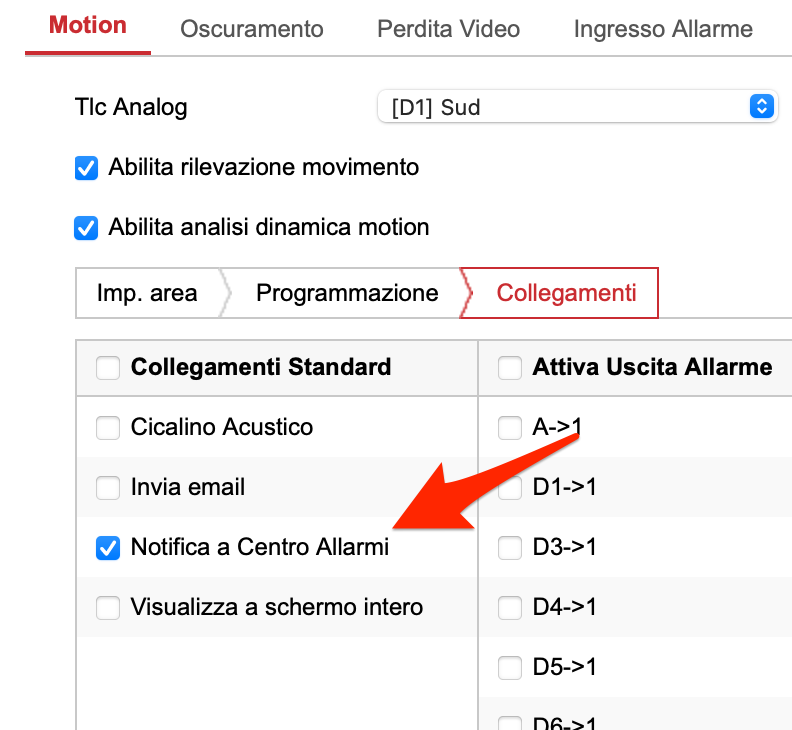
For NVR/DVR, pleas remember to select "Notify Alarm Center" in the event window, otherwise the NVR won't emit any alarm event.
## CHANGELOG
- See here the changelog
## CAMERA EVENT NODE
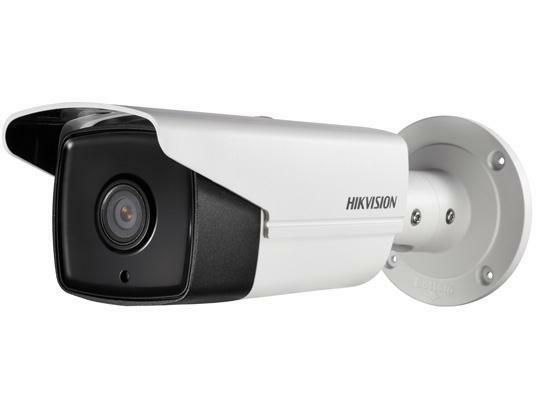 The Camera Event node connects to **_NVR, Camera, Radars, etc.._** and outputs true/false in case of an alarm.
The node can be configured as **Camera/NVR** (with standard and smart events) or as **Old Security System** and **Radar** (with specific CID events, designed for these type of security devices)
You can optionally filter the alarms by CHANNEL, EVENT and ZONE.
For NVR/DVR, the **_Channel_** property is the CAMERA number, while for Cameras, is the image sensor number (normally 1).
The **_Zone_** property is the alarm zone (RADARS), or the alert region number (CAMERAS AND NVR/DVR).
For RADAR device types, you can filter improper/false alams as well.
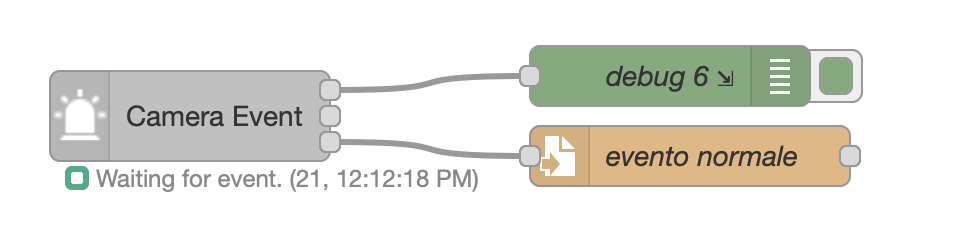 You can choose from many different alarms, including:
- Video Motion Alarm (When motion is detected)
- Local alarm input (it's the device's IO pigtail connector)
- Line crossing (when someone crosses a line)
- CID alarms
- Many more.....
**Flow Messages**
The node outputs a payload on **PIN 1** (**_TRUE_** on alarm start, **_FALSE_** on alarm end). Some alarm types only support the alarm start event.
The node outputs a payload on **PIN 2**, representing a connection error. **_TRUE_** if error, otherwise **_FALSE_**
The node outputs a payload on **PIN 3**, with the captured image (as byte array), that you can directly save to disk or attach on an email or so. This pin emits a message only if the camera sends the captured image. This usually happens with "smart" events (but many firmwares out there, allow you to do it even with the basic events). You can check that by attaching a debug node on the third pin, then set a rule in the smart event and set the camera to send pictures in case of events (usually, you'll find this option in the "Archive management" menu of your camera).
This below is an example of msg output:
**Output PIN 1**
```javascript
// Example of an event from NVR/Camera
msg = {
payload: true,
topic: "",
channelid: "13", // This is the camera number for NVR, or the channel ID for cameras
zone: 0, // Zone or Region, see above, the explained difference
description: "Motion alarm",
_msgid: "386a613.89f259e",
};
```
```javascript
// Example of an event from Radar
msg = {
{
"zone": 1, // This is the zone number that fired the alarm
"payload": true, // true if alarm, otherwise false if alarm ended.
"alarm": {
"ipAddress": "192.168.1.25",
"ipv6Address": "",
"portNo": 80,
"protocol": "HTTP",
"macAddress": "BananaRama",
"channelID": 1,
"dateTime": "2012-01-13T03:58:19+01:00",
"activePostCount": 1,
"eventType": "cidEvent",
"eventState": "active",
"eventDescription": "CID event",
"CIDEvent": {
"code": 3103,
"standardCIDcode": 3130,
"type": "zoneAlarm",
"trigger": "2012-01-13T03:58:19+01:00",
"upload": "2012-01-13T03:58:19+01:00",
"CameraList": [],
"NVRList": [
{
"id": 1,
"ip": "192.168.1.32",
"port": 8000,
"channel": 1
}
],
"zone": 1
}
}
"_msgid": "b07e50f6.86a72"
}
```
**Output PIN 2 (connection error)**
```javascript
msg = {
topic: "",
errorDescription: "", // This will contain the error rescription, in case of errors.
payload: false, // Or TRUE if error
_msgid: "dd5b3622.884a78",
};
```
**Output PIN 3 (Image)**
```javascript
msg = {
topic: "",
payload: image(Bytes),
extension: "jpg", // Can be "jpg" or "png"
};
```
---
## INTELLIGENT EVENT NODE
 Receives "Intelligent" / "Smart" events from a Hikvision camera or NVR.
This node is similar to the **Camera Event** node, but it focuses on **smart / intelligent analytics**, such as:
- Intrusion / field detection
- Human / vehicle detection
- Line crossing, face detection, etc. (depending on your device firmware)
Events must be configured in the camera/NVR web interface (Smart/Intelligent events menu) and set to **Notify alarm center / Send to center**, otherwise they will not be sent to this node.
You can:
- Filter by **channel** (camera number on NVR / sensor ID on camera).
- Filter by **object type**: All / Human / Vehicle / Animal (if the camera provides this information).
- Optionally filter **false alarms** using:
- **Alarm duration**: how many seconds the alarm must stay active (or repeatedly active)
- **Evaluation period**: time window in which the total active time is evaluated
If _Alarm duration_ is `0`, every event is forwarded immediately.
If _Alarm duration_ is `> 0`, the node only outputs an alarm when the cumulative active time inside the evaluation period reaches the selected duration.
**Flow Messages**
The node has 3 outputs:
- **PIN 1**: Intelligent event (true/false, plus details)
- **PIN 2**: Connection status / error
- **PIN 3**: Image (if provided by the device)
**Output PIN 1**
```javascript
// Example of a smart event
msg = {
payload: true, // true on alarm start, false on alarm end
topic: "MyCamera/IntelligentEvent",
channelid: "1", // camera/NVR channel ID
zone: 0, // region/zone ID, if provided by the event
description: "Intrusion Detection",
// Full parsed event object (SmartEvent or EventNotificationAlert)
event: {
/* ... full event ... */
},
// Optional fields populated when the camera includes image info in the event
imageName: "202011301142008600", // picture name (picName, etc.) if available
imageUrl: "/ISAPI/ContentMgmt/StreamingProxy/channels/101/picture", // picture URL/path
_msgid: "abcd1234.5678efgh",
};
```
If the smart event payload contains fields such as `picName`, `picUrl` (or similar variants, possibly inside `customData`), the node exposes them as:
- `msg.imageName`
- `msg.imageUrl`
You can then perform a separate HTTP GET (for example with the **HTTP Request** node) or use the **Picture** node to retrieve the related JPEG image.
**Output PIN 2 (connection error)**
```javascript
msg = {
topic: "MyCamera/IntelligentEvent",
errorDescription: "", // non-empty string in case of error
payload: false, // true = error, false = connection OK
};
```
**Output PIN 3 (Image)**
```javascript
msg = {
topic: "MyCamera/IntelligentEvent",
payload: imageBuffer, // image bytes
extension: "jpg", // "jpg" or "png"
};
```
This third pin emits messages only if the camera/NVR actually sends a picture on the alert stream for that event type (smart event snapshots enabled in the device configuration).
**Example: Intelligent event + snapshot flow**
A typical flow is:
1. Use the **Intelligent Event** node (PIN 1) to detect human/vehicle/intrusion events.
2. When `msg.payload === true`, trigger the **Picture** node to grab a fresh snapshot from the same camera and channel.
3. Optionally use `msg.imageName` / `msg.imageUrl` from the Intelligent node to:
- build filenames,
- store references in a database,
- or fetch archived images from the NVR.
---
## ANPR (License Plate) NODE
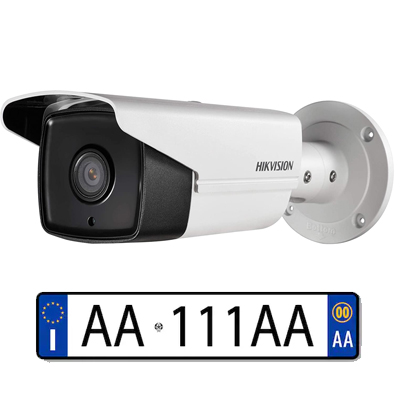 This node works with Hikvision ANPR cameras.
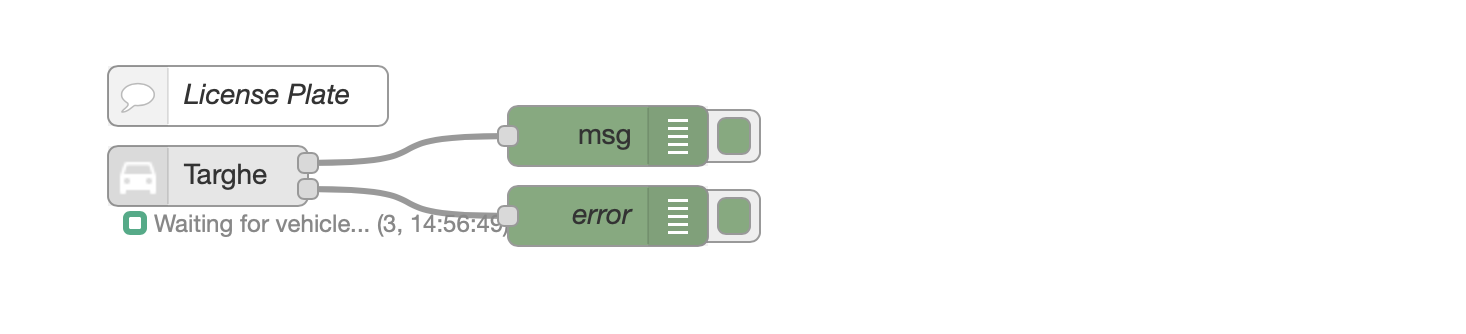 **Flow Messages**
The payload contains the license plate number and the property _plate_ contains other useful informations.
**Output PIN 1**
```javascript
msg = {
topic: "",
payload: "AB123CD", // This is the license plate
plate: {
captureTime: "20201130T114200+0100",
plateNumber: "AB123CD",
picName: "202011301142008600", // This is the picture's name of the license plate.
country: "ITA",
laneNo: "1",
direction: "forward",
matchingResult: "otherlist",
},
};
```
**Output PIN 2 (connection error)**
```javascript
msg = {
topic: "",
errorDescription: "", // This will contain the error rescription, in case of errors.
payload: false, // Or TRUE if error
_msgid: "dd5b3622.884a78",
};
```
**Flow Messages**
The payload contains the license plate number and the property _plate_ contains other useful informations.
**Output PIN 1**
```javascript
msg = {
topic: "",
payload: "AB123CD", // This is the license plate
plate: {
captureTime: "20201130T114200+0100",
plateNumber: "AB123CD",
picName: "202011301142008600", // This is the picture's name of the license plate.
country: "ITA",
laneNo: "1",
direction: "forward",
matchingResult: "otherlist",
},
};
```
**Output PIN 2 (connection error)**
```javascript
msg = {
topic: "",
errorDescription: "", // This will contain the error rescription, in case of errors.
payload: false, // Or TRUE if error
_msgid: "dd5b3622.884a78",
};
```
---
## PTZ NODE
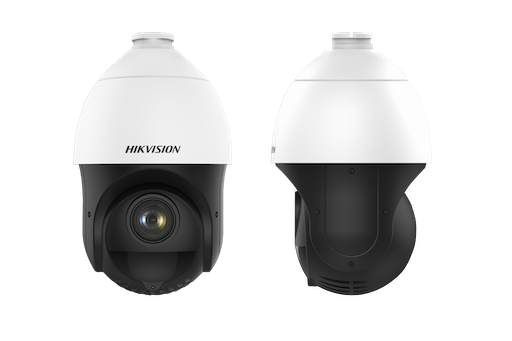 Recalls a PTZ pre-recorded preset.
Just select the preset in the configuration window and recall it by passing **_true_** as payload.
You can also set the Camera Number and PTZ preset number by msg.payload.channelID (optional) and msg.payload.PTZPreset. See below.
 **Flow Messages**
There are now 2 modes:
- **Default mode**: the node outputs **_true_** on PIN 1 when the camera accepts the PTZ goto request (HTTP 2xx response). It does **not** verify that the camera has already physically reached the preset position.
- **Wait for camera position reached**: after the PTZ goto request is accepted, the node polls the camera PTZ absolute position and outputs **_true_** on PIN 1 only after the position settles. This mode is slower by design and requires camera support for `/ISAPI/PTZCtrl/channels//absoluteEx`.
In both modes, request/connection errors are sent on PIN 2.
**Input**
```javascript
// Recall the preset set in the configuration window
msg.payload = true; // Recalls the preset
return msg;
```
```javascript
// Pass the Camera Number and PTZ preset by message
msg.payload.channelID = 1; // OPTIONAL, pass the Camera number
msg.payload.PTZPreset = 2; // OPTIONAL, pass the PTZ preset number
return msg;
```
**Output PIN 1**
```javascript
msg = {
{
"payload": true, // default mode: camera accepted the PTZ goto command
"_msgid": "b07e50f6.86a72"
}
```
```javascript
msg = {
{
"payload": true, // wait mode: camera position confirmed as reached
"channelID": "1",
"PTZPreset": "2",
"waitForCameraPositionReached": true,
"cameraPositionReached": true,
"cameraPosition": {
"azimuth": 180,
"elevation": 25.4,
"absoluteZoom": 120
}
}
```
**Output PIN 2 (connection error)**
```javascript
msg = {
topic: "",
errorDescription: "", // This will contain the error rescription, in case of errors.
payload: false, // Or TRUE if error
_msgid: "dd5b3622.884a78",
};
```
**Flow Messages**
There are now 2 modes:
- **Default mode**: the node outputs **_true_** on PIN 1 when the camera accepts the PTZ goto request (HTTP 2xx response). It does **not** verify that the camera has already physically reached the preset position.
- **Wait for camera position reached**: after the PTZ goto request is accepted, the node polls the camera PTZ absolute position and outputs **_true_** on PIN 1 only after the position settles. This mode is slower by design and requires camera support for `/ISAPI/PTZCtrl/channels//absoluteEx`.
In both modes, request/connection errors are sent on PIN 2.
**Input**
```javascript
// Recall the preset set in the configuration window
msg.payload = true; // Recalls the preset
return msg;
```
```javascript
// Pass the Camera Number and PTZ preset by message
msg.payload.channelID = 1; // OPTIONAL, pass the Camera number
msg.payload.PTZPreset = 2; // OPTIONAL, pass the PTZ preset number
return msg;
```
**Output PIN 1**
```javascript
msg = {
{
"payload": true, // default mode: camera accepted the PTZ goto command
"_msgid": "b07e50f6.86a72"
}
```
```javascript
msg = {
{
"payload": true, // wait mode: camera position confirmed as reached
"channelID": "1",
"PTZPreset": "2",
"waitForCameraPositionReached": true,
"cameraPositionReached": true,
"cameraPosition": {
"azimuth": 180,
"elevation": 25.4,
"absoluteZoom": 120
}
}
```
**Output PIN 2 (connection error)**
```javascript
msg = {
topic: "",
errorDescription: "", // This will contain the error rescription, in case of errors.
payload: false, // Or TRUE if error
_msgid: "dd5b3622.884a78",
};
```
---
## PICTURE NODE
 This node gets a picture from the camera/NVR, ready to be shown in the dashboard UI.
You can rotate, resize, crop, overlay with text, zoom the image.
The **_overlay text_** is applied directly after the picture's manipulation. This behaves differently than the **text overlay node** (that uses the overlay functionality onboard the camera).
Pass **true** as payload to obtain the image.
You can, for example, link the **_Camera Event node_** to the **_Picture node_** to get an image whenever an alarm occurs.
**CAUTION**: image handling is a very CPU/GPU consuming job. Use only if you have enough computational resources.

For the picture to show up directly into the flow, you can use this node developed by @riku
[node-red-contrib-image-output](https://flows.nodered.org/node/node-red-contrib-image-output)
**Copy this code and paste it into your flow**
View code
> Adjust the nodes according to your setup
```javascript
[
{
id: "bd6acbb81c4f9eaf",
type: "change",
z: "48095c5671f0ab16",
name: "Setup msg",
rules: [
{ t: "set", p: "cid", pt: "msg", to: "", tot: "date" },
{
t: "set",
p: "attachments",
pt: "msg",
to: '[{\t "filename": \'image_\' & $replace($now(),":","_") & \'.jpg\', \t "content": $$.forEmail,\t "cid": "" & cid & ""\t}]',
tot: "jsonata",
},
{ t: "set", p: "topic", pt: "msg", to: "See attached image", tot: "str" },
{ t: "set", p: "payload", pt: "msg", to: "''", tot: "jsonata" },
{
t: "set",
p: "from",
pt: "msg",
to: "info@mysupersmarthome.it",
tot: "str",
},
],
action: "",
property: "",
from: "",
to: "",
reg: false,
x: 410,
y: 200,
wires: [["3e0ca3cc7c0d2e22"]],
},
{
id: "0b82f010bd682a0d",
type: "hikvisionUltimatePicture",
z: "48095c5671f0ab16",
name: "Ovest",
topic: "",
server: "eb73371b.af5208",
channelID: "7",
rotateimage: "0",
heightimage: "",
widthimage: "",
qualityimage: "100",
cropimage: "",
textoverlay: "",
textoverlayXY: "",
textoverlayWH: "",
textoverlayFont: "FONT_SANS_64_WHITE",
x: 230,
y: 200,
wires: [["bd6acbb81c4f9eaf", "7ff4f0c75ef4d486"], []],
},
{
id: "478fee35ffd435b5",
type: "inject",
z: "48095c5671f0ab16",
name: "",
props: [{ p: "payload" }, { p: "topic", vt: "str" }],
repeat: "",
crontab: "",
once: false,
onceDelay: 0.1,
topic: "",
payload: "true",
payloadType: "bool",
x: 110,
y: 200,
wires: [["0b82f010bd682a0d"]],
},
{
id: "facefd92c70af183",
type: "comment",
z: "48095c5671f0ab16",
name: "Send an Email with image attachment and show it in the web UI",
info: "",
x: 290,
y: 160,
wires: [],
},
{
id: "7ff4f0c75ef4d486",
type: "template",
z: "48095c5671f0ab16",
name: "",
field: "payload",
fieldType: "msg",
format: "handlebars",
syntax: "mustache",
template: ' ',
output: "str",
x: 400,
y: 260,
wires: [["121759fa66219f53"]],
},
{
id: "121759fa66219f53",
type: "ui_template",
z: "48095c5671f0ab16",
group: "e2be830cd2d143a0",
name: "",
order: 0,
width: "6",
height: "4",
format: '',
storeOutMessages: true,
fwdInMessages: true,
resendOnRefresh: true,
templateScope: "local",
x: 560,
y: 260,
wires: [[]],
},
{
id: "3e0ca3cc7c0d2e22",
type: "function",
z: "48095c5671f0ab16",
name: "Email",
func: "// Replace this function node with an email node",
outputs: 1,
noerr: 0,
initialize: "",
finalize: "",
libs: [],
x: 550,
y: 200,
wires: [[]],
},
{
id: "eb73371b.af5208",
type: "Hikvision-config",
host: "192.168.1.32",
port: "80",
name: "NVR",
authentication: "digest",
protocol: "http",
heartbeattimerdisconnectionlimit: "1",
deviceinfo: "[object Object]",
},
{
id: "e2be830cd2d143a0",
type: "ui_group",
name: "Default",
tab: "e0f42233.22428",
order: 2,
disp: true,
width: "6",
collapse: false,
},
{
id: "e0f42233.22428",
type: "ui_tab",
name: "NVR",
icon: "dashboard",
order: 13,
},
];
```
',
output: "str",
x: 400,
y: 260,
wires: [["121759fa66219f53"]],
},
{
id: "121759fa66219f53",
type: "ui_template",
z: "48095c5671f0ab16",
group: "e2be830cd2d143a0",
name: "",
order: 0,
width: "6",
height: "4",
format: '',
storeOutMessages: true,
fwdInMessages: true,
resendOnRefresh: true,
templateScope: "local",
x: 560,
y: 260,
wires: [[]],
},
{
id: "3e0ca3cc7c0d2e22",
type: "function",
z: "48095c5671f0ab16",
name: "Email",
func: "// Replace this function node with an email node",
outputs: 1,
noerr: 0,
initialize: "",
finalize: "",
libs: [],
x: 550,
y: 200,
wires: [[]],
},
{
id: "eb73371b.af5208",
type: "Hikvision-config",
host: "192.168.1.32",
port: "80",
name: "NVR",
authentication: "digest",
protocol: "http",
heartbeattimerdisconnectionlimit: "1",
deviceinfo: "[object Object]",
},
{
id: "e2be830cd2d143a0",
type: "ui_group",
name: "Default",
tab: "e0f42233.22428",
order: 2,
disp: true,
width: "6",
collapse: false,
},
{
id: "e0f42233.22428",
type: "ui_tab",
name: "NVR",
icon: "dashboard",
order: 13,
},
];
```
**PROPERTY WINDOW**
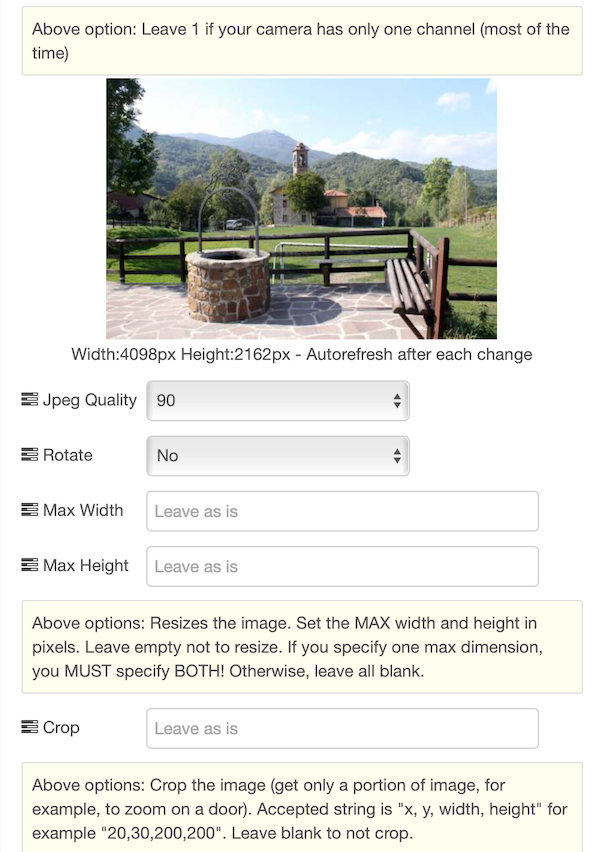 **Flow Messages**
The node outputs the image in in mamy formats on PIN 1, otherwise an error on PIN 2. On PIN 1 you'll have:
**Flow Messages**
The node outputs the image in in mamy formats on PIN 1, otherwise an error on PIN 2. On PIN 1 you'll have:
_base64 JPG string format_, ready for the UI Dashboard.
_JPG Buffer_, ready to be sent as email attachment.
_pure base64 format_, for many other uses.
The Picture Node now passes through the input message, in the property **msg.previousInputMessage**
**Input**
```javascript
// To get the image
msg.payload = true;
return msg;
```
```javascript
// Dinamically set the overlay text
node.textoverlay = "Hello new overlay";
msg.payload = true;
return msg;
```
**Output PIN 1**
```javascript
msg = {
{
"previousInputMessage" : {topic : "banana"}, // this is the original passedthrough message
"payload": "data:image/jpg;base64,/9j/4AAQSk...", // FOR THE DASHBOARD UI: Image as string in base64 format with JPG DATA header already there.
"forEmail": "", // FOR EMAIL: Image as buffer format, ready to be attached to an email as JPG attachment.
"base64": "/9j/4AAQSk...", // FOR FURTHER MANIPULATION: Image as pure base64 string.
"_msgid": "b07e50f6.86a72"
}
return msg;
```
**Output PIN 2 (connection error)**
```javascript
msg = {
topic: "",
errorDescription: "", // This will contain the error rescription, in case of errors.
payload: false, // Or TRUE if error
_msgid: "dd5b3622.884a78",
};
return msg;
```
---
## TEXT OVERLAY NODE
You can set the camera's text overlay. This node uses the camera's onboard text overlaying capabilities.
There are 4 rows avaiable, to be set from the configuration window or dinamically via msg input from flow.
Please note that not all cameras nor NVR/DVR (especially with old firmware) suppor setting the overlay text.
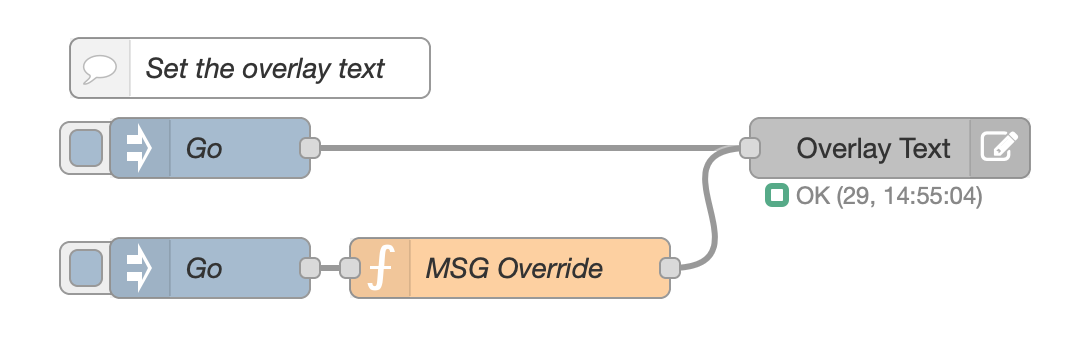 **Copy this code and paste it into your flow**
View code
> Adjust the nodes according to your setup
```javascript
[
  {
    id: "7e79800b.afb8a8",
    type: "hikvisionUltimateText",
    z: "3f22f0c6.ff1328",
    name: "Overlay Text",
    server: "eb73371b.af5208",
    row1: "",
    row1XY: "",
    row2: "",
    row2XY: "",
    row3: "",
    row3XY: "",
    row4: "",
    row5XY: "",
    channelID: "1",
    x: 510,
    y: 120,
    wires: [],
  },
  {
    id: "3aa8a40f.9a0964",
    type: "inject",
    z: "3f22f0c6.ff1328",
    name: "Go",
    props: [{ p: "payload" }, { p: "topic", vt: "str" }],
    repeat: "",
    crontab: "",
    once: false,
    onceDelay: 0.1,
    topic: "",
    payload: "",
    payloadType: "date",
    x: 170,
    y: 120,
    wires: [["7e79800b.afb8a8"]],
  },
  {
    id: "2b4d9297.75ee46",
    type: "comment",
    z: "3f22f0c6.ff1328",
    name: "Set the overlay text",
    info: "",
    x: 190,
    y: 80,
    wires: [],
  },
  {
    id: "22dc37f9.b3b86",
    type: "function",
    z: "3f22f0c6.ff1328",
    name: "MSG Override",
    func: '// Override one or more rows\n// You can use from row1 to row4 to set the text\n// and from row1XY to row4XY to set the position in the format x,y (for example: 100,200)\n\n// Optionally set the channel. On NVR, this indicates the camera number\nmsg.channelid = 1;\n\n// Row 1\nmsg.row1 = "Temperature: " + msg.payload;\nmsg.row1XY = "100,200"; // Optionallly set the position\n\n// Row 2 (here we leave the position previosly set via the camera menu)\nmsg.row2 = "Sun";\n\nreturn msg;',
    outputs: 1,
    noerr: 0,
    initialize: "",
    finalize: "",
    x: 320,
    y: 180,
    wires: [["7e79800b.afb8a8"]],
  },
  {
    id: "a91e43a0.ccbb2",
    type: "inject",
    z: "3f22f0c6.ff1328",
    name: "Go",
    props: [{ p: "payload" }, { p: "topic", vt: "str" }],
    repeat: "",
    crontab: "",
    once: false,
    onceDelay: 0.1,
    topic: "",
    payload: "22°c",
    payloadType: "str",
    x: 170,
    y: 180,
    wires: [["22dc37f9.b3b86"]],
  },
  {
    id: "eb73371b.af5208",
    type: "Hikvision-config",
    host: "192.168.1.32",
    port: "80",
    name: "Server",
    authentication: "digest",
    protocol: "http",
    heartbeattimerdisconnectionlimit: "1",
    deviceinfo: "[object Object]",
  },
];
```
**Flow Messages**
Pass anything you like as input msg, to set the text overlay.
You can override texts by passing some msg inputs. See samples below
**Input**
```javascript
// Simply overlay the text set in the config window
msg.payload = true;
return msg;
```
```javascript
// Override one or more rows
// You can use from row1 to row4 to set the text
// and from row1XY to row4XY to set the position in the format x,y (for example: 100,200)
// Optionally set the channel. On NVR, this indicates the camera number
msg.channelid = 1;
// Row 1
msg.row1 = "Temperature: " + msg.payload;
msg.row1XY = "100,200"; // Optionallly set the position
// Row 2 (here we leave the position previosly set via the camera menu)
msg.row2 = "Sun";
return msg;
```
```javascript
// Delete all 4 rows
msg.row1 = "";
msg.row2 = "";
msg.row3 = "";
msg.row4 = "";
return msg;
```
---
## XML NODE
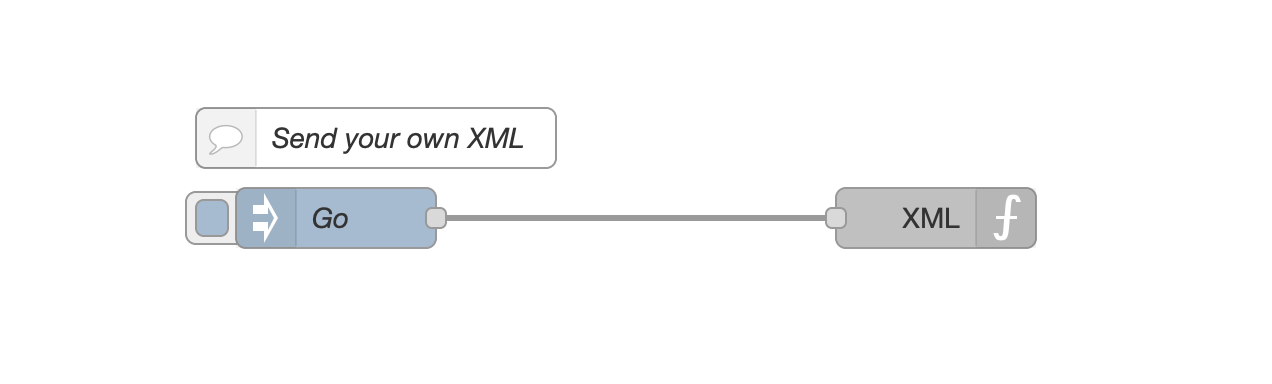
This node allow you to send any XML you want to your devices.
Every device has own firmware, capabilities etc. so i decided to allow you to cover all your needs by adding this universal node.
Please read the ISAPI Hikvision documentation or dig into the Internet to learn what XML you can send. The limit is only your fantasy.
**Flow Messages**
You can override all properties configured in the node, by passing some msg inputs. See samples below
**Input**
```javascript
// Send your own XML to the device
// You can override the default config, with all these optional properties
// msg.method must be PUT, POST or GET (all uppercase)
msg.XML = ``; // Here goes your XML. These strange chars after the = allow you to do multiline text
msg.path = ""; // For example /ISAPI/System/Video/inputs/channels/1/overlays
msg.method = "PUT"; // This must be PUT, POST or GET (uppercase)
return msg;
```
As an example, you can set a text overlay via XML
```javascript
// Set an overlay text (if the camera supports overlaying text)
msg.XML = `
1
1
true
464
96
HELLO WORLD
`; // Here goes your XML. These strange chars after the = allow you to do multiline text
msg.path = "/ISAPI/System/Video/inputs/channels/1/overlays/text"; // For example /ISAPI/System/Video/inputs/channels/1/overlays
msg.method = "PUT"; // This must be PUT, POST or GET (uppercase)
return msg;
```
**Output**
The node will return the response from the camera.
For example, if you wish to know if your camera has motion detect enable, just pass this to the node
```javascript
// Ask the camera if it supports motion detect
msg.path = "/ISAPI/System/Video/inputs/channels/1/motionDetection";
msg.method = "GET";
return msg;
```
The response will be something like this
```javascript
{
"topic":"Camera Sud",
"payload":{
"MotionDetection":{
"$":{
"version":"2.0",
"xmlns":"http://www.hikvision.com/ver20/XMLSchema"
},
"enabled":"false",
"enableHighlight":"true",
"samplingInterval":"2",
"startTriggerTime":"500",
"endTriggerTime":"500",
"regionType":"grid",
"Grid":{
"rowGranularity":"18",
"columnGranularity":"22"
},
"MotionDetectionLayout":{
"$":{
"version":"2.0",
"xmlns":"http://www.hikvision.com/ver20/XMLSchema"
},
"sensitivityLevel":"80",
"layout":{
"gridMap":"000000000000000000000000000000000000000000000000000000000000000000000000000000000000000000000000000000000000"
}
},
"enableWithMoving":"false"
}
},
"_msgid":"fa45ddc3240240cf"
}
```
If an **_error_** occurs, the XML node will output a msg with the error
```javascript
{
"topic":"XML Node",
"errorDescription":"network timeout at: http://192.168.1.211:80/ISAPI/System/Video/inputs/channels/1/motionDetection",
"_msgid":"8289d3fbf2919d2b"
}
```
---
## RAW CAMERA Event NODE
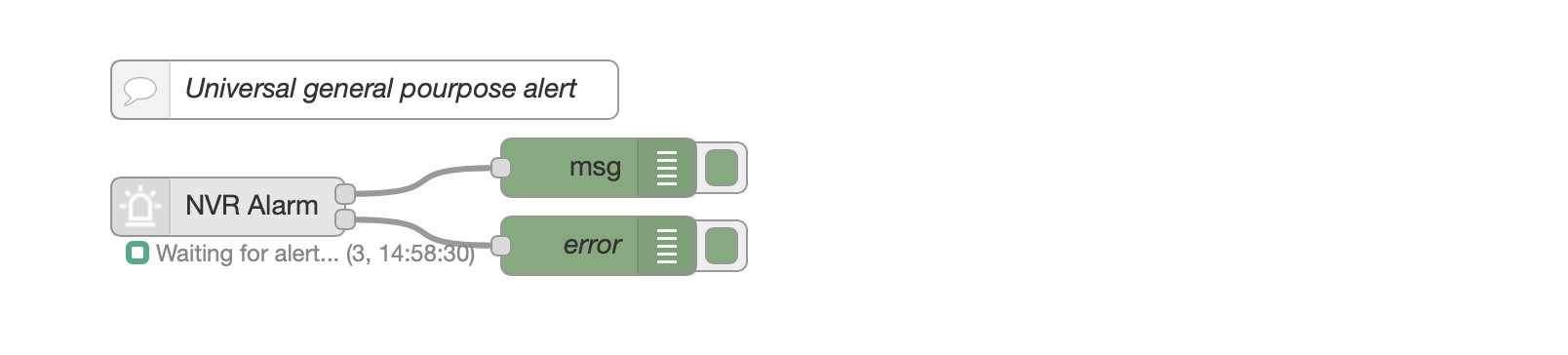
The RAW CAMERA Event node reacts to every message sent by the device. You can use this node when the other nodes doesn't fit your needs. It connects to **_NVR, Camera, Radars etc..._** and outputs the event received.
On the third pin, the node will output the event's picture (if any). You can save it directly to disk or user where you want.
 **Flow Messages**
The node outputs a payload on **PIN 1** that can vary, depending on the alarm type sent by the connected device.
The node outputs a payload on **PIN 2**, representing a connection error. **_TRUE_** if error, otherwise **_FALSE_**
This below is an example of msg output (in this case, a movement detected from a radar)
**Output PIN 1**
```javascript
msg = {
topic: "",
type: "event",
payload: {
ipAddress: "192.168.1.25",
ipv6Address: "",
portNo: 80,
protocol: "HTTP",
macAddress: "banana",
channelID: 1,
dateTime: "2012-01-13T04:32:47+01:00",
activePostCount: 1,
eventType: "MultiRadarTargetEvent",
eventState: "active",
eventDescription: "MultiRadar Target Event",
MultiRadarTargetEventList: [
{
targetID: 25,
isTargetDisappear: false,
targetType: "people",
Coordinate: {
angle: 101.49,
distance: 24.59,
},
speed: -0.2,
signalStrength: "strong",
TrackedInfoList: [],
trackedByIPC: false,
},
],
},
};
```
**Output PIN 2 (connection error)**
```javascript
msg = {
topic: "",
errorDescription: "", // This will contain the error rescription, in case of errors.
payload: false, // Or TRUE if error
};
```
**Output PIN 3 (Image)**
```javascript
msg = {
topic: "",
type: "img",
payload: image,
extension: "jpg", // Can be "jpg" or "png"
};
```
**Flow Messages**
The node outputs a payload on **PIN 1** that can vary, depending on the alarm type sent by the connected device.
The node outputs a payload on **PIN 2**, representing a connection error. **_TRUE_** if error, otherwise **_FALSE_**
This below is an example of msg output (in this case, a movement detected from a radar)
**Output PIN 1**
```javascript
msg = {
topic: "",
type: "event",
payload: {
ipAddress: "192.168.1.25",
ipv6Address: "",
portNo: 80,
protocol: "HTTP",
macAddress: "banana",
channelID: 1,
dateTime: "2012-01-13T04:32:47+01:00",
activePostCount: 1,
eventType: "MultiRadarTargetEvent",
eventState: "active",
eventDescription: "MultiRadar Target Event",
MultiRadarTargetEventList: [
{
targetID: 25,
isTargetDisappear: false,
targetType: "people",
Coordinate: {
angle: 101.49,
distance: 24.59,
},
speed: -0.2,
signalStrength: "strong",
TrackedInfoList: [],
trackedByIPC: false,
},
],
},
};
```
**Output PIN 2 (connection error)**
```javascript
msg = {
topic: "",
errorDescription: "", // This will contain the error rescription, in case of errors.
payload: false, // Or TRUE if error
};
```
**Output PIN 3 (Image)**
```javascript
msg = {
topic: "",
type: "img",
payload: image,
extension: "jpg", // Can be "jpg" or "png"
};
```
---
## DOORBELL NODE
The doorbell node allow you to receive ring/call progress events, open the doors, hangup calls and other things from hikvision and hik compatible doorbells.
Everytime ad intercom sends a message to the node, this message is validated using the filters you selected in the configuration window. In case of a match, it emits a msg to the flow.
There are many filters you can apply (ringStatus (ring or on call), floor number, unit number, building number and so on.).
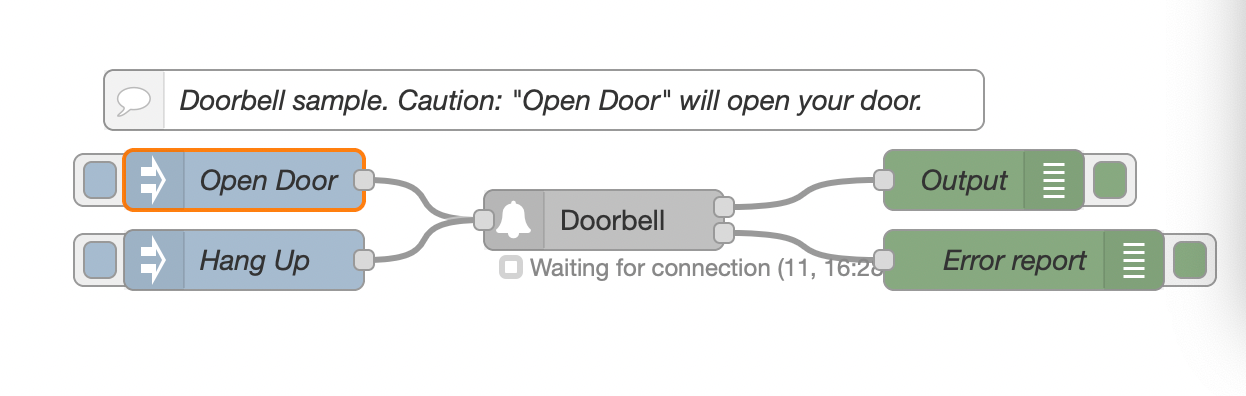 **Copy this code and paste it into your flow**
View code
> Adjust the nodes according to your setup
```javascript
[
  {
    id: "22420ca523840eef",
    type: "hikvisionUltimateDoorbell",
    z: "48095c5671f0ab16",
    name: "",
    topic: "",
    server: "085ef798e6c04064",
    ringStatus: "all",
    floorNo: "all",
    unitNo: "all",
    zoneNo: "all",
    buildingNo: "all",
    x: 360,
    y: 180,
    wires: [["5d1eddc07a46bd2c"], ["7b5813c6cd794885"]],
  },
  {
    id: "5d1eddc07a46bd2c",
    type: "debug",
    z: "48095c5671f0ab16",
    name: "Output",
    active: true,
    tosidebar: true,
    console: false,
    tostatus: false,
    complete: "true",
    targetType: "full",
    statusVal: "",
    statusType: "auto",
    x: 550,
    y: 160,
    wires: [],
  },
  {
    id: "7b5813c6cd794885",
    type: "debug",
    z: "48095c5671f0ab16",
    name: "Error report",
    active: true,
    tosidebar: true,
    console: false,
    tostatus: false,
    complete: "payload",
    targetType: "msg",
    statusVal: "",
    statusType: "auto",
    x: 570,
    y: 200,
    wires: [],
  },
  {
    id: "a1032b3b72cf9db6",
    type: "inject",
    z: "48095c5671f0ab16",
    name: "Open Door",
    props: [
      { p: "openDoor", v: "1", vt: "num" },
      { p: "topic", vt: "str" },
    ],
    repeat: "",
    crontab: "",
    once: false,
    onceDelay: 0.1,
    topic: "",
    x: 180,
    y: 160,
    wires: [["22420ca523840eef"]],
  },
  {
    id: "54590a36f409ce0f",
    type: "inject",
    z: "48095c5671f0ab16",
    name: "Hang Up",
    props: [
      { p: "hangUp", v: "true", vt: "bool" },
      { p: "topic", vt: "str" },
    ],
    repeat: "",
    crontab: "",
    once: false,
    onceDelay: "8",
    topic: "",
    x: 180,
    y: 200,
    wires: [["22420ca523840eef"]],
  },
  {
    id: "2388a3941360bd3c",
    type: "comment",
    z: "48095c5671f0ab16",
    name: 'Doorbell sample. Caution: "Open Door" will open your door.',
    info: "",
    x: 330,
    y: 120,
    wires: [],
  },
  {
    id: "085ef798e6c04064",
    type: "Doorbell-config",
    host: "192.168.1.5",
    port: "80",
    name: "OUTDOOR STATION",
    authentication: "digest",
    protocol: "http",
    heartbeattimerdisconnectionlimit: "1",
    deviceinfo:
      '{"DeviceInfo":{"$":{"version":"2.0","xmlns":"http://www.isapi.org/ver20/XMLSchema"},"deviceName":"OUTDOOR STATION","deviceID":"7d49925b-4fc7-406b-a0ec-2ca59cc25838","deviceDescription":"\\tVis","deviceLocation":"STD-CGI","systemContact":"STD-CGI","model":"DS-KV6113-WPE1(B)","serialNumber":"DS-KV6113-WPE1(B)0120210416RRF86332026","macAddress":"24:18:c6:39:42:29","firmwareVersion":"V2.2.50","firmwareReleasedDate":"build 210630","bootVersion":"33685554","bootReleasedDate":"1377822","hardwareVersion":"0x0","encoderVersion":"V4.0","encoderReleasedDate":"build 181206","deviceType":"\\tVis","telecontrolID":"88","supportBeep":"true","supportVideoLoss":"true","alarmOutNum":"2","alarmInNum":"4","RS485Num":"1","customizedInfo":""}}',
  },
];
```
See these messages you can pass to it:
_OPEN THE DOOR LATCHES_
```javascript
// Open the door.
msg.openDoor = 1; // Pass the door number to open as value, in this case, 1.
return msg;
```
_HANG UP THE CURRENT CALL AND STOP RINGING_
```javascript
// Hangup the current call and stop ringing
msg.hangUp = true;
return msg;
```
**Output**
The node outputs a payload on **PIN 1** that can vary, depending on the event type sent by the connected intercom.
Anyway, it emits always a payload = **\*true** as soon as an intercom message matching filters you configured in the configuration window, arrives. You can use that payload to trigger events.
The node outputs a payload on **PIN 2**, representing a connection error. **_TRUE_** if error, otherwise **_FALSE_**
This below is an example of msg output
**Output PIN 1**
```javascript
msg = {
CallerInfo: {
buildingNo: 1,
floorNo: 1,
zoneNo: 1,
unitNo: 1,
devNo: 88,
devType: 1,
lockNum: 1,
status: "idle",
},
topic: "",
payload: true,
};
```
**Output PIN 2 (connection error)**
```javascript
msg = {
topic: "",
errorDescription: "", // This will contain the error rescription, in case of errors.
payload: false, // Or TRUE if error
};
```
---
## AX PRO Alarm node (Ax Pro and AX Pro Hybrid)
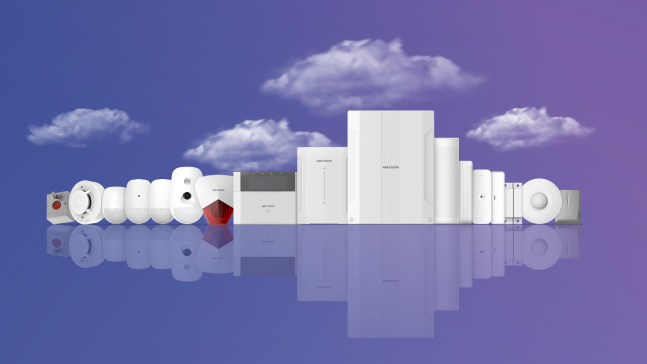 This node receives all events sent by your AX Pro alarm.
You will receive not only Alarms etc, but also zone status, even if the AX Pro is disarmed.
You can also arm, disarm, silence alarm etc...
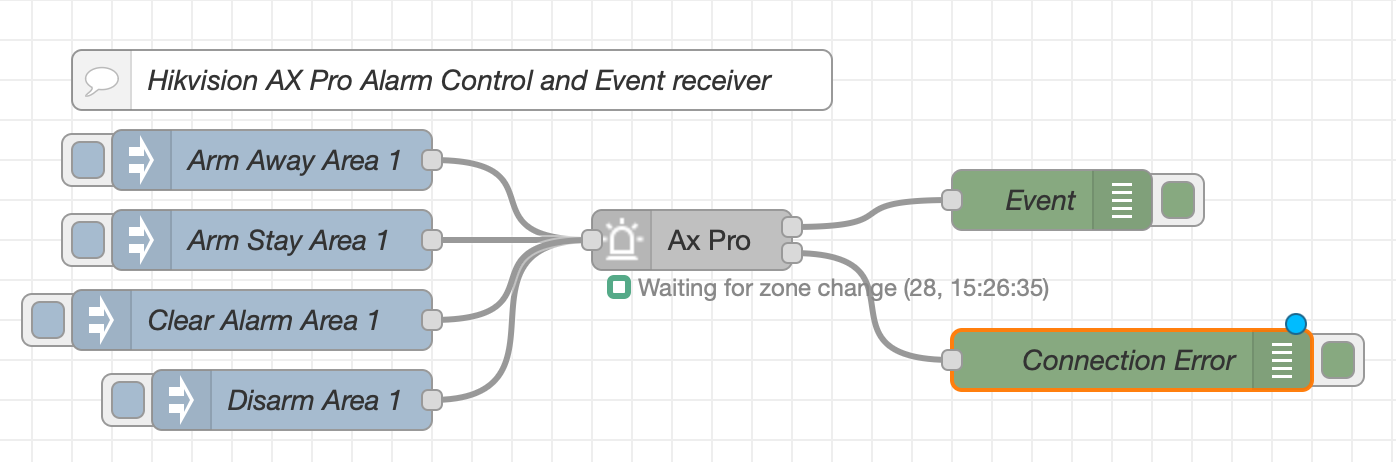 ### Inputs
: armAwayArea (number): Area number (for example 1). Arm Away the selected area.
: armStayArea (number): Area number (for example 1). Arm Stay the selected area.
: armAwayAllAreas (boolean): **true** to Arm Away all areas at once.
: armStayAllAreas (boolean): **true** to Arm Stay all areas at once.
: disarmArea (number): Area number (for example 1). Disarm the selected area.
: disarmAllAreas (boolean): **true** to disarm all areas at once.
: clearAlarmArea (number): Area number (for example 1). Clear alarm of the selected area.
: clearAllAlarmAreas (boolean): **true** to clear the alarm of all areas at once.
Examples:
```javascript
msg.armAwayArea = 1 // To Arm Away Area 1
msg.armStayArea = 1 // To Arm Stay Area 1
msg.armAwayAllAreas = true // To Arm Away all areas at once
msg.armStayAllAreas = true // To Arm Stay all areas at once
msg.disarmArea = 1 // To Disarm Area 1
msg.disarmAllAreas = true // To disarm all areas at once
msg.clearAlarmArea = 1 // To clear alarm on Area 1
msg.clearAllAlarmAreas = true // To clear alarm of all areas at once
return msg;
```
**Copy this code and paste it into your flow**
### Inputs
: armAwayArea (number): Area number (for example 1). Arm Away the selected area.
: armStayArea (number): Area number (for example 1). Arm Stay the selected area.
: armAwayAllAreas (boolean): **true** to Arm Away all areas at once.
: armStayAllAreas (boolean): **true** to Arm Stay all areas at once.
: disarmArea (number): Area number (for example 1). Disarm the selected area.
: disarmAllAreas (boolean): **true** to disarm all areas at once.
: clearAlarmArea (number): Area number (for example 1). Clear alarm of the selected area.
: clearAllAlarmAreas (boolean): **true** to clear the alarm of all areas at once.
Examples:
```javascript
msg.armAwayArea = 1 // To Arm Away Area 1
msg.armStayArea = 1 // To Arm Stay Area 1
msg.armAwayAllAreas = true // To Arm Away all areas at once
msg.armStayAllAreas = true // To Arm Stay all areas at once
msg.disarmArea = 1 // To Disarm Area 1
msg.disarmAllAreas = true // To disarm all areas at once
msg.clearAlarmArea = 1 // To clear alarm on Area 1
msg.clearAllAlarmAreas = true // To clear alarm of all areas at once
return msg;
```
**Copy this code and paste it into your flow**
View code
> Adjust the nodes according to your setup
```javascript
[
{
id: "7c370c1cabe6fd89",
type: "hikvisionUltimateAxPro",
z: "e9a7cd97842ffa10",
name: "Ax Pro",
topic: "",
server: "2dfc48091d46ead3",
outputtype: "0",
x: 350,
y: 200,
wires: [["893818dce1fc2c20"], ["01e634bd9098e528"]],
},
{
id: "893818dce1fc2c20",
type: "debug",
z: "e9a7cd97842ffa10",
name: "Event",
active: true,
tosidebar: true,
console: false,
tostatus: false,
complete: "payload",
targetType: "msg",
statusVal: "",
statusType: "auto",
x: 530,
y: 180,
wires: [],
},
{
id: "01e634bd9098e528",
type: "debug",
z: "e9a7cd97842ffa10",
name: "Connection Error",
active: true,
tosidebar: true,
console: false,
tostatus: false,
complete: "true",
targetType: "full",
statusVal: "",
statusType: "auto",
x: 570,
y: 260,
wires: [],
},
{
id: "ddc2d752e0c13937",
type: "inject",
z: "e9a7cd97842ffa10",
name: "Disarm Area 1",
props: [{ p: "disarmArea", v: "1", vt: "num" }],
repeat: "",
crontab: "",
once: false,
onceDelay: 0.1,
topic: "",
x: 150,
y: 280,
wires: [["7c370c1cabe6fd89"]],
},
{
id: "b33ec376180a53bc",
type: "inject",
z: "e9a7cd97842ffa10",
name: "Arm Away Area 1",
props: [{ p: "armAwayArea", v: "1", vt: "num" }],
repeat: "",
crontab: "",
once: false,
onceDelay: 0.1,
topic: "",
x: 140,
y: 160,
wires: [["7c370c1cabe6fd89"]],
},
{
id: "6145bfa8991c1831",
type: "inject",
z: "e9a7cd97842ffa10",
name: "Arm Stay Area 1",
props: [{ p: "armStayArea", v: "1", vt: "num" }],
repeat: "",
crontab: "",
once: false,
onceDelay: 0.1,
topic: "",
x: 140,
y: 200,
wires: [["7c370c1cabe6fd89"]],
},
{
id: "189b2eb17cb67a52",
type: "inject",
z: "e9a7cd97842ffa10",
name: "Clear Alarm Area 1",
props: [{ p: "clearAlarmArea", v: "1", vt: "num" }],
repeat: "",
crontab: "",
once: false,
onceDelay: 0.1,
topic: "",
x: 130,
y: 240,
wires: [["7c370c1cabe6fd89"]],
},
{
id: "40ce4b0d34bedf21",
type: "comment",
z: "e9a7cd97842ffa10",
name: "Hikvision AX Pro Alarm Control and Event receiver",
info: "",
x: 230,
y: 120,
wires: [],
},
{
id: "2dfc48091d46ead3",
type: "AXPro-config",
host: "192.168.1.10",
port: "80",
name: "AX Pro",
authentication: "sha256-salted",
protocol: "http",
heartbeattimerdisconnectionlimit: "2",
deviceinfo: "[object Object]",
},
];
```
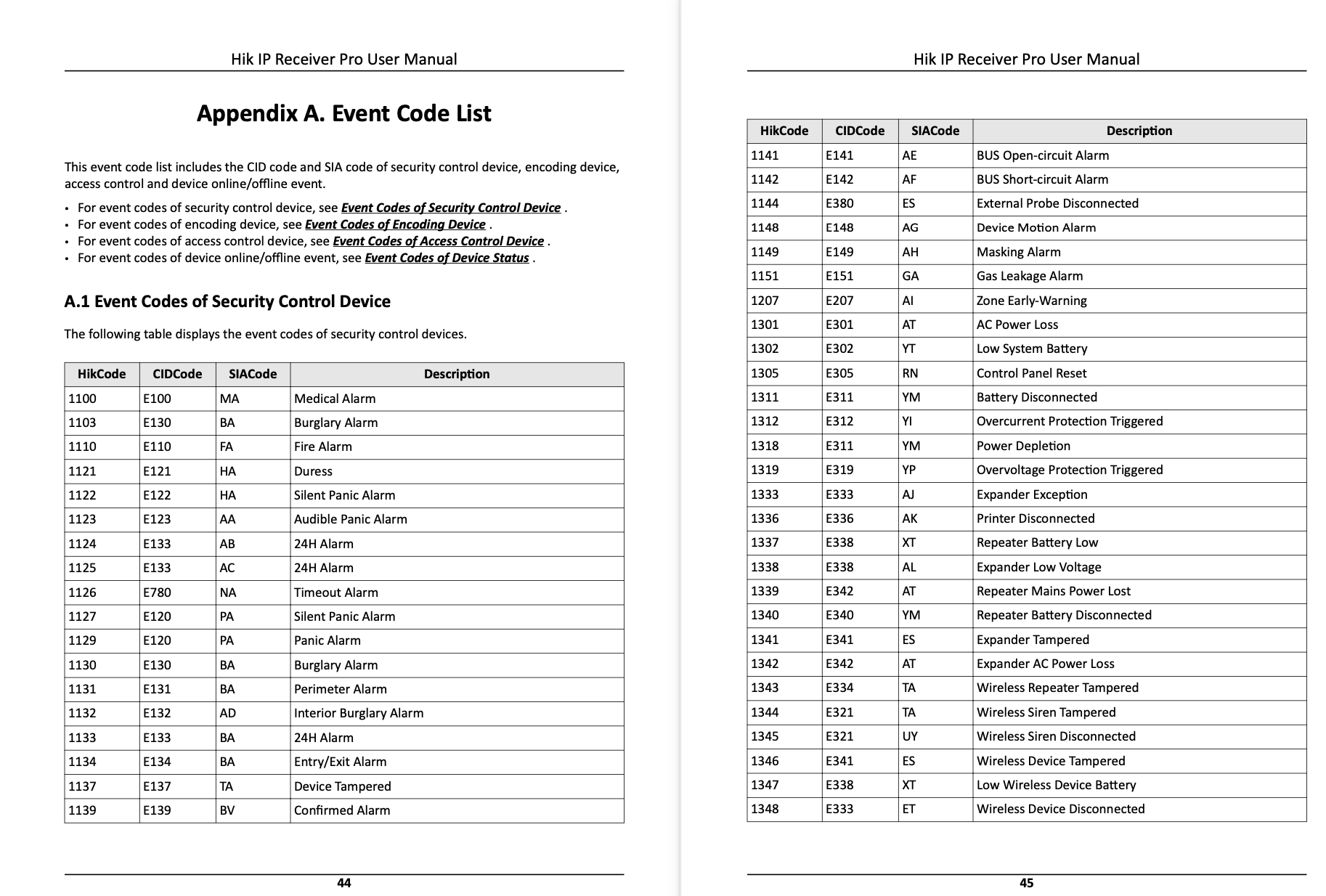
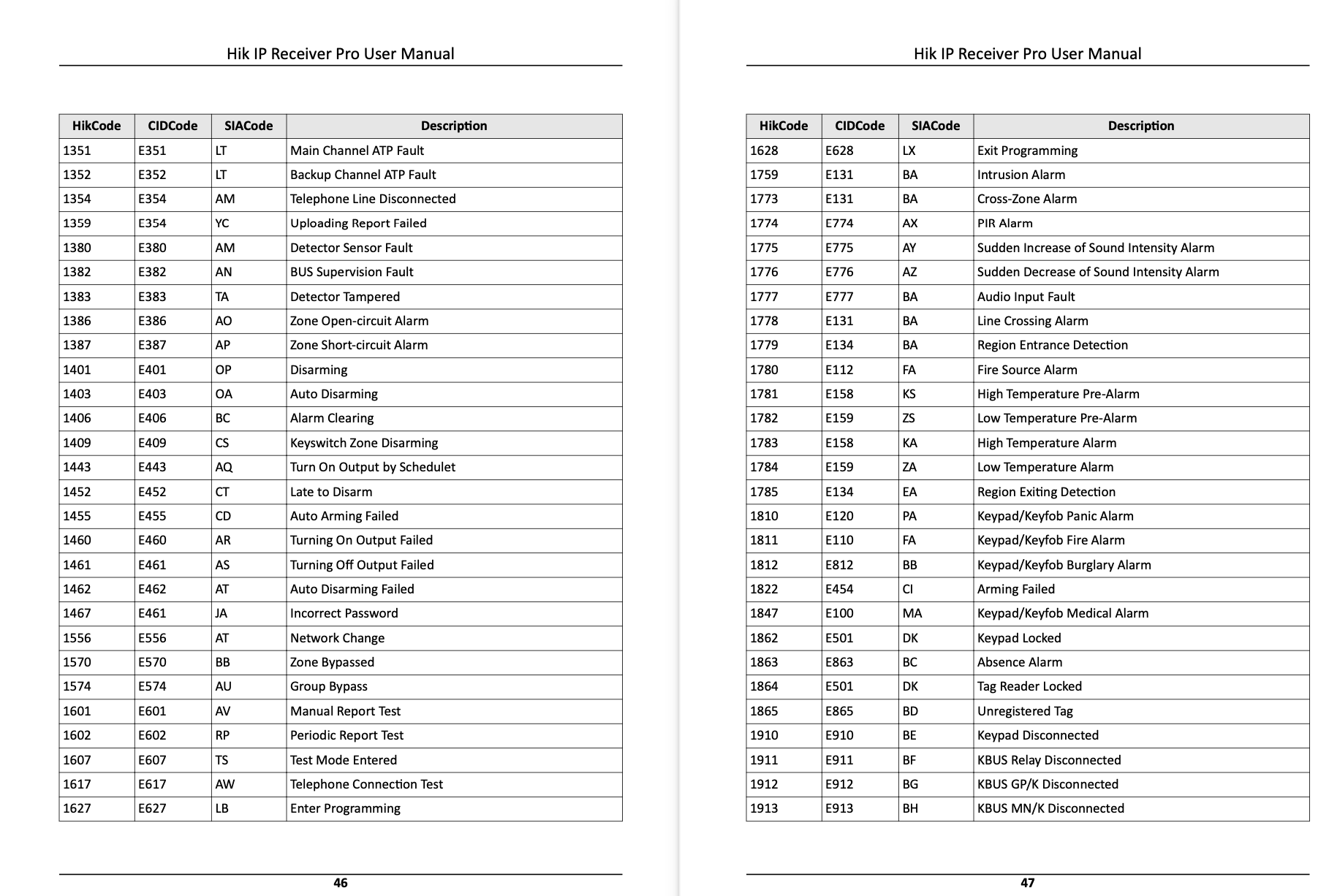
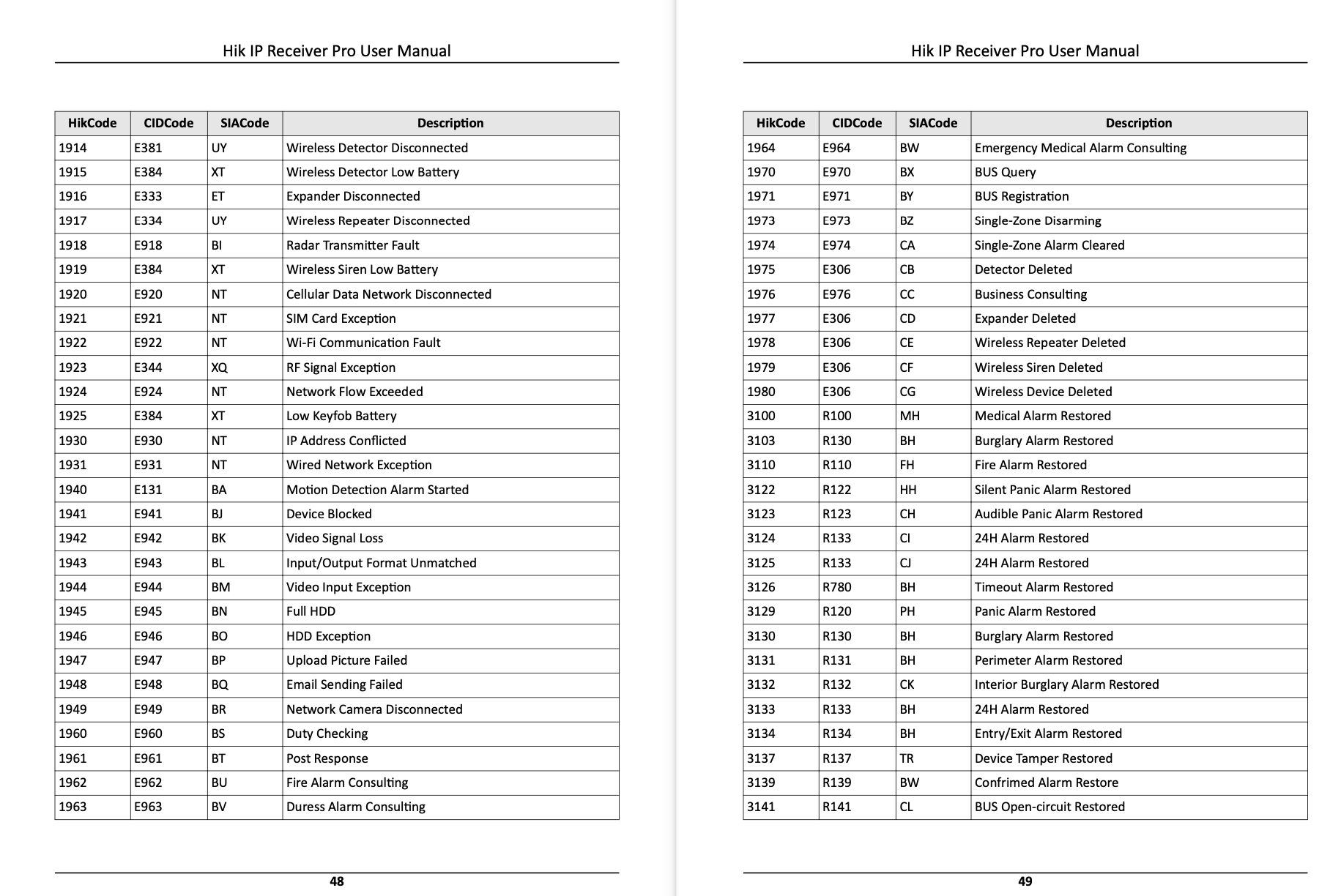
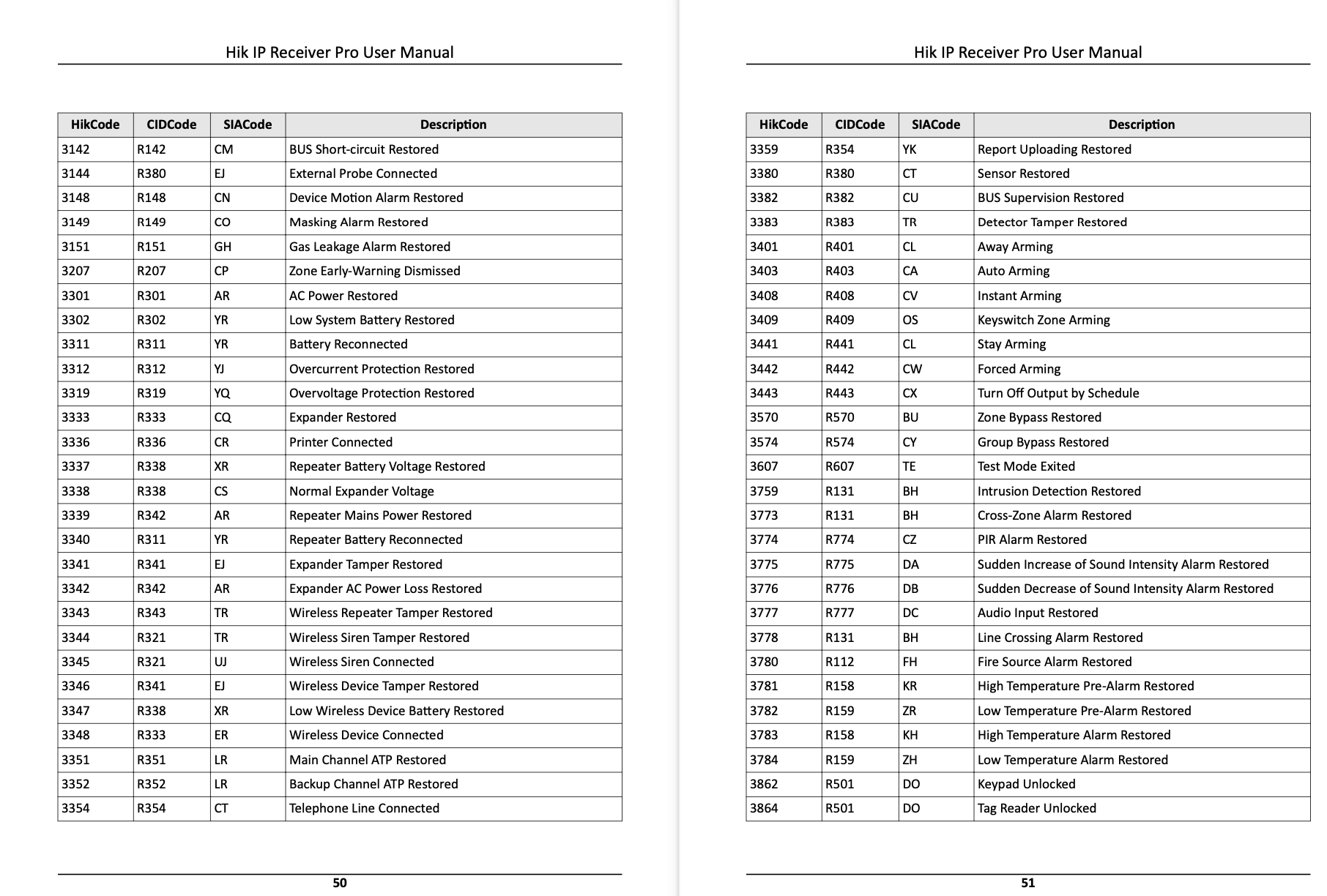
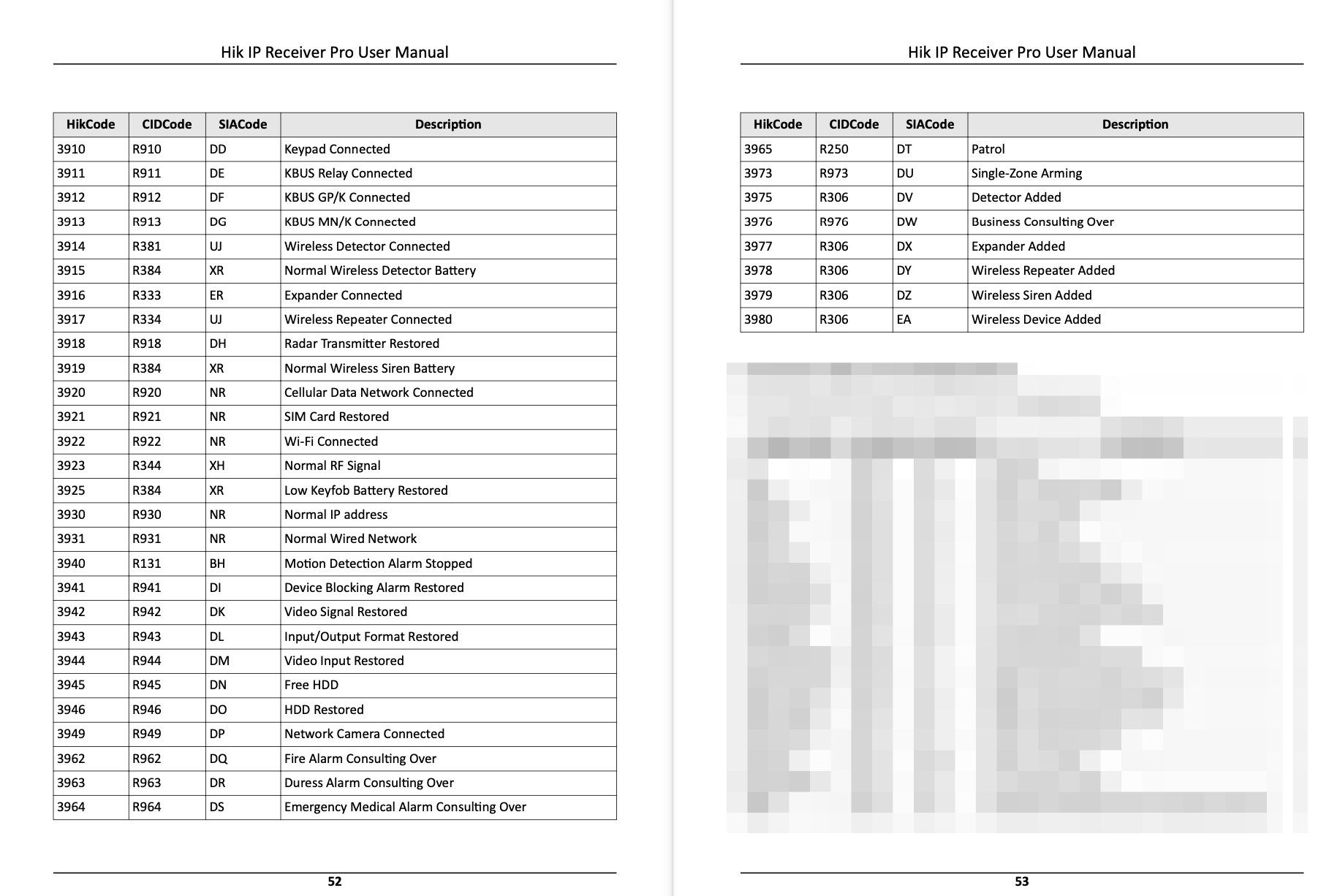
The most common event codes are: 3401 (Arm Away), 3441 (Arm Stay), 1401 (Disarmed), 1759 (Intrusion Alarm)
For other codes, please see the list below. You can find it [here as well](https://www.hikvisioneurope.com/eu/portal/portal/Technical%20Materials/10%20%20Intrusion%26Alarm/08%20ARC%20Integration/Hik%20IP%20Receiver%20Pro/Hik%20IP%20Receiver%20Pro_V1.6.0.4Build20221110/Hik%20IP%20Receiver%20Pro_User%20Manual_V1.6.0.PDF)
 >
>
 >
>
 >
>
 >
>
 >
>
## Access Control Terminal node
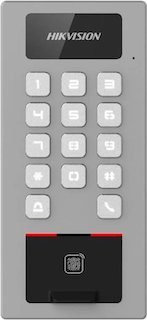 This node receives all events sent by your access control terminal, like, for example the DS-K1T502DBFWX-C.
The node emits the payload as soon as it receives the event.
You can filter by any type of event, alarm, exception, etc, or you can accept all incoming events
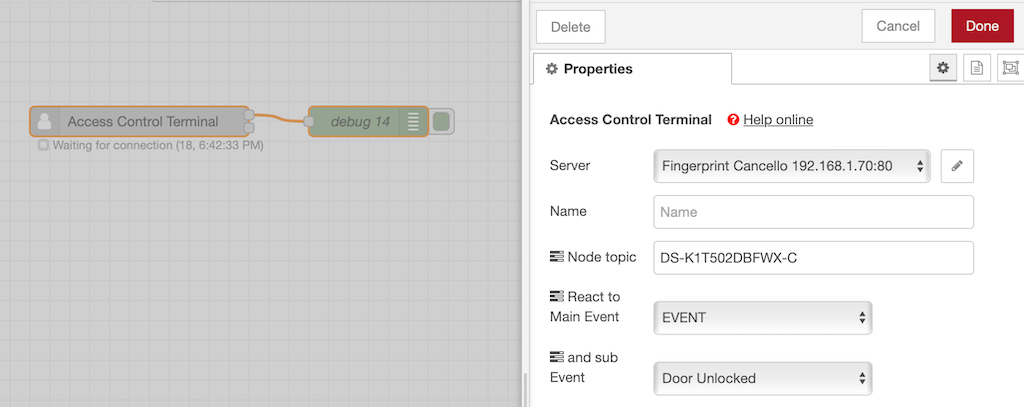
**Flow Messages**
This is an example of payload.
**Output**
```json
{
"topic": "",
"payload": {
"major": 5,
"minor": 21,
"time": "2023-03-18T18:37:54+01:00",
"netUser": "",
"doorNo": 1,
"type": 0,
"serialNo": 735,
"eventDescription": "(EVENT) Door Ulock",
"currentVerifyMode": "faceOrFpOrCardOrPw"
},
"connected": true
}
```
## Speaker node
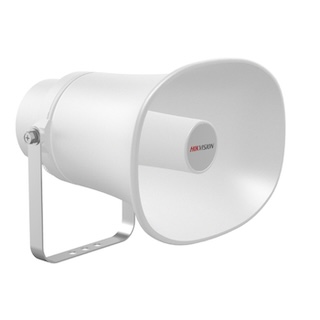 This node connects to your Hikvision Speaker and broadcast a selected audio file, that must be already been uploaded to the speaker.
Please see the help into the Node-Red help tab for further infos.

[license-image]: https://img.shields.io/badge/license-MIT-blue.svg
[license-url]: https://github.com/Supergiovane/node-red-contrib-hikvision-ultimate/master/LICENSE
[npm-url]: https://npmjs.org/package/node-red-contrib-hikvision-ultimate
[npm-version-image]: https://img.shields.io/npm/v/node-red-contrib-hikvision-ultimate.svg
[npm-downloads-month-image]: https://img.shields.io/npm/dm/node-red-contrib-hikvision-ultimate.svg
[npm-downloads-total-image]: https://img.shields.io/npm/dt/node-red-contrib-hikvision-ultimate.svg