---
author: Julian Knight (Totally Information)
created: 2026-03-26 13:19:58
updated: 2026-03-26 15:06:54
status: 1st Draft
title: Including Images
description: >
How to include images in markdown files.
Images can be referenced from local files or external URLs.
tags:
- markdown
- images
- links
---
You can include images in your markdown files using the standard markdown image syntax: ``. The `alt text` is a description of the image for accessibility purposes, and the `image-url` can be a relative path to a local image file or an absolute URL to an external image.
> [!TIP]
> When using a relative path for a local image file, the path should be relative to the location of the Marweb root folder. For example, if your Markweb site is located `/homes/node-red/.node-red/myweb/` and your image is located at `/homes/node-red/.node-red/myweb/images/photo.jpg`, you would use the following syntax in your markdown file: ``.
You can also include HTML attributes in the markdown image syntax to specify additional properties for the image. For example, you can specify the width and height of the image using the `width` and `height` attributes, or you can add CSS classes to style the image using the `class` attribute. For example: `{style="width:4em;" class="my-image"}`.
When you include an image in your markdown file, Markweb will render it as an HTML `![]() ` element in the rendered content. You can also use standard HTML `
` element in the rendered content. You can also use standard HTML `![]() ` tags directly in your markdown files if you need more control over the image attributes, such as width, height, or CSS classes. For example, you could use the following HTML syntax in your markdown file to include an image with specific attributes: `
` tags directly in your markdown files if you need more control over the image attributes, such as width, height, or CSS classes. For example, you could use the following HTML syntax in your markdown file to include an image with specific attributes: ` `.
> [!NOTE]
> See the [Links](./links.md) page for information on how to reference local files, uibuilder paths, and external URLs in markdown files, as the same principles apply to images.
## Examples
### Local image file with attributes
```markdown
{style="width:4em;" class="my-image" id="my-image-id"}
```
{style="width:4em;" class="my-image" id="my-image-id"}
### Local image file outside the Markweb root folder
This is not possible since that folder would need to be accessible via the web server. URL's are virtual paths, not file system paths, so you cannot reference files outside the Markweb root folder. You would need to copy the image into the Markweb root folder or a subfolder to include it in your markdown file.
### UIBUILDER image file
This is a special case, specifically catered for by Markweb. UIBUILDER has a set of accessible resources mounted at the virtual URL path `/uibuilder/`. This means you can reference any file that is accessible via that path, including images. In addition, UIBUILDER mounts vendor libraries that you've added via a uibuilder node's Library Manager at `/uibuilder/vendor/`.
```markdown
{style="width:4em;"}
```
{style="width:4em;"}
### External image URL
As long as external domains are accessible from the client and allowed by CORS policies, you can reference images from external URLs.
```markdown
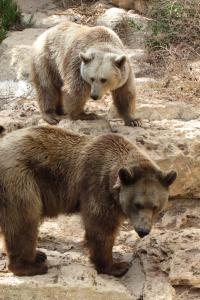
```

### Image in text
You can include images alongside text in your markdown files. For example:
```markdown
Here is an image of a bear: {style="padding:0;margin:0;"} and here is some more text.
```
Here is an image of a bear: {style="padding:0;margin:0;"} and here is some more text.
### Image side-by-side with text
You can use HTML to create a layout with an image side-by-side with text. For more advanced layouts, you can use CSS classes or styles to control the positioning and appearance of the image and text.
```markdown
Some text above.
{style="width:4em; float:right; margin-left:1em;margin-top:0.2em;"}
This is next to the image.
This is below the image.
```
Some text above.
{style="width:4em; float:right; margin-left:1em;margin-top:0.2em;"}
This is a bunch of text that is next to an image. It is all in the same line, but the image is floated to the right and the text wraps around it. This allows you to create a more visually appealing layout for your markdown content. You can adjust the width of the image and the amount of text to create a balanced layout that works well for your content. By using HTML in your markdown files, you have more control over the presentation of your content and can create more complex layouts that are not possible with standard markdown syntax.
And here is some more text that is below the image and the previous text.
`.
> [!NOTE]
> See the [Links](./links.md) page for information on how to reference local files, uibuilder paths, and external URLs in markdown files, as the same principles apply to images.
## Examples
### Local image file with attributes
```markdown
{style="width:4em;" class="my-image" id="my-image-id"}
```
{style="width:4em;" class="my-image" id="my-image-id"}
### Local image file outside the Markweb root folder
This is not possible since that folder would need to be accessible via the web server. URL's are virtual paths, not file system paths, so you cannot reference files outside the Markweb root folder. You would need to copy the image into the Markweb root folder or a subfolder to include it in your markdown file.
### UIBUILDER image file
This is a special case, specifically catered for by Markweb. UIBUILDER has a set of accessible resources mounted at the virtual URL path `/uibuilder/`. This means you can reference any file that is accessible via that path, including images. In addition, UIBUILDER mounts vendor libraries that you've added via a uibuilder node's Library Manager at `/uibuilder/vendor/`.
```markdown
{style="width:4em;"}
```
{style="width:4em;"}
### External image URL
As long as external domains are accessible from the client and allowed by CORS policies, you can reference images from external URLs.
```markdown

```

### Image in text
You can include images alongside text in your markdown files. For example:
```markdown
Here is an image of a bear: {style="padding:0;margin:0;"} and here is some more text.
```
Here is an image of a bear: {style="padding:0;margin:0;"} and here is some more text.
### Image side-by-side with text
You can use HTML to create a layout with an image side-by-side with text. For more advanced layouts, you can use CSS classes or styles to control the positioning and appearance of the image and text.
```markdown
Some text above.
{style="width:4em; float:right; margin-left:1em;margin-top:0.2em;"}
This is next to the image.
This is below the image.
```
Some text above.
{style="width:4em; float:right; margin-left:1em;margin-top:0.2em;"}
This is a bunch of text that is next to an image. It is all in the same line, but the image is floated to the right and the text wraps around it. This allows you to create a more visually appealing layout for your markdown content. You can adjust the width of the image and the amount of text to create a balanced layout that works well for your content. By using HTML in your markdown files, you have more control over the presentation of your content and can create more complex layouts that are not possible with standard markdown syntax.
And here is some more text that is below the image and the previous text.