# Pip.WebUI.Pictures User's Guide
## Contents
- [Installing](#install)
- [pip-picture directive](#picture)
- [pip-picture-edit directive](#picture_edit)
- [pip-avatar directive](#avatar)
- [pip-avatar-edit directive](#avatar_edit)
- [pip-picture-list-edit directive](#picture_list_edit)
- [pip-collage directive](#collage)
- [pip-add-image directive](#add_image)
- [pipCameraDialog](#camera_dialog)
- [pipPictureUrlDialog](#picture_url_dialog)
- [pipGallerySearchDialog](#gallery_search_dialog)
- [Questions and bugs](#issues)
## Installing
Add dependency to **pip-webui** into your **bower.json** or **package.json** file depending what you use.
```javascript
"dependencies": {
...
"pip-webui": "*"
...
}
```
Alternatively you can install **pip-webui** manually using **bower**:
```bash
bower install pip-webui
```
or install it using **npm**:
```bash
npm install pip-webui
```
Include **pip-webui** files into your web application.
```html
...
```
Register **pipPictures** module in angular module dependencies.
```javascript
angular.module('myApp',[..., 'pipPictures']);
```
## pip-picture directive
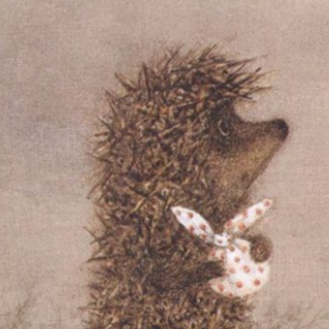
**pip-picture** directive is the simplest control that loads from the server and visualizes a single image.
This dialog requires **files** operation in standard REST API.
### Usage
```html
```
### Attributes
* **pip-picture-id** - id of picture
## pip-picture-edit directive
**pip-picture-edit** directive allows to set a single image and upload it to server.
This dialog requires **files** operation in standard REST API.
### Usage
```html
```
### Attributes
Todo: Describe all attributes for this directive
## pip-avatar directive
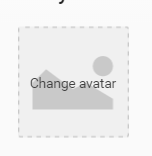
**pip-avatar** directive is identical to **pip-picture**. The only difference is in URL on the server to upload image.
This dialog requires **files** operation in standard REST API.
### Usage
```html
```
### Attributes
* **pip-rebind-avatar** - updating picture in control
* **pip-party-id** - party id
* **pip-party-name** - party name
## pip-avatar-edit directive
**pip-avatar-edit** directive similar to **pip-picture-edit** allows to upload a single image. The only difference is in URL on the server to upload image. This dialog requires **files** operation in standard REST API.
### Usage
```html
```
### Attributes
Todo: Describe all attributes for this directive
## pip-picture-list-edit directive
**pip-picture-list** directive allows to upload a collection of images at once.
This dialog requires **files** operation in standard REST API.
### Usage
```html
```
### Attributes
Todo: Describe all attributes for this directive
## pip-collage directive
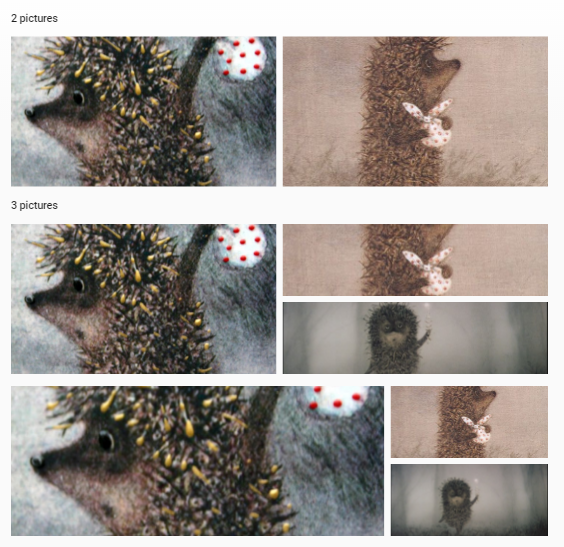
**pip-collage** directive visualizes a collection of images as random collage.
This dialog requires **files** operation in standard REST API.
### Usage
```html
```
### Attributes
Todo: Describe all attributes for this directive
## pip-add-picture directive
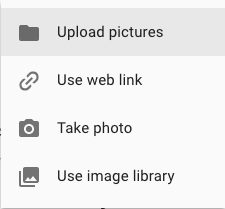
**pip-add-picture** directive lets user ability to add image from different sources: from file, camera, web link or image library.
This dialog requires **files** operation in standard REST API.
### Usage
```html
```
Todo: Add HTML snippet to demonstrate the directive with all attributes
Todo: Add screenshots for every picture dialog except file
### Attributes
Todo: Describe all attributes for this directive
## pipCameraDialog
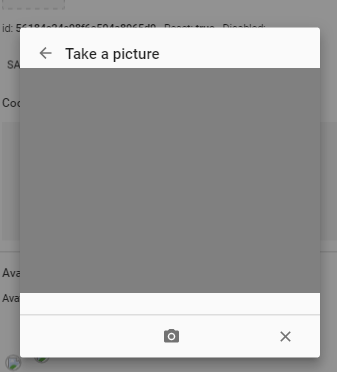
**pipCameraDialog** allows to add image from integrated camera. If HTML5 camera access is not available this dialog uses portable webcam.js library. Hybrid applications running in Cordova may use native camera application.
### Usage
Todo: Add code snippet to demonstrate how to open the dialog
### Methods
Todo: Document the dialog public methods
## pipPictureUrlDialog
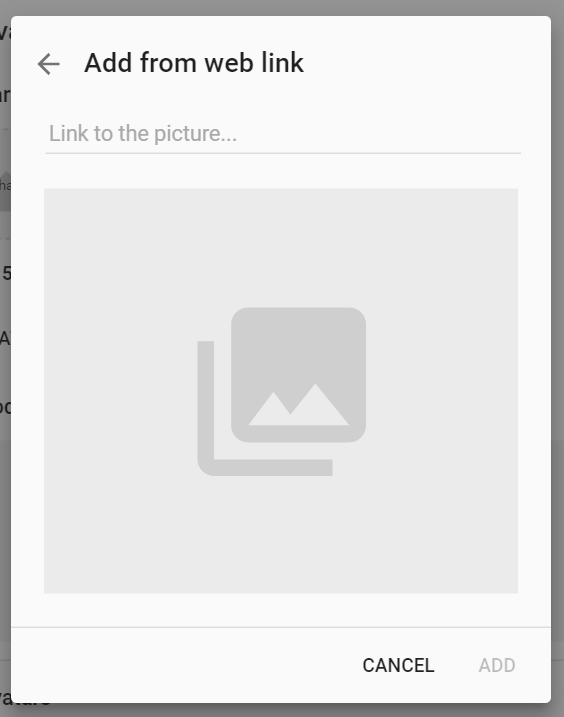
**pipPictureUrlDialog** allows to upload image from external source by its url. The dialog supports only http, https or ftp protocols and jpg, png, gif images.
### Usage
Todo: Add code snippet to demonstrate how to open the dialog
### Methods
Todo: Document the dialog public methods
## pipGallerySearchDialog
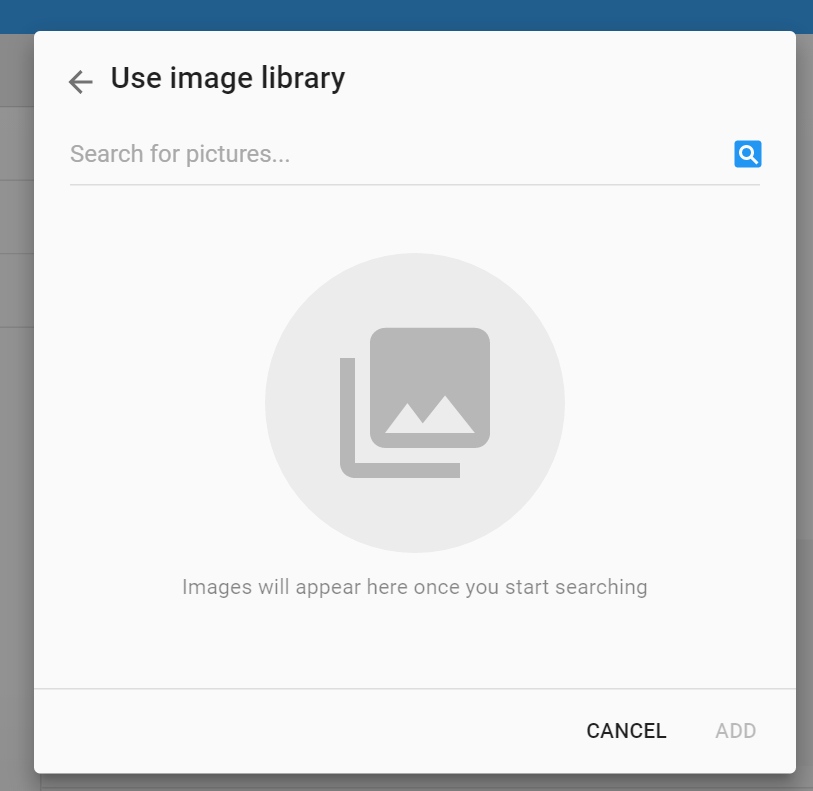
**pipGallerySearchDialog** allows to add image from application image gallery or external image search service like Flicker, Google search or Bing. This dialog requires **files**, **imagelib** and **image_sets** operations in standard REST API.
### Usage
Todo: Add code snippet to demonstrate how to open the dialog
### Methods
Todo: Document the dialog public methods
## Questions and bugs
If you have any questions regarding the module, you can ask them using our
[discussion forum](https://groups.google.com/forum/#!forum/pip-webui).
Bugs related to this module can be reported using [github issues](https://github.com/pip-webui/pip-webui-pictures/issues).
 ### Attributes
* **pip-picture-id** - id of picture
## pip-picture-edit directive
**pip-picture-edit** directive allows to set a single image and upload it to server.
This dialog requires **files** operation in standard REST API.
### Usage
```html
### Attributes
* **pip-picture-id** - id of picture
## pip-picture-edit directive
**pip-picture-edit** directive allows to set a single image and upload it to server.
This dialog requires **files** operation in standard REST API.
### Usage
```html
 ### Attributes
Todo: Describe all attributes for this directive
## pip-avatar directive
**pip-avatar** directive is identical to **pip-picture**. The only difference is in URL on the server to upload image.
This dialog requires **files** operation in standard REST API.
### Usage
```html
### Attributes
Todo: Describe all attributes for this directive
## pip-avatar directive
**pip-avatar** directive is identical to **pip-picture**. The only difference is in URL on the server to upload image.
This dialog requires **files** operation in standard REST API.
### Usage
```html
 ### Attributes
* **pip-rebind-avatar** - updating picture in control
* **pip-party-id** - party id
* **pip-party-name** - party name
## pip-avatar-edit directive
**pip-avatar-edit** directive similar to **pip-picture-edit** allows to upload a single image. The only difference is in URL on the server to upload image. This dialog requires **files** operation in standard REST API.
### Usage
```html
### Attributes
* **pip-rebind-avatar** - updating picture in control
* **pip-party-id** - party id
* **pip-party-name** - party name
## pip-avatar-edit directive
**pip-avatar-edit** directive similar to **pip-picture-edit** allows to upload a single image. The only difference is in URL on the server to upload image. This dialog requires **files** operation in standard REST API.
### Usage
```html
 ### Attributes
Todo: Describe all attributes for this directive
## pip-picture-list-edit directive
**pip-picture-list** directive allows to upload a collection of images at once.
This dialog requires **files** operation in standard REST API.
### Usage
```html
### Attributes
Todo: Describe all attributes for this directive
## pip-picture-list-edit directive
**pip-picture-list** directive allows to upload a collection of images at once.
This dialog requires **files** operation in standard REST API.
### Usage
```html
 ### Attributes
Todo: Describe all attributes for this directive
## pip-collage directive
**pip-collage** directive visualizes a collection of images as random collage.
This dialog requires **files** operation in standard REST API.
### Usage
```html
### Attributes
Todo: Describe all attributes for this directive
## pip-collage directive
**pip-collage** directive visualizes a collection of images as random collage.
This dialog requires **files** operation in standard REST API.
### Usage
```html
 ### Attributes
Todo: Describe all attributes for this directive
## pip-add-picture directive
**pip-add-picture** directive lets user ability to add image from different sources: from file, camera, web link or image library.
This dialog requires **files** operation in standard REST API.
### Usage
```html
```
Todo: Add HTML snippet to demonstrate the directive with all attributes
Todo: Add screenshots for every picture dialog except file
### Attributes
Todo: Describe all attributes for this directive
## pip-add-picture directive
**pip-add-picture** directive lets user ability to add image from different sources: from file, camera, web link or image library.
This dialog requires **files** operation in standard REST API.
### Usage
```html
```
Todo: Add HTML snippet to demonstrate the directive with all attributes
Todo: Add screenshots for every picture dialog except file
 ### Attributes
Todo: Describe all attributes for this directive
## pipCameraDialog
**pipCameraDialog** allows to add image from integrated camera. If HTML5 camera access is not available this dialog uses portable webcam.js library. Hybrid applications running in Cordova may use native camera application.
### Usage
Todo: Add code snippet to demonstrate how to open the dialog
### Attributes
Todo: Describe all attributes for this directive
## pipCameraDialog
**pipCameraDialog** allows to add image from integrated camera. If HTML5 camera access is not available this dialog uses portable webcam.js library. Hybrid applications running in Cordova may use native camera application.
### Usage
Todo: Add code snippet to demonstrate how to open the dialog
 ### Methods
Todo: Document the dialog public methods
## pipPictureUrlDialog
**pipPictureUrlDialog** allows to upload image from external source by its url. The dialog supports only http, https or ftp protocols and jpg, png, gif images.
### Usage
Todo: Add code snippet to demonstrate how to open the dialog
### Methods
Todo: Document the dialog public methods
## pipPictureUrlDialog
**pipPictureUrlDialog** allows to upload image from external source by its url. The dialog supports only http, https or ftp protocols and jpg, png, gif images.
### Usage
Todo: Add code snippet to demonstrate how to open the dialog
 ### Methods
Todo: Document the dialog public methods
## pipGallerySearchDialog
**pipGallerySearchDialog** allows to add image from application image gallery or external image search service like Flicker, Google search or Bing. This dialog requires **files**, **imagelib** and **image_sets** operations in standard REST API.
### Usage
Todo: Add code snippet to demonstrate how to open the dialog
### Methods
Todo: Document the dialog public methods
## pipGallerySearchDialog
**pipGallerySearchDialog** allows to add image from application image gallery or external image search service like Flicker, Google search or Bing. This dialog requires **files**, **imagelib** and **image_sets** operations in standard REST API.
### Usage
Todo: Add code snippet to demonstrate how to open the dialog
 ### Methods
Todo: Document the dialog public methods
## Questions and bugs
If you have any questions regarding the module, you can ask them using our
[discussion forum](https://groups.google.com/forum/#!forum/pip-webui).
Bugs related to this module can be reported using [github issues](https://github.com/pip-webui/pip-webui-pictures/issues).
### Methods
Todo: Document the dialog public methods
## Questions and bugs
If you have any questions regarding the module, you can ask them using our
[discussion forum](https://groups.google.com/forum/#!forum/pip-webui).
Bugs related to this module can be reported using [github issues](https://github.com/pip-webui/pip-webui-pictures/issues).