# Pip.WebUI Getting Started
Step 8. Show notifications
[Go to step 7](https://github.com/pip-webui/pip-webui-sample/blob/master/step7/) to add Events page with table view.
### Show notifactions as toast messages
For a start, we implement reading of data from our "fakeserver" mock, but you can easily replace it with any real server with the necessary REST API.
Open file ./src/events/events.js and replace `/ $scope.events = $scope.dataSet.get('EventsTestCollection').getAll();` by ` var events = $scope.dataSet.get('EventsTestCollection');`
Make a request to the server, and display the result:
```javascript
thisModule.controller('eventsController', function($scope, pipAppBar, $mdMedia, $http) {
// Show page title
pipAppBar.showTitleText('Events');
// Show menu icon to open sidenav
pipAppBar.showMenuNavIcon();
// Show local page actions
pipAppBar.showLocalActions();
// Add shadow under the appbar
pipAppBar.hideShadow();
// Initialize service for changing layouts when the screen size changed
$scope.$mdMedia = $mdMedia;
var events = $scope.dataSet.get('EventsTestCollection');
var req = {method: 'GET', url: 'http://fakeserver.net' + '/api/events'};
// Get data from the server
$http(req)
.success(function (result) {
$scope.events = result; // <---- Pay attention!
})
.error(function (error) {
console.log('Error: get events error! ', error);
});
$scope.iconColors = {
'warn-circle': '#EF5350',
'info-circle-outline': '#8BC34A',
'warn-triangle': '#FFD54F'
};
});
```
Change the code in node.js:
```javascript
thisModule.controller('nodesController', function($scope, $http, pipAppBar) {
var req;
// Show page title
pipAppBar.showTitleText('Nodes');
// Show menu icon to open sidenav
pipAppBar.showMenuNavIcon();
// Show local page actions
pipAppBar.showLocalActions();
// Add shadow under the appbar
pipAppBar.hideShadow();
// Get test data
req = {method: 'GET', url: 'http://fakeserver.net' + '/api/nodes'};
$http(req)
.success(function (result) {
$scope.nodes = result;
$scope.iconPath = 'M0,15a15,15 0 1,0 30,0a15,15 0 1,0 -30,0';
$scope.location_points = getLocations();
})
.error(function (error) {
console.log('Error: get nodes error! ', error);
});
function getLocations() {
var points = [];
$scope.nodes.forEach(function (node) {
points.push(node.location_points);
});
return points;
}
});
```
Rebuild the application and test it.
Here we are going to simulate incoming events and show them as toast messages.
Add the code below into **eventsController**:
```javascript
thisModule.controller('eventsController', function($scope, $interval, $mdMedia, $http, pipAppBar, pipToasts) {
var req,
stopTime,
EVENTS_MAX = 200, // The maximum number of events that can be generated
events;
// Show page title
pipAppBar.showTitleText('Events');
// Show menu icon to open sidenav
pipAppBar.showMenuNavIcon();
// Show local page actions
pipAppBar.showLocalActions();
// Add shadow under the appbar
pipAppBar.hideShadow();
// Initialize service for changing layouts when the screen size changed
$scope.$mdMedia = $mdMedia;
// Get test data
events = $scope.dataSet.get('EventsTestCollection');
// Prepare request
req = {method: 'GET', url: 'http://fakeserver.net' + '/api/events'};
// Get data from the server
$http(req)
.success(function (result) {
$scope.events = result;
stopTime = $interval(addNextToast, 10000); // use angular $interval for imitation receiving messages every 10 sec.
})
.error(function (error) {
console.log('Error: get events error! ', error);
});
$scope.iconColors = {
'warn-circle': '#EF5350',
'info-circle-outline': '#8BC34A',
'warn-triangle': '#FFD54F'
};
return;
function addNextToast() {
var event,
i = $scope.events.length;
if (i > EVENTS_MAX) {
$interval.cancel(stopTime);
} else {
// generate event
event = events.create();
// get event from server
// Prepare request
req = {method: 'GET', url: 'http://fakeserver.net' + '/api/events/' + event.id};
// Get data from the server
$http(req)
.success(function (result) {
$scope.events.push(result);
})
.error(function (error) {
console.log('Error: get events error! ', error);
});
// Function to display notification
pipToasts.showNotification('Node ' + event.node_name + ' (' + event.node_id + '): ' + event.description);
i++;
}
}
});
```
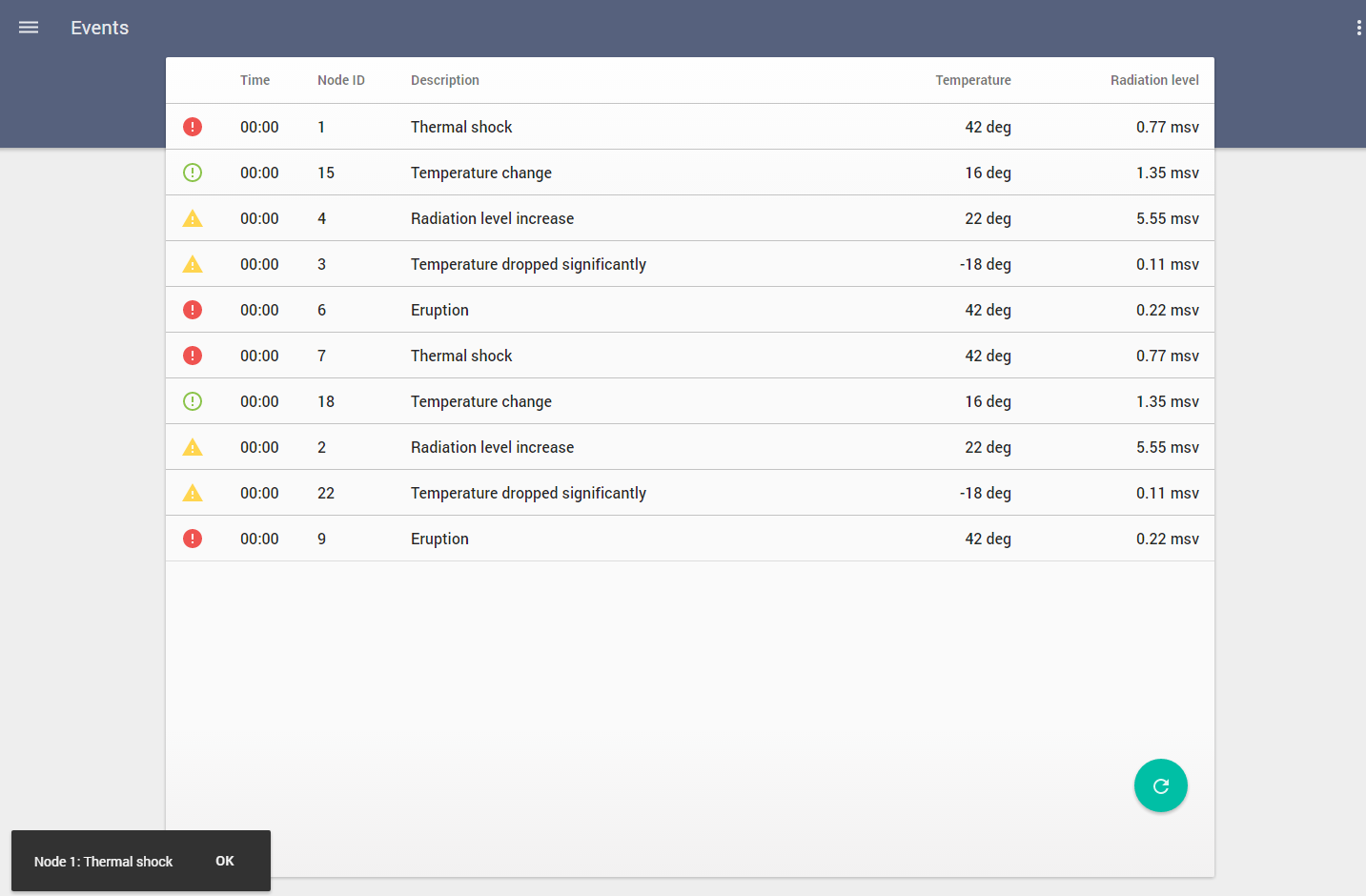
Rebuild the application. Now every 10 seconds you shall see a toast with an event in the left bottom corner:
Add re-reading data from the server after you click 'Reload Button':

Add this code to **eventsController**:
```javascript
thisModule.controller('eventsController', function($scope, $interval, $mdMedia, $http, pipAppBar, pipToasts) {
...
$scope..onReload = onReload;
return;
...
function onReload() {
var req = {method: 'GET', url: 'http://fakeserver.net' + '/api/events'};
$http(req)
.success(function (result) {
$scope.events = result;
pipToasts.showNotification('Events data are reloaded!');
})
.error(function (error) {
console.log('Error: get events error! ', error);
});
}
});
```
Change ./src/events/events.html:
```html
...
Refresh
...
```
Rebuild the application. Click on the reload button. Now you will see a toast with message: 'Events data are reloaded!' on left bottom corner.

### Continue
[Go to step 9](https://github.com/pip-webui/pip-webui-sample/blob/master/step9/) to add map view to Nodes page.