# Puter-CLI





The **Puter CLI** is a command-line interface tool designed to interact with the **Puter Cloud Platform**. If you don't have an account you can [Signup](https://puter.com/?r=N5Y0ZYTF) from here for free. This cli tool allows users to manage files, directories, applications, and other resources directly from the terminal. This tool is ideal for developers and power users who prefer working with command-line utilities.
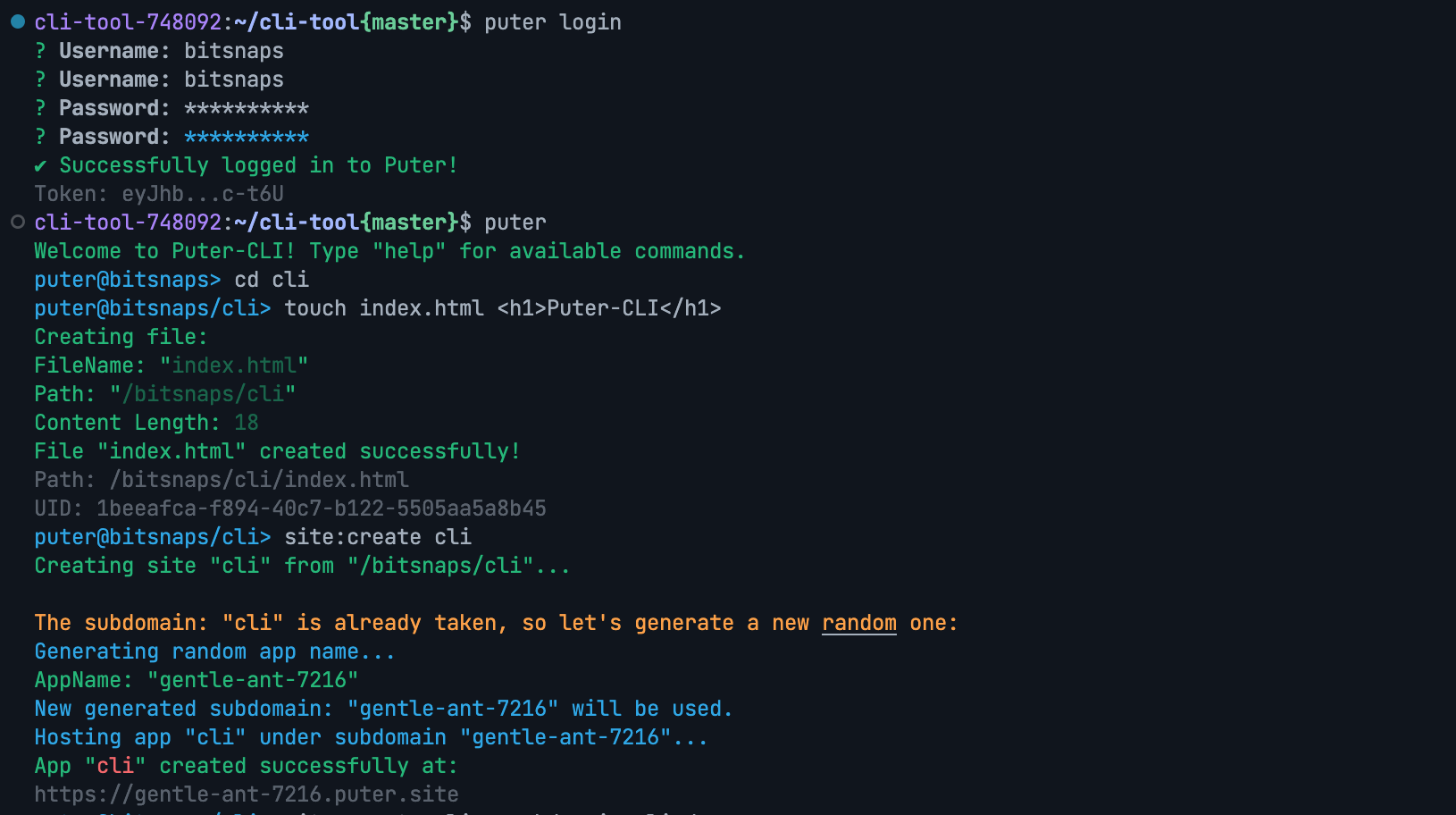
---
## Features
- **File Management**: Upload, download, list, and manage files and directories.
- **Authentication**: Log in and log out of your Puter account.
- **User Information**: Retrieve user details, such as username, email, and account status.
- **Disk Usage**: Check disk usage and storage limits.
- **Application Management**: Create, delete, and list applications hosted on Puter.
- **Static Site Hosting**: Deploy static websites from directories.
- **Interactive Shell**: Use an interactive shell for seamless command execution.
- **Cross-Platform**: Works on Windows, macOS, and Linux.
---
## Installation
### Prerequisites
- Node.js (v18 or higher)
- npm (v7 or higher)
Run the following command to install puter-cli globally in your system:
```bash
npm install -g puter-cli
```
Execute the following command to check the installation process:
```bash
puter --version
```
## Usage
### Commands
#### Initialize a project
- **Create a new project**: Initialize a new project
```bash
puter init
```
Then just follow the prompts, this command doesn't require you to log in.
#### Authentication
- **Login**: Log in to your Puter account.
```bash
puter login [--save]
```
P.S. You can add `--save` to save your authentication `token` to `.env` file as `PUTER_API_KEY` variable.
- **Logout**: Log out of your Puter account.
```bash
puter logout
```
#### File Management
We've adopted the most basic popular Linux system command line for daily file manipulation with some extra features, not out of the box though, we want to keep it simple.
- **List Files**: List files and directories.
```bash
puter> ls [dir]
```
- **Change Directory**: Navigate to a directory:
```bash
puter> cd [dir]
```
It works with wildcards as you would expect in any OS for basic navigation with insensitive case: `cd ..`, `cd ../myapp`...etc.
- **Create Directory**: Create a new directory.
```bash
puter> mkdir
```
- **Create file**: Create a new file in the current directory.
```bash
puter> touch
```
- **Copy Files**: Copy files or directories.
```bash
puter> cp
```
- **Move Files**: Move or rename files or directories.
```bash
puter> mv
```
- **Delete Files/Directories**: Move files or directories to the trash.
```bash
puter> rm [-f]
```
- **Empty Trash**: Empty the system's trash.
```bash
puter> clean
```
##### Extra commands:
Think of it as `git [push|pull]` commands, they're basically simplified equivalents.
- **Push Files**: Copy files from host machine to the remote cloud instance.
```bash
puter> push
```
- **Pull Files**: Copy files from remote cloud instance to the host machine.
```bash
puter> pull
```
P.S. These commands consider the current directory as the base path for every operation, basic wildcards are supported: e.g. `push myapp/*.html`.
- **Synchronize Files**: Bidirectional synchronization between local and remote directories.
```bash
puter> update [--delete] [-r]
```
P.S. The `--delete` flag removes files in the remote directory that don't exist locally. The `-r` flag enables recursive synchronization of subdirectories.
- **Edit a file**: Edit remote text files using your preferred local text editor.
```bash
puter> edit
```
P.S. This command will download the remote file to your local machine, open it in your default editor, and then upload the changes back to the remote instance. It uses `vim` by default, but you can change it by setting the `EDITOR` environment variable.
#### User Information
```
The addition describes the `update` command which allows for bidirectional synchronization between local and remote directories, including the optional flags for deleting files and recursive synchronization.
---
#### User Information
- **Get User Info**: Display user information.
```bash
puter> whoami
```
#### Disk Usage
- **Check Disk Usage**: Display disk usage information.
```bash
puter> df
```
- **Get Usage Info**: Fetch usage information for services.
```bash
puter> usage
```
#### Application Management
The **Application** are sepcial type of hosted web app, they're served from the special directory at: `/AppData/...`, more details at **app:create** in the section below.
- **List Applications**: List all applications.
```bash
puter> apps [period]
```
P.S. Please check the help command `help apps` for more details about any argument.
- **Create Application**: Create a new application.
```bash
puter> app:create [] [--description="My App Description"] [--url=]
```
- This command works also from your system's terminal:
```bash
$> puter app:create [] [--description="My App Description"] [--url=]
```
P.S. By default a new `index.html` with basic content will be created, but you can set a directory when you create a new application as follows: `app:create nameOfApp ./appDir`, so all files will be copied to the `AppData` directory, you can then update your app using `app:update `. This command will attempt to create a subdomain with a random `uid` prefixed with the name of the app.
- **Update Application**: Update an application.
```bash
puter> app:update
```
**IMPORTANT** All existing files will be overwritten, new files are copied, other files are just ignored.
- **Delete Application**: Delete an application.
```bash
puter> app:delete [-f]
```
P.S. This command will look for the allocated `subdomain` and attempt to delete it if it exists.
#### Static Sites
The static sites are served from the selected directory (or the current directory if none is specified).
- **Deploy Site**: Deploy a static website from a directory.
```bash
puter> site:create [] [--subdomain=]
```
P.S. If the subdomain already exists, it will generate a new random one. You can set your own subdomain using `--subdomain` argument.
- **List Sites**: List all hosted sites.
```bash
puter> sites
```
- **Delete Site**: Delete a hosted site.
```bash
puter> site:delete
```
P.S. You can find the `` in the list of `sites`.
#### Commands history
- **Display history**: Display the history executed commands
```bash
puter> history
```
- **Copy command from history**: Copy a previous command from history by line number
```bash
puter> history
```
#### Interactive Shell
- **Start Shell**: Launch an interactive shell.
```bash
puter [shell]
```
or just type (you'll need to login):
```bash
puter
```
#### Help
- **General Help**: Display a list of available commands.
```bash
puter help
# or inside the interactive shell:
puter> help
```
- **Command Help**: Display detailed help for a specific command.
```bash
puter help
# or inside the interactive shell:
puter> help
```
---
## Examples
1. **Log in and List Files**:
```bash
puter login
puter> ls
```
2. **Create and Deploy a Static Site**:
```bash
puter> mkdir my-site
puter> site:create my-site --subdomain=myapp
```
3. **Check Disk Usage**:
```bash
puter> df
```
4. **Delete a File**:
```bash
puter> rm /path/to/file
```
5. **Display statistics**:
```bash
puter> stat /path/to/file/or/directory
```
---
## Development
If you want to customize this tool you can follow these steps:
### Steps
1. Clone the repository:
```bash
git clone https://github.com/HeyPuter/puter-cli.git
cd puter-cli
```
2. Install dependencies:
```bash
npm install
```
3. Set your own variable environnements:
```
cp .env.example .env
# update your own values in .env file
```
4. Link the CLI globally:
```bash
npm link
```
---
## Known issues:
Most features are working fine. If you have any issues with this project or the Puter SDK, please let us know:
## Interactive Shell prompt:
If you want to stay in the interactive shell you should provide "-f" (aka: force delete) argument, when want to delete any object:
```bash
puter@username/myapp> rm README.md
The following items will be moved to Trash:
- /username/myapp/README.md
? Are you sure you want to move these 1 item(s) to Trash? (y/N) n
puter@username/myapp> Operation canceled.
username:~/home$ puter
puter@username/myapp> rm -f README.md
Successfully moved "/username/myapp/README.md" to Trash!
```
Otherwise, the Interactive Shell mode will be terminated.
---
## Notes
This project is not equivalent [phoenix](https://github.com/HeyPuter/puter/blob/main/src/phoenix/README.md), neither an attempt to mimic some of its features, it's rather a CLI tool to do most the Puter's API from the command line.
---
## Configuration
The CLI uses a configuration file to store user credentials and settings. You can use the `puter logout` to clear the configuration settings.
---
## Contributing
We welcome contributions! Please follow these steps:
1. Fork the repository.
2. Create a new branch for your feature or bugfix with reproducible steps.
3. Submit a pull request with a detailed description of your changes.
---
## License
As of version v1.4.2, this project is licensed under the **[MIT License](LICENSE.md)**.
## NoHarm
This project was previously licensed under the "NoHarm" license to explicitly prevent its use for harmful purposes. While it is now licensed under the permissive MIT License to encourage broader usage and contribution, we strongly emphasize that this software should not be used in any way that causes harm, infringes on others' rights, or promotes unethical practices. By using this software, you are urged to adhere to these principles and use it responsibly.
---
## Support
For issues or questions, please open an issue on [GitHub](https://github.com/HeyPuter/puter-cli/issues) or contact [puter's team](mailto:hey@puter.com) if you found an issue related to Puter's APIs.
---
## Acknowledgments
- **Puter Cloud Platform** for providing the backend infrastructure.
- **Node.js** and **npm** for enabling this project.
- The open-source community for their invaluable contributions.
---
Happy deploying with **Puter CLI**! 🚀