[npm-badge]: https://img.shields.io/npm/v/react-native-dropdown-autocomplete.svg?colorA=6b7c93&colorB=5ab1b8&style=flat-square
[npm-url]: https://www.npmjs.com/package/react-native-dropdown-autocomplete
[npm-downloads]: https://img.shields.io/npm/dt/react-native-dropdown-autocomplete.svg?colorA=6b7c93&colorB=5ab1b8&style=flat-square
# react-native-dropdown-autocomplete
[![npm][npm-badge]][npm-url] [![npm][npm-downloads]][npm-url]
Based on https://bit.ly/2AFjUsj, the most significant advantage of this package among all others is that you can have multiple autocomplete's on your page after following instructions below. Works on Android and IOS.
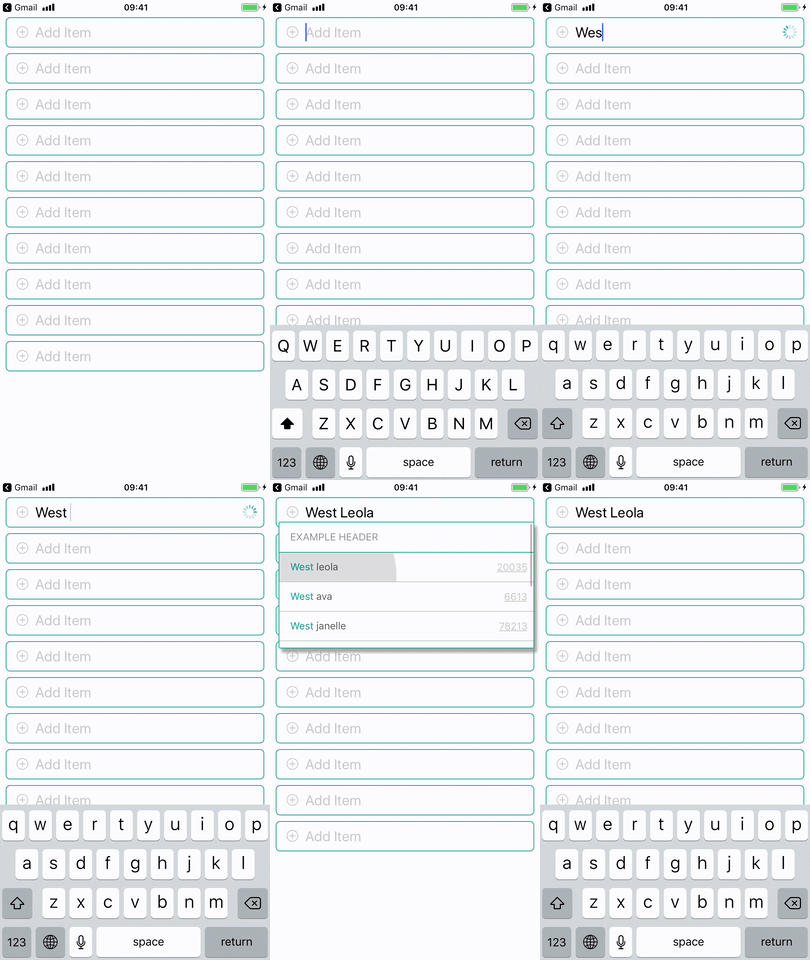
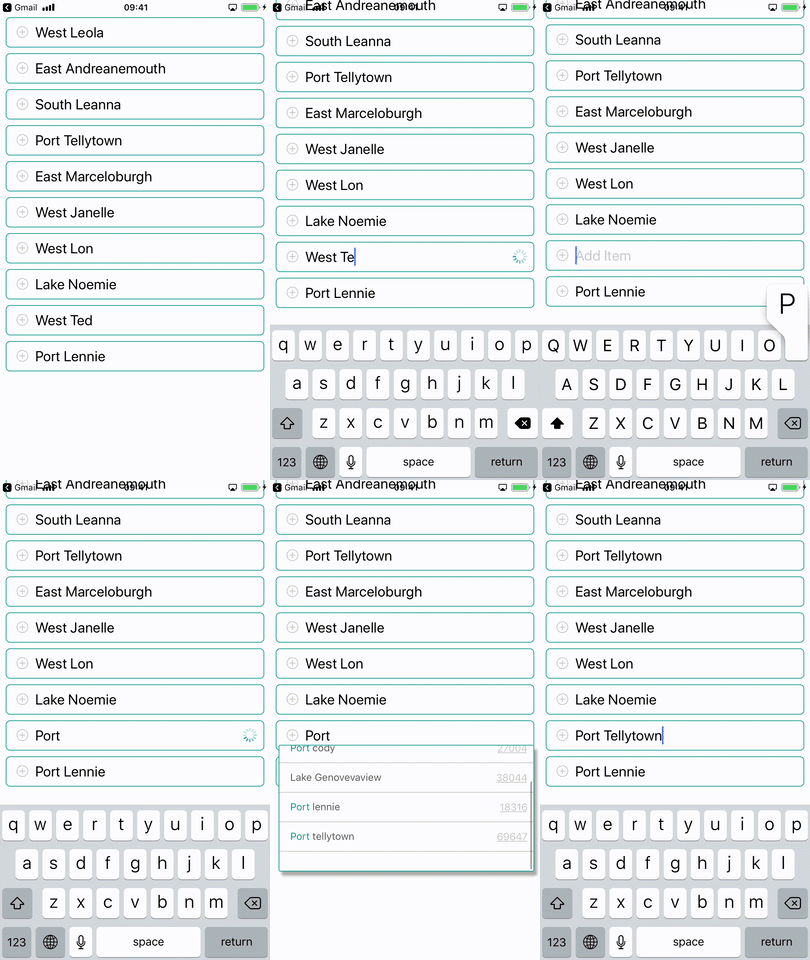
## Usage
##### Install the package
```
npm i react-native-dropdown-autocomplete
```
##### Wrap the page you want to have autocomplete on with ```withKeyboardAwareScrollView```:
```javascript
import React, {Component} from "react";
import {StyleSheet, View, SafeAreaView} from "react-native";
import {Ionicons} from "@expo/vector-icons";
import shortid from "shortid";
import {Autocomplete, withKeyboardAwareScrollView} from "react-native-dropdown-autocomplete";
class HomeScreen extends Component {
handleSelectItem(item, index) {
const {onDropdownClose} = this.props;
onDropdownClose();
console.log(item);
}
render() {
const autocompletes = [...Array(10).keys()];
const apiUrl = "https://5b927fd14c818e001456e967.mockapi.io/branches";
const {scrollToInput, onDropdownClose, onDropdownShow} = this.props;
return (
{autocompletes.map(() => (
scrollToInput(ev)}
handleSelectItem={(item, id) => this.handleSelectItem(item, id)}
onDropdownClose={() => onDropdownClose()}
onDropdownShow={() => onDropdownShow()}
renderIcon={() => (
)}
fetchDataUrl={apiUrl}
minimumCharactersCount={2}
highlightText
valueExtractor={item => item.name}
rightContent
rightTextExtractor={item => item.properties}
/>
))}
);
}
}
const styles = StyleSheet.create({
autocompletesContainer: {
paddingTop: 0,
zIndex: 1,
width: "100%",
paddingHorizontal: 8,
},
input: {maxHeight: 40},
inputContainer: {
display: "flex",
flexShrink: 0,
flexGrow: 0,
flexDirection: "row",
flexWrap: "wrap",
alignItems: "center",
borderBottomWidth: 1,
borderColor: "#c7c6c1",
paddingVertical: 13,
paddingLeft: 12,
paddingRight: "5%",
width: "100%",
justifyContent: "flex-start",
},
container: {
flex: 1,
backgroundColor: "#ffffff",
},
plus: {
position: "absolute",
left: 15,
top: 10,
},
});
export default withKeyboardAwareScrollView(HomeScreen);
```
## Usage without data-driven content
You can also pass fixed array of items to the Autocomplete
```javascript
const data = [
"Apples",
"Broccoli",
"Chicken",
"Duck",
"Eggs",
"Fish",
"Granola",
"Hash Browns",
];
```
Change valueExtractor and pass the data to Autocomplete without fetchDataUrl
```javascript
item} />
```
## Properties
name | description | type | default
:----------------- |:--------------------------------------------- | --------:|:------------------
ref | Used to access component methods ("clearInput" for example) | RefObject | -
autoCorrect | Disable auto-correct | Boolean | true
keyboardType | Input Keyboard Type | String | default
highlightText | Highlight search results | Boolean | true
highLightColor | Highlight text color | String | #129a8d
rightContent | Render additional text to the right of the item | Boolean | false
resetOnSelect | Reset the input after choosing an item | Boolean | false
minimumCharactersCount | Perform API request after certain number of characters entered | Number | 2
waitInterval | Timeout between user finished typing and new data fetch | Number | 400
placeholder | Autocomplete input placeholder text | String | Add Item
placeholderColor | Input placeholder color | String | #acada9
spinnerSize | Size of activity indicator | String | small
spinnerColor | Activity indicator color | String | #129a8d
listHeader | Text at the beginning of suggestions | String | -
fetchDataUrl | Data source url | String | -
noDataText | Text to display when no results | String | No Results
initialValue | Text to display initially | String | -
inputContainerStyle | Styles for autocomplete container | Object | -
disableFullscreenUI | disable display inputfield in fullscreen | Boolean | false
inputStyle | Styles for autocomplete input | Object | -
spinnerStyle | Styles for activity indicator | Object | -
noDataTextStyle | Styles for empty results text | Object | -
separatorStyle | Styles for item dividers | Object | -
listFooterStyle | Styles for list footer | Object | -
listHeaderStyle | Styles for list header | Object | -
rightContentStyle | Styles for right content | Object | -
rightContentItemStyle | Styles for right content text | Object | -
listHeaderTextStyle | Styles for list header text | Object | -
overlayStyle | Styles for overlay view | Object | -
pickerStyle | Styles for item picker view | Object | -
containerStyle | Styles for dropdown container view | Object | -
scrollStyle | Styles for dropdown flatlist | Object | -
scrollToInput | Focus on selected field | Function | -
handleSelectItem | Selection callback (args: item, index) | Function | -
onDropdownShow | Show keyboard | Function | -
onDropdownClose | Hide keyboard | Function | -
onChangeText | Autocomplete input text changes | Function | -
renderIcon | Render icon near input | Function | -
valueExtractor | Extract value from item (args: item, index) | Function | ({ value }) => value
rightTextExtractor | Extract value from item (args: item, index) | Function | ({ value }) => value
fetchData | Fetch data for autocomplete | Function | -
## Methods
You can use methods through `ref` property:
```javascript
...
const componentRef = useRef()
...
componentRef.current.clearInput()
```
### Methods list
method | description | return
:----------------- |:---------------------------------------------:|:-------
clearInput | Clears input value | -
## Contributors ✨
Thanks goes to these wonderful people ([emoji key](https://allcontributors.org/docs/en/emoji-key)):
### Authors:
**[Maksym Plotnikov](https://github.com/maksym-plotnikov)**
**[Maksym Kordiyak](https://github.com/maxkordiyak)**
While developing our react-native application I found out that there's no autocomplete library available which can satisfy a need for > 1 autocomplete on a page. Styles were overlapping and due to position: "absolute" we weren't able to actually trigger TouchableOpacity on an element from the list on android device. We used a library which provides dropdown with auto-adjusting position using measureInWindow on a ref, we tweaked it a bit and with autocomplete input and time-slicing implementation we managed to get what we need. Still we can't interact with TextInput component while dropdown is opened but this is the best result we got using React Native Modal.
