Welcome to SKsim
SKsim is a simple and easy way to generate a data stream from your
Signal K server.
Without any additional configuration the following data can be generated
just by clicking the start button.
- Vessel: position, speed & heading
- GPS: hdop, vdop, pdop & quality
- Wind: speed & direction
- Water: temperature and depth
- Propulsion: Port / Starboard engine RPM and temperature
Additionally, you can also:
-
Manually enter Signal K attributes and values to include into the
output data stream
- Follow a Track loaded from a GPX file
Features include:
-
Dashboard style control panel for configuring transmitted values
- Ability to mute output by value groups
-
Manual override of individual values that allows you to control the
transmitted values
-
"Freeze" values by pausing the simulator calculation of new
values
- "Walk" along a Track (from GPX file)
developer_board Simulator
Back to Top
SKsim operation is designed to be simple and requires minimal
configuration, just click the start
play_arrow button to start the data
stream.
Once the data stream has been started, use the controls on the
Simulator screen to manually override, mute or freeze output data
values.
You can view the output data stream by selecting Show Output from
the menu.
SKSim provides "visual" controls to both view and manipulate in the
generated data stream.
Data is generated based on seed data values entered in the settings
screen. The seed data represents the starting values to which SKsim then
applies a "variance" to simulate vessel movement.
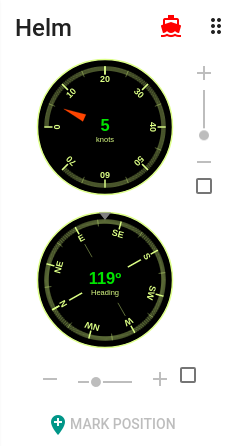
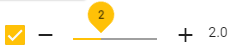
You can manually override an individual value by checking the checkbox
associated with the value and sliding the control to the desired
value.
The output values for a particular group of attributes
e.g. GPS can be muted (removed from the data stream) by
clicking the mute
power_settings_new button.
The toolbar buttons at the top right of the screen provide controls
to:
play_arrow Start the simulator
pause Freeze the simulator output values
so they are static
stop Stop the Simulator
The more_vert menu contains the
following options:
 Follow GPX Track
(more details)
Follow GPX Track
(more details)
refresh Reset: Reset simulator start
values
short_text Show Output: Display output
data stream
The following data can be controlled from the Simulator screen:
-
GPS
- Fix On / Off: Controls GPS fixing status
- HDOP, PDOP & VDOP: Dilution of Precision
- Vessel Position: can be set at any time by clicking on the
map.
Altitude, Fix Qaulity and Number of Satellites are fixed and do
not vary and cannot be changed!
-
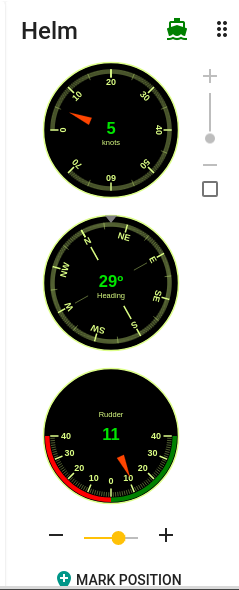
Helm
- Speed: Vessel speed
- Heading: Vessel heading
- Mark Position: Mark the current vessel position and output
waypoint data.
- Steering Mode: Click
directions_boat to enter Steering Mode
which allows you to alter vessel course by moving the rudder.
-
Wind.
- True Speed: True wind speed
- True Direction: True wind direction
- Apparent Wind: Calculated apparent wind speed and angle
-
Water.
- Temperature: Water temperature
- Depth: Water depth
-
Propulsion.
- RPM: Port / Starboard Engine RPM
- Temperature: Port / Starboard Engine temperature
-
Destination.
- Title: Destination title
- Common Name:Common name for destination
- ETA is not editable and defaults to today's date
-
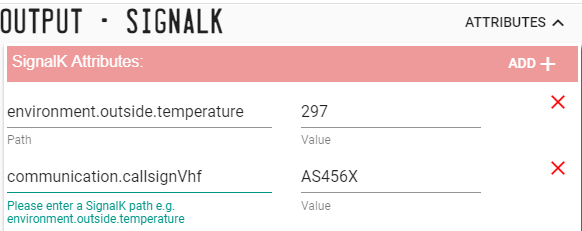
Signal K Atributes.
Use the Attibutes button to display a panel that will allow
the input of additional Signal K path and value pairs.
Once you have entered a path / value pair it will be added to the
output data stream.
Note: Your path / value entries are not validated against the
Signal K schema and will be transitted as entered!
You will need to ensure correct path names and that values are
entered in the correct units!
settings Settings
Back to Top
The Settings screen enables the following features of SKsim to be
configured:
Output Stream:
This section controls the period at which updates are output to the data
stream.
-
Send Data every (m/sec):
- 1000
- 2000
- 3000
- 5000
- 10000
Simulator Starting Values:
Configure starting values for simulator output values:
GPS
- Latitude
- Longitude
- Speed
- Heading
Wind
- Speed
- Direction
Water
- Depth
- Temperature
Follow Track
Back to Top
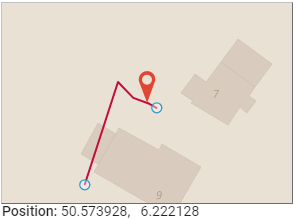
SKsim can use a Track loaded from a GPX file as a source for the path of
the vessel.
SKsim will walk the track by moving from point to point using the
output interval you have selected.
To load a track:
-
Select Follow GPX Track from the
more_vertmenu
- Select a GPX file containing Track data
-
You will be shown a list of Tracks contained within the GPX file.
Select the desired Track.
-
The Track will be loaded and the vessel position set to the start of
the Track
 Note: The heading control will be disabled as the heading will be
derived from the bearing to the next point in the track.
Note: The heading control will be disabled as the heading will be
derived from the bearing to the next point in the track.
Also the vessel speed has no bearing on the pace at which the path is
walked, nor is the speed value adjusted based on the distance between
track points!
Once a track has been loaded press the
play_arrowbutton to start
walking the Track.
When the end of the Track is reached SKsim will automatically stop.
You can reset the vessel position to the start of the Track by clicking
the
cancelReset to start of Track button.
To clear the Track and return to normal mode click the
settings_backup_restoreCancel Follow Track
button.
Note: If a track has multiple segments, SKsim will concatenate
all the segments into one contiguous Track