<h1 align="center">
  Migrated to: <a href="https://www.npmjs.com/package/@bytescale/sdk">@bytescale/sdk</a>
</h1>
<p align="center"><b>JavaScript File Upload Library</b><br/>(With Integrated Cloud Storage)</p>
<br/>
<p align="center">
  <a href="https://github.com/bytescale/bytescale-javascript-sdk/">
    <img src="https://img.shields.io/badge/gzipped-6%20kb-4ba0f6" />
  </a>

  <a href="https://www.npmjs.com/package/upload-js">
    <img src="https://img.shields.io/badge/upload--js-npm-4ba0f6" />
  </a>

  <a href="https://github.com/bytescale/bytescale-javascript-sdk/actions/workflows/ci.yml">
    <img src="https://img.shields.io/badge/build-passing-4ba0f6" />
  </a>

  <a href="https://www.npmjs.com/package/upload-js">
    <img src="https://img.shields.io/npm/dt/upload-js?color=%234ba0f6" />
  </a>
  <br/>

  <a href="https://www.npmjs.com/package/upload-js">
    <img src="https://img.shields.io/badge/TypeScript-included-4ba0f6" />
  </a>

  <a href="https://github.com/bytescale/bytescale-javascript-sdk/actions/workflows/ci.yml">
    <img src="https://img.shields.io/npms-io/maintenance-score/upload-js?color=4ba0f6" />
  </a>

  <a target="_blank" href="https://twitter.com/intent/tweet?text=I%20just%20found%20Upload.js%20%26%20Bytescale%20%E2%80%94%20they%20make%20it%20super%20easy%20to%20upload%20files%20%E2%80%94%20installs%20with%207%20lines%20of%20code%20https%3A%2F%2Fgithub.com%2Fupload-io%2Fupload-js&hashtags=javascript,opensource,js,webdev,developers&via=UploadJS">
    <img alt="Twitter URL" src="https://img.shields.io/twitter/url?style=social&url=https%3A%2F%2Fgithub.com%2Fupload-io%2Fupload-js%2F" />
  </a>

</p>
<h1 align="center">
  Get Started —
  <a href="https://codepen.io/bytescale/pen/abVapaJ?editors=1000">
    Try on CodePen
  </a>
</h1>

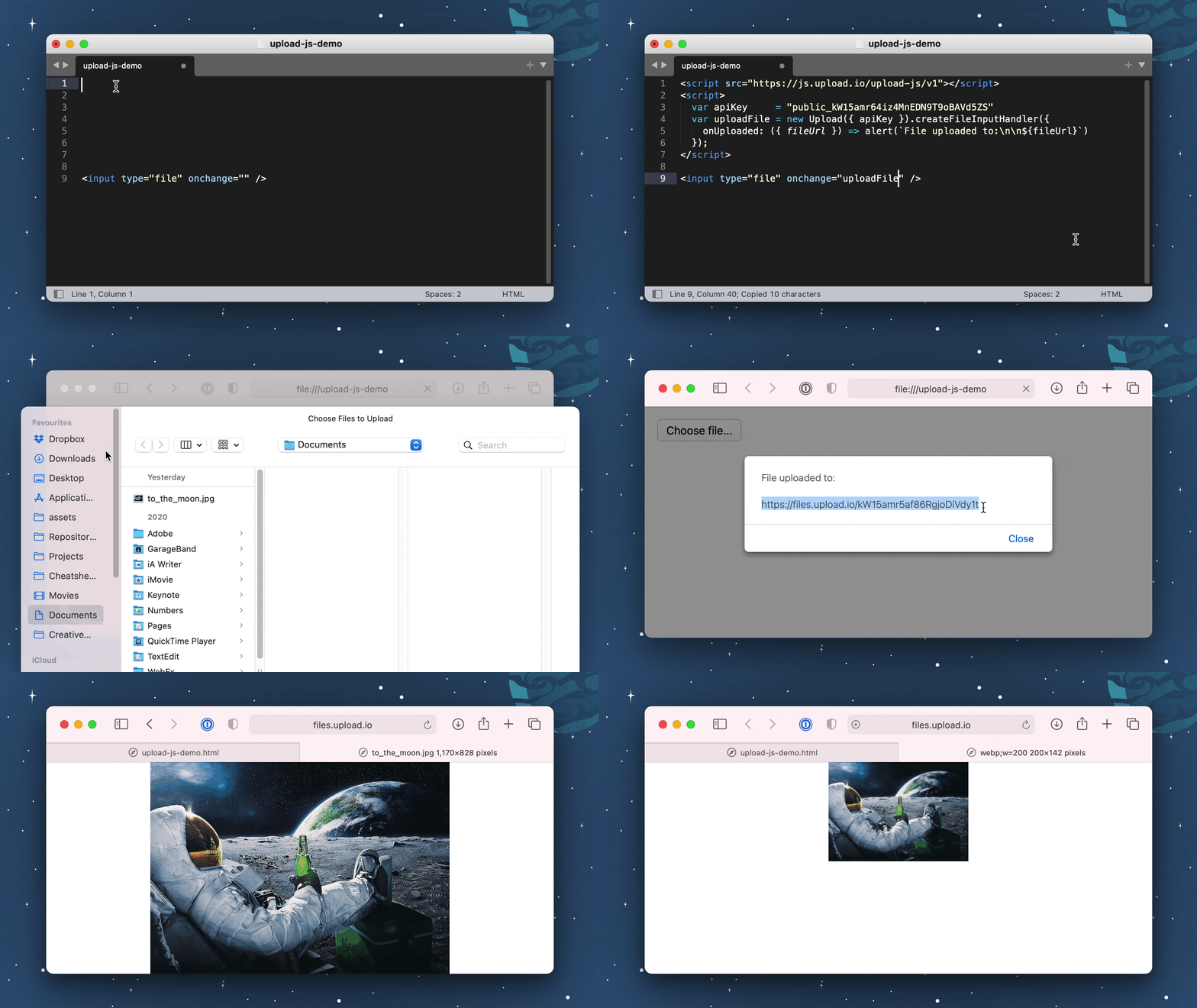
<p align="center"><a href="https://www.bytescale.com/upload-js"><img alt="Upload.js Demo" width="100%" src="https://raw.githubusercontent.com/bytescale/assets/master/upload-js-demo.gif"></a></p>

<p align="center">100% Serverless File Upload Library  <br /> Powered by <a href="https://www.bytescale.com/">Bytescale</a><br/><br/></p>

<hr/>

<p align="center"><a href="https://www.bytescale.com/dmca" rel="nofollow">DMCA Compliant</a> • <a href="https://www.bytescale.com/dpa" rel="nofollow">GDPR Compliant</a> • <a href="https://www.bytescale.com/sla" rel="nofollow">99.9% Uptime SLA</a>
  <br/>
  <b>Supports:</b> Rate Limiting, Volume Limiting, File Size &amp; Type Limiting, JWT Auth, and more...
  <br />
</p>

<hr/>
<br />
<br />

## Installation

Install via NPM:

```shell
npm install upload-js
```

Or via YARN:

```shell
yarn add upload-js
```

Or via a `<script>` tag:

```html
<script src="https://js.bytescale.com/upload-js/v2"></script>
```

## Usage — [Try on CodePen](https://codepen.io/bytescale/pen/abVapaJ?editors=1000)

To upload a file from the browser:

```JavaScript
//
// <input type="file" onchange="onFileSelected(event)" />
//

import { Upload } from "upload-js";

const upload = Upload({ apiKey: "free" }); // Get production API keys from Bytescale

const onFileSelected = async (event) => {
  const [ file ]    = event.target.files;
  const { fileUrl } = await upload.uploadFile(file, { onProgress });
  console.log(`File uploaded: ${fileUrl}`);
}

const onProgress = ({ progress }) => {
  console.log(`File uploading: ${progress}% complete.`)
}
```


## Full Working Example (Copy & Paste)

**[Try on CodePen](https://codepen.io/bytescale/pen/abVapaJ?editors=1000)** / **Copy to IDE & Run:**

```html
<html>
  <head>
    <script src="https://js.bytescale.com/upload-js/v2"></script>
    <script>
      const upload = Upload({
        // Get production API keys from Bytescale
        apiKey: "free"
      });

      const onFileSelected = async (event) => {
        try {
          const { fileUrl } = await upload.uploadFile(
            event.target.files[0],
            { onProgress: ({ progress }) => console.log(`${progress}% complete`) }
          );
          alert(`File uploaded!\n${fileUrl}`);
        } catch (e) {
          alert(`Error!\n${e.message}`);
        }
      }
    </script>
  </head>
  <body>
    <input type="file" onchange="onFileSelected(event)" />
  </body>
</html>
```

## Examples with Popular Frameworks

### Upload Files with React — [Try on CodePen](https://codepen.io/bytescale/pen/jOavBPb?editors=1010)

```javascript
const { Upload } = require("upload-js");
const upload = Upload({ apiKey: "free" });

const MyUploadButton = () => {
  const onFileSelected = async (event) => {
    try {
      const { fileUrl } = await upload.uploadFile(
        event.target.files[0],
        { onProgress: ({ progress }) => console.log(`${progress}% complete`) }
      );
      alert(`File uploaded!\n${fileUrl}`);
    } catch (e) {
      alert(`Error!\n${e.message}`);
    }
  }

  return <input type="file" onChange={onFileSelected} />;
};
```

### Upload Files with Angular — [Try on CodePen](https://codepen.io/bytescale/pen/qBVMYPK?editors=1010)

```javascript
const { Upload } = require("upload-js");
const upload = Upload({ apiKey: "free" });
angular
  .module("exampleApp", [])
  .controller("exampleController", $scope => {
    $scope.uploadFile = async (event) => {
      try {
        const { fileUrl } = await upload.uploadFile(
          event.target.files[0],
          { onProgress: ({ progress }) => console.log(`${progress}% complete`) }
        );
        alert(`File uploaded!\n${fileUrl}`);
      } catch (e) {
        alert(`Error!\n${e.message}`);
      }
    }
  })
  .directive("onChange", () => ({
    link: (scope, element, attrs) => {
      element.on("change", scope.$eval(attrs.onChange));
    }
  }));
```

### Upload Files with Vue.js — [Try on CodePen](https://codepen.io/bytescale/pen/BamOvma?editors=1010)

```javascript
const { Upload } = require("upload-js");
const upload = Upload({ apiKey: "free" });
const uploadFile = async (event) => {
  try {
    const { fileUrl } = await upload.uploadFile(
      event.target.files[0],
      { onProgress: ({ progress }) => console.log(`${progress}% complete`) }
    );
    alert(`File uploaded!\n${fileUrl}`);
  } catch (e) {
    alert(`Error!\n${e.message}`);
  }
}
const vueApp = new Vue({
  el: "#example",
  methods: { uploadFile }
});
```

### Upload Files with jQuery — [Try on CodePen](https://codepen.io/bytescale/pen/BamOMPd?editors=1010)

```html
<html>
  <head>
    <script src="https://code.jquery.com/jquery-3.6.0.min.js"></script>
    <script src="https://js.bytescale.com/upload-js/v2"></script>
    <script>
      const upload = Upload({
        // Get production API keys from Bytescale
        apiKey: "free"
      });

      $(() => {
        $("#file-input").change(async (event) => {
          $("#file-input").hide()

          try {
            const { fileUrl } = await upload.uploadFile(
              event.target.files[0], {
              onProgress: ({ progress }) => $("#title").html(`File uploading... ${progress}%`)
            });

            $("#title").html(`
              File uploaded:
              <br/>
              <br/>
              <a href="${fileUrl}" target="_blank">${fileUrl}</a>`
            )
          } catch (e) {
            $("#title").html(`Error:<br/><br/>${e.message}`)
          }

        })
      })
    </script>
  </head>
  <body>
    <h1 id="title">Please select a file...</h1>
    <input type="file" id="file-input" />
  </body>
</html>
```

### Upload Multiple Files with jQuery — [Try on CodePen](https://codepen.io/bytescale/pen/JjOawge?editors=1010)

Please refer to the CodePen example (link above).

Overview of the code:

1. Call `Upload` once at the start of your app.
2. Call `uploadFile` from your `<input onchange="...">` handlers.
3. Use `onProgress` to display the upload progress for each input element.
4. When `onUploaded` fires, record the `fileUrl` from the callback's argument to a local variable.
5. When `onUploaded` has fired for all files, the form is ready to be submitted.

Note: file uploads will safely run in parallel, despite using the same `Upload` instance.

# 🌐 API Support

## 🌐 File Management API

Bytescale provides an [Upload API](https://www.bytescale.com/docs/upload-api), which supports the following:

- File uploading.
- File listing.
- File deleting.
- And more...

Uploading a `"Hello World"` text file is as simple as:

```shell
curl --data "Hello World" \
     -u apikey:free \
     -X POST "https://api.bytescale.com/v1/files/basic"
```

_Note: Remember to set `-H "Content-Type: mime/type"` when uploading other file types!_

[Read the Upload API docs »](https://www.bytescale.com/docs/upload-api)

## 🌐 Image Processing API (Resize, Crop, etc.)

Bytescale also provides an [Image Processing API](https://www.bytescale.com/docs/image-processing-api), which supports the following:

- [Image Resizing](https://www.bytescale.com/docs/image-processing-api#image-resizing-api)
- [Image Cropping](https://www.bytescale.com/docs/image-processing-api#image-cropping-api)
- [Image Compression](https://www.bytescale.com/docs/image-processing-api#image-compression-api)
- [Image Conversion](https://www.bytescale.com/docs/image-processing-api#f)
- [Image Manipulation (blur, sharpen, brightness, etc.)](https://www.bytescale.com/docs/image-processing-api#image-manipulation-api)
- [Layering (e.g for text & image watermarks)](https://www.bytescale.com/docs/image-processing-api#image)
- and more...

[Read the Image Processing API docs »](https://www.bytescale.com/docs/image-processing-api)

### Manually Cropping Images — [Try on CodePen](https://codepen.io/bytescale/pen/JjOaWpB?editors=1010)

To embed crop dimensions into an image:

```html
<html>
  <head>
    <script src="https://js.bytescale.com/upload-js/v2"></script>
    <script>
      const upload = Upload({
        // Get production API keys from Bytescale
        apiKey: "free"
      });

      // Step 1: Upload the original file.
      const onOriginalImageUploaded = async (originalImage) => {

        // Step 2: Configure crop geometry.
        const crop = {
          // Type Def: https://github.com/bytescale/upload-image-plugin/blob/main/src/types/ParamsFromFile.ts
          inputPath: originalImage.filePath,
          pipeline: {
            steps: [
              {
                geometry: {
                  // Prompt your user for these dimensions...
                  offset: {
                    x: 20,
                    y: 40
                  },
                  size: {
                    // ...and these too...
                    width: 200,
                    height: 100,
                    type: "widthxheight!"
                  }
                },
                type: "crop"
              }
            ]
          }
        }

        // Step 3: Upload the crop geometry.
        const blob = new Blob([JSON.stringify(crop)], {type: "application/json"});
        const croppedImage = await upload.uploadFile(blob);

        // Step 4: Done! Here's the cropped image:
        return croppedImage;
      };

      const onFileSelected = async (event) => {
        const [ file ]      = event.target.files;
        const originalImage = await upload.uploadFile(file);
        const croppedImage  = await onOriginalImageUploaded(originalImage)

        alert(`Cropped image:\n${croppedImage.fileUrl.replace("/raw/", "/image/")}`)
      }
    </script>
  </head>
  <body>
    <input type="file" onchange="onFileSelected(event)" />
  </body>
</html>
```

## Full Documentation

[Upload.js Full Documentation »](https://www.bytescale.com/docs/upload-js)

## Need a File Upload Widget?

See our **[File Upload Widget](https://www.bytescale.com/docs/upload-widget)**. (Built with Upload.js. Supports: image cropping, cancellation, progress, etc).

<p align="center"><a href="https://www.bytescale.com/docs/upload-widget"><img alt="Upload.js Demo" width="100%" src="https://raw.githubusercontent.com/bytescale/jquery-uploader/main/.github/assets/demo.webp"></a></p>

## 👋 Create your Bytescale Account

Upload.js is the JS client library for Bytescale: the best way to serve images, videos, and audio for web apps.

**[Create a Bytescale account »](https://www.bytescale.com/)**

## Can I use my own storage?

**Yes:** Bytescale supports AWS S3, Cloudflare R2, Google Storage, and DigitalOcean Spaces.

To configure a custom storage backend, please see:

[https://www.bytescale.com/docs/storage/sources](https://www.bytescale.com/docs/storage/sources)

## Building From Source

[BUILD.md](BUILD.md)

## License

[MIT](LICENSE)