# Vuetify DateRangePicker
## Project setup
```
npm install vuetifyz-date-rangepicker --save
```
## Project Demo Website
```
https://vue-date-range-picker.herokuapp.com/
```

## Usage in Vue Application
There are two ways to import the npm in our project.
<ul>
   <li>
      Global
   </li>
   <li>
      Local
   </li>
</ul>
<h2>1. Global way of declearing the Component </h2>
<p>Do this in your main.js</p>
<code>
import VueDateRangePicker from 'vuetifyz-date-rangepicker'
</code>
<code>
Vue.component("date-picker",VueDateRangePicker)
</code>  
<p>After this in any .vue file you can use it.</p>

##Example:1
```
<date-picker v-model="modelName"></date-picker>
```

<h2>1. Local way of declearing the Component </h2>
<p>Do this in your script files ie. in every script file you need it(Since it is not global you have to do this in every vue file you are going to need the date picker)</p>
<code>
import VueDateRangePicker from 'vuetifyz-date-rangepicker'
</code>

##Example:2
```
     <template>
       <v-app>
        <v-layout >
            <VueDateRangePicker color="green" v-model="dataVa"></VueDateRangePicker>
        </v-layout> 
       </v-app>
    </template>
    <script>
       import VueDateRangePicker from 'vuetifyz-date-rangepicker'       
       export default {
          components:{
             VueDateRangePicker
          },
          data: () => ({
             dataVa:{},
          })
       }
    </script>
```
##Example:3 (min,max can be defined for the date range)
```
     <template>
       <v-app>
        <v-layout >
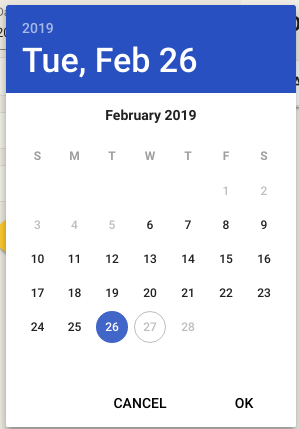
            <VueDateRangePicker min="2019-02-06" max="2019-02-25" color="green" v-model="dataVa"></VueDateRangePicker>
        </v-layout> 
       </v-app>
    </template>
    <script>
       import VueDateRangePicker from 'vuetifyz-date-rangepicker'       
       export default {
          components:{
             VueDateRangePicker
          },
          data: () => ({
             dataVa:{},
          })
       }
    </script>
```

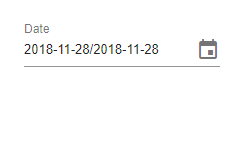
<h3>Default look of the Date Range picker.</h3>
<img src="https://i.postimg.cc/pTzSyrgt/Default.png">
<h3>
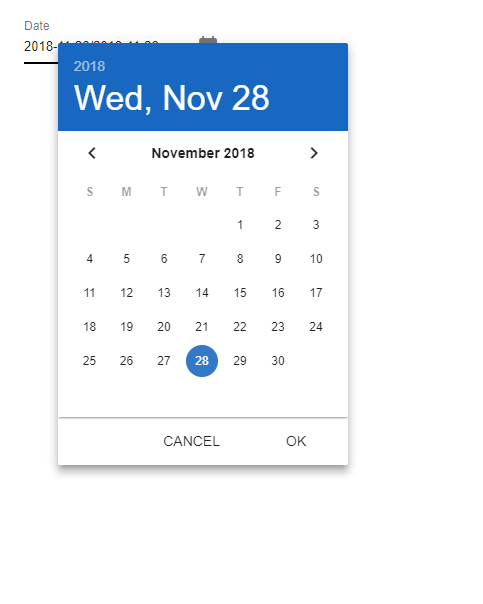
By Default Today's Date Will be highlighted.
</h3>
<img src="https://i.postimg.cc/pV9ff3Tp/todays-Date.png">
<h3>
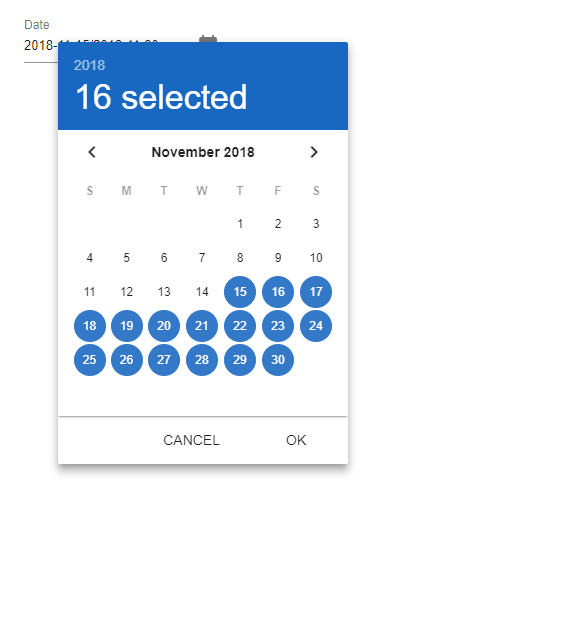
Selection Of Date range Example -1
</h3>
<img src="https://i.postimg.cc/DZR23S1k/example1.png" >
<h3>
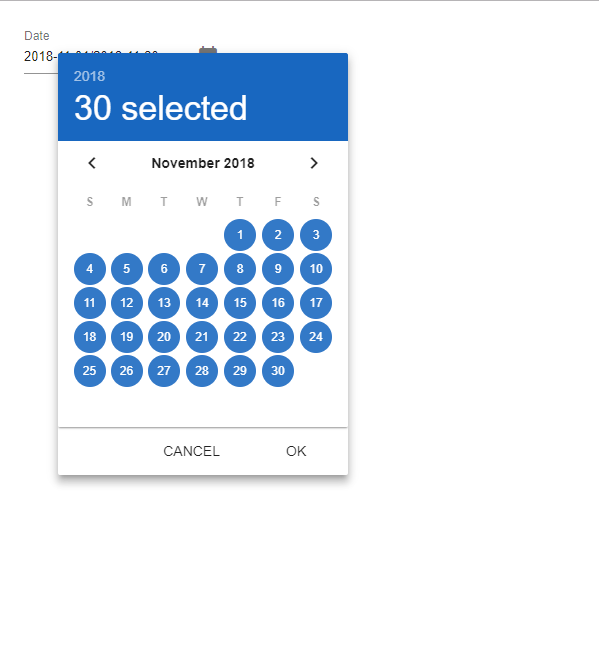
Selection Of Date range Example -2 (various months can also be selected)
</h3>
<img src="https://i.postimg.cc/g0XzSy6q/example2.png">
<h3>
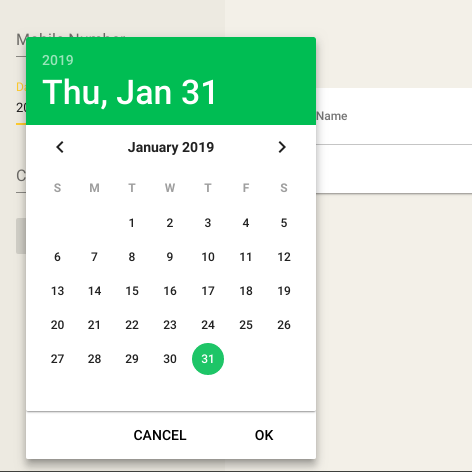
For various color just use the color attribute 
</h3>
<img src="https://i.postimg.cc/fWp6YmQn/green-Color-Pic.png">
<h3>
For disabled Date Range use the "MIN" "MAX" attributes.
</h3>
<img src="https://i.postimg.cc/bNjYFMJC/disabled-pics.png">
<h3>NOTE :</h3>
<p>Make sure that you should unselect the selected date before initiating to next date selection.</p>