# wxc-tab-bar
> Bottom tab bar
### Rule
- For the bottom Tab slider page, currently support **icon, text, iconFont ** form of the bottom bar.
## [Demo](https://h5.m.taobao.com/trip/wx-detection-demo/tab-bar/index.html?_wx_tpl=https%3A%2F%2Fh5.m.taobao.com%2Ftrip%2Fwx-detection-demo%2Ftab-bar%2Findex.weex.js)
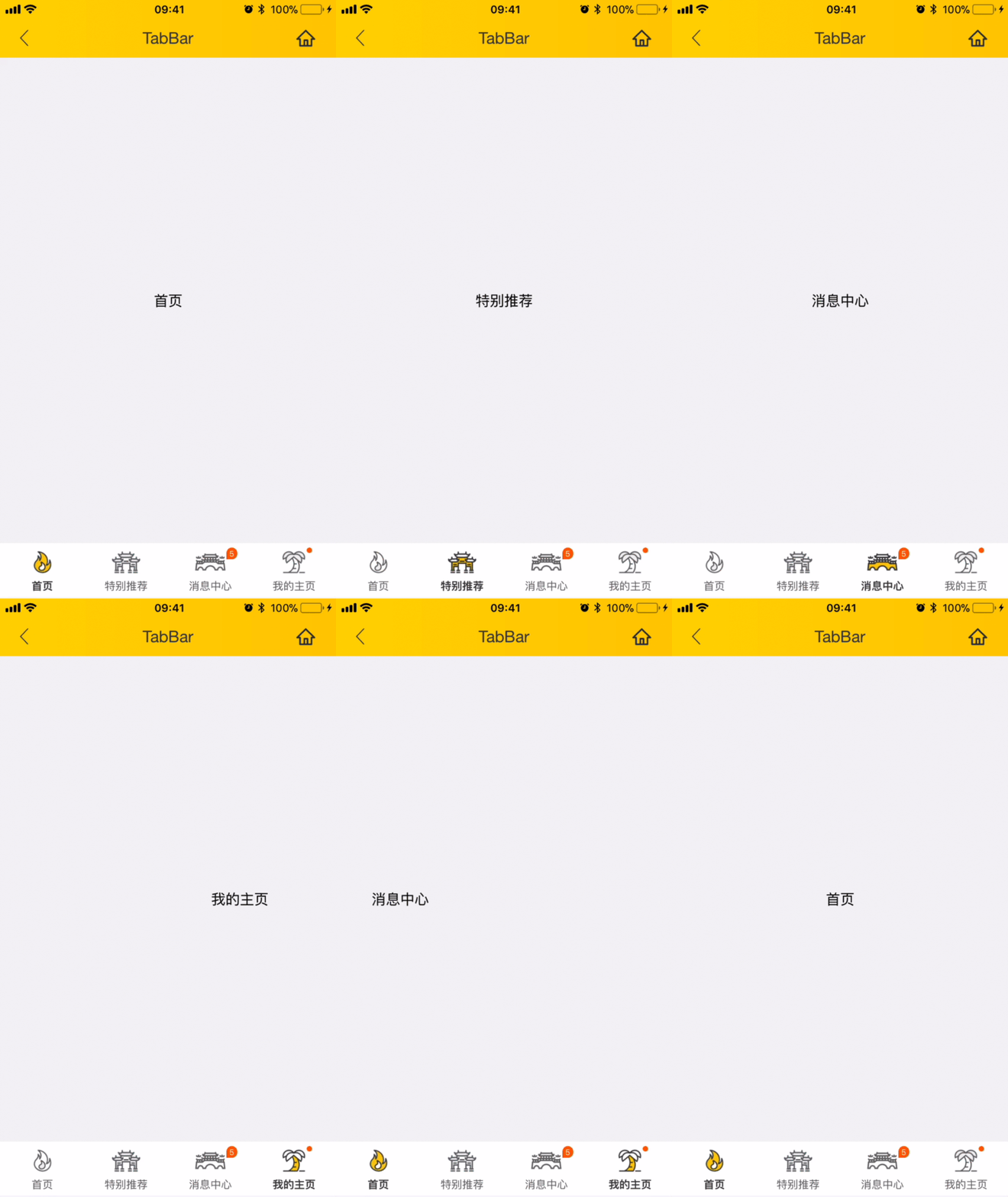
 ## Code Example
```vue
## Code Example
```vue
Home
Hot
Message
My
```
More details can be found in [here](https://github.com/apache/incubator-weex-ui/blob/master/example/tab-bar/index.vue)
### API
| Prop | Type | Required | Default | Description |
|-------------|------------|--------|-----|-----|
| tab-titles | `Array` |`Y`| `[]` | Tab list [config](https://github.com/apache/incubator-weex-ui/blob/master/example/tab-bar/config.js#L7)|
| title-type | `String` |`N`| `icon` | type `icon`/`text`/`iconFont` (*1)|
| tab-styles | `Array` |`N`| `[]` | bottom Tab [config](https://github.com/apache/incubator-weex-ui/blob/master/example/tab-bar/config.js)|
| is-tab-view | `Boolean` |`N`| `true` |if set `false`,add tab-titles config with `url` can be jumped out |
| title-use-slot | `Boolean` |`N`| `false` | configure title using `slot` (*2)|
| duration | `Number` |`N`| `300` | page slider time of animation |
| timing-function | `String` |`N`| `-` | page slider function of animation |
| wrap-bg-color | `String` |`N`| `#F2F3F4` |page background color|
| support-x-bar | `Boolean` |`Y`| `true` |if set `false`,the iPhone X Bar will not go into effect|
### *1: Using iconFont
- After Weex Ui version about `0.3.8`, we can use `iconFont` to represent our title image, you can use like this:
```
// https://github.com/apache/incubator-weex-ui/blob/master/example/tab-bar/config.js#L51
// '' -> '\ue608'
tabIconFontTitles: [
{
title: 'Home',
codePoint: '\ue608'
},
{
title: 'Message',
codePoint: '\ue752',
badge: 5
},
// .... more
],
// https://github.com/apache/incubator-weex-ui/blob/master/example/tab-page/config.js#L72
tabIconFontStyles: {
bgColor: '#FFFFFF',
titleColor: '#666666',
activeTitleColor: '#3D3D3D',
activeBgColor: '#FFFFFF',
isActiveTitleBold: true,
width: 160,
height: 120,
fontSize: 24,
textPaddingLeft: 10,
textPaddingRight: 10,
iconFontSize: 50,
iconFontColor: '#333333',
iconFontMarginBottom: 8,
activeIconFontColor: 'red',
iconFontUrl: '//at.alicdn.com/t/font_501019_mauqv15evc1pp66r.ttf'
}
```
### *2:Manually setting the title show
- When configuring head navigation in the way of slot, we need to make sure that the original simple configuration is no longer able to meet the existing needs, and can be used to import param`:title-use-slot="true"`, At the same time, the following slot corresponding nodes are introduced into the wxc-tab-bar component
- It can be generated by traversing the way and determining the current selection page according to `wxcTabBarCurrentTabSelected`, and you need manage the color.
```
111
222
333
```
### Manually setting the page
```
//
// set the third page
this.$refs['wxc-tab-bar'].setPage(2)
// set the third page with no animation
this.$refs['wxc-tab-bar'].setPage(2,null,false);
```
### Event
```
// @wxcTabBarCurrentTabSelected="wxcTabBarCurrentTabSelected"
// will return the selected index
```