# wxc-tab-page
> Weex tab 页面滑动切换组件
!> 随手滑动的效果依赖于 [BindingX](https://alibaba.github.io/bindingx/) 特性,使用前请确定你的App [是否安装](https://github.com/alibaba/bindingx#installation)。
!> 0.6.1 版本新增 **沉浸式全屏的 FullPage** 效果的 tabPage,详细可见下面文档。
### 规则
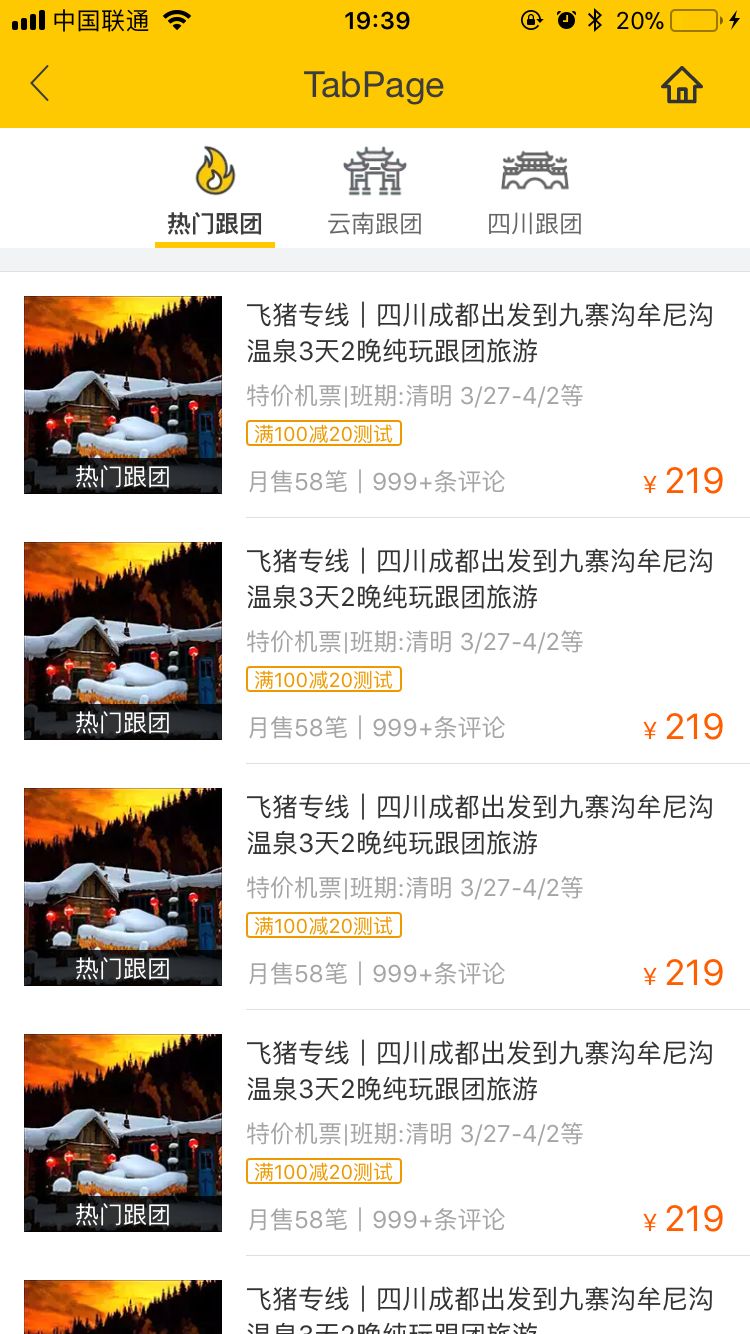
- 允许对头部进行配置,支持 Binding 手势跟随效果
- 常用于 Tab 切换页面,目前支持**icon、text、iconFont**形式的顶栏,详细可见[config.js](https://github.com/apache/incubator-weex-ui/blob/master/example/tab-page/config.js)
- **Android 由于 [点击事件和滑动手势冲突约束](http://weex-project.io/cn/references/gesture.html#约束),需在子元素上绑定对应事件,可通过`wxc-pan-item`解决此问题,同时记得在`wxcPanItemPan`回调中处理 Android 事件**
- 支持**居中形式 Tab**,将 tabStyles 中的 leftOffset 配置合适的值即可
## [Demo](https://h5.m.taobao.com/trip/wx-detection-demo/tab-page/index.html?_wx_tpl=https%3A%2F%2Fh5.m.taobao.com%2Ftrip%2Fwx-detection-demo%2Ftab-page%2Findex.weex.js)

 ;
; 
 ## 使用方法
```vue
## 使用方法
```vue
|
{{key}}
|
```
更详细代码可以参考 [demo](https://github.com/apache/incubator-weex-ui/blob/master/example/tab-page/index.vue)
### 可配置参数
| Prop | Type | Required | Default | Description |
|-------------|------------|--------|-----|-----|
| tab-titles | `Array` |`Y`| `[]` | 顶部 [显示配置](https://github.com/apache/incubator-weex-ui/blob/master/example/tab-page/config.js#L7)|
| title-type | `String` |`N`| `icon` | 顶部类型 `icon`/`text`/`iconFont` (注1)|
| tab-styles | `Object` |`N`| `{}` | 顶部 [样式配置](https://github.com/apache/incubator-weex-ui/blob/master/example/tab-page/config.js)|
| tab-page-height | `Number` |`N`| `1334` | Tab page 页面的高度 |
| is-tab-view | `Boolean` |`N`| `true` |当设置为`false`,同时 tab 配置 url 参数即可跳出|
| pan-dist | `Number` |`N`| `200` | 滚动多少切换上下一屏幕|
| duration | `Number` |`N`| `300` | 页面切换动画的时间 |
| timing-function | `String` |`N`| `-` | 页面切换动画函数 |
| title-use-slot | `Boolean` |`N`| `false` | 使用 slot 配置头部导航 (注2)|
| wrap-bg-color | `String` |`N`| `#F2F3F4` |页面背景颜色|
| need-slider | `Boolean` |`N`| `true` |设置是否可以手势滑动|
| click-animation | `Boolean` |`N`| `true` | 点击tab的时候是否使用动画 |
| right-icon-style | `Object` |`N`| `{}` | rightIcon的样式 |
### 注1:使用 iconFont
- 在 Weex Ui 0.3.8以后,我们可以使用 iconFont 来代替原有 tab title 中的图片配置,像下面这个配置即可:
```
// https://github.com/apache/incubator-weex-ui/blob/master/example/tab-bar/config.js#L67
// '' -> '\ue608'
tabTitles: [
{
title: 'Home',
codePoint: '\ue608'
},
{
title: 'Message',
codePoint: '\ue752',
badge: 5
}
// ....
],
// https://github.com/apache/incubator-weex-ui/blob/master/example/tab-page/config.js#L87
tabIconFontStyles: {
bgColor: '#FFFFFF',
titleColor: '#666666',
activeTitleColor: '#3D3D3D',
activeBgColor: '#FFFFFF',
isActiveTitleBold: true,
width: 160,
height: 120,
fontSize: 24,
textPaddingLeft: 10,
textPaddingRight: 10,
iconFontSize: 50,
iconFontMarginBottom: 8,
iconFontColor: '#333333',
activeIconFontColor: 'red',
iconFontUrl: '//at.alicdn.com/t/font_501019_mauqv15evc1pp66r.ttf'
}
```
### 注1:自定义头部导航块
- 当使用slot的方式配置头部导航的时候,需要确保原有简单配置已经不能满足现有需求情况下再使用,可以传入参数`:title-use-slot="true"`,同时在wxc-tab-page组件内部传入如下slot对应节点即可
- 可以通过遍历到方式来生成,同时根据wxcTabPageCurrentTabSelected来确定当前的选择页,自己管理颜色即可。
```
111
222
333
```
### 主动触发设置页面
```
// 直接在wxc-tab-page上面绑定ref="wxc-tab-page",然后调用即可
this.$refs['wxc-tab-page'].setPage(2)
// 如果想设置无动画跳转,可以这样使用(中间参数用于设置url,设置null即可)
this.$refs['wxc-tab-page'].setPage(2,null,false);
```
### 事件回调
```
@wxcTabPageCurrentTabSelected="wxcTabPageCurrentTabSelected"
```
## 沉浸式全屏的 FullPage 的使用
1. 引入:` import { WxcFullPage} from 'weex-ui';`
2. 参数形式和 wxcTabPage 保持一致,详细可见 [【demo】](https://github.com/apache/incubator-weex-ui/blob/master/example/tab-page/full-page/)
3. 建议隐藏头部导航栏使用,同时可以结合 [wxc-slide-nav](https://apache.github.io/incubator-weex-ui/#/packages/wxc-slide-nav/) 使用
## wxc-pan-item 的使用
!> 在 `weex-ui` V0.6.0 版本以上,为了减少打包体积,Binding 相关判断由 `Utils.env` 转移到 `BindEnv`
#### 参数
| Prop | Type | Required | Default | Description |
|-------------|------------|--------|-----|-----|
| url | `String` |`N`| `-` | url跳转链接,自己处理可以不传|
#### 使用
```
// 组件使用
....
// 引用
import { WxcPanItem, BindEnv } from 'weex-ui';
//回调
wxcPanItemPan (e) {
if (BindEnv.supportsEBForAndroid()) {
this.$refs['wxc-tab-page'].bindExp(e.element);
}
}
```