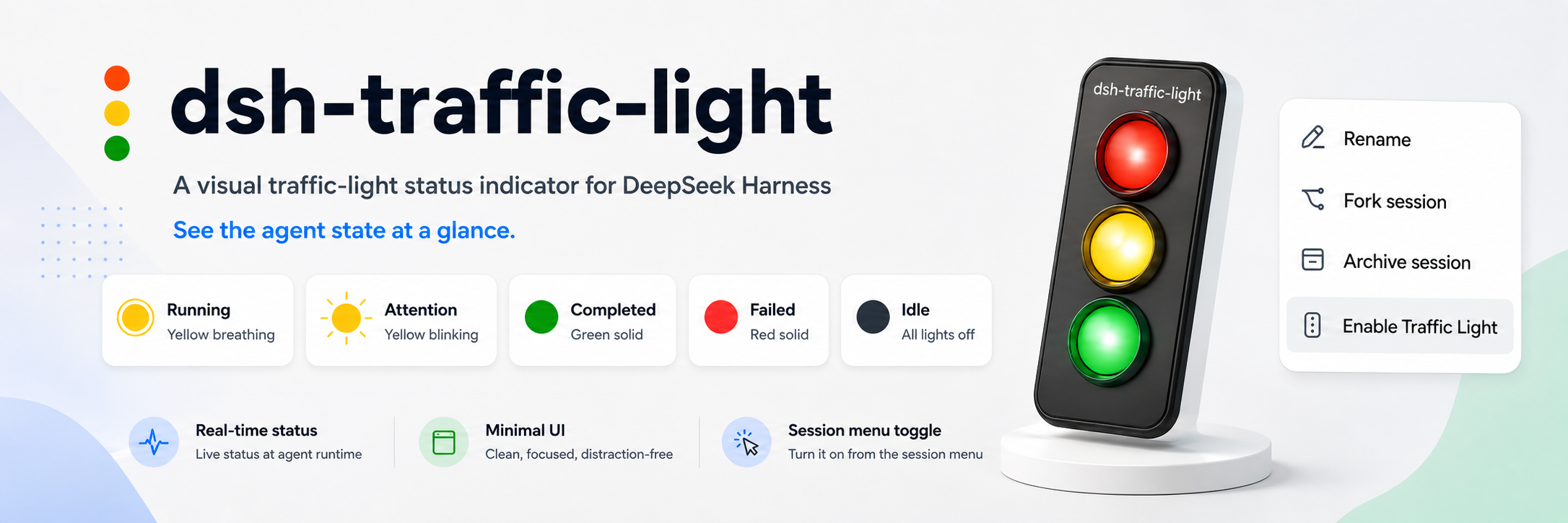
A desktop traffic light for every DeepSeek Harness Session
中文 · English



# dsh-traffic-light
> Stop watching the DSH page. Every monitored Session gets its own always-on-top desktop traffic light, so you can see running, waiting, completed, and failed states at a glance.
## What it does
- Displays one independent floating light for each Session and supports multiple Sessions at once.
- Keeps each light on top and draggable without taking space away from the DSH page.
- Enables or disables lights from each Session's three-dot menu without affecting other Sessions in the same workspace.
- Closes an individual light from its right-click menu and synchronizes the change back to the DSH page.
- Keeps status data on your computer and does not upload Session content.
## Preview
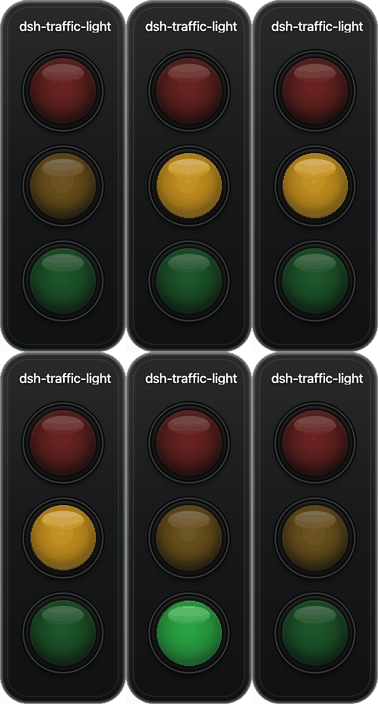
> The animation demonstrates Idle → Running → Attention → Completed → Failed. A slowly breathing yellow light means Running; a rapidly blinking yellow light means Attention.
## Installation
To prepare the desktop runtime during installation and avoid waiting on the first click, run:
```sh
dsh plugin --profile web add dsh-traffic-light --allow-build=electron
```
If your current DSH profile is already `web`, you can use the shorter command:
```sh
dsh plugin add dsh-traffic-light --allow-build=electron
```
Restart DSH Web after installation:
```sh
dsh web
```
`--allow-build=electron` permits Electron to download the local desktop runtime during installation. It is about 300 MB on macOS and does not upload any DSH data.
If your DSH environment does not allow install scripts, the ordinary `dsh plugin add dsh-traffic-light` command still works. The plugin prepares the runtime in the background after `dsh web` starts; the menu shows **Preparing Traffic Light…** until it is ready.
## Usage
1. Open the Session you want to monitor in DSH.
2. Open that Session's three-dot menu.
3. Select **Enable Traffic Light**.
4. A floating desktop light appears for that Session.
5. Repeat these steps for any other Sessions you want to monitor.
There are two ways to close one floating light:
- Select **Disable Traffic Light** from the corresponding Session menu.
- Right-click the floating light and choose its close action.
Closing one Session's light does not close any other Session lights.
## Light states
The floating window contains three physical lights: red, yellow, and green. Yellow uses different motion patterns to represent two states:
| Light | State | Meaning |
| --- | --- | --- |
| Slowly breathing yellow | Running | The Session is actively working. |
| Rapidly blinking yellow | Attention | The Session is waiting for your approval or answer, or the task is blocked. |
| Solid green | Completed | The current turn completed successfully. |
| Solid red | Failed | The current turn failed or was interrupted unexpectedly. |
| All lights off | Idle | No task is currently running. |
The green completion light remains visible briefly so you do not miss a finished task. Starting a new turn immediately changes the light back to Running.
## Multi-Session behavior
Light selection is saved per Session, not per workspace:
- You can enable only some Sessions in the same workspace.
- Sessions from different workspaces can be displayed at the same time.
- Each floating light reflects only its own Session.
- Closing one light does not affect any other light.
## Troubleshooting
### The Session menu does not show **Enable Traffic Light**
Make sure the plugin was installed into the `web` profile, then stop and restart `dsh web`. Refreshing the browser page alone may not load the plugin menu after installation.
### Enabling a Session does not open a window
When the menu shows **Preparing Traffic Light…**, the local desktop runtime is being downloaded or extracted. The menu changes to **Disable Traffic Light** automatically when it is ready. Use the recommended `--allow-build=electron` installation command above to move this wait to installation time. If no window appears after preparation completes, stop DSH Web, run `dsh web` again, and enable the Session one more time.
### The DSH menu still says the light is enabled after closing it
Wait briefly for the DSH page to synchronize. If it does not update, refresh the page or restart `dsh web`. Reopening the menu will then reflect the current Session setting.
### Multiple floating lights overlap
Drag each light to the position you prefer. Every Session has an independent window and can be arranged separately.
### The state is not changing
Confirm that the corresponding Session is still active and that DSH Web remains running. The plugin displays DSH Session state; it does not monitor unrelated terminal commands or other applications.
## Uninstall
```sh
dsh plugin --profile web remove dsh-traffic-light
```
Restart DSH Web after uninstalling. Any open floating lights will close when the plugin exits.
## Compatibility and privacy
- Requires DeepSeek Harness with the Web profile.
- Currently tested primarily on macOS. Windows and Linux may work, but transparent always-on-top windows can behave differently across desktop environments.
- Session state is exchanged only between the local DSH instance and the local desktop windows. Session content, prompts, and tool results are not uploaded.
- Floating windows use a local Electron runtime. Initial preparation needs about 300 MB of disk space on macOS; the npm tarball itself does not bundle that runtime.
## Documentation
The detailed documentation is currently available in Chinese:
- [Quick start](docs/getting-started.md): installation, first launch, and opening a floating light.
- [Usage settings](docs/configuration.md): per-Session selection, window behavior, and state retention.
- [State guide](docs/architecture.md): how five Session states map to three physical lights.
## License
[MIT](LICENSE)