We used JScrollPane
earlier in this chapter without explaining much about it. In this section,
we’ll remedy the situation.
A JScrollPane is a container that
can hold one component. Said another way, a JScrollPanewraps another
component. By default, if the wrapped component is larger than the
JScrollPane itself, the JScrollPane supplies scrollbars. JScrollPane handles the events from the
scrollbars and displays the appropriate portion of the contained
component.
Technically, JScrollPane is a
Container, but it’s a funny one. It has
its own layout manager, which can’t be changed, and it accommodates only
one component at a time. This isn’t really a limitation. If you want to
put a lot of stuff in a JScrollPane,
just collect your components in a JPanel, with whatever layout manager you like,
and put that panel into the JScrollPane.
When you create a JScrollPane,
you specify the conditions under which its scrollbars are displayed. This
is called the scrollbar display policy; a separate
policy is used for the horizontal and vertical scrollbars. The following
constants can be used to specify the policy for each of the
scrollbars:
HORIZONTAL_SCROLLBAR_AS_NEEDEDVERTICAL_SCROLLBAR_AS_NEEDEDDisplays a scrollbar only if the wrapped component doesn’t fit.
HORIZONTAL_SCROLLBAR_ALWAYSVERTICAL_SCROLLBAR_ALWAYSAlways shows a scrollbar, regardless of the contained component’s size.
HORIZONTAL_SCROLLBAR_NEVERVERTICAL_SCROLLBAR_NEVERNever shows a scrollbar, even if the contained component won’t fit. If you use this policy, you should provide some other way to manipulate the
JScrollPane.
By default, the policies are HORIZONTAL_SCROLLBAR_AS_NEEDED and VERTICAL_SCROLLBAR_AS_NEEDED.
Support for scrolling with mouse wheels is automatic as of Java 1.4. You do not have to do anything explicit in your application to get this to work.
The following example uses a JScrollPane to display a large image (see Figure 17-9). The application itself is very
simple; all we do is place the image in a JLabel, wrap a JScrollPane around it, and put the JScrollPane in a JFrame’s content pane.
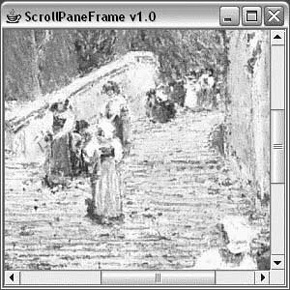
Here’s the code:
//file: ScrollPaneFrame.javaimportjava.awt.*;importjava.awt.event.*;importjavax.swing.*;publicclassScrollPaneFrame{publicstaticvoidmain(String[]args){Stringfilename="Piazza di Spagna.jpg";if(args.length>0)filename=args[0];JFrameframe=newJFrame("ScrollPaneFrame v1.0");JLabelimage=newJLabel(newImageIcon(filename));frame.getContentPane().add(newJScrollPane(image));frame.setSize(300,300);frame.setDefaultCloseOperation(JFrame.EXIT_ON_CLOSE);frame.setVisible(true);}}
To hold the image, we have used a JLabel and ImageIcon. The ImageIcon class preloads the image using a
MediaTracker and
determines its dimensions. It’s also possible to have the ImageIcon show the image as it loads or to ask
it for information on the status of loading the image. We’ll discuss image
management in Chapter 21.