JScrollPane is such a
handy component that you may not ever need to use scrollbars by
themselves. In fact, if you ever do find yourself using a scrollbar by
itself, chances are that you really want to use another component called a
slider.
There’s not much point in describing the appearance and functionality of scrollbars and sliders. Instead, let’s jump right in with an example that includes both components. Figure 17-12 shows a simple example with both a scrollbar and a slider.
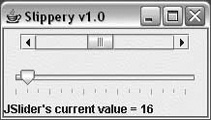
Here is the source code for this example:
//file: Slippery.javaimportjava.awt.*;importjava.awt.event.*;importjavax.swing.*;importjavax.swing.event.*;publicclassSlippery{publicstaticvoidmain(String[]args){JFrameframe=newJFrame("Slippery v1.0");Containercontent=frame.getContentPane();// unnecessary in 5.0+JPanelmain=newJPanel(newGridLayout(2,1));JPanelscrollBarPanel=newJPanel();finalJScrollBarscrollBar=newJScrollBar(JScrollBar.HORIZONTAL,0,48,0,255);intheight=scrollBar.getPreferredSize().height;scrollBar.setPreferredSize(newDimension(175,height));scrollBarPanel.add(scrollBar);main.add(scrollBarPanel);JPanelsliderPanel=newJPanel();finalJSliderslider=newJSlider(JSlider.HORIZONTAL,0,255,128);slider.setMajorTickSpacing(48);slider.setMinorTickSpacing(16);slider.setPaintTicks(true);sliderPanel.add(slider);main.add(sliderPanel);content.add(main,BorderLayout.CENTER);finalJLabelstatusLabel=newJLabel("Welcome to Slippery v1.0");content.add(statusLabel,BorderLayout.SOUTH);// wire up the event handlersscrollBar.addAdjustmentListener(newAdjustmentListener(){publicvoidadjustmentValueChanged(AdjustmentEvente){statusLabel.setText("JScrollBar's current value = "+scrollBar.getValue());}});slider.addChangeListener(newChangeListener(){publicvoidstateChanged(ChangeEvente){statusLabel.setText("JSlider's current value = "+slider.getValue());}});frame.pack();frame.setDefaultCloseOperation(JFrame.EXIT_ON_CLOSE);frame.setVisible(true);}}
All we’ve really done here is added a JScrollBar and a JSlider to our main
window. If the user adjusts either of these components, the current value
of the component is displayed in a JLabel at the bottom of the window.
You create both the JScrollBar
and JSlider by specifying an
orientation, either HORIZONTAL or VERTICAL. You can also
specify the minimum and maximum values for the components, as well as the
initial value. The JScrollBar supports
one additional parameter, the extent. The extent simply refers to
what range of values is represented by the slider within the scroll bar.
For example, in a scrollbar that runs from 0 to 255, an extent of 128
means that the slider will be half the width of the scrollable area of the
scrollbar.
JSlider supports the idea of
tick marks, lines drawn at certain values along the
slider’s length. Major tick marks are slightly
larger than minor tick marks. To draw tick marks,
just specify an interval for major and minor tick marks, and then paint
the tick marks:
slider.setMajorTickSpacing(48);slider.setMinorTickSpacing(16);slider.setPaintTicks(true);
JSlider also supports labeling
the ticks with text strings, using the setLabelTable()
method.
Responding to events from the two components is straightforward. The
JScrollBar sends out AdjustmentEvents every time something happens;
the JSlider fires off ChangeEvents when its value changes. In our
simple example, we display the new value of the changed component in the
JLabel at the bottom of the
window.