A dialog is another standard feature of user interfaces.
Dialogs are frequently used to present information to the user (“Your
fruit salad is ready.”) or to ask a question (“Shall I bring the car
around?”). Dialogs are used so commonly in GUI applications that Swing
includes a handy set of prebuilt dialogs. These are accessible from static
methods in the JOptionPane class. Many
variations are possible; JOptionPane
groups them into four basic types:
- Message dialog
Displays a message to the user, usually accompanied by an OK button.
- Confirmation dialog
Ask a question and displays answer buttons—usually Yes, No, and Cancel.
- Input dialog
Asks the user to type in a string.
- Option dialogs
The most general type. You pass it your own components, which are displayed in the dialog.
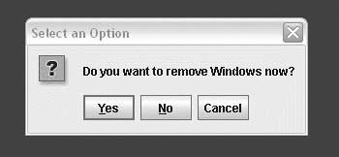
A confirmation dialog is shown in Figure 17-13.
Let’s look at examples of each kind of dialog. The following code produces a message dialog:
JOptionPane.showMessageDialog(frame,"You have mail.");
The first parameter to showMessageDialog() is
the parent component (in this case, frame, an existing JFrame). The dialog will be centered on the
parent component. If you pass null for
the parent component, the dialog is centered in your screen. The dialogs
that JOptionPane displays are
modal, which means they block other input to your
application while they are showing.
Here’s a slightly fancier message dialog. We’ve specified a title for the dialog and a message type, which affects the icon that is displayed:
JOptionPane.showMessageDialog(frame,"You are low on memory.","Apocalyptic message",JOptionPane.WARNING_MESSAGE);
Here’s how to display the confirmation dialog shown in Figure 17-13:
intresult=JOptionPane.showConfirmDialog(null,"Do you want to remove Windows now?");
In this case, we’ve passed null
for the parent component and it will be displayed centered on the screen.
Special values are returned from showConfirmDialog() to
indicate which button was pressed. A full example later in this section
shows how to use this return value.
Sometimes you need to ask the user to type some input. The following code puts up a dialog requesting the user’s name:
Stringname=JOptionPane.showInputDialog(null,"Please enter your name.");
Whatever the user types is returned as a String or null if the user presses the Cancel
button.
The most general type of dialog is the option dialog. You supply an
array of objects you wish to be displayed; JOptionPane takes care of formatting them and
displaying the dialog. The following example displays a text label, a
JTextField, and a JPasswordField. (Text components are described
in the next chapter.)
JTextFielduserField=newJTextField();JPasswordFieldpassField=newJPasswordField();Stringmessage="Please enter your user name and password.";result=JOptionPane.showOptionDialog(frame,newObject[]{message,userField,passField},"Login",JOptionPane.OK_CANCEL_OPTION,JOptionPane.QUESTION_MESSAGE,null,null,null);
We’ve also specified a dialog title (“Login”) in the call to
showOptionDialog(). We
want OK and Cancel buttons, so we pass OK_CANCEL_OPTION as the
dialog type. The QUESTION_MESSAGE argument
indicates we’d like to see the question mark icon. The last three items
are optional: an Icon, an array of
different choices, and a current selection. Because the icon parameter is
null, a default is used. If the array
of choices and the current selection parameters were not null, JOptionPane might try to display the choices in
a list or combo box.
The following application includes all the examples we’ve covered:
importjavax.swing.*;publicclassExerciseOptions{publicstaticvoidmain(String[]args){JFrameframe=newJFrame("ExerciseOptions v1.0");frame.setSize(200,200);frame.setVisible(true);JOptionPane.showMessageDialog(frame,"You have mail.");JOptionPane.showMessageDialog(frame,"You are low on memory.","Apocalyptic message",JOptionPane.WARNING_MESSAGE);intresult=JOptionPane.showConfirmDialog(null,"Do you want to remove Windows now?");switch(result){caseJOptionPane.YES_OPTION:System.out.println("Yes");break;caseJOptionPane.NO_OPTION:System.out.println("No");break;caseJOptionPane.CANCEL_OPTION:System.out.println("Cancel");break;caseJOptionPane.CLOSED_OPTION:System.out.println("Closed");break;}Stringname=JOptionPane.showInputDialog(null,"Please enter your name.");System.out.println(name);JTextFielduserField=newJTextField();JPasswordFieldpassField=newJPasswordField();Stringmessage="Please enter your user name and password.";result=JOptionPane.showOptionDialog(frame,newObject[]{message,userField,passField},"Login",JOptionPane.OK_CANCEL_OPTION,JOptionPane.QUESTION_MESSAGE,null,null,null);if(result==JOptionPane.OK_OPTION)System.out.println(userField.getText()+" "+newString(passField.getPassword()));System.exit(0);}}
A JFileChooser is a
standard file selection box. As with other Swing components, JFileChooser is implemented in pure Java, so
it can look and act the same on different platforms or take on the
native appearance of the operating system, depending on what look and
feel is in effect.
Selecting files all day can be pretty boring without a greater
purpose, so we’ll exercise the JFileChooser in a mini-editor application.
Editor provides a text area in which
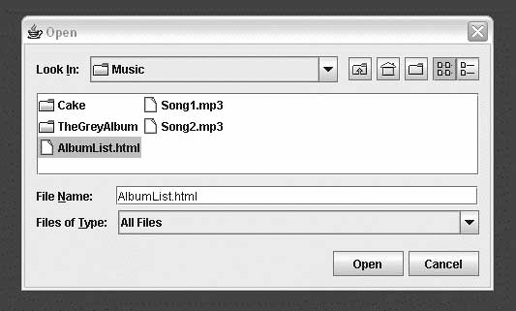
we can load and work with files. (The JFileChooser created by Editor is shown in Figure 17-14.) We’ll stop just shy of the
capability to save and let you fill in the blanks (with a few
caveats).
Here’s the code:
importjava.awt.*;importjava.awt.event.*;importjava.io.*;importjavax.swing.*;publicclassEditorextendsJFrameimplementsActionListener{privateJEditorPanetextPane=newJEditorPane();publicEditor(){super("Editor v1.0");Containercontent=getContentPane();// unnecessary in 5.0+content.add(newJScrollPane(textPane),BorderLayout.CENTER);JMenumenu=newJMenu("File");menu.add(makeMenuItem("Open"));menu.add(makeMenuItem("Save"));menu.add(makeMenuItem("Quit"));JMenuBarmenuBar=newJMenuBar();menuBar.add(menu);setJMenuBar(menuBar);setSize(300,300);setDefaultCloseOperation(JFrame.EXIT_ON_CLOSE);}publicvoidactionPerformed(ActionEvente){Stringcommand=e.getActionCommand();if(command.equals("Quit"))System.exit(0);elseif(command.equals("Open"))loadFile();elseif(command.equals("Save"))saveFile();}privatevoidloadFile(){JFileChooserchooser=newJFileChooser();intresult=chooser.showOpenDialog(this);if(result==JFileChooser.CANCEL_OPTION)return;try{Filefile=chooser.getSelectedFile();java.net.URLurl=file.toURL();textPane.setPage(url);}catch(Exceptione){textPane.setText("Could not load file: "+e);}}privatevoidsaveFile(){JFileChooserchooser=newJFileChooser();chooser.showSaveDialog(this);// Save file data...}privateJMenuItemmakeMenuItem(Stringname){JMenuItemm=newJMenuItem(name);m.addActionListener(this);returnm;}publicstaticvoidmain(String[]s){newEditor().setVisible(true);}}
Editor is a JFrame that lays itself out with a JEditorPane (which is covered in Chapter 18) and a pull-down menu. From the pull-down
File menu, we can Open, Save, or Quit. The actionPerformed() method catches the events
associated with these menu selections and takes the appropriate
action.
The interesting parts of Editor
are the private methods loadFile() and saveFile(). The loadFile() method creates a new JFileChooser and calls its showOpenDialog()
method.
A JFileChooser does its work
when the showOpenDialog() method is
called. This method blocks the caller until the dialog completes its
job, at which time the file chooser disappears. After that, we can
retrieve the designated file with the getFile() method. In loadFile(), we convert the selected File to a URL and pass it to the JEditorPane, which displays the selected file.
As you’ll learn in the next chapter, JEditorPane can display HTML and RTF
files.
You can fill out the unfinished saveFile() method if you wish, but it would be
prudent to add the standard safety precautions. For example, you could
use one of the confirmation dialogs we just looked at to prompt the user
before overwriting an existing file.
Swing is chock full of goodies. JColorChooser is yet another ready-made dialog
supplied with Swing; it allows your users to choose colors. The
following brief example shows how easy it is to use JColorChooser:
importjava.awt.*;importjava.awt.event.*;importjavax.swing.*;publicclassLocalColor{publicstaticvoidmain(String[]args){finalJFrameframe=newJFrame("LocalColor v1.0");finalContainercontent=frame.getContentPane();// unnecessary in 5.0+content.setLayout(newGridBagLayout());JButtonbutton=newJButton("Change color...");content.add(button);button.addActionListener(newActionListener(){publicvoidactionPerformed(ActionEvente){Colorc=JColorChooser.showDialog(frame,"Choose a color",content.getBackground());if(c!=null)content.setBackground(c);}});frame.setSize(200,200);frame.setDefaultCloseOperation(JFrame.EXIT_ON_CLOSE);frame.setVisible(true);}}
This example shows a frame window with a single button. When you click on the button, a color chooser pops up. After you select a color, it becomes the background color of the frame window.
Basically, all we have to do is call JColorChooser’s static method showDialog(). In this
example, we specified a parent component, a dialog title, and an initial
color value. But you can get away with just specifying a parent
component. Whatever color the user chooses is returned; if the user
presses the Cancel button, null is
returned.