Swing offers sophisticated text components, from plain-text entry boxes to HTML renderers. For full coverage of Swing’s text capabilities, see O’Reilly’s Java Swing. In that encyclopedic book, several meaty chapters are devoted to text. It’s a huge subject; we’ll just scratch the surface here.
Let’s begin by examining the simpler text components. JTextField is a
single-line text editor and JTextArea is a simple,
multiline text editor. Both JTextField
and JTextArea derive from the
JTextComponent class,
which provides the functionality they have in common. This includes
methods for setting and retrieving the displayed text, specifying whether
the text is “editable” or read-only, manipulating the cursor position
within the text, and manipulating text selections.
Observing changes in text components requires an understanding of
how the components implement the Model-View-Controller (MVC) architecture.
You may recall from the last chapter that Swing components implement a
true MVC architecture. It’s in the text components that you first get an
inkling of a clear separation between the M and VC parts of the MVC
architecture. The model for text components is an object called a Document. When you add or remove text from a
JTextField or a JTextArea, the corresponding Document is changed. It’s the document itself,
not the visual components, that generates text-related events when
something changes. To receive notification of JTextArea changes, therefore, you register with
the underlying Document, not with the
JTextArea component itself:
JTextAreatextArea=newJTextArea();Documentdoc=textArea.getDocument();doc.addDocumentListener(someListener);
As you’ll see in an upcoming example, you can easily have more than
one visual text component use the same underlying Document data model.
In addition, JTextField
components generate ActionEvents
whenever the user presses the Return key within the field. To get these
events, just implement the ActionListener interface and register your
listener using the addActionListener()
method.
The next sections contain a couple of simple applications that show you how to work with text areas and fields.
Our first example, TextEntryBox, creates a JTextArea and ties it
to a JTextField, as you can
see in Figure 18-1.
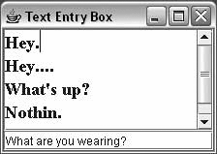
When the user hits Return in the JTextField, we receive an ActionEvent and add the line to the JTextArea’s display. Try it out. You may have
to click your mouse in the JTextField
to give it focus before typing in it. If you fill up the display with
lines, you can test-drive the scroll bar:
//file: TextEntryBox.javaimportjava.awt.*;importjava.awt.event.*;importjavax.swing.*;publicclassTextEntryBox{publicstaticvoidmain(String[]args){JFrameframe=newJFrame("Text Entry Box");finalJTextAreaarea=newJTextArea();area.setFont(newFont("Serif",Font.BOLD,18));area.setText("Howdy!\n");finalJTextFieldfield=newJTextField();frame.add(newJScrollPane(area),BorderLayout.CENTER);frame.add(field,BorderLayout.SOUTH);field.requestFocus();field.addActionListener(newActionListener(){publicvoidactionPerformed(ActionEventae){area.append(field.getText()+'\n');field.setText("");}});frame.setDefaultCloseOperation(JFrame.EXIT_ON_CLOSE);frame.setSize(200,300);frame.setVisible(true);}}
TextEntryBox is exceedingly
simple; we’ve done a few things to make it more interesting. We give the
text area a bigger font using Component’s setFont() method; fonts
are discussed in Chapter 20. Finally, we want
to be notified whenever the user presses Return in the text field, so we
register an anonymous inner class as a listener for action
events.
Pressing Return in the JTextField generates an action event, and
that’s where the fun begins. We handle the event in the actionPerformed() method of our inner ActionListener implementation. Then, we use
the getText() and
setText() methods to
manipulate the text that the user has typed. These methods can be used
for JTextField and JTextArea, as these components are both
derived from the JTextComponent class
and, therefore, have some common functionality.
The event handler, actionPerformed(), calls field.getText() to read the text that the user
typed into our JTextField. It then
adds this text to the JTextArea by
calling area.append(). Finally, we
clear the text field by calling the method field.setText(""), preparing it for more
input.
Remember, the text components really are distinct from the text
data model, the Document. When you
call setText(), getText(), or append(), these methods
are shorthand for operations on an underlying Document.
By default, JTextField and
JTextArea are editable; you can type
and edit in both text components. They can be changed to output-only
areas by calling setEditable(false).
Both text components also support selections. A selection is a range of
text that is highlighted for copying, cutting, or pasting in your
windowing system. You select text by dragging the mouse over it; you can
then cut, copy, and paste it into other text windows using the default
keyboard gestures. On most systems, these are Ctrl-C for copy, Ctrl-V
for paste, and Ctrl-X for cut (on the Mac it’s Command-C, Command-V, and
Command-X). You can also programmatically manage these operations using
the JTextComponent’s cut() , copy(), and
paste() methods. You could, for example, create a pop-up menu
with the standard cut, copy, and paste options using these methods. The
current text selection is returned by getSelectedText(), and
you can set the selection using selectText(), which
takes an index range or selectAll().
Notice how JTextArea fits
neatly inside a JScrollPane. The
scroll pane gives us the expected scrollbars and scrolling behavior if
the text in the JTextArea becomes too
large for the available space.
The JFormattedTextField
component provides explicit support for editing complex formatted values
such as numbers and dates. JFormattedTextField acts somewhat like a
JTextField, except that it accepts a
format-specifying object in its constructor and manages a complex object
type (such as Date or Integer) through its setValue() and
getValue() methods. The
following example shows the construction of a simple form with different
types of formatted fields:
importjava.text.*;importjavax.swing.*;importjavax.swing.text.*;importjava.util.Date;publicclassFormattedFields{publicstaticvoidmain(String[]args)throwsException{Boxform=Box.createVerticalBox();form.add(newJLabel("Name:"));form.add(newJTextField("Joe User"));form.add(newJLabel("Birthday:"));JFormattedTextFieldbirthdayField=newJFormattedTextField(newSimpleDateFormat("MM/dd/yy"));birthdayField.setValue(newDate());form.add(birthdayField);form.add(newJLabel("Age:"));form.add(newJFormattedTextField(newInteger(32)));form.add(newJLabel("Hairs on Body:"));JFormattedTextFieldhairsField=newJFormattedTextField(newDecimalFormat("###,###"));hairsField.setValue(newInteger(100000));form.add(hairsField);form.add(newJLabel("Phone Number:"));JFormattedTextFieldphoneField=newJFormattedTextField(newMaskFormatter("(###)###-####"));phoneField.setValue("(314)555-1212");form.add(phoneField);JFrameframe=newJFrame("User Information");frame.getContentPane().add(form);frame.pack();frame.setDefaultCloseOperation(JFrame.EXIT_ON_CLOSE);frame.setVisible(true);}}
JFormattedTextField can be
constructed in a variety of ways. You can use a plain instance of
java.lang.Number (e.g., Integer and Float) as a prototype or set the layout
explicitly using a formatting object from the java.text package:
java.text.NumberFormat, java.text.DateFormat, or the more arbitrary
java.text.MaskFormatter. The
NumberFormat and
DateFormat classes of
the java.text package are discussed
in Chapters 10 and 11. MaskFormatter allows
you to construct arbitrary physical layout conventions. In a moment,
we’ll discuss input filtering and component validation, which also allow
you to restrict the kinds of characters that could fill the fields or
perform arbitrary checks on the data. Finally, we should mention that in
this example, we’ve used a Box container. A
Box is just a Swing container that
uses a BoxLayout, which we’ll discuss
more in Chapter 19.
After construction, you can set a valid value using setValue() and retrieve the last valid value
with getValue(). To do this, you’ll
have to cast the value back to the correct type based on the format you
are using. For example, this statement retrieves the date from our
birthday field:
Datebday=(Date)birthdayField.getValue();
JFormattedTextField validates
its text when the user attempts to shift focus to a new field (either by
clicking with the mouse outside of the field or using keyboard
navigation). By default, JFormattedTextField handles invalid input by
simply reverting to the last valid value. If you wish to allow invalid
input to remain in the field for further editing, you can set the
setFocusLostBehavior() method with
the value JFormattedTextField.COMMIT
(the default is COMMIT_OR_REVERT). In
any case, invalid input does not change the value property retrieved by
getValue().
JFormattedTextField
does not know about all format types itself; instead, it uses AbstractFormatter objects that know
about particular format types. The AbstractFormatters, in turn, provide
implementations of two interfaces: DocumentFilter and NavigationFilter. A
DocumentFilter attaches to
implementations of Document and
allows you to intercept editing
commands, modifying them as you wish. A NavigationFilter can be attached to JTextComponents to control the movement of the
cursor (as in a mask-formatted field). You can implement your own
AbstractFormatters for use with
JFormattedTextField, and, more
generally, you can use the DocumentFilter interface to control how
documents are edited in any type of text component. For example, you
could create a DocumentFilter that
maps characters to uppercase or strange symbols. DocumentFilter provides a low-level,
edit-by-edit means of controlling or mapping user input. We will show an
example of this now. In the following section, we discuss how to
implement higher-level field validation that
ensures the correctness of data after it is entered, in the same way
that the formatted text field did for us earlier.
The following example, DocFilter, applies a document filter to a
JTextField. Our DocumentFilter simply maps any input to
uppercase. Here is the code:
importjava.text.*;importjavax.swing.*;importjavax.swing.text.*;publicclassDocFilter{publicstaticvoidmain(String[]args)throwsException{JTextFieldfield=newJTextField(30);((AbstractDocument)(field.getDocument())).setDocumentFilter(newDocumentFilter(){publicvoidinsertString(FilterBypassfb,intoffset,Stringstring,AttributeSetattr)throwsBadLocationException{fb.insertString(offset,string.toUpperCase(),attr);}publicvoidreplace(FilterBypassfb,intoffset,intlength,Stringstring,AttributeSetattr)throwsBadLocationException{fb.replace(offset,length,string.toUpperCase(),attr);}});JFrameframe=newJFrame("User Information");frame.add(field);frame.pack();frame.setDefaultCloseOperation(JFrame.EXIT_ON_CLOSE);frame.setVisible(true);}}
The methods insertString() and
replace() of the
DocumentFilter are called when text
is added to the document or modified. Within them, we have an
opportunity to filter the text before passing it on. When we are ready
to apply the text, we use the FilterBypass
reference to pass it along. FilterBypass has the same set of methods,
which apply the changes directly to the document. The DocumentFilter remove() method can also be
used to intercept edits to the document that remove characters. One
thing to note in our example is that not all Documents have a setDocumentFilter()
method. Instead, we have to cast our document to an AbstractDocument. Only document
implementations that extend AbstractDocument accept filters (unless you
implement your own). This sad state of affairs is because the Document
Filter API was added in Java 1.4, and it was decided that changes
could not be made to the original Document interface.
Low-level input filtering prevents you from doing such
things as entering a number where a character should be. In this
section, we’re going to talk about high-level validation, which accounts
for things like February having only 28 days or a credit card number
being for a Visa or MasterCard. Whereas character filtering prevents you
from entering incorrect data, field validation happens after data has
been entered. Normally, validation occurs when the user tries to change
focus and leave the field, either by clicking the mouse or through
keyboard navigation. Java 1.4 added the InputVerifier API, which allows you to
validate the contents of a component before focus is transferred.
Although we are going to talk about this in the context of text fields,
an InputVerifier can
actually be attached to any JComponent to validate its state in this
way.
The following example creates a pair of text fields. The first allows any value to be entered, while the second accepts only numbers between 0 and 100. When both fields are happy, you can freely move between them. However, when you enter an invalid value in the second field and try to leave, the program just beeps and selects the text. The focus remains trapped until you correct the problem.
importjavax.swing.*;publicclassValidator{publicstaticvoidmain(String[]args)throwsException{Boxform=Box.createVerticalBox();form.add(newJLabel("Any Value"));form.add(newJTextField("5000"));form.add(newJLabel("Only 0-100"));JTextFieldrangeField=newJTextField("50");rangeField.setInputVerifier(newInputVerifier(){publicbooleanverify(JComponentcomp){JTextFieldfield=(JTextField)comp;booleanpassed=false;try{intn=Integer.parseInt(field.getText());passed=(0<=n&&n<=100);}catch(NumberFormatExceptione){}if(!passed){comp.getToolkit().beep();field.selectAll();}returnpassed;}});form.add(rangeField);JFrameframe=newJFrame("User Information");frame.add(form);frame.setDefaultCloseOperation(JFrame.EXIT_ON_CLOSE);frame.pack();frame.setVisible(true);}}
We’ve created an anonymous inner class extending InputVerifier with this code. The API is very
simple; at validation time, our verify() method is
called, and we are passed a reference to the component needing checking.
Here we cast to the correct type (we know what we are verifying, of
course) and parse the number. If it is out of range, we beep and select
the text. We then return true or
false indicating whether the value
passes validation.
You can use an InputVerifier in
combination with a JFormattedTextField to both guide user input
into the correct format and validate the semantics of what the user
entered.
Before we move on from our discussion of formatted text,
we should mention that Swing includes a class just for typing passwords,
called JPasswordField. A
JPasswordField behaves just like a
JTextField (it’s a subclass), except
every character typed is echoed as the same, obfuscating character,
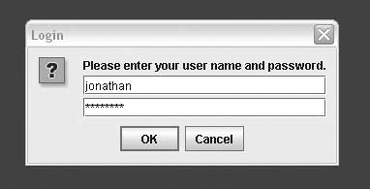
typically an asterisk. Figure 18-2 shows
the option dialog example that was presented in Chapter 17. The example includes a JTextField and a JPasswordField.
The creation and use of JPasswordField is basically the same as for
JTextField. If you find asterisks
distasteful, you can tell the JPasswordField to use a different character
using the setEchoChar()
method.
Normally, you would use getText() to retrieve the text typed into the
JPasswordField. This method, however,
is deprecated; you should use getPassword() instead.
The getPassword() method returns a
character array rather than a String
object. This is done because character arrays are a little less
vulnerable than Strings to discover
by memory-snooping password sniffer programs and they can be erased
directly and easily. If you’re not that concerned, you can simply create
a new String from the character
array. Note that methods in the Java cryptographic classes accept
passwords as character arrays, not strings, so you can pass the results
of a getPassword() call directly to
methods in the cryptographic classes without ever creating a String.
Our next example shows how easy it is to make two or more
text components share the same Document; Figure 18-3 shows what the application looks
like.
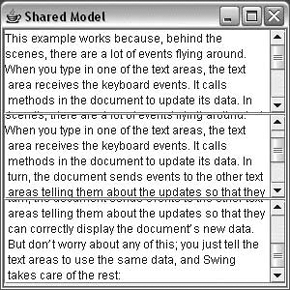
Anything the user types into any text area is reflected in all of them. All we had to do is make all the text areas use the same data model, like this:
JTextAreaareaFiftyOne=newJTextArea();JTextAreaareaFiftyTwo=newJTextArea();areaFiftyTwo.setDocument(areaFiftyOne.getDocument());JTextAreaareaFiftyThree=newJTextArea();areaFiftyThree.setDocument(areaFiftyOne.getDocument());
We could just as easily make seven text areas sharing the same document—or seventy. While this example may not look very useful, keep in mind that you can scroll different text areas to different places in the same document. That’s one of the beauties of putting multiple views on the same data; you get to examine different parts of it. Another useful technique is viewing the same data in different ways. You could, for example, view some tabular numerical data as both a spreadsheet and a pie chart. The MVC architecture that Swing uses means that it’s possible to do this in an intelligent way so that if numbers in a spreadsheet are updated, a pie chart that uses the same data is automatically updated, too.
This example works because, behind the scenes, there are a lot of events flying around. When you type in one of the text areas, the text area receives the keyboard events. It calls methods in the document to update its data. In turn, the document sends events to the other text areas telling them about the updates so that they can correctly display the document’s new data. But don’t worry about any of this; you just tell the text areas to use the same data, and Swing takes care of the rest:
//file: SharedModel.javaimportjava.awt.*;importjava.awt.event.*;importjavax.swing.*;publicclassSharedModel{publicstaticvoidmain(String[]args){JFrameframe=newJFrame("Shared Model");JTextAreaareaFiftyOne=newJTextArea();JTextAreaareaFiftyTwo=newJTextArea();areaFiftyTwo.setDocument(areaFiftyOne.getDocument());JTextAreaareaFiftyThree=newJTextArea();areaFiftyThree.setDocument(areaFiftyOne.getDocument());frame.setLayout(newGridLayout(3,1));frame.add(newJScrollPane(areaFiftyOne));frame.add(newJScrollPane(areaFiftyTwo));frame.add(newJScrollPane(areaFiftyThree));frame.setDefaultCloseOperation(JFrame.EXIT_ON_CLOSE);frame.setSize(300,300);frame.setVisible(true);}}
Setting up the display is simple. We use a GridLayout (discussed in the next chapter) and
add three text areas to the layout. Then, all we have to do is tell the
text areas to use the same Document.
Most user interfaces will use only two subclasses of
JTextComponent. These are the simple
JTextField and JTextArea classes that we just covered. That’s
just the tip of the iceberg, however. Swing offers sophisticated text
capabilities through two other subclasses of JTextComponent: JEditorPane and
JTextPane.
The first of these, JEditorPane, can display HTML and Rich Text
Format (RTF) documents out of the box and provides a plug-in framework
for support of other content types. It fires one more type of event, a
HyperlinkEvent.
Subtypes of this event are fired off when the mouse enters, exits, or
clicks on a hyperlink. Combined with JEditorPane’s HTML display capabilities, it’s
easy to build a simple browser. The following browser, as shown in Figure 18-4, has only about 70 lines of
code.
//file: CanisMinor.javaimportjava.awt.*;importjava.awt.event.*;importjava.net.*;importjavax.swing.*;importjavax.swing.event.*;publicclassCanisMinorextendsJFrame{protectedJEditorPanemEditorPane;protectedJTextFieldmURLField;publicCanisMinor(StringurlString){super("CanisMinor v1.0");createGUI(urlString);}protectedvoidcreateGUI(StringurlString){setLayout(newBorderLayout());JToolBarurlToolBar=newJToolBar();mURLField=newJTextField(urlString,40);urlToolBar.add(newJLabel("Location "));urlToolBar.add(mURLField);add(urlToolBar,BorderLayout.NORTH);mEditorPane=newJEditorPane();mEditorPane.setEditable(false);add(newJScrollPane(mEditorPane),BorderLayout.CENTER);openURL(urlString);mURLField.addActionListener(newActionListener(){publicvoidactionPerformed(ActionEventae){openURL(ae.getActionCommand());}});mEditorPane.addHyperlinkListener(newLinkActivator());setSize(500,600);setDefaultCloseOperation(JFrame.EXIT_ON_CLOSE);}protectedvoidopenURL(StringurlString){try{URLurl=newURL(urlString);mEditorPane.setPage(url);mURLField.setText(url.toExternalForm());}catch(Exceptione){System.out.println("Couldn't open "+urlString+":"+e);}}classLinkActivatorimplementsHyperlinkListener{publicvoidhyperlinkUpdate(HyperlinkEventhe){HyperlinkEvent.EventTypetype=he.getEventType();if(type==HyperlinkEvent.EventType.ACTIVATED)openURL(he.getURL().toExternalForm());}}publicstaticvoidmain(String[]args){StringurlString="http://en.wikinews.org/wiki/Special:Random";if(args.length>0)urlString=args[0];newCanisMinor(urlString).setVisible(true);}}
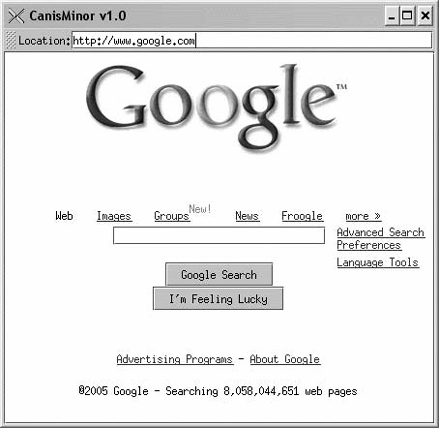
JEditorPane is the center of
this little application. Passing a URL to setPage() causes the
JEditorPane to load a new page,
either from a local file or from somewhere across the Internet. To go to
a new page, enter it in the text field at the top of the window and
press Return. This fires an ActionEvent that sets the new page location of
the JEditorPane. It can display RTF
files, too (RTF is the text or nonbinary storage format for Microsoft
Word documents).
Responding to hyperlinks correctly is simply a matter of
responding to the HyperlinkEvents
thrown by the JEditorPane. This
behavior is encapsulated in the LinkActivator inner class. In this case, the
only activity we are interested in is when the user “activates” the
hyperlink by clicking on it. We respond by setting the location of the
JEditorPane to the location given
under the hyperlink. Surf away!
Behind the scenes, something called an EditorKit handles
displaying documents for the JEditorPane. Different kinds of EditorKits can display different kinds of
documents. For HTML, the HTMLEditorKit class (in the javax.swing.text.html package) handles the
display. Currently, this class supports HTML 3.2. Sun says that future
enhancements will move the HTMLEditorKit toward
the HTML 4.0 standard, but even with Java 7 this area hasn’t seen much
progress. The HTMLEditorKit handles
other features of HTML, including HTML forms, in the expected
way—automatically submitting results when a submit button is pushed. A
FormSubmitEvent enables
programmatic involvement in form submission.
If you browse around with this example browser, you will quickly
find that most modern web pages can’t be rendered well by the current
HTMLEditorKit. In their current
state, JEditorPane and HTMLEditorKit are best suited for simple uses
such as an HTML help system. There is an excellent commercial Java
browser component from JadeLiquid called WebRenderer.
There’s another component here that we haven’t covered before—the
JToolBar. This nifty
container houses our URL text field. Initially, the JToolBar starts out at the top of the window.
But you can pick it up by clicking on the little dotted box near its
left edge, then drag it around to different parts of the window. You can
place this toolbar at the top, left, right, or bottom of the window, or
you can drag it outside the window entirely, where it will inhabit a
window of its own. This behavior comes for free from the JToolBar class. We only had to create a
JToolBar and add some components to
it. The JToolBar is just a container,
so we add it to the content pane of our window to give it an initial
location.
Swing offers one last subclass of JTextComponent that can do just about anything
you want: JTextPane. The basic
text components, JTextField and
JTextArea, are limited to a single
font in a single style. But JTextPane, a subclass of JEditorPane, can display multiple fonts and
multiple styles in the same component. It also includes support for
highlighting, image embedding, and other advanced features.
We’ll take a peek at JTextPane
by creating a text pane with some styled text. Remember, the text itself
is stored in an underlying data model, the Document. To create styled text, we simply
associate a set of text attributes with different parts of the
document’s text. Swing includes classes and methods for manipulating
sets of attributes, like specifying a bold font or a different color for
the text. Attributes themselves are contained in a class called
SimpleAttributeSet;
these attribute sets are manipulated with static methods in the
StyleConstants class.
For example, to create a set of attributes that specifies the color red,
you could do this:
SimpleAttributeSetredstyle=newSimpleAttributeSet();StyleConstants.setForeground(redstyle,Color.red);
To add some red text to a document, you would just pass the text
and the attributes to the document’s insertString() method,
like this:
document.insertString(6,"Some red text",redstyle);
The first argument to insertString() is an offset into the text. An
exception is thrown if you pass in an offset that’s greater than the
current length of the document. If you pass null for the attribute set, the text is added
in the JTextPane’s default font and
style.
Our simple example creates several attribute sets and uses them to
add plain and styled text to a JTextPane, as shown in Figure 18-5:
//file: Styling.javaimportjava.awt.*;importjava.awt.event.*;importjavax.swing.*;importjavax.swing.text.*;publicclassStylingextendsJFrame{privateJTextPanetextPane;publicStyling(){super("Stylin' v1.0");setSize(300,200);textPane=newJTextPane();textPane.setFont(newFont("Serif",Font.PLAIN,24));// create some handy attribute setsSimpleAttributeSetred=newSimpleAttributeSet();StyleConstants.setForeground(red,Color.red);StyleConstants.setBold(red,true);SimpleAttributeSetblue=newSimpleAttributeSet();StyleConstants.setForeground(blue,Color.blue);SimpleAttributeSetitalic=newSimpleAttributeSet();StyleConstants.setItalic(italic,true);StyleConstants.setForeground(italic,Color.orange);// add the textappend("In a ",null);append("sky",blue);append(" full of people\nOnly some want to ",null);append("fly",italic);append("\nIsn't that ",null);append("crazy",red);append("?",null);add(newJScrollPane(textPane),BorderLayout.CENTER);setDefaultCloseOperation(JFrame.EXIT_ON_CLOSE);}protectedvoidappend(Strings,AttributeSetattributes){Documentd=textPane.getDocument();try{d.insertString(d.getLength(),s,attributes);}catch(BadLocationExceptionble){}}publicstaticvoidmain(String[]args){newStyling().setVisible(true);}}
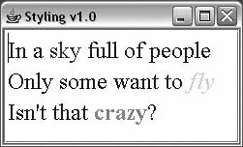
This example creates a JTextPane, which is
saved in a member variable. Three different attribute sets are created
using combinations of text styles and foreground colors. Then, using a
helper method called append(), text
is added to the JTextPane.
The append() method tacks a
text String on the end of the
JTextPane’s document, using the
supplied attributes. Remember that if the attributes are null, the text is displayed with the JTextPane’s default font and style.
You can go ahead and add your own text if you wish. If you place
the caret inside one of the differently styled words and type, the new
text comes out in the appropriate style. Pretty cool, eh? You’ll also
notice that JTextPane gives us
word-wrapping behavior for free. And because we’ve wrapped the JTextPane in a JScrollPane, we get scrolling for free, too.
Swing allows you to do some really cool stuff without breaking a sweat.
Just wait—there’s plenty more to come.
This simple example should give you some idea of what JTextPane can do. It’s reasonably easy to
build a simple word processor with JTextPane, and complex commercial-grade word
processors are definitely possible.
If JTextPane still isn’t good
enough for you, or you need some finer control over character, word, and
paragraph layout, you can actually draw text, carets, and highlight
shapes yourself. A class in the 2D API called TextLayout simplifies much of this work, but
it’s outside the scope of this book. For coverage of TextLayout and other advanced text drawing
topics, see Java 2D
Graphics by Jonathan Knudsen (O’Reilly).