BorderLayout is a little
more interesting. It tries to arrange objects in one of five geographical
locations, represented by constants in the BorderLayout class: NORTH, SOUTH, EAST, WEST, and CENTER, optionally with
some padding between. BorderLayout is
the default layout for the content panes of JWindow and JFrame objects. Because each component is
associated with a direction, BorderLayout can manage at most five components;
it squashes or stretches those components to fit its constraints. As we’ll
see in the second example, this means that you often want to have BorderLayout manage sets of components in their
own panels.
When we add a component to a container with a border layout, we need
to specify both the component and the position at which to add it. To do
so, we use an overloaded version of the container’s add() method that takes an additional argument
as a constraint. The constraint specifies
the name of a position within the BorderLayout.
The following application sets a BorderLayout and adds our five buttons again,
named for their locations:
//file: Border1.javaimportjava.awt.*;importjava.awt.event.*;importjavax.swing.*;publicclassBorder1extendsJPanel{publicBorder1(){setLayout(newBorderLayout());add(newJButton("North"),BorderLayout.NORTH);add(newJButton("South"),BorderLayout.SOUTH);add(newJButton("East"),BorderLayout.EAST);add(newJButton("West"),BorderLayout.WEST);add(newJButton("Center"),BorderLayout.CENTER);}publicstaticvoidmain(String[]args){JFrameframe=newJFrame("Border1");frame.setDefaultCloseOperation(JFrame.EXIT_ON_CLOSE);frame.setSize(300,300);frame.setLocation(200,200);frame.setContentPane(newBorder1());frame.setVisible(true);}}
The result is shown in Figure 19-4.
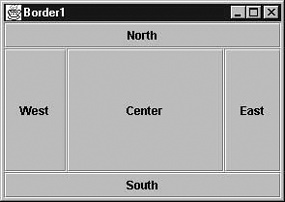
So, how exactly is the area divided up? Well, the objects at
NORTH and SOUTH get their preferred height and fill the
display area horizontally. EAST and
WEST components, on the other hand, get
their preferred width and fill the remaining area between NORTH and SOUTH vertically. Finally, the CENTER object takes all the rest of the space.
As you can see in Figure 19-4, our buttons
get distorted into interesting shapes.
What if we don’t want BorderLayout messing with the sizes of our
components? One option would be to put each button in its own JPanel. The default layout for a JPanel is FlowLayout, which respects the preferred size of
components. The preferred sizes of the panels are effectively the
preferred sizes of the buttons, but if the panels are stretched, they
won’t pull their buttons with them. The following application illustrates
this approach:
//file: Border2.javaimportjava.awt.*;importjava.awt.event.*;importjavax.swing.*;publicclassBorder2extendsJPanel{publicBorder2(){setLayout(newBorderLayout());JPanelp=newJPanel();p.add(newJButton("North"));add(p,BorderLayout.NORTH);p=newJPanel();p.add(newJButton("South"));add(p,BorderLayout.SOUTH);p=newJPanel();p.add(newJButton("East"));add(p,BorderLayout.EAST);p=newJPanel();p.add(newJButton("West"));add(p,BorderLayout.WEST);p=newJPanel();p.add(newJButton("Center"));add(p,BorderLayout.CENTER);}publicstaticvoidmain(String[]args){JFrameframe=newJFrame("Border2");frame.setDefaultCloseOperation(JFrame.EXIT_ON_CLOSE);frame.setSize(225,150);frame.setLocation(200,200);frame.setContentPane(newBorder2());frame.setVisible(true);}}
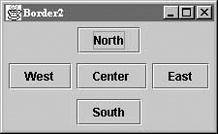
The result is shown in Figure 19-5.
In the example, we create a number of panels, put our buttons inside
the panels, and put the panels into
the frame window, which has the BorderLayout manager. Now, the JPanel for the CENTER button soaks up the extra space that
comes from the BorderLayout. Each JPanel’s FlowLayout centers the button in the panel and
uses the button’s preferred size. In this case, it’s all a bit awkward.
We’ll see how we could accomplish this more directly using GridBagLayout shortly.