Text fonts in Java are represented by instances of the
java.awt.Font class. A
Font object is constructed from a name,
style identifier, and a point size. We can create a Font object at any time, but it’s meaningful
only when applied to a particular component on a given display device.
Here are a couple of fonts:
FontsmallFont=newFont("Monospaced",Font.PLAIN,10);FontbigFont=newFont("Serif",Font.BOLD,18);
Font names come in three varieties: family names, face names (also called font names), and logical names. Family and font names are closely related. For example, Garamond Italic is a font name for a font whose family name is Garamond.
A logical name is a generic name for the font family. The following logical font names should be available on all platforms:
The logical font name is mapped to an actual font on the local platform. Java’s fonts.properties file maps the font names to the available fonts, covering as much of the Unicode character set as possible. If you request a font that doesn’t exist, you get the default font.
One of the big wins in the 2D API is that it can use most of the fonts you have installed on your computer. The following program prints out a full list of the fonts that are available to the 2D API:
//file: ShowFonts.javaimportjava.awt.*;publicclassShowFonts{publicstaticvoidmain(String[]args){Font[]fonts;fonts=GraphicsEnvironment.getLocalGraphicsEnvironment().getAllFonts();for(inti=0;i<fonts.length;i++){System.out.(fonts[i].getFontName()+" : ");System.out.(fonts[i].getFamily()+" : ");System.out.(fonts[i].getName());System.out.println();}}}
Note, however, that the fonts installed on your system may not match the fonts installed on someone else’s system. For true portability, you can use one of the logical names (although your application won’t look exactly the same on all platforms) or go with the defaults. Alternatively, you can test for the existence of your preferred font and fall back on a logical font, or you can allow your users to configure the application by choosing fonts themselves.
The static method Font.getFont() looks up a
font by name in the system properties list just like Color.getColor(). And as
with Color.getColor(), this is
interesting but useless. Normally, you’ll either choose a Font from one that is available in the
environment (as in the ShowFonts
example) or use identifiers to describe the font you want in the Font constructor.
The Font class defines three
static style identifiers: PLAIN, BOLD, and ITALIC. You can use these
values on all fonts, although some fonts may not provide bold or italic
versions. The point size determines the size of the font on a display. If
a given point size isn’t available, Font substitutes a default size.
You can retrieve information about an existing Font with a number of routines. The getName(), getSize(), and getStyle() methods
retrieve the logical name, point size, and style, respectively. You can
use the getFamily() method to
find out the family name, while getFontName() returns the
face name of the font.
Finally, to actually use a Font
object, you can simply specify it as an argument to the setFont() method of a
Component or Graphics2D object. Subsequent text drawing
commands such as drawString() for that
component or in that graphics context use the specified font.
To get detailed size and spacing information for text rendered in
a font, we can ask for a java.awt.font.LineMetrics object. Different
systems have different real fonts available; the available fonts may not
match the font you request. Furthermore, the measurements of different
characters within a single font may be different, especially in
multilingual text. Thus, a LineMetrics object presents information about
a particular set of text in a particular font on a particular system,
not general information about a font. For example, if you ask for the
metrics of a nine-point Monospaced
font, what you get isn’t some abstract truth about Monospaced fonts; you get the metrics of the
font that the particular system uses for nine-point Monospaced—which may not be exactly nine
points or even fixed width.
Use the getLineMetrics() method
for a Font to retrieve the metrics
for text as it would appear for that component. This method also needs
to know some information about how you plan to render the text—if you’re
planning to use anti-aliasing, for instance, which affects the text
measurements. This extra information is encapsulated in the FontRenderContext
class. Fortunately, you can just ask Graphics2D for its current FontRenderContext rather than having to create
one yourself:
publicvoidpaint(Graphicsg){Graphics2Dg2=(Graphics2D)g;...FontRenderContextfrc=g2.getFontRenderContext();LineMetricsmetrics=font.getLineMetrics("Monkey",frc);...}
The Font class also has a
getStringBounds()
method that returns the bounding box of a piece of text:
publicvoidpaint(Graphicsg){Graphics2Dg2=(Graphics2D)g;...FontRenderContextfrc=g2.getFontRenderContext();floatmessageWidth=(float)font.getStringBounds("Monkey",frc).getWidth();...}
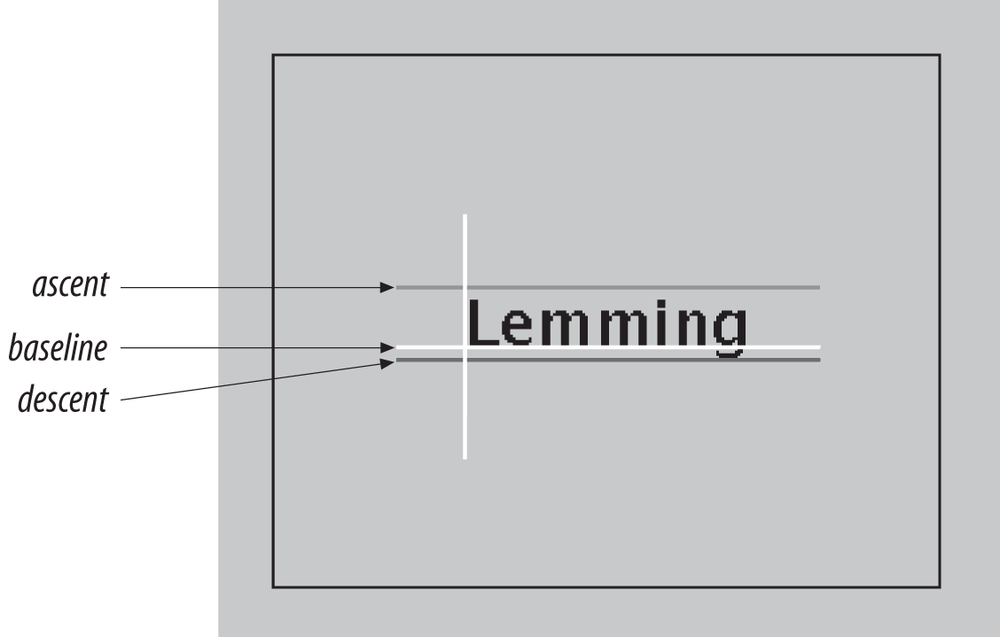
The following application, FontShow, displays a word and draws reference
lines showing certain characteristics of its font, as shown in Figure 20-3. Clicking in the application window
toggles the point size between a small and a large value.
//file: FontShow.javaimportjava.awt.*;importjava.awt.event.*;importjava.awt.font.*;importjavax.swing.*;publicclassFontShowextendsJComponent{privatestaticfinalintPAD=25;// frilly line paddingprivatebooleanbigFont=true;privateStringmessage;publicFontShow(Stringmessage){this.message=message;addMouseListener(newMouseAdapter(){publicvoidmouseClicked(MouseEvente){bigFont=!bigFont;repaint();}});}publicvoidpaint(Graphicsg){Graphics2Dg2=(Graphics2D)g;g2.setRenderingHint(RenderingHints.KEY_ANTIALIASING,RenderingHints.VALUE_ANTIALIAS_ON);intsize=bigFont?96:64;Fontfont=newFont("Dialog",Font.PLAIN,size);g2.setFont(font);intwidth=getSize().width;intheight=getSize().height;FontRenderContextfrc=g2.getFontRenderContext();LineMetricsmetrics=font.getLineMetrics(message,frc);floatmessageWidth=(float)font.getStringBounds(message,frc).getWidth();// center textfloatascent=metrics.getAscent();floatdescent=metrics.getDescent();floatx=(width-messageWidth)/2;floaty=(height+metrics.getHeight())/2-descent;g2.setPaint(getBackground());g2.fillRect(0,0,width,height);g2.setPaint(getForeground());g2.drawString(message,x,y);g2.setPaint(Color.white);// Base linesdrawLine(g2,x-PAD,y,x+messageWidth+PAD,y);drawLine(g2,x,y+PAD,x,y-ascent-PAD);g2.setPaint(Color.green);// Ascent linedrawLine(g2,x-PAD,y-ascent,x+messageWidth+PAD,y-ascent);g2.setPaint(Color.red);// Descent linedrawLine(g2,x-PAD,y+descent,x+messageWidth+PAD,y+descent);}privatevoiddrawLine(Graphics2Dg2,doublex0,doubley0,doublex1,doubley1){Shapeline=newjava.awt.geom.Line2D.Double(x0,y0,x1,y1);g2.draw(line);}publicstaticvoidmain(Stringargs[]){Stringmessage="Lemming";if(args.length>0)message=args[0];JFrameframe=newJFrame("FontShow");frame.setSize(420,300);frame.setDefaultCloseOperation(JFrame.EXIT_ON_CLOSE);frame.getContentPane().add(newFontShow(message));frame.setVisible(true);}}
You can specify the text to be displayed as a command-line argument:
%javaFontShow"When in the course of human events ..."
FontShow may look a bit
complicated, but there’s really not much to it. The bulk of the code is
in paint(), which sets the font,
draws the text, and adds a few lines to illustrate some of the font’s
characteristics (metrics). For fun, we also catch mouse clicks (using an
event handler defined in the constructor) and alternate the font size by
setting the bigFont toggle variable
and repainting.
By default, text is rendered above and to the right of the
coordinates specified in the drawString() method. Think of that starting
point as the origin of a coordinate system; the axes are the baselines of the font. FontShow draws these lines in white. The
greatest height the characters stretch above the baseline is called the
ascent and is shown by a green line.
Some fonts also have parts of letters that fall below the baseline. The
farthest distance any character reaches below the baseline is called the
descent, which is illustrated with a
red line.
We ask for the ascent and descent of our font with the LineMetrics class’s getAscent() and getDescent() methods. We also ask for the
width of our string (when rendered in this font) with Font’s getStringBounds()
method. This information is used to center the word in the display area.
To center the word vertically, we use the height and adjust with the
descent to calculate the baseline location. Table 20-2 provides a short list of methods
that return useful font metrics.
Leading space is the padding between lines of
text. The getHeight() method reports
the total height of a line of text, including the leading
space.