There are two approaches to generating image data. The high-level
method is to treat the image as a drawing surface and use the methods of
Graphics2D to render things into the
image. The second way is to twiddle the bits that represent the pixels of
the image data yourself. This is harder, but gives you arbitrary control
for handling specific formats or mathematically analyzing or creating
image data.
Let’s begin with the simpler approach, rendering an image through drawing. We’ll throw in a twist to make things interesting: we’ll build an animation. Each frame will be rendered as we go along. This is very similar to the double buffering we examined in the last chapter, except that this time we’ll use a timer instead of mouse events as the signal to generate new frames.
Swing performs double buffering automatically, so we don’t even need to worry about the animation flickering. Although it looks like we’re drawing directly to the screen, we’re really drawing into an image that Swing uses for double buffering. All we need to do is draw the right thing at the right time.
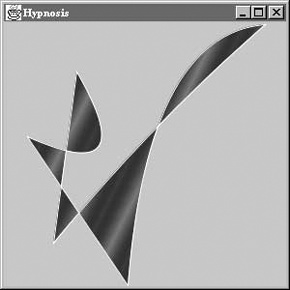
Let’s look at an example, Hypnosis, that illustrates the technique. This
example shows a constantly shifting shape that bounces around the inside
of a component. When screen savers first came of age, this kind of thing
was pretty hot stuff. Hypnosis is
shown in Figure 21-2.
Here is its source code:
//file: Hypnosis.javaimportjava.awt.*;importjava.awt.event.*;importjava.awt.geom.GeneralPath;importjavax.swing.*;publicclassHypnosisextendsJComponentimplementsRunnable{privateint[]coordinates;privateint[]deltas;privatePaintpaint;publicHypnosis(intnumberOfSegments){intnumberOfCoordinates=numberOfSegments*4+2;coordinates=newint[numberOfCoordinates];deltas=newint[numberOfCoordinates];for(inti=0;i<numberOfCoordinates;i++){coordinates[i]=(int)(Math.random()*300);deltas[i]=(int)(Math.random()*4+3);if(deltas[i]>4)deltas[i]=-(deltas[i]-3);}paint=newGradientPaint(0,0,Color.BLUE,20,10,Color.RED,true);Threadt=newThread(this);t.start();}publicvoidrun(){try{while(true){timeStep();repaint();Thread.sleep(1000/24);}}catch(InterruptedExceptionie){}}publicvoidpaint(Graphicsg){Graphics2Dg2=(Graphics2D)g;g2.setRenderingHint(RenderingHints.KEY_ANTIALIASING,RenderingHints.VALUE_ANTIALIAS_ON);Shapes=createShape();g2.setPaint(paint);g2.fill(s);g2.setPaint(Color.WHITE);g2.draw(s);}privatevoidtimeStep(){Dimensiond=getSize();if(d.width==0||d.height==0)return;for(inti=0;i<coordinates.length;i++){coordinates[i]+=deltas[i];intlimit=(i%2==0)?d.width:d.height;if(coordinates[i]<0){coordinates[i]=0;deltas[i]=-deltas[i];}elseif(coordinates[i]>limit){coordinates[i]=limit-1;deltas[i]=-deltas[i];}}}privateShapecreateShape(){GeneralPathpath=newGeneralPath();path.moveTo(coordinates[0],coordinates[1]);for(inti=2;i<coordinates.length;i+=4)path.quadTo(coordinates[i],coordinates[i+1],coordinates[i+2],coordinates[i+3]);path.closePath();returnpath;}publicstaticvoidmain(String[]args){JFrameframe=newJFrame("Hypnosis");frame.add(newHypnosis(4));frame.setSize(300,300);frame.setDefaultCloseOperation(JFrame.EXIT_ON_CLOSE);frame.setVisible(true);}}
The main() method does the
usual grunt work of setting up the JFrame that holds our animation
component.
The Hypnosis component has a
very basic strategy for animation. It holds some number of coordinate
pairs in its coordinates member variable. A corresponding array,
deltas, holds “delta” amounts that
are added to the coordinates every time the figure is supposed to
change. To render the complex shape you see in Figure 21-2, Hypnosis creates a special Shape object from the coordinate array every
time the component is drawn.
Hypnosis’s constructor has two
important tasks. First, it fills up the coordinate and delta arrays with
random values. The number of array elements is determined by an argument
to the constructor. The constructor’s second task is to start up a new
thread that drives the animation.
The animation is done in the run() method. This method calls timeStep(), which repaints the component and
waits for a short time (details to follow). Every time timeStep() is called, the coordinates array is
updated and repaint() is called. This
results in a call to paint(), which
creates a shape from the coordinate array and draws it.
The paint() method is
relatively simple. It uses a helper method, called createShape(), to create a shape from the
coordinate array. The shape is then filled, using a Paint stored as a member variable. The shape’s
outline is also drawn in white.
The timeStep() method updates
all the elements of the coordinate array by adding the corresponding
element of deltas. If any coordinates are now out of the component’s
bounds, they are adjusted and the corresponding delta is negated. This
produces the effect of bouncing off the sides of the component.
createShape() creates a shape
from the coordinate array. It uses the GeneralPath class, a useful Shape implementation that allows you to build
shapes using straight and curved line segments. In this case, we create
a shape from a series of quadratic curves, close it to create an area,
and fill it.
So far, we’ve talked about java.awt.Images and how they can be loaded and
drawn. What if you really want to get inside the image to examine and
update its data? Image doesn’t give
you access to its data. You’ll need to use a more sophisticated kind of
image: java.awt.image.BufferedImage.
The classes are closely related—BufferedImage, in fact, is a subclass of
Image. BufferedImage gives you all sorts of control
over the actual data that makes up the image and provides many
capabilities beyond the basic Image
class. Because it’s a subclass of Image, you can still pass a BufferedImage to any of Graphics2D’s methods that accept an Image. Why aren’t all Images BufferedImages? Because BufferedImages are memory intensive.
To create an image from raw data, you need to understand exactly
how a BufferedImage is put together.
The full details can get quite complex—the BufferedImage class was designed to support
images in nearly any storage format you can imagine. But, for common
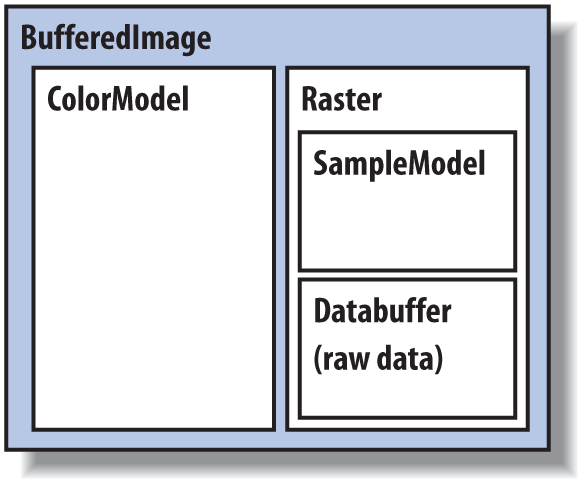
operations, it’s not that difficult to use. Figure 21-3 shows the elements of a BufferedImage.
An image is simply a rectangle of colored pixels, which is a
simple enough concept. There’s a lot of complexity underneath the
BufferedImage class because there are
a lot of different ways to represent the colors of pixels. For example,
you might have an image with RGB data in which each pixel’s red, green,
and blue values were stored as the elements of byte arrays. Or you might
have an RGB image where each pixel was represented by an integer that
contained red, green, and blue component values. Or you could have a
16-level grayscale image with eight pixels stored in each element of an
integer array. You get the idea; there are many different ways to store
image data, and BufferedImage is
designed to support all of them.
A BufferedImage consists of two
pieces, a Raster and a ColorModel. The
Raster contains the actual image
data. You can think of it as an array of pixel values. It can answer the
question, “What are the color data values for the pixel at 51, 17?” The
Raster for an RGB image would return
three values, while a Raster for a
grayscale image would return a single value. WritableRaster, a
subclass of Raster, also supports
modifying pixel data values.
The ColorModel’s job is to
interpret the image data as colors. The ColorModel can translate the data values that
come from the Raster into Color objects. An RGB color model, for
example, would know how to interpret three data values as red, green,
and blue. A grayscale color model could interpret a single data value as
a gray level. Conceptually, at least, this is how an image is displayed
on the screen. The graphics system retrieves the data for each pixel of
the image from the Raster. Then the
ColorModel tells what color each
pixel should be, and the graphics system is able to set the color of
each pixel.
The Raster itself is made up of
two pieces: a DataBuffer and a
SampleModel. A DataBuffer is a wrapper for the raw data
arrays, which are byte, short, or int arrays. DataBuffer has handy subclasses—DataBufferByte, DataBufferShort, and DataBufferInt—that allow you to create a
DataBuffer from raw data arrays.
You’ll see an example of this technique later in the StaticGenerator example.
The SampleModel knows how to
extract the data values for a particular pixel from the DataBuffer. It knows the layout of the arrays
in the DataBuffer and is ultimately
responsible for answering the question, “What are the data values for
pixel x, y?” SampleModels are a
little tricky to work with, but fortunately you’ll probably never need
to create or use one directly. As we’ll see, the Raster class has many static (“factory”)
methods that create preconfigured Rasters for you, including their component
DataBuffers and SampleModels.
As Figure 21-1 shows, the 2D API
comes with various flavors of ColorModels, SampleModels, and DataBuffers. These serve as handy building
blocks that cover most common image storage formats. You’ll rarely need
to subclass any of these classes to create a BufferedImage.
As we’ve said, there are many different ways to encode color information: red, green, blue (RGB) values; hue, saturation, value (HSV); hue, lightness, saturation (HLS); and more. In addition, you can provide full-color information for each pixel, or you can just specify an index into a color table (palette) for each pixel. The way you represent a color is called a color model. The 2D API provides tools to support any color model you could imagine. Here, we’ll just cover two broad groups of color models: direct and indexed.
As you might expect, you must specify a color model in order to
generate pixel data; the abstract
class java.awt.image.ColorModel represents a color
model. By default, Java 2D uses a direct color model called ARGB. The A
stands for “alpha,” which is the historical name for transparency. RGB
refers to the red, green, and blue color components that are combined to
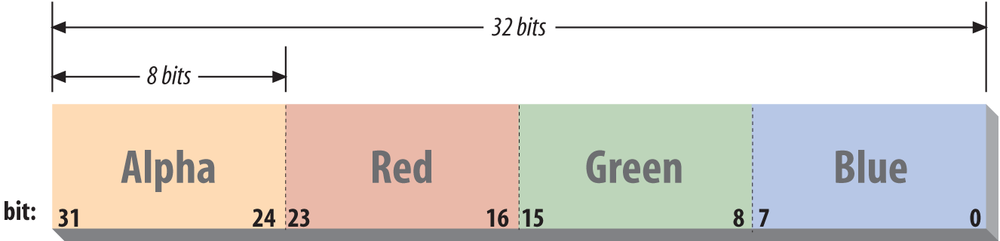
produce a single, composite color. In the default ARGB model, each pixel
is represented by a 32-bit integer that is interpreted as four 8-bit
fields; in order, the fields represent the alpha (transparency), red,
green, and blue components of the color, as shown in Figure 21-4.
To create an instance of the default ARGB model, call the static getRGBdefault() method in ColorModel. This method returns a DirectColorModel object; DirectColorModel is a subclass of ColorModel. You can also create other direct
color models by calling a DirectColorModel constructor, but you
shouldn’t need to do this unless you have a fairly exotic
application.
In an indexed color model, each pixel is represented by a smaller piece of information: an index into a table of real color values. Several common image formats, including GIF, use an indexed color model. For some applications, generating data with an indexed model may be more convenient. If you are writing an application for an 8-bit display or smaller, using an indexed model may be more efficient, because your hardware is internally using an indexed color model of some form.
Let’s take a look at producing some image data. A picture
is worth a thousand words, and, fortunately, we can generate a pretty
picture in significantly fewer than a thousand words of Java. If we just
want to render image frames byte by byte, you can put together a
BufferedImage pretty easily.
The following application, ColorPan, creates an image from an array of
integers holding RGB pixel values:
//file: ColorPan.javaimportjava.awt.*;importjava.awt.image.*;importjavax.swing.*;publicclassColorPanextendsJComponent{BufferedImageimage;publicvoidinitialize(){intwidth=getSize().width;intheight=getSize().height;int[]data=newint[width*height];inti=0;for(inty=0;y<height;y++){intred=(y*255)/(height-1);for(intx=0;x<width;x++){intgreen=(x*255)/(width-1);intblue=128;data[i++]=(red<<16)|(green<<8)|blue;}}image=newBufferedImage(width,height,BufferedImage.TYPE_INT_RGB);image.setRGB(0,0,width,height,data,0,width);}publicvoidpaint(Graphicsg){if(image==null)initialize();g.drawImage(image,0,0,this);}publicvoidsetBounds(intx,inty,intwidth,intheight){super.setBounds(x,y,width,height);initialize();}publicstaticvoidmain(String[]args){JFrameframe=newJFrame("ColorPan");frame.add(newColorPan());frame.setSize(300,300);frame.setDefaultCloseOperation(JFrame.EXIT_ON_CLOSE);frame.setVisible(true);}}
Give it a try. The size of the image is determined by the size of the application window. You should get a very colorful box that pans from deep blue at the upper-left corner to bright yellow at the bottom right, with green and red at the other extremes.
We create a BufferedImage in the initialize() method and
then display the image in paint().
The variable data is a 1D array of
integers that holds 32-bit RGB pixel values. In initialize(), we loop over every pixel in the
image and assign it an RGB value. The blue component is always 128, half
its maximum intensity. The red component varies from 0 to 255 along the
y-axis; likewise, the green component varies from 0 to 255 along the
x-axis. This statement combines these components into an RGB
value:
data[i++]=(red<<16)|(green<<8)|blue;
The bitwise left-shift operator (<<) should be familiar to anyone who has
programmed in C. It simply shoves the bits over by the specified number
of positions in our 32-bit value.
When we create the BufferedImage, all its data is zeroed out. All
we specify in the constructor is the width and height of the image and
its type. BufferedImage includes
quite a few constants representing image storage types. We’ve chosen
TYPE_INT_RGB here,
which indicates that we want to store the image as RGB data packed into
integers. The constructor takes care of creating an appropriate ColorModel, Raster, SampleModel, and DataBuffer for us. Then we simply use the
setRGB() method to
assign our data to the image. In this way, we’ve side-stepped the messy
innards of BufferedImage. In the next
example, we’ll take a closer look at the details.
Once we have the image, we can draw it on the display with the
standard drawImage() method. We also
override the Component setBounds()
method in order to determine when the frame is resized and reinitialize
the image to the new size.
BufferedImage can also
be used to update an image dynamically. Because the image’s data arrays
are directly accessible, you can simply change the data and redraw the
picture whenever you want. This is probably the easiest way to build
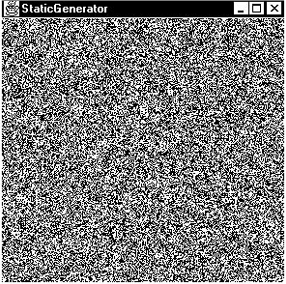
your own low-level animation software. The following example simulates
the static on an old black-and-white television screen. It generates
successive frames of random black and white pixels and displays each
frame when it is complete. Figure 21-5
shows one frame of random static.
Here’s the code:
//file: StaticGenerator.javaimportjava.awt.*;importjava.awt.event.*;importjava.awt.image.*;importjava.util.Random;importjavax.swing.*;publicclassStaticGeneratorextendsJComponentimplementsRunnable{byte[]data;BufferedImageimage;Randomrandom;publicvoidinitialize(){intw=getSize().width,h=getSize().height;intlength=((w+7)*h)/8;data=newbyte[length];DataBufferdb=newDataBufferByte(data,length);WritableRasterwr=Raster.createPackedRaster(db,w,h,1,null);ColorModelcm=newIndexColorModel(1,2,newbyte[]{(byte)0,(byte)255},newbyte[]{(byte)0,(byte)255},newbyte[]{(byte)0,(byte)255});image=newBufferedImage(cm,wr,false,null);random=newRandom();}publicvoidrun(){if(random==null)initialize();while(true){random.nextBytes(data);repaint();try{Thread.sleep(1000/24);}catch(InterruptedExceptione){/* die */}}}publicvoidpaint(Graphicsg){if(image==null)initialize();g.drawImage(image,0,0,this);}publicvoidsetBounds(intx,inty,intwidth,intheight){super.setBounds(x,y,width,height);initialize();}publicstaticvoidmain(String[]args){//RepaintManager.currentManager(null).setDoubleBufferingEnabled(false);JFrameframe=newJFrame("StaticGenerator");StaticGeneratorstaticGen=newStaticGenerator();frame.add(staticGen);frame.setSize(300,300);frame.setDefaultCloseOperation(JFrame.EXIT_ON_CLOSE);frame.setVisible(true);newThread(staticGen).start();}}
The initialize() method
sets up the BufferedImage that
produces the sequence of images. We build this image from the bottom up,
starting with the raw data array. Since we’re only displaying two colors
here, black and white, we need only one bit per pixel. We want a 0 bit
to represent black and a 1 bit to represent white. This calls for an
indexed color model, which we’ll create a little later.
We’ll store our image data as a byte array, where each array element holds eight pixels from our black-and-white image. The array length, then, is calculated by multiplying the width and height of the image and dividing by eight. To keep things simple, we’ll arrange for each image row to start on a byte boundary. For example, an image 13 pixels wide actually uses 2 bytes (16 bits) for each row:
intlength=(w+7)/8*h;
This calculation rounds upward the number of bytes required to
fill a row and then multiplies by the number of rows. Next, the actual
byte array is created. The member variable data holds a reference to this array. Later,
we’ll use data to change the image
data dynamically. Once we have the image data array, it’s easy to create
a DataBuffer from it:
data=newbyte[length];DataBufferdb=newDataBufferByte(data,length);
DataBuffer has several
subclasses, such as DataBufferByte,
that make it easy to create a data buffer from raw arrays.
Logically, the next step is to create a SampleModel. We could then create a Raster from the SampleModel and the DataBuffer. Lucky for us, though, the
Raster class contains a
bevy of useful static methods that create common types of Rasters. One of these methods creates a
Raster from data that contains
multiple pixels packed into array elements. We simply use this method,
supplying the data buffer, the width and height, and indicating that
each pixel uses one bit:
WritableRasterwr=Raster.createPackedRaster(db,w,h,1,null/*ul corner*/);
The last argument to this method is a java.awt.Point that indicates where the
upper-left corner of the Raster
should be. By passing null, we use
the default of 0, 0.
The last piece of the puzzle is the ColorModel. Each pixel is either 0 or 1, but
how should that be interpreted as color? In this case, we use an
IndexColorModel with a
very small palette. The palette has only two entries, one each for black
and white:
ColorModelcm=newIndexColorModel(1,2,newbyte[]{(byte)0,(byte)255},newbyte[]{(byte)0,(byte)255},newbyte[]{(byte)0,(byte)255});
The IndexColorModel constructor
that we’ve used here accepts the number of bits per pixel (one), the
number of entries in the palette (two), and three byte arrays that are
the red, green, and blue components of the palette colors. Our palette
consists of two colors: black (0, 0, 0) and white (255, 255,
255).
Now that we’ve got all the pieces, we just need to create a
BufferedImage. This image is also
stored in a member variable so we can draw it later. To create the
BufferedImage, we pass the color
model and writable raster we just created:
image=newBufferedImage(cm,wr,false,null);
All the hard work is done now. Our paint() method just draws the image, using
drawImage().
The init() method starts a
thread that generates the pixel data. The run() method takes care of generating the
pixel data. It uses a java.util.Random object to fill the data image
byte array with random values. Because the data array is the actual
image data for our image, changing the data values changes the
appearance of the image. After we fill the array with random data, a
call to repaint() shows the new image
on the screen.
You can also try turning off double buffering by uncommenting the
line involving the RepaintManager.
Now it will look even more like an old TV screen, flickering and
all!
That’s about all there is. It’s worth noting how simple it is to
create this animation. Once we have the BufferedImage, we treat it like any other
image. The code that generates the image sequence can be arbitrarily
complex. But that complexity never infects the simple task of getting
the image on the screen and updating it.