Get some popcorn—Java can play movies! To do this, though,
we’ll need one of Java’s standard extension APIs, the Java Media Framework
(JMF). The JMF defines a set of interfaces and classes in the javax.media and
javax.media.protocol
packages. You can download the latest JMF from Oracle’s website. To use the JMF, add
jmf.jar to your classpath. Or,
depending on what version of the JMF you download, a friendly installation
program may do this for you.
We’ll only scratch the surface of JMF here, by working with an
important interface called Player. Specific
implementations of Player deal with
different media “container” types, such as Apple QuickTime
(.mov) and Windows Video (.avi).
For a full list of supported media types and codecs, consult the latest
JMF documentation. There are also players for audio types, including MP3.
Players are handed out by a high-level
class in the JMF called Manager. One way to
obtain a Player is to specify the URL
of a movie.
What about Windows media player format as well as MP3?
Playerplayer=Manager.createPlayer(url);
Because video files are so large and playing them requires
significant system resources, Players
have a multistep lifecycle from the time they’re created to the time they
actually play something. We’ll look at only one step,
realizing. In this step, the Player determines (by looking at the media file)
the system resources that it needs to play the media file.
player.realize();
The realize() method returns
right away; it kicks off the realizing process in a separate thread. When
the Player is finished realizing, it
sends out an event. Once you receive this event, you can obtain one of two
Components from the Player. The first is a visual component that,
for visual media types, shows the media. The second is a control component
that provides a prefab user interface for controlling the media
presentation. The control normally includes start, stop, and pause
buttons, along with volume controls and attendant goodies.
The Player has to be realized
before you ask for these components so that it has important information,
like how big the component should be. After that, getting the component is
easy. Here’s an example:
Componentc=player.getVisualComponent();
Now, we just need to add the component to the screen somewhere. We
can play the media right away (although this actually moves the Player through several other internal
states):
player.start();
The following example, MediaPlayer, uses the JMF to load and display a
movie or audio file from a specified URL:
//file: MediaPlayer.javaimportjava.awt.*;importjava.net.URL;importjavax.swing.*;importjavax.media.*;publicclassMediaPlayer{publicstaticvoidmain(String[]args)throwsException{finalJFrameframe=newJFrame("MediaPlayer");frame.setDefaultCloseOperation(JFrame.EXIT_ON_CLOSE);URLurl=newURL(args[0]);finalPlayerplayer=Manager.createPlayer(url);player.addControllerListener(newControllerListener(){publicvoidcontrollerUpdate(ControllerEventce){if(ceinstanceofRealizeCompleteEvent){Componentvisual=player.getVisualComponent();Componentcontrol=player.getControlPanelComponent();if(visual!=null)frame.add(visual,BorderLayout.CENTER);frame.add(control,BorderLayout.SOUTH);frame.pack();frame.setVisible(true);player.start();}}});player.realize();}}
This class creates a JFrame that
holds the media. Then, it creates a Player from the URL specified on the command
line and tells the Player to realize(). There’s nothing else we can do until
the Player is realized, so the rest of
the code operates inside a ControllerListener after the RealizeCompleteEvent is received.
In the event handler, we get the Player’s visual and controller components and
add them to the JFrame. We display the
JFrame and, finally, we play the movie.
It’s very simple!
To use the MediaPlayer, pass it
the URL of a movie or audio file on the command line. Here are a couple of
examples:
%javaMediaPlayerfile:dancing_baby.avi%javaMediaPlayerhttp://myserver/mp3s/TheCure/KissMe/catch.mp3
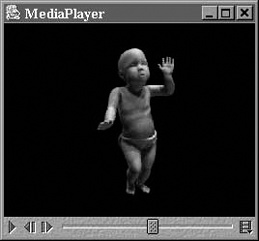
Figure 21-7 shows the “dancing baby” AVI running in the MediaPlayer. Feel free to dance along if you want.